Five WordPress Plugins for Successful Server Migration and the Keys to Doing It Well

I want to migrate WordPress with confidence.
Migrating a WordPress site involves many risks, including data loss and a drop in SEO rankings. However, by using the right plugins, it is possible to keep those risks to a minimum and complete the migration efficiently.
In this article, I introduce the top five WordPress migration plugins that can be used by everyone from beginners to advanced users, and I dig into why each one is good.
Complete Comparison of 32 WordPress Hosting Services for Individuals, Companies, and Overseas Use

“WordPress başlatmak istiyorum” diye düşünüp “WordPress önerileri” araması yaptığınızda, kişisel barındırmayı, şirketler ve küçük işletmeler için olan seçenekleri, yurt dışı barındırmayı ve düşük maliyetli sunucuları kapsayan her türlü makaleyle karşılaşırsınız. Dürüst olmak gerekirse,
- which site should you trust?
- sadece basit ve anlaşılır bir cevap istiyor olabilirsiniz.
- you may want to get started with WordPress right away.
Bu nedenle bu makale; bireyler, şirketler, yurt içi ve yurt dışı kullanım için 32 barındırma sağlayıcısı arasından önerilen seçenekleri özenle seçmektedir. Her gün barındırma hizmeti kullanan bir uygulama geliştirme şirketindeki SEO yöneticisi tarafından açıklanmaktadır.
Five plugins that make WordPress migration smoother

Duplicator
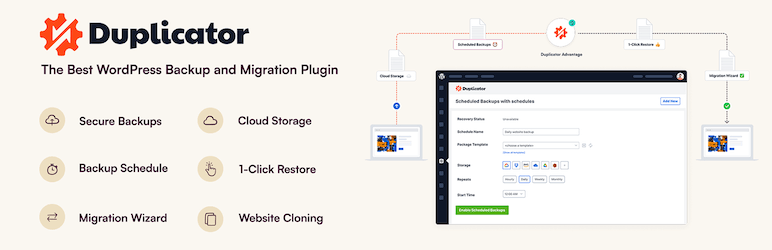
Duplicator, tüm siteyi paketleyip yeni bir barındırma ortamına yükleyerek ve orada yayına alarak taşımayı gerçekleştiren bir eklentidir.
Sezgisel kullanımı yeni başlayanlar için bile kolaydır ve karmaşık ayarlara gerek kalmadan kolayca site yedeklemesi ve taşıması yapılmasına olanak tanır. Pro sürümünde daha gelişmiş özellikleri kullanabilir, böylece büyük ölçekli sitelerin taşınmasını da gerçekleştirebilirsiniz.
1. Install Duplicator and create a package
Install Duplicator
- WordPress paneline giriş yapın.
- Go to “Plugins” > “Add New,” search for “Duplicator,” install it, and activate it.
Create a package
- Go to “Duplicator” > “Packages” and click the “Create New” button.
- Follow the package creation wizard to create a backup of the site. Set a package name along the way and click the “Next” button.
- Sistem kontrolleri çalıştıracaktır ve herhangi bir sorun yoksa “Build” düğmesine tıklayın. Tamamlandığında, yükleyici (installer) dosyası ve arşiv dosyası oluşturulacaktır.
- “Installer” ve “Archive” dosyalarını indirin.
2. Yeni sunucuya taşıyın
Upload the files
- FTP ile yeni sunucuya bağlanın ve indirilen “Installer” ve “Archive” dosyalarını yükleyin.
Create a new database
- Yeni sunucunun cPanel veya Plesk gibi yönetim araçlarını kullanarak yeni bir veritabanı ve veritabanı kullanıcısı oluşturun. Bu bilgileri not edin.
3. Run the installer
Start the installer
- Yeni alan adının veya sunucunun URL'sine erişin ve yükleyici dosyasını açın, örneğin
http://yournewdomain.com/installer.php. - The installer script will start. Enter the database information and click the “Next” button.
Configure the database
- Enter the information for the new database you created earlier, including the host name, database name, user name, and password, then click the “Test Database” button to confirm the connection. If there are no problems, click the “Next” button.
Deploy the data
- Kurulum hedefi için bir onay ekranı görünecektir. Her şey yolundaysa “İleri” düğmesine tıklayın. Verilerin veritabanına aktarılması başlayacaktır.
Set the new URL
- Yeni URL ve yol ayarlarını kontrol edin ve gerekiyorsa bunları gözden geçirin. Ardından “İleri” düğmesine tıklayın.
Finish the installation
- Kurulum tamamlanma ekranı göründüğünde, her adımı gözden geçirin ve yeni sitede oturum açmak için “Sitede oturum aç” düğmesine tıklayın.
4. Check after migration
Update permalink ayarlar
- Yeni sitedeki WordPress paneline giriş yapın ve “Ayarlar” > “Kalıcı Bağlantılar” bölümüne gidin.
- Kalıcı bağlantı ayarlarını yenilemek için “Değişiklikleri Kaydet” düğmesine tıklayın.
Check site operation
- Check each page and function of the site to confirm that the migration was carried out correctly.
All-in-One WP Migration
This plugin lets you gather the site’s content into a single file by using import and export functions, then migrate it to a new site.
Kullanım kolaylığı ve boyut sınırlarının ötesindeki dosyaları taşımayı mümkün kılan premium seçeneği özellikle caziptir. Özellikle yeni bir alan adına taşınmayı planladığınız veya sunucular arasında site aktarımı yaptığınız durumlar için çok uygundur.

1. Install All-in-One WP Migration and export the site
Install All-in-One WP Migration
- WordPress paneline giriş yapın.
- Go to “Plugins” > “Add New,” search for “All-in-One WP Migration,” install it, and activate it.
Export the site data
- Go to “All-in-One WP Migration” > “Export.”
- Click the “Export To” button, choose “File,” and start the export.
- Dışa aktarma tamamlandığında, oluşturulan yedekleme dosyasını indirin.
2. Yeni sunucuya taşıyın
Install All-in-One WP Migration
- Yeni sunucuda WordPress'e giriş yapın ve aynı şekilde oraya da “All-in-One WP Migration” eklentisini kurup etkinleştirin.
3. Import the site data
Import the site data
- Go to “All-in-One WP Migration” > “Import.”
- “Import From” düğmesine tıklayın, “Dosya”yı seçin ve daha önce dışa aktardığınız yedekleme dosyasını yükleyin.
- Yükleme tamamlandıktan sonra, içe aktarma işlemini tamamlamak için “Devam Et” düğmesine tıklayın.
Restore the site
- When the import is complete, a message will appear telling you that the import succeeded. Click “Finish.”
4. Check after migration
Update permalink ayarlar
- Yeni sitedeki WordPress paneline giriş yapın ve “Ayarlar” > “Kalıcı Bağlantılar” bölümüne gidin.
- Kalıcı bağlantı ayarlarını yenilemek için “Değişiklikleri Kaydet” düğmesine tıklayın.
Check site operation
- Check each page and function of the site to confirm that the migration was carried out correctly.
5. Verify site operation and optimize it
Check the theme and plugins
- Temanın ve eklentilerin yeni sunucuda düzgün çalıştığını doğrulayın.
- Eklenti ayarlarını tekrar gözden geçirin ve gerekirse güncelleyin.
Görselleri ve bağlantıları kontrol edin
- Confirm that the images in the media library display correctly.
- Dahili bağlantıların yeni alan adının veya sunucunun URL'sine düzgün bir şekilde yönlendirildiğini doğrulayın.
UpdraftPlus
UpdraftPlus is a plugin specialized in backup and restoration, but it also supports migration to a new site by using those backup files.
It offers rich options for automatic backups and cloud storage, allowing you to keep your site data safe even during the migration process. Because it can also protect the site through regular backups after the migration, it delivers two benefits at once.

1. Install UpdraftPlus and create a backup
Install UpdraftPlus
- WordPress paneline giriş yapın.
- Go to “Plugins” > “Add New,” search for “UpdraftPlus,” install it, and activate it.
Create a backup
- Go to “Ayarlar” > “UpdraftPlus Backups.”
- Click the “Backup Now” button to start the backup.
- Check both “Backup database” and “Backup files,” then click the “Backup Now” button.
- Yedekleme tamamlandığında “Yedekle / Geri Yükle” sekmesine gidin ve oluşturduğunuz yedeği indirin. Gerekli dosyalar: “Veritabanı,” “Eklentiler,” “Temalar,” “Yüklemeler” ve “Diğerleri”.
2. Yeni sunucuya taşıyın
Install UpdraftPlus
- Yeni sunucudaki WordPress'e giriş yapın ve “UpdraftPlus” eklentisini orada da aynı şekilde kurun ve etkinleştirin.
3. Upload the backup files and restore them
Upload the backup files
- Yeni sunucudaki WordPress panelinde “Ayarlar” > “UpdraftPlus Backups” bölümüne gidin.
- Go to the “Backup / Restore” tab and click the “Upload backup files” button.
- Upload each of the backup files you downloaded earlier one by one.
Restore the site data
- Yüklemeler tamamlandıktan sonra “Mevcut Yedekler” bölümünde gösterilen yedeği seçin ve “Geri Yükle” düğmesine tıklayın.
- Veritabanı, eklentiler, temalar, yüklemeler ve diğerleri gibi geri yüklenecek bileşenleri seçin ve “İleri” düğmesine tıklayın.
- Wait until the restore process finishes. When it is done, you will see a “Restore successful” message.
4. Check after migration
Update permalink ayarlar
- Yeni sitedeki WordPress paneline giriş yapın ve “Ayarlar” > “Kalıcı Bağlantılar” bölümüne gidin.
- Kalıcı bağlantı ayarlarını yenilemek için “Değişiklikleri Kaydet” düğmesine tıklayın.
Check site operation
- Check each page and function of the site to confirm that the migration was carried out correctly.
5. Verify site operation and optimize it
Check the theme and plugins
- Temanın ve eklentilerin yeni sunucuda düzgün çalıştığını doğrulayın.
- Eklenti ayarlarını tekrar gözden geçirin ve gerekirse güncelleyin.
Görselleri ve bağlantıları kontrol edin
- Confirm that the images in the media library display correctly.
- Dahili bağlantıların yeni alan adının veya sunucunun URL'sine düzgün bir şekilde yönlendirildiğini doğrulayın.
WP Migrate DB
WP Migrate DB specializes in database migration.
It can automatically replace database values to match the new URL and makes export and import easy. It is ideal for developers and users with a more technical background, and it allows detailed database customization and migration.

1. Install WP Migrate DB and export the database
Install WP Migrate DB
- WordPress paneline giriş yapın.
- Go to “Plugins” > “Add New,” search for “WP Migrate DB,” install it, and activate it.
Export the database
- Go to “Araçlar” > “Migrate DB.”
- Enter the new site’s URL and path into the “Find what:” and “Replace with:” fields.
- “Veritabanını Dışa Aktar” düğmesine tıklayın ve dışa aktarılan veritabanı dosyasını indirin.
2. Yeni sunucuya taşıyın
Yeni sunucuyu hazırlayın
- WordPress'i yeni sunucuya kurun.
- Create a new database and note the database information, including the host name, database name, user name, and password.
Migrate the existing files
- Orijinal sunucudan “wp-content” klasörünü indirin ve yeni sunucudaki aynı konuma yükleyin. Bir FTP istemcisi kullanırsanız bu işlem kolaydır.
3. Import the database
Import the database
- Yeni sunucudaki phpMyAdmin'e giriş yapın ve yeni veritabanını seçin.
- “İçe Aktar” sekmesine tıklayın, daha önce dışa aktardığınız veritabanı dosyasını yükleyin ve içe aktarın.
4. Edit the wp-config.php file
Edit wp-config.php
- Yeni sunucudaki “wp-config.php” dosyasını düzenleyin. Veritabanı adı, kullanıcı adı, şifre ve ana bilgisayar adını (hostname) yeni veritabanının bilgileriyle güncelleyin.
Copy the PHP codedefine('DB_NAME', 'new_database_name'); define('DB_USER', 'new_database_user_name'); define('DB_PASSWORD', 'new_database_password'); define('DB_HOST', 'new_database_host_name');
5. Check after migration
Update permalink ayarlar
- Yeni sitedeki WordPress paneline giriş yapın ve “Ayarlar” > “Kalıcı Bağlantılar” bölümüne gidin.
- Kalıcı bağlantı ayarlarını yenilemek için “Değişiklikleri Kaydet” düğmesine tıklayın.
Check site operation
- Check each page and function of the site to confirm that the migration was carried out correctly.
6. Verify site operation and optimize it
Check the theme and plugins
- Temanın ve eklentilerin yeni sunucuda düzgün çalıştığını doğrulayın.
- Eklenti ayarlarını tekrar gözden geçirin ve gerekirse güncelleyin.
Görselleri ve bağlantıları kontrol edin
- Confirm that the images in the media library display correctly.
- Dahili bağlantıların yeni alan adının veya sunucunun URL'sine düzgün bir şekilde yönlendirildiğini doğrulayın.
Migrate Guru
Migrate Guru, büyük siteler için özelleştirilmiştir ve sunucu yükünü minimumda tutarak site taşımayı otomatik olarak gerçekleştirebilir.
Tescilli teknolojisi taşıma sürecini büyük ölçüde hızlandırarak daha büyük WordPress sitelerini bile kolayca ve hızlıca taşımayı mümkün kılar.
1. Install Migrate Guru
Install Migrate Guru
- WordPress paneline giriş yapın.
- Go to “Plugins” > “Add New,” search for “Migrate Guru,” install it, and activate it.
2. Prepare for the migration
Prepare the destination
- WordPress'i hedef sunucuya önceden kurun.
- FTP bilgileri, ana makine adı, kullanıcı adı ve şifre dahil olmak üzere hedef sunucu bilgilerini doğrulayın.
3. Configure Migrate Guru and start the migration
Start Migrate Guru
- In the WordPress dashboard, go to “Migrate Guru” > “Migrate Site.”
- cPanel, FTP, SFTP veya WebHost Manager gibi hedef türünü seçin.
Enter the destination information
- Hedef sunucunun bilgilerini girin. Örneğin, FTP kullanıyorsanız ana makine adını, FTP kullanıcı adını ve FTP şifresini girin.
- Enter the destination URL and click the “Migrate” button.
Confirm the migration
- Migrate Guru starts the migration process and displays its progress. Wait until the migration is complete.
4. Check after migration
Confirm completion of the migration
- Taşıma işlemi bittiğinde, Migrate Guru'dan bir bildirim alacaksınız. Hedef siteye erişin ve doğru şekilde taşındığını doğrulayın.
Update permalink ayarlar
- Yeni sitedeki WordPress paneline giriş yapın ve “Ayarlar” > “Kalıcı Bağlantılar” bölümüne gidin.
- Kalıcı bağlantı ayarlarını yenilemek için “Değişiklikleri Kaydet” düğmesine tıklayın.
5. Verify site operation and optimize it
Check the theme and plugins
- Temanın ve eklentilerin yeni sunucuda düzgün çalıştığını doğrulayın.
- Eklenti ayarlarını tekrar gözden geçirin ve gerekirse güncelleyin.
Görselleri ve bağlantıları kontrol edin
- Confirm that the images in the media library display correctly.
- Dahili bağlantıların yeni alan adının veya sunucunun URL'sine düzgün bir şekilde yönlendirildiğini doğrulayın.
Additional advice for successful WordPress migration

Prepare thoroughly
Before starting the migration, it is important to update plugins and themes and clean out unnecessary data.
Testing is essential
Before the migration, test the process in a staging site or local environment and confirm that there are no problems.
Protect SEO
If the URL structure changes during the migration, set appropriate redirects and update the sitemap so that you can prevent a decline in SEO rankings.
Check performance
Yeni sunucu ortamına geçtikten sonra, site hızı veya kullanıcı deneyimi üzerinde olumsuz bir etki olmadığını doğrulayın ve gerektiğinde optimize edin.
Server-company migration is recommended over WordPress-plugin migration
Taşıma için WordPress eklentilerini kullanmak kaçınılmaz olarak biraz endişe bırakır. Taşıma işleminde başarısız olup zaman ve çaba harcamaktansa, taşıma araçları veya düşük maliyetli taşıma desteği sağlayan bir sunucu şirketi kullanmanızı öneririm.
XServer İş
If you are a corporation, I recommend XServer İş. Sunucunuzu ücretsiz olarak taşır. Taşıma işlemi sunucu şirketinin kendisi tarafından yapıldığı için WordPress taşıma işleminin başarısız olma riski yoktur. Şirketinizin bütçesi varsa, taşımayı kendiniz yapmak için fazladan zaman ve çaba harcamak yerine XServer Business kullanın.

“XServer Business”, yurt içi pazar payında 1 numara olan Xserver Inc.'in kurumsal sunucusudur. Ölçümlerimizde, görüntüleme hızında 2. sırada yer aldı. Taşıma hedefi olarak en iyi seçeneklerden biridir. Sunucu taşıma da ücretsizdir.
7 Ekim 2025 tarihine kadar başlangıç ücreti (normalde 16.500 yenden 385.000 yene kadar) ücretsizdir ve sunucu taşıma hizmeti de ücretsizdir.
Xsunucu
XServer, taşıma araçlarıyla birlikte gelen bireysel kullanıma yönelik bir sunucudur. “Kolay WordPress Taşıma” özelliğini kullanarak WordPress'i taşıyabilirsiniz.
I have actually used that function myself to migrate WordPress. The move went smoothly.
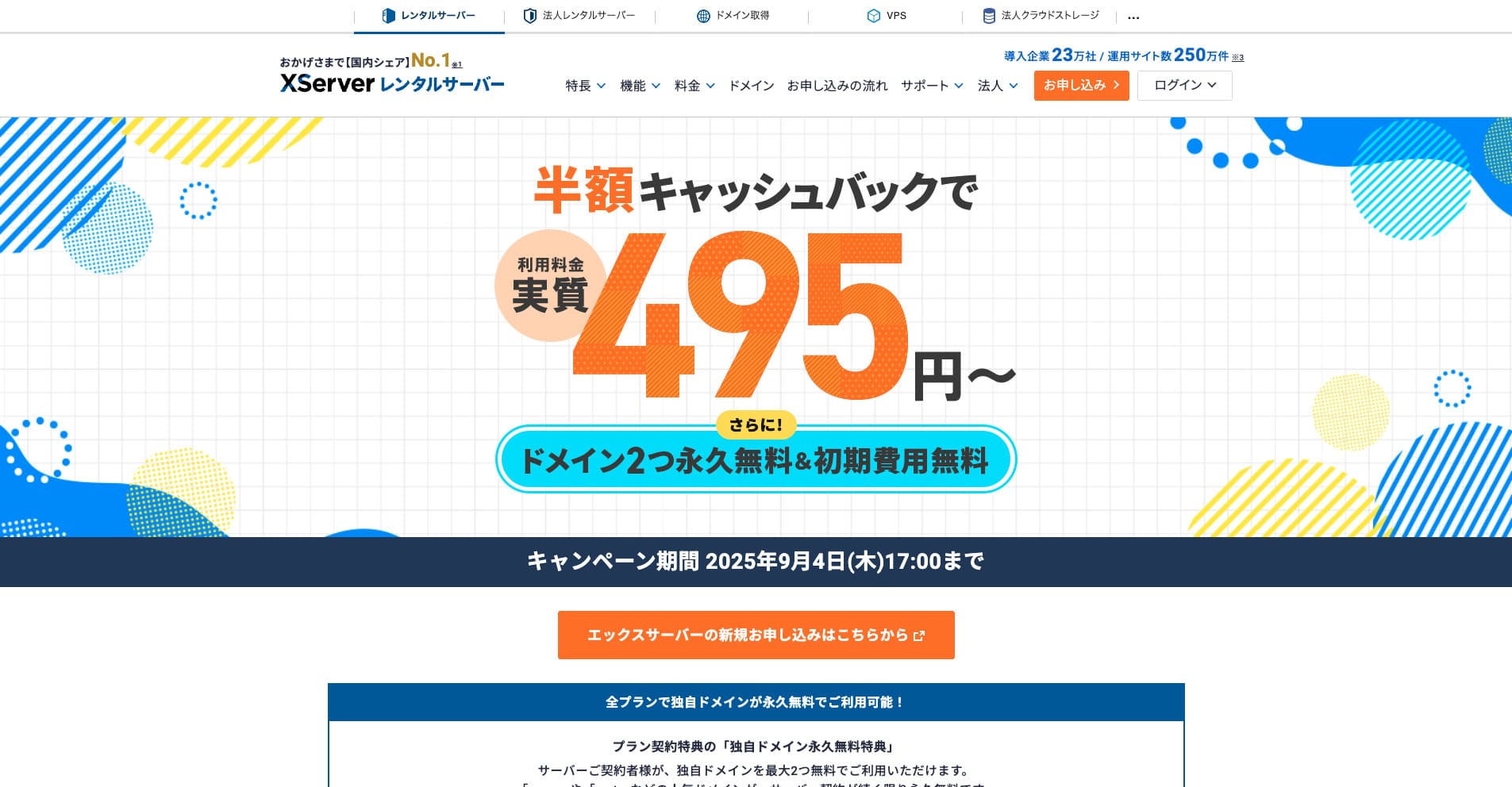
“Xserver”, yurt içi pazar payında 1 numara olan, köklü ve yüksek hızlı bir kiralık sunucudur. Hem bireyler hem de şirketler arasında popülerdir. Dürüst olmak gerekirse, gerçek bir dezavantajı yoktur ve kararlılığı, özellikleri ve desteği mükemmeldir. Nakit iadesiyle, efektif olarak 495 yenden başlayan fiyatlarla kullanabilirsiniz.
34 Eylül 2025 tarihine kadar yarı fiyatına nakit iadesi ve 10 günlük ücretsiz deneme sunmaktadır.
★ Xserver'ın itibarı ve güçlü destek sistemi ile WordPress'e nasıl başlanacağı
ConoHa WING
ConoHa WING, WordPress taşıma işlevini içeren ve bu site tarafından da kullanılan bir sunucudur. “Kolay WordPress Kurulumu” özelliğini kullanırsanız, herkes zor ayarlar olmadan WordPress'i taşıyabilir.
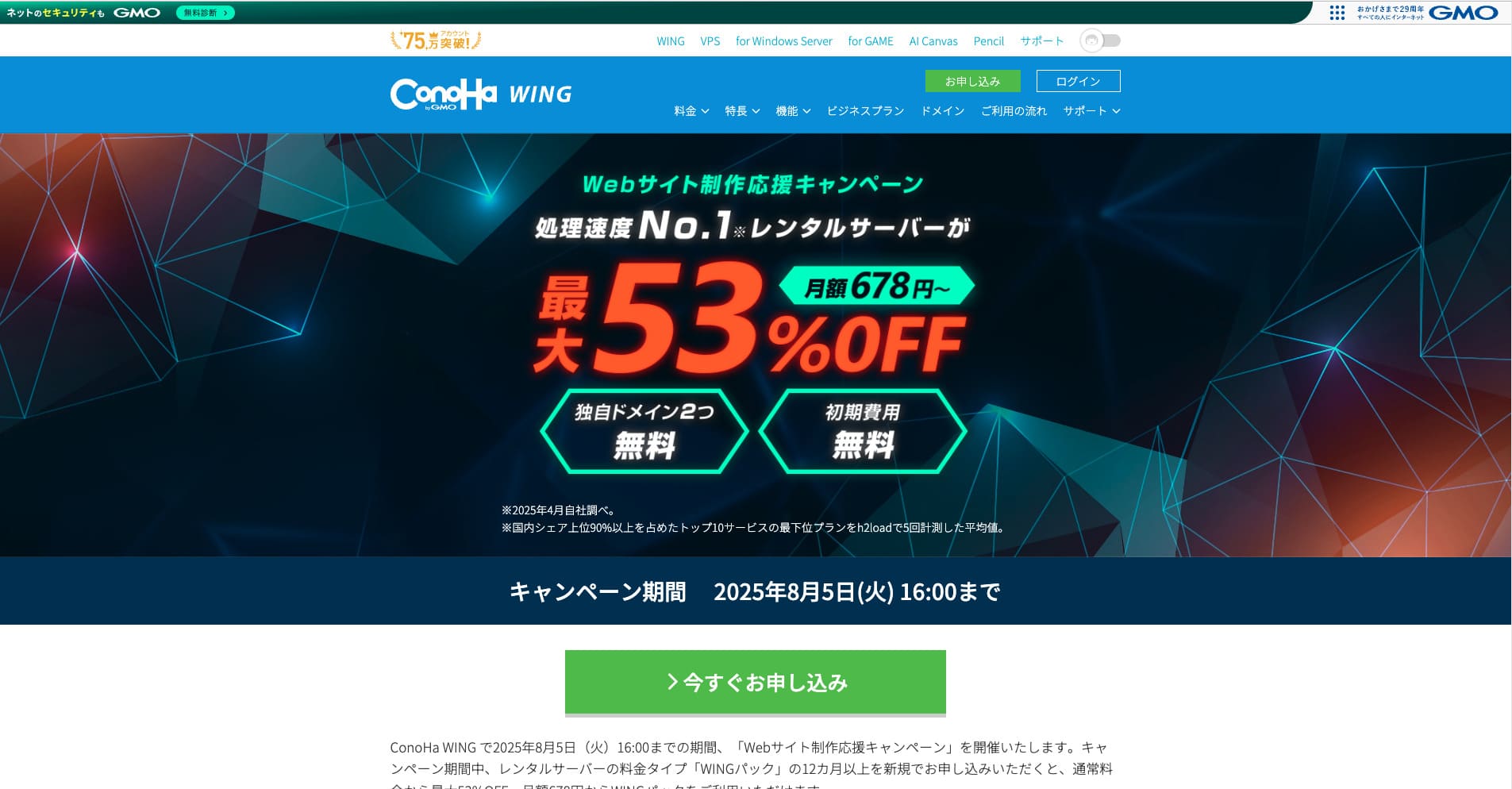
“ConoHa WING”, GMO Internet Group'un yüksek hızlı sunucusudur ve kullanıcı sayısı hızla artmaktadır. Sunucuya kaydolduğunuzda WordPress önceden kurulmuş olarak geldiğinden herkes kolayca başlayabilir. Maliyet ve performans arasında iyi bir denge sunar ve şirketimiz de bunu kullanmaktadır.
5 Ağustos 2025 tarihine kadar sunucu ücretlerinde %53'e varan indirim var, iki alan adı ömür boyu ücretsiz ve ilk ay ücretsiz.
★ How to launch a homepage in 10 minutes: ConoHa WING’s reputation and how to start WordPress with it
ColorfulBox
ColorfulBox, site taşıma işlevlerini içeren cPanel yönetim panelini kullanmanıza olanak tanıyan bir sunucudur. Şu anda WordPress taşıma hizmeti ücretsizdir. Taşıma işlemini sunucu şirketi sizin için gerçekleştirdiğinden, WordPress'i güvenle taşıyabilirsiniz.

“ColorfulBox”, bölge tabanlı mükemmel otomatik yedeklemeleriyle güven veren bir sunucudur. İhtiyacınız olan performansı israf etmeden kullanmanıza olanak tanıyan sekiz plan sunar. Ayrıca günün her saati (7/24) destek sunan az sayıdaki kiralık sunucudan biridir.
31 Ağustos 2025 tarihine kadar sunucu ücretlerinde %50'ye varan indirim sunulmakta, 10.000 yen değerine kadar Amazon hediye kartı kazanılabilmekte ve ayrıca 30 günlük ücretsiz deneme imkanı bulunmaktadır.
Lolipop!
LOLIPOP WordPress taşıma işlevine sahip, ucuz ve kullanımı kolay bir sunucudur. “Kolay WordPress Taşıma (Sunucu Taşıma)” özelliği Lite planı ve üzerinde kullanılabilir.
I have also migrated WordPress with Lolipop! myself. The move completed without any problem.
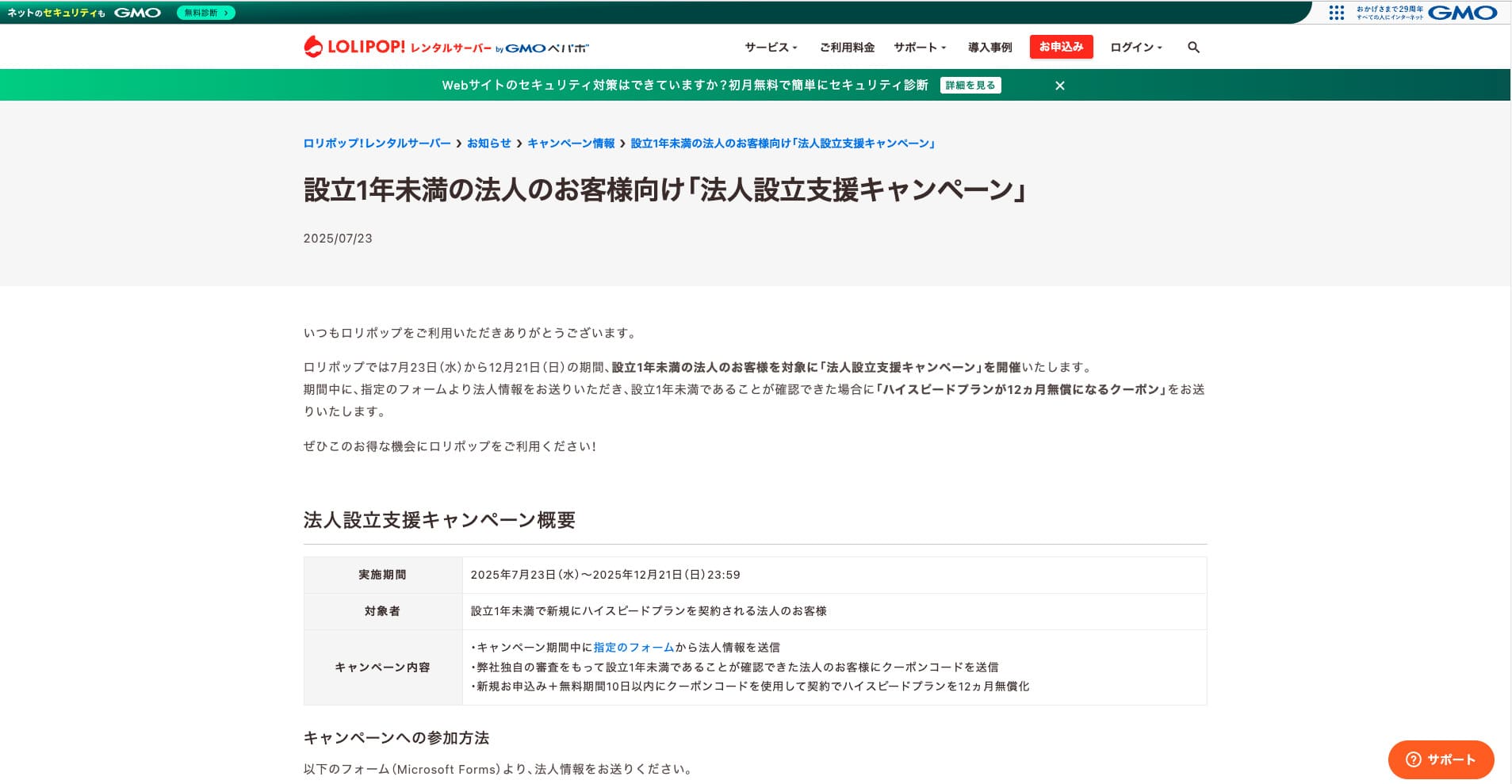
“Lolipop!”, düşük fiyata sunulan popüler ve köklü bir kiralık sunucudur. %99,99 çalışma süresiyle bile WordPress destekleyen Lite planı aylık 264 yenden başlayan fiyatlarla kullanılabilir. Her plan güçlü bir fiyat-performans oranı sunar.
21 Aralık tarihine kadar, bir yıldan daha kısa süre önce kurulmuş şirketler High Speed planını 12 ay boyunca ücretsiz kullanabilirler ve 12 ay veya daha uzun süreli sözleşmelerde sonsuza kadar ücretsiz bir alan adının yanı sıra 10 günlük ücretsiz deneme imkanı sunulur.
★ Bad evaluations are a thing of the past: four reviews of Lolipop! and how to start WordPress with it
Summary
Migrating a WordPress site can be made far easier and safer through the right plugins and proper preparation in advance.
By making use of the plugins introduced in this article and putting the additional advice into practice, you can move your own site smoothly into a new environment. When you migrate a site, be sure to make use of these tools and techniques.
However, if you are worried about WordPress migration, use a sunucu that provides migration tools or migration support.
Complete Comparison of 32 WordPress Hosting Services for Individuals, Companies, and Overseas Use
“WordPress başlatmak istiyorum” diye düşünüp “WordPress önerileri” araması yaptığınızda, kişisel barındırmayı, şirketler ve küçük işletmeler için olan seçenekleri, yurt dışı barındırmayı ve düşük maliyetli sunucuları kapsayan her türlü makaleyle karşılaşırsınız. Dürüst olmak gerekirse,
- which site should you trust?
- sadece basit ve anlaşılır bir cevap istiyor olabilirsiniz.
- you may want to get started with WordPress right away.
Bu nedenle bu makale; bireyler, şirketler, yurt içi ve yurt dışı kullanım için 32 barındırma sağlayıcısı arasından önerilen seçenekleri özenle seçmektedir. Her gün barındırma hizmeti kullanan bir uygulama geliştirme şirketindeki SEO yöneticisi tarafından açıklanmaktadır.