
Free setup fee until September 30, 2025, 20% off Little Plan server fees, and a 20-day free trial
PR
Servers
Little Server Review: A Thorough Guide to a WordPress-Ready Budget Host from 165 Yen per Month
Published: 2025.04.18
Updated: 2025.04.18
Rating: 4.0
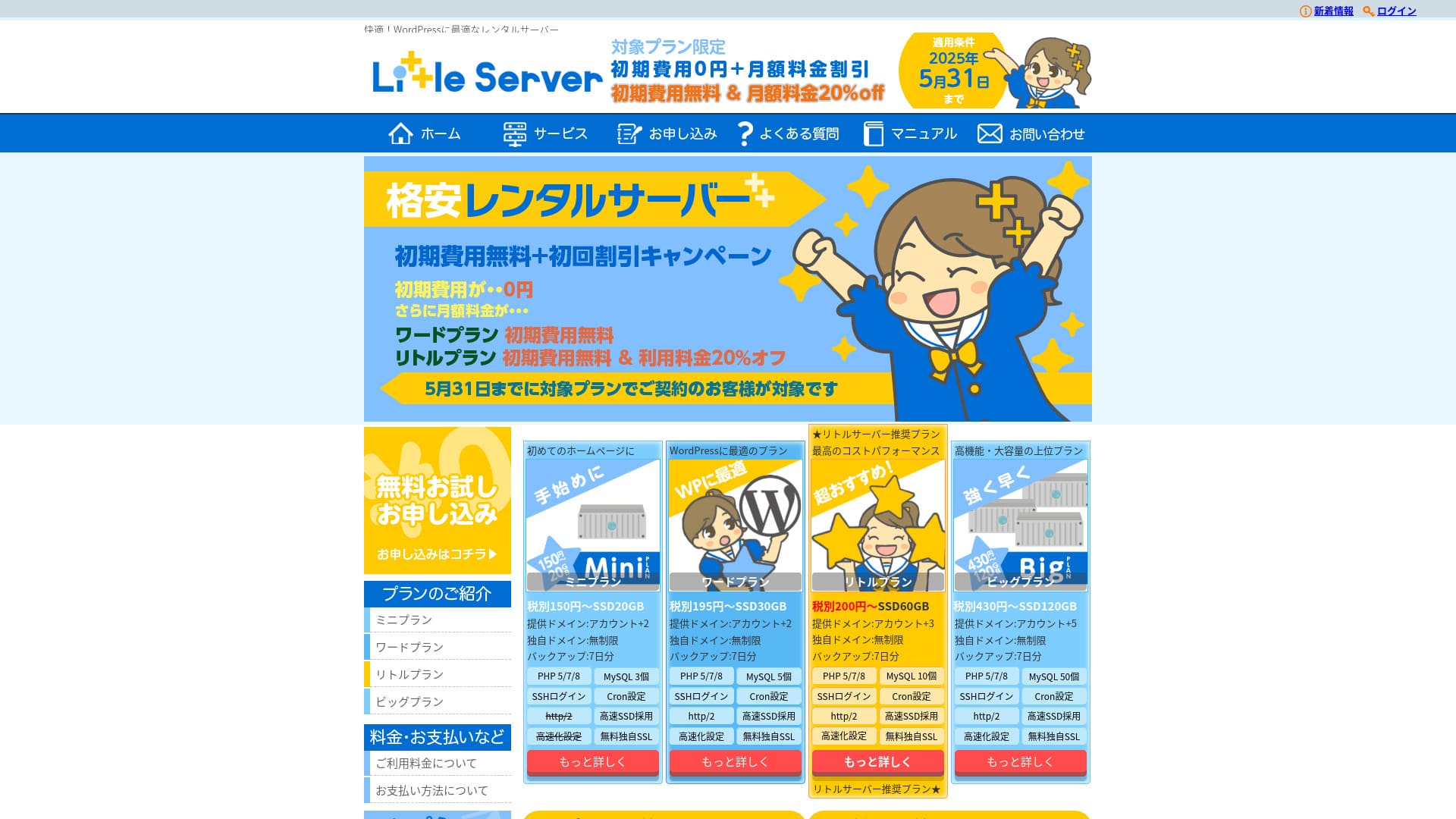
Little Server is a budget hosting service. Its cheapest Mini plan starts at 165 yen per month. But it is not just inexpensive: WordPress runs quickly, and email functionality is also available.

We recommend Little Server to people looking for affordable hosting because:
- It offers fast server speed.
- Its monthly price is extremely low.
- You can run multiple sites.
That is why. You are likely to be satisfied. You can try it free for 20 days.
A competing service is Value Server. Its flexible hourly-based pricing is even better than Little Server's. Consider it as well.
★ Value Server Review [2025 Latest]: Start WordPress at a Bargain Price
| Server type | Shared hosting |
| Response speed (TTFB) | 200ms |
| Recommended plan and term | Mini, 12 months |
| Trial / refund policy | 20-day free trial |
| Monthly price (12-month contract) | 165 yen |
| Initial setup fee | 920 yen |
| Free domain | No |
| Support | Email (hours not disclosed) |
| Uptime | Not disclosed |
| Storage | 20GB |
| Number of databases | 3 |
| Security features | IMP |
| SSL | Free SSL, dedicated SSL (Little Plan and above) |
| Backup / restore | Seven days of automatic backups are free, and restores are also free. |
| Number of email accounts | Unlimited |
| Email security | Spam filter |
| Server / website migration service | No |
| WordPress preinstalled | Yes |
| CDN | No |

Hikaru Ono
I was able to start WordPress at the same time I signed up for Little Server. It was surprising how smooth the process was at a price level this low, which is among the cheapest in the industry.
The carefully written official manuals also left a good impression.
Little Server vs. Other Services
- Overall rating★★★★☆
- Server speed ★★★★☆
- Pricing ★★★★★
- Stability ★★★★☆
- Ease of starting WordPress* ★★★★★
- Ease of domain management, SSL setup, and related operations* ★★★☆☆
* These ratings reflect my own hands-on experience using the service.

Complete Comparison of 21 Recommended WordPress Hosting Services for Individuals
Complete Comparison of 21 Recommended WordPress Hosting Services for Individuals
serverfield.org
- Based on market research as of November 4, 2025, sorted by speed
- Monthly price means the first-year cost of the cheapest plan that supports WordPress
- Speed is the Time to First Byte of demo sites measured under the same conditions
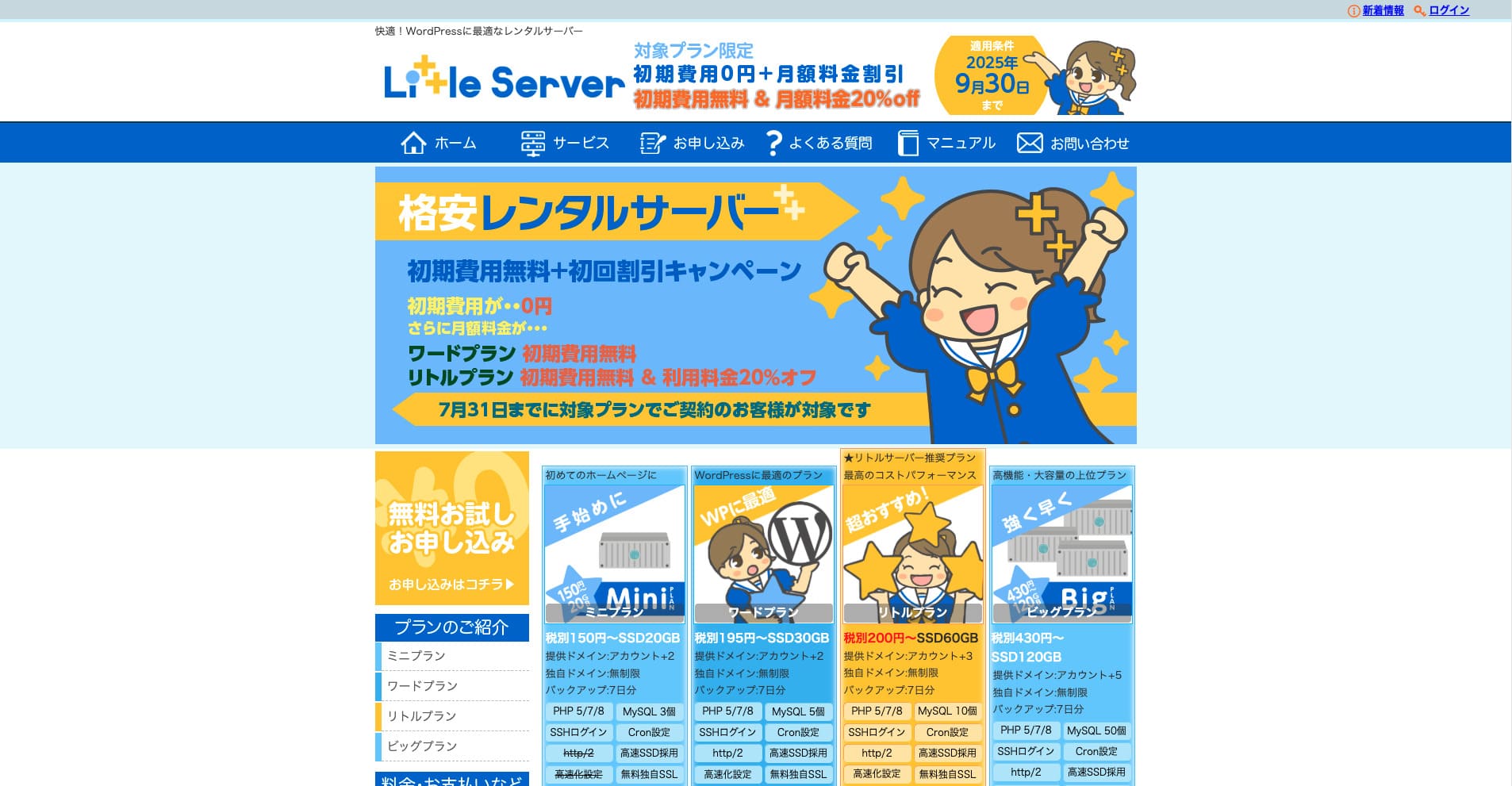
Little Server is a budget rental server. Even among paid hosting services, excluding free servers, it is one of the cheapest options for individuals. Even so, it uses NVMe SSDs to improve speed.
Six Key Advantages of Little Server

The Server Speed Is Very Fast
According to this site's independent tests, Little Server is very fast. Take a look at the comparative speed results below.
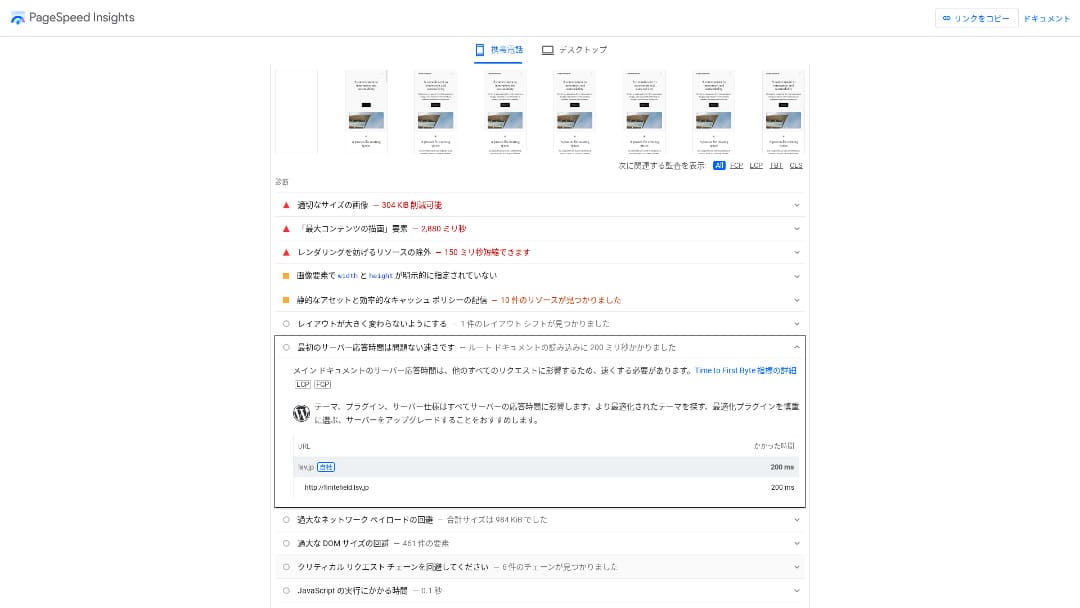
For a bargain server in the 100-yen-per-month range, it is among the fastest available. Its server response time (TTFB) was 200 ms.
Google recommends keeping server response times under 200 ms. With Little Server, speed is unlikely to become a problem.
Server response time should be kept under 200 milliseconds.https://developers.google.com/server/speed/docs/insights/Server?hl=en
If server speed is high, your site loads faster and visitors can browse more comfortably. As a result, that can make your site stronger for SEO and can also help lead to product sales.
★ Speed Test: Comparing 11 Hosting Services in a Performance Ranking
The Price Is Low
Little Server is inexpensive. There is an initial setup fee, but because the monthly price is low, the annual cost of running a website is far lower than with major hosts. We compared it under the following conditions.
- Initial setup fee
- A 12-month server contract
- The first-year cost of the domain
- The cheapest plan that can run WordPress
Even compared with Lolipop!, which is considered inexpensive among the major hosts, Little Server stands out for how cheap it is. It costs only about 60% as much. It is an ideal choice for anyone who wants to keep server costs as low as possible.
You Can Use WordPress
Some cheap hosting services do not support WordPress. Even major hosts such as Lolipop! and Sakura Rental Server do not allow WordPress on their cheapest plans.
However, Little Server supports WordPress on every plan. With WordPress, you can build a multi-page website and also create a blog within that website.
★ What Is WordPress? The System Used to Start a Website and the Points to Watch Out For
You Can Run Multiple Sites
Little Server can host multiple sites. Even its lowest-cost Mini plan lets you create up to three WordPress installations.
Besides your company website, you can also create a hobby blog of your own.
Automatic Backups
Little Server includes seven days of automatic backups.
If you have backups, you can restore your website even if a security breach causes problems. You also do not need to configure backups yourself.
If restoration becomes necessary, you only need to contact the company operating the service.
You Can Use Email
Little Server supports email even at this low price. You can create unlimited addresses on your own domain. That is welcome news for companies that want business email addresses.
★ What Is a Domain? Its Role as an Address on the Internet and How to Register One
The Drawback of Little Server: Its Uptime Is Not Public

Little Server does not disclose its uptime rate. Because of that, users have no way of knowing whether the server is truly stable.
If the server is unstable, your website display will also be unstable. If your site frequently fails to load, that would be a waste given that you are paying to rent the server. It also means losing chances to expand your business while people cannot access the site.
When you think about it that way, uptime is extremely important. Because it is not disclosed here, some uncertainty remains.
★ A Beginner-Friendly Guide to Hosting Uptime Rates and SLAs
Compare Little Server with Two Similar Services
Value Server
Value Server and Little Server cost almost the same per year. Value Server includes 15 generations of backups, so it is stronger than Little Server when it comes to backup features.
However, the Value Server Marutto plan at the price shown below can host only one WordPress site. If you want to build a second site, you need to sign up for another server. If you plan to run multiple sites, Little Server is the better choice.

Value Server Review [2025 Latest]: Start WordPress at a Bargain Price
Value Server Review [2025 Latest]: Start WordPress at a Bargain Price
serverfield.org
Star Rental Server
Star Rental Server costs a little more than Little Server. However, its storage capacity and transfer allowance are much larger, so you are likely to appreciate that difference as your website grows and traffic increases.
That said, Star Rental Server has no automatic backup function. This is one area where Little Server is better. It offers a setup that is kinder to people who have never used hosting before or are running a website for the first time.

Star Rental Server Review [Latest 2024]: Ultra-Low Pricing and a Thorough Look at the Real Pros and Cons
Star Rental Server Review [Latest 2024]: Ultra-Low Pricing and a Thorough Look at the Real Pros and Cons
serverfield.org
Six Steps to Start a WordPress Website on Little Server Right Now
Let's launch a website with Little Server.
- STEP.1Visit the official Little Server website
Click “Apply for a free trial.”
Agree to the terms of use and the handling of personal information, then click “Yes” for the free trial application.
- STEP.2Apply for the free trial period
Enter your customer information, such as your name and address.
Select a plan. The Mini plan is recommended. If you later need more resources, you can upgrade your plan.
Then enter your server account information.
- Preferred user ID: Anything is fine. It cannot be changed later.
- Preferred account name: Anything is fine. It cannot be changed later.
- Password: Make it as complex as possible.
Click “Next page” and confirm the details. If everything is correct, click “Submit with the above information.”
A temporary registration email will arrive at your contact email address. Then you will receive an authentication email titled “Application accepted.” Click the authentication URL. Once the authentication is complete, the free trial registration is finished.
- STEP.3Register a custom domain with MuuMuu Domain and add it in Little Server
Open the official MuuMuu Domain website, enter the string you want to use as your website’s domain in the field for searching domains, and click “Search.”
★ What Is a Domain? Its Role as an Address on the Internet and How to Register One
You can choose a top-level domain such as “.com” or “.co.jp”. The acquisition fee and renewal fee vary depending on the top-level domain. If you are unsure, a company should choose “.co.jp” whenever possible. For individuals, “.com” or “.net” is recommended. These are familiar to many people, so visitors are less likely to find them suspicious and are more likely to click through.
Confirm again that it is the domain you want. If it is correct, proceed to the application page.
Create a new MuuMuu ID. Enter your ID (email address) and password, then click “Agree to the terms and proceed to identity verification.”
Complete the identity verification by SMS.
Next comes the application for domain settings and other options. Set the domain options like this:
- WHOIS disclosure: If you are a company, publish the information. If you are an individual, “Use the provider’s proxy information” is recommended.
- Name server (DNS): Use name servers other than GMO Pepabo’s.
If you make WHOIS information public, the name, address, and other details of the person who registered the domain become public. Because that exposes personal information, anyone other than a company or sole proprietor may prefer proxy disclosure.
Little Server uses the following two name servers. Specify both of them.
- Name server 1: ns1.lsv.jp
- Name server 2: ns2.lsv.jp
You do not need to apply for linked services, optional services, or MuuMuu Mail. If a company wants to use email, Little Server can provide email service.
Pay by credit card or another method. Click “Next step,” skip the advertisements, and enter your user information. After you correctly enter your name, address, and the rest, proceed to “Next step.”
Review the application details, check “I agree to the terms of use,” and click “Register.” At that point, your domain has been acquired.
Now add the domain you obtained at MuuMuu Domain so that it can be used with Little Server.
Return to the Little Server control panel. Log in with the user ID and password you registered for the free trial.
Click “Domain settings” under the settings menu. Enter the domain name, check “Create a directory named after the domain and use it as the path,” and click “Add domain.”
That completes the custom domain setup in Little Server.
- STEP.4Install WordPress
In the Little Server control panel, click “Easy Install” under “Settings.” For WordPress, choose the installation option marked as ultra-easy and beginner-friendly. That choice saves you from having to create the database manually.
★ What Is a Database? An Essential Management System for WordPress
Enter your WordPress information.
- Database to use: Leave it as it is.
- Install destination: Leave it as it is.
- Display address: It is recommended to leave the checkbox checked.
- Site name: Anything is fine. You can change it later very easily.
- User name: Anything is fine, but changing it later is troublesome.
- Password: Make it as complex as possible. You can change it later quite easily.
- Email address: Use the email address you normally use. For companies, the administrator’s business email is recommended.
The user name and password are used when you log in to WordPress. Be sure to write them down.
Check “I agree” and click “Ultra Easy Install!” Your login information will then be displayed. Click the displayed login page and sign in.
- STEP.5Initial WordPress setup
On the WordPress login screen that appears, enter the user name and password you set during installation and click “Log in.”
If you see a warning saying the site cannot be reached, the DNS settings have not propagated yet. In that case, all you can do is wait and try logging in again every few hours.
★ What Are DNS and Name Servers?
After logging in to WordPress, set up your permalinks. In the WordPress admin screen, go to “Settings” and then “Permalinks.” Choose “Post name,” and then click “Save changes.”
When you select “Post name,” you can enter any string you like in the URL when publishing articles. Short strings that help readers imagine the article content are recommended because they are easier for visitors to understand. If a URL is too long, some people may feel uneasy and think, “Is this a dangerous site?”
- STEP.6Install plugins
Go back to the WordPress admin screen, open “Plugins,” then “Add New,” and install the plugins you need.
When you find a plugin you want through search, click “Install Now,” then “Activate.” After that, follow the instructions provided for each plugin.
Be sure to install plugins for security and backups.
- Five WordPress Plugins to Strengthen Security and How to Choose One
- Five Powerful WordPress Backup Plugins That Help You Recover Your Data
Once you have installed your plugins, your WordPress website is ready to go.
Summary
Little Server is a budget rental server. Even among paid hosting services, excluding free servers, it is one of the cheapest options for individuals. Even so, it uses NVMe SSDs to improve speed.
Free setup fee until September 30, 2025, 20% off Little Plan server fees, and a 20-day free trial
Little Server is a budget hosting service. Although it has some drawbacks, even the cheapest Mini plan includes the features needed to launch a WordPress website. Give it a try.
Complete Comparison of 32 WordPress Hosting Services: Best Choices for Individuals, Companies, and International Use

If you search for “WordPress recommendation” because you want to start WordPress, you will find every kind of article, from personal and corporate hosting to overseas servers and cheap plans. Honestly, don’t you end up thinking:
- Which site should I trust?
- I just want to choose a server in a simple, easy-to-understand way.
- Show me how to start WordPress right away.
That is exactly why this article introduces carefully selected recommendations from 32 hosting services for individuals, companies, domestic use, and international use. It is explained by the SEO lead at an app development company that uses hosting every day.