
14-gün free trial
PR
Sunucular
Sakura Kiralık Sunucu İncelemesi [2025 Sonu]: Korkutucu mu Yavaş mı? Kişisel ve İş Kullanımı İçin Fiyatlandırma, Artılar ve Eksiler
Yayınlandı: 2025.04.18
Güncellendi: 2025.04.18
Rating: 4.0
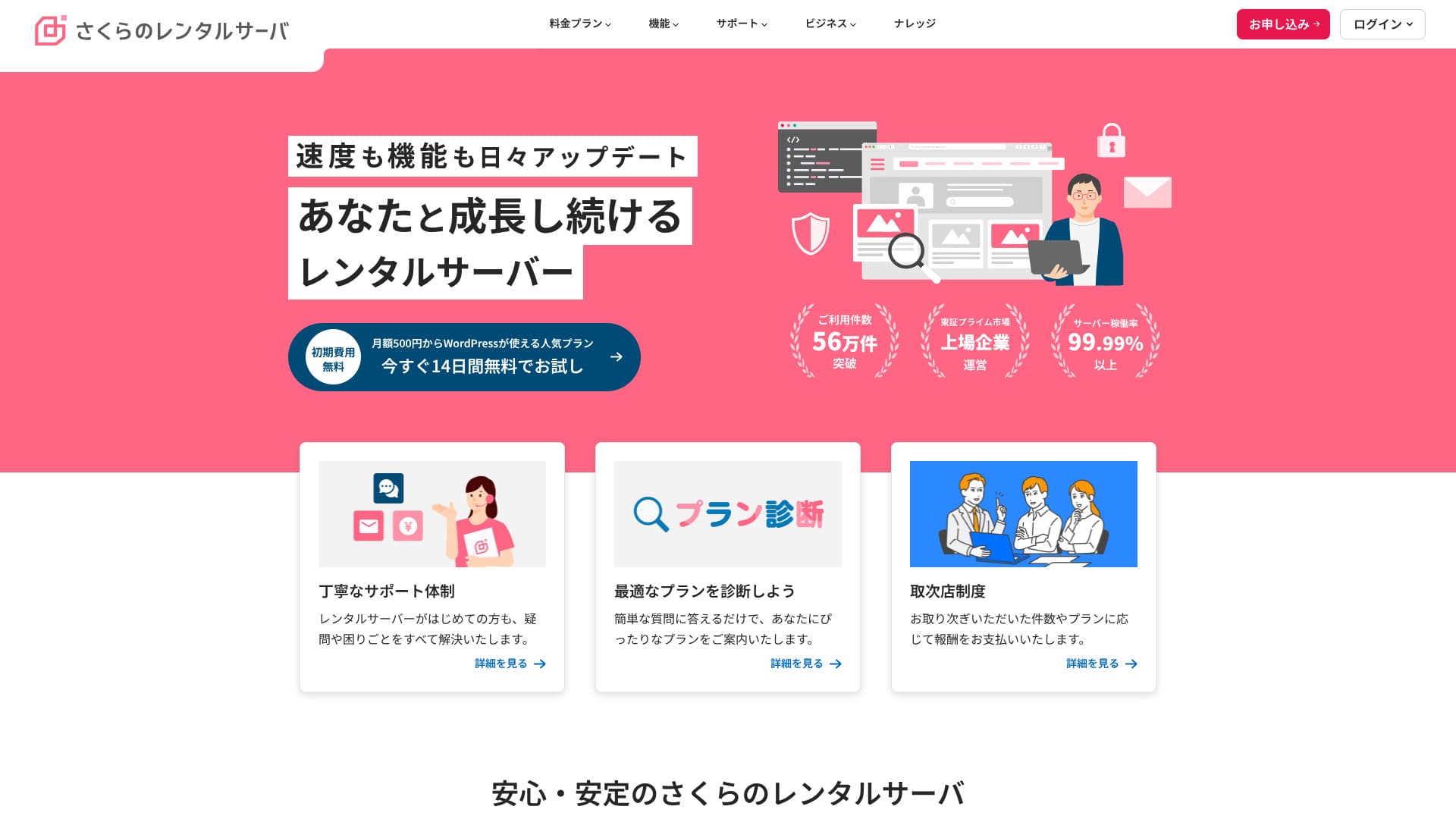
Sakura Rental Serveris a long-established rental hosting service with more than 560,000 users.It is operated by Sakura Internet, the first domestic company to join the Japanese government cloud.

The reasons I recommend Sakura Rental Server to uygun fiyatlı bir sunucu arayan kişilerin yanı sıra şirketler ve şahıs şirketleri are:
- the reassurance of being run by the first domestic company to join the government cloud
- a large number of corporate users
- high-function, large-capacity email services
Sebepleri bunlardır. Memnun kalma olasılığınız oldukça yüksektir. 14 gün boyunca ücretsiz deneyebilirsiniz.
A competing service is LOLIPOP. With a long-term contract, it can be used at a lower price than Sakura Rental Server. It is worth considering alongside Sakura.
★ Lolipop! Review [2025 Latest]: What the Speed Tests Revealed, Plus the Pros and Cons
| Server type | Shared hosting |
| Display speed (TTFB) | 440ms |
| Recommended plan and term | Standard 12 months |
| Trial / refund guarantee | 14-gün free trial |
| Monthly price (12-month contract) | 550 yen |
| Initial setup fee | Free |
| Free domain | None |
| Support | İş hours: 10:00-18:00 Telefonla geri arama randevuları, sohbet ve e-posta (aynı gün veya bir sonraki iş gününe kadar yanıtlanır) |
| Uptime | 99.99% |
| Server storage | 300GB |
| Number of databases | Unlimited |
| Security measures | Website tampering alerts (paid), WAF, overseas IP address filtering, anti-relay abuse measures, and encryption |
| SSL | Free shared SSL, custom SSL |
| Backup / restore | 8 backup generations included free, free restoration |
| Number of email accounts | Unlimited |
| Email security measures | POP3, IMAP4, virus scanning, basic spam filtering, high-accuracy spam filtering |
| WordPress preinstall | None |
| Server / website migration service | None |
| CDN | 100GB/month free |

Hikaru Ono
There are rumors that "Sakura Rental Server is scary," but there is no need to worry about that now.I have used it myself and have never once felt it was scary, and customer feedback about support is generally positive.
Güvenle kullanabileceğiniz, sağlam bir operasyonel temele sahip, yüksek kaliteli bir sunucudur.
How Sakura Rental Server compares with competitors
- Overallrating★★★★☆
- Server speed ★★☆☆☆
- Pricing ★★★★☆
- Stability ★★★★★
- Ease of starting WordPress* ★★★★☆
- Domain management and SSL setup* ★★★★☆
* These scores reflect my hands-on experience using the service.

21 Recommended WordPress Hosting Services for Individuals: Comparison and How to Choose
21 Recommended WordPress Hosting Services for Individuals: Comparison and How to Choose
serverfield.org
- Market-research data as of November 4, 2025, sorted by speed
- Aylık fiyatlar, WordPress'i destekleyen en ucuz planın ilk yıl maliyetidir
- Speed is the Time to First Byte measured on demo sites under the same conditions
"Sakura Rental Server"is a long-established hosting service with more than 480,000 accounts in use. It was once said to be slow, but its platform has now been renewed and sped up. Even so, the affordable pricing has remained unchanged, and the value for money is excellent.
Six Key Strengths of Sakura Rental Server

Yanıt Süresi Yavaş Ancak PageSpeed Insights Sonuçları İyi
Our own testing on this site showed that Sakura Rental Server delivered good PageSpeed Insights results. Ancak sunucu yanıt süresinin kendisi pek iyi değildi.
TTFB değerinin birçok rakibinden daha yavaş olduğu doğrudur ancak PageSpeed Insights sonuçları kötü değildir. İlk sunucu yanıtı güçlü olmasa da, the later-stage processing appears to be fast, which likely helped its PageSpeed Insights results.
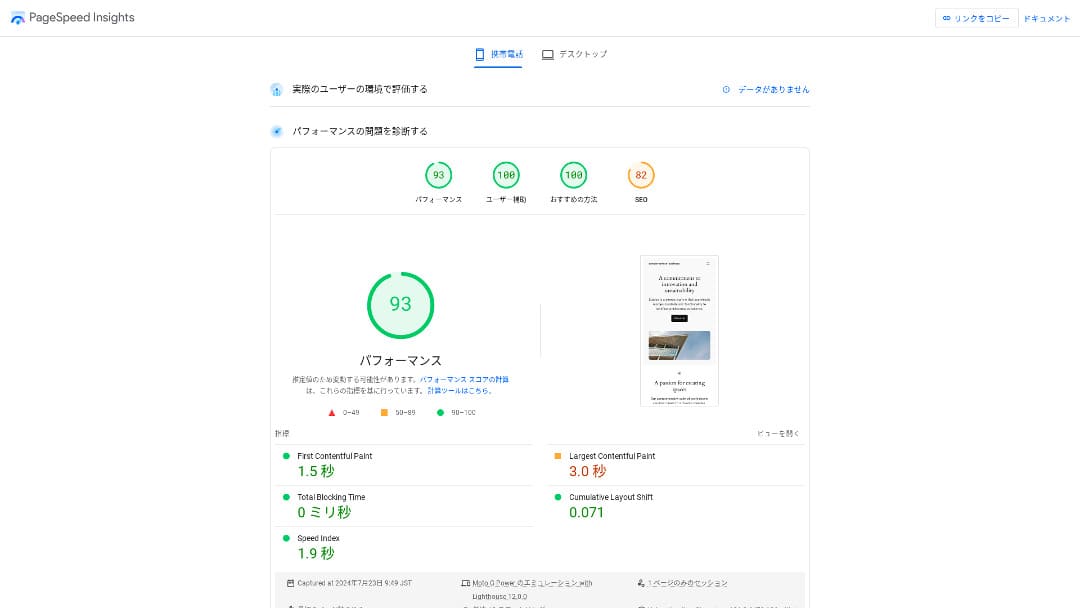
So there is no need to worry that it will be extremely slow in actual use.
★ Speed-tested: A comparison of 15 hosting services ranked by speed
The Pricing Is Affordable
Sakura Rental Serveroffersmonthly pricing that is affordable even compared with other providers, making it easy to start a website.The comparison below uses the following conditions.
- Initial setup fee
- 12-month sunucu contract
- One year of domain costs
- The lowest-priced plan that supports WordPress
| Hosting provider | Total maliyet for one year |
|---|---|
| Sakura Rental Server | 6,600 yen |
| ConoHa WING | 11,292 yen |
| Xserver | 10,560 yen |
| Lolipop! | 5,940 yen |
| heteml | 24,420 yen |
Lolipop! is cheaper, but the features and specs of Sakura's Standard plan are stronger than Lolipop!'s.
Also, because Sakura Domain is a little expensive, you can reduce costs by using a cheaper domain service from another provider.
Stable 99.99% Uptime
Sakura Rental Serveroffers very stable service with 99.99% uptime.Sunucuları kendi bünyesinde işletilmekte ve yılın 365 günü, günün 24 saati izlenmektedir.
★ A beginner's guide to hosting uptime and SLAs
During the 2018 Hokkaido Eastern Iburi earthquake, the Ishikari data center lost external power, but Sakura kept operating on emergency power for 60 hours.It even made it through a large-scale disaster that caused a blackout across all of Hokkaido, which speaks volumes about its stability. That gives you real peace of mind about how stable it is.
The company's communication at that time was also excellent. In addition to delivering the latest information, it continued posting updates every six hours even when there was no major change. It feels like a company you can trust with important data.
A Free CDN That Helps Websites Load Quickly
Sakura Rental Server offers a CDN for free. This is a feature that helps your website load faster.
★ What is a CDN? Improve speed and performance with distributed servers
Using a CDN helps your website appear more quickly, and even when traffic surges it makes it easier to avoid situations where a 503 error prevents the site from being viewed. Because fast page delivery also affects website traffic, having a free CDN available is genuinely valuable.
★ What is a 503 error? Web congestion, prevention measures, and emergency responses
The free CDN allowance is also generous at 100 GB per month on the Standard plan, so it is unlikely to be insufficient for individual use. After you exceed the free allowance, it costs 5 yen per GB.
Strong Backup Features
Sakura Rental Serverhas excellent backup features.You can use a feature called "Snapshots" to create backups and restore data.You can keep up to eight backups, which is generous.
It is also easy to use.
- From the control panel, go to "Website/Data" and then "Backup"
- Click "Start using Backup & Staging".
- Click "Create backup" and wait for the status to change
When the status changes to "Completed successfully," the backup is finished.
Aynı ekrandan yedekleme planları oluşturabilir ve verileri geri yükleyebilirsiniz. Kullanımı oldukça kolaydır.
Use Leftover Capacity Effectively with Sakura Pocket
When people rent hosting, they often choose more capacity than they immediately need.Sakura Rental Serveroffers a way to use leftover storage effectively instead of wasting itthrough a feature called Sakura Pocket. You can use it much like Google Drive or Dropbox.
Whether for businesses or individuals, using cloud storage has become the norm. It helps save space on PCs and smartphones. That said, the amount of storage available in the free plans of Google Drive and Dropbox is not especially large.
Ancak Sakura Rental Server kullanıcıları, kullanılmayan kapasitelerini Sakura Pocket aracılığıyla değerlendirebilirler, bu da başka bir bulut depolama hizmetine ödeme yapma maliyetini düşürmeye yardımcı olur.
A Drawback: You Cannot Move Down to a Lower Plan

Sakura Rental Serverdoes not let you change to a lower plan.If you end up with more capacity than you need, that is wasteful.
That is why it is best to sign up for a lower plan first and scale up only if necessary.
Bir web sitesi oluşturmak istiyorsanız Standard planını seçin. Light planı WordPress'i desteklemez. Sadece bireysel kullanıcılar için değil, birçok kurumsal kullanıcı için de yeterli kapasite sunar.
Ancak, Light veya Standard gibi paylaşımlı barındırma planlarından yönetilen sunucu (özel sunucu) planlarına geçiş yapamayacağınızı unutmayın.
★ Barındırma (hosting) nedir? Bir web sitesi yayınlamak için ihtiyacınız olan sunucu
Business Planı, KOBİ'ler ve Kurumsal Kullanıcılar İçin İyi Bir Değer Sunuyor
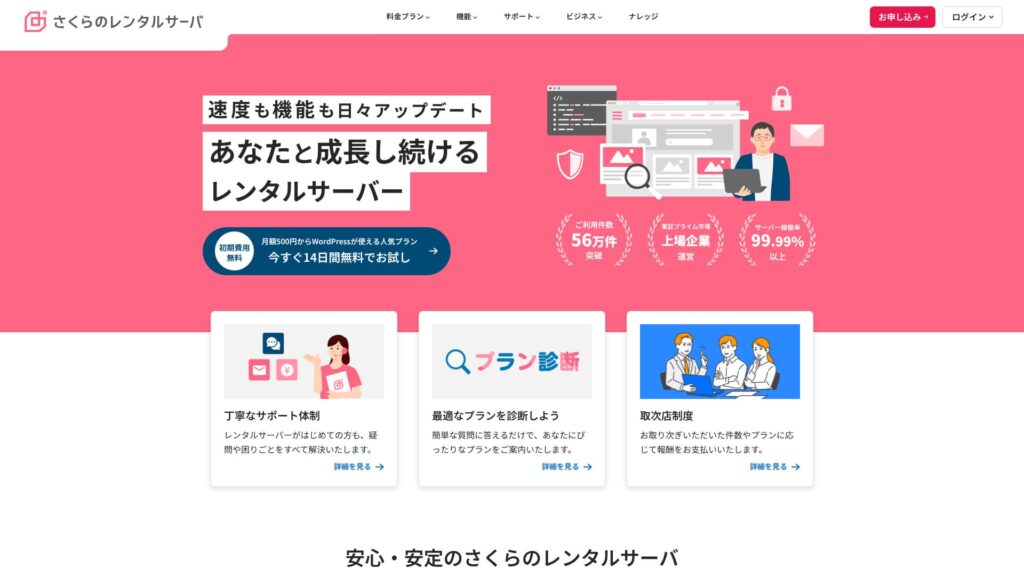
「Sakura Rental Server」is the shared hosting service from Sakura Internet Co., Ltd., which also offers managed servers. It balances performance, service quality, and price well, making it a strong option for many businesses. The included free CDN quota varies by plan and helps deliver smooth communication.
14-gün free trial
| Server type | Shared hosting / managed sunucu |
| Monthly price (12-month contract) | 2,420 yen* |
| Initial setup fee | Free |
| .jp domain | Registration 3,982 yen / Renewal 3,982 yen |
| Support | Weekdays 10:00-18:00 Callback reservations available |
| Uptime | 99.99% guaranteed |
| Server storage | 600GB* |
| Security measures | WAF / Website tampering detection / Overseas IP filtering |
| SSL | Free SSL / shared SSL / Gehirn MCA OV / domain-validated wildcard / domain-validated / RapidSSL |
| Backup / restore | 8 backup generations / free restoration |
| Number of email accounts | Unlimited |
| Email security measures | basic spam filter / high-accuracy spam filter / SPF/DKIM/DMARC support |
| Server / website migration service | No migration agency service No migration tool |
| Easy WordPress install | Yes |
| CDN | 300GB/month free* |
Sakura Rental Serveralso offers iş-focused plans under for Biz.Diğer işletme odaklı barındırma hizmetleriyle karşılaştırıldığında, fiyatlandırması orta aralıkta yer alır ve ödenen paranın karşılığını fazlasıyla verir.
Business planı, 12 aylık bir sözleşmeyle aylık 2.420 yenden başlar ve şirketlerin günlük operasyonları için ihtiyaç duyduğu teknik özellikleri içerir.
- Free CDN acceleration (up to 300 GB per month)
- Management by multiple users
- Diğer şirketlerin trafiğinden etkilenmeyen özel bir IP adresi (Business Pro ve üzeri)
If you are looking for hosting for an SME or a corporation, it is highly recommended.
There Is No Longer Any Need to Worry That "Sakura Rental Server Is Scary"
"Sakura Rental Server korkutucu" fikri, on yıldan uzun bir süre önce eski özel sunucu hizmetini kullanan birinin, bir bilgi sitesinde samimiyetsiz bir yanıt aldığını iddia etmesiyle başladı. Aslında bu durum mevcut Sakura Rental Server hizmetinden kaynaklanmıyordu.
Sakura Rental Server bu açıklamayı 2019 yılında yayınladı ve samimi bir şekilde yanıt vermeye çalıştı. Şikayet, Sakura Rental Server ile değil, eski özel sunucu hizmetiyle ilgili olduğundan, 「About a post on a technical information sharing site regarding our sunucu services」the current Sakura Rental Server can be used with confidence.There is no need to worry anymore.
Comparing Sakura Rental Server with Two Competing Services
Here we compare Sakura Rental Server with two competing hosting services. As with Sakura, we will compare providers that offer lower-priced plans.
Lolipop!
LOLIPOP can be used at a lower price than Sakura Rental Server. However, Lolipop!'s Light plan is inferior to Sakura Rental Server's Standard plan in both features and support.
- No backup feature (requires a paid option)
- No phone support
- Email support can take up to 48 hours, which is somewhat slow
Fiyatla birlikte bu üç noktayı karşılaştırın ve Lolipop! ile Sakura Rental Server seçeneklerinden hangisinin size daha uygun olduğuna karar verin.

Lolipop! Review [2025 Latest]: What Speed Testing Revealed About Its Pros and Cons
Lolipop! Review [2025 Latest]: What Speed Testing Revealed About Its Pros and Cons
serverfield.org
Star Rental Server
Star Rental Server is also a hosting service popular for its lower price range. However, Star Rental Server's Light plan is inferior to Sakura Rental Server's Standard plan in both features and support.
- No backup feature (must be handled with WordPress plugins)
- No phone support
- You can create only one WordPress website
- You cannot use an advanced WAF security feature
Aralarında seçim yapmadan önce bu dört noktayı fiyatlandırmayla karşılaştırın.

Star Server Review [2024 Latest]: Incredibly Low Pricing, Strengths, and Drawbacks Examined
Star Server Review [2024 Latest]: Incredibly Low Pricing, Strengths, and Drawbacks Examined
serverfield.org
Five Steps to Start a WordPress Website on Sakura Rental Server Right Now
Start your website with Sakura Rental Server!
- STEP.1Go to the official site
Click "Try it free for 14 gün."
- STEP.2Sunucuya kaydolun
Choose a plan. The Standard plan is recommended because it supports WordPress.
You can leave the initial domain as it is. This domain will not be used as your public website address. It can be used, but it is better to get your own domain.
★ Alan Adı Nedir? İnternette Adres Olarak Rolü ve Nasıl Alınır?
If you select "Also acquire a custom domain," it becomes easier to start WordPress right away.
Enter the string you want and apply for the domain. If it is available, enter the registrant information. One year is enough for the registration term. Then click "Choose payment method."
Complete member verification and register as a new user.
Enter your email address, review the privacy statement, and click "Send the registration guidance email."
A registration email will arrive. Open the URL in that email and continue to enter your member information.
Enter your name, address, and other required information, and set a member password.Bu şifre üye menüsüne giriş yapmak için kullanıldığından önemlidir, bu nedenle bir yere not ettiğinizden emin olun.
For Sakura user communications, it is fine to choose "Do not receive."
Review everything you entered. If there is no problem, click "Register as a member."
Choose your payment method. Select the contract term and how you want to pay. Credit card payment is recommended because you can start building your WordPress website immediately. It also automatically converts to a paid contract after the trial ends, which saves you extra steps. After choosing the contract term, click "Review application details."
Review the full application details. Check the terms, tick "I agree," and proceed by clicking "Apply with this information."
Geçici kayıt tamamlandı e-postasını aldığınızda, geçici sunucu sözleşmesi tamamlenmiş olur.
- STEP.3Install WordPress
Sakura Rental Server kontrol paneline giriş yapın.
- Alan adı: Sunucuya kaydolurken kaydettiğiniz başlangıç alan adı.
- Şifre: Sunucuya kaydolurken belirlediğiniz şifre.
Giriş yaptıktan sonra "WordPress Kur" seçeneğine tıklayın, kurulumu yapmak istediğiniz URL'yi belirleyin ve sunucuya kaydolurken edindiğiniz özel alan adını seçin.
Enter the database information for WordPress. Since there is no database yet at this stage, click "Create database."
- Database name: Anything is fine
- Database connection password: Make it as complex as possible
Next, enter the information for your WordPress site.
- Site title: Anything is fine. You can easily change it later.
- WordPress username: Anything is fine. However, changing it later is troublesome.
- WordPress password: Make it as complex as possible. You can change it later.
- Email address: Use the email address you normally use. For businesses, it is best to use the company email address of the person managing the website.
- Search engine visibility: Check it if you want to publish the site immediately. Leave it unchecked if you want to publish after the website is finished. You can change this easily later.
Review the license and terms of use, check "Agree," and click "Create."
Kullanıcı adı ve şifre WordPress'e giriş yapmak için kullanılacaktır. Bunları bir yere not ettiğinizden emin olun.
Kurulum tamamlandığında ekranda gösterilen yönetici URL'sine tıklayın ve giriş yapın.
- STEP.4Initial WordPress setup
WordPress giriş ekranında, kurulum sırasında belirlediğiniz kullanıcı adını ve şifreyi girip "Giriş yap" seçeneğine tıklayın.
If you see a warning saying the site cannot be reached, the DNS settings have not propagated yet. In that case, the only thing to do is wait and try logging in again every few hours.
★ What Are DNS and Nameservers?
WordPress'e giriş yaptıktan sonra kalıcı bağlantıları ayarlayın. WordPress yöneticisinde "Ayarlar" ve ardından "Kalıcı Bağlantılar" bölümüne gidin. "Yazı ismi" seçeneğini seçin ve ardından "Değişiklikleri kaydet" seçeneğine tıklayın.
With "Post name," you can enter the URL slug you want when publishing an article. It is best to use a short string that reflects the article content so readers can understand it easily. If it is too long, some people may worry that the site is suspicious.
- STEP.5Install plugins
Return to the WordPress admin area, go to "Plugins" and then "Add New," and install the plugins you need.
When you find the plugin you want by searching, click "Install Now" and then "Activate." After that, follow the instructions for each plugin.
Be sure to install security and backup plugins.
- Five WordPress security plugins and how to choose them
- Five powerful WordPress backup plugins that help you recover your data
Once the plugins are installed, your WordPress website is fully ready to go!
How to Cancel Sakura Rental Server
How to cancel Sakura Rental Server
- STEP.1Üye menüsüne giriş yapın
Üye kimliğinizi ve şifrenizi girip giriş yapın.
- STEP.2List of contracted services
Ekranın sol tarafındaki Sözleşme Bilgileri altında bulunan "Sözleşmeli hizmetler listesi" seçeneğine tıklayın.
- STEP.3Cancel
Click "Cancel" under "Procedures" in "List of contracted services."
- STEP.4Review the important notes and submit the request
İptal işlemiyle ilgili önemli notlar ve uyarılar görüntülenecektir. Bunları dikkatlice inceleyin. "Hizmet iptalinin nihai onayı" ekranında "Hizmeti iptal et" seçeneğine tıklayın.
- STEP.5Cancellation request receipt email
Once the cancellation is completed, you will receive a cancellation request receipt email.
You can apply for cancellation at any time during the contract period. No matter when you apply, the service ends on the contract end date.
Be careful about the timing of credit card billing.Once the payment is processed, that billing period becomes valid and cannot be canceled. Check the billing schedule on the official site page, "I want to know this month's billing and procedure schedule."
If you want to cancel, it is best to apply as early as possible.
If You Are Switching Servers, Sign Up for the New One Before Canceling
If you want to cancel Sakura Rental Server because you are moving to another sunucu, iptal etmeden önce yeni sunucuya kaydolduğunuzdan ve verilerinizi taşıdığınızdan emin olun. Başka bir deyişle, Sakura Rental Server ile yeni sunucunun sözleşme sürelerini üst üste getirin.
If you do not do this, there will be a period when your site cannot be displayed.
Questions Related to Sakura Rental Server
When Will Sakura Rental Server End?
"Sakura Dedicated Server" and "Sakura Dedicated Server High-Power Series" will end on June 30, 2026.
How Long Is the Free Trial for Sakura Rental Server?
The free trial period for Sakura Rental Server is two weeks. You can try any plan.
However, Sakura Managed Server does not have a trial period, so keep that in mind.
Where Are Sakura Internet's Servers Located?
"Sakura Dedicated Server PHY" has servers in Ishikari and Tokyo.
Summary
「Sakura Rental Server」aktif 480.000'den fazla hesabı olan köklü bir barındırma hizmetidir. Bir zamanlar yavaş olduğu söylenirdi ancak yapılan sunucu yenilemeleriyle artık hızlandırıldı. Aynı zamanda uygun fiyatlar da korunmaya devam ettiğinden fiyat-performans oranı mükemmeldir.
14-gün free trial
Sakura Rental Serverkurumsal düzeyde kararlılıkla düşük fiyatları birleştiren cazip bir barındırma hizmetidir.People once rumored that it was scary and slow, but there is really no need for that concern now.
It is a sunucu you can use comfortably. Give it a try.
Complete comparison of 32 WordPress hosting services: recommendations for individuals, businesses, and overseas use

WordPress ile başlamak isteyip "önerilen WordPress barındırma" araması yaptığınızda, bireysel kullanıma yönelik sunuculardan kurumsal seçeneklere, yurt dışı sağlayıcılardan düşük maliyetli hizmetlere kadar her türlü makaleyle karşılaşırsınız. Dürüst olmak gerekirse,
- Which site should I rely on?
- I want to choose a sunucu in a simple, easy-to-understand way!
- Show me how to start WordPress right away.
If that sounds familiar, this article is for you. It carefully selects the best options from 32 hosting services for individuals, businesses, and both domestic and overseas useve her gün barındırma hizmetlerini kullanan bir uygulama geliştirme şirketinin SEO yöneticisinin net açıklamalarıyla bunları tanıtıyor.