XServer Business Review [2025 Latest]: Thorough Testing of Speed, Pricing, and Features
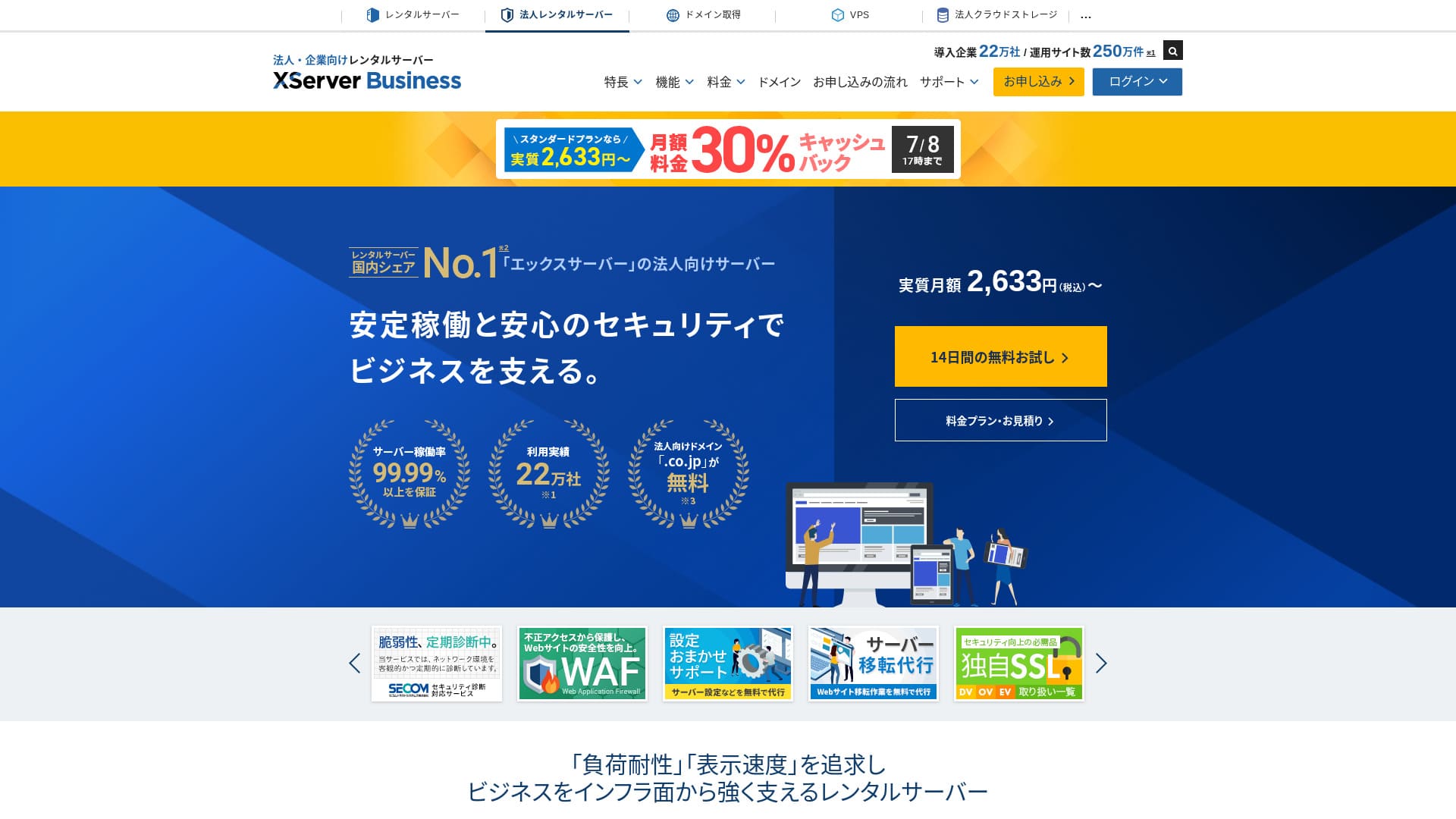
XServerビジネス
 is an ultra-fast business hosting service run by Xserver Inc.Because it is both fast and high-capacity, it is very comfortable for running email as well as WordPress websites and landing pages.
| Server type | Shared hosting / Managed dedicated server (virtual) / Managed dedicated server (physical) |
| Speed (TTFB) | 40ms |
| Recommended plan and term | Shared Standard 12 months |
| Free trial / money-back guarantee | 10-day free trial |
| Monthly price (12-month term) | 2,926 yen |
| Initial setup fee | 16,500 yen |
| Free domains | Two free forever |
| Support | Phone and email (weekdays 10:00-18:00) |
| Uptime | 99.99% guarantee |
| Storage | 700 GB |
| Number of databases | Unlimited |
| Security measures | WAF / website tamper alerts / Secom security diagnostics |
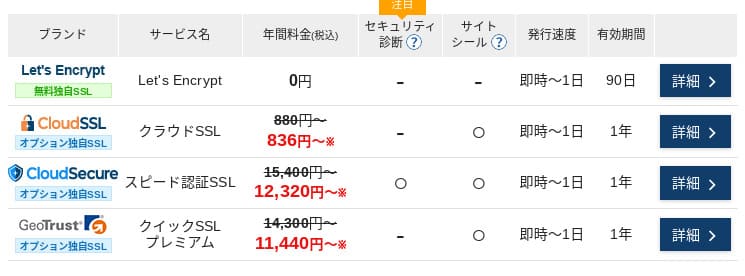
| SSL | Free dedicated SSL / Cloud SSL / speed-validated SSL / QuickSSL Premium |
| Backups / restore | 14 days of automatic backups / free restores |
| Email accounts | Unlimited |
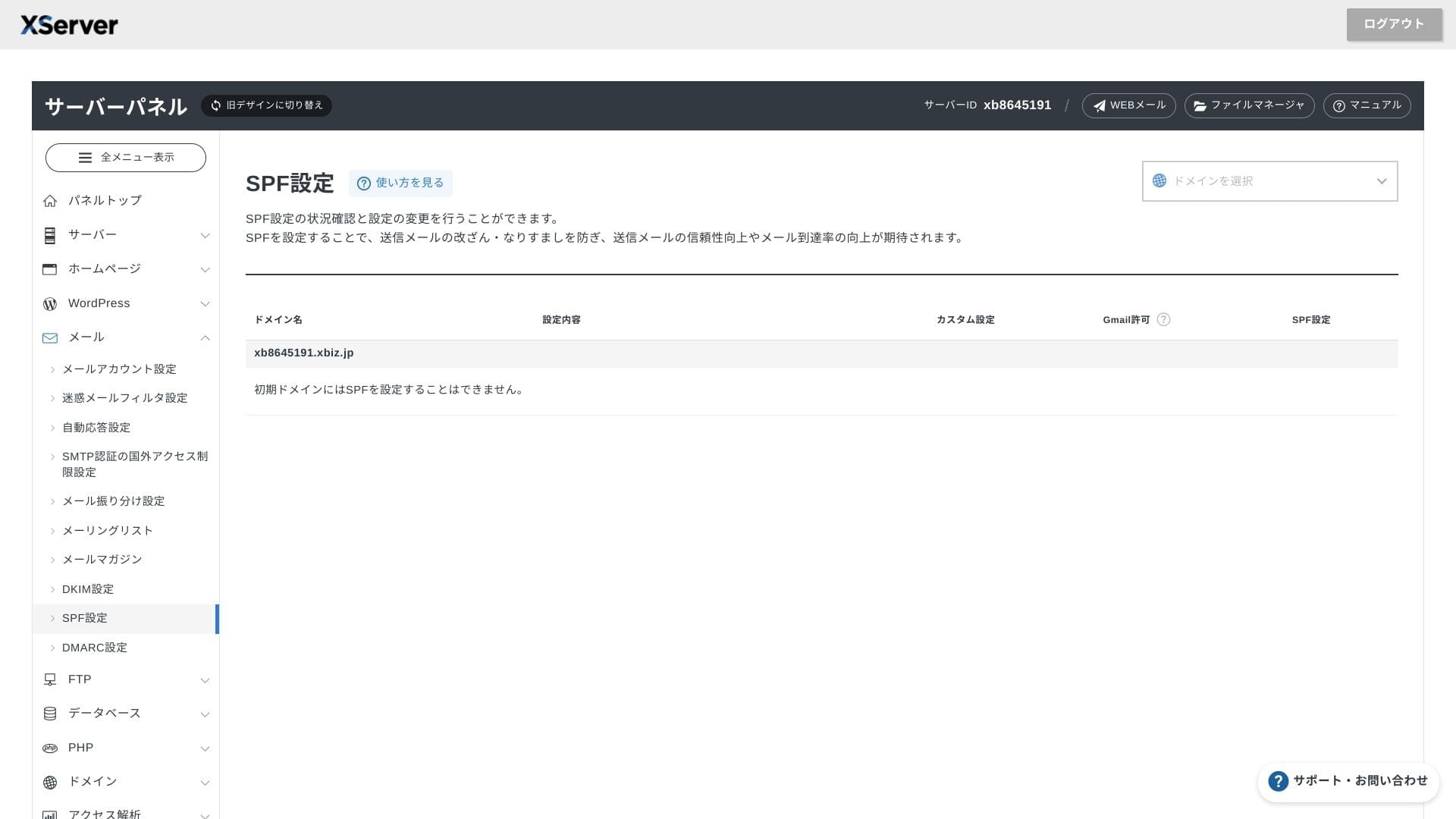
| Email security measures | Antivirus / spam filter / high-performance spam filter / POP over SSL / SMTP over SSL / IMAP over SSL / DKIM / DMARC |
| Server / website migration service | Free full-service migration(first time only, up to 10 sites) |
| WordPress preinstalled | Yes |
| CDN | None |

XServerビジネス
lets you start WordPress when you sign up for the server, which makes it a great fit for companies creating a new website. Businesses already running a site on another server can also use it with confidence because professional migration is included free of charge.
It is a high-quality server you can keep using for the long term.
- Data based on market research as of November 4, 2025, arranged in order of speed
- Monthly prices are the first-year cost of the cheapest plan that supports WordPress
- Speed is the Time to First Byte measured on demo sites under the same conditions
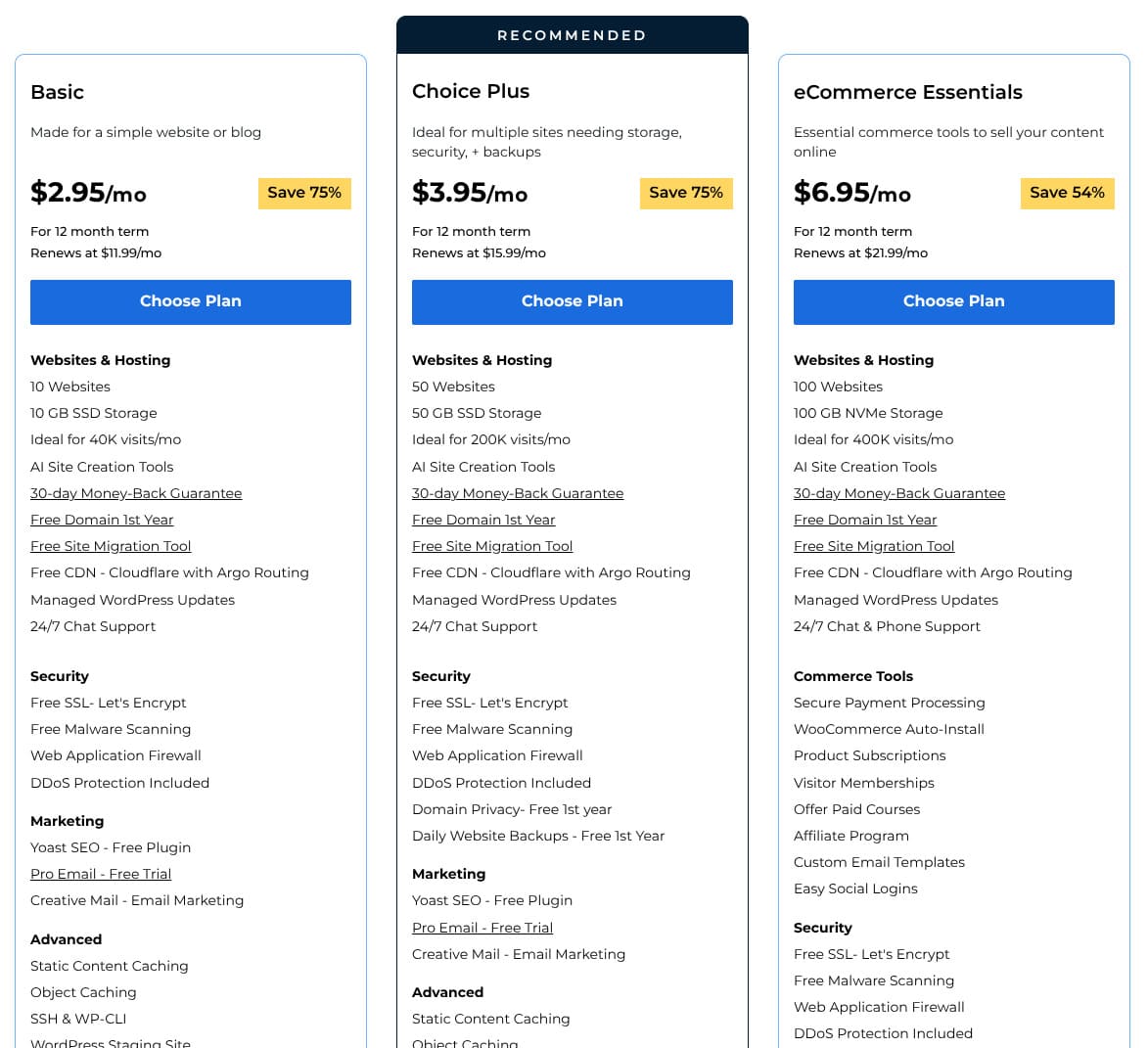
| Hosting service (plan) | Speed | Monthly price | WordPress Preinstalled | Uptime | Support (hours) |
|---|---|---|---|---|---|
| Average and recommended | 222.2ms | 1,109 yen | Yes | 99.99%+ | 24/7 or better |
| Kinsta
| 30ms | 30 USD (4,525 yen) | Yes | 99.9% | Chat (Japanese support, 24/7) / Email |
【Hostinger】
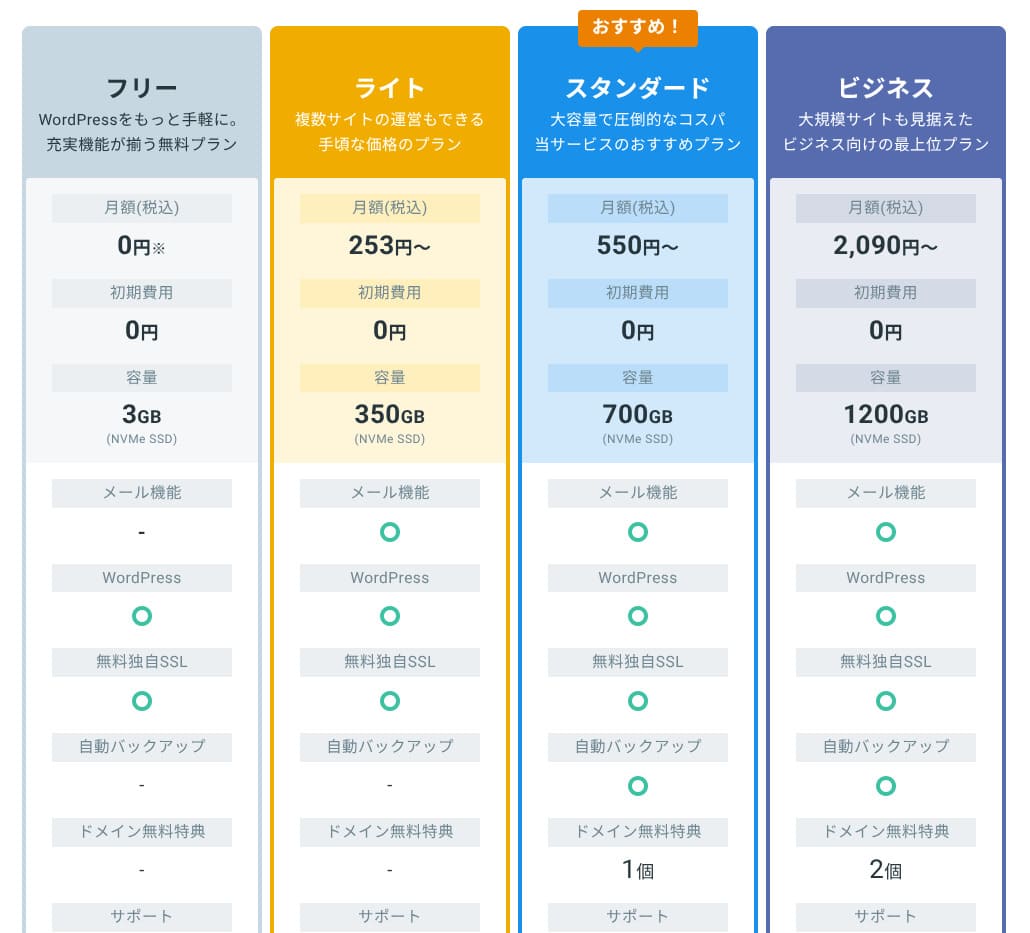
 (Premium) (Premium) | 31ms | 439 yen | No | 99.9% | Chat (24/7) |
| XServerビジネス
(Shared hosting) | 40ms | 2,926 yen | Yes | 99.99% | Phone / Email (weekdays 10:00-18:00) |
wpX Speed
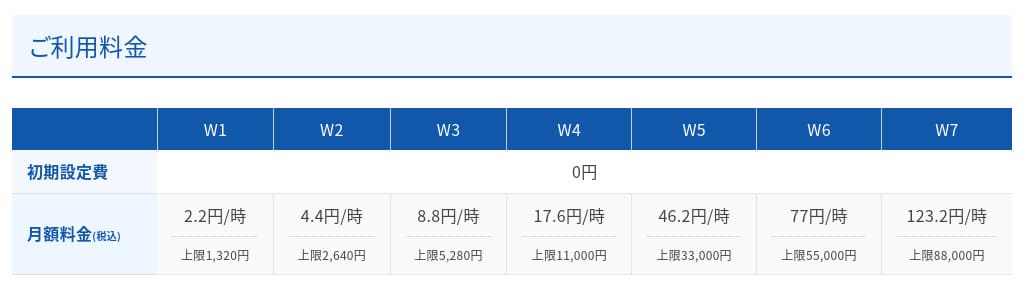
 (W1) (W1) | 40ms | 1,320 yen | No | Not disclosed | Phone / Email (10:00-18:00) |
LOLIPOP
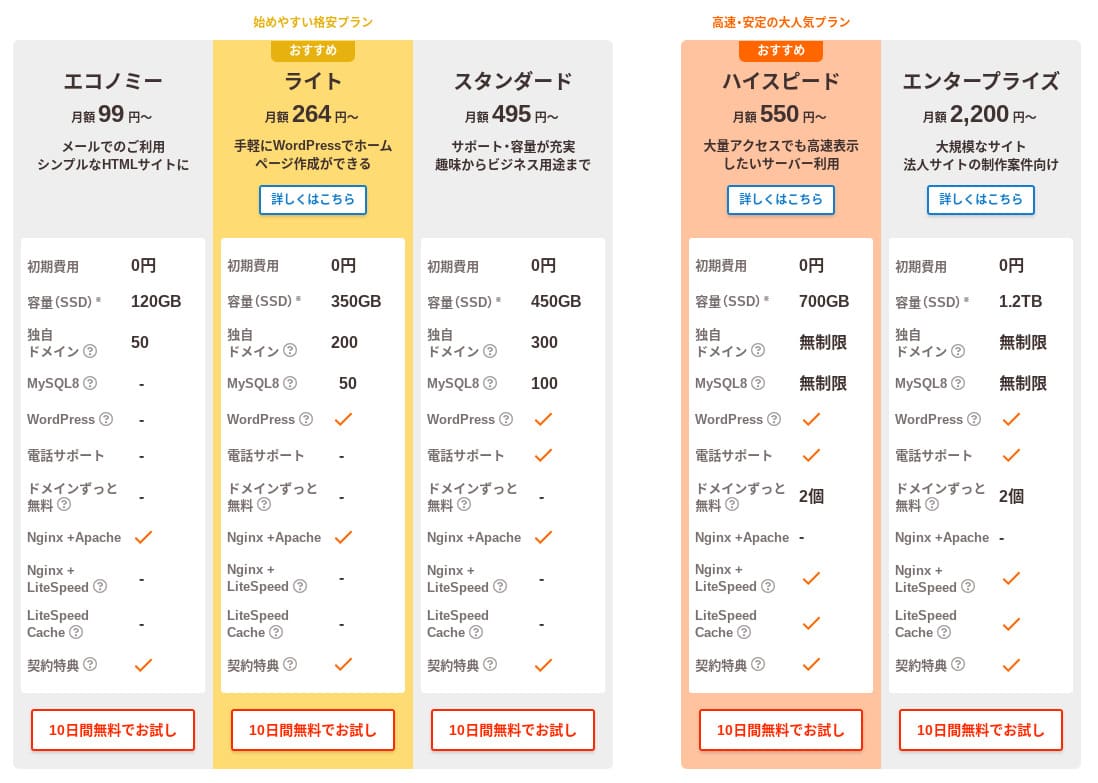
 (Light) (Light) | 80ms | 495 yen | Yes | 99.99% | Email / Chat (weekdays 10:00-18:00) |
スターレンタルサーバー
 (Free) (Free) | 90ms | 418 yen | No | Not disclosed | No |
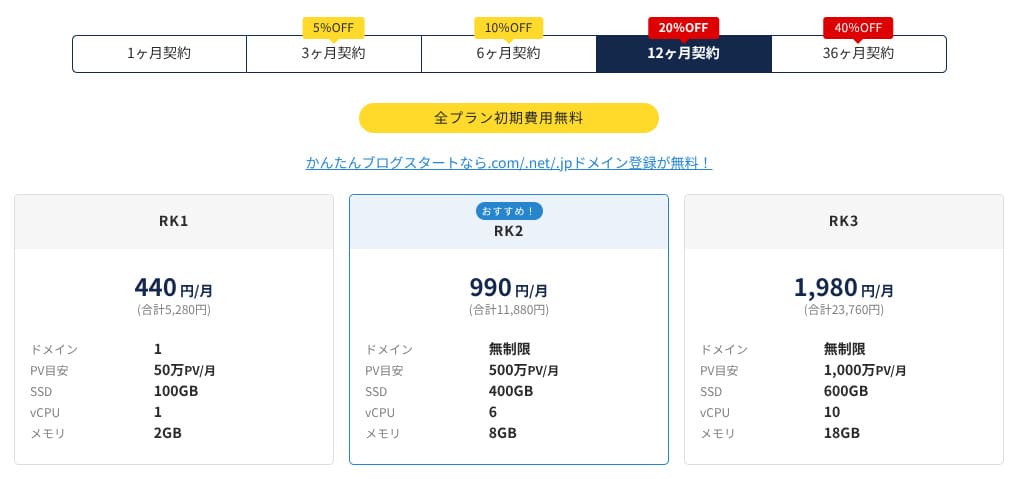
| Rakko Server(RK1) | 120ms | 440 yen | Yes | Not disclosed | Email (weekdays 10:00-19:00) |
エックスサーバー
 (Standard) (Standard) | 130ms | 770 yen | Yes | 99.99% | Phone / Email / Chat (weekdays 10:00-18:00) |
mixhost
 (Light) (Light) | 150ms | 594 yen | Yes | 99.99% | Email (weekdays 10:00-18:00) |
ConoHa WING
 (Basic) (Basic) | 160ms | 941 yen | Yes | 99.99% | Phone / Email / Chat (weekdays 10:00-18:00) |
ColorfulBox
 (BOX1) (BOX1) | 190ms | 383 yen | Yes | Not disclosed | Phone (24-hour reception) / Chat / LINE / Email (weekdays 09:30-12:00, 13:00-17:30) |
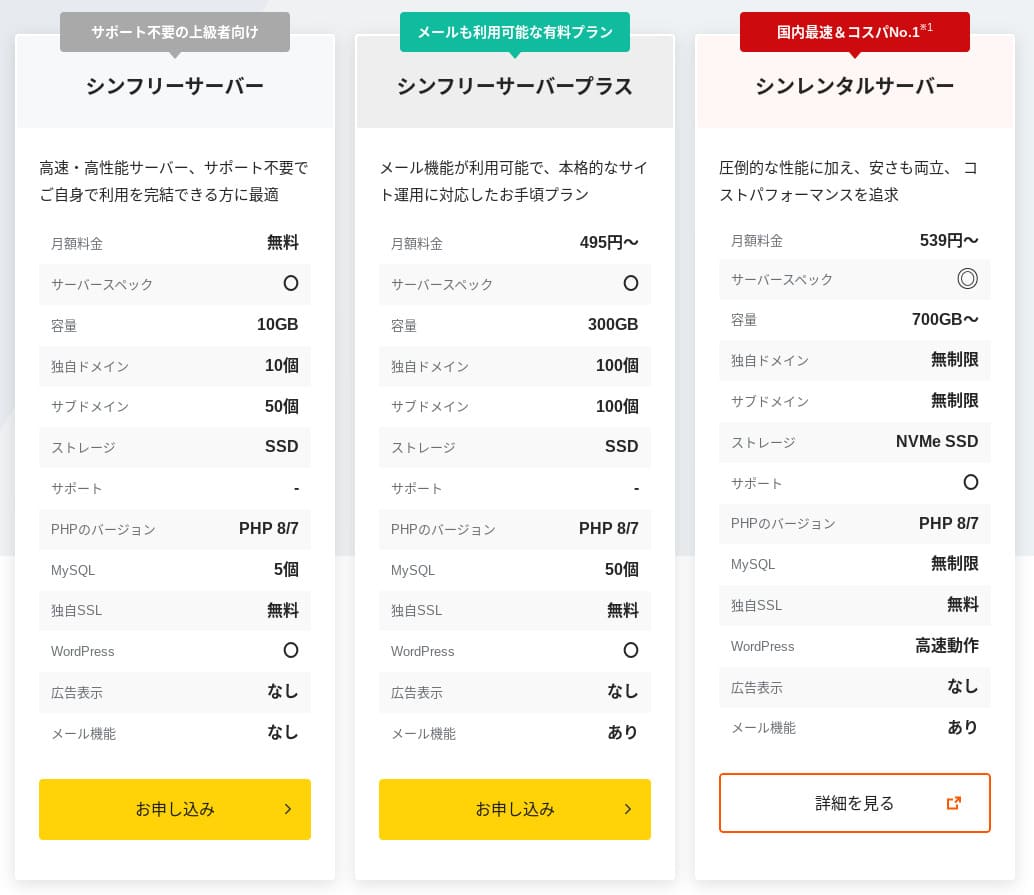
シンレンタルサーバー
 (Basic) (Basic) | 200ms | 985 yen | Yes | Not disclosed | Phone / Email (10:00-18:00) |
リトルサーバー
 (Mini) (Mini) | 200ms | 165 yen | No | Not disclosed | Email (business hours not disclosed) |
CORESERVER
 (MINI) (MINI) | 210ms | 264 yen | Yes | Not disclosed | Email / Chat (10:00-12:00, 13:00-17:00) |
| DreamHost(WordPress Starter) | 400ms | 2.99 USD (461 yen) | No | 100% | Chat (24/7) / Email / Phone callback |
| Bluehost(Basic) | 420ms | 4.99 USD (769 yen) | No | 100% | Chat (24/7) |
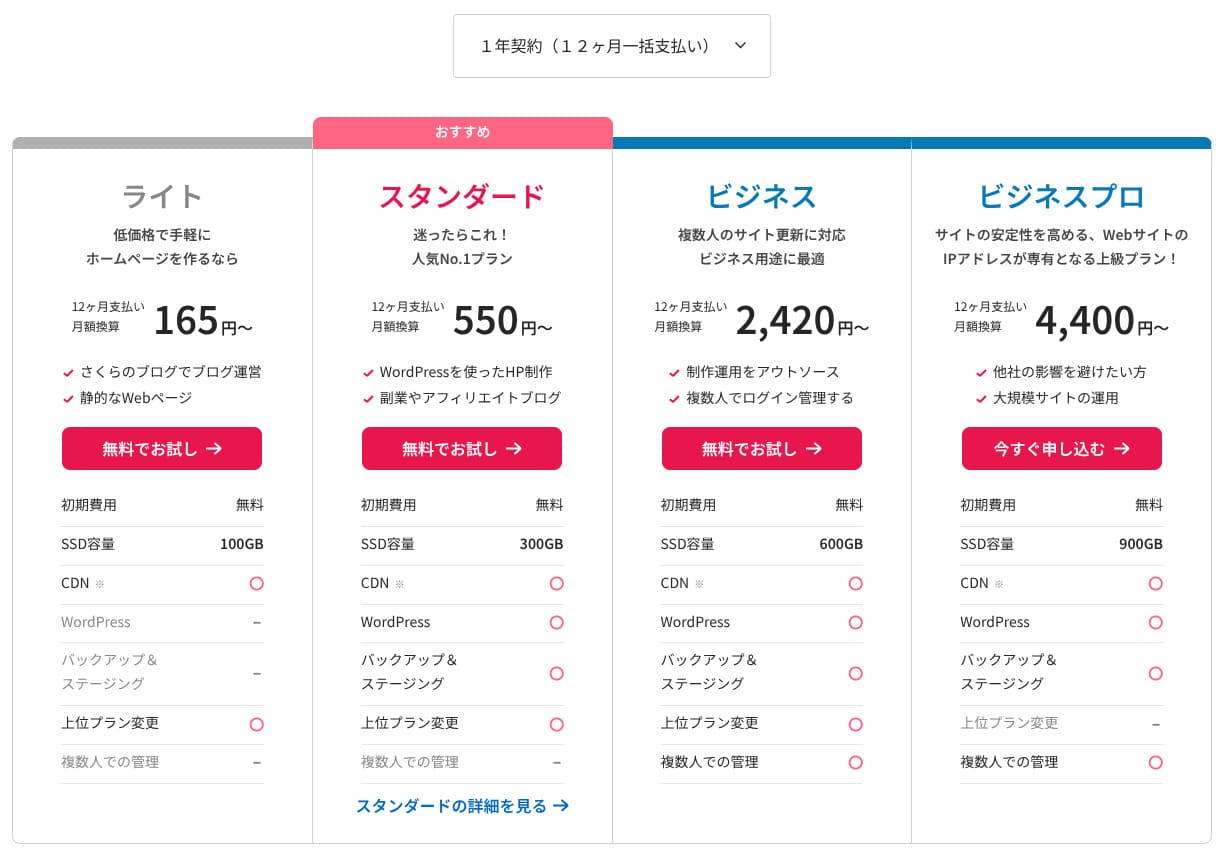
さくらのレンタルサーバ
 (Standard) (Standard) | 440ms | 550 yen | No | 99.99% | Chat / Email / Phone / Callback reservation (10:00-18:00) |
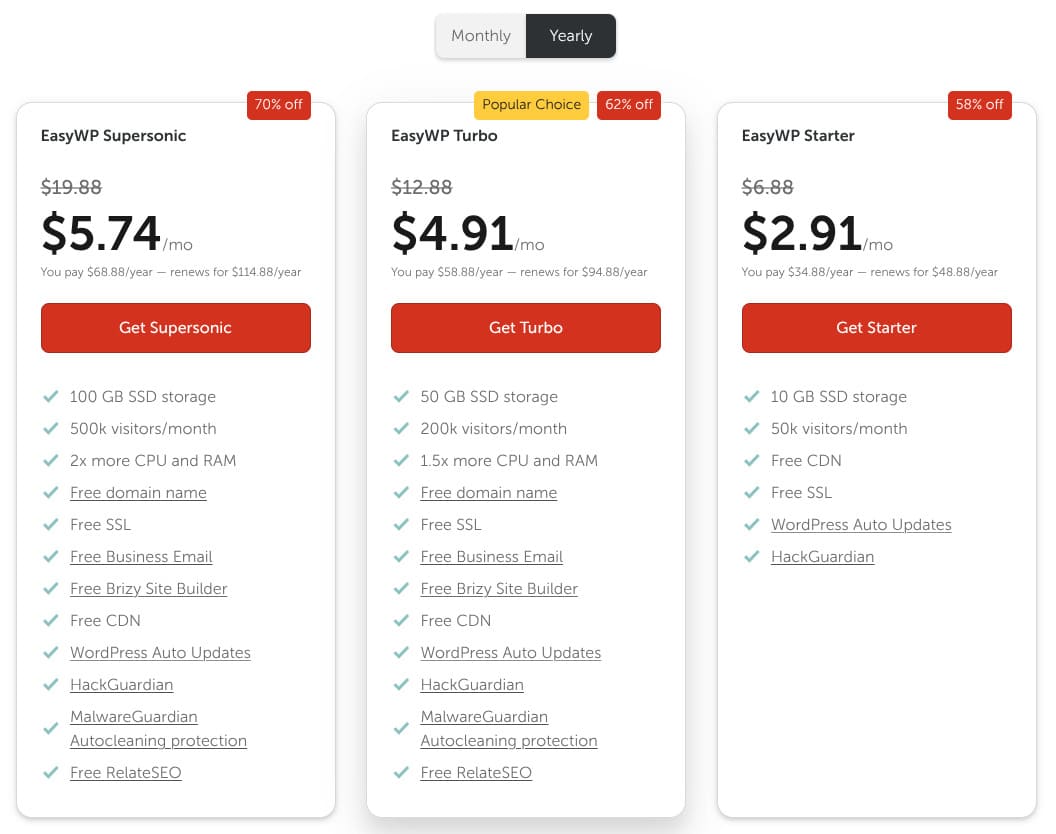
| Namecheap(EasyWP Supersonic) | 440ms | 9.88 USD (1,523 yen) | No | 99.9% | Chat (24/7) |
| Shin Free Server | — | Free | No | Not disclosed | No |
XREA
 (Free) (Free) | — | Free | No | Not disclosed | No |
Value Server
 (Eco) (Eco) | — | 220 yen | No | Not disclosed | Email / Chat (weekdays 10:00-17:00) |
| KAGOYA JAPAN(Grade 1) | — | 440 yen | Yes | 99.999% | Phone / Email (weekdays 10:00-17:00) |
| SiteGround(StartUp) | — | 3.99 USD (615 yen) | No | 99.99% | Chat (24/7) / Email / Phone |
| Hostgator(Baby) | — | 4.45 USD (686 yen) | No | 99.9% | Phone / Chat (24/7) |
| IONOS(Start) | — | 1.00 USD (154 yen) | No | 99.98% | Phone / Email / Chat (24/7) |
onamae.com Rental Server
 | — | 2,398 yen | No | 99.99% | Phone / Email / Chat (weekdays 10:00-18:00) |
ABLENET RentalServer
 (Light) (Light) | — | 830 yen | No | 99.99% | Email (business hours not disclosed) |
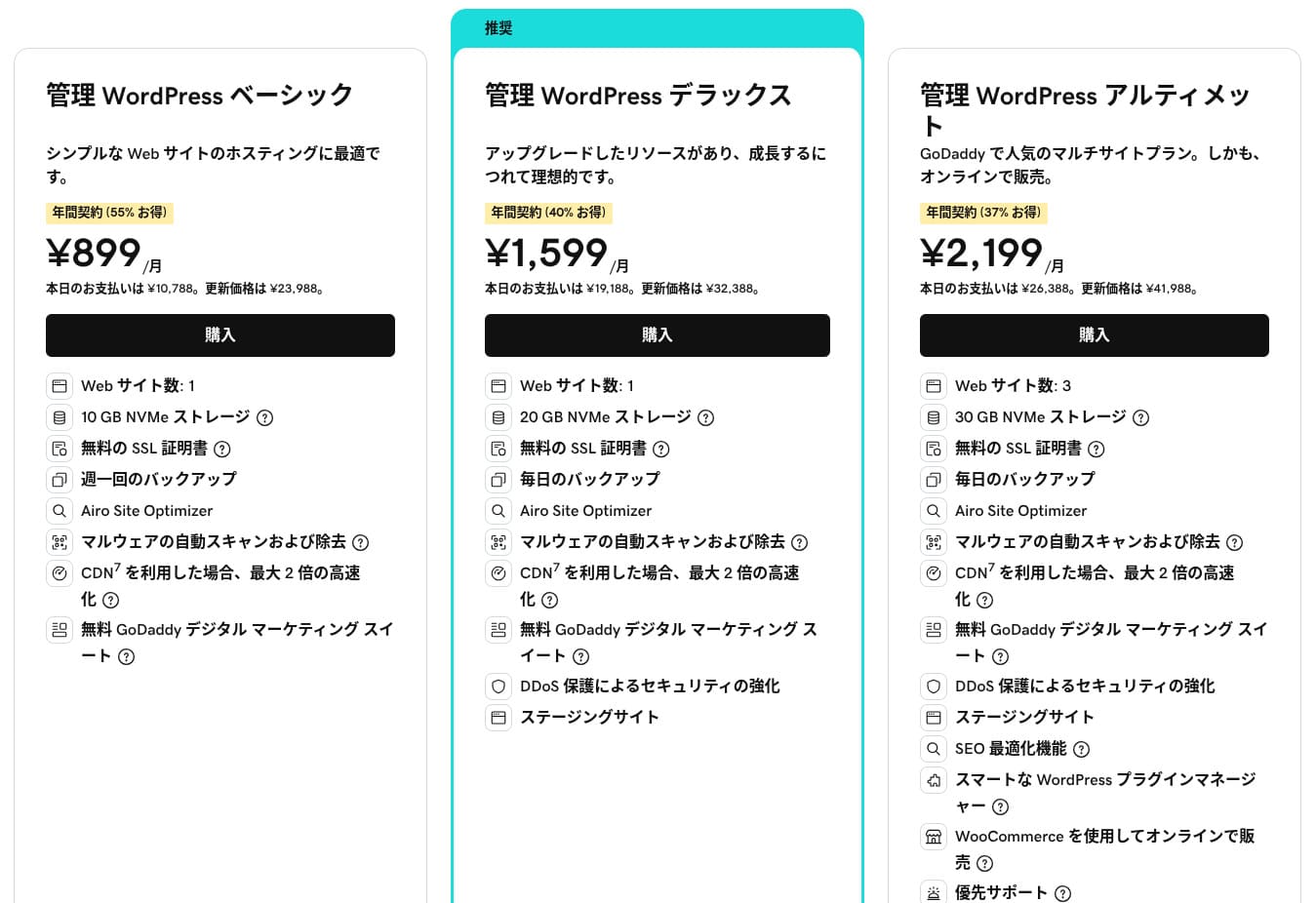
| Godaddy(Basic) | — | 899 yen | Yes | 99.9% | Chat (24/7) / Phone (weekdays 10:00-17:00) |
iCLUSTA+ byGMO
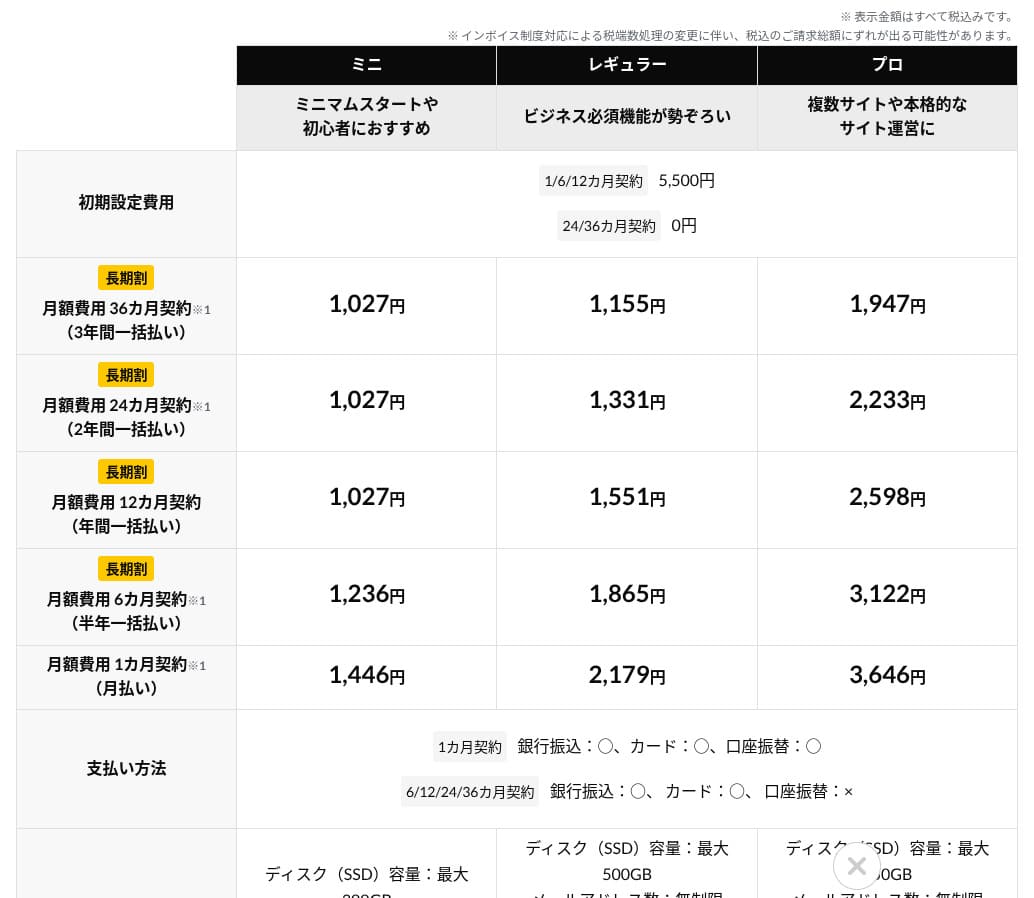
 (Mini) (Mini) | — | 1,027 yen | No | 100% | Phone (weekdays 10:00-18:00) Email support is available 24/7 |
ムームーサーバー
 | — | 1,430 yen | No | 99.99% | Email / Chat (9:30-13:00, 14:00-17:30) |
WADAX
 (WP Standard) (WP Standard) | — | 2,200 yen | No | 99.9% | weekdays 09:00-22:00, weekends 09:00-18:00 |
| WebARENA SuiteX | — | 1,997 yen | No | 100% | Email / Chat (weekdays 09:30-17:00) |
heteml
 | — | 2,035 yen | No | 99.99% | Phone / Email (weekdays 10:00-18:00) |
CPI
 (Shared) (Shared) | — | 4,840 yen | No | 100% | Phone / Email (weekdays 10:00-18:00) |
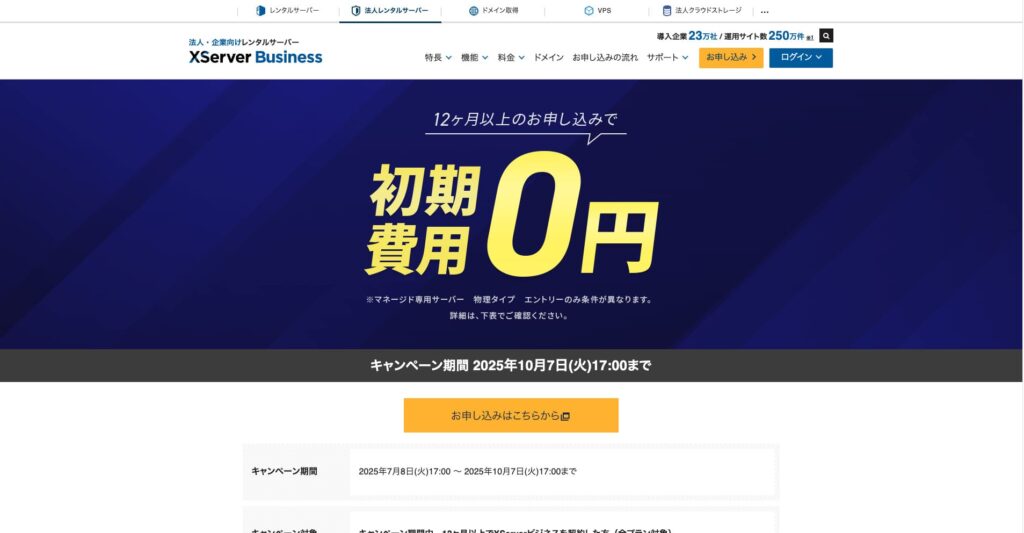
"XServerビジネス
" is the business hosting service from Xserver Inc., the company with the No. 1 market share in Japan. In our measurements, it ranked No. 2 for speed. It is one of the best choices when you need to move to a new server, and migration is free as well.

WordPress-related review
Easy WordPress installation
XServerビジネス
supports Easy WordPress Installation, which installs WordPress 6.8 from the control panel in just a few clicks. It automatically handles the database and PHP settings, and SSL is enabled at the same time, so the work required for the initial setup is almost zero.
Even without an in-house IT department, you can start WordPress reliably and without trouble.
- STEP.1
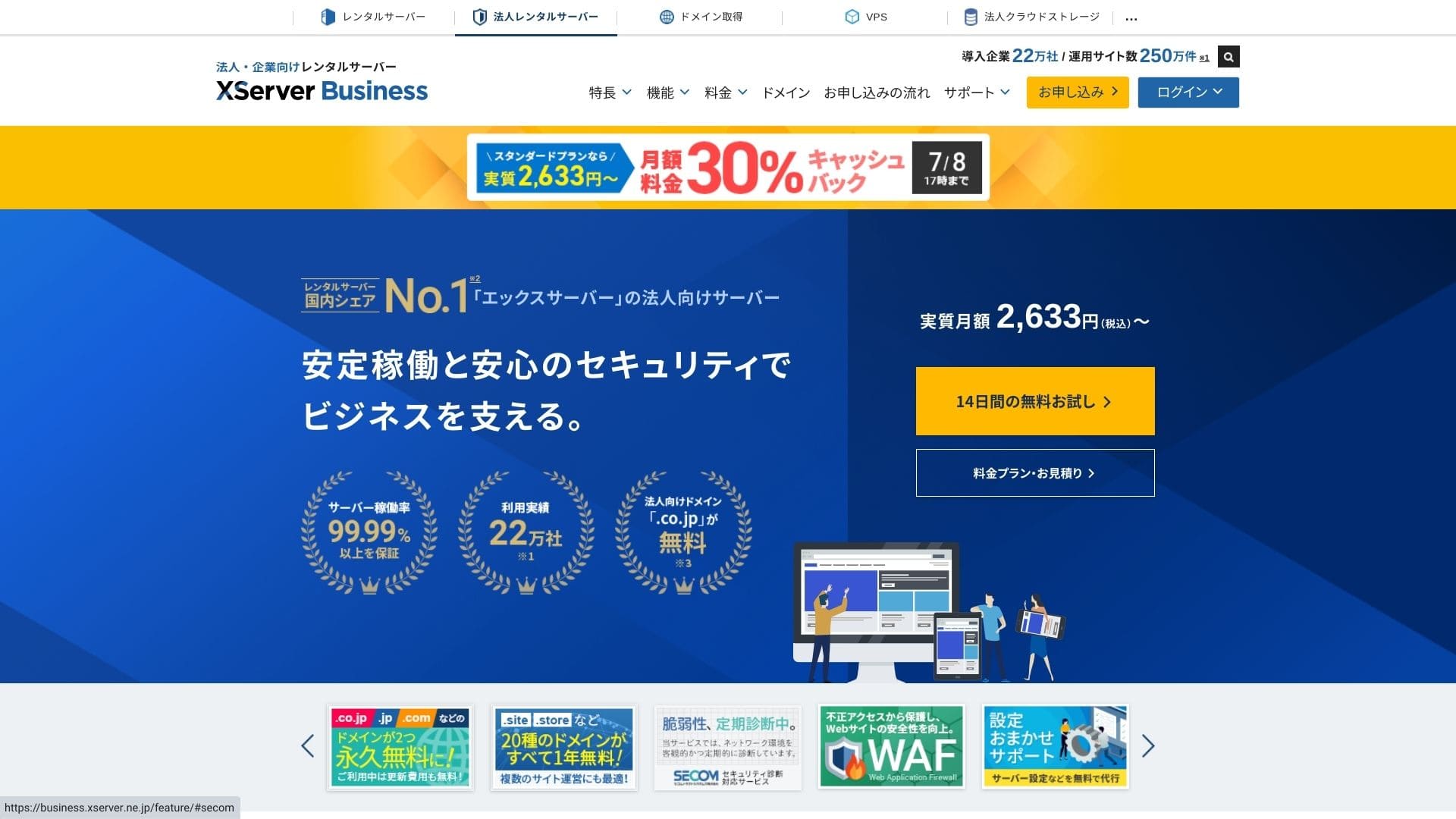
Click "14-day free trial" on the top page. Then, under "First-time customers," click "Start now! New application."
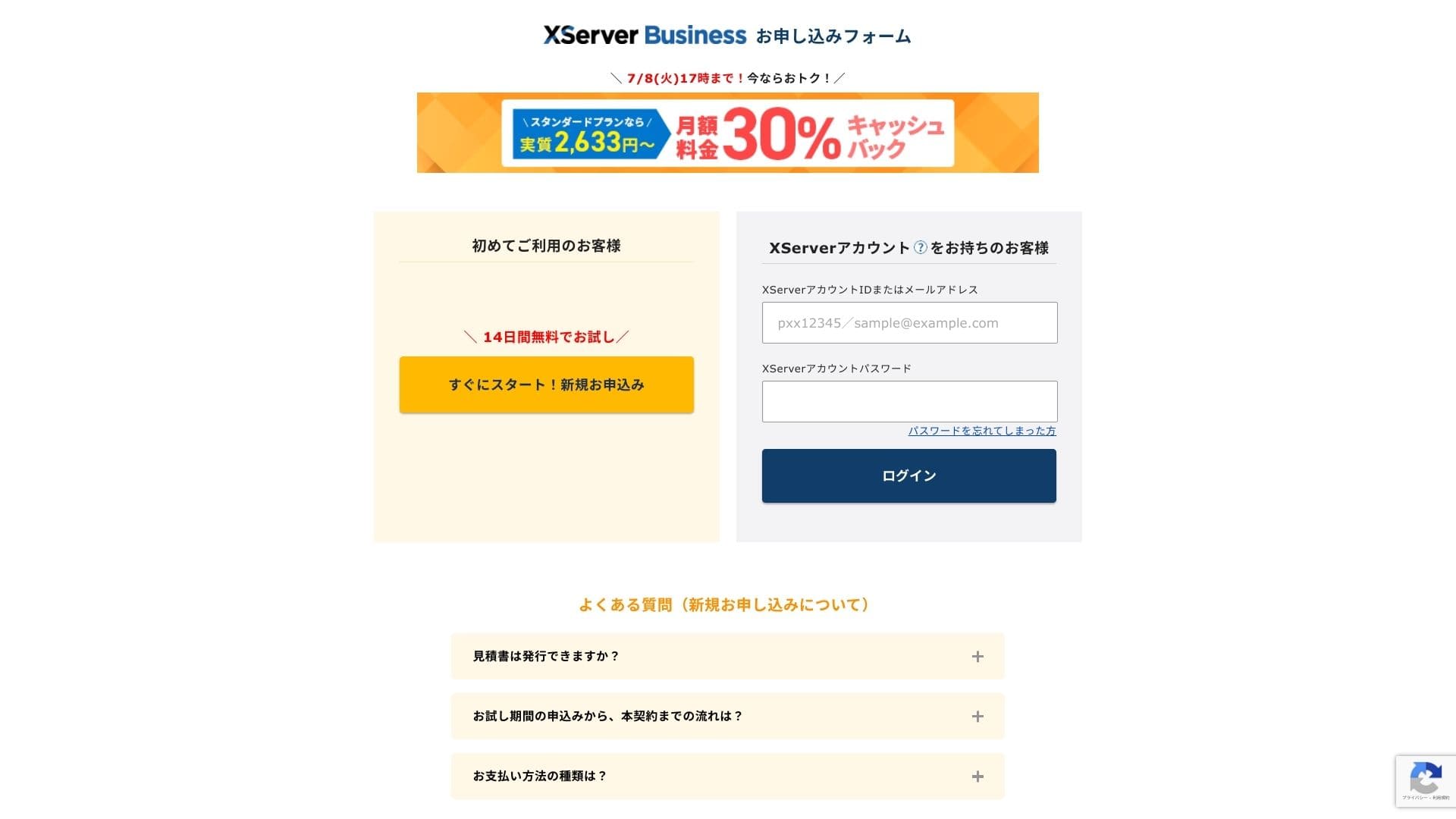
- STEP.2Choose your application details
You can leave the server ID as it is. Choose the shared server, then select a plan. I recommend the Standard plan. If traffic grows and the specifications become insufficient, you can upgrade later.
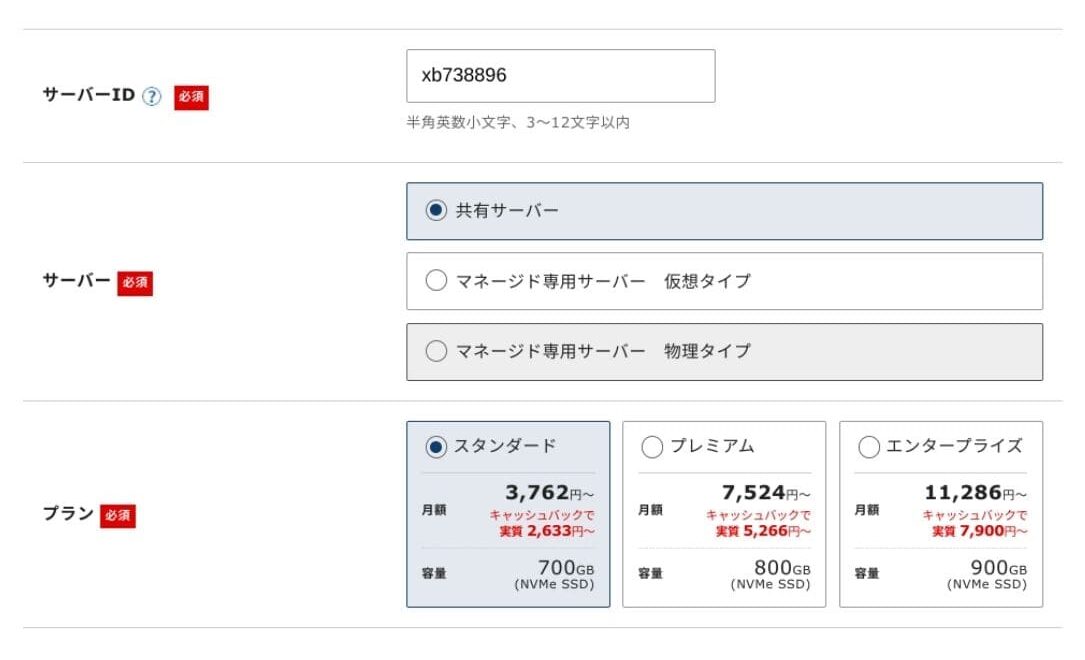
Click "Proceed to customer information entry."
- STEP.3Create your Xserver Account and enter your customer information
Enter your email address, name, address, and the other required details.
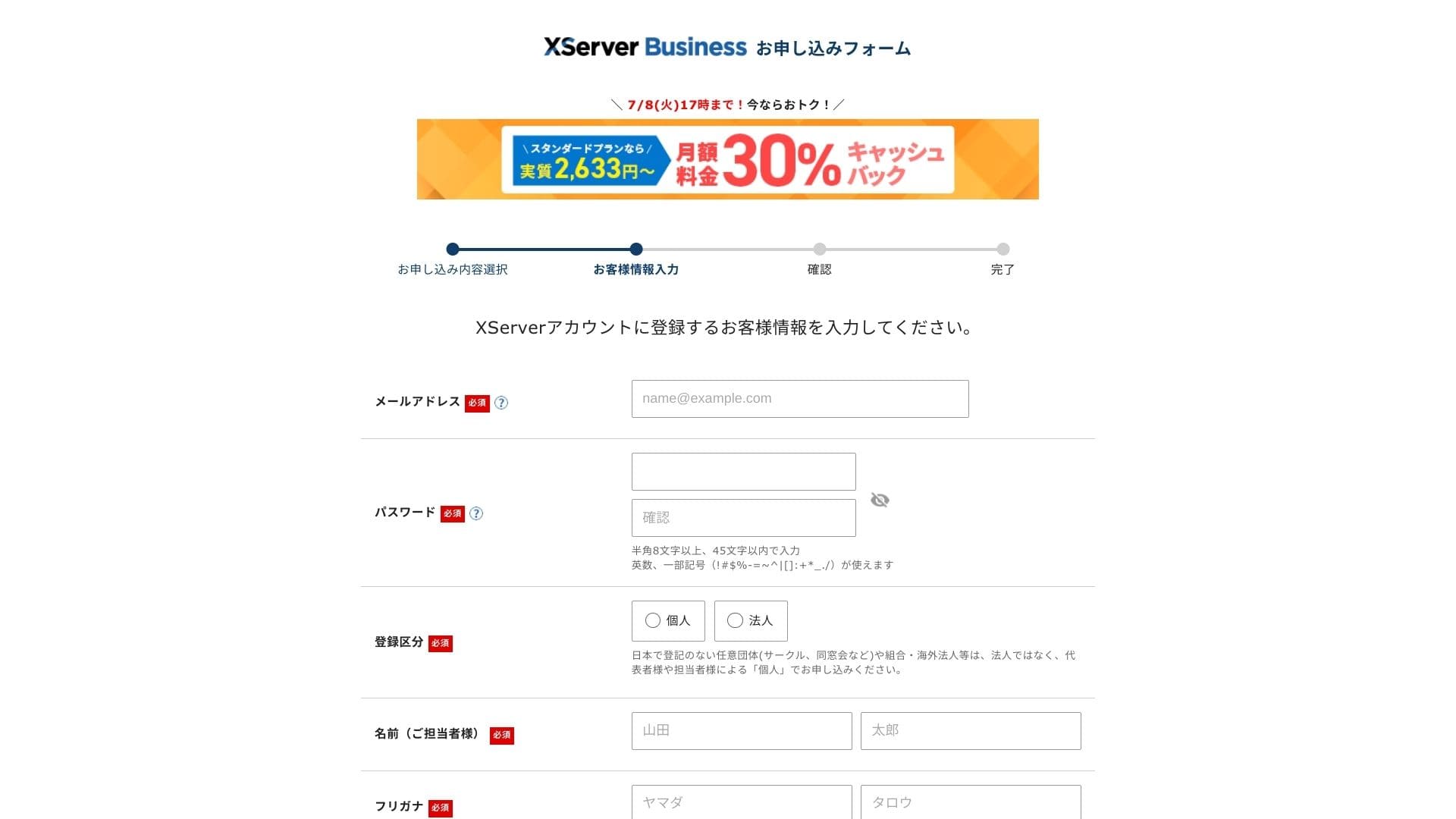
Review the Terms of Use and the Handling of Personal Information. If you agree, check the box and click "Next."
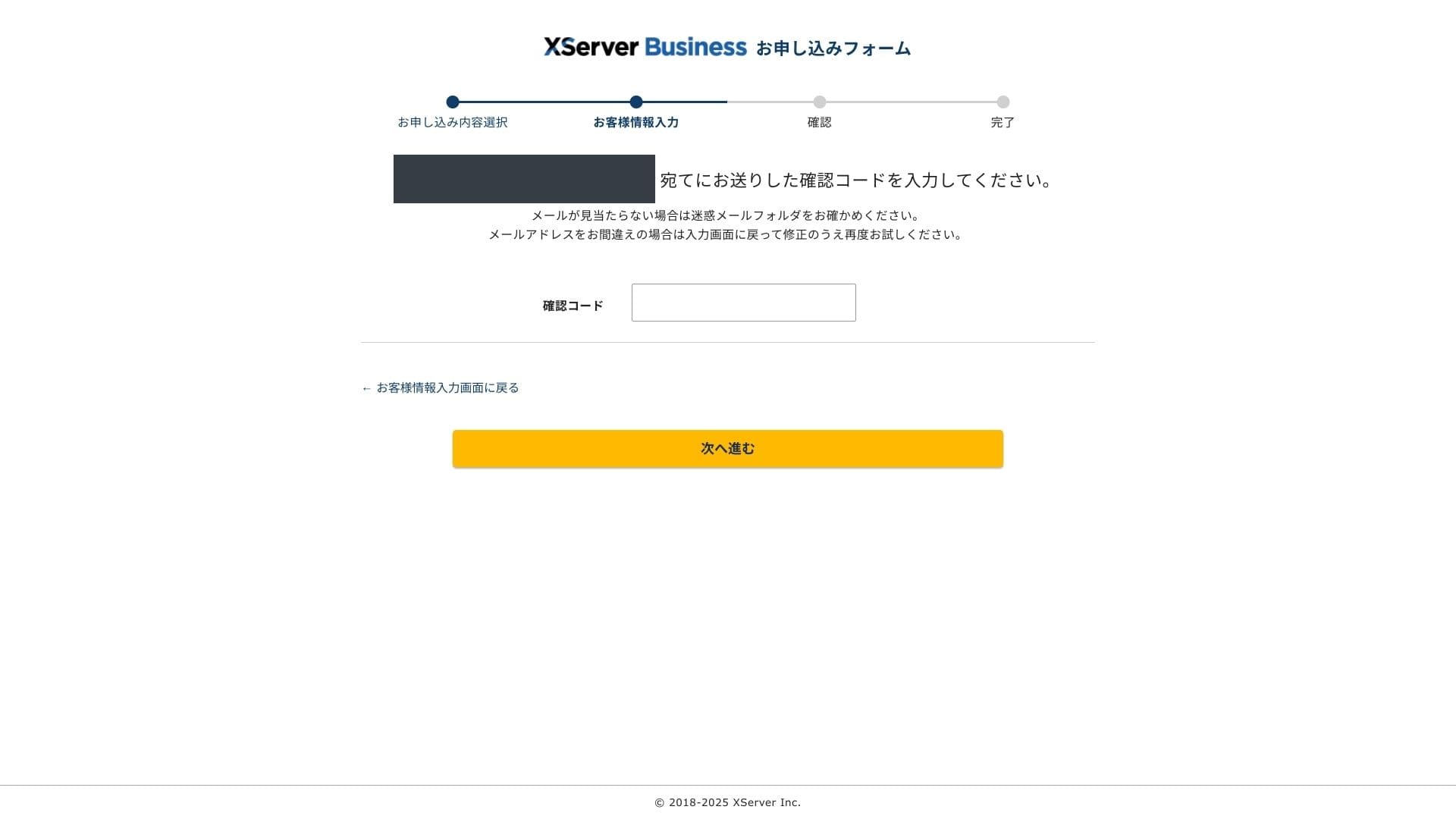
Enter the verification code shown on the screen. A verification code will be sent to the email address you registered, so check that message first.
- STEP.4Review
Review your application details and Xserver Account information one more time. If everything looks correct, click "Proceed to SMS / phone verification."
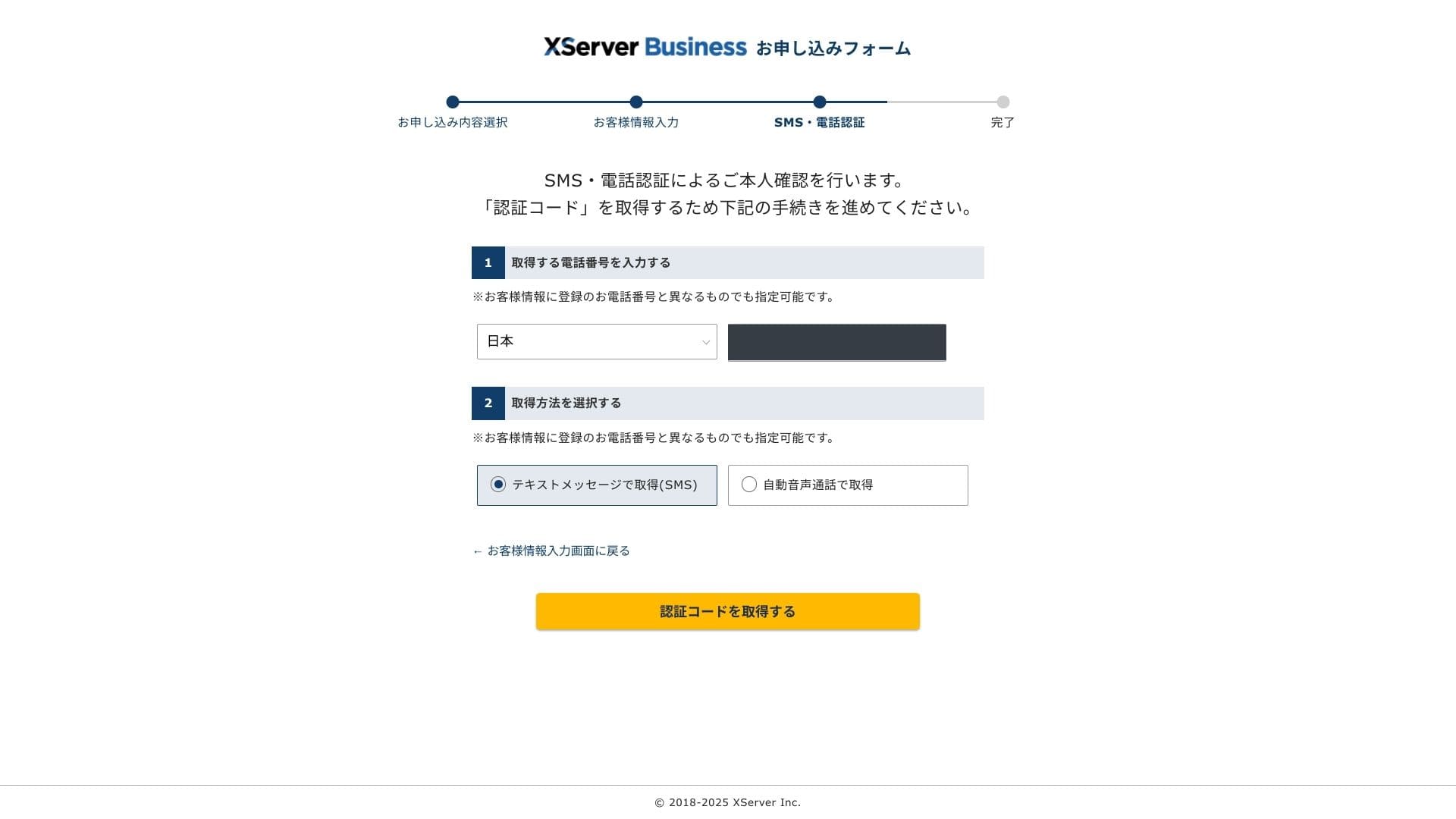
Your application details will be reviewed again using your phone number.
Enter the phone number to use, choose either SMS or an automated voice call to receive the verification code, and click "Get verification code." Once you receive it, enter the code.
When you see "Your application has been completed," the application is finished.
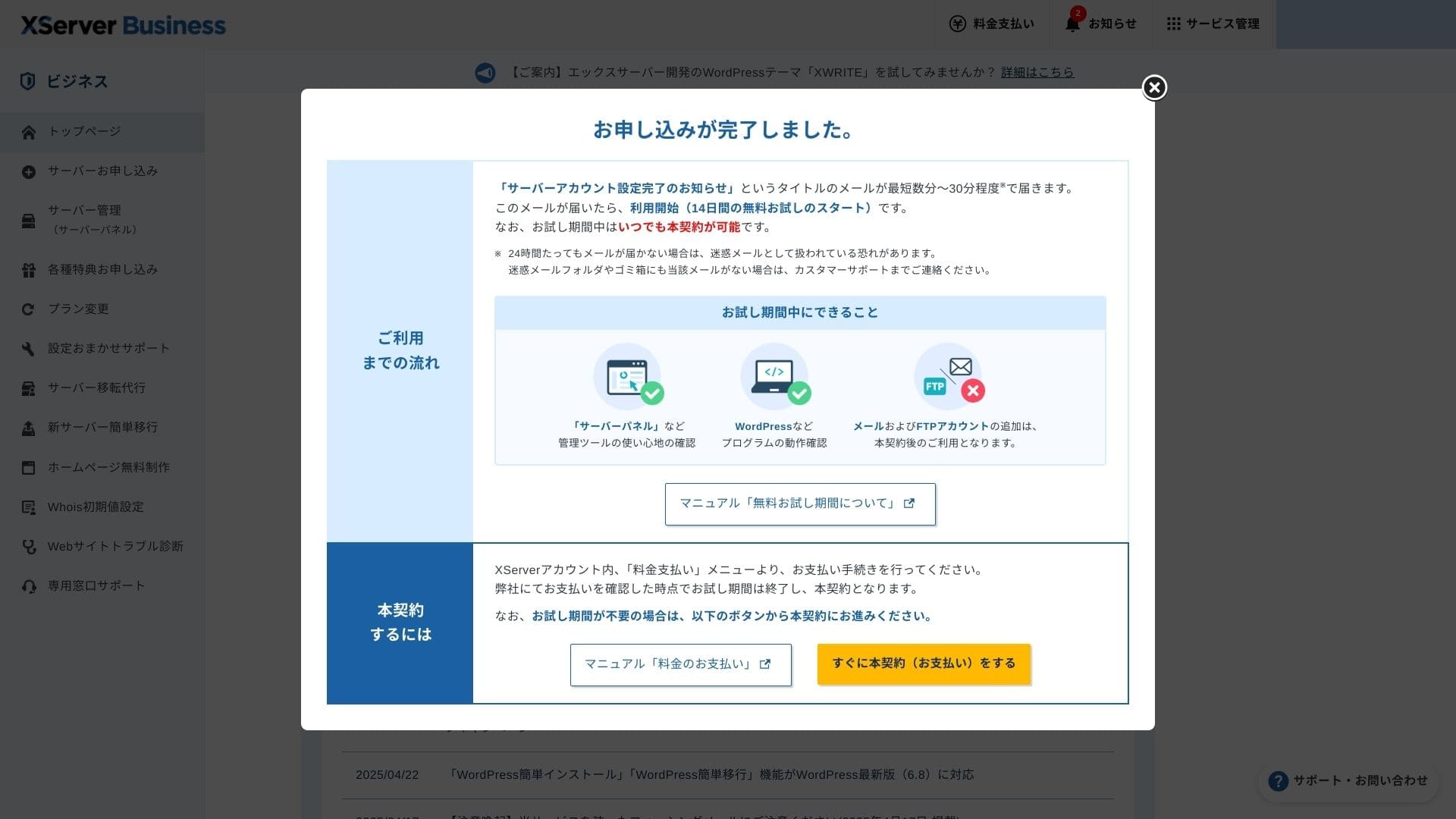
Once this page appears, complete the payment from "Proceed to paid contract now." If you do not complete the paid contract, you cannot use the one-year free domain benefit or the email features.
- STEP.5Get your custom domain and configure it
Log in to the Server Panel from the Xserver Account admin screen. Get your domain from the Domain section. It is a good deal to use the one-year free benefit.
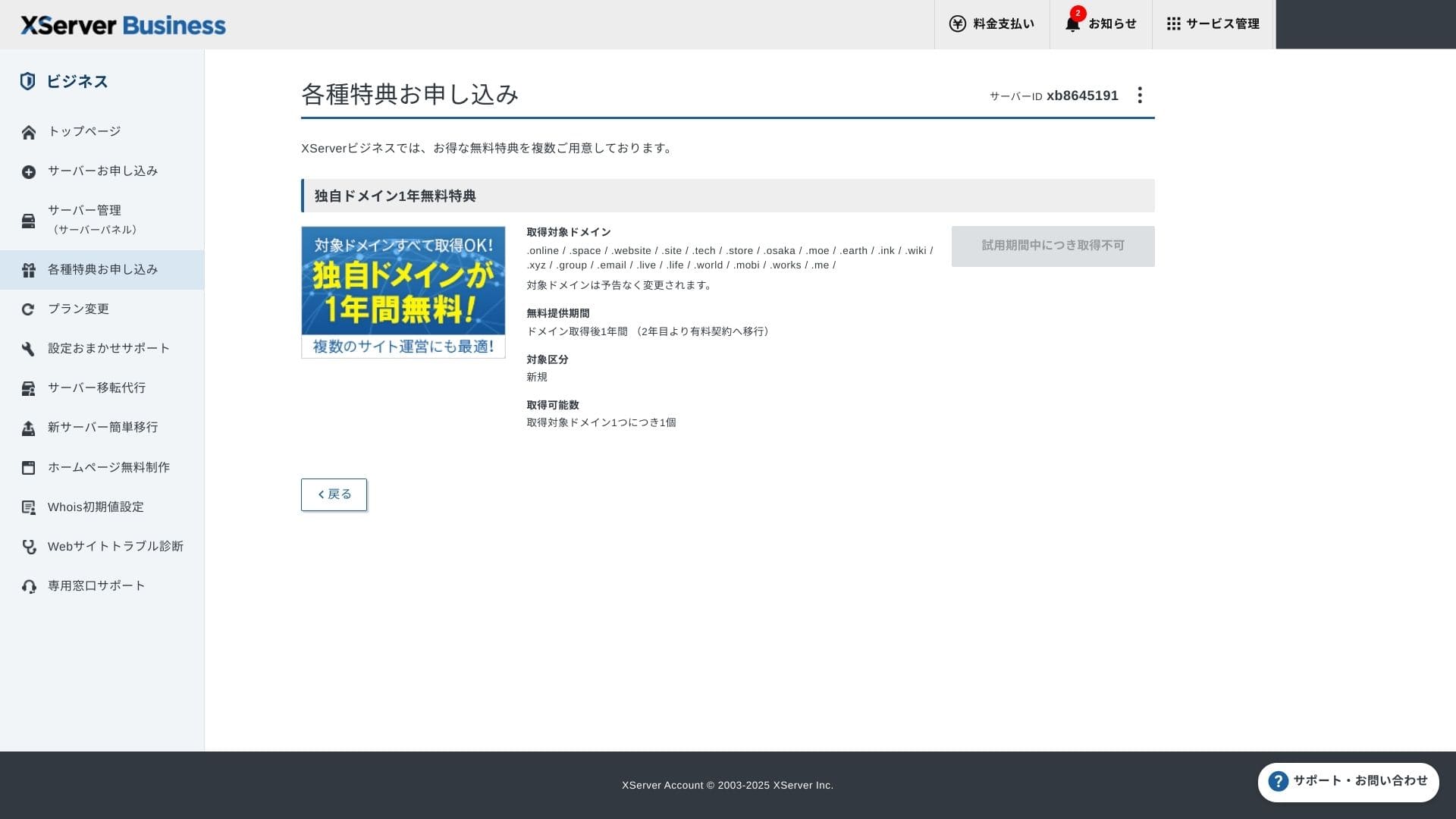
Get your custom domain. From Apply for special offers in the admin screen, choose Permanent free custom domain benefit, then click Use this benefit.
Choose New registration as the category. Enter any string you want for the domain name. Your domain matters, so think carefully before deciding.
★ What is a domain? Its role as an address on the internet and how to obtain one
Search for the domain name you want and choose it. Click "Apply to get the selected domain." Review the application details on the Review screen. Check the box to agree to the Terms of Use and the Handling of Personal Information, then click "Submit your application."
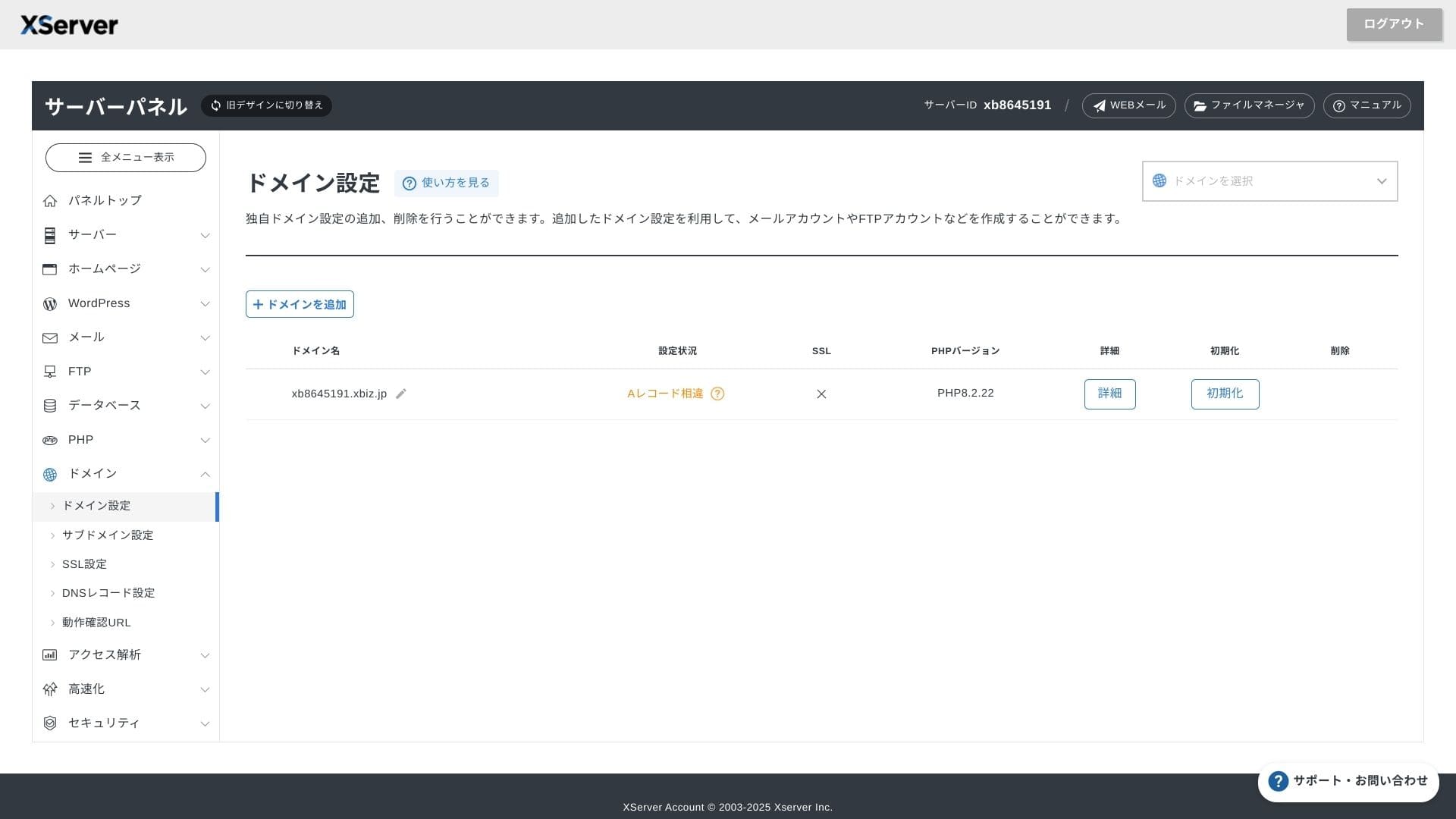
Next, configure the domain. From the admin screen, choose "Server Management." This opens the Server Panel. Under "Domain," click "Domain Settings." Click "Add Domain Setting," enter the custom domain you obtained, and click "Proceed to Review."
Check the details on the Review screen and click "Add." When the completion screen appears, the domain setup is complete.
- STEP.6Install WordPress and complete the initial setup
From WordPress in the Server Panel, choose Easy WordPress Installation.
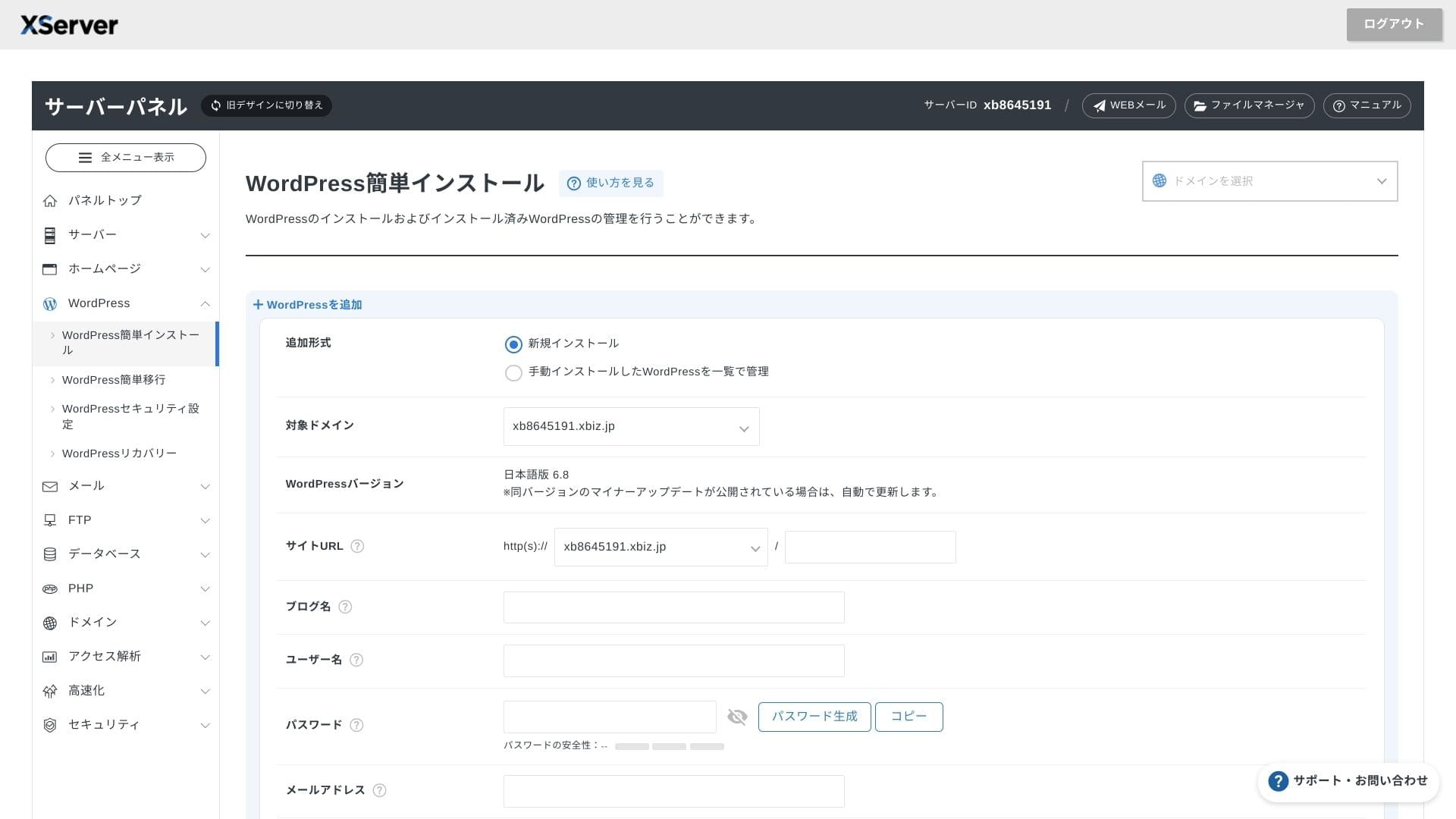
Click WordPress Installation and enter the installation settings for WordPress.
- Site URL: Select the domain name you obtained earlier
- Site title: The title of your website
- Username: Any username for WordPress login
- Password: A WordPress login password, preferably as complex as possible
- Email address: Use the email address you normally use. For a business site, a company email is recommended
- Database: Generate the database automatically
After entering everything, click "Proceed to Review" and then click "Install." When the completion screen appears, the installation is complete.
Next, handle the initial WordPress setup. Click Admin panel URL on the WordPress installation completion screen. On the login screen that appears, enter the username and password you wrote down earlier and click Log in.
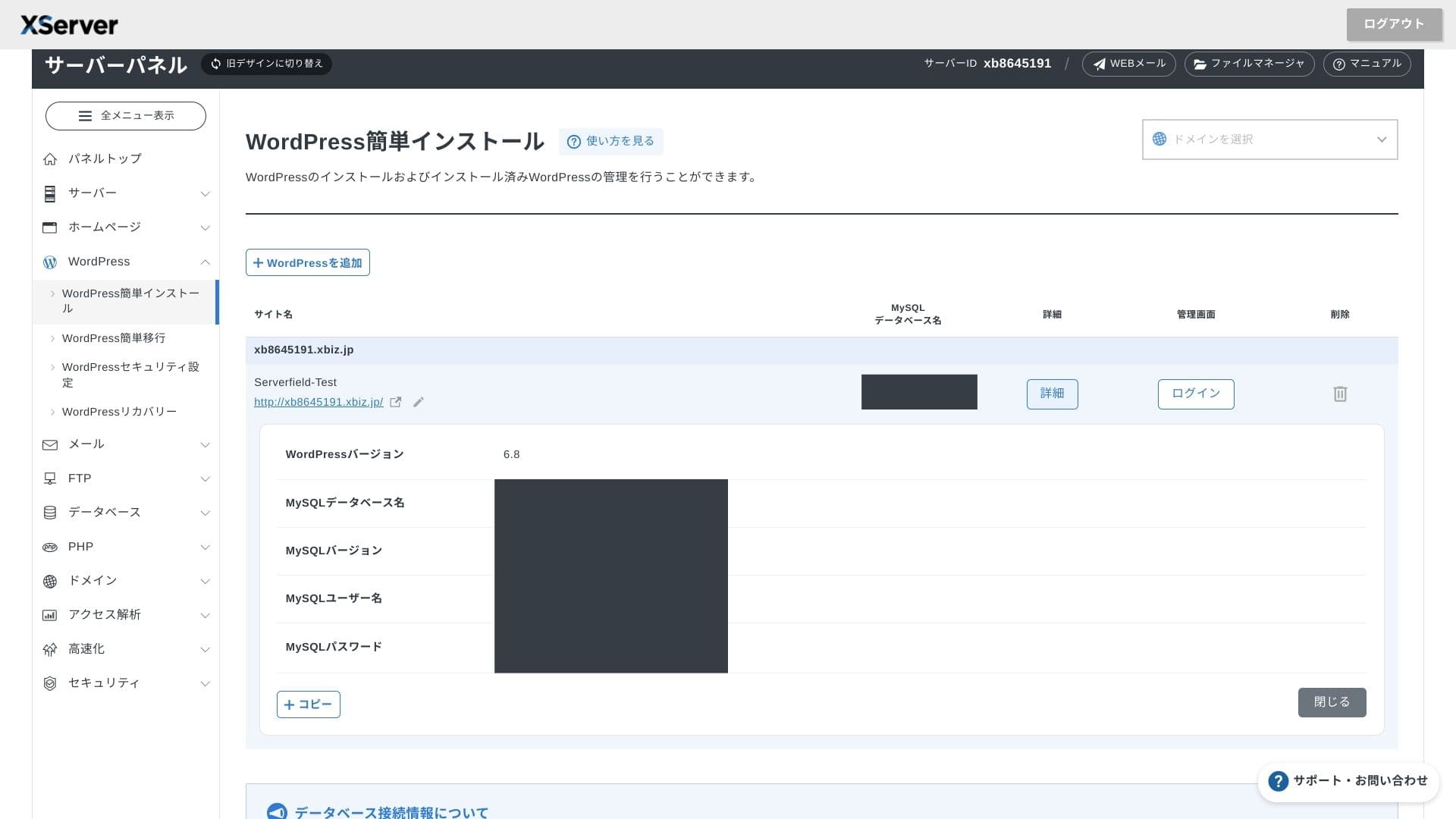
If you see a warning saying A secure connection is not supported, the DNS settings have not propagated yet. In that case, all you can do is wait, so try logging in again every hour or so.
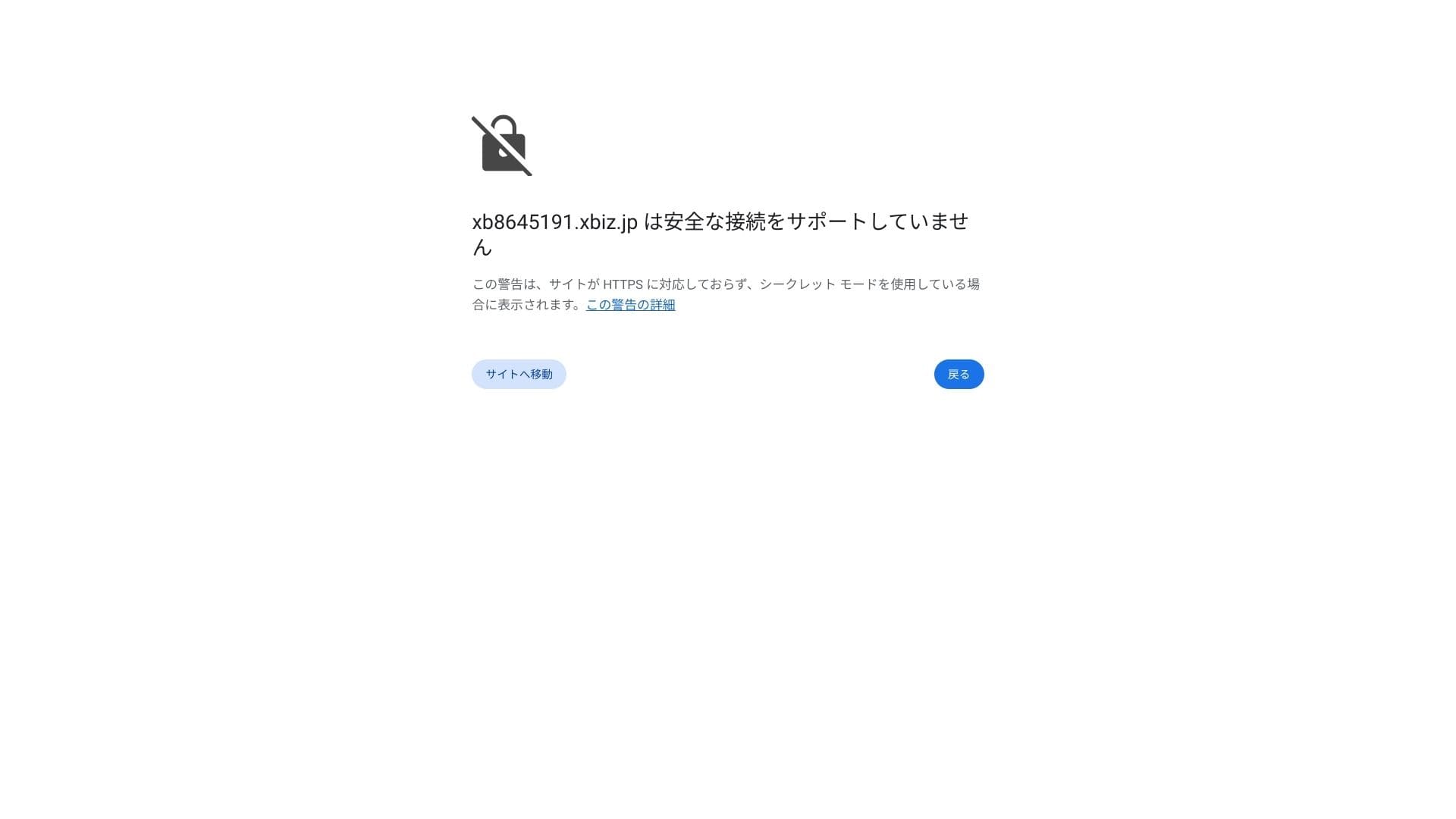
★ What are DNS and nameservers? Connecting your domain and server
Set your permalinks. In the WordPress admin screen, go to Settings and then Permalinks. Choose Post name and click Save Changes.
If you choose Post name, you will be able to enter any string you want in each article URL. I recommend a short string that helps readers imagine the article content. If the URL is too long, some people may feel uneasy and wonder whether the site is unsafe.
- STEP.7Install plugins
Go back to the WordPress admin screen, open Plugins, then Add New, and install the plugins you need.
When you find the plugin you want through search, click Install Now and then Activate. After that, follow the instructions for each plugin.
Be sure to install security and backup plugins.
- 5 security-focused WordPress plugins and how to choose them
- 5 powerful WordPress backup plugins to recover your data
Once the plugins are in place, your WordPress website is ready to go.
Running multiple sites
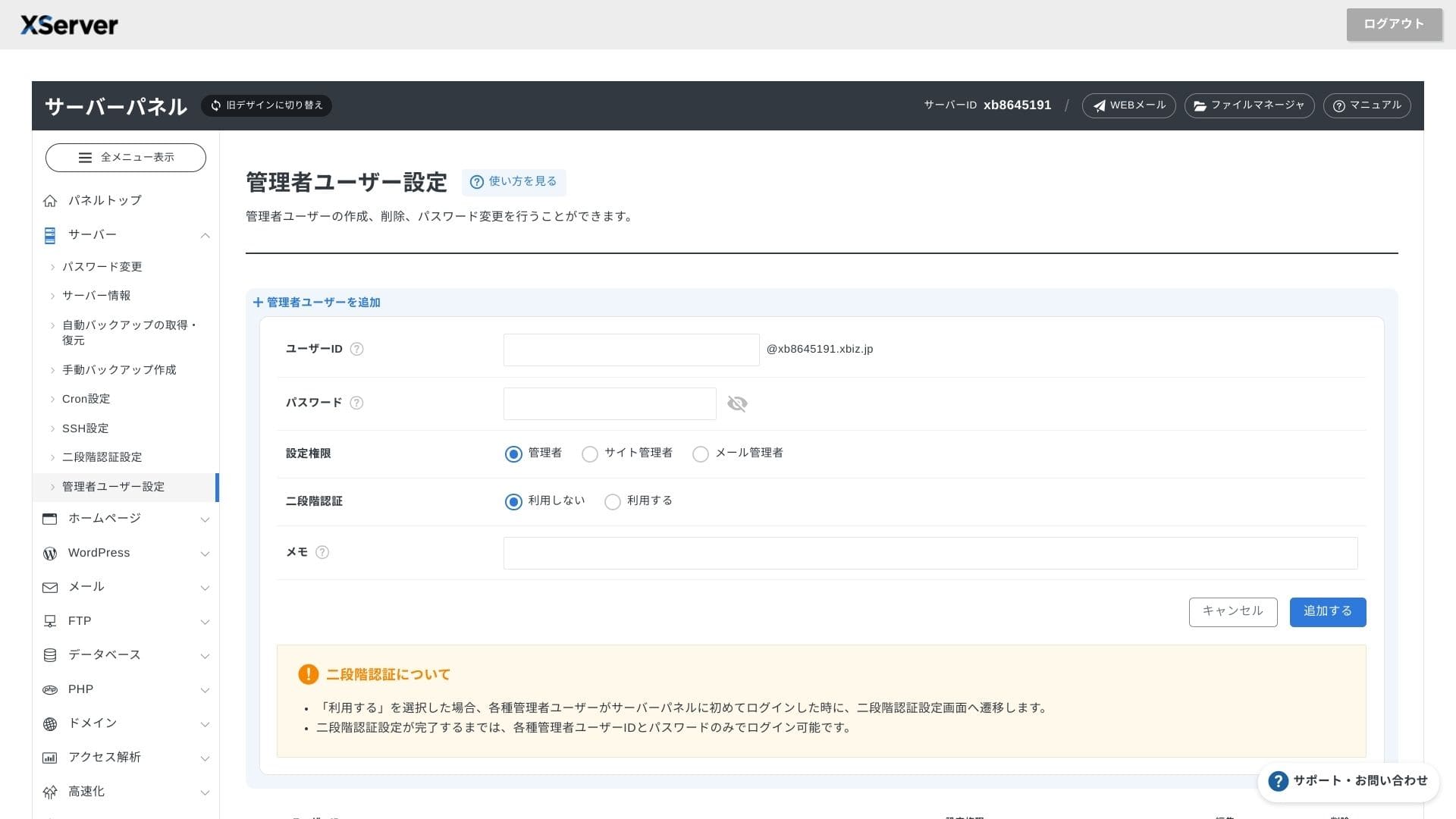
Because multidomain, subdomains, and email accounts are unlimited, you can centrally manage a corporate site, recruiting pages, campaign landing pages, and more under a single contract. The ability to split admin privileges by department is also convenient for business use.
Migrating WordPress sites
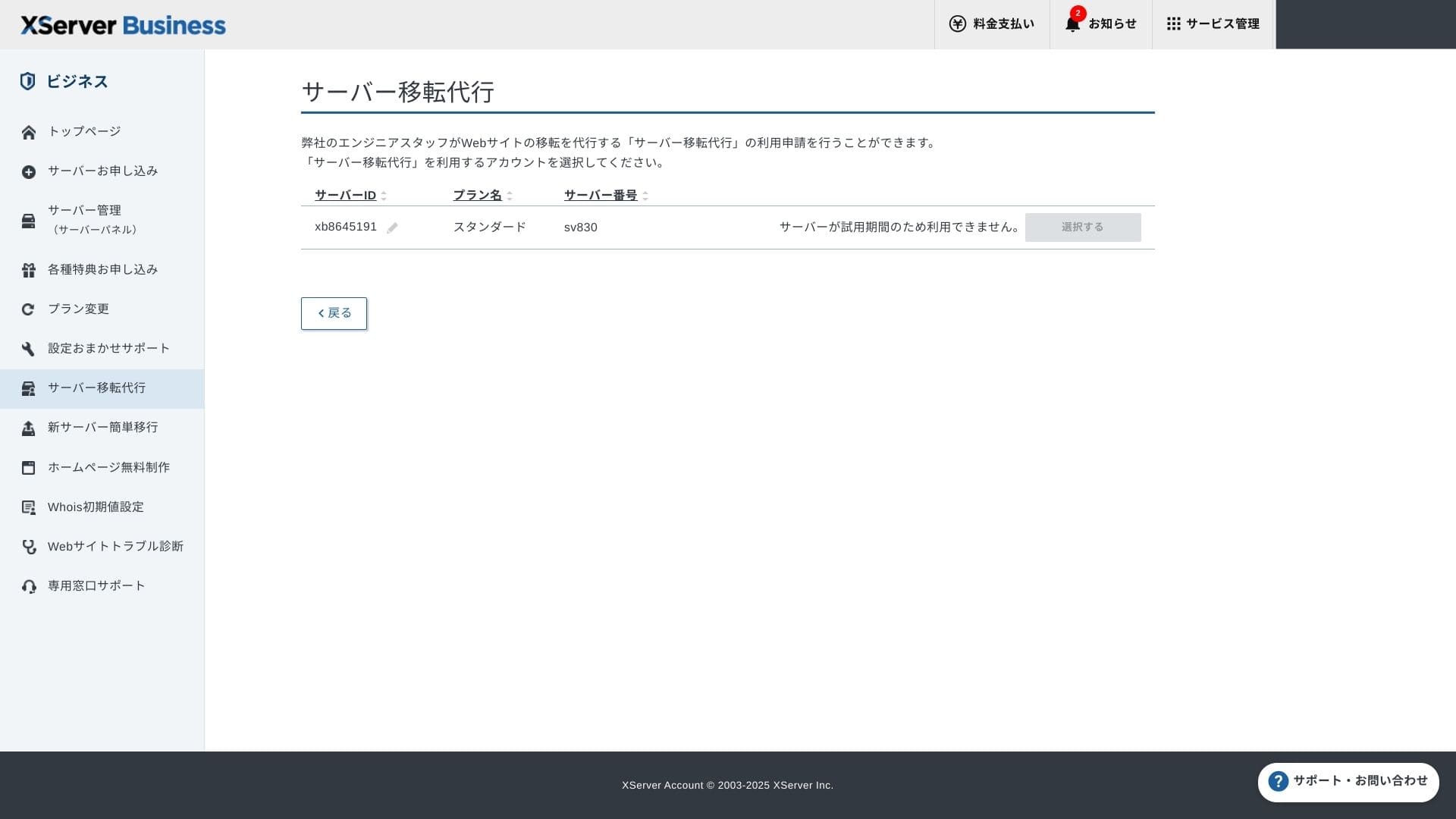
You can use both Easy WordPress Migration, which copies your site by entering only the old server URL, ID, and password, and the server migration service, where engineers handle everything for you (free the first time).
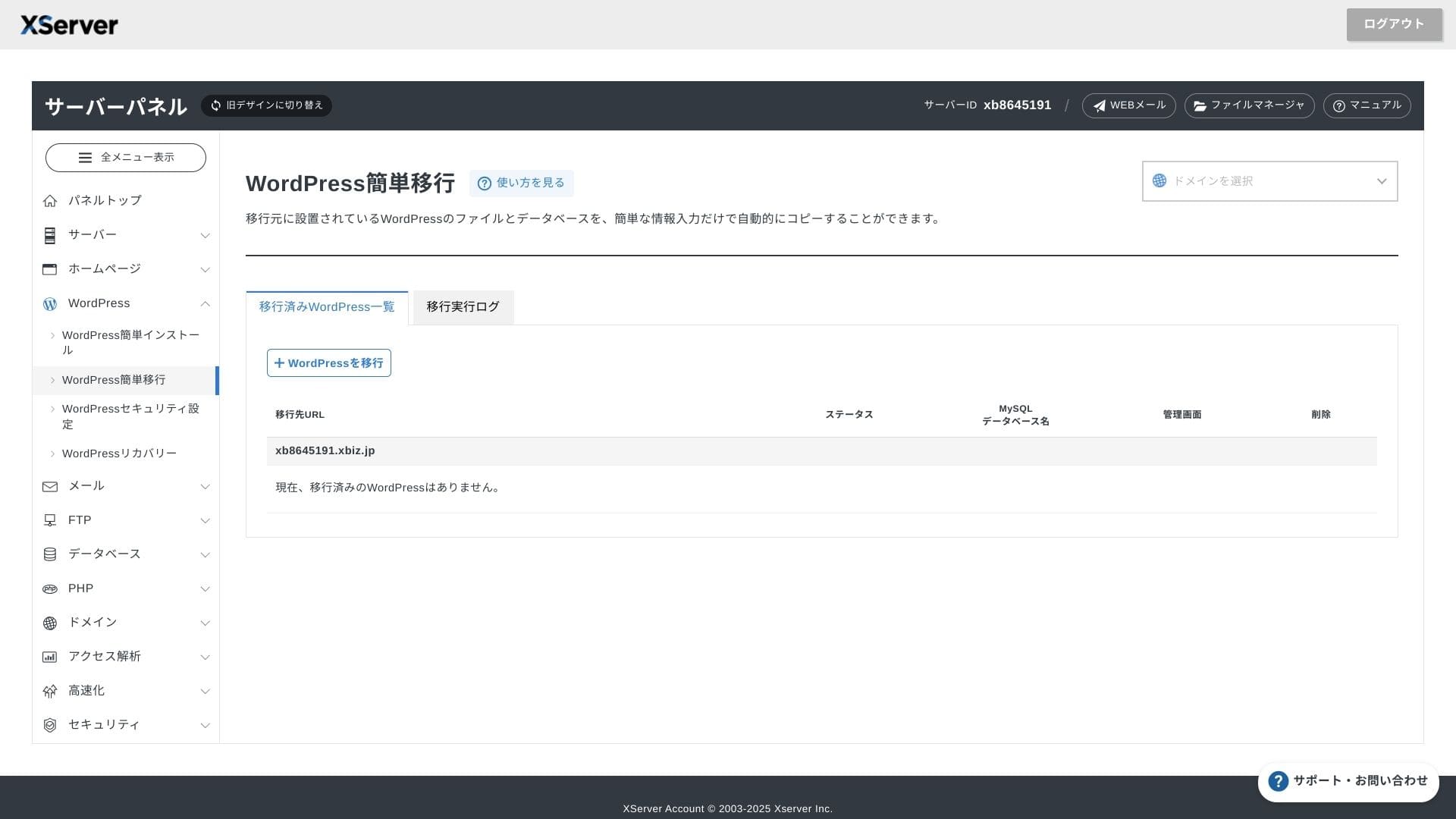
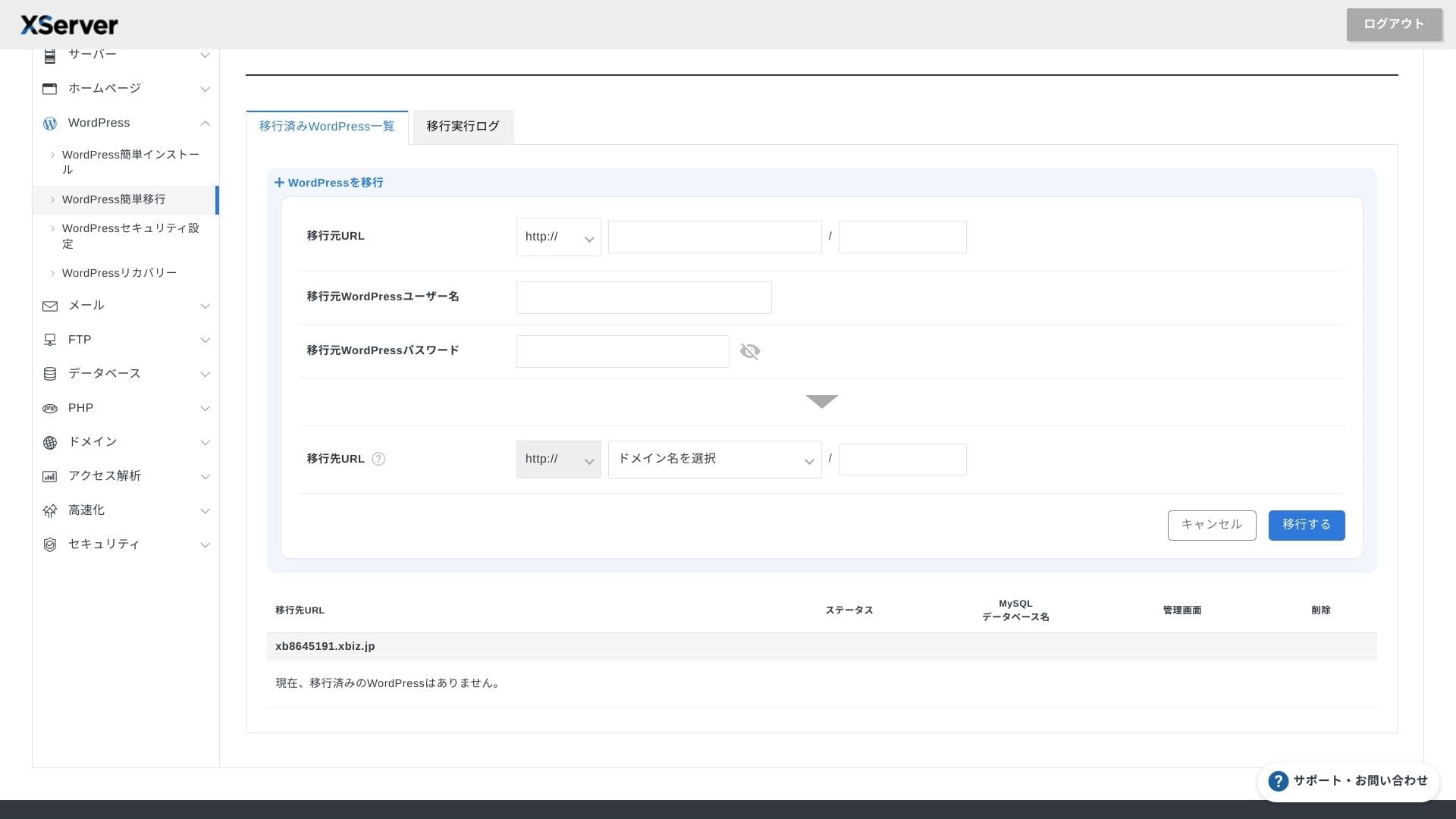
If you are comfortable with servers and domains, using Easy WordPress Migration and setting it up yourself is smoother because you do not have to wait for the managed migration service.
In particular, the managed migration service also handles the DNS switch, so I especially recommend it for businesses that already have traffic and absolutely want to avoid DNS mistakes during migration.
Performance and specs review
Performance review from our measurements
XServerビジネス
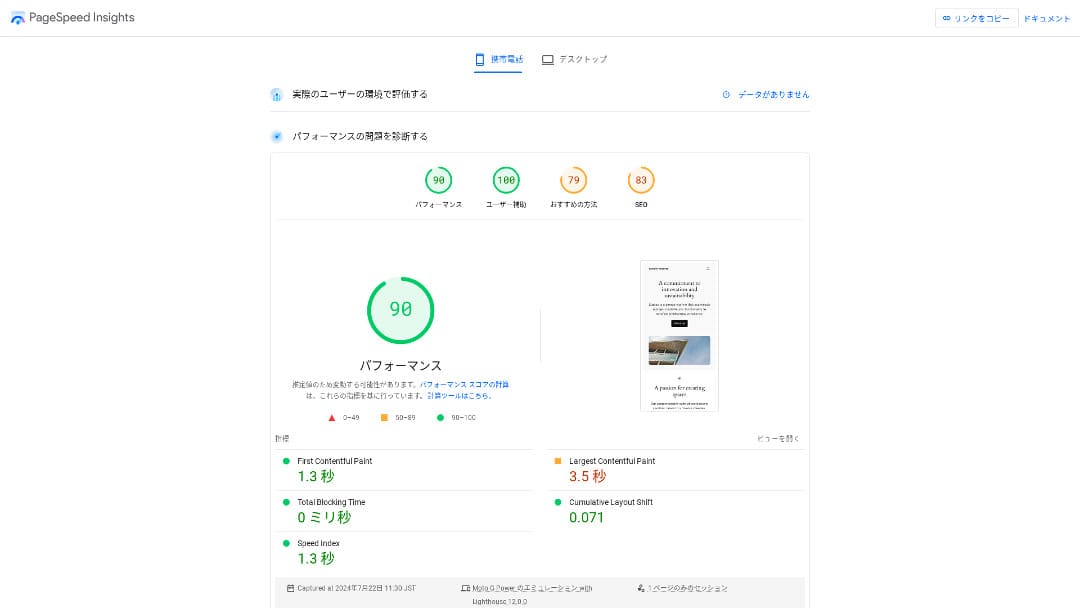
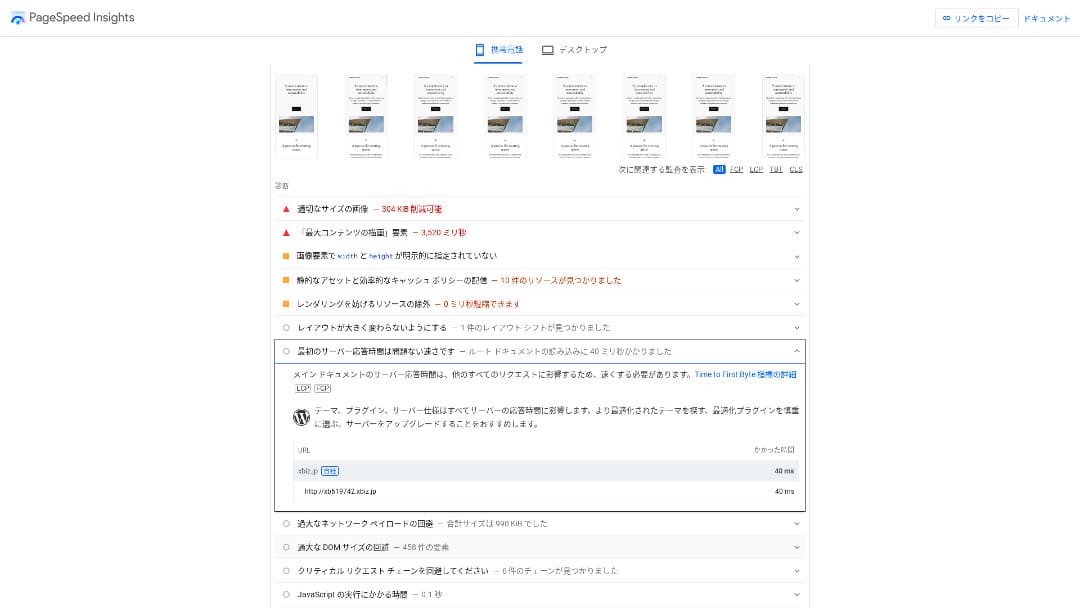
powered a WordPress site that we measured at a TTFB (Time to First Byte, in other words the response speed before the page begins showing content) of 40 ms.
That is far faster than the 200 ms server response speed Google expects, so it is an excellent fit for high-traffic corporate websites and business sites.
You should reduce your server response time under 200ms.
Improve Server Response Time
It was the second-fastest of the 18 servers we measured. (Kinsta was No. 1.)
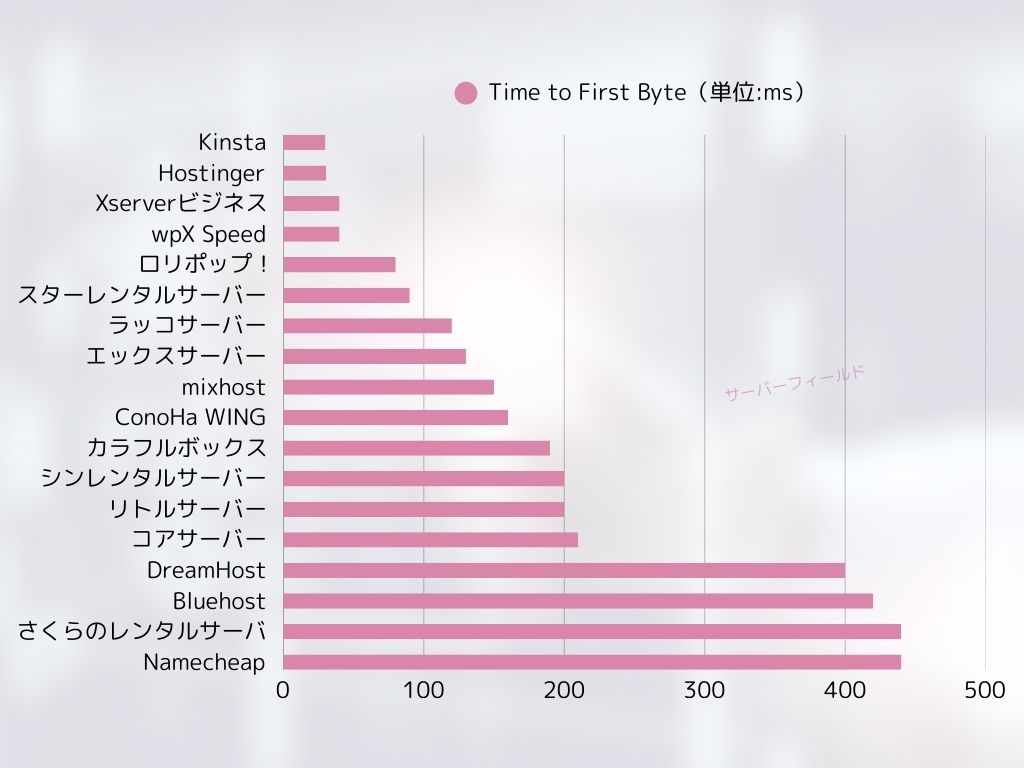
It is the fastest domestic server. For corporate sites and ecommerce sites where even 0.1 seconds affects traffic and sales, that speed is a major advantage.
It uses a domestic backbone directly connected at 10 Gbps and NVMe RAID10 storage. According to the official benchmark, it is up to 17 times faster than conventional SSD storage.
Disk capacity
In autumn 2024, the three shared plans were expanded to 700 GB / 800 GB / 900 GB (all NVMe). Even if you launch many landing pages with lots of photos and videos, you still have plenty of headroom.
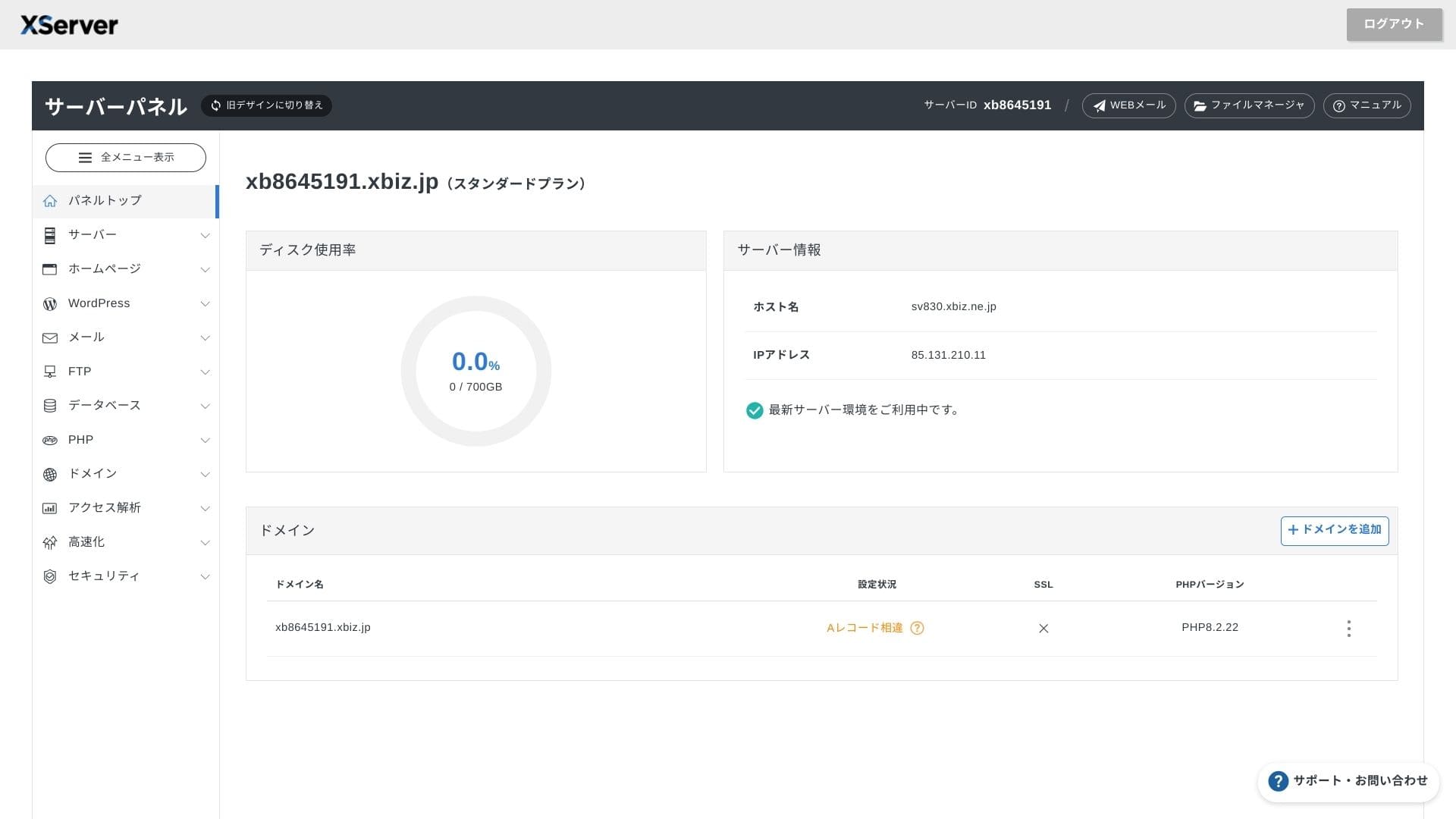
In finance and healthcare, email often has to be retained for seven years or more as an audit trail, and sales departments tend to handle large attachments. Because the available storage is so large, you can keep that mail safely without constantly deleting old data.
You can also build on-premises-style storage such as WebDAV or Nextcloud and manage internal documents securely over a VPN connection.
XServerビジネス
alone can reduce the workload on your operations team while still leaving enough headroom for future business growth.
Transfer volume
XServerビジネス
can be used without transfer limits within normal usage ranges. The official documentation clearly states that there are no transfer-volume charges.
★ What are traffic and data transfer volumes? Managing and optimizing web traffic
Server stability and uptime
Even the shared plan includes a monthly 99.99% SLA, which means you receive a refund if the guarantee is not met. With both high stability and an SLA, it is exactly the kind of service businesses need.
Because server outages and maintenance information are openly published on the official site, anyone can check them at any time.
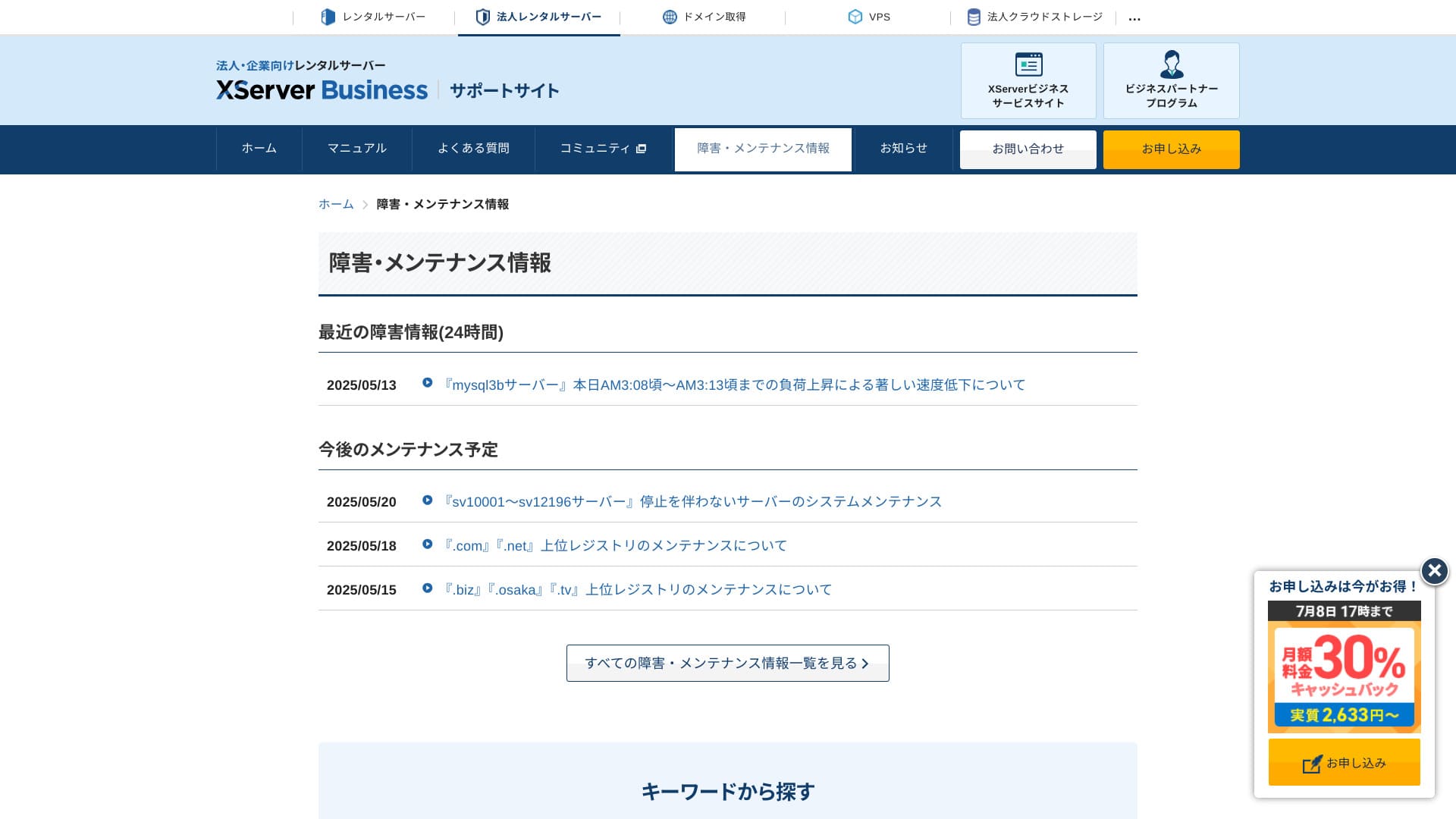
A company that shares this information openly instead of hiding it is easier to trust.
Pricing and cost
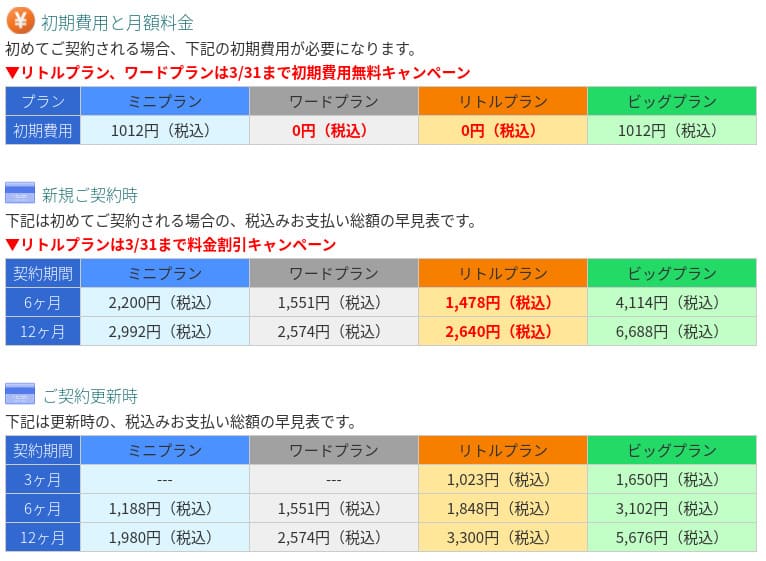
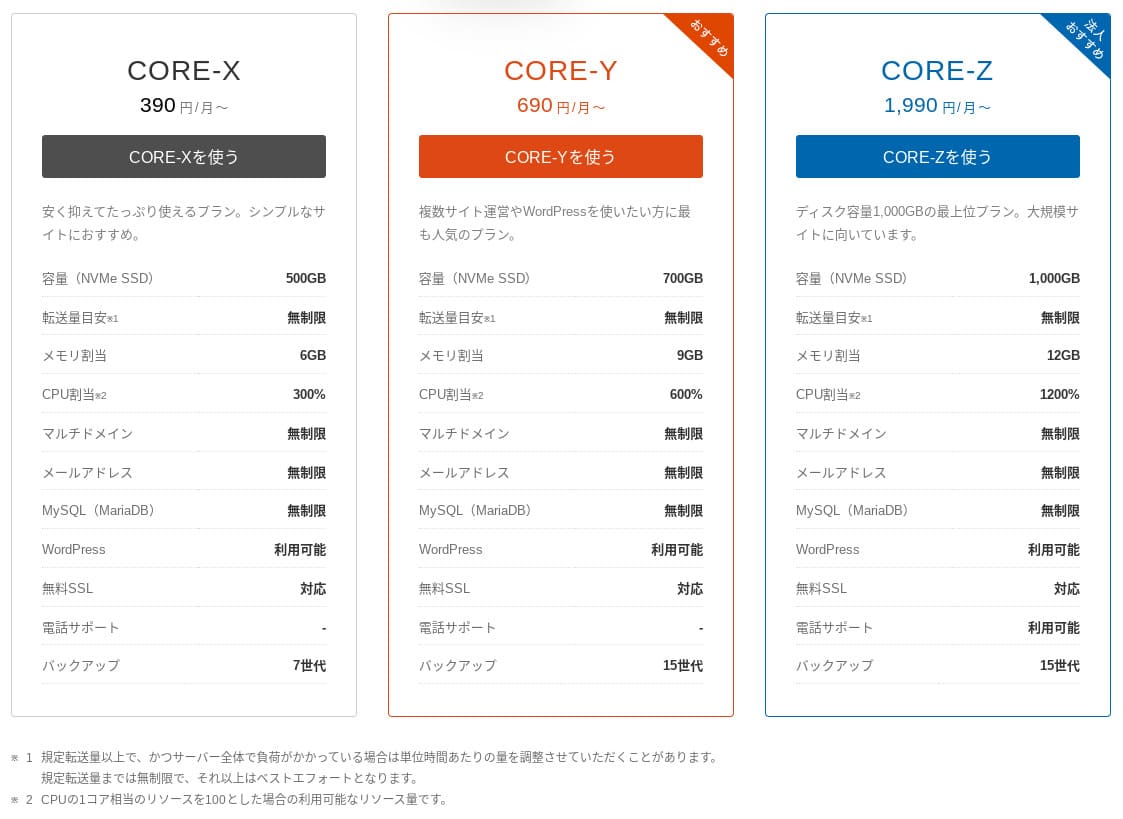
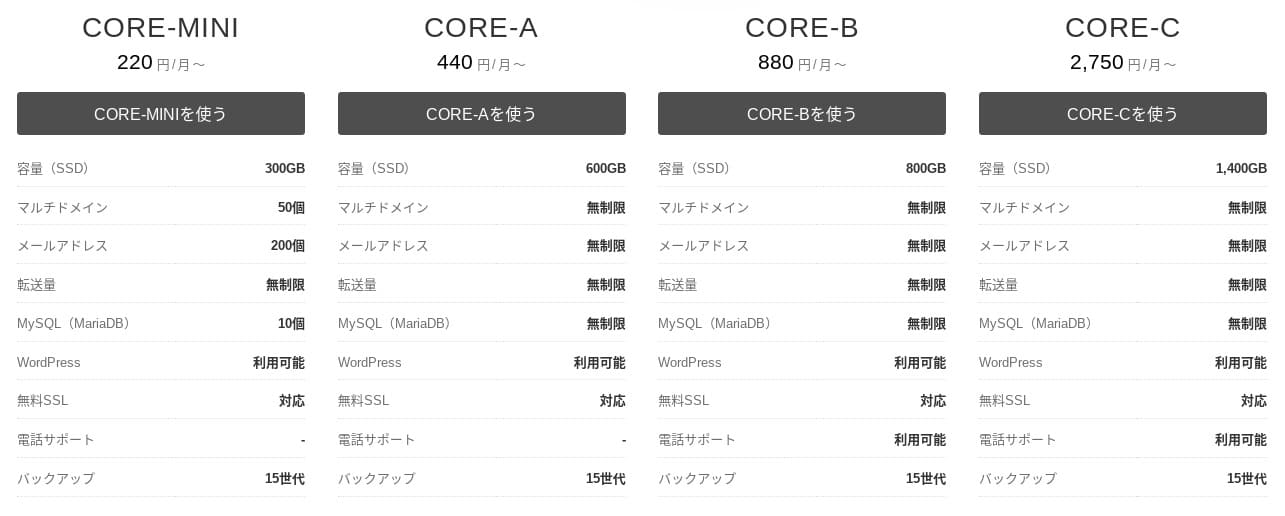
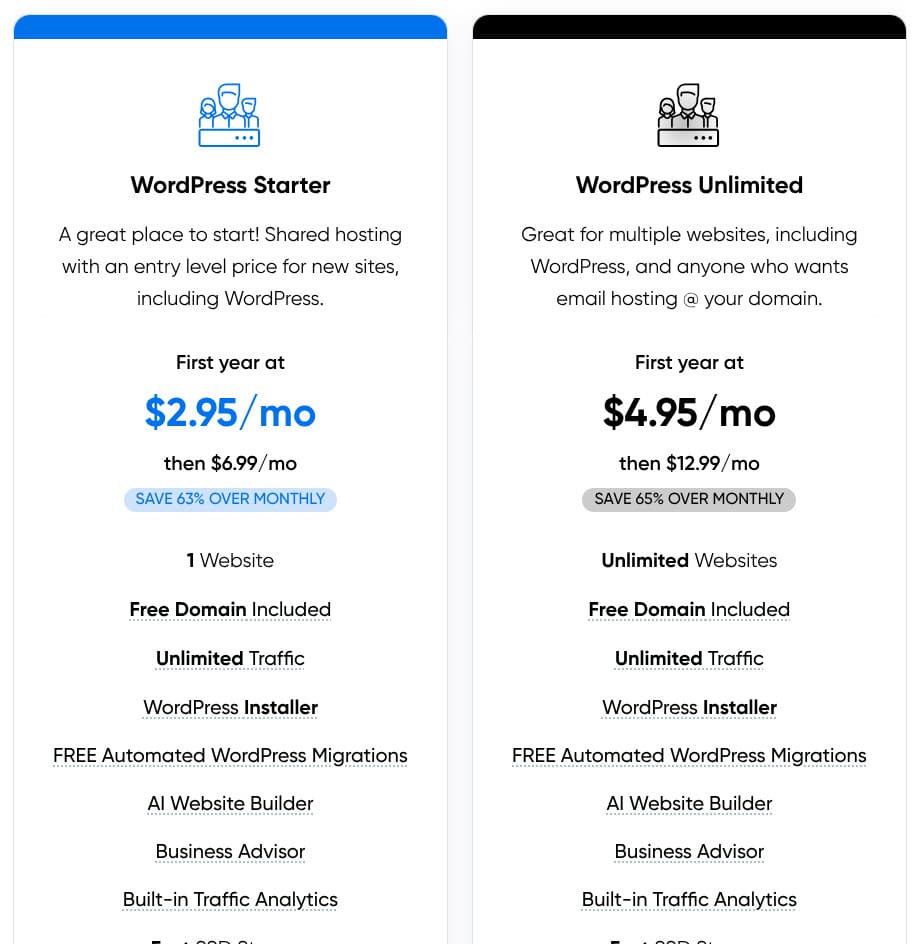
Initial fee and monthly cost
XServerビジネス
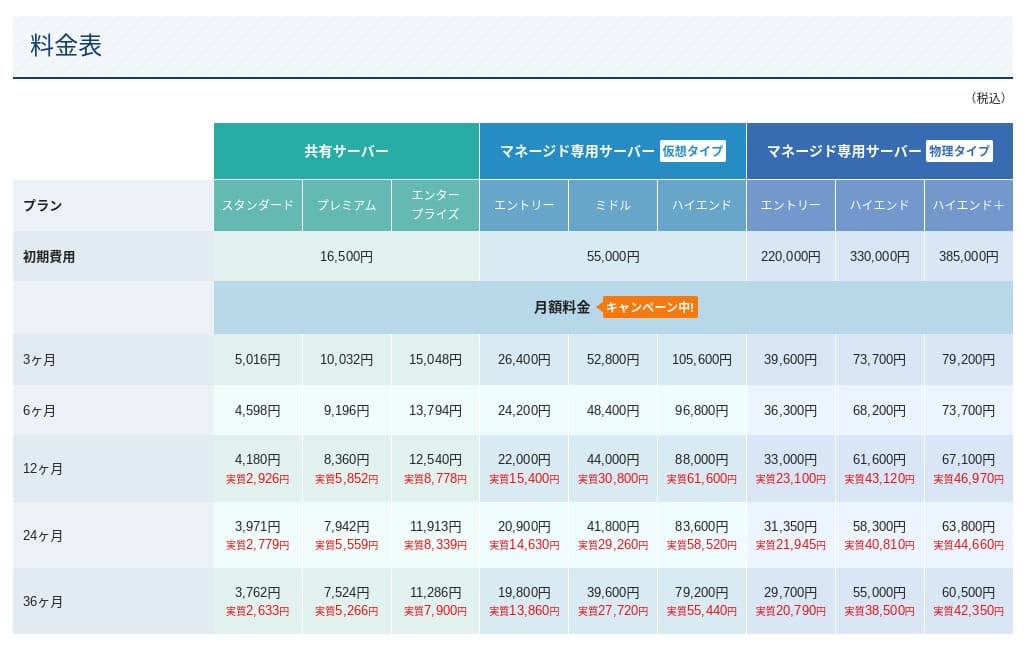
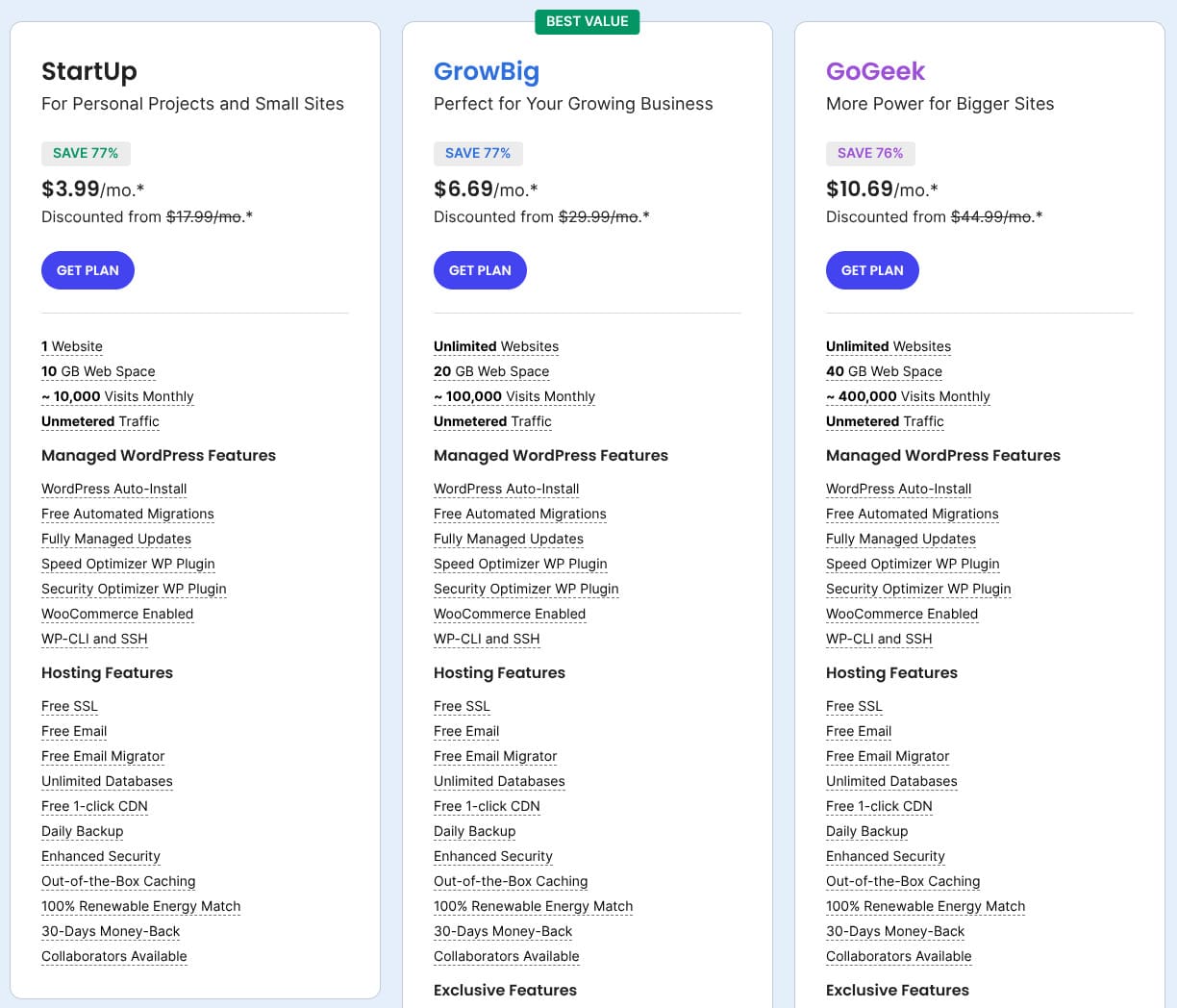
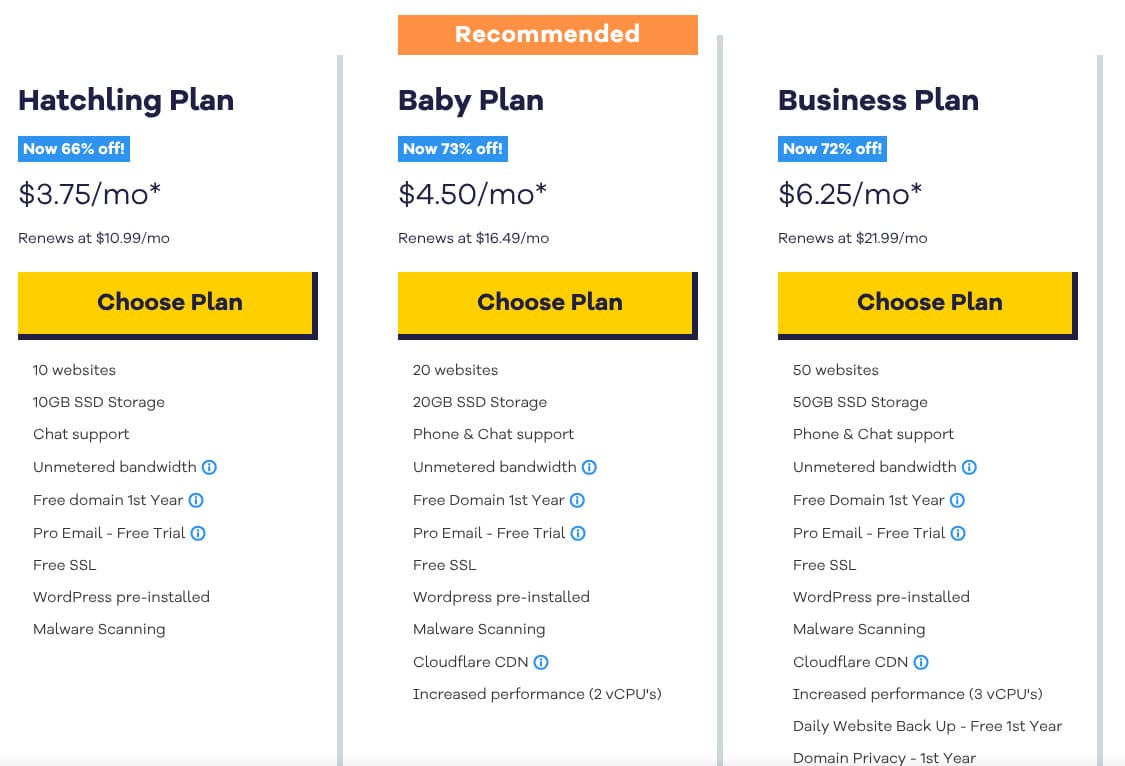
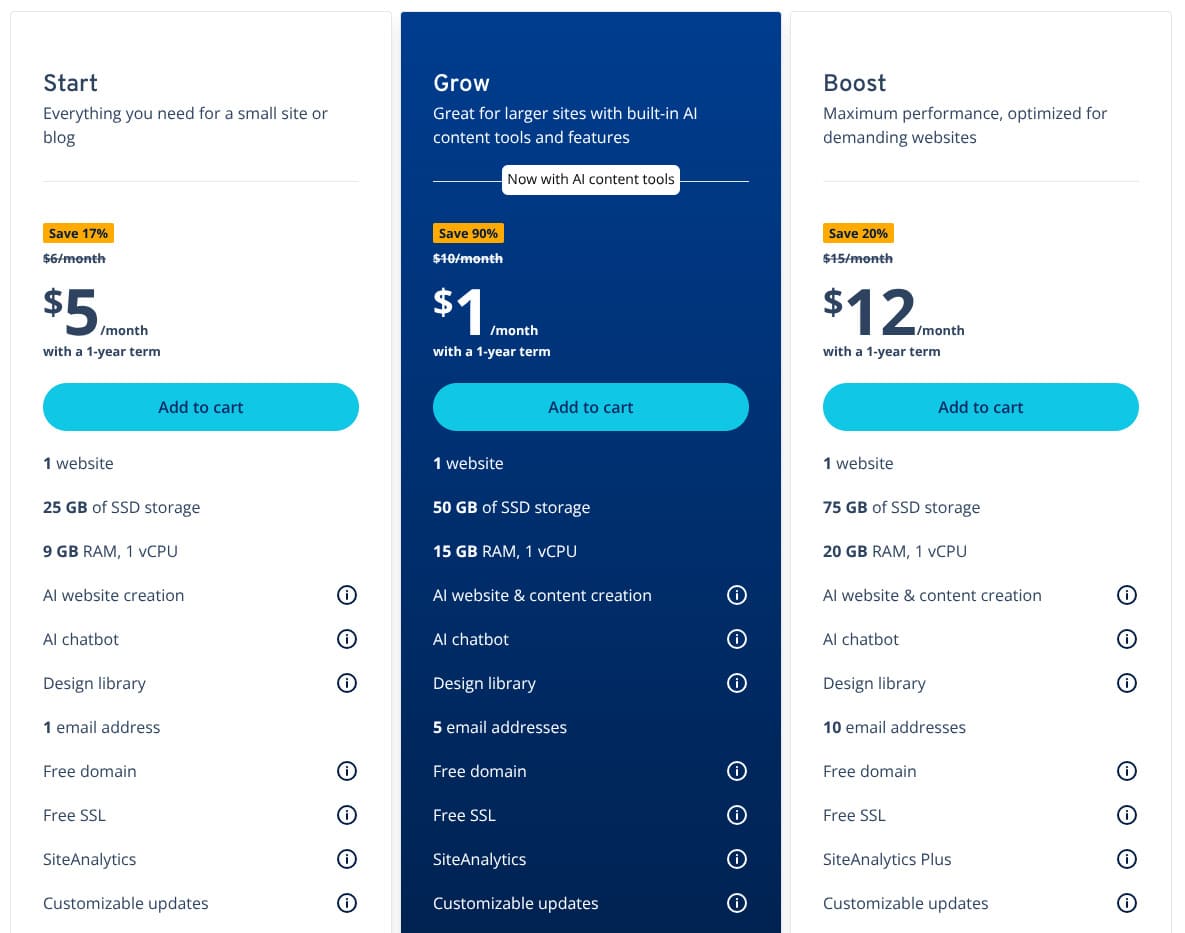
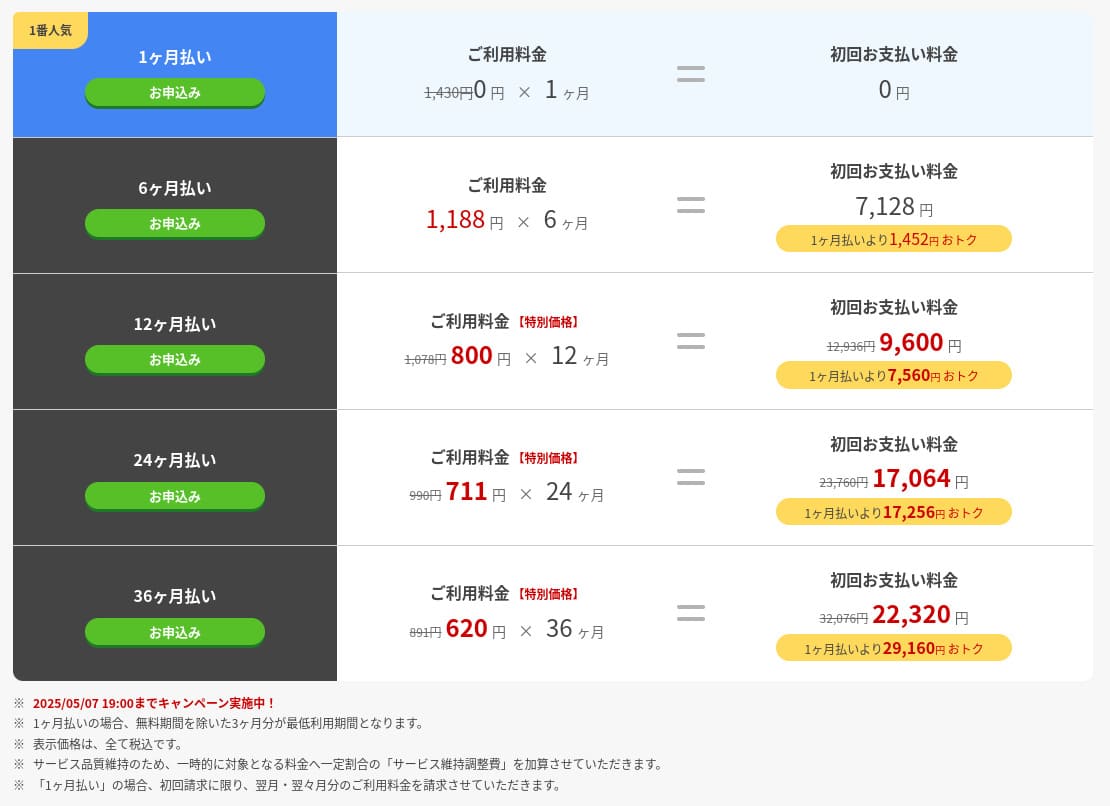
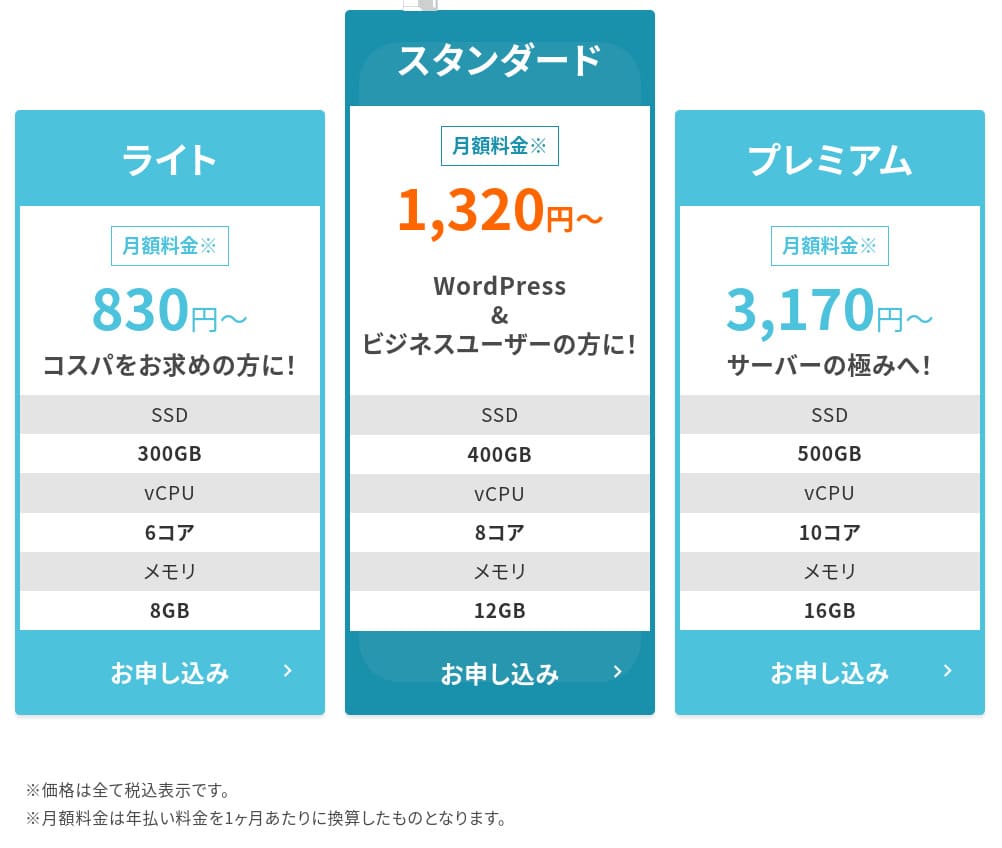
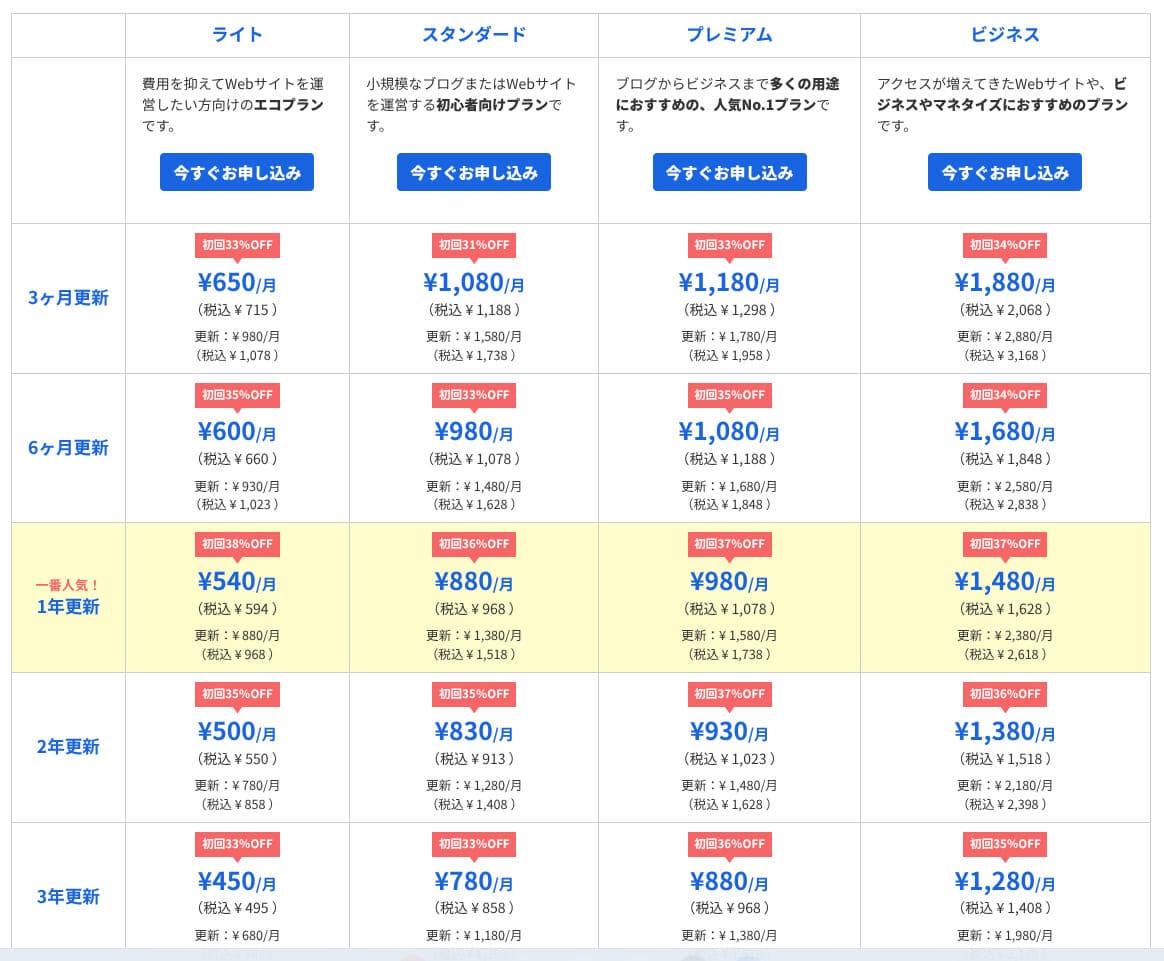
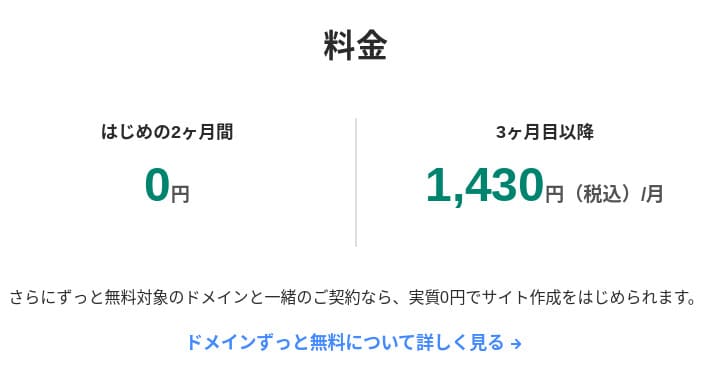
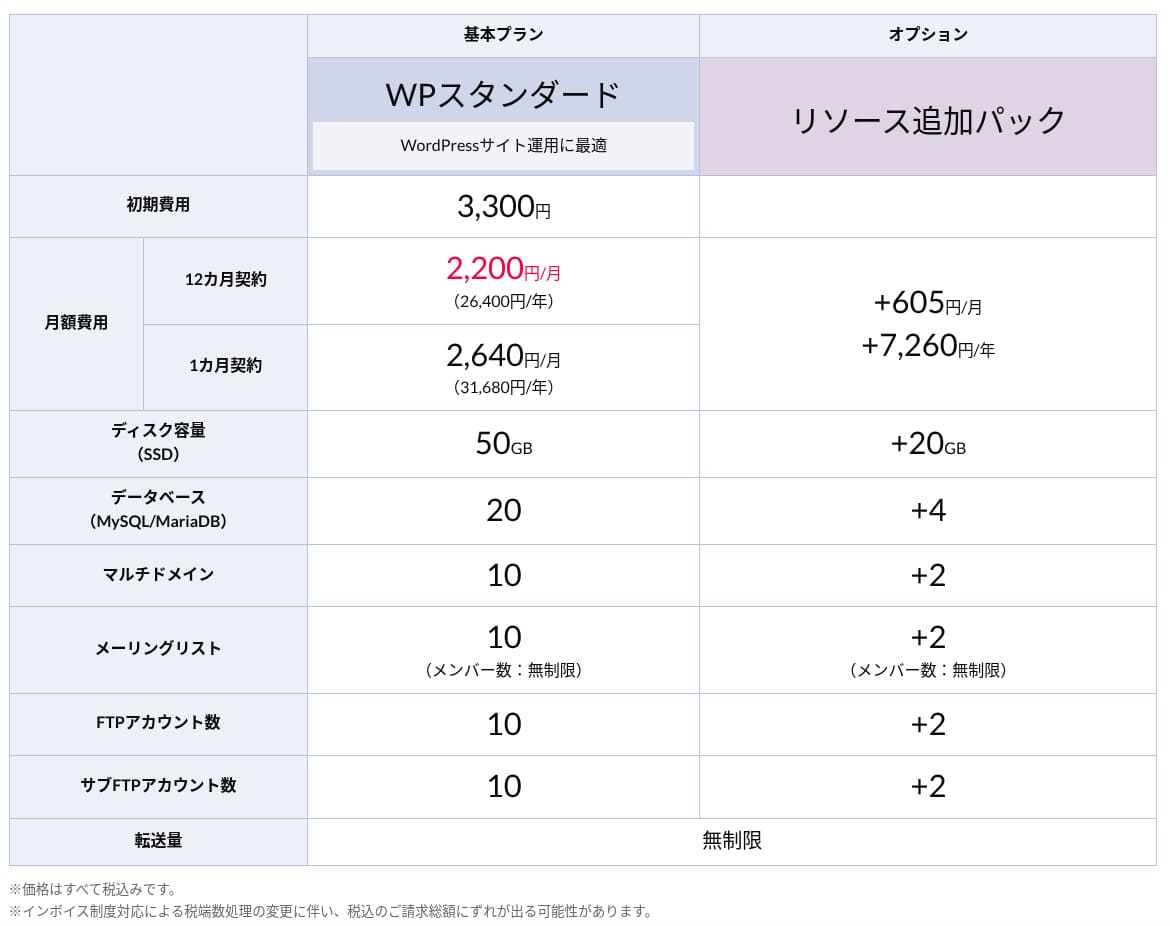
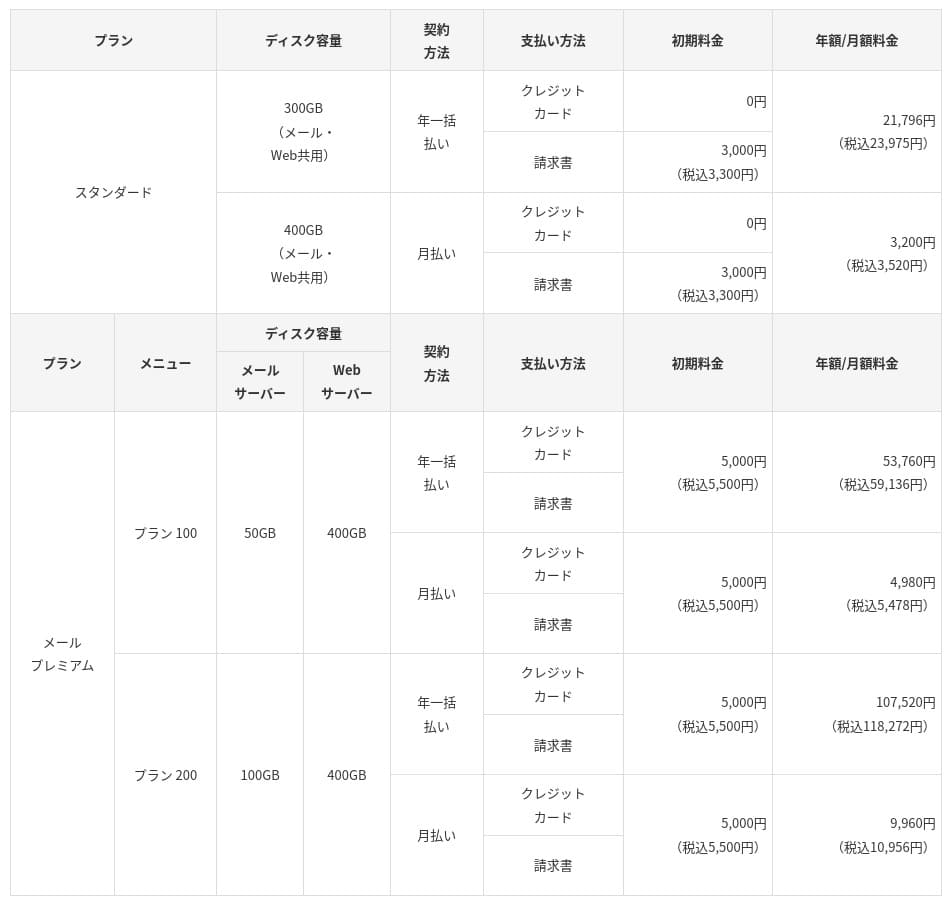
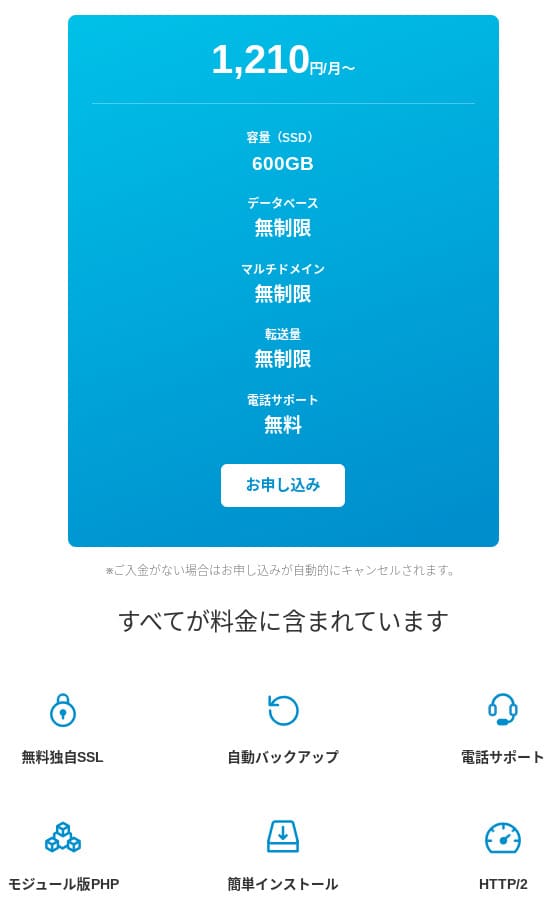
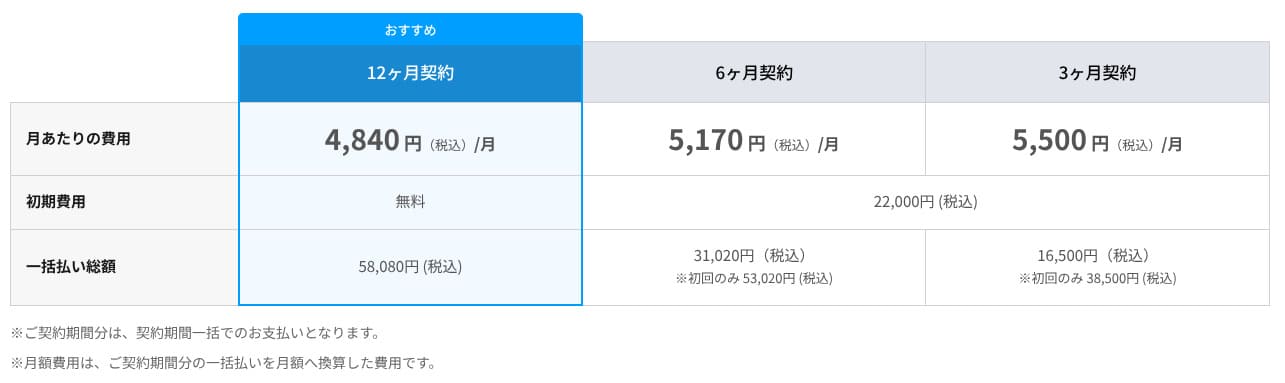
charges 4,180 yen per month for the Standard plan with a 12-month contract. With the 30% cashback campaign running until July 8, the effective cost is 2,926 yen. Considering that phone support, chat support, and managed services are included, I find that to be a reasonable level.
- XServer Business
- Kinsta
- wpx
- Lolipop!
- Star Server
- Rakko Server
- XServer
- ConoHa
- ColorfulBox
- Shin Rental Server
- Little Server
- CORESERVER
- DreamHost
- Bluehost
- Sakura
- Namecheap
- Shin Free Server
- XREA
- Value Server
- Hostinger
- KAGOYA
- SiteGround
- HostGator
- IONOS
- Onamae.com
- ABLENET
- mixhost
- GoDaddy
- iCLUSTA+
- MuuMuu Server
- WADAX
- WebARENA
- Heteml
- CPI Rental Server
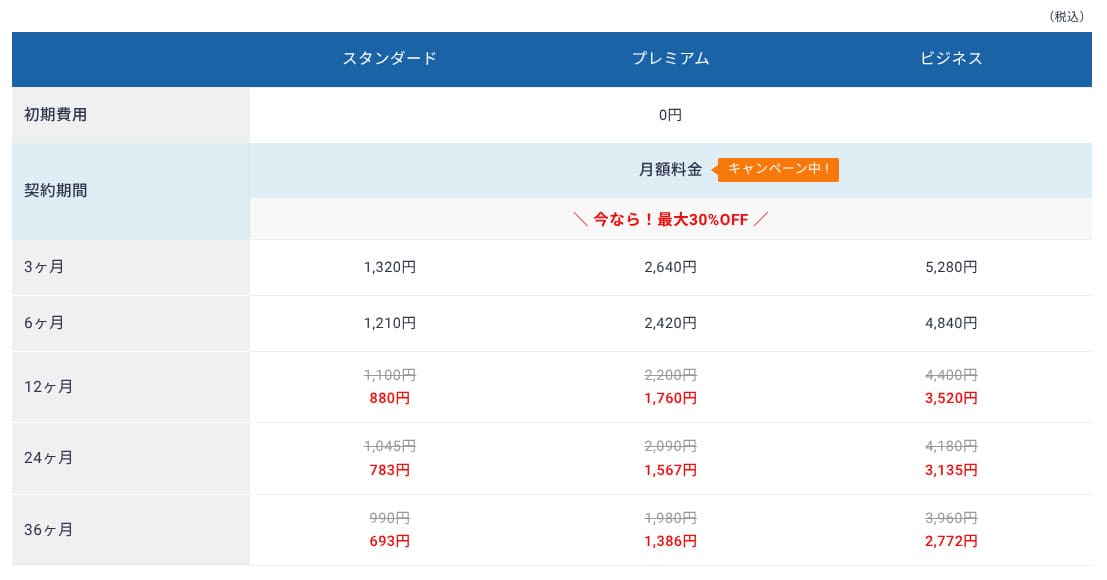
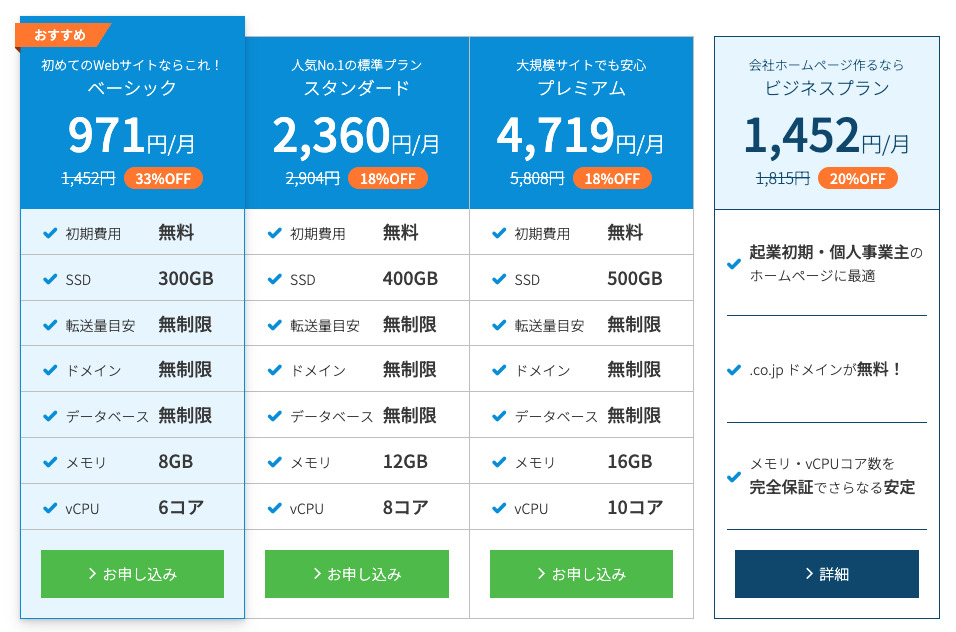
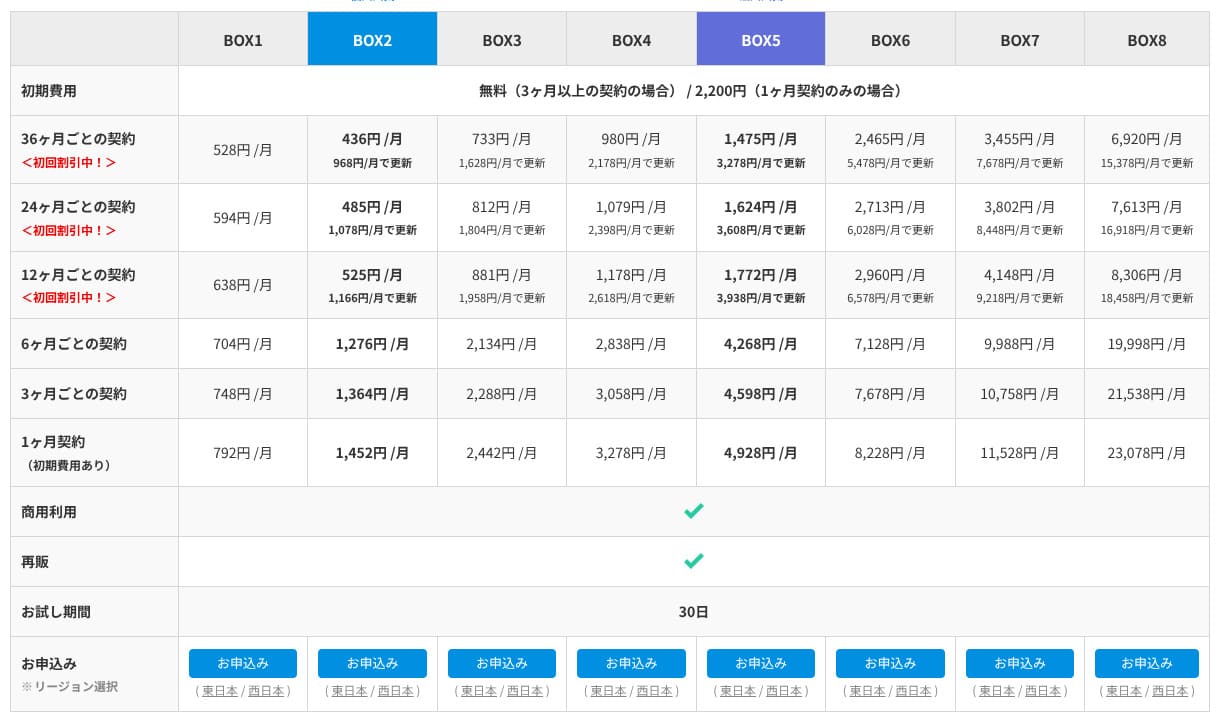
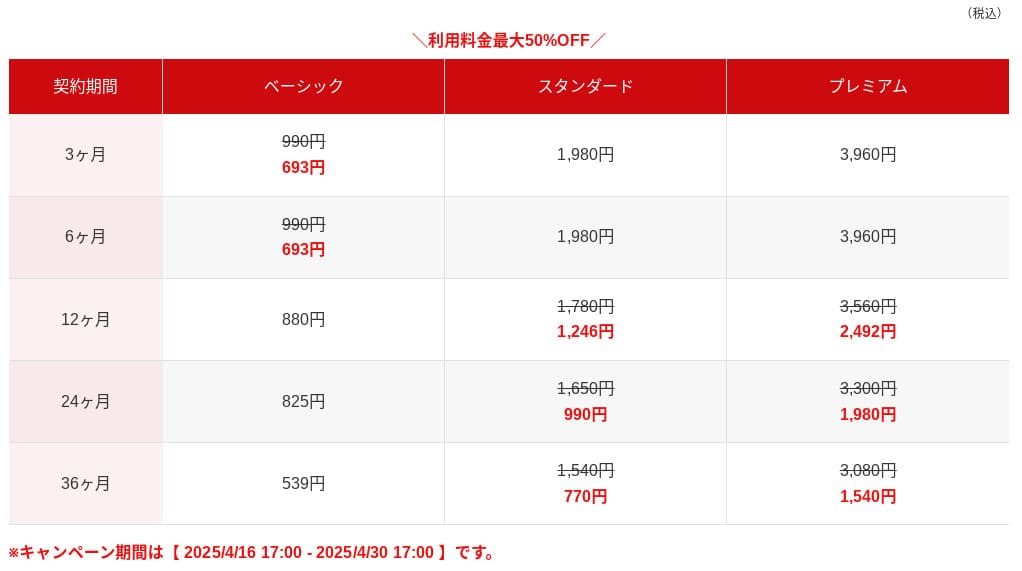
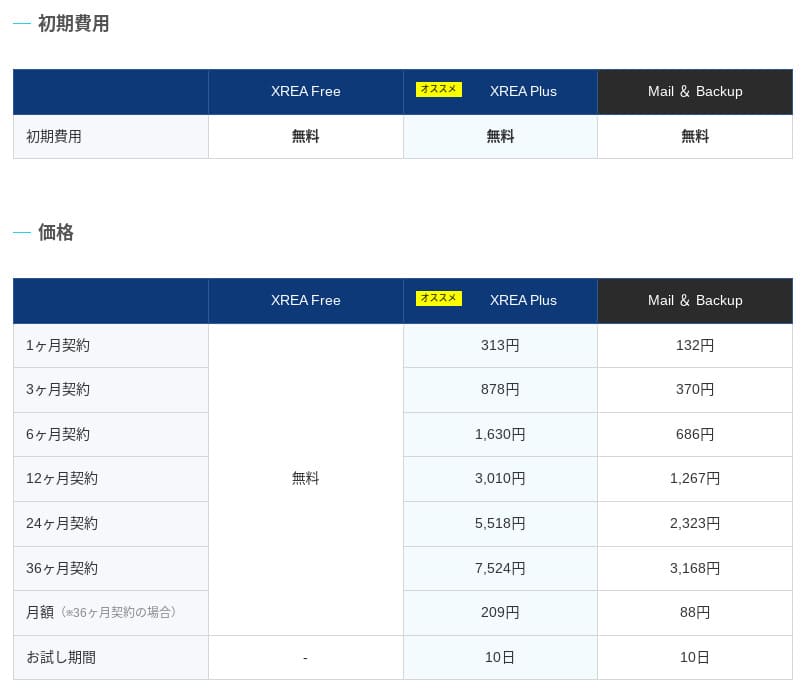
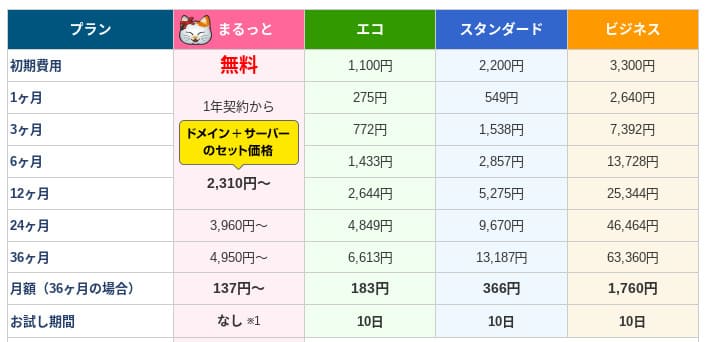
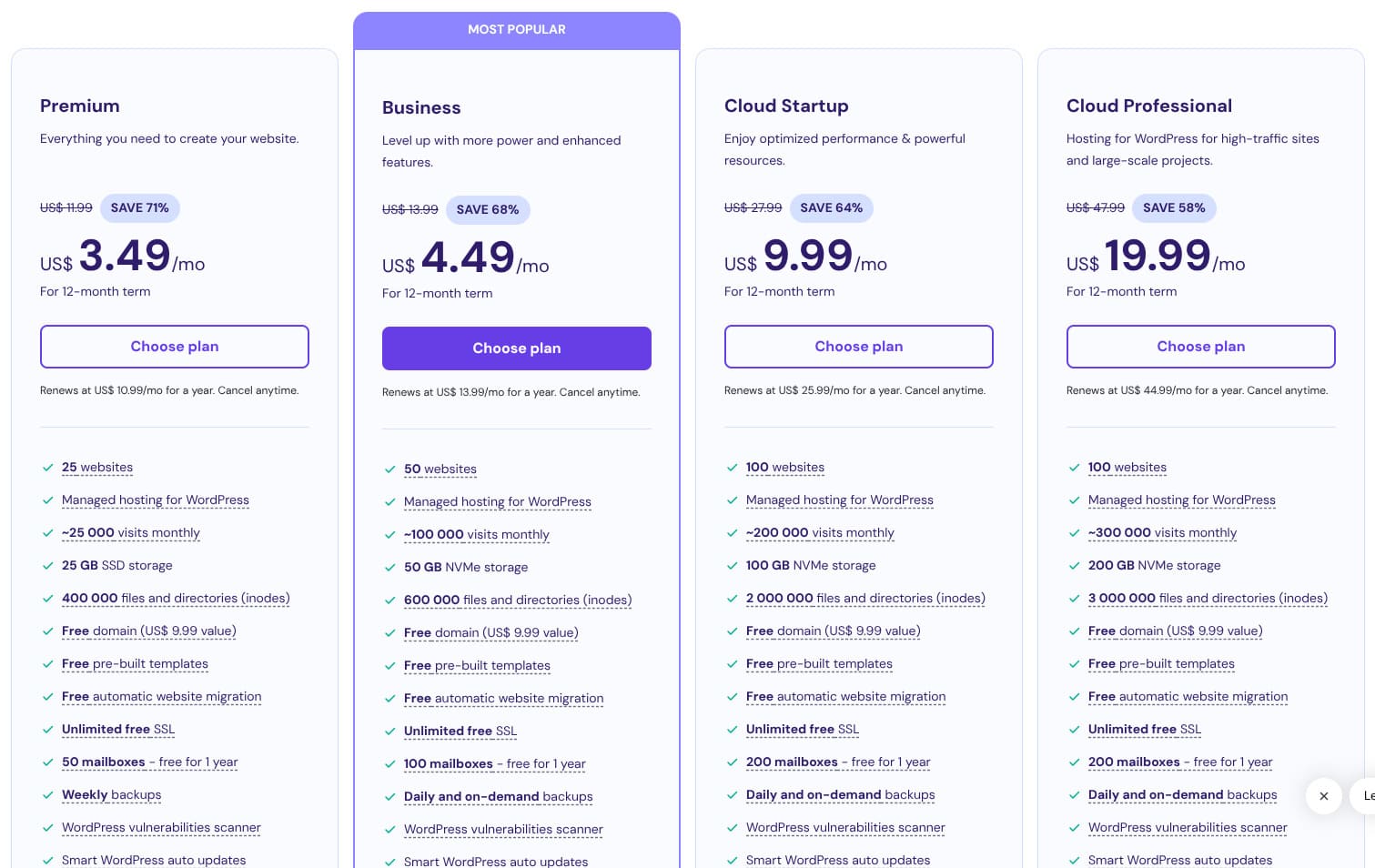
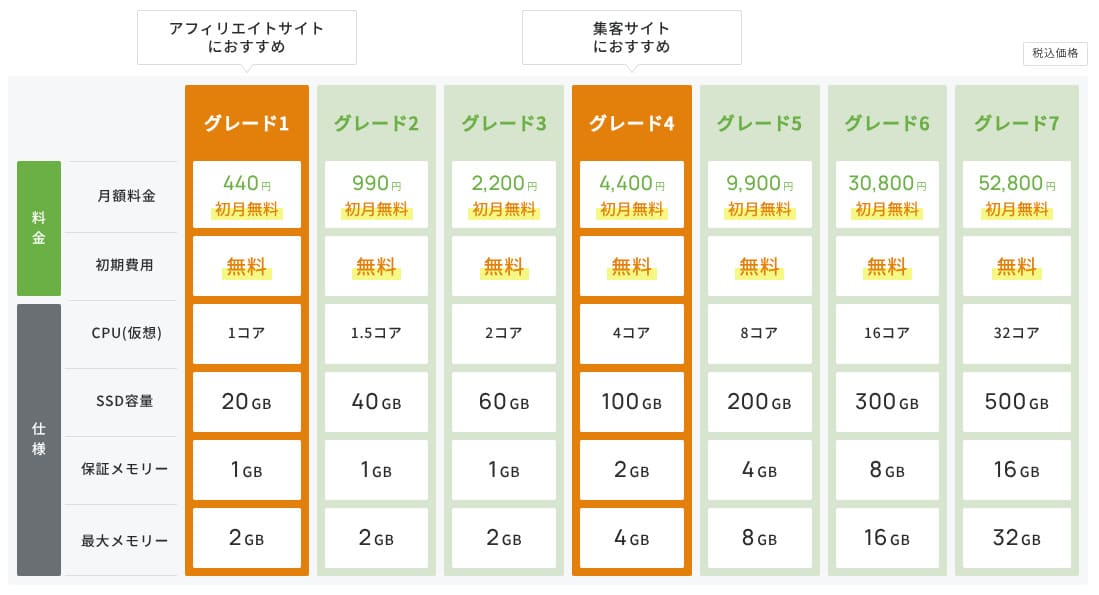
Domain pricing
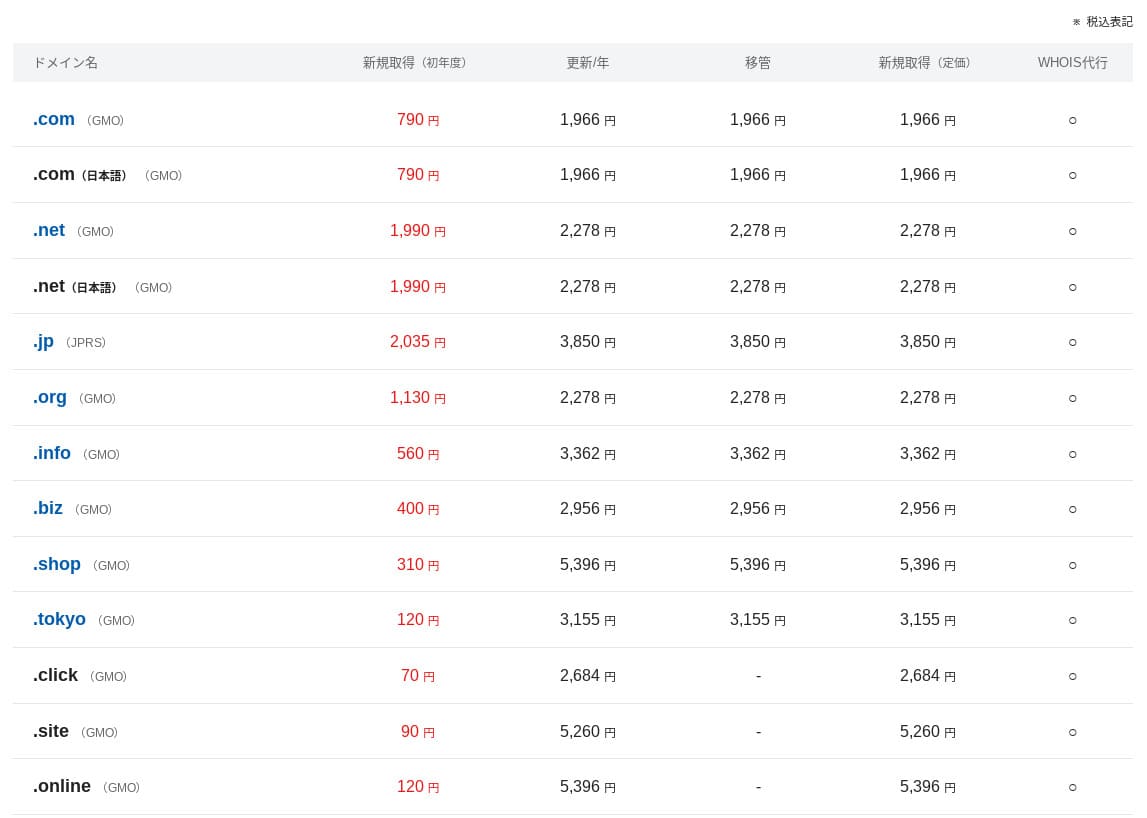
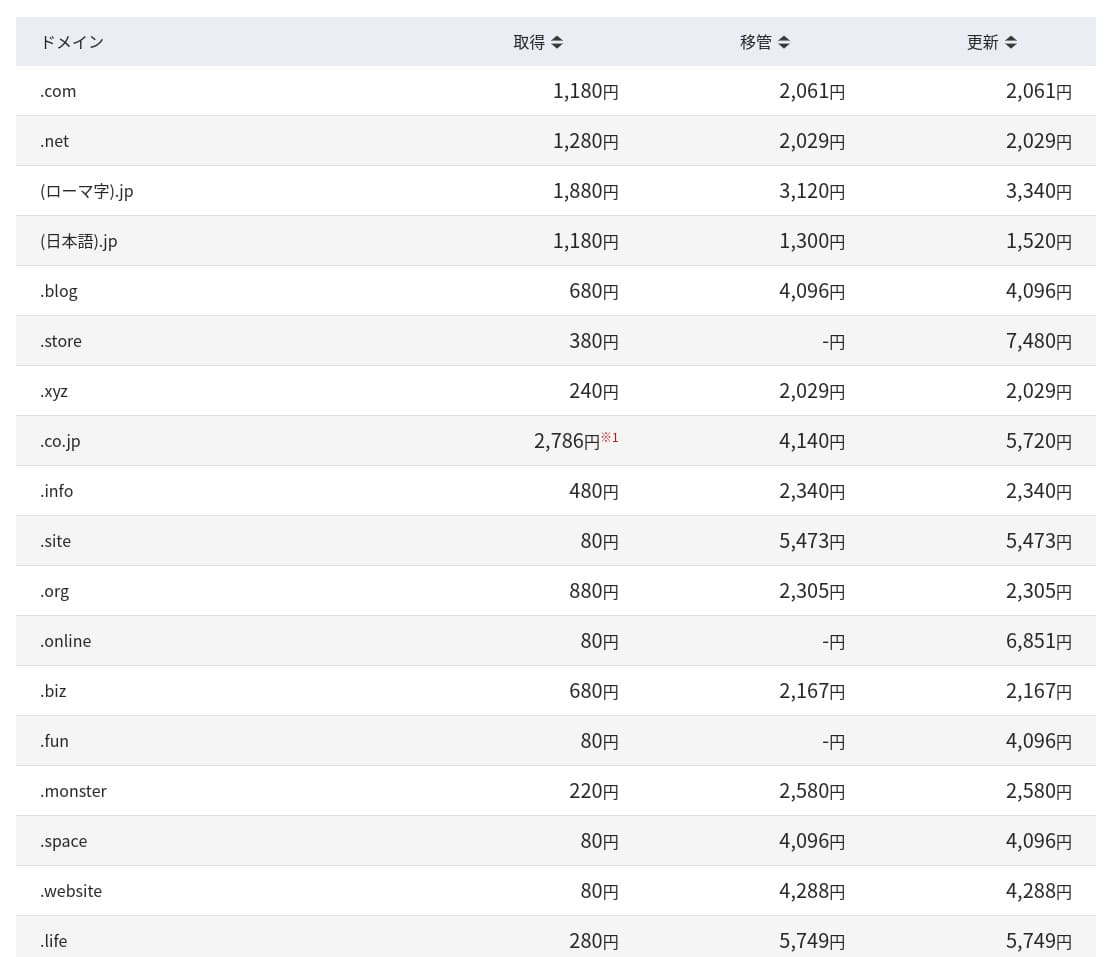
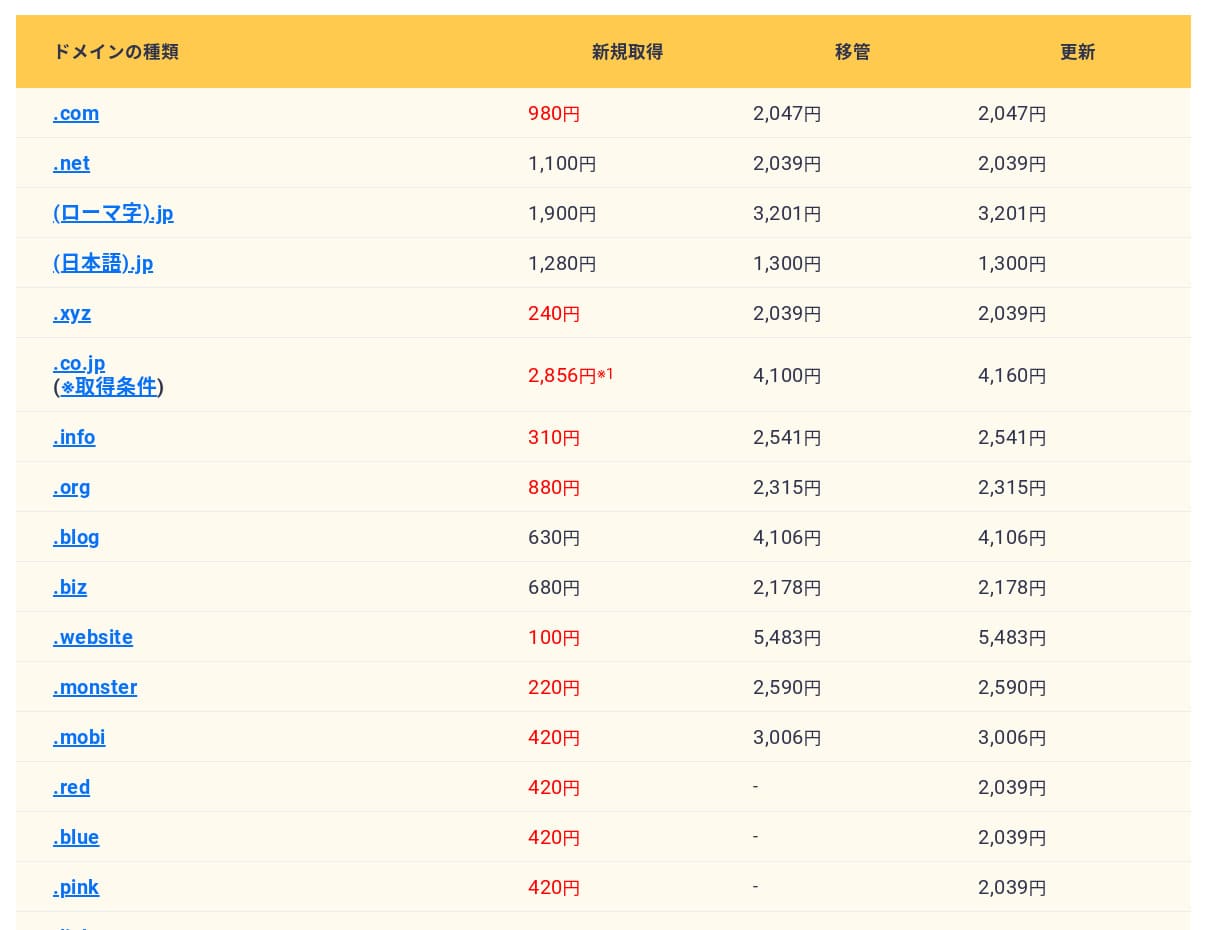
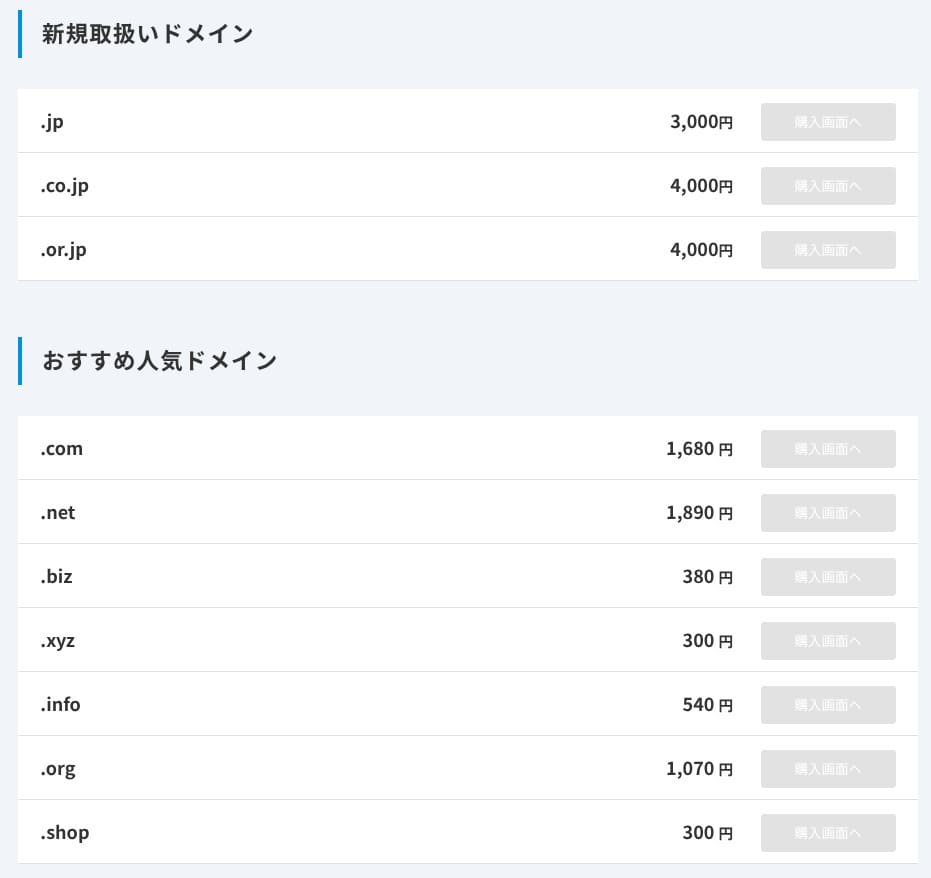
XServerビジネス
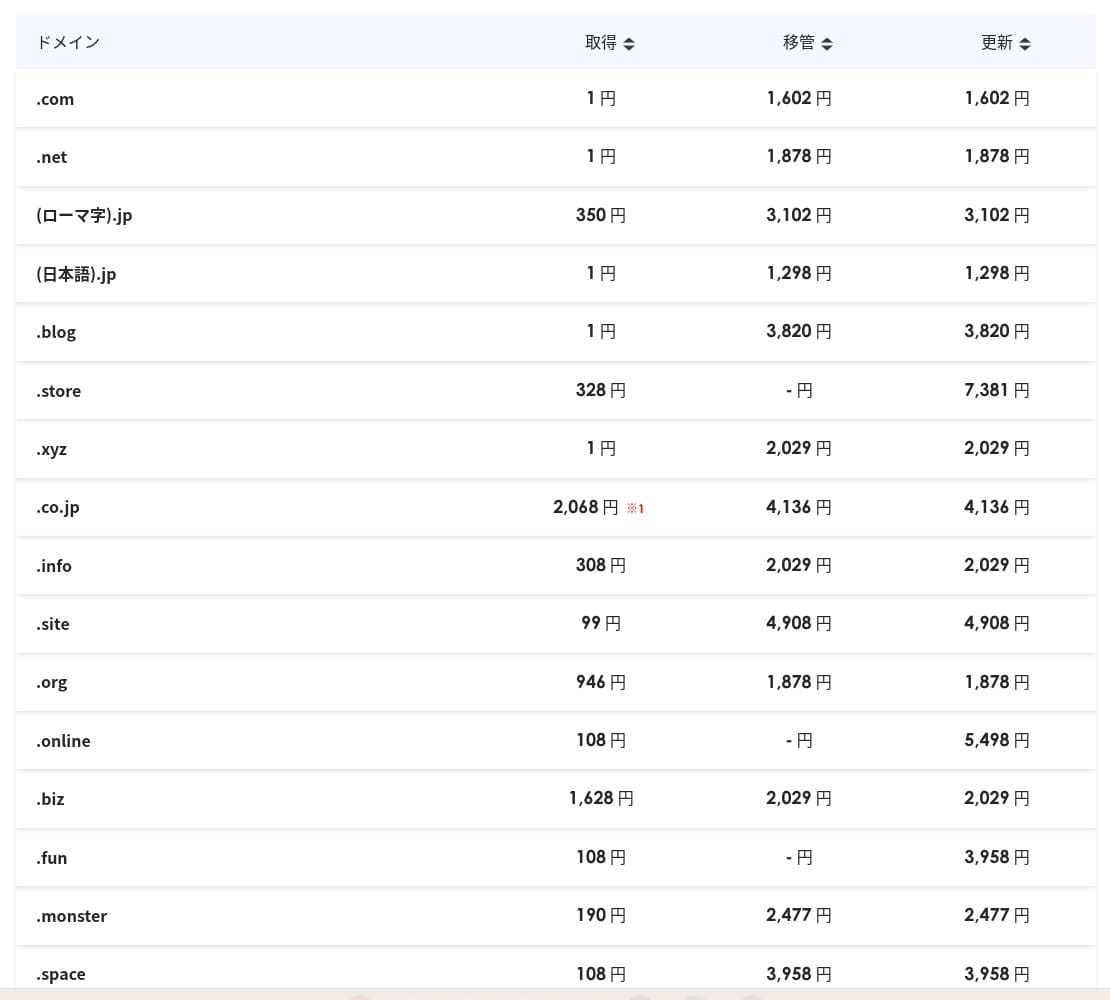
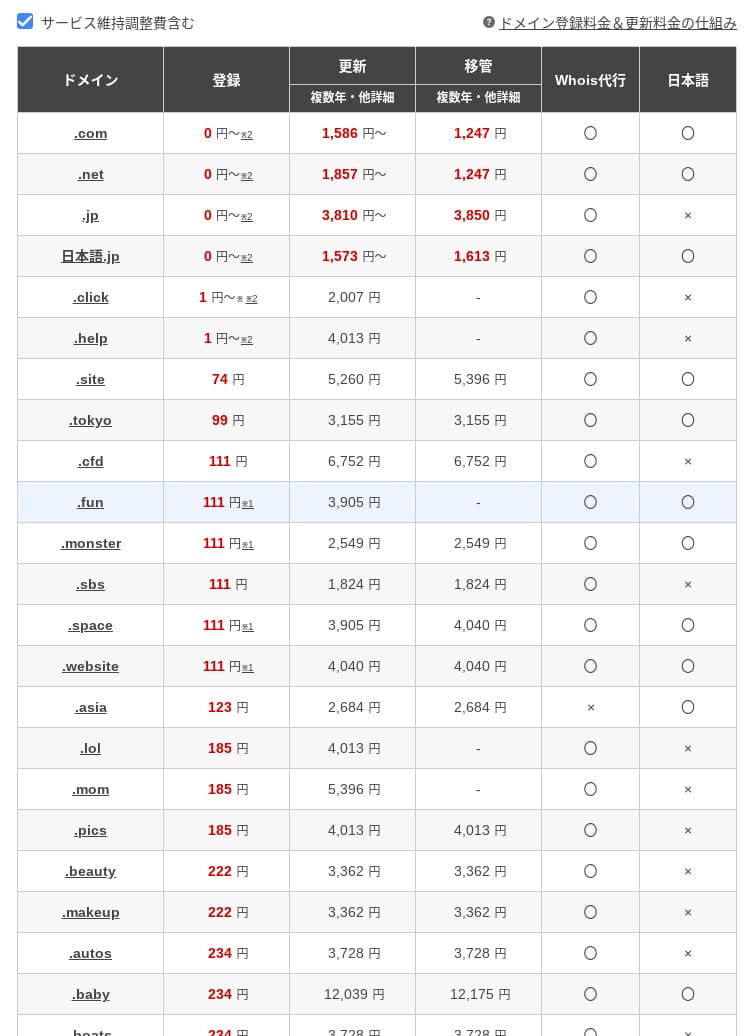
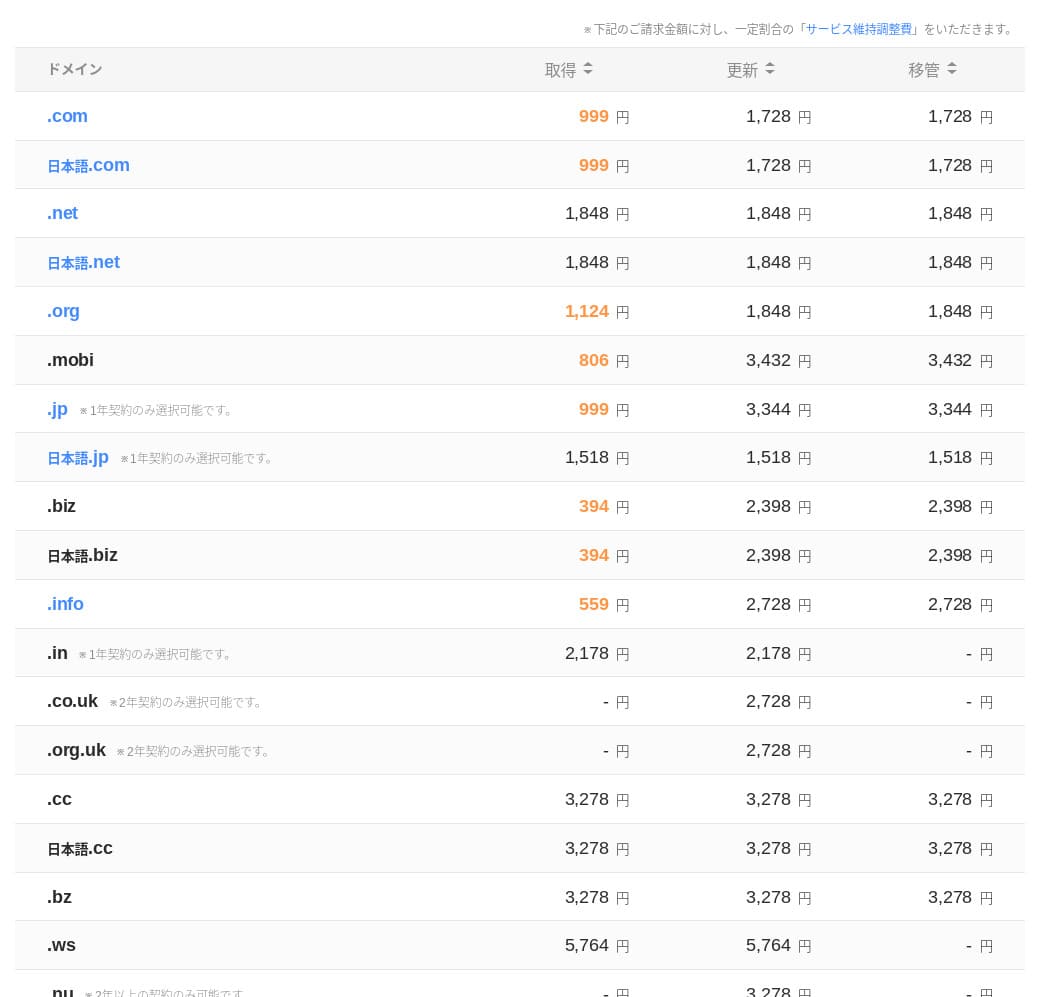
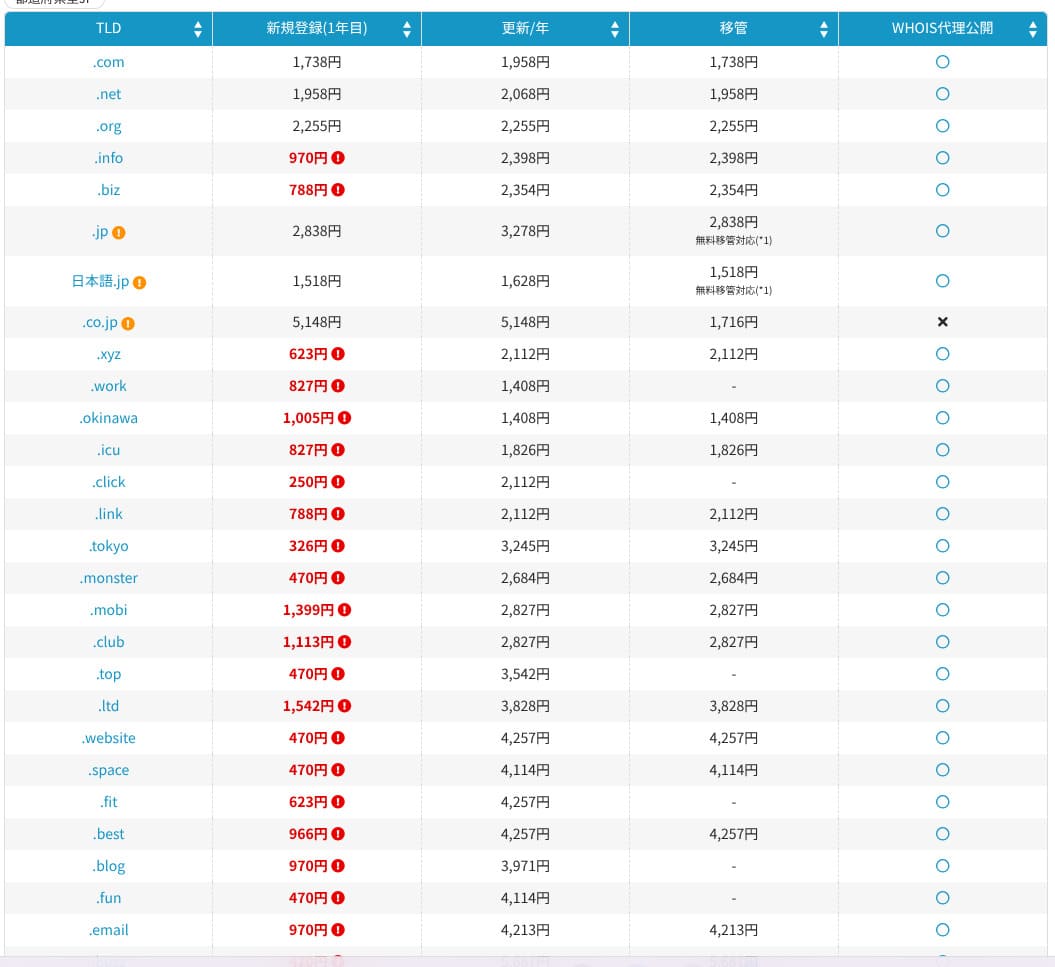
includes one free domain such as .com or .net, plus a second one (chosen from .blog, .online, or .site) that is also free forever. The permanent free custom domain benefit supports new registration, transfers from other companies, switching an already obtained domain, and changing the eligible domain.
Because these domains are meant for long-term business use, this free benefit is not something to overlook.
- XServer Domain
- Onamae.com
- MuuMuu Domain
- Value Domain
- Shin Domain
- Star Domain
- Colorful Domain
- Rakko Domain
SSL certificate cost
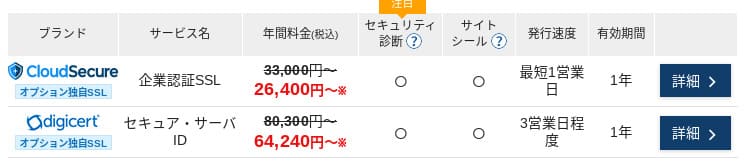
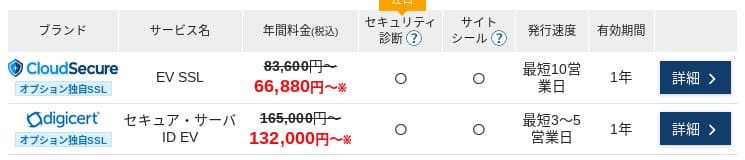
With Let's Encrypt, domain-validated SSL is free. Paid domain-validated SSL starts at 836 yen per year, organization-validated SSL (OV) starts at 26,400 yen per year, and EV starts at 66,000 yen per year, all available through official one-stop ordering.
Prices can vary depending on the campaign.
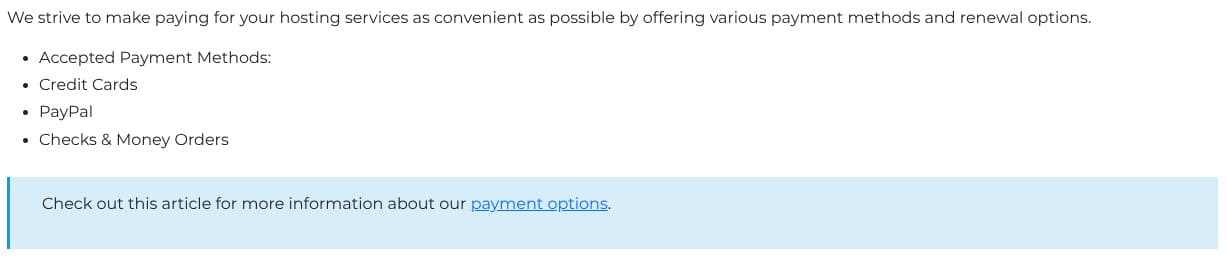
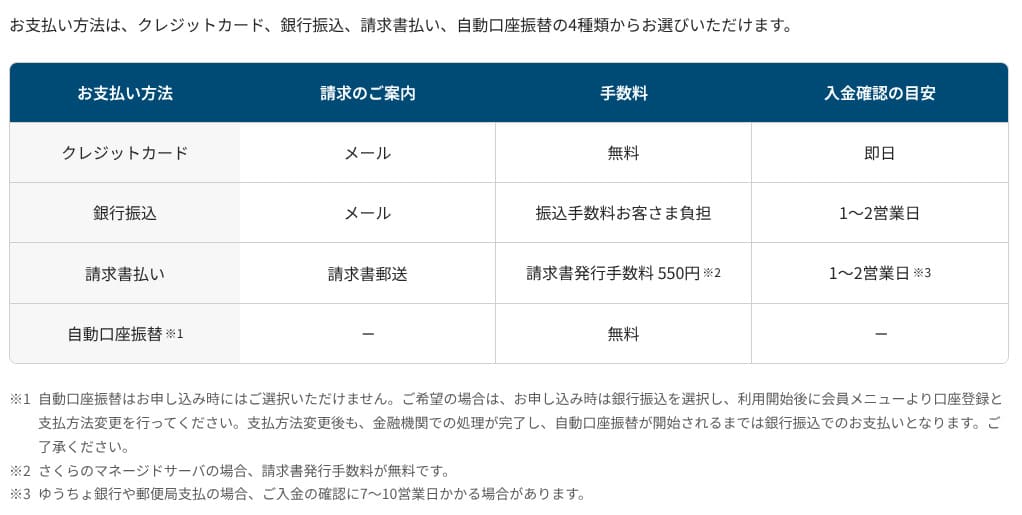
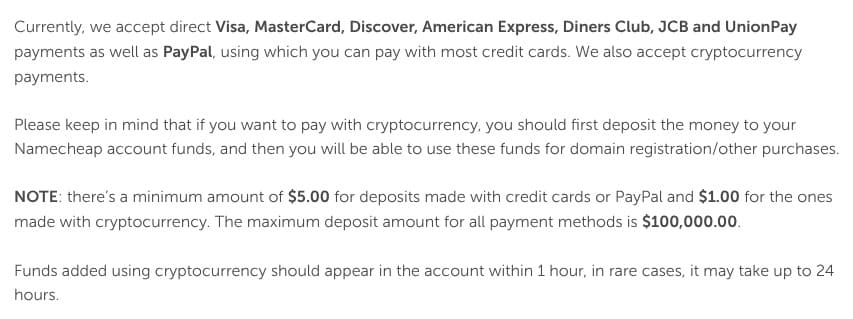
Payment methods
XServerビジネス
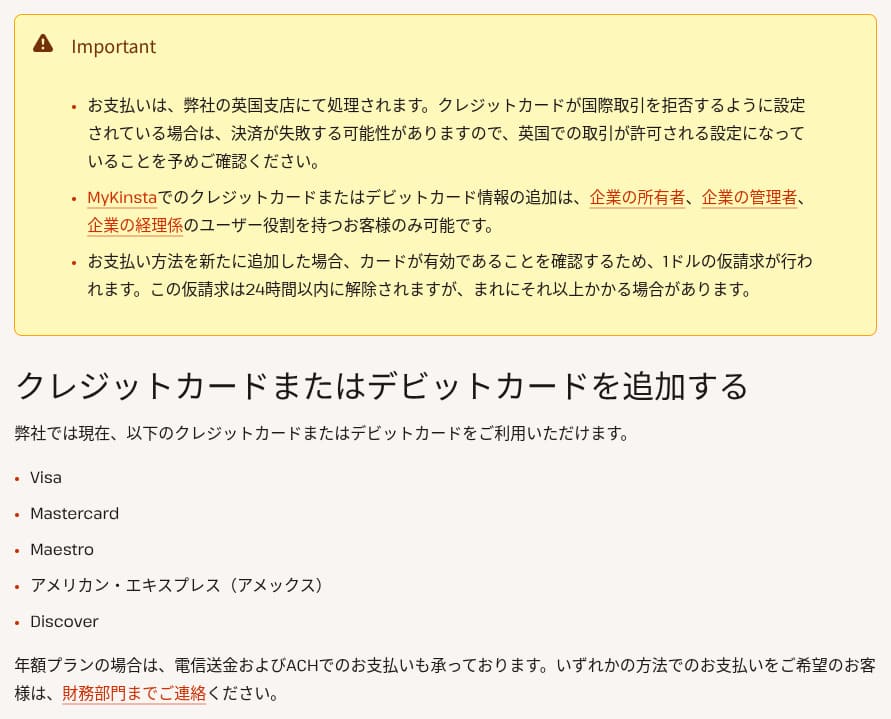
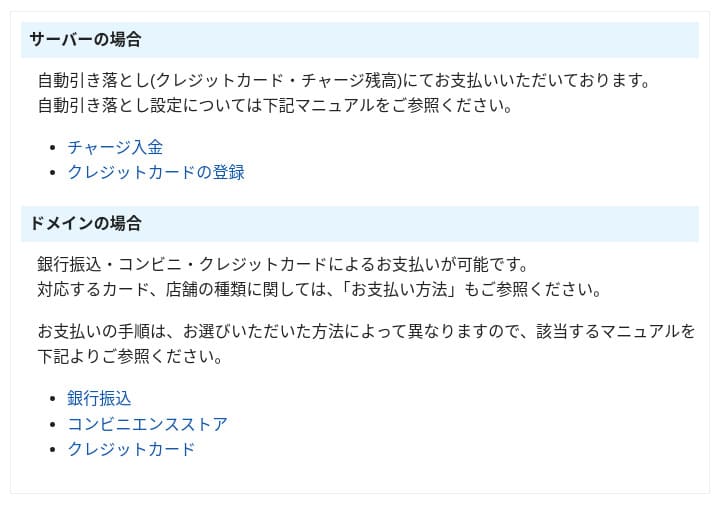
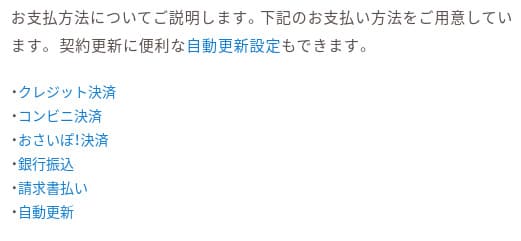
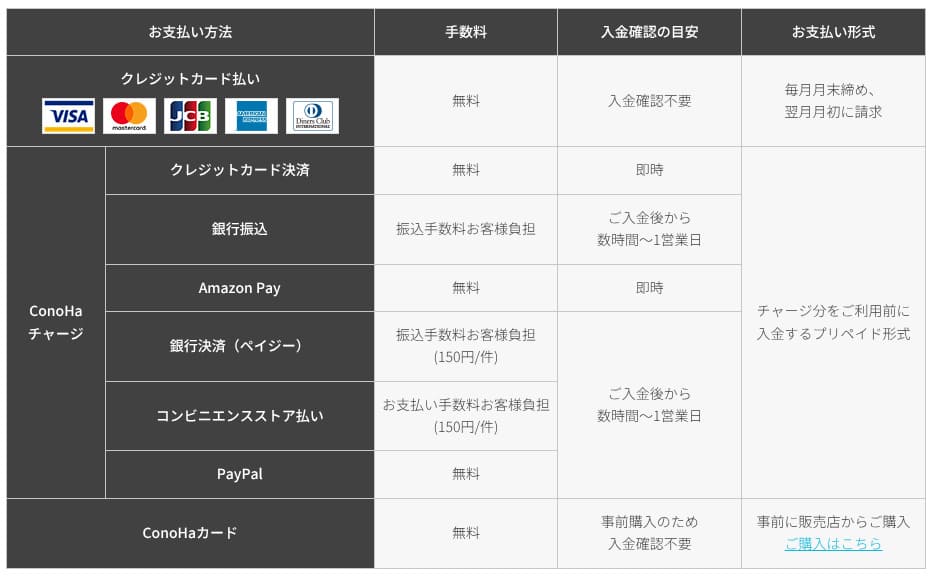
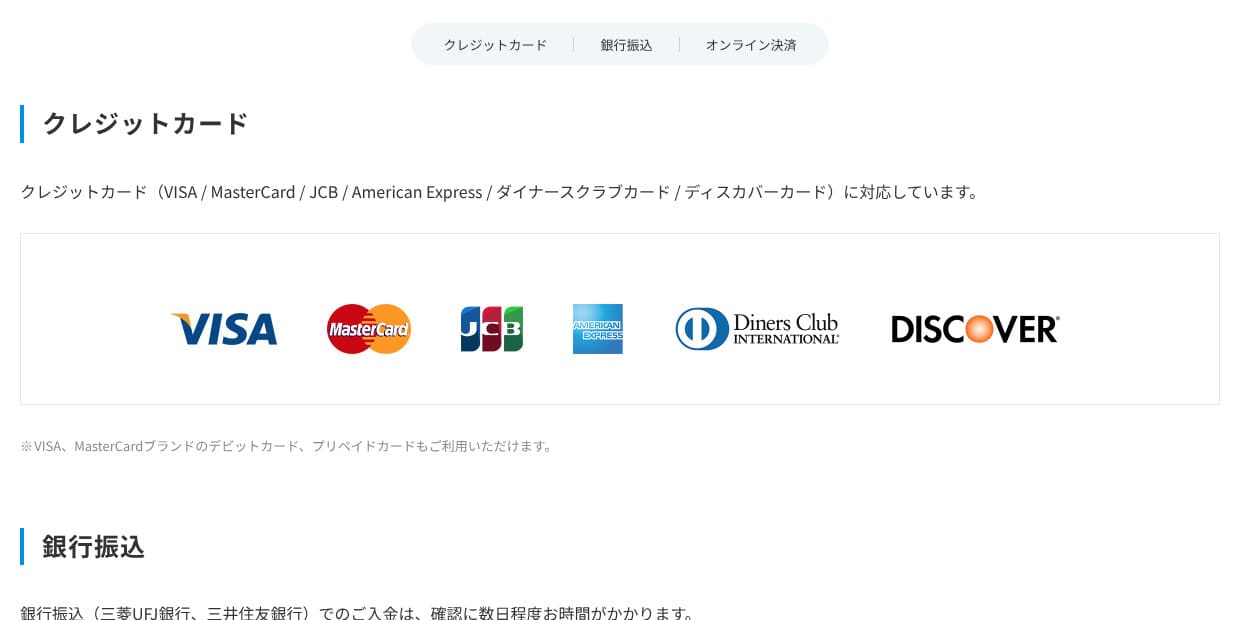
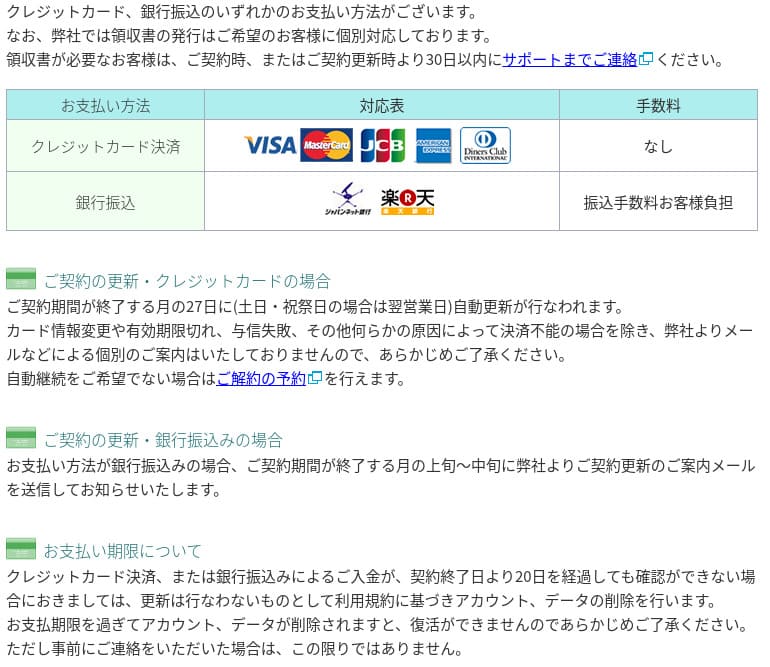
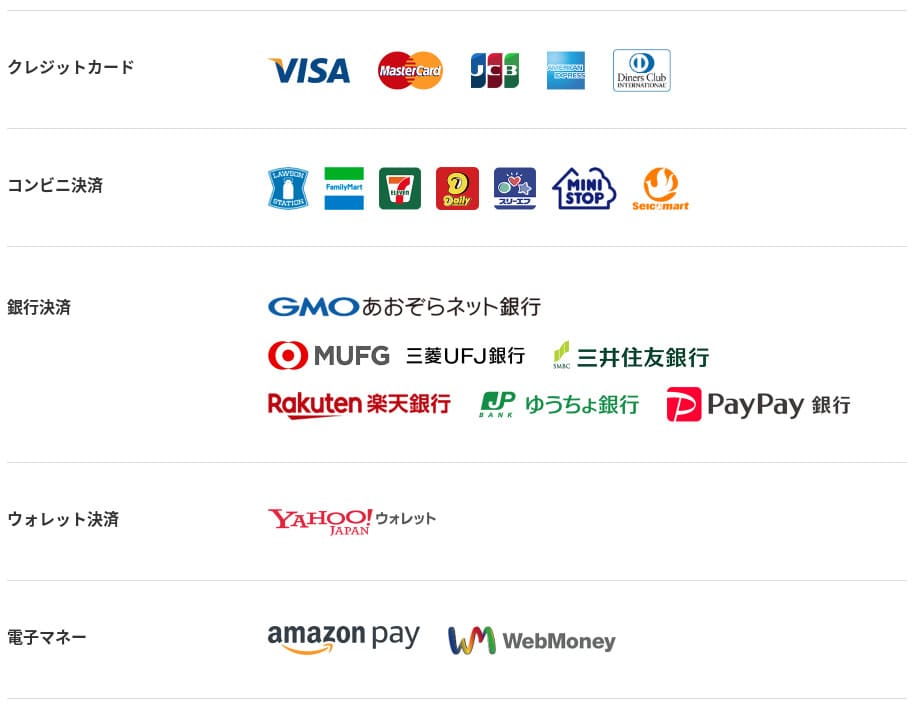
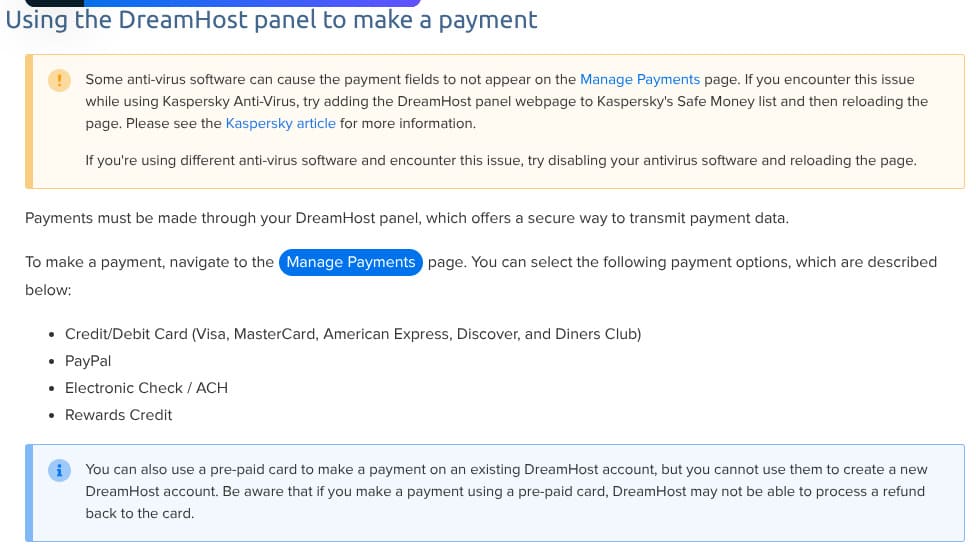
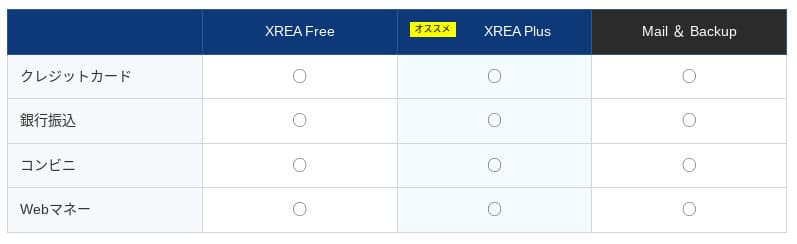
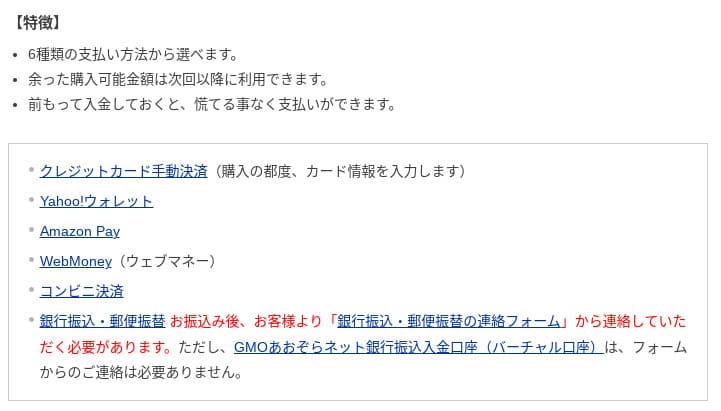
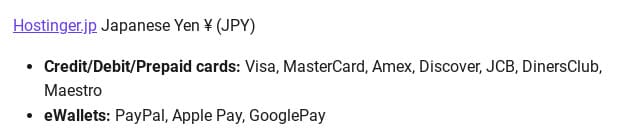
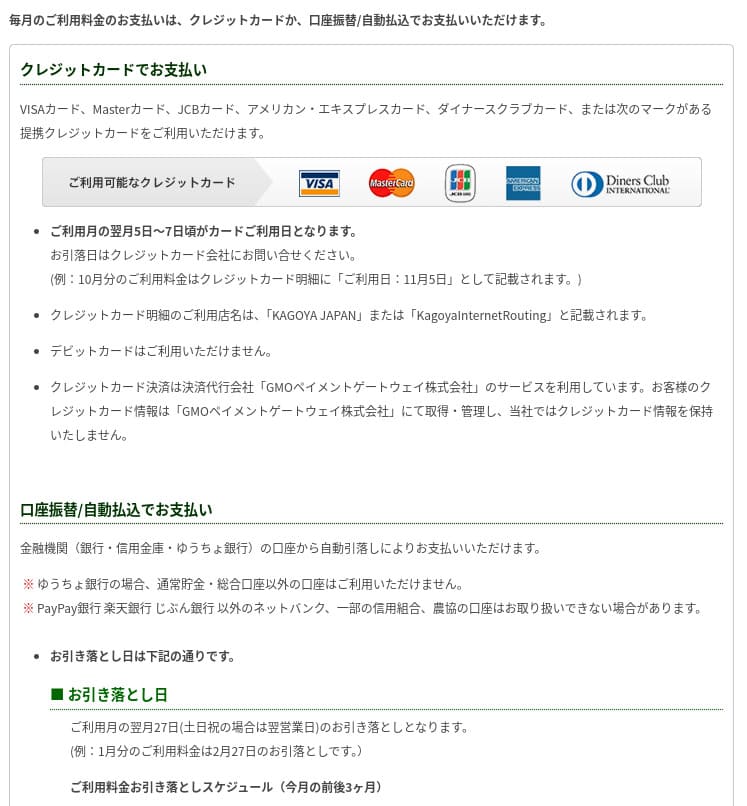
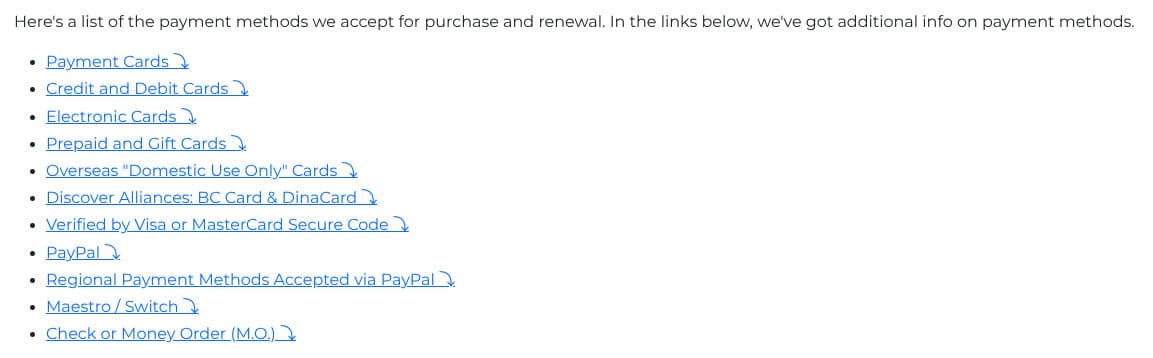
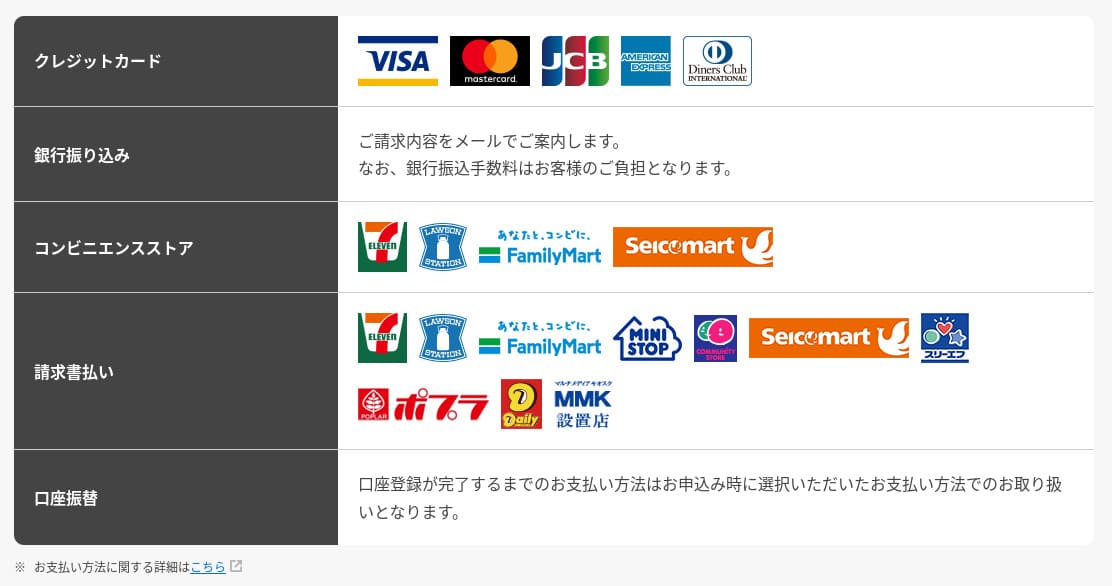
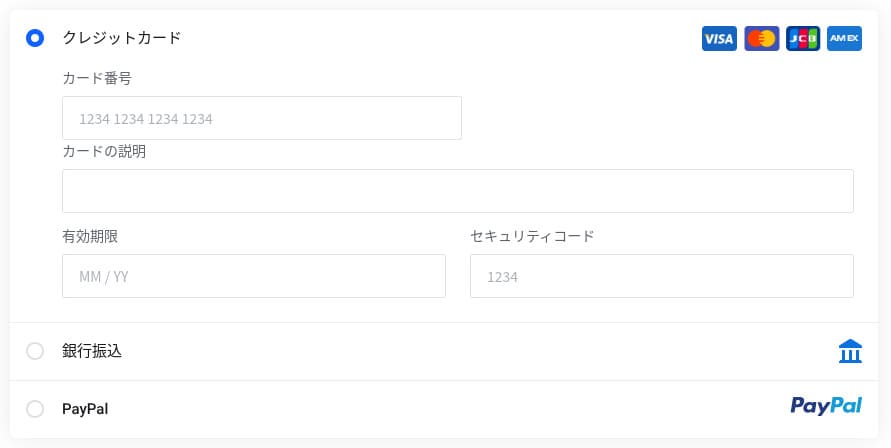
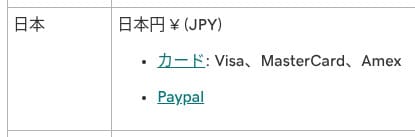
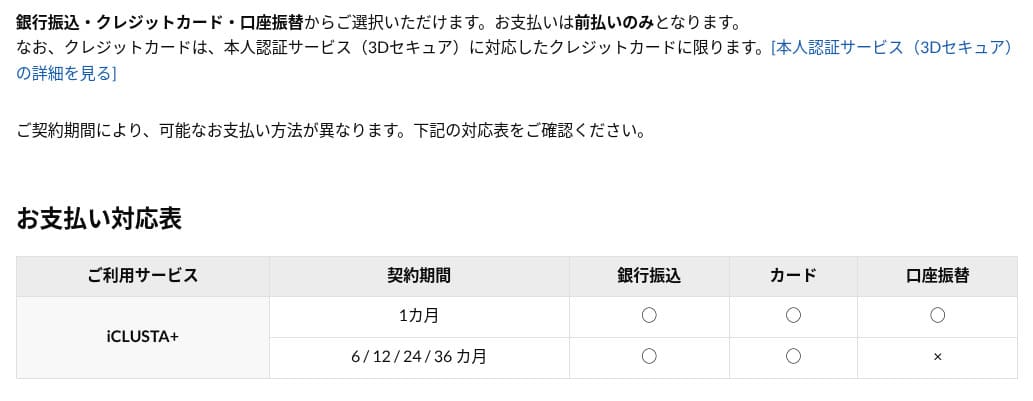
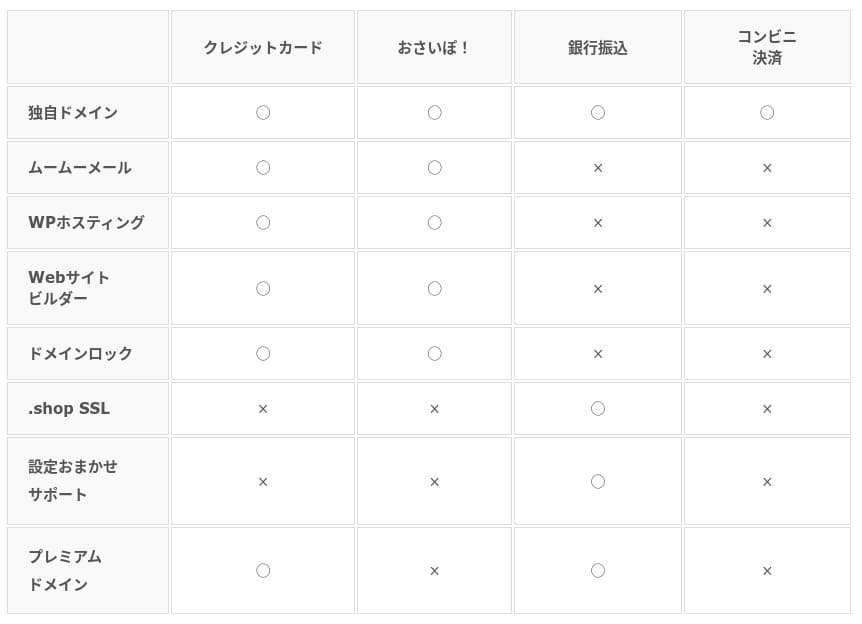
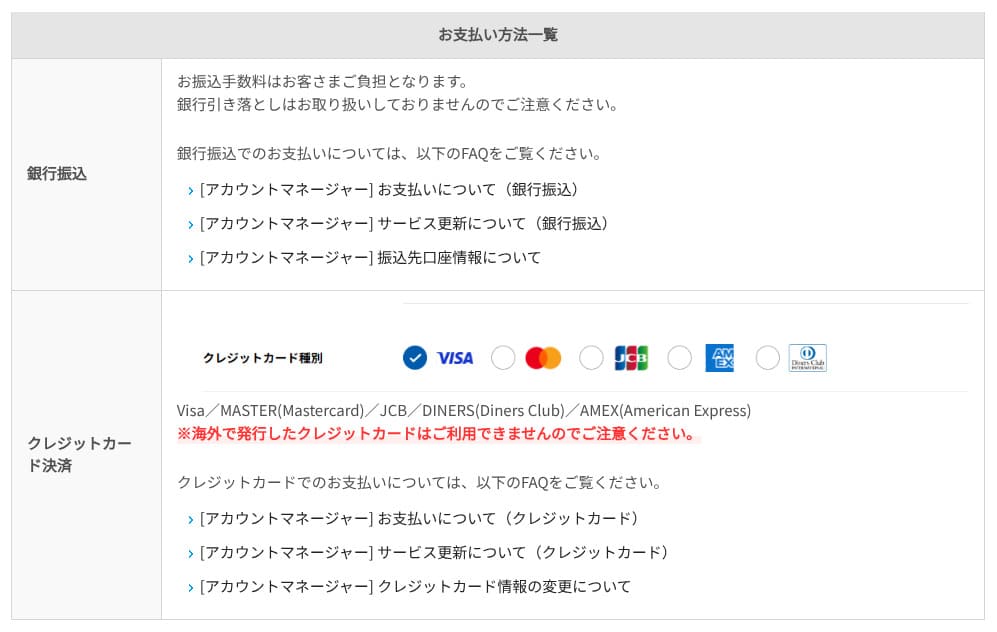
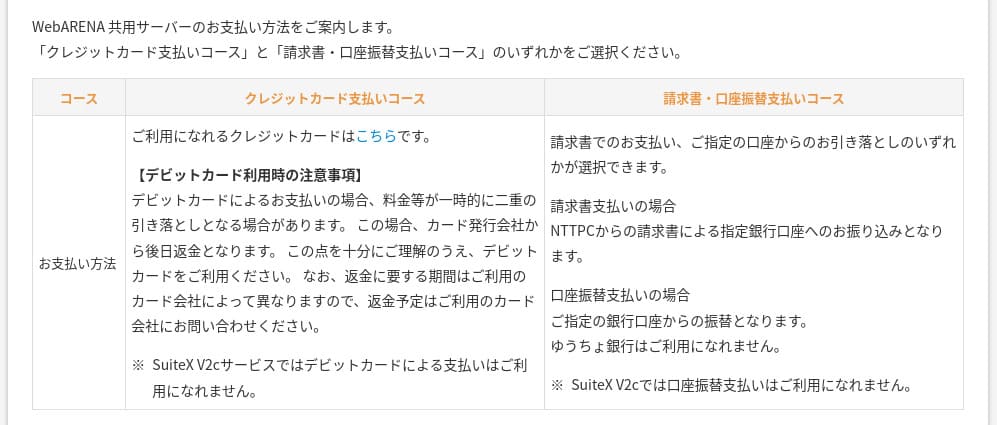
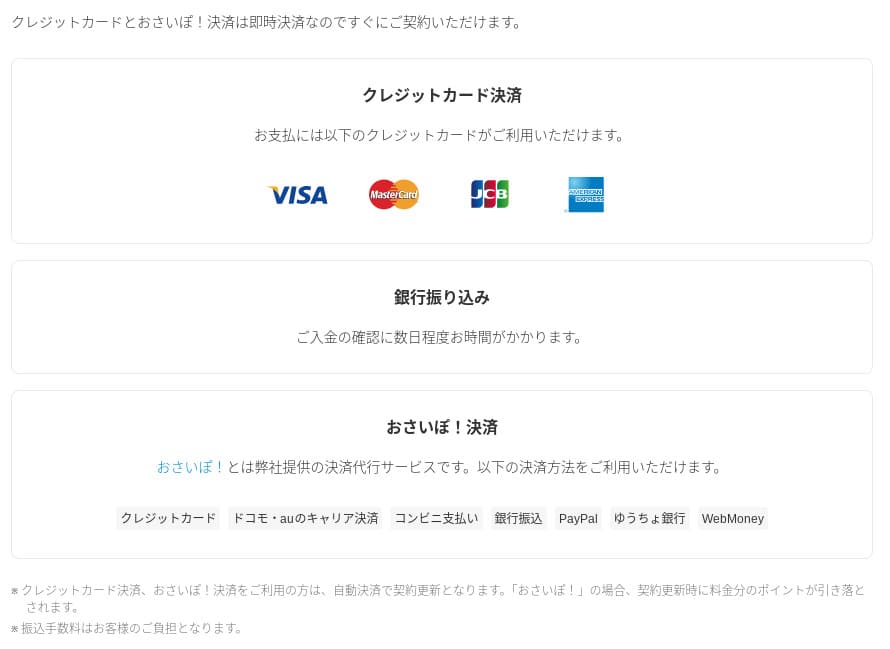
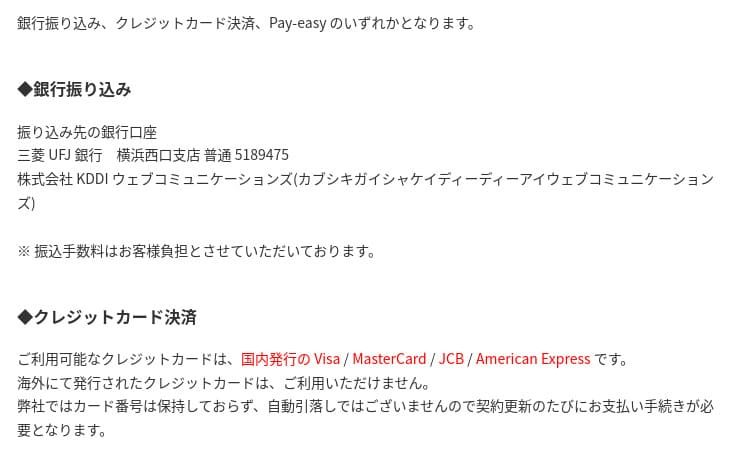
supports credit cards, bank transfer, Pay-easy, convenience store payment, and invoice billing. It can also issue PDF quotations and invoices, so adoption is smooth even for companies that need internal approval.
Because many domestic hosting services do not support invoice payments, this is one of XServerビジネス
's strengths.
- XServer Business
- Kinsta
- wpx
- Lolipop!
- Star Server
- Rakko Server
- XServer
- ConoHa
- ColorfulBox
- Shin Rental Server
- Little Server
- CORESERVER
- DreamHost
- Bluehost
- Sakura
- Namecheap
- Shin Free Server
- XREA
- Value Server
- Hostinger
- KAGOYA
- SiteGround
- HostGator
- IONOS
- Onamae.com
- ABLENET
- mixhost
- GoDaddy
- iCLUSTA+
- MuuMuu Server
- WADAX
- WebARENA
- Heteml
- CPI Rental Server







Ease of use and support
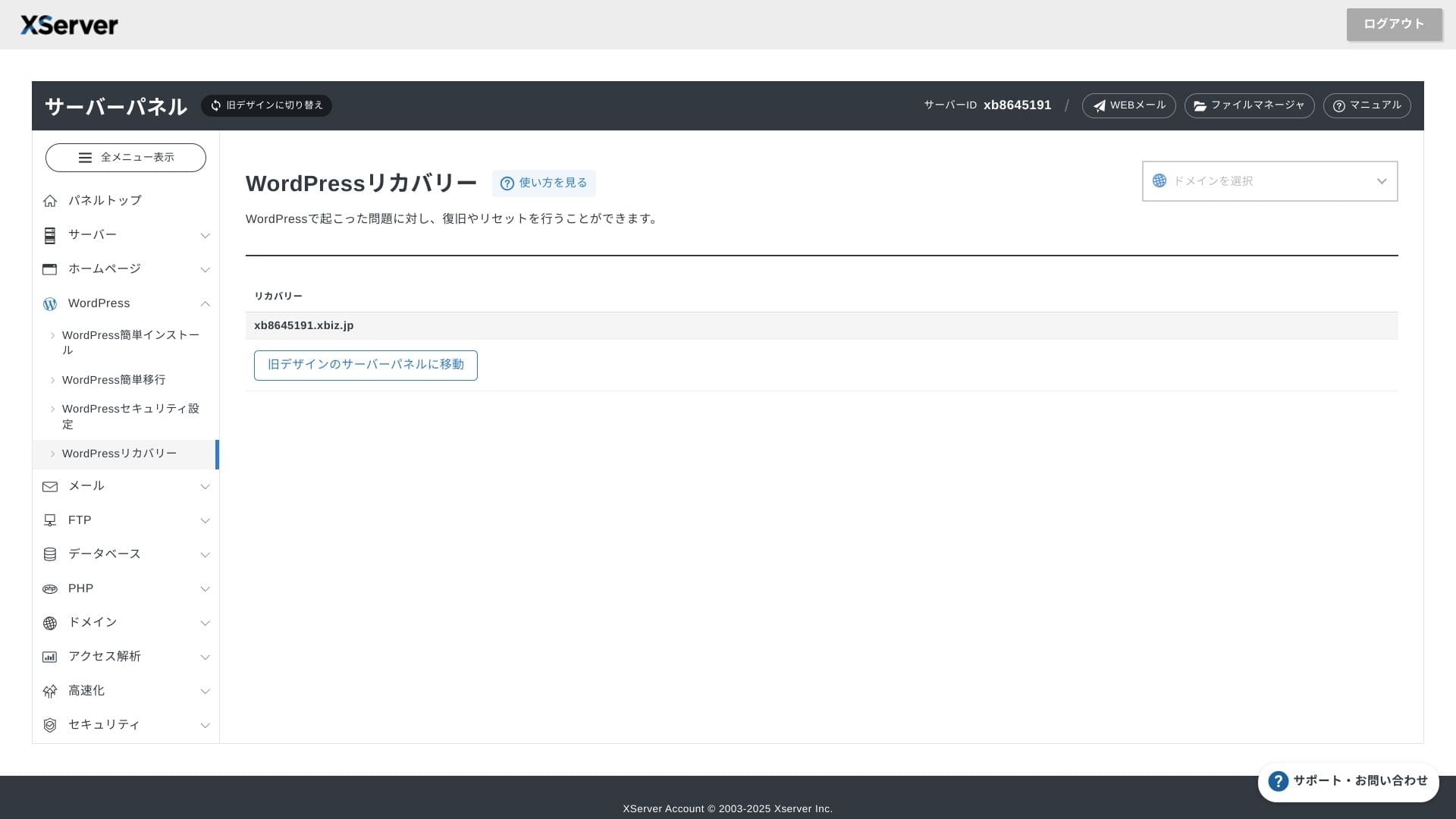
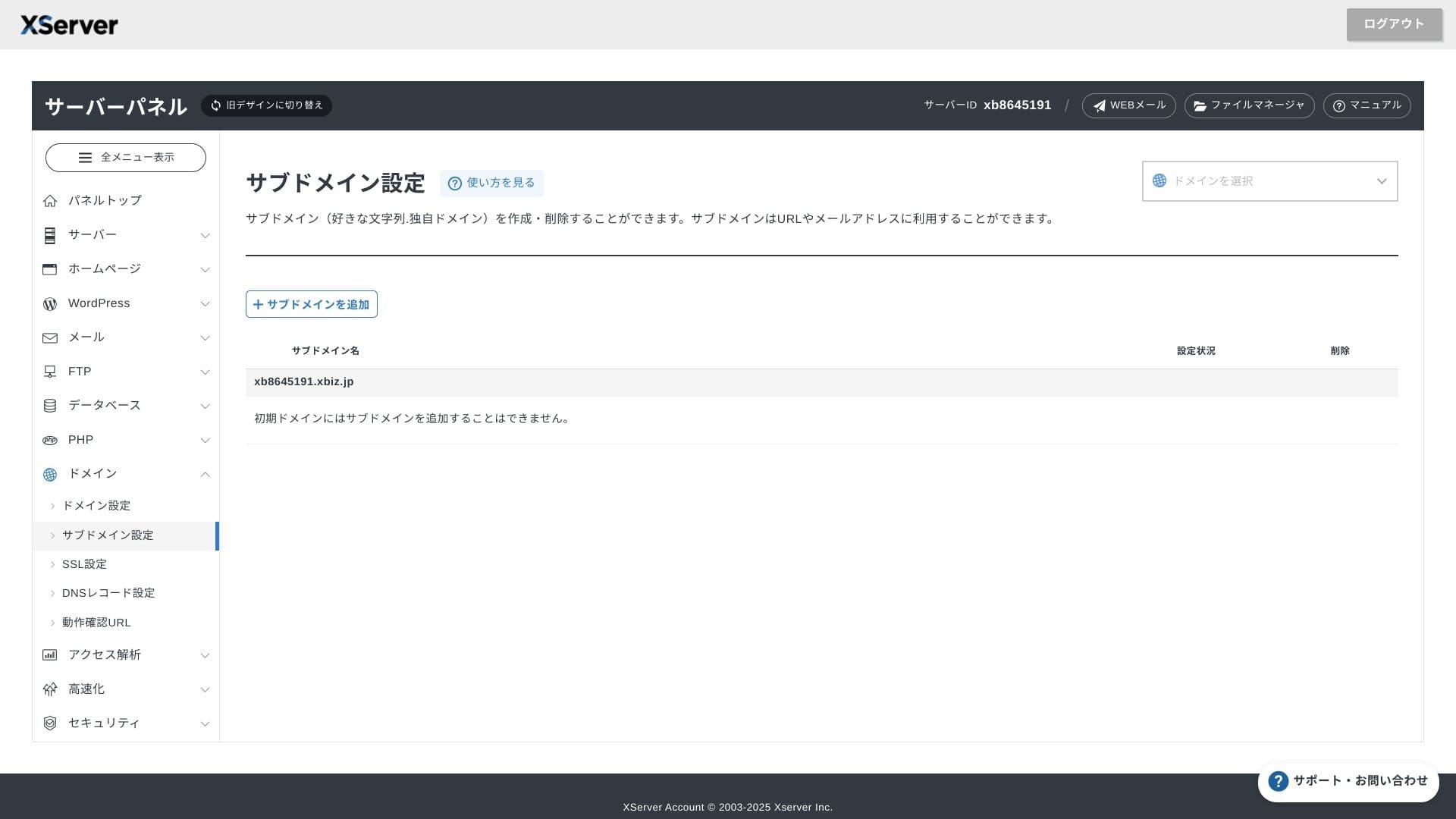
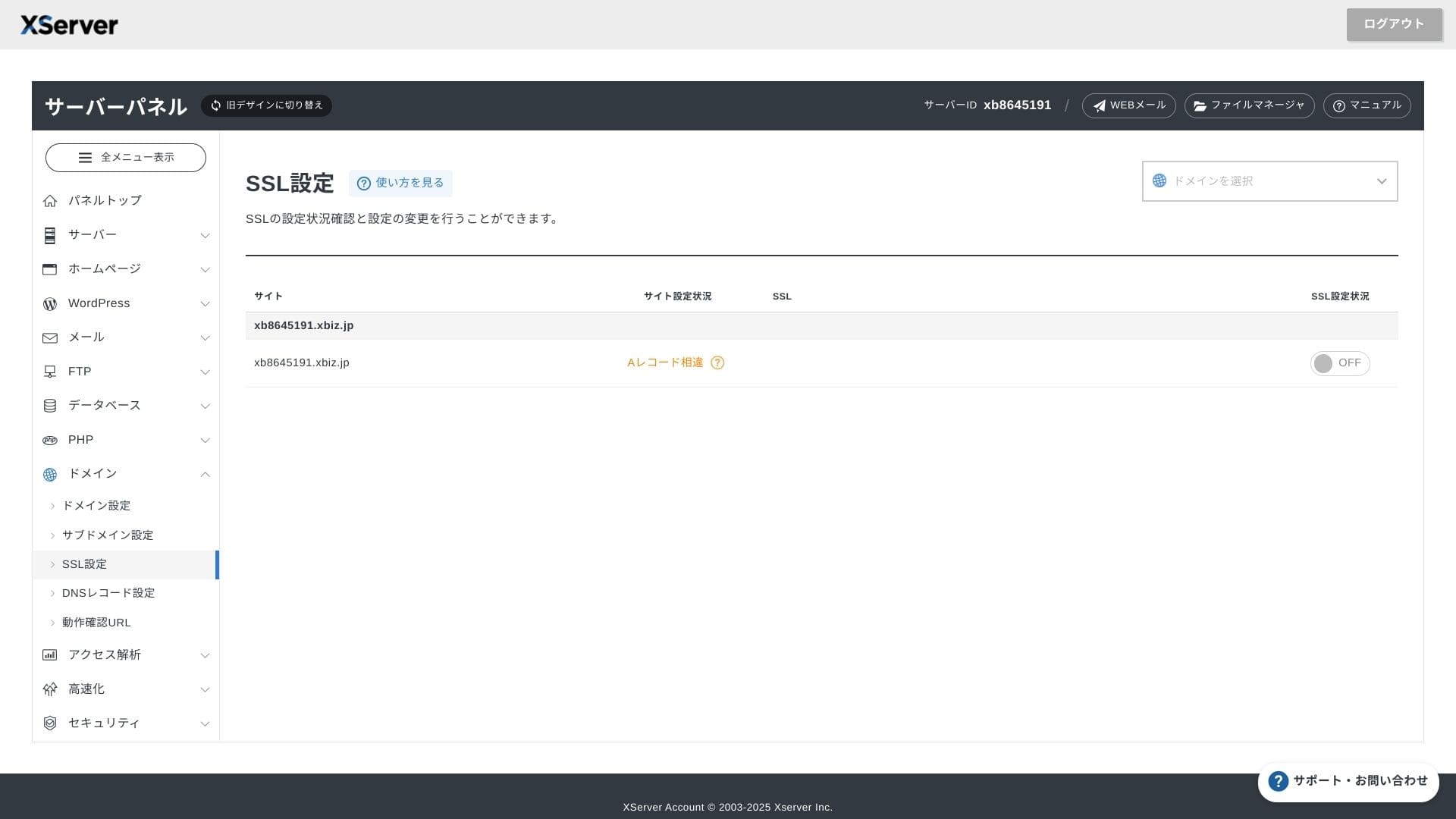
Ease of the control panel
XServerビジネス
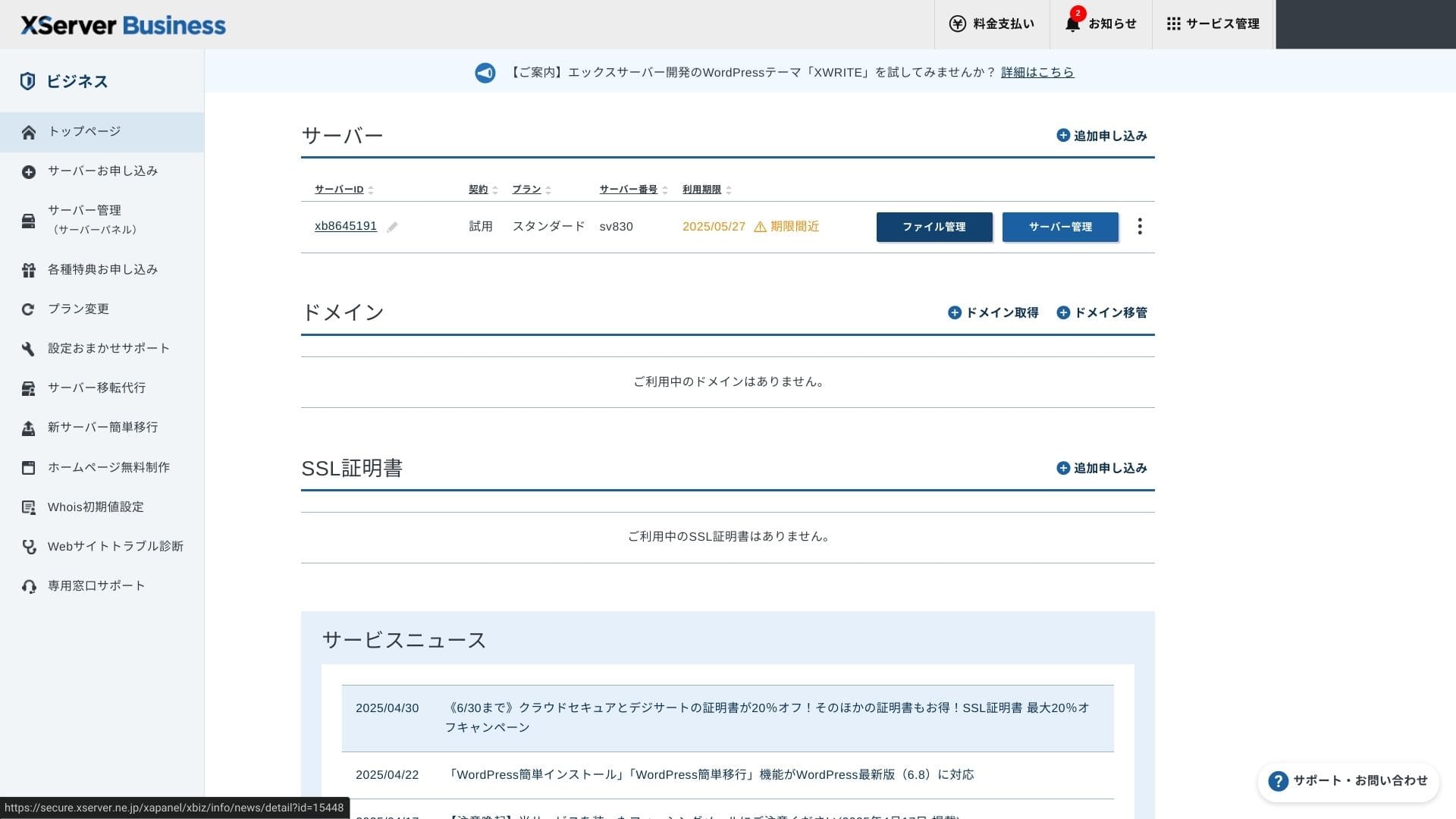
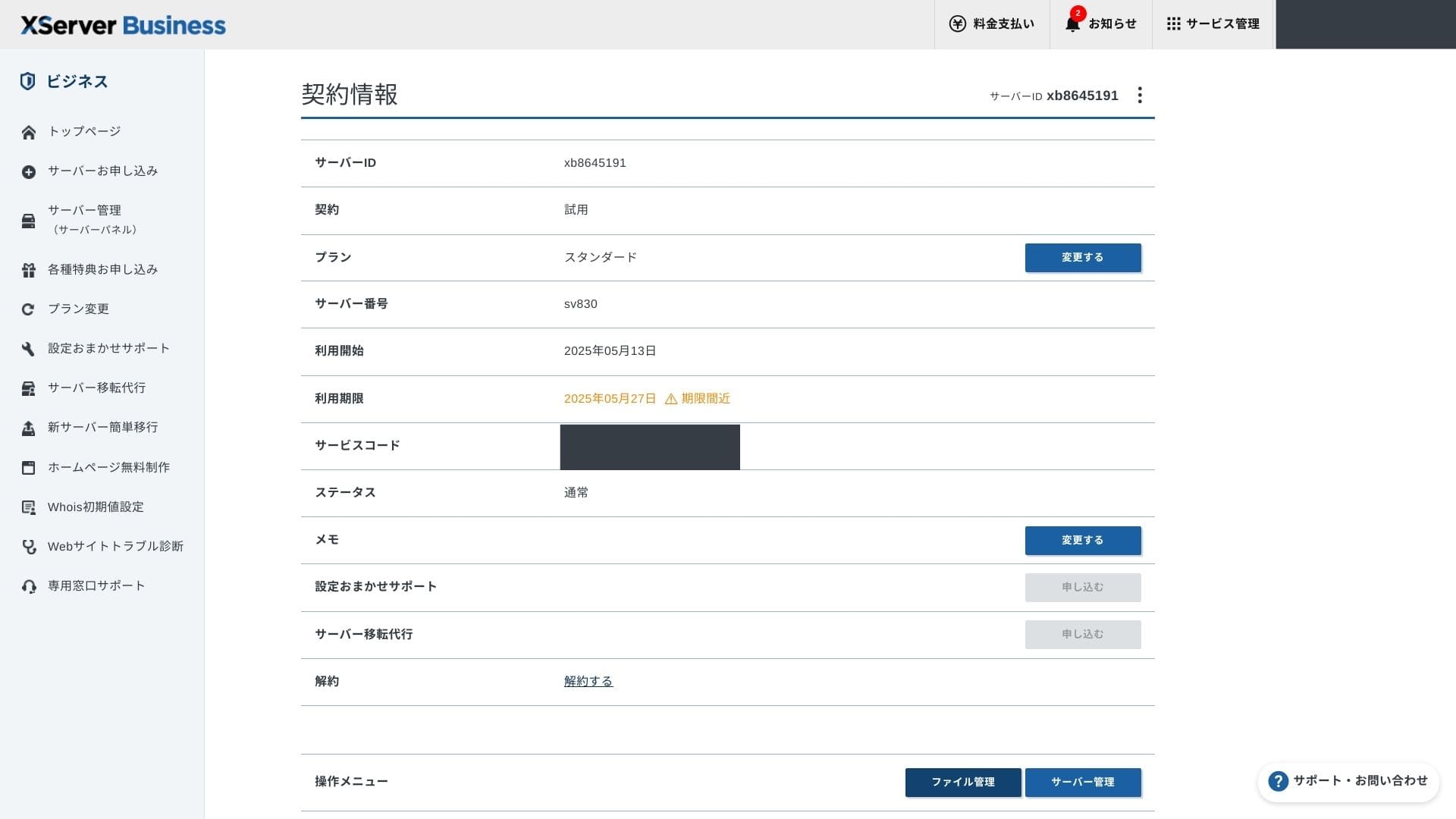
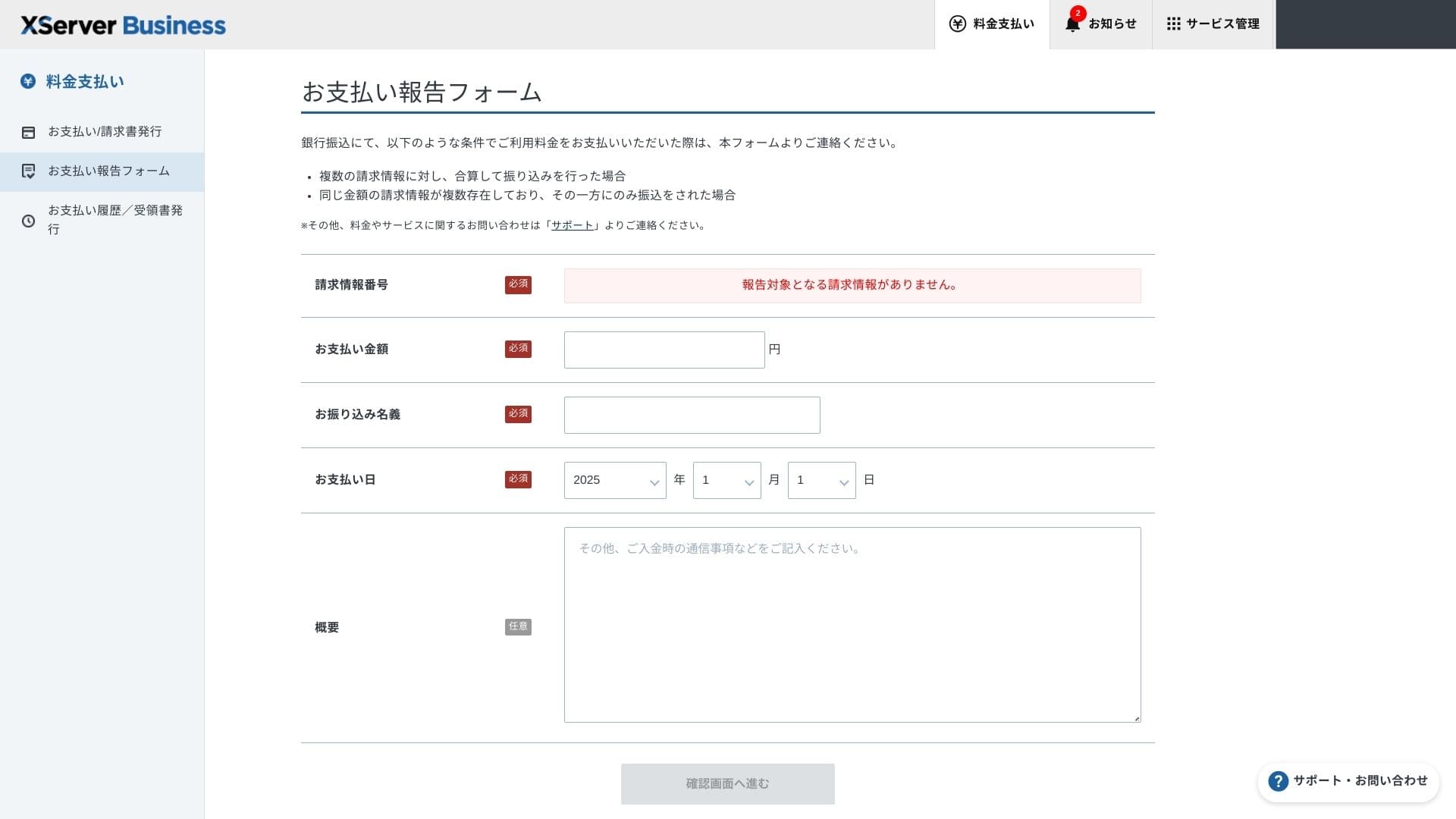
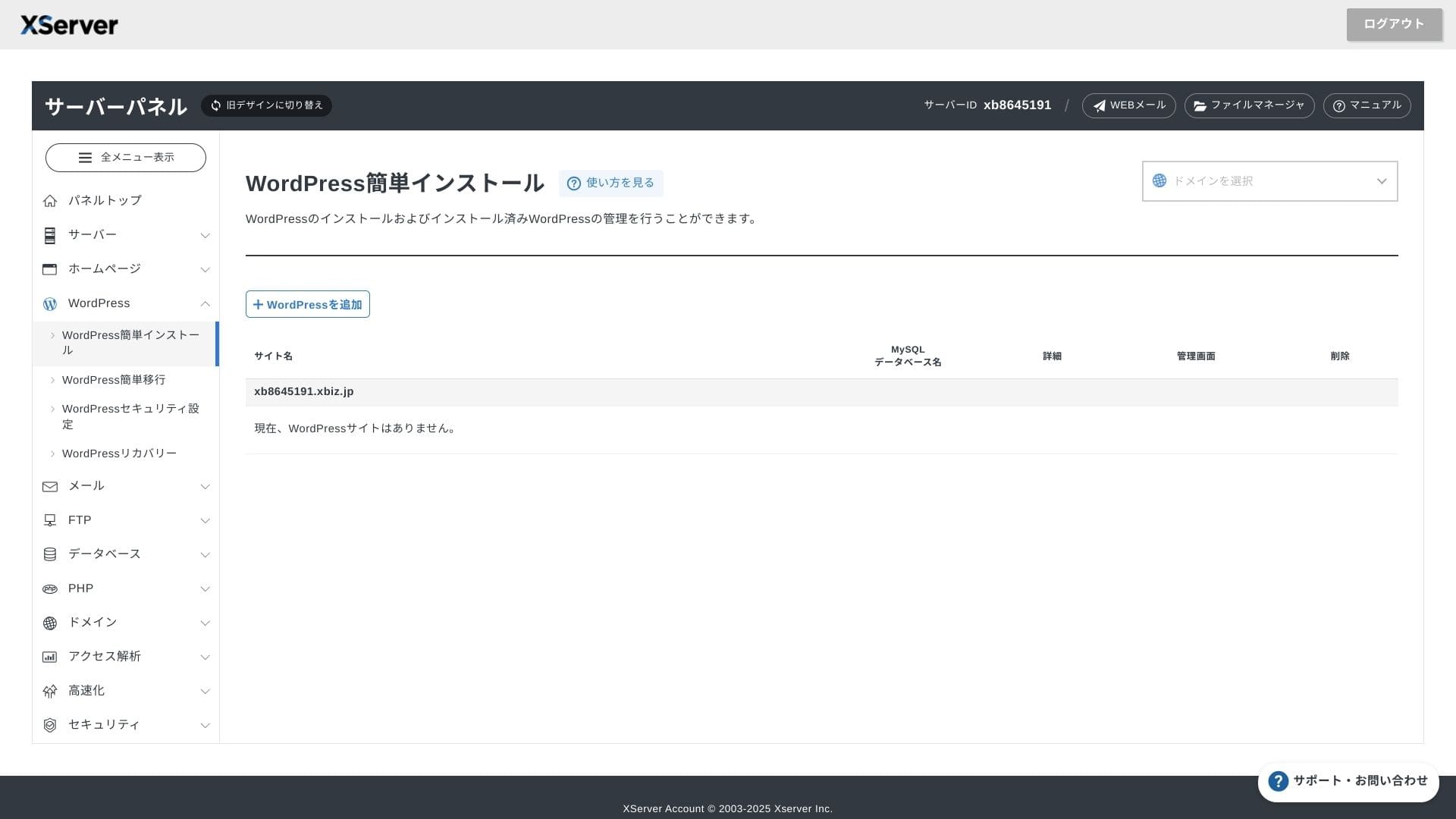
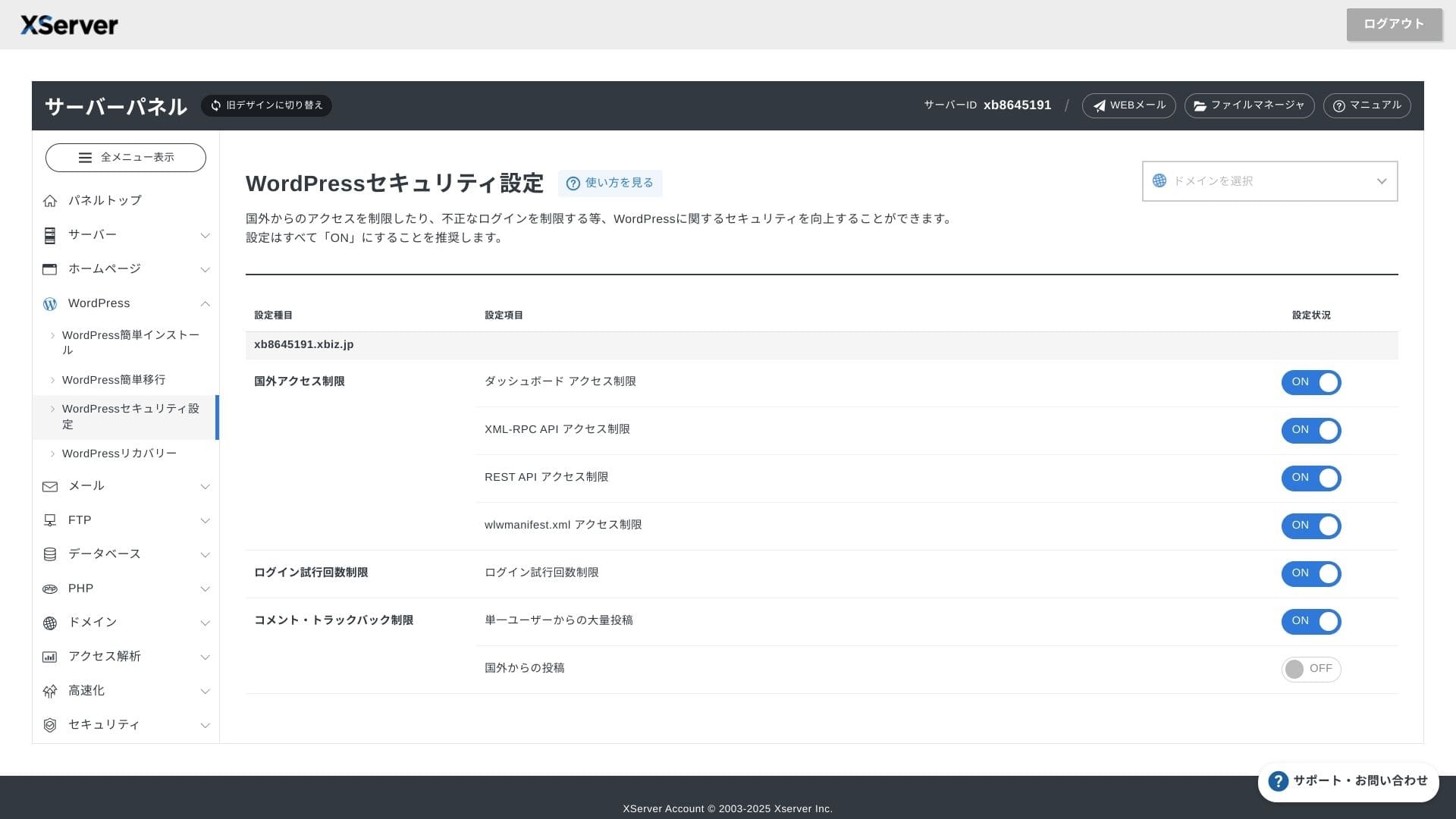
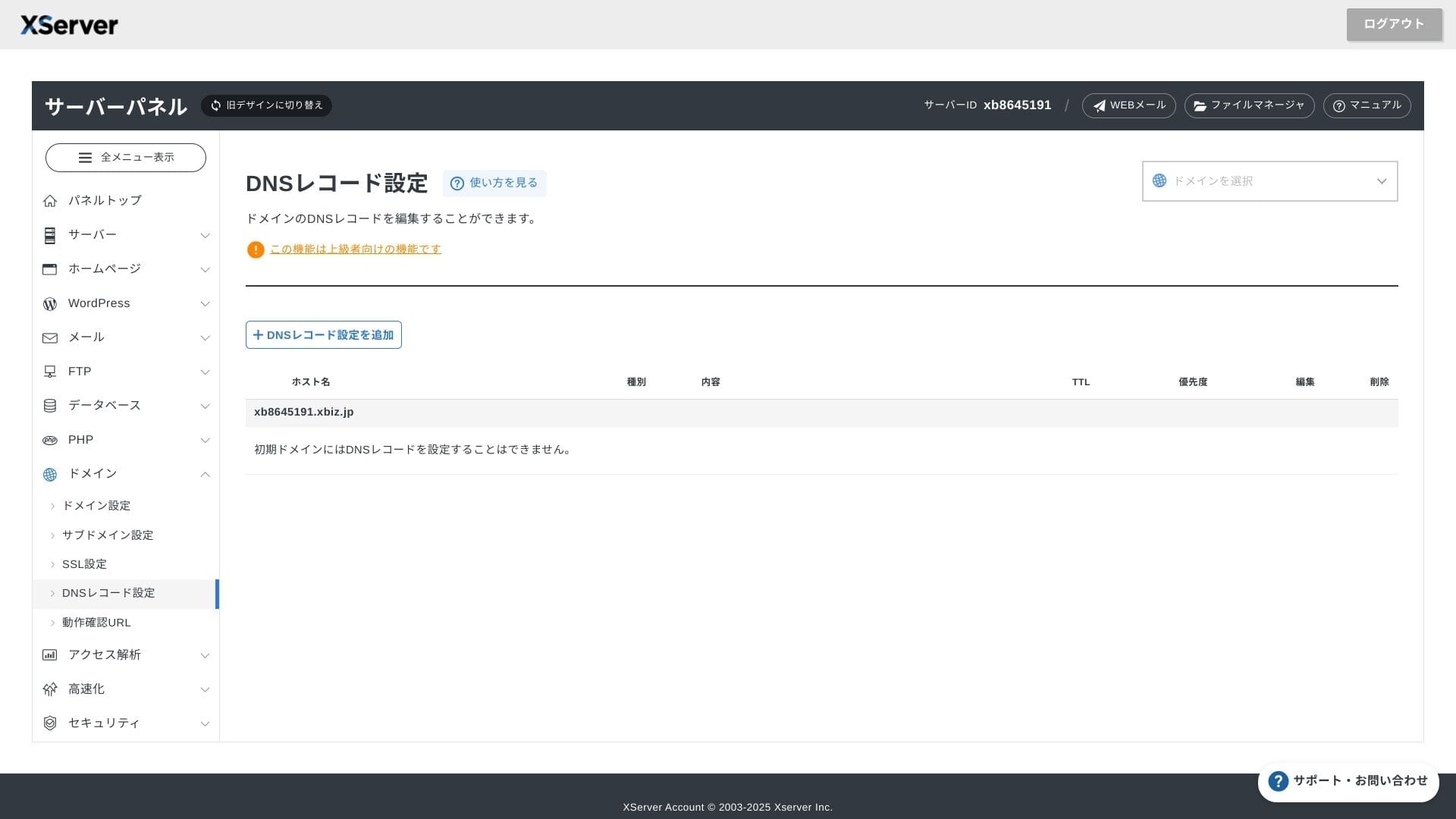
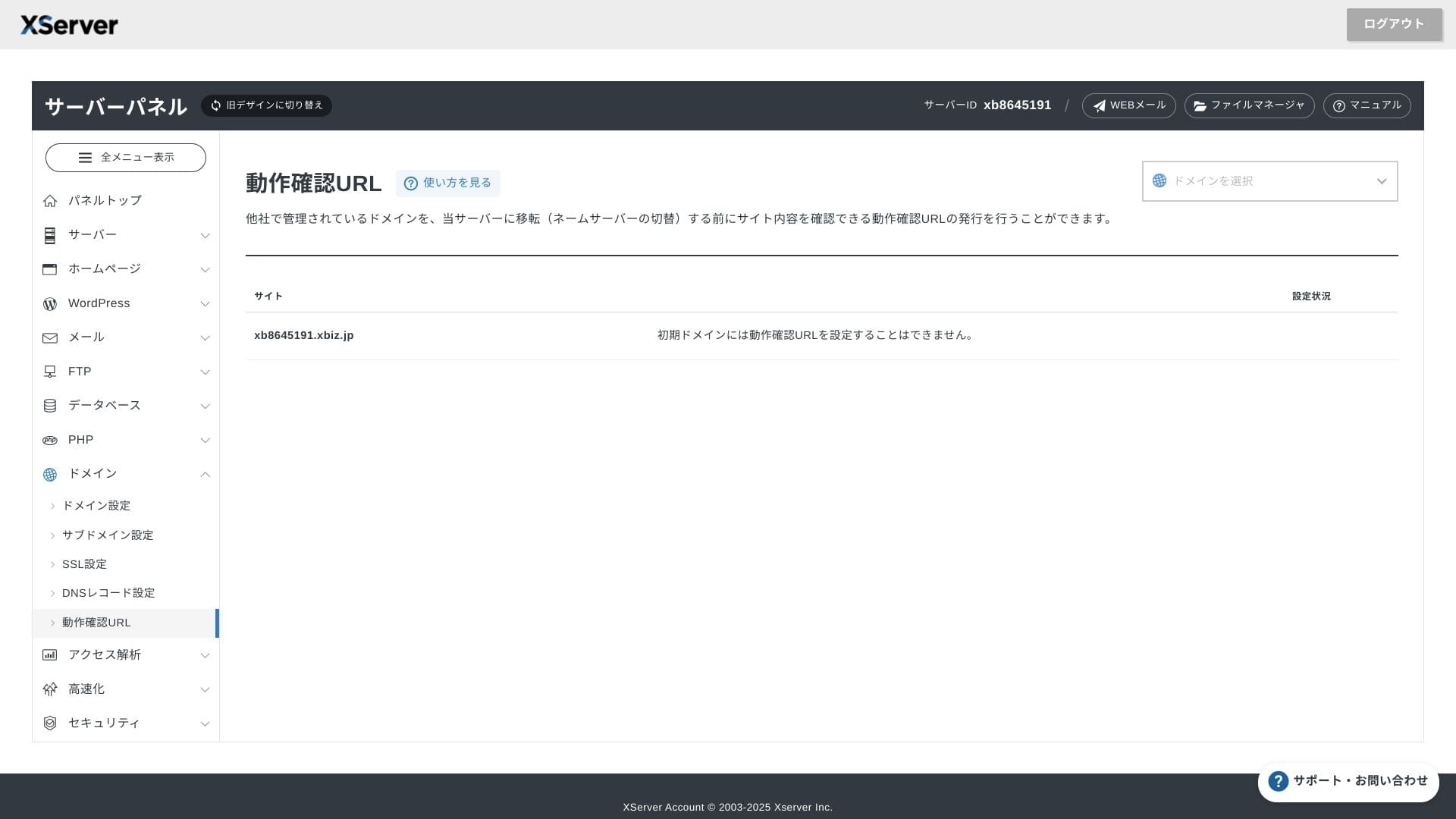
uses its own UI so file operations, SSL settings, and email settings are all handled with one click. Because the official documentation clearly states that setup is completed within 24 hours, it is easy to plan your launch schedule.
The server panel has been redesigned, and it is now even easier to use.
- Home screen
- Billing
- WordPress
- Domain
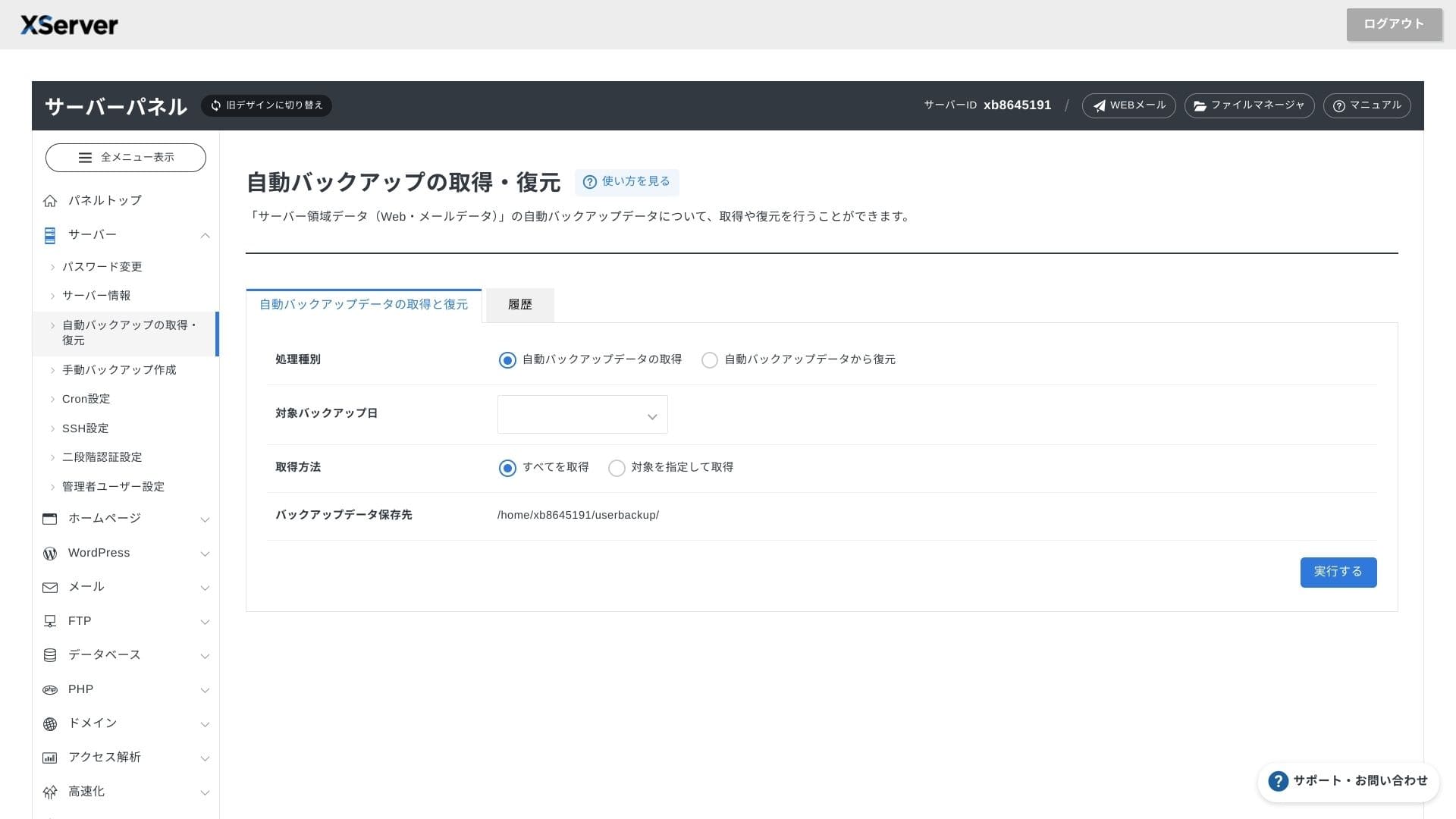
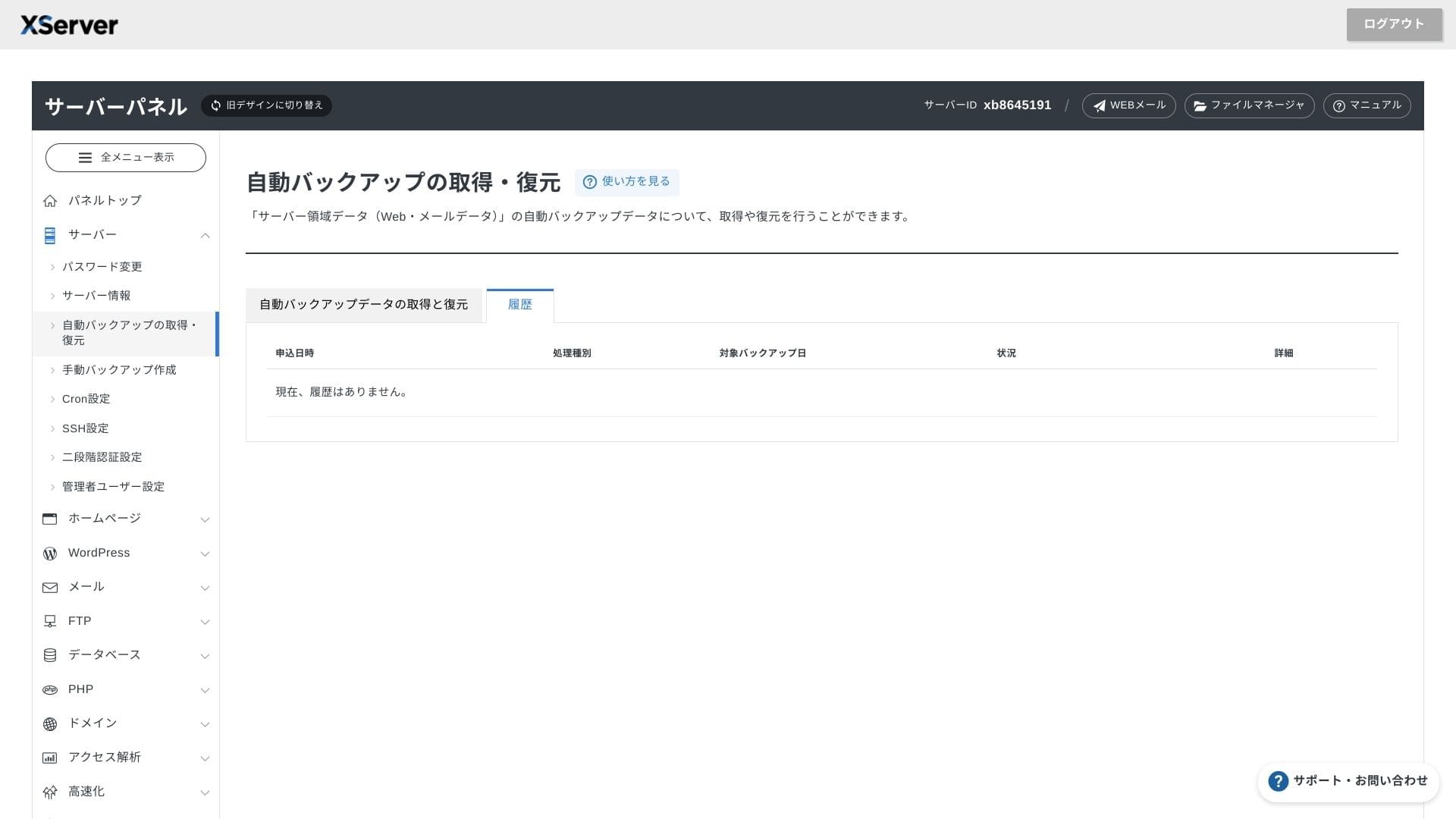
- Backup
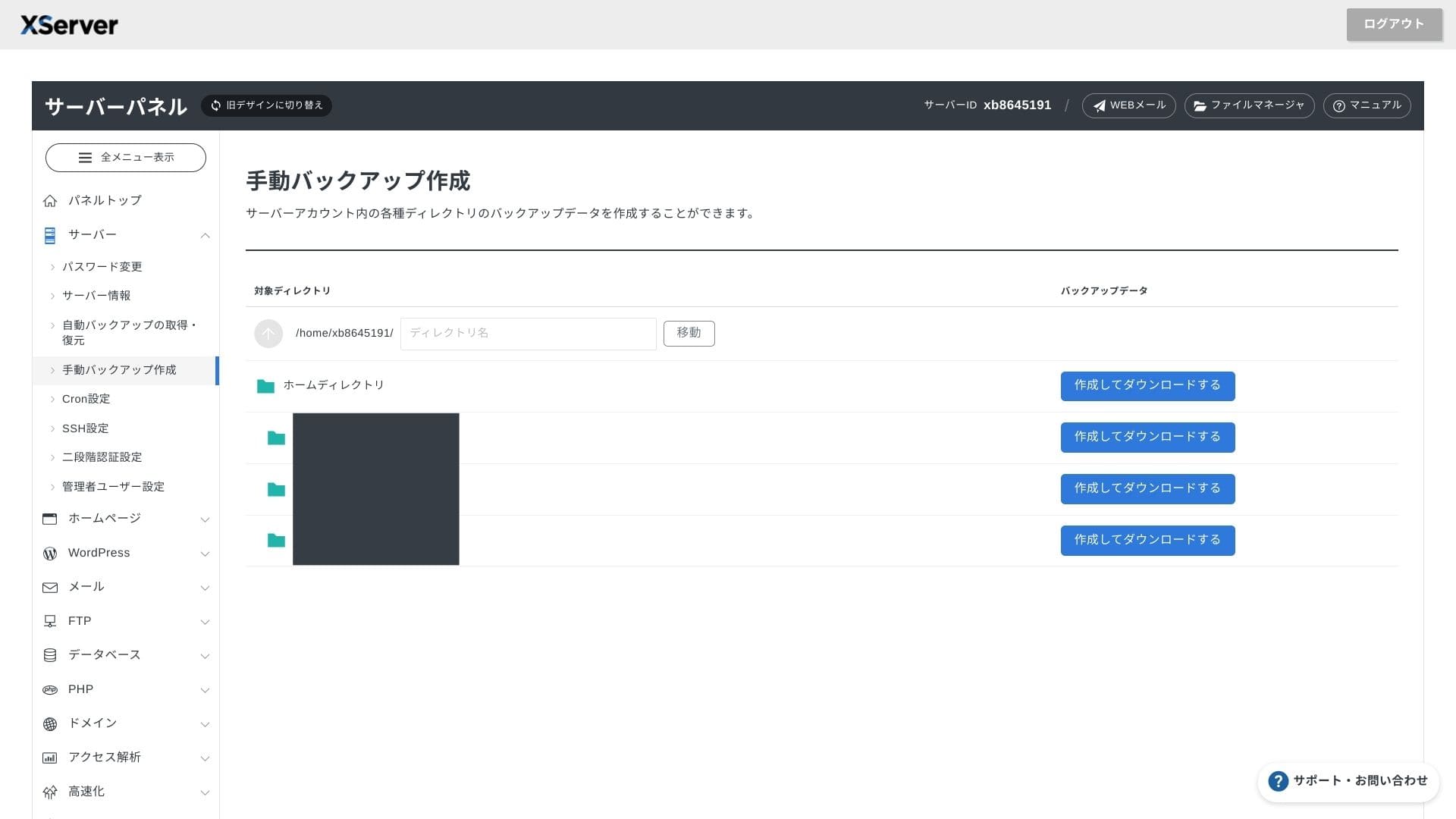
Support system
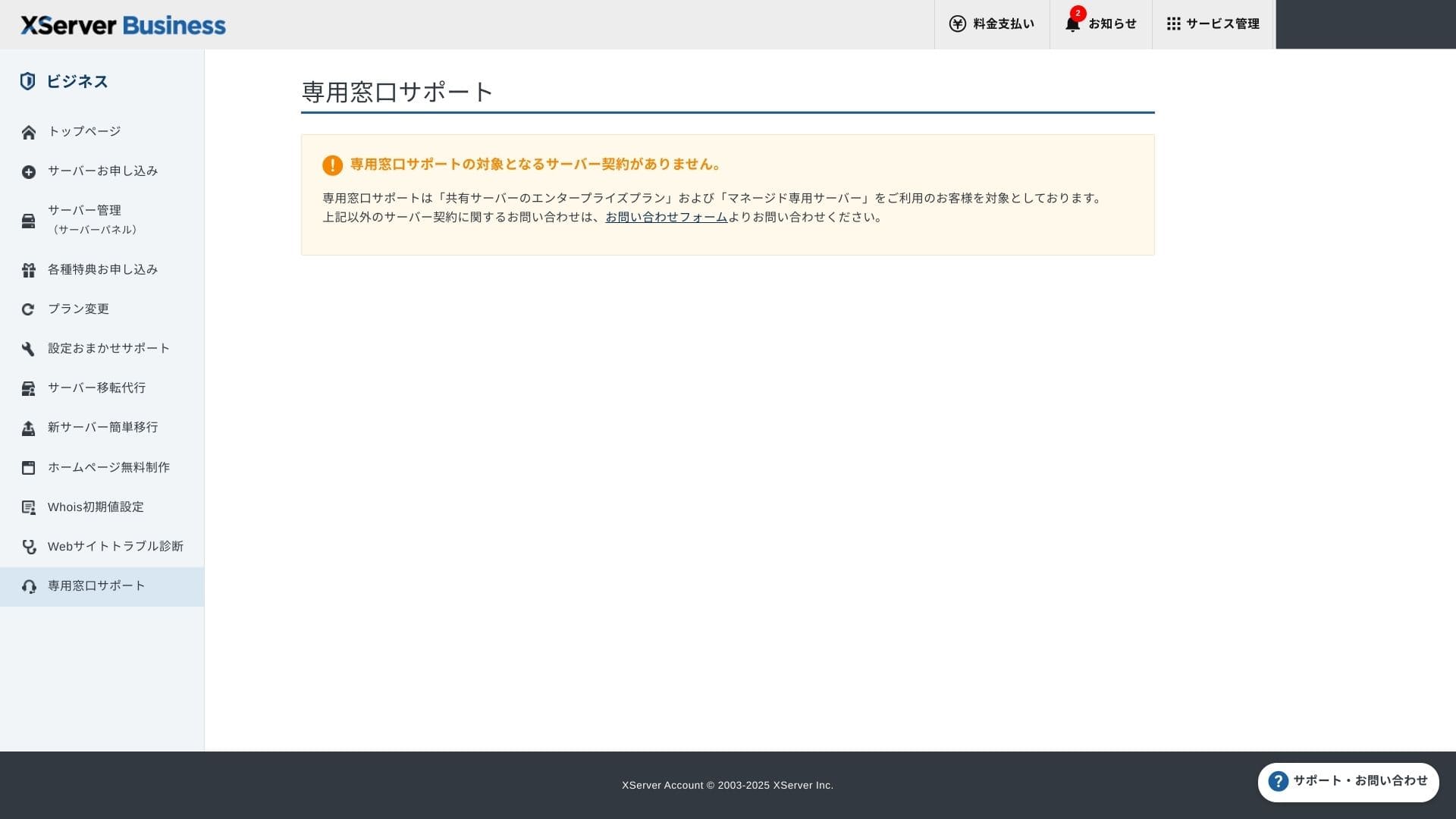
Support is available by phone, email, and chat on weekdays from 10:00 to 18:00. The Enterprise shared plan and the managed server plans also come with dedicated support desks, so you can get even more attentive and faster assistance.
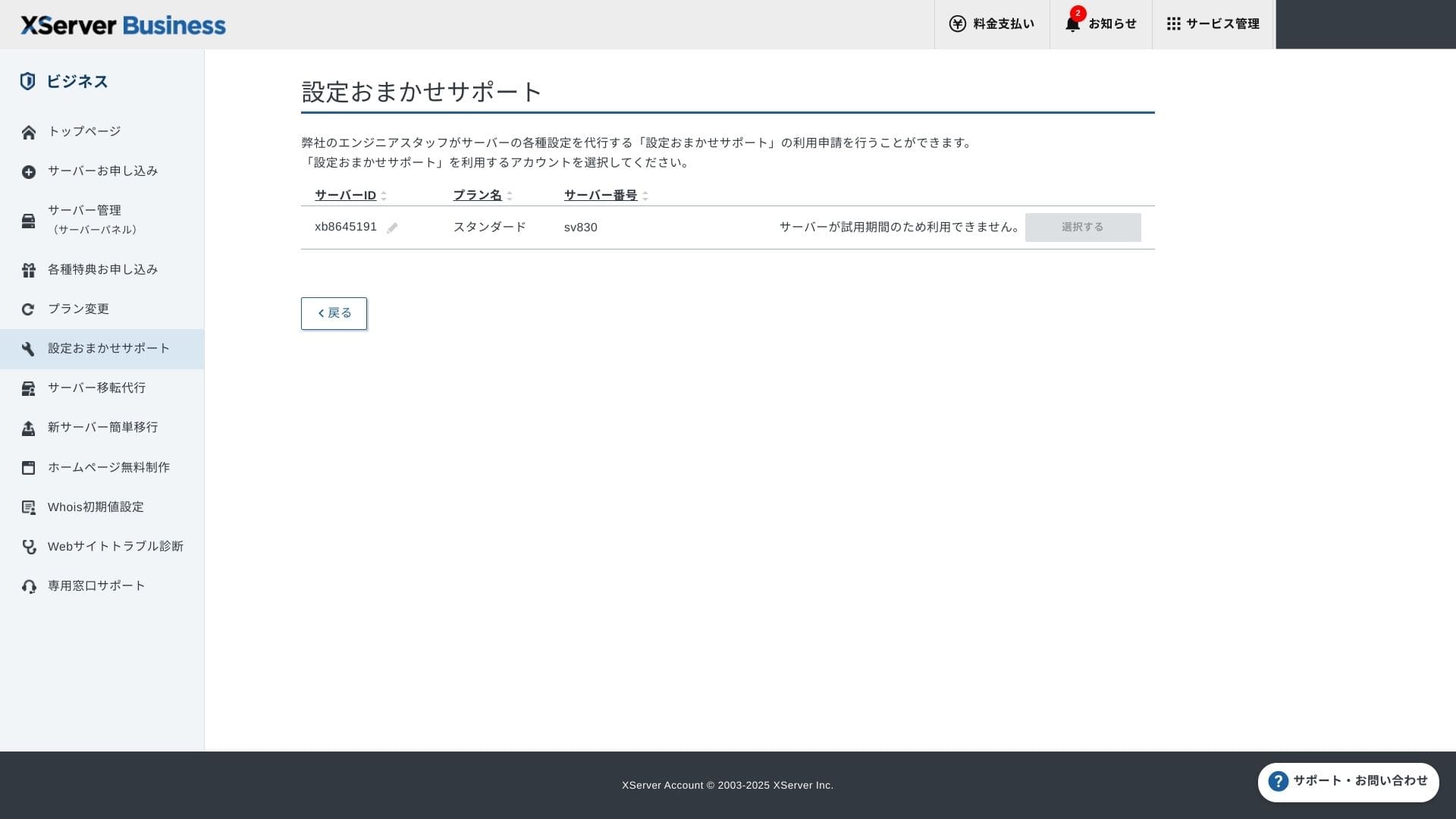
Setup support is free and unlimited, and you can request anything from DNS changes to Cron settings. That makes it reassuring even for companies without a dedicated IT staff member.
Managed services
The managed server migration service is free the first time. Because it copies entire HTML sites and CMS sites alike, it has a strong track record for projects that want to avoid late-night or weekend downtime.
Manuals and FAQs
The official PDF catalog covers everything from payment methods to plan upgrade procedures, and it is quite easy to search. I think many users will be able to solve issues on their own before contacting support.
Email features
XServerビジネス
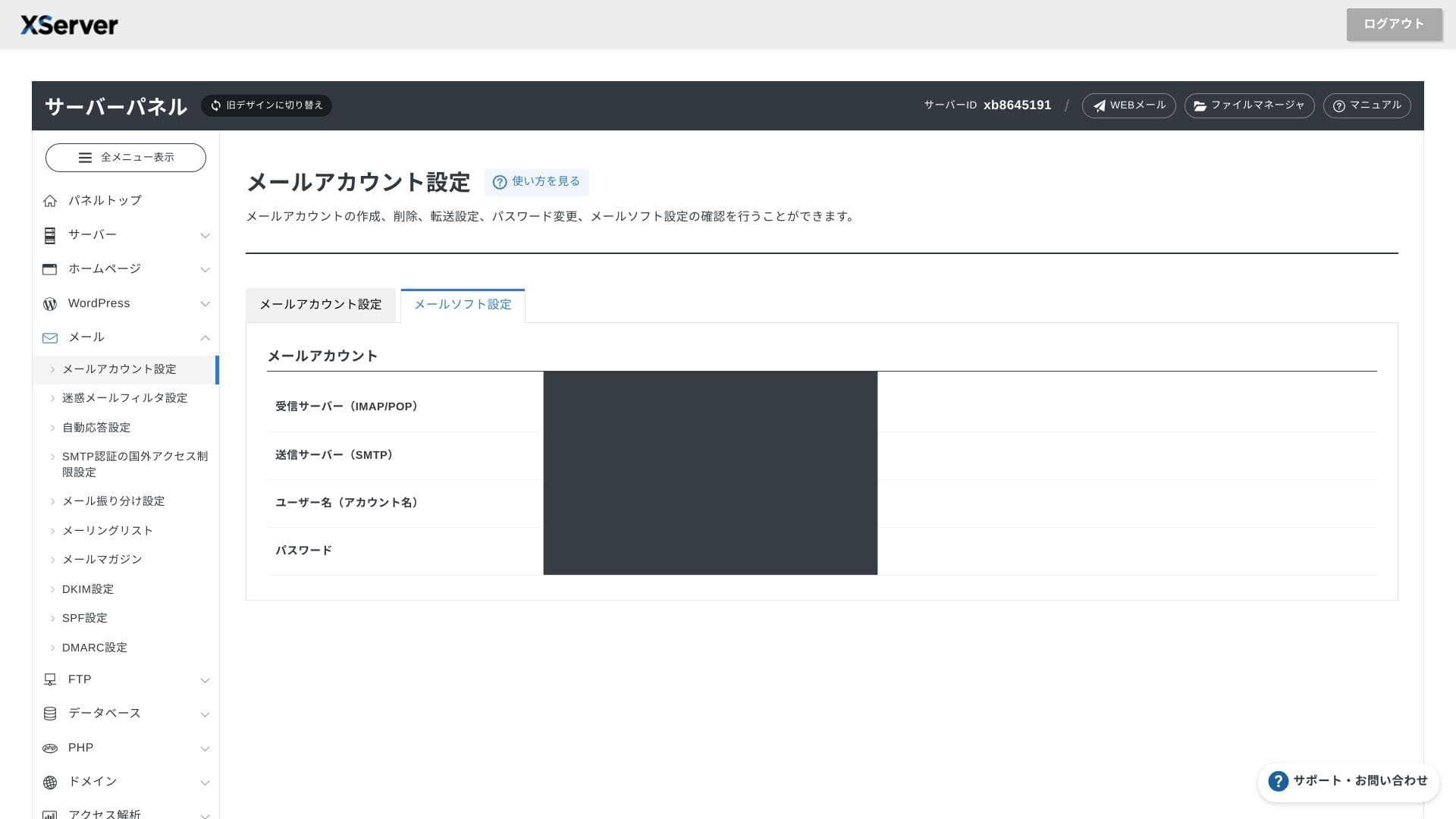
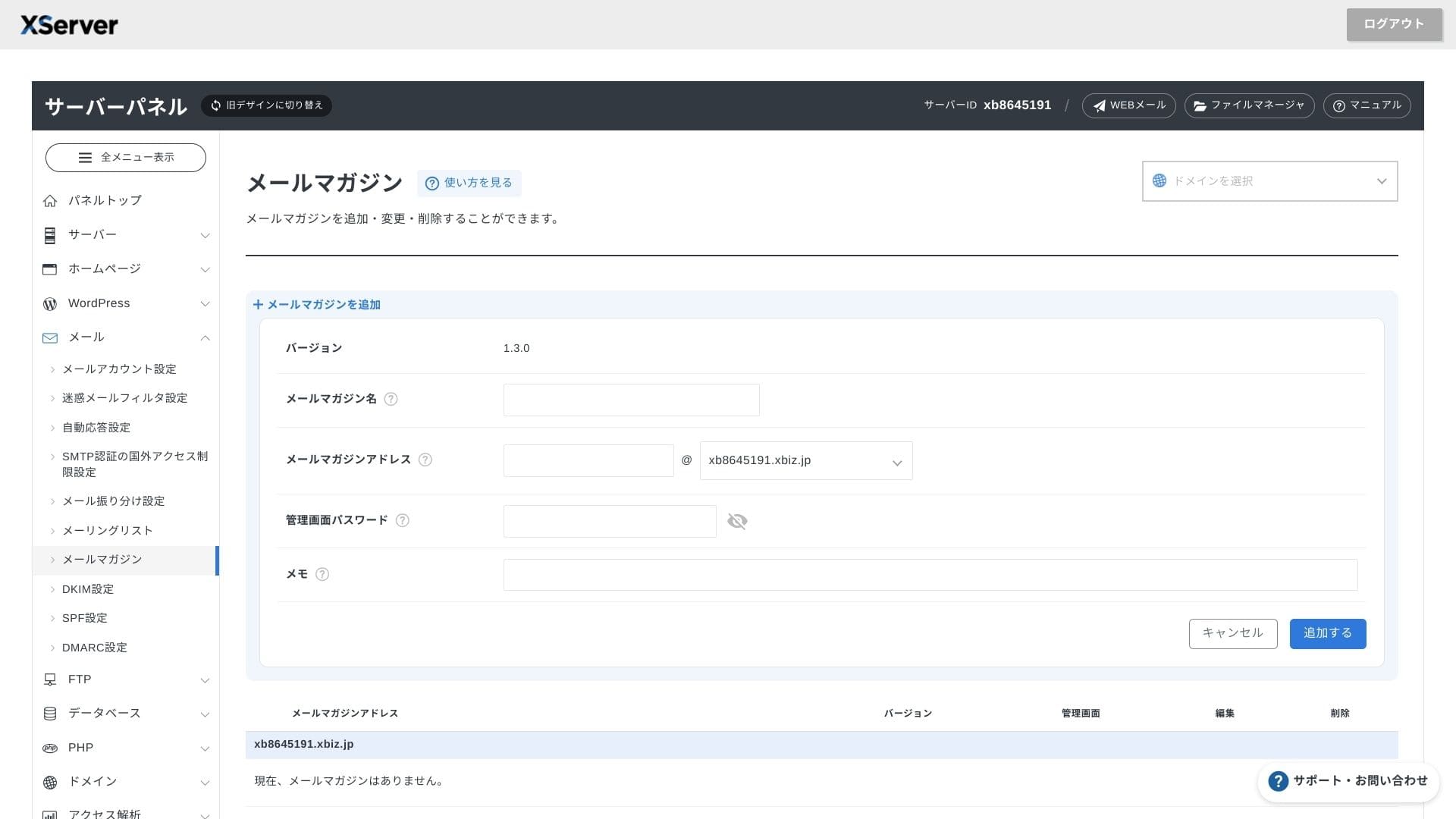
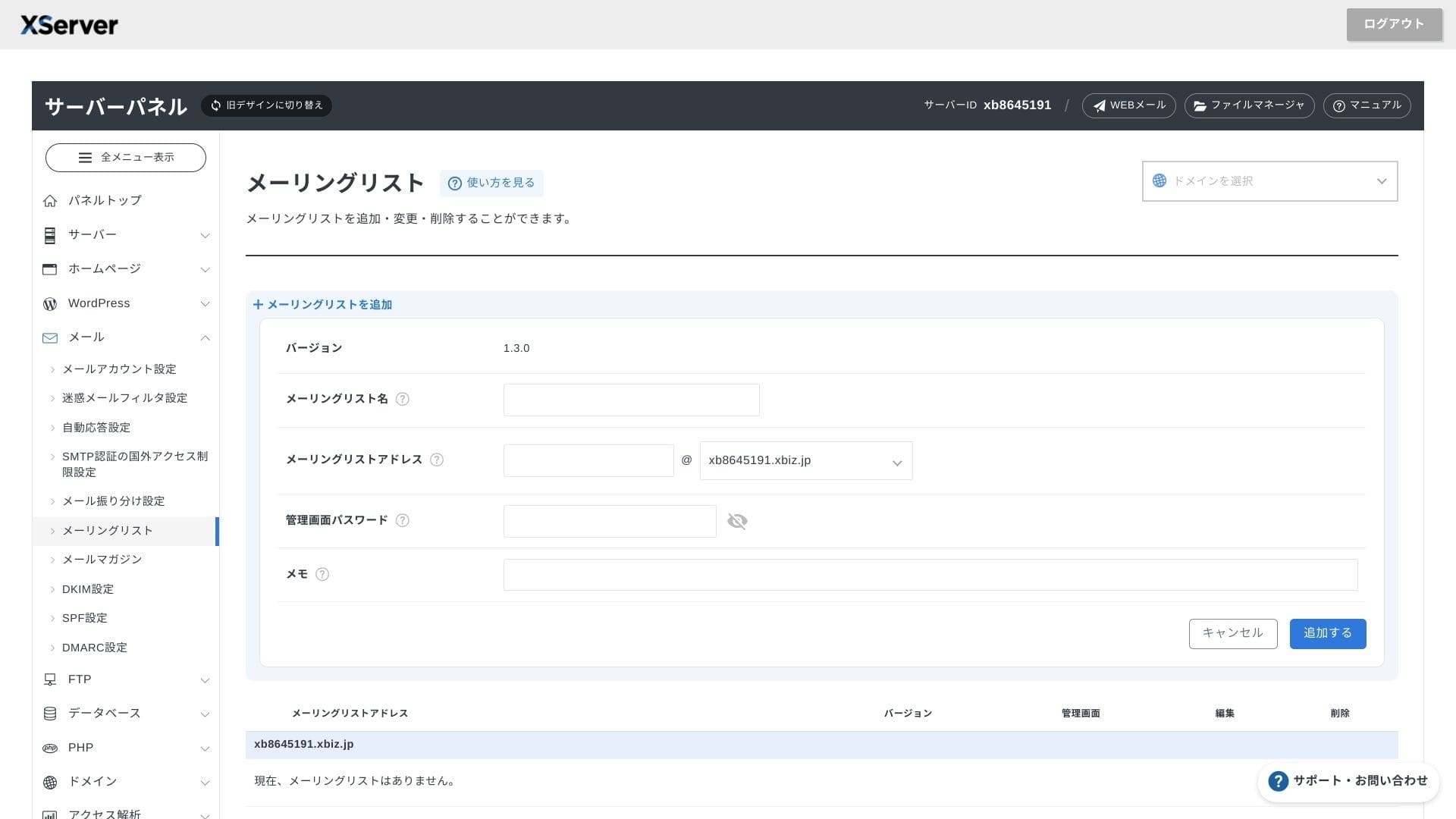
offers unlimited accounts, and its webmail UI was refreshed in spring 2025, making it comfortable even on smartphones. It also includes a high-performance Cloudmark Authority-based spam filter free for up to 1,000 accounts, and the company states an effective detection rate above 99%.
It is also easy to create newsletters and mailing lists. You can quickly send updates to customers or messages to a specific department inside your company.
As you would expect from a business server, the email features are extremely robust.
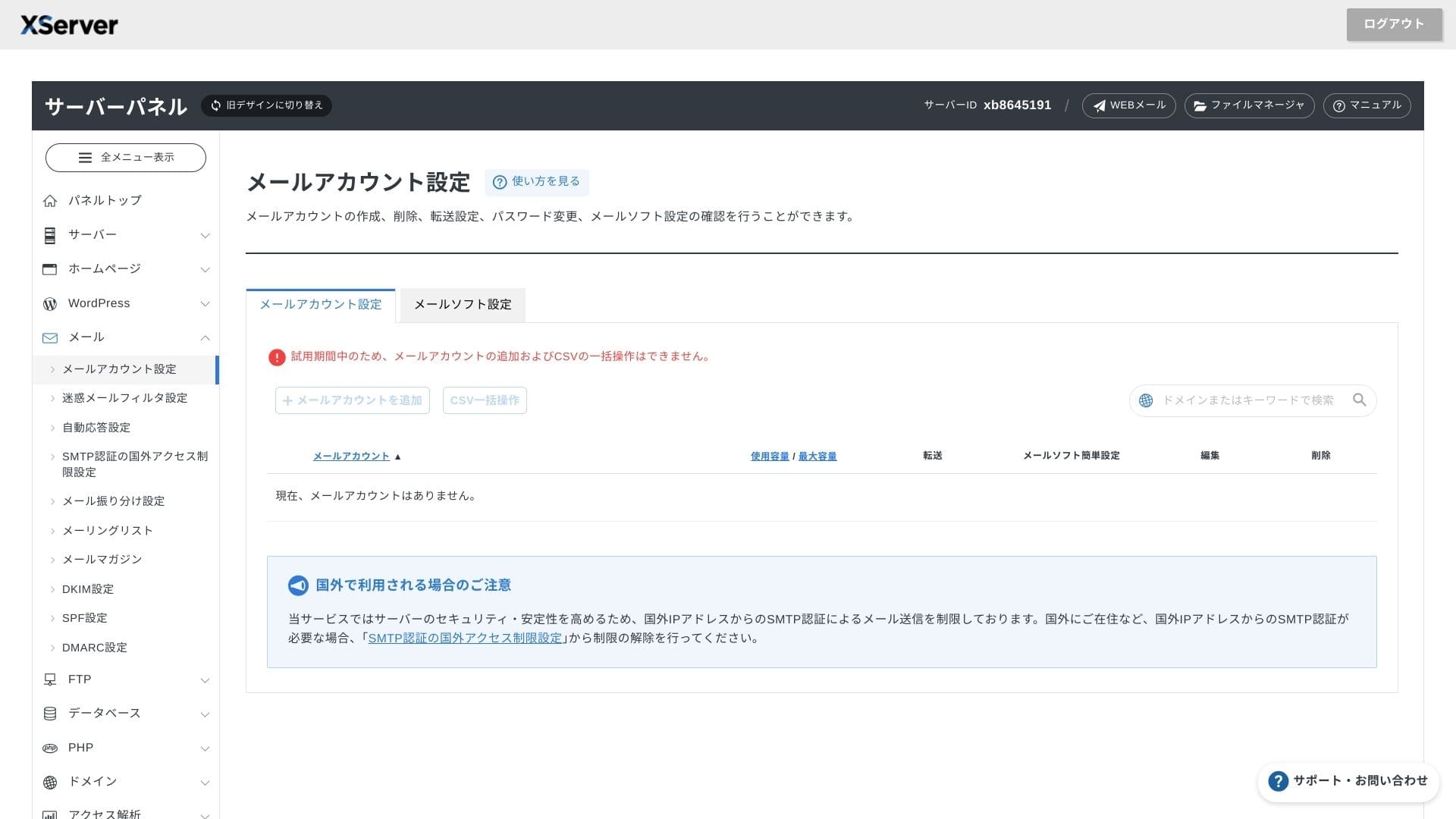
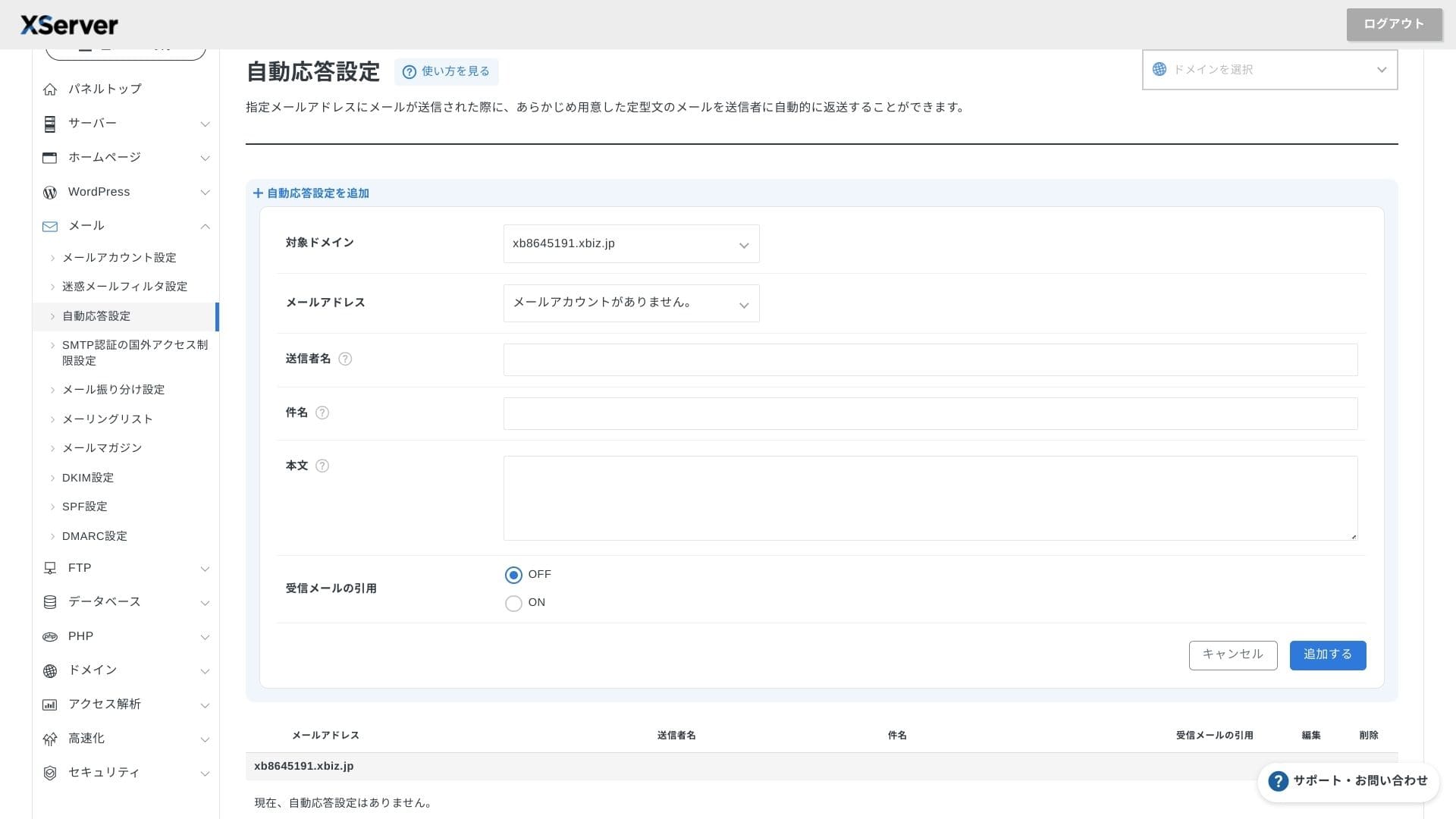
Security and backups
Security measures
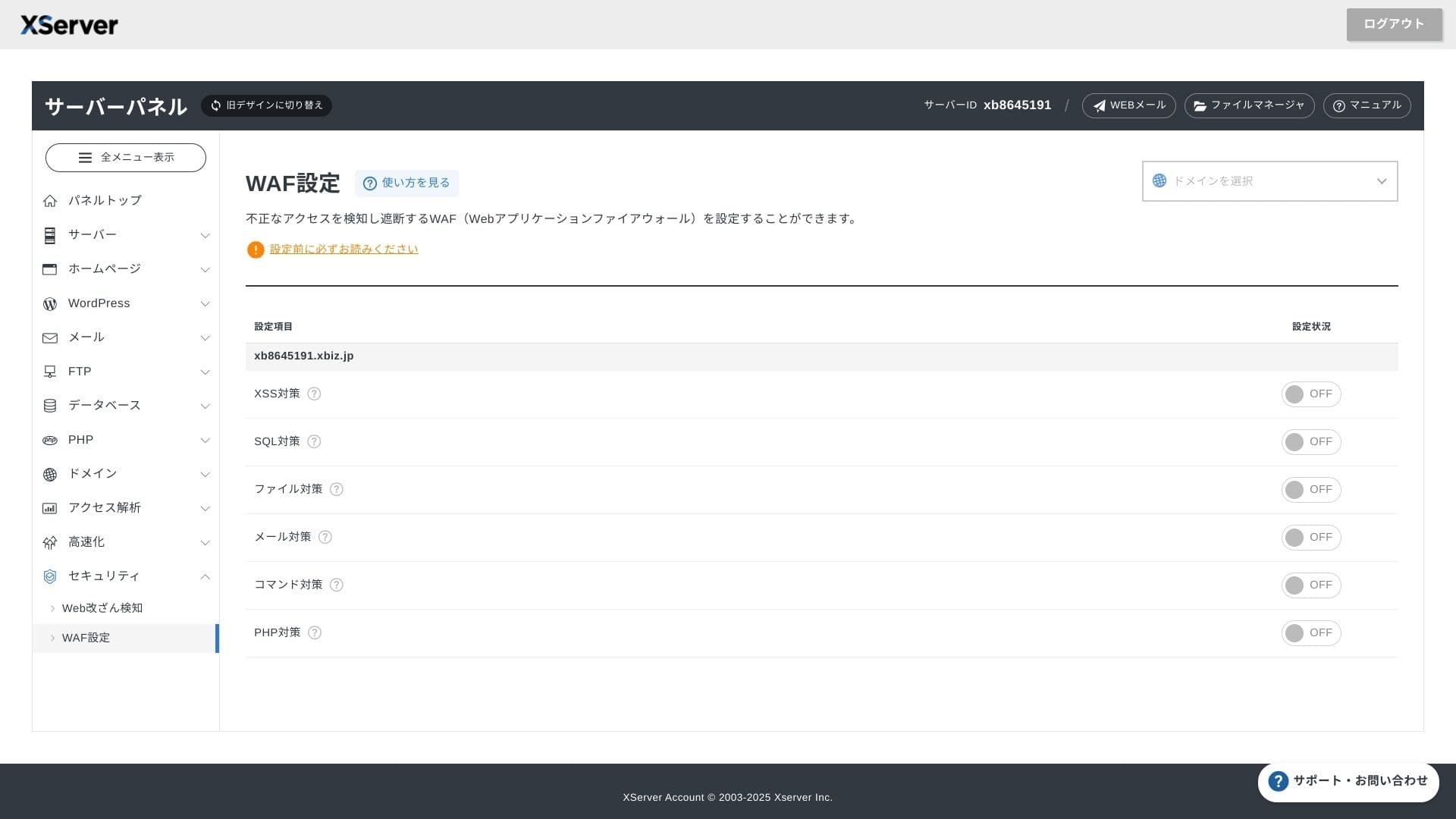
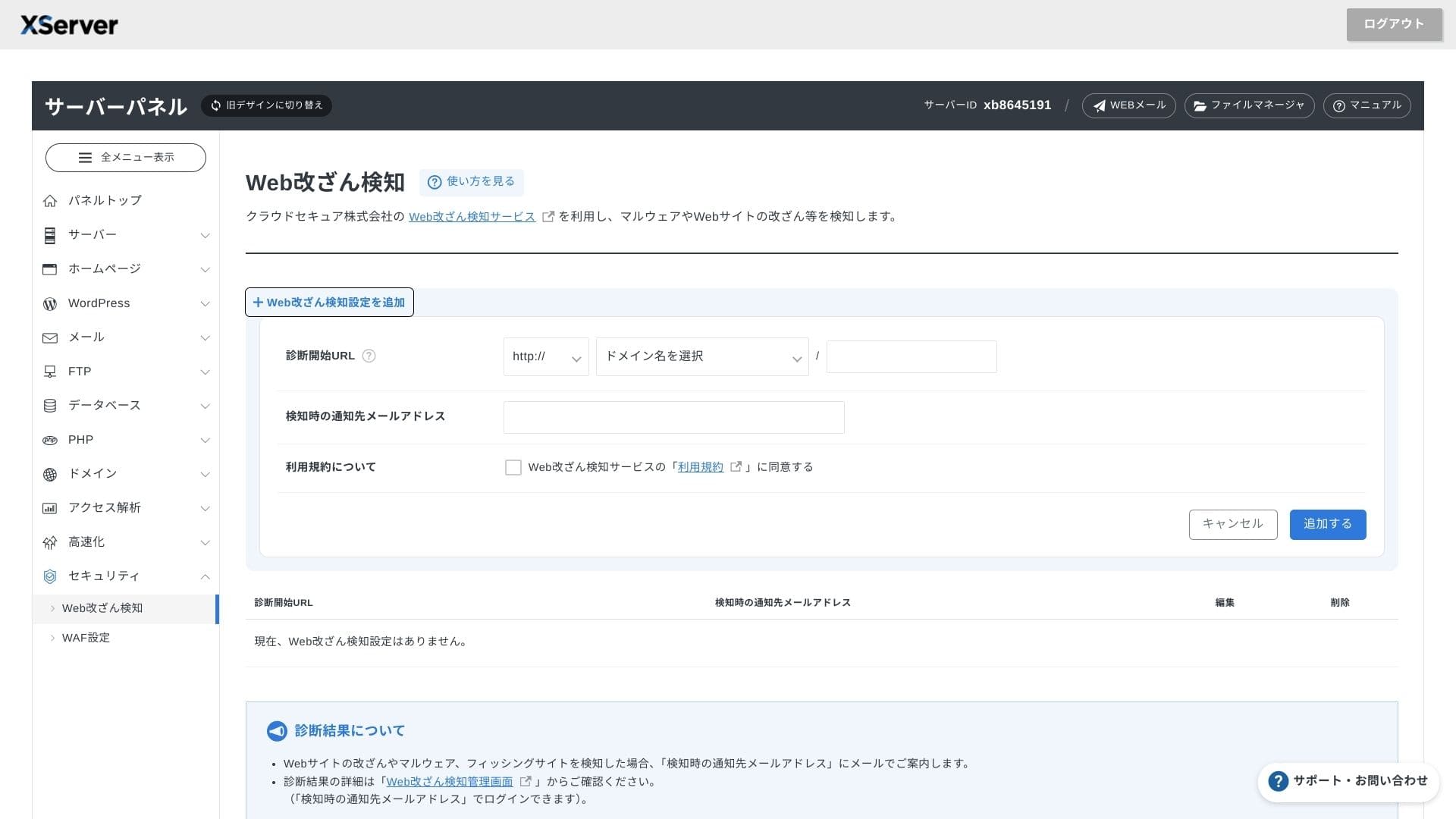
WAF and website tamper detection come standard. It automatically blocks vulnerability attacks and unauthorized file replacements, and it sends email notifications when something abnormal happens. An external security diagnostic by Secom is also provided once a year at no charge.
Using website tamper detection helps you avoid situations where you fail to notice a problem and let it grow worse.
Automatic backups
On every plan, web, mail, and database data from the past 14 days is backed up automatically every day. You can restore it for free with one click from the panel, which reduces recovery costs after mistakes or malware infections.
Comparison with competing business rental servers
| Service | Monthly fee* | Disk | Main strengths | Main weaknesses |
|---|---|---|---|---|
| XServerビジネス
(Shared Standard) | 4,180 yen (effective 2,926 yen) | 700 GB (NVMe) | 10 Gbps line / free setup support / up to two domains free forever | No root access / expensive for small sites |
| CPI
(Shared) | 4,840 yen | Not disclosed | Direct KDDI lineage / 24-hour phone support | Disk capacity is not disclosed, and speed is average |
| さくらのレンタルサーバ
(Business Pro) | 3,850 yen | 900 GB (SSD) | Long track record / dedicated IP address | No phone support, and migration service costs extra |
| KAGOYA (Light Plan) | 1,650 yen | 100 GB (SSD) | Lowest price tier / shared 100 Mbps | Modest specs / support is mainly email |
Summary
XServerビジネス
is a business-focused rental server that provides speed, security, and operational support as a one-stop service.
- Small and midsize businesses that want to run multiple sites and outsource infrastructure
- People handling DX work on top of other duties who feel nervous about configuration mistakes
- Teams expecting future traffic growth but not wanting AWS-level operating costs
In these cases, the return can easily exceed the monthly price difference. On the other hand, if you only need a single static page or want to run a custom platform that requires root access, you may want to consider a cheaper shared server or a VPS instead.
In the end, the smart approach is to convert both personnel cost and outage risk into money and then decide whether XServerビジネス
is worth its monthly fee.
"XServerビジネス
" is the business hosting service from Xserver Inc., the company with the No. 1 market share in Japan. In our measurements, it ranked No. 2 for speed. It is one of the best choices when you need to move to a new server, and migration is free as well.