Core Server Review [2025 Latest]: Thorough Guide to Pricing, Speed, Pros, and Cons
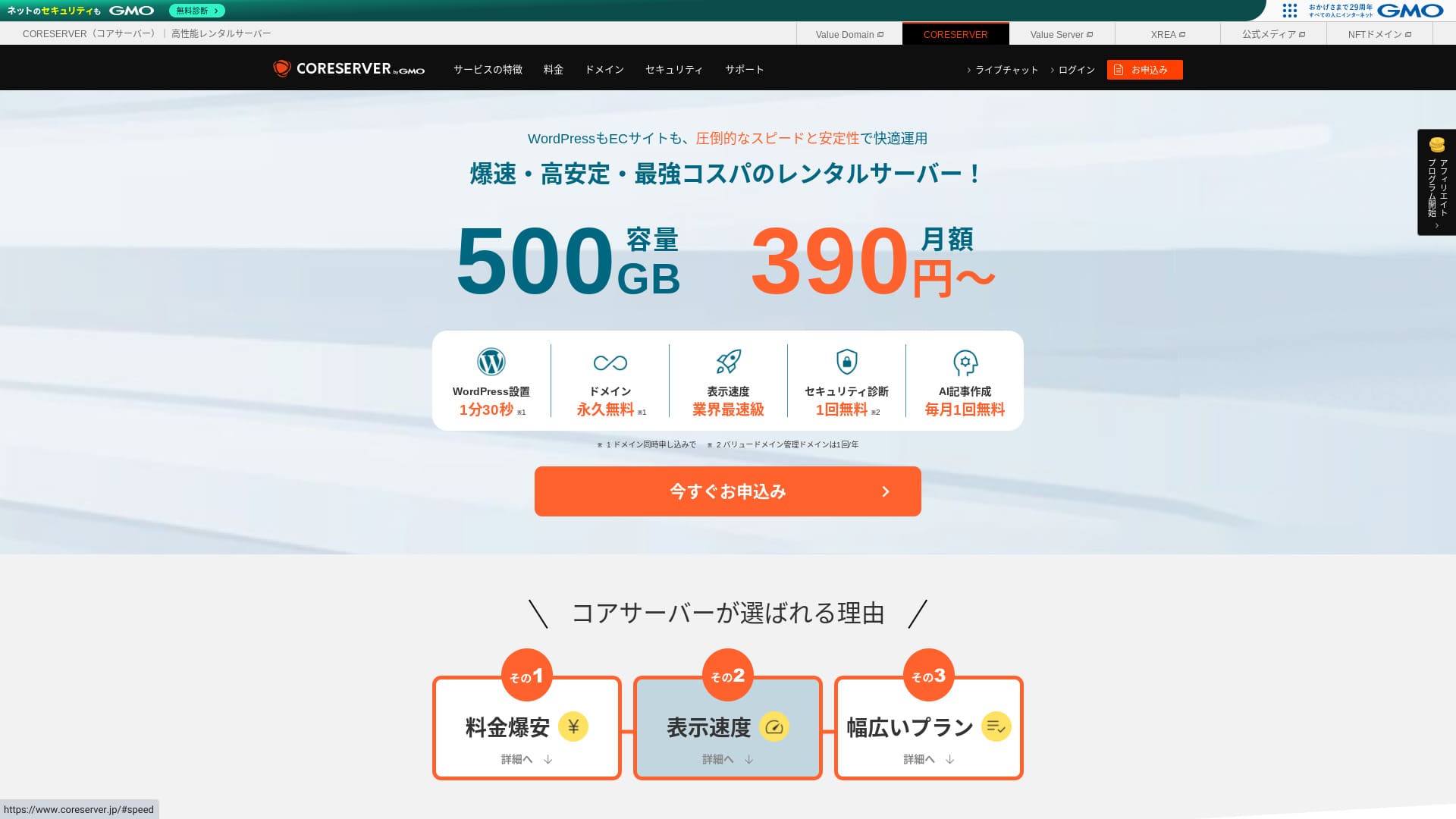
Core Server
 is a rental server operated by GMO Digirock, Inc., and one of its biggest strengths is the wide range of plans it offers.

Core Server
is a service I recommend to individuals, companies, and sole proprietors using WordPress for the first time because:
- You can find the right server thanks to its wide range of plans
- It includes an AI article-writing tool
- Its email service is inexpensive yet highly capable
That is why. You will likely be satisfied. You can try it free for 10 days.
A competing server is LOLIPOP
 . It offers even more peace of mind than Core Server
because its uptime is publicly disclosed. Please consider it as well.
. It offers even more peace of mind than Core Server
because its uptime is publicly disclosed. Please consider it as well.
Note: Lolipop! Review [2025 Edition]: What Speed Tests Revealed, Plus the Pros and Cons
| Server type | Shared server |
| Display speed (TTFB) | 210ms |
| Recommended plan and contract term | CORE-MINI 12-month contract |
| Trial / money-back guarantee | 30-day free trial |
| Monthly fee (12-month contract) | 264 yen |
| Initial setup fee | Free |
| Free domain | None |
| Support | Business hours: 10:00-12:00, 13:00-17:00 Phone callback (CORE-B, CORE-C, CORE-Z), email, chat |
| Uptime | Not disclosed |
| Storage | 250GB |
| Number of databases | 10 |
| Security measures | WAF, IPS/IDS |
| SSL | Free SSL |
| Backup / restore | 15 generations of backups free, restoration free |
| Number of email accounts | 200 |
| Email security measures | POP/POS, SMTP/SMTPS, IMAP/IMAPS, virus checking, spam filtering, DKIM/DMARC |
| WordPress preinstallation | None |
| Server / website migration service | None |
| CDN | None |

To be honest, I felt that Core Server’s control panel will divide opinion. If you already have experience using servers, you should have no trouble handling it. If you choose a V2 plan, you can also get started with WordPress more easily.
Even so, please do not worry too much. It comes with top-class official manuals that are very thorough and even include videos.
Core Server Compared with Other Hosting Services
- Overall rating ★★★☆☆
- Server speed ★★★☆☆
- Pricing ★★★★☆
- Stability ★★★★☆
- Ease of getting started with WordPress* ★★★☆☆
- Operations such as domain management and SSL setup* ★★★☆☆
* Based on my actual experience using it.

- November 4, 2025 market-research data, sorted by speed
- Monthly fees are the first-year cost of the cheapest plan that can run WordPress
- Speed is the Time to First Byte measured on demo sites under the same conditions
| Hosting service (plan) | Speed | Monthly fee | WordPress Preinstalled | Uptime | Support (hours) |
|---|---|---|---|---|---|
| Average and Recommended | 222.2ms | 1,109 yen | Yes | 99.99% or higher | 24/7 or more |
| Kinsta
| 30ms | 30 USD (4,525 yen) | Yes | 99.9% | Chat (24/7 in Japanese) and email |
【Hostinger】
 (Premium) (Premium) | 31ms | 439 yen | No | 99.9% | Chat (24/7) |
XServerビジネス
 (Shared Server) (Shared Server) | 40ms | 2,926 yen | Yes | 99.99% | Phone and email (weekdays 10:00-18:00) |
wpX Speed
 (W1) (W1) | 40ms | 1,320 yen | No | Not disclosed | Phone and email (10:00-18:00) |
| LOLIPOP
(Light) | 80ms | 495 yen | Yes | 99.99% | Email and chat (weekdays 10:00-18:00) |
スターレンタルサーバー
 (Free) (Free) | 90ms | 418 yen | No | Not disclosed | No |
| Rakko Server(RK1) | 120ms | 440 yen | Yes | Not disclosed | Email (weekdays 10:00-19:00) |
エックスサーバー
 (Standard) (Standard) | 130ms | 770 yen | Yes | 99.99% | Phone, email, and chat (weekdays 10:00-18:00) |
mixhost
 (Light) (Light) | 150ms | 594 yen | Yes | 99.99% | Email (weekdays 10:00-18:00) |
ConoHa WING
 (Basic) (Basic) | 160ms | 941 yen | Yes | 99.99% | Phone, email, and chat (weekdays 10:00-18:00) |
ColorfulBox
 (BOX1) (BOX1) | 190ms | 383 yen | Yes | Not disclosed | Phone (24 hours) / chat / LINE / email (weekdays 09:30-12:00, 13:00-17:30) |
シンレンタルサーバー
 (Basic) (Basic) | 200ms | 985 yen | Yes | Not disclosed | Phone and email (10:00-18:00) |
リトルサーバー
 (Mini) (Mini) | 200ms | 165 yen | No | Not disclosed | Email (hours not disclosed) |
| Core Server
(MINI) | 210ms | 264 yen | Yes | Not disclosed | Email and chat (10:00-12:00, 13:00-17:00) |
| DreamHost(WordPress Starter) | 400ms | 2.99 USD (461 yen) | No | 100% | Chat (24/7), email, and phone callback |
| Bluehost(Basic) | 420ms | 4.99 USD (769 yen) | No | 100% | Chat (24/7) |
さくらのレンタルサーバ
 (Standard) (Standard) | 440ms | 550 yen | No | 99.99% | Chat, email, phone, and callback reservations (10:00-18:00) |
| Namecheap(EasyWP Supersonic) | 440ms | 9.88 USD (1,523 yen) | No | 99.9% | Chat (24/7) |
| Shin Free Server | N/A | Free | No | Not disclosed | No |
XREA
 (Free) (Free) | N/A | Free | No | Not disclosed | No |
Value Server
 (Eco) (Eco) | N/A | 220 yen | No | Not disclosed | Email and chat (weekdays 10:00-17:00) |
| KAGOYA JAPAN(Grade 1) | N/A | 440 yen | Yes | 99.999% | Phone and email (weekdays 10:00-17:00) |
| SiteGround(StartUp) | N/A | 3.99 USD (615 yen) | No | 99.99% | Chat (24/7), email, and phone |
| Hostgator(Baby) | N/A | 4.45 USD (686 yen) | No | 99.9% | Phone and chat (24/7) |
| IONOS(Start) | N/A | 1.00 USD (154 yen) | No | 99.98% | Phone, email, and chat (24/7) |
onamae.com Rental Server
 | N/A | 2,398 yen | No | 99.99% | Phone, email, and chat (weekdays 10:00-18:00) |
ABLENET RentalServer
 (Light) (Light) | N/A | 830 yen | No | 99.99% | Email (hours not disclosed) |
| Godaddy(Basic) | N/A | 899 yen | Yes | 99.9% | Chat (24/7) and phone (weekdays 10:00-17:00) |
iCLUSTA+ byGMO
 (Mini) (Mini) | N/A | 1,027 yen | No | 100% | Phone (weekdays 10:00-18:00) Email is available 24/7, 365 days a year |
ムームーサーバー
 | N/A | 1,430 yen | No | 99.99% | Email and chat (09:30-13:00, 14:00-17:30) |
WADAX
 (WP Standard) (WP Standard) | N/A | 2,200 yen | No | 99.9% | Weekdays 09:00-22:00, weekends 09:00-18:00 |
| WebARENA SuiteX | N/A | 1,997 yen | No | 100% | Email and chat (weekdays 09:30-17:00) |
heteml
 | N/A | 2,035 yen | No | 99.99% | Phone and email (weekdays 10:00-18:00) |
CPI
 (Shared) (Shared) | N/A | 4,840 yen | No | 100% | Phone and email (weekdays 10:00-18:00) |
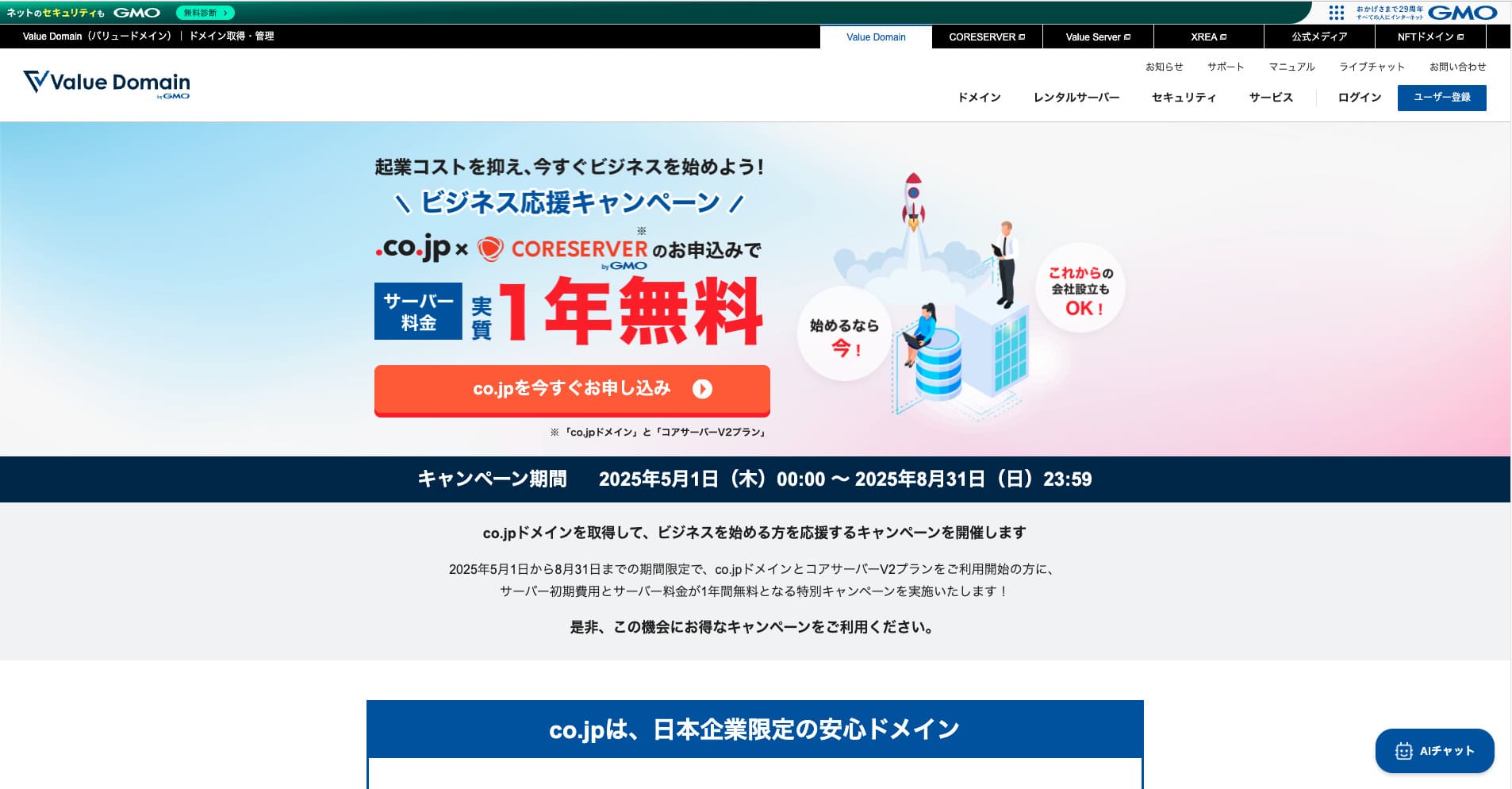
“Core Server
” is a high-speed rental server operated by GMO Digirock, Inc. It offers an affordable V1 plan that is easy for individuals to use and a V2 plan focused on comfort and performance. With its wide range of plans, you can find the server that fits you best.
Core Server Reviews and Four Key Features

A Server with Standard-Level Speed
Core Server
produced a standard level of page speed in our own independent test on this site.
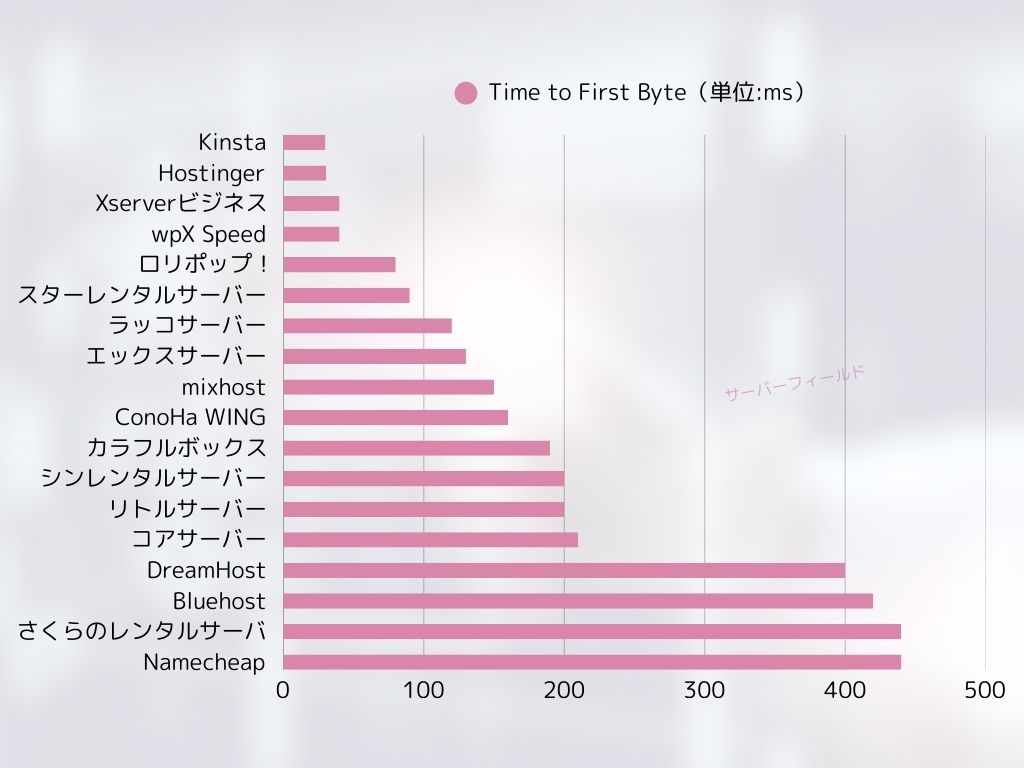
According to Google, a server response time of 200ms or less is recommended. Core Server fell just short at 210ms. So while I would not call it a high-speed server, it can still be regarded as a server that is slightly faster than standard.
Server response time should be kept under 200 milliseconds.
https://developers.google.com/speed/docs/insights/Server?hl=en
At the time of testing, I did not apply any settings specifically for speed optimization. Even so, this result came out. If you put effort into tuning it, it should be possible to make it even faster.
Note: Rental Server Speed Comparison Across 15 Services: This One Was Truly Fast [2024 Edition]
The Difference Between V1 and V2 Helps You Find the Best Plan
Core Server
has seven plans when you break them down in detail, so you can find the one that suits you best. Let’s compare the main differences.
| Plan | Price | Allowed load | Support |
|---|---|---|---|
| Core-Mini | 3,168 yen | 1.25 | Email / chat |
| Core-A | 6,336 yen | 2.5 | Email / chat |
| Core-B | 12,672 yen | 10 | Phone / email / chat |
| Core-C | 39,600 yen | 40 | Phone / email / chat |
| Core-X | 6,336 yen | 18 | Email / chat |
| Core-Y | 10,296 yen | 54 | Email / chat |
| Core-Z | 26,136 yen | 144 | Phone / email / chat |
The V1 Core-Mini plan is inexpensive. However, its allowed load is not large. As simultaneous access increases, it becomes more likely that a 503 error will occur.
Note: What Is a 503 Error? How to Avoid Web Congestion and Respond in an Emergency
The V2 Core-X plan costs more than Core-Mini, but its allowed load rises dramatically. It is excellent as a low-cost plan with a stronger focus on performance. I recommend it to users who think, “I want to keep costs down as much as possible, but I do not want to compromise on specs.”
Unlimited Traffic Transfer
Core Server
offers unlimited data transfer. Even if more and more people access your website and data transfer increases, you will not run short on transfer volume. That helps you avoid a situation where your website cannot be displayed because of transfer limits.
Note: What Are Traffic and Data Transfer? Managing and Optimizing Web Traffic
However, restrictions may be applied when server load becomes high.
If the overall server load exceeds 80% of the server’s maximum processing capacity, we may place restrictions on accounts that account for 20% or more of the load, or on the top five highest-load accounts.
Frequently Asked Questions: About Load Restrictions | Core Server
The AI Writing Tool “Value AI Writer” Is Available at a Discount
Core Server
lets you use “Value AI Writer” at a discounted price. “Value AI Writer” is an AI tool made by GMO and specialized in creating blog articles. If you use Core Server, the price is more than 20% lower than buying it on its own.
It is specialized for SEO and also has stronger integration with WordPress, so it makes mass-producing articles easier than using AI in a general way.
Email Is Also Easy to Use Thanks to Sender Domain Authentication
Core Server
is also easy to use for email. It supports sender domain authentication.
Because it supports DKIM and DMARC, companies can send email to customers more smoothly.
Core Server Drawbacks and How to Avoid Them, Honestly Explained

Core Server is capable, but it also has drawbacks. Some of them cannot be prevented or dealt with by the user after signing up.
Uptime Is Not Publicly Disclosed
Core Server
does not disclose its uptime. Since you cannot grasp numerically how stable the server is, that is a slight concern. If a blog or website cannot be displayed, it fails to serve its purpose. Seen that way, server uptime is extremely important.
If you want more peace of mind, choose a server that discloses its uptime.
Note: A beginner's guide to hosting uptime and SLAs
Still, one good thing about Core Server is that its official site publishes the past 10 hours of WordPress response-speed data.
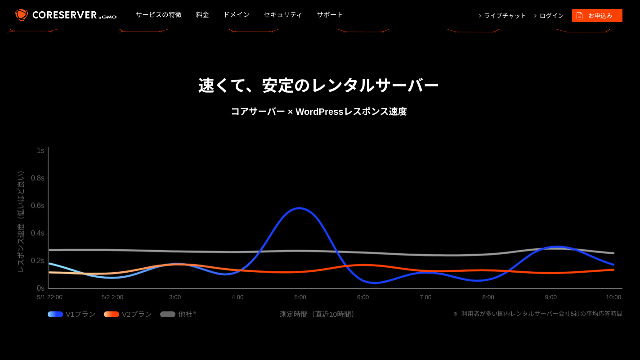
You can judge server stability in a rough way from this. The V2 plans, which draw a gentle curve lower on the graph, appear to be stable and fast.
Only Some Plan Changes Are Allowed
Core Server
allows only some plan changes. That means when you run short of server capacity or data transfer, you may need to migrate to another company’s server or rent another server from the same company.
Only the following two plan changes are possible.
- From Core-X to Core-Y or Core-Z
- From Core-Y to Core-Z
You cannot downgrade a plan.
Compare Core Server with Two Similar Hosting Services
Let’s compare Core Server with two hosting services that have similar characteristics. Looking at the smaller points as well will help you avoid regret after signing up.
Lolipop!
LOLIPOP
is a server that is about as inexpensive as Core Server. What it does better than Core Server is that it discloses its uptime. On top of that, its uptime is 99.99%, which is at the highest level in the hosting industry. Its stability is beyond complaint, so not only individuals but also companies are likely to be satisfied with it.
However, when you compare the cheapest plan that can run WordPress, Core Server is the better deal. I recommend choosing based on how you weigh price against peace of mind.
| Comparison item | Core Server
| LOLIPOP
|
|---|---|---|
| Biggest strength | Wide range of plans | Excellent value for money |
| Trial / money-back guarantee | 30-day free trial | 10-day free trial |
| Uptime | Not disclosed | 99.99% |
| Storage | 250GB | 350GB |
| First-year server cost | 3,168 yen | 5,940 yen |

Star Server
スターレンタルサーバー
is also a server competing in the low-price range.
The Star Server Light plan can be used even more cheaply than Core Server. However, while Core Server’s Core-Mini lets you create 10 WordPress sites, the Star Server Light plan allows only one.
Core Server is stronger in features and specs. Incidentally, neither service discloses uptime, so some concern remains about stability in both cases.
| Comparison item | Core Server
| スターレンタルサーバー
|
|---|---|---|
| Biggest strength | Wide range of plans | Excellent value for money |
| Trial / money-back guarantee | 30-day free trial | 10-day free trial |
| Uptime | Not disclosed | 99.99% |
| Storage | 250GB | 350GB |
| First-year server cost | 3,168 yen | 5,940 yen |

Start a WordPress Website on Core Server in 7 Steps
- STEP.1
Scroll down the top page and click “Apply” for the pricing plan you want to use.
- STEP.2Apply for the Server and Get a Domain
Please confirm that you selected the correct plan. The server account name (the initial domain) can be anything you like. You will not use this initial domain as the domain of your website. You can use it, but I do not recommend it.
At this point, you cannot select simultaneous WordPress installation yet, but after choosing your domain, you will be able to check it. Be sure to use it. It makes starting a WordPress website dramatically easier.
Under the option to also apply for the domain you will use on this server, choose “Get a domain for free.” Then enter any string you like. From the top-level domains available, such as .com and .net, click the one you want.
You can choose root domains such as “.com” and “.co.jp.” Acquisition and renewal fees differ depending on the root domain. If you are unsure which one to choose, I recommend “.co.jp” whenever possible for companies. For individuals, I recommend “.com” or “.net.” Since many people are familiar with these domains, they are less likely to seem suspicious and tend to be easier for users to access.
Note: What Is a Domain? Its Role as an Address on the Internet and How to Get One
Once you can choose the domain, check “Install WordPress at the same time.”
Click “Proceed.”
- STEP.3Enter User Information
The user information entry screen will be displayed. Click “User registration,” enter information such as your usage type and name, confirm the entered details, and click “Register and proceed.”
Complete the required SMS verification and then click “Confirm application.”
Answer the survey or skip it, and then click “Go to the control panel.”
- STEP.4Install WordPress
In the management information of the control panel, “Core Server (1),” which you applied for earlier, is displayed. Click it and proceed to the “New Control Panel.”
After that, choose “App Installation” from “Tools” and click “WordPress Blog.”
Click “+ Install this application” and choose a domain. The domain you applied for earlier will appear in the pull-down menu, so select it.
You can leave the version settings as they are.
Use the following settings for WordPress.
- Admin username: Anything is fine.
- Admin password: Make it as complex as possible. You can easily change it later.
- Administrator email: An email address you use regularly. For companies, I recommend the business email address of the person who manages the website.
- Website title: Anything is fine. You can easily change it later.
- Website tagline: This is the subtitle. Anything is fine. You can easily change it later.
The admin username and admin password are used when you log in to WordPress. Be sure to write them down.
You can leave the “Advanced” settings as they are.
Once everything is entered, click “+ Install.” After WordPress is installed, click the URL shown on the screen whose ending is “wp-admin/”. That is the URL of your WordPress admin screen.
- STEP.5Initial WordPress Setup
On the WordPress login screen that appears, enter the username and password you set during installation and click “Log In.”
If a warning says “This site can’t be reached,” the DNS settings have not propagated yet. There is nothing you can do except wait, so try logging in again every few hours.
Note: What Are DNS and Name Servers?
After logging in to WordPress, set the permalinks. In the WordPress admin screen, go to “Settings” and then “Permalinks.” Choose “Post name” and click “Save Changes.”
When you choose “Post name,” you can enter any string you like in the URL when publishing an article. I recommend a short string that helps readers imagine the content of the article because it makes the website easier to understand. If it is too long, some people may feel uneasy and think, “Could this be a dangerous site?”
- STEP.6Install Plugins
Return to the WordPress admin screen, go to “Plugins,” then “Add New,” and install the plugins you need.
Once you find the plugin you want to add, click “Install Now” and then “Activate.” After that, proceed according to the explanation for each plugin.
Be sure to install security and backup plugins.
- How to Choose Five WordPress Plugins That Strengthen Security
- 5 Powerful WordPress Backup Plugins That Help You Recover Your Data
Once you have installed the plugins as well, your WordPress website is fully ready to go!

Summary
“Core Server
” is a high-speed rental server operated by GMO Digirock, Inc. It offers an affordable V1 plan that is easy for individuals to use and a V2 plan that prioritizes comfort and performance. With so many plans available, it is easy to find the best fit.
Core Server
offers a wide variety of plans. I recommend the V1 Core-Mini plan, but if you are planning a website that aims for tens of thousands of page views per month, I recommend the performance-focused Core-X.
Complete Comparison of 32 WordPress Hosting Services: Recommendations for Individuals, Companies, and Overseas Use

When you think, “I want to start WordPress,” and search for “recommended WordPress hosting,” all kinds of articles appear, from hosting for individuals and small businesses to overseas services and low-cost options. To be honest, you may think:
- Which site should I read?
- I want to choose a server in a simple and easy-to-understand way.
- Please show me how to start WordPress right away.
That is exactly why this article introduces carefully selected recommendations from 32 hosting services for individuals, companies, domestic use, and overseas use. It is explained by the SEO lead of an app development company that uses hosting services every day.