wpX Speed Review: Speed Tests, Pros and Cons, and Comparisons with Other Hosts
wpX Speed
 is an ultra-fast cloud server operated by ShinCloud Co., Ltd. and built to handle sudden viral traffic. Even if traffic spikes sharply, the auto-scaling feature prevents the site from going down.

I recommend wpX Speed
to individuals, companies, and sole proprietors using WordPress for the first time because:
- it is the second-fastest server in our measurements
- it can withstand viral traffic thanks to auto scaling and reserved resources
- it has a reassuring pay-only-for-what-you-use pricing system
That is why. I believe you will be satisfied. You can try it free for 14 days.
A competing server is ConoHa WING
 . It can also be started on an hourly basis, and its lower pricing is stronger than wpX Speed
in that respect. Consider it as well.
. It can also be started on an hourly basis, and its lower pricing is stronger than wpX Speed
in that respect. Consider it as well.
★ ConoHa WING Review: Why 750,000 Users Choose It, Tested Through Speed, Pros, and Cons
| Server type | Shared server |
| Display speed (TTFB) | 40ms |
| Recommended plan and billing term | W1, 12 months |
| Trial / money-back guarantee | 14 days |
| Monthly fee (12-month plan) | 2.2 yen per hour*, up to 1,320 yen* |
| Initial setup fee | Free |
| Free domain | None |
| Support | Phone and email (weekdays 10:00-18:00) |
| Uptime | Not disclosed |
| Server storage | 200GB* |
| Number of databases | Unlimited |
| Security measures | WAF, access restrictions from overseas IP addresses, login attempt limits, mass comment and trackback restrictions, restrictions on comments and trackbacks from overseas IP addresses |
| SSL | Free custom SSL, custom SSL |
| Backup / restore | 7 days of automatic backups free of charge, restore free of charge |
| Number of email accounts | Unlimited |
| Email security features | SMTP-AUTH, IMAP |
| Server / website migration service | None |
| WordPress pre-installation | None |
| CDN | None |

wpX Speed was a server that let me move smoothly from the application process all the way to installing WordPress. Because it offers a fast server environment, I recommend it for companies and business use.
Because you can scale up across eight plans, it is a service you can keep using for the long term.
wpX Speed Compared with Other Servers
- Overall rating ★★★★☆
- Server speed ★★★★★
- Pricing ★★★☆☆
- Stability ★★★★☆
- Ease of getting started with WordPress* ★★★★☆
- Operations such as domain management and SSL setup* ★★★★★
* Based on my actual experience using it.

- November 4, 2025 market research data, arranged by speed
- Monthly fees are the first-year cost of the cheapest plan that can run WordPress
- Speed is the Time to First Byte value from demo sites measured under the same conditions
| Hosting service (plan) | Speed | Monthly fee | WordPress preinstalled | Uptime | Support (hours) |
|---|---|---|---|---|---|
| Average and Recommended | 222.2ms | 1,109 yen | Yes | 99.99% or higher | 24/7 or more |
| Kinsta
| 30ms | 30 USD (4,525 yen) | Yes | 99.9% | Chat (24/7 in Japanese) and email |
【Hostinger】
 (Premium) (Premium) | 31ms | 439 yen | No | 99.9% | Chat (24/7) |
XServerビジネス
 (Shared Server) (Shared Server) | 40ms | 2,926 yen | Yes | 99.99% | Phone and email (weekdays 10:00-18:00) |
| wpX Speed
(W1) | 40ms | 1,320 yen | No | Not disclosed | Phone and email (10:00-18:00) |
LOLIPOP
 (Light) (Light) | 80ms | 495 yen | Yes | 99.99% | Email and chat (weekdays 10:00-18:00) |
スターレンタルサーバー
 (Free) (Free) | 90ms | 418 yen | No | Not disclosed | No |
| Rakko Server(RK1) | 120ms | 440 yen | Yes | Not disclosed | Email (weekdays 10:00-19:00) |
エックスサーバー
 (Standard) (Standard) | 130ms | 770 yen | Yes | 99.99% | Phone, email, and chat (weekdays 10:00-18:00) |
mixhost
 (Light) (Light) | 150ms | 594 yen | Yes | 99.99% | Email (weekdays 10:00-18:00) |
| ConoHa WING
(Basic) | 160ms | 941 yen | Yes | 99.99% | Phone, email, and chat (weekdays 10:00-18:00) |
ColorfulBox
 (BOX1) (BOX1) | 190ms | 383 yen | Yes | Not disclosed | Phone reception available 24/7, chat, LINE, and email (weekdays 09:30-12:00, 13:00-17:30) |
シンレンタルサーバー
 (Basic) (Basic) | 200ms | 985 yen | Yes | Not disclosed | Phone and email (10:00-18:00) |
リトルサーバー
 (Mini) (Mini) | 200ms | 165 yen | No | Not disclosed | Email (business hours not disclosed) |
CoreServer
 (MINI) (MINI) | 210ms | 264 yen | Yes | Not disclosed | Email and chat (10:00-12:00, 13:00-17:00) |
| DreamHost(WordPress Starter) | 400ms | 2.99 USD (461 yen) | No | 100% | Chat (24/7), email, and phone callback |
| Bluehost(Basic) | 420ms | 4.99 USD (769 yen) | No | 100% | Chat (24/7) |
さくらのレンタルサーバ
 (Standard) (Standard) | 440ms | 550 yen | No | 99.99% | Chat, email, phone, and callback reservations (10:00-18:00) |
| Namecheap(EasyWP Supersonic) | 440ms | 9.88 USD (1,523 yen) | No | 99.9% | Chat (24/7) |
| Shin Free Server | N/A | Free | No | Not disclosed | No |
XREA
 (Free) (Free) | N/A | Free | No | Not disclosed | No |
Value Server
 (Eco) (Eco) | N/A | 220 yen | No | Not disclosed | Email and chat (weekdays 10:00-17:00) |
| KAGOYA JAPAN(Grade 1) | N/A | 440 yen | Yes | 99.999% | Phone and email (weekdays 10:00-17:00) |
| SiteGround(StartUp) | N/A | 3.99 USD (615 yen) | No | 99.99% | Chat (24/7), email, and phone |
| Hostgator(Baby) | N/A | 4.45 USD (686 yen) | No | 99.9% | Phone and chat (24/7) |
| IONOS(Start) | N/A | 1.00 USD (154 yen) | No | 99.98% | Phone, email, and chat (24/7) |
onamae.com Rental Server
 | N/A | 2,398 yen | No | 99.99% | Phone, email, and chat (weekdays 10:00-18:00) |
ABLENET RentalServer
 (Light) (Light) | N/A | 830 yen | No | 99.99% | Email (business hours not disclosed) |
| Godaddy(Basic) | N/A | 899 yen | Yes | 99.9% | Chat (24/7) and phone (weekdays 10:00-17:00) |
iCLUSTA+ byGMO
 (Mini) (Mini) | N/A | 1,027 yen | No | 100% | Phone (weekdays 10:00-18:00) Email support is available 24/7 |
ムームーサーバー
 | N/A | 1,430 yen | No | 99.99% | Email and chat (09:30-13:00, 14:00-17:30) |
WADAX
 (WP Standard) (WP Standard) | N/A | 2,200 yen | No | 99.9% | Weekdays 09:00-22:00, weekends 09:00-18:00 |
| WebARENA SuiteX | N/A | 1,997 yen | No | 100% | Email and chat (weekdays 09:30-17:00) |
heteml
 | N/A | 2,035 yen | No | 99.99% | Phone and email (weekdays 10:00-18:00) |
CPI
 (Shared) (Shared) | N/A | 4,840 yen | No | 100% | Phone and email (weekdays 10:00-18:00) |
- 6 Key Features Behind wpX Speed's Reputation
- Auto-Scale Feature That Automatically Boosts Performance
- Reserved Resources That Deliver Consistent Stability
- Hourly Pricing with No Waste
- You Can Use the WAF Security Feature
- Peace of Mind with 7 Days of Backups
- wpX Speed's Weak Email Features Are a Drawback
- Comparing wpX Speed with Two Similar Servers
- ConoHa WING
- XServer
- Start Your Website with wpX Speed in 7 Steps
- Summary
6 Key Features Behind wpX Speed's Reputation

No. 2 in Display Speed in Our Independent Testing
In our independent testing on this site, wpX Speed
tied with XServer Business for second place in display speed.
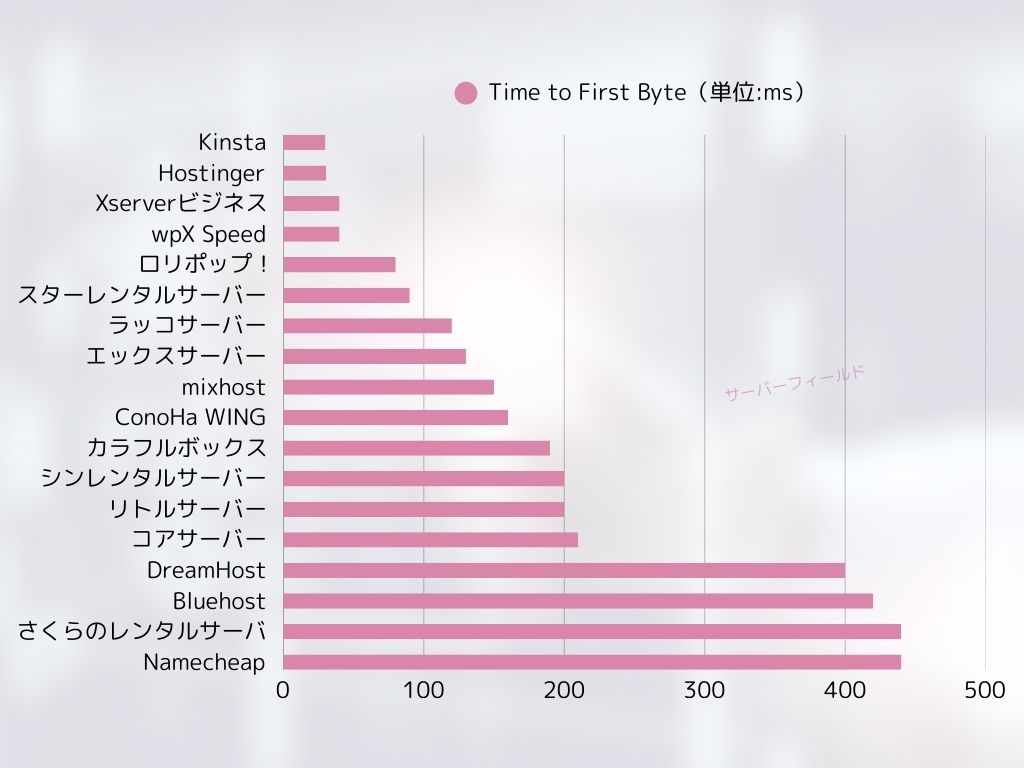
Google recommends keeping server response time (TTFB) under 200ms. wpX Speed
measured 40ms. It can be evaluated as an ultra-fast server.
Server response times need to be kept under 200 milliseconds.
https://developers.google.com/speed/docs/insights/Server?hl=ja
If server speed is fast, pages load quickly and visitors are not kept waiting. It also makes it easier to perform strongly in SEO and to connect visitors to product sales.
★ Is It Really Fast? We Compared 11 Hosting Services in a Speed Ranking
Auto-Scale Feature That Automatically Boosts Performance
wpX Speed
is strong against sudden traffic spikes thanks to its auto-scaling feature. If the plan currently in use cannot process a sudden increase in traffic, the plan is automatically upgraded and processing is increased by adding more CPU and cores.
Because it can respond flexibly, even a 503 error caused by a sudden surge in traffic is not something to fear.
★ What Is a 503 Error? Web Congestion, How to Avoid It, and Emergency Responses
Of course, automatic plan upgrades can put pressure on your budget. The auto-scaling feature can be turned on or off, and you can freely decide the conditions and budget for plan changes, so it can be used within a reasonable range.
Reserved Resources That Deliver Consistent Stability
wpX Speed
keeps resources reserved, so your site display remains stable.
In general, when you run a site on shared hosting, a surge in traffic to another site on the same server can make your own site harder to access. That happens because the resources available to your own site, such as CPU and cores, are reduced.
But because wpX Speed
keeps resources reserved, it is not affected by other sites. In other words, reserved resources eliminate a major weakness of shared hosting.
Hourly Pricing with No Waste
wpX Speed
uses hourly pricing. You pay only for what you use. There is no waste.
- W1 plan: 2.2 yen/hour (monthly cap: 1,320 yen)
- W2 plan: 4.4 yen/hour (monthly cap: 2,640 yen)
- W3 plan: 8.8 yen/hour (monthly cap: 5,280 yen)
Even though the pricing is hourly, a monthly cap is also set, so your monthly burden does not change whether the month has many days or few.
Because the pricing is hourly, you can try it easily and inexpensively even without a formal trial period.
You Can Use the WAF Security Feature
wpX Speed
can use a WAF. A WAF is a modern security measure. Together with firewalls and other protection, it helps stop attacks that older security measures could not prevent.
On low-cost hosting services, a WAF is often a paid option. But with wpX Speed
, you can enable it free of charge.
Peace of Mind with 7 Days of Backups
wpX Speed
comes with a seven-day backup feature.
Backups are extremely important. Even if you have security measures such as a WAF, data can still be tampered with in an attack, and you can also accidentally delete data yourself. If you have backup data, you can restore the site to the exact state it was in before the trouble occurred.
On some hosting services, backups are a paid option. But with wpX Speed
, they are free. It is a good deal.
wpX Speed's Weak Email Features Are a Drawback

wpX Speed
has weak email functionality.
It cannot use DKIM authentication. DKIM authentication is a technology that verifies whether an email was sent by a legitimate sender and has not been tampered with.
If your company wants to use email for business, I recommend considering a separate email service.
Comparing wpX Speed with Two Similar Servers
ConoHa WING
ConoHa WING
is also a server that can use hourly pricing. It starts at 2.2 yen per hour. Unlike wpX Speed
, it also offers discounts through long-term contracts called WING Packs. You can start more cheaply than with wpX Speed
.
However, if you choose its business plan with auto-scaling and reserved resources, the price rises to 3.1 yen per hour (monthly cap: 1,815 yen).
If you want a business-oriented server, wpX Speed is the more affordable recommendation.
| Comparison item | wpX Speed
| ConoHa WING
|
|---|---|---|
| Main strength | Fast speed | Easy for anyone to start right away |
| Trial / money-back guarantee | 14 days | First month free |
| Uptime | Not disclosed | 99.99% |
| Storage | 200GB | 300GB |
| First-year server cost | 15,840 yen | 11,292 yen |

XServer
エックスサーバー
is also a fast server that uses NVMe SSD, just like wpX Speed
. It is run by the same company. XServer is cheaper to use. Like wpX Speed, it also has reserved resources, so it is not affected by other sites.
However, it does not have an auto-scaling feature like wpX Speed. For that reason, wpX Speed
is better at handling sudden traffic spikes. If you regularly run events or campaigns and have a high chance of sudden traffic surges, I recommend wpX Speed
.
| Comparison item | wpX Speed
| エックスサーバー
|
|---|---|---|
| Main strength | Fast speed | No. 1 in number of users |
| Trial / money-back guarantee | 14-day free trial | 10 days |
| Uptime | Not disclosed | 99.99% |
| Storage | 200GB | 500GB |
| First-year server cost | 15,840 yen | 10,560 yen |

Start Your Website with wpX Speed in 7 Steps
- STEP.1Access the official wpX Speed website
On the official site’s top page, click “Apply” at the very bottom. If you do not have a Shin Account ID, click “New Application.”
- STEP.2Enter customer information
This is the contract information. For the server ID, enter any string you like.
I recommend the W1 plan. If traffic increases and the specs become insufficient, upgrade the plan.
Next, enter your registration details such as your email address and name.
Next is the payment method. I recommend paying by credit card. It lets you start building your website right away.
Finally, review the Terms of Use and the handling of personal information. Check the box to agree to the “Terms of Use” and the “Handling of Personal Information,” then click “Proceed to confirm your application details.”
If everything looks fine after you review the application details, complete identity verification.
Once you receive the email confirming that server setup is complete, your server application is finished.
- STEP.3Apply for a domain and add the domain
Log in to the admin screen.
Under “Contract Management,” click “Additional Applications” in the “Contract-related” section. Read the Terms of Use and the handling of personal information, then click “Agree.”
Click “Apply to obtain a new domain” and enter the domain you want. If it is available, a button to apply for that domain will appear, so click it.
Click “Confirm application details” and proceed to domain payment. Once payment is complete, domain acquisition is finished.
From “Server Management” in the admin screen, go to “Domain Management” and then “Add Domain Settings.” Enter the domain you obtained a moment ago, click “Add Domain (Confirm),” and then click “Add Domain (Finalize).”
This completes adding the domain.
- STEP.4Install WordPress
Log in to the control panel. Under “Server Management,” go to “WordPress-related” and then “New Installation.” Configure the following items.
- Site address: Select the domain you added earlier
- WordPress ID: Anything is fine.
- Blog title: Anything is fine. You can easily change it later.
- Email address: Use an email address you normally use. If you are a company, a company email address is recommended.
- Custom SSL: Check “Use custom SSL.” Check “Enable redirect settings to https://”.
After entering everything, click “Next.” Review the details again, and then click “Confirm (Install WordPress).”
- STEP.5Initial WordPress settings
Log in to WordPress.
If you see a warning saying “This site can’t be reached,” the DNS settings have not propagated yet. In that case, all you can do is wait, so try logging in again every hour.
★ What Are DNS and Name Servers?
Let’s configure the permalink settings. From the WordPress admin screen, go to “Settings” and then “Permalinks.” Select “Post name.” After selecting it, click “Save Changes.”
When you choose “Post name,” you can enter any string you like in the URL when publishing an article. It is best to use a short string that helps readers imagine the article content. If it is too long, some people may feel uneasy and think the site looks suspicious.
- STEP.6Install plugins
Go back to the WordPress admin screen, open “Plugins,” and go to “Add New” to install the plugins you need.
Once you find the plugin you want by searching, click “Install Now” and then “Activate.” After that, follow the instructions for each plugin.
Be sure to install security and backup plugins.
- 5 WordPress Security Plugins That Strengthen Protection and How to Choose Them
- 5 Powerful WordPress Backup Plugins That Help You Recover Your Data
Once the plugins are installed, your WordPress website is fully ready!
Summary
wpX Speed excels at stability thanks to its auto-scaling feature and reserved resources. Because its hourly pricing makes it easy to start, if it interests you, I recommend simply trying it for 14 days first.
A Complete Comparison of 32 WordPress Hosting Providers: Recommendations for Individuals, Businesses, and International Sites

When you decide to start WordPress and search for "best WordPress hosting," you find all kinds of articles, from personal and business options to overseas and low-cost servers. Honestly,
- Which site should I trust?
- I want to choose a server in a simple, easy-to-understand way.
- Please show me how to start WordPress right away.
Don't you feel that way? In this article, I carefully selected recommendations from 32 hosting providers for individuals, businesses, and domestic and international use. The explanation comes from the SEO specialist at an app development company that uses hosting servers every day.