کامیاب سرور مائیگریشن کے لیے پانچ WordPress پلگ انز اور اسے اچھی طرح کرنے کی کنجی

میں اعتماد کے ساتھ WordPress مائیگریٹ کرنا چاہتا ہوں۔
WordPress سائٹ کو مائیگریٹ کرنے میں بہت سے خطرات شامل ہوتے ہیں، جن میں ڈیٹا کا نقصان اور SEO رینکنگ میں کمی بھی شامل ہے۔ تاہم درست پلگ انز استعمال کر کے ان خطرات کو کم سے کم رکھا جا سکتا ہے اور مائیگریشن کو مؤثر طریقے سے مکمل کیا جا سکتا ہے۔
In this article, I introduce the top five WordPress migration plugins that can be used by everyone from beginners to advanced users, and I dig into why each one is good.
Complete Comparison of 32 WordPress Hosting Services for Individuals, Companies, and Overseas Use

When you think, “I want to start WordPress,” and search for “WordPress recommendations,” you find all kinds of articles covering personal hosting, options for companies and small businesses, overseas hosting, and low-cost servers. Honestly,
- which site should you trust?
- you may just want a simple and understandable answer.
- you may want to get started with WordPress right away.
That is why this article carefully selects recommended choices from 32 hosting providers for individuals, companies, domestic use, and overseas use. It is explained by the SEO lead at an app development company that uses hosting every day.
WordPress مائیگریشن کو ہموار بنانے والے پانچ پلگ انز

Duplicator
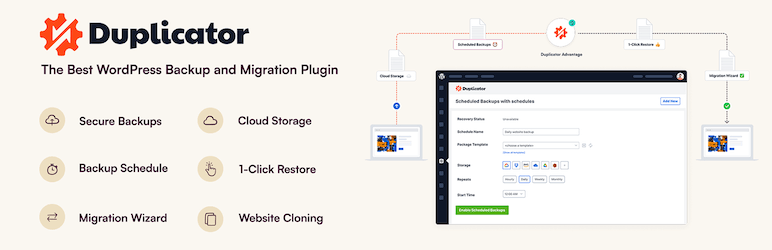
Duplicator ایک ایسا پلگ ان ہے جو پوری سائٹ کو پیکیج کر کے، اسے نئے ہوسٹنگ ماحول میں اپ لوڈ کر کے، اور وہاں deploy کر کے مائیگریشن مکمل کرتا ہے۔
اس کا بدیہی استعمال نوآموز افراد کے لیے بھی آسان ہے، اور یہ پیچیدہ سیٹنگز کے بغیر آسان سائٹ بیک اپ اور مائیگریشن کی اجازت دیتا ہے۔ Pro ورژن میں آپ اور بھی جدید خصوصیات استعمال کر سکتے ہیں، اس لیے یہ بڑے پیمانے کی سائٹس کی مائیگریشن کو بھی سپورٹ کرتا ہے۔
1. Duplicator انسٹال کریں اور پیکیج بنائیں
Duplicator انسٹال کریں
- WordPress ڈیش بورڈ میں لاگ ان کریں۔
- “Plugins” > “Add New” پر جائیں، “Duplicator” تلاش کریں، اسے انسٹال کریں، اور فعال کریں۔
پیکیج بنائیں
- “Duplicator” > “Packages” پر جائیں اور “Create New” بٹن پر کلک کریں۔
- پیکیج بنانے کے wizard کی پیروی کریں تاکہ سائٹ کا بیک اپ بنایا جا سکے۔ اس دوران پیکیج کا نام مقرر کریں اور “Next” بٹن پر کلک کریں۔
- سسٹم چیک کرے گا، اور اگر کوئی مسئلہ نہ ہو تو “Build” بٹن پر کلک کریں۔ یہ مکمل ہونے پر installer file اور archive file بن جائیں گی۔
- “Installer” اور “Archive” ڈاؤن لوڈ کریں۔
2. نئے سرور پر مائیگریٹ کریں
Upload the files
- Connect to the new server by FTP and upload the downloaded “Installer” and “Archive” files.
Create a new database
- Using the new server’s administration tools such as cPanel or Plesk, create a new database and database user. Make a note of that information.
3. انسٹالر چلائیں
Start the installer
- Access the URL of the new domain or server and open the installer file, for example
http://yournewdomain.com/installer.php. - The installer script will start. Enter the database information and click the “Next” button.
Configure the database
- Enter the information for the new database you created earlier, including the host name, database name, user name, and password, then click the “Test Database” button to confirm the connection. If there are no problems, click the “Next” button.
Deploy the data
- A confirmation screen for the installation destination will appear. If everything is fine, click the “Next” button. Importing the data into the database will then begin.
Set the new URL
- Check the settings for the new URL and path, and revise them if necessary. Then click the “Next” button.
Finish the installation
- When the installation completion screen appears, review each step and click the “Log in to site” button to log in to the new site.
4. مائیگریشن کے بعد چیک کریں
permalink settings اپ ڈیٹ کریں
- نئی سائٹ کے WordPress dashboard میں لاگ ان کریں اور “Settings” > “Permalinks” پر جائیں۔
- permalink settings تازہ کرنے کے لیے “Save Changes” بٹن پر کلک کریں۔
سائٹ کے عمل کی تصدیق کریں
- سائٹ کے ہر صفحے اور فنکشن کو چیک کریں تاکہ تصدیق ہو سکے کہ مائیگریشن درست طور پر مکمل ہوئی ہے۔
All-in-One WP Migration
This plugin lets you gather the site’s content into a single file by using import and export functions, then migrate it to a new site.
Its ease of use and its premium option, which makes it possible to migrate files beyond size limits, are especially attractive. It is particularly well suited to cases where you are planning a move to a new domain or transferring a site between servers.

1. Install All-in-One WP Migration and export the site
Install All-in-One WP Migration
- WordPress ڈیش بورڈ میں لاگ ان کریں۔
- Go to “Plugins” > “Add New,” search for “All-in-One WP Migration,” install it, and activate it.
Export the site data
- Go to “All-in-One WP Migration” > “Export.”
- Click the “Export To” button, choose “File,” and start the export.
- When the export is complete, download the backup file that was created.
2. نئے سرور پر مائیگریٹ کریں
Install All-in-One WP Migration
- Log in to WordPress on the new server and install and activate the “All-in-One WP Migration” plugin there in the same way.
3. Import the site data
Import the site data
- Go to “All-in-One WP Migration” > “Import.”
- Click the “Import From” button, choose “File,” and upload the backup file you exported earlier.
- Once the upload is complete, click the “Proceed” button to finish the import process.
Restore the site
- When the import is complete, a message will appear telling you that the import succeeded. Click “Finish.”
4. مائیگریشن کے بعد چیک کریں
permalink settings اپ ڈیٹ کریں
- نئی سائٹ کے WordPress dashboard میں لاگ ان کریں اور “Settings” > “Permalinks” پر جائیں۔
- permalink settings تازہ کرنے کے لیے “Save Changes” بٹن پر کلک کریں۔
سائٹ کے عمل کی تصدیق کریں
- سائٹ کے ہر صفحے اور فنکشن کو چیک کریں تاکہ تصدیق ہو سکے کہ مائیگریشن درست طور پر مکمل ہوئی ہے۔
5. سائٹ کے عمل کی تصدیق کریں اور اسے بہتر بنائیں
تھیم اور پلگ انز چیک کریں
- تصدیق کریں کہ تھیم اور پلگ انز نئے سرور پر درست طور پر کام کر رہے ہیں۔
- پلگ ان کی سیٹنگز دوبارہ دیکھیں اور ضرورت ہو تو انہیں اپ ڈیٹ کریں۔
تصاویر اور لنکس چیک کریں
- تصدیق کریں کہ media library میں تصاویر درست طور پر دکھائی دے رہی ہیں۔
- تصدیق کریں کہ internal links نئے domain یا server کے URL پر درست طور پر redirect ہو رہے ہیں۔
UpdraftPlus
UpdraftPlus is a plugin specialized in backup and restoration, but it also supports migration to a new site by using those backup files.
It offers rich options for automatic backups and cloud storage, allowing you to keep your site data safe even during the migration process. Because it can also protect the site through regular backups after the migration, it delivers two benefits at once.

1. Install UpdraftPlus and create a backup
Install UpdraftPlus
- WordPress ڈیش بورڈ میں لاگ ان کریں۔
- Go to “Plugins” > “Add New,” search for “UpdraftPlus,” install it, and activate it.
Create a backup
- Go to “Settings” > “UpdraftPlus Backups.”
- Click the “Backup Now” button to start the backup.
- Check both “Backup database” and “Backup files,” then click the “Backup Now” button.
- Once the backup is complete, go to the “Backup / Restore” tab and download the backup you created. The necessary files are “Database,” “Plugins,” “Themes,” “Uploads,” and “Others.”
2. نئے سرور پر مائیگریٹ کریں
Install UpdraftPlus
- Log in to WordPress on the new server and install and activate the “UpdraftPlus” plugin there in the same way.
3. Upload the backup files and restore them
Upload the backup files
- In the WordPress dashboard on the new server, go to “Settings” > “UpdraftPlus Backups.”
- Go to the “Backup / Restore” tab and click the “Upload backup files” button.
- Upload each of the backup files you downloaded earlier one by one.
Restore the site data
- After the uploads are complete, select the backup shown in the “Existing Backups” section and click the “Restore” button.
- Select the components to restore, such as the database, plugins, themes, uploads, and others, and click the “Next” button.
- Wait until the restore process finishes. When it is done, you will see a “Restore successful” message.
4. مائیگریشن کے بعد چیک کریں
permalink settings اپ ڈیٹ کریں
- نئی سائٹ کے WordPress dashboard میں لاگ ان کریں اور “Settings” > “Permalinks” پر جائیں۔
- permalink settings تازہ کرنے کے لیے “Save Changes” بٹن پر کلک کریں۔
سائٹ کے عمل کی تصدیق کریں
- سائٹ کے ہر صفحے اور فنکشن کو چیک کریں تاکہ تصدیق ہو سکے کہ مائیگریشن درست طور پر مکمل ہوئی ہے۔
5. سائٹ کے عمل کی تصدیق کریں اور اسے بہتر بنائیں
تھیم اور پلگ انز چیک کریں
- تصدیق کریں کہ تھیم اور پلگ انز نئے سرور پر درست طور پر کام کر رہے ہیں۔
- پلگ ان کی سیٹنگز دوبارہ دیکھیں اور ضرورت ہو تو انہیں اپ ڈیٹ کریں۔
تصاویر اور لنکس چیک کریں
- تصدیق کریں کہ media library میں تصاویر درست طور پر دکھائی دے رہی ہیں۔
- تصدیق کریں کہ internal links نئے domain یا server کے URL پر درست طور پر redirect ہو رہے ہیں۔
WP Migrate DB
WP Migrate DB specializes in database migration.
It can automatically replace database values to match the new URL and makes export and import easy. It is ideal for developers and users with a more technical background, and it allows detailed database customization and migration.

1. Install WP Migrate DB and export the database
Install WP Migrate DB
- WordPress ڈیش بورڈ میں لاگ ان کریں۔
- Go to “Plugins” > “Add New,” search for “WP Migrate DB,” install it, and activate it.
Export the database
- Go to “Tools” > “Migrate DB.”
- Enter the new site’s URL and path into the “Find what:” and “Replace with:” fields.
- Click the “Export Database” button and download the exported database file.
2. نئے سرور پر مائیگریٹ کریں
نیا سرور تیار کریں
- نئے سرور پر WordPress انسٹال کریں۔
- ایک نیا database بنائیں اور database کی معلومات نوٹ کریں، جن میں host name، database name، user name، اور password شامل ہیں۔
موجودہ فائلیں منتقل کریں
- اصل سرور سے “wp-content” فولڈر ڈاؤن لوڈ کریں اور اسے نئے سرور پر اسی جگہ اپ لوڈ کریں۔ اگر آپ FTP client استعمال کریں تو یہ آسان ہے۔
3. Import the database
database درآمد کریں
- نئے سرور پر phpMyAdmin میں لاگ ان کریں اور نیا database منتخب کریں۔
- “Import” tab پر کلک کریں، پہلے برآمد کی گئی database file اپ لوڈ کریں، اور اسے درآمد کریں۔
4. Edit the wp-config.php file
wp-config.php میں ترمیم کریں
- نئے سرور پر “wp-config.php” فائل میں ترمیم کریں۔ database name، user name، password، اور host name کو نئے database کی معلومات سے اپ ڈیٹ کریں۔
Copy the PHP codedefine('DB_NAME', 'new_database_name'); define('DB_USER', 'new_database_user_name'); define('DB_PASSWORD', 'new_database_password'); define('DB_HOST', 'new_database_host_name');
5. مائیگریشن کے بعد چیک کریں
permalink settings اپ ڈیٹ کریں
- نئی سائٹ کے WordPress dashboard میں لاگ ان کریں اور “Settings” > “Permalinks” پر جائیں۔
- permalink settings تازہ کرنے کے لیے “Save Changes” بٹن پر کلک کریں۔
سائٹ کے عمل کی تصدیق کریں
- سائٹ کے ہر صفحے اور فنکشن کو چیک کریں تاکہ تصدیق ہو سکے کہ مائیگریشن درست طور پر مکمل ہوئی ہے۔
6. سائٹ کے عمل کی تصدیق کریں اور اسے بہتر بنائیں
تھیم اور پلگ انز چیک کریں
- تصدیق کریں کہ تھیم اور پلگ انز نئے سرور پر درست طور پر کام کر رہے ہیں۔
- پلگ ان کی سیٹنگز دوبارہ دیکھیں اور ضرورت ہو تو انہیں اپ ڈیٹ کریں۔
تصاویر اور لنکس چیک کریں
- تصدیق کریں کہ media library میں تصاویر درست طور پر دکھائی دے رہی ہیں۔
- تصدیق کریں کہ internal links نئے domain یا server کے URL پر درست طور پر redirect ہو رہے ہیں۔
Migrate Guru
Migrate Guru بڑی سائٹس کے لیے خاص ہے اور server load کو کم سے کم رکھتے ہوئے مائیگریشن خودکار طور پر انجام دے سکتا ہے۔
اس کی proprietary technology مائیگریشن کے عمل کو بہت تیز کر دیتی ہے، جس سے بڑی WordPress سائٹس کی منتقلی بھی آسانی اور تیزی سے مکمل ہو جاتی ہے۔
1. Migrate Guru انسٹال کریں
Migrate Guru انسٹال کریں
- WordPress ڈیش بورڈ میں لاگ ان کریں۔
- Go to “Plugins” > “Add New,” search for “Migrate Guru,” install it, and activate it.
2. Prepare for the migration
منزل تیار کریں
- منزل سرور پر پہلے سے WordPress انسٹال کریں۔
- منزل سرور کی معلومات، بشمول FTP معلومات، host name، user name، اور password، کی تصدیق کریں۔
3. Migrate Guru ترتیب دیں اور مائیگریشن شروع کریں
Migrate Guru شروع کریں
- WordPress dashboard میں “Migrate Guru” > “Migrate Site” پر جائیں۔
- منزل کی قسم منتخب کریں، جیسے cPanel، FTP، SFTP، یا WebHost Manager۔
منزل کی معلومات درج کریں
- منزل سرور کی معلومات درج کریں۔ مثال کے طور پر اگر آپ FTP استعمال کر رہے ہیں تو host name، FTP user name، اور FTP password درج کریں۔
- منزل URL درج کریں اور “Migrate” بٹن پر کلک کریں۔
مائیگریشن کی تصدیق کریں
- Migrate Guru مائیگریشن عمل شروع کرتا ہے اور اس کی پیش رفت دکھاتا ہے۔ مائیگریشن مکمل ہونے تک انتظار کریں۔
4. مائیگریشن کے بعد چیک کریں
مائیگریشن کی تکمیل کی تصدیق کریں
- مائیگریشن ختم ہونے پر آپ کو Migrate Guru کی طرف سے اطلاع ملے گی۔ منزل سائٹ کھولیں اور تصدیق کریں کہ یہ درست طور پر منتقل ہوئی ہے۔
permalink settings اپ ڈیٹ کریں
- نئی سائٹ کے WordPress dashboard میں لاگ ان کریں اور “Settings” > “Permalinks” پر جائیں۔
- permalink settings تازہ کرنے کے لیے “Save Changes” بٹن پر کلک کریں۔
5. سائٹ کے عمل کی تصدیق کریں اور اسے بہتر بنائیں
تھیم اور پلگ انز چیک کریں
- تصدیق کریں کہ تھیم اور پلگ انز نئے سرور پر درست طور پر کام کر رہے ہیں۔
- پلگ ان کی سیٹنگز دوبارہ دیکھیں اور ضرورت ہو تو انہیں اپ ڈیٹ کریں۔
تصاویر اور لنکس چیک کریں
- تصدیق کریں کہ media library میں تصاویر درست طور پر دکھائی دے رہی ہیں۔
- تصدیق کریں کہ internal links نئے domain یا server کے URL پر درست طور پر redirect ہو رہے ہیں۔
کامیاب WordPress مائیگریشن کے لیے اضافی مشورے

اچھی طرح تیاری کریں
مائیگریشن شروع کرنے سے پہلے پلگ انز اور تھیمز کو اپ ڈیٹ کرنا اور غیر ضروری ڈیٹا صاف کرنا اہم ہے۔
جانچ ضروری ہے
مائیگریشن سے پہلے اسے staging site یا local environment میں آزمائیں اور تصدیق کریں کہ کوئی مسئلہ نہیں ہے۔
SEO کی حفاظت کریں
اگر مائیگریشن کے دوران URL structure بدل جائے تو مناسب redirects مقرر کریں اور sitemap اپ ڈیٹ کریں تاکہ SEO رینکنگ میں کمی کو روکا جا سکے۔
کارکردگی چیک کریں
نئے سرور ماحول میں منتقل ہونے کے بعد تصدیق کریں کہ سائٹ کی رفتار یا user experience پر کوئی منفی اثر نہیں پڑا، اور ضرورت کے مطابق بہتر کریں۔
WordPress پلگ ان مائیگریشن کے بجائے سرور کمپنی کی مائیگریشن کی سفارش کی جاتی ہے
WordPress پلگ انز کے ذریعے مائیگریشن کرنے میں لازمی طور پر کچھ بے چینی رہتی ہے۔ مائیگریشن میں ناکام ہونے اور وقت و محنت ضائع کرنے کے بجائے میں ایسی سرور کمپنی استعمال کرنے کی سفارش کرتا ہوں جو migration tools یا کم قیمت migration support فراہم کرتی ہو۔
XServer Business
اگر آپ ایک corporation ہیں تو میں XServer Business۔ یہ آپ کے سرور کو مفت منتقل کرتا ہے۔ چونکہ منتقلی خود سرور کمپنی کرتی ہے، اس لیے WordPress مائیگریشن میں ناکامی کا کوئی خطرہ نہیں رہتا۔ اگر آپ کی کمپنی کے پاس بجٹ ہے تو اپنے طور پر اضافی وقت اور محنت خرچ کرنے کے بجائے XServer Business استعمال کریں۔
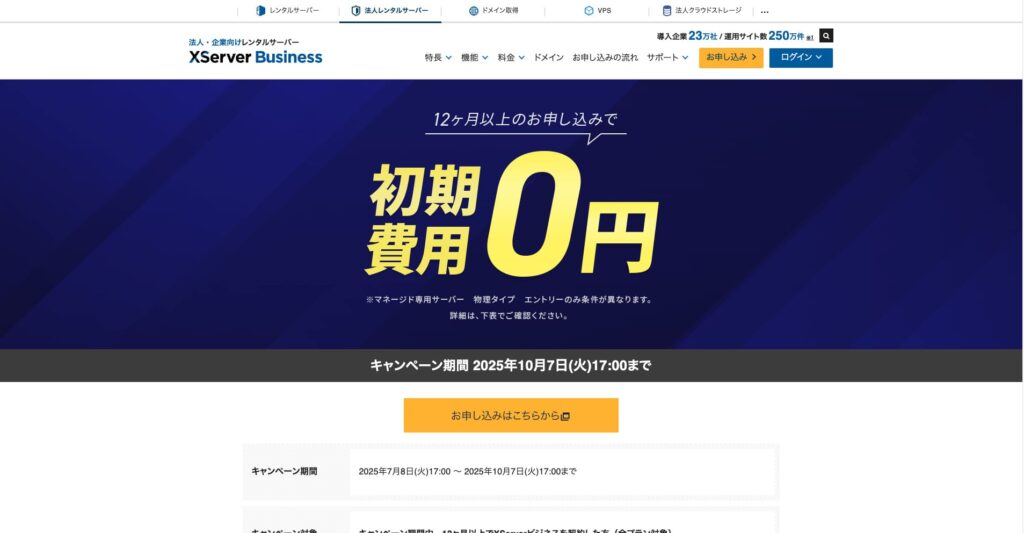
“XServer Business” Xserver Inc. کا corporate server ہے، جس کے پاس ملکی مارکیٹ کا نمبر 1 حصہ ہے۔ ہماری پیمائش میں یہ display speed کے لحاظ سے نمبر 2 پر رہا۔ یہ مائیگریشن کی منزل کے طور پر بہترین انتخابوں میں سے ایک ہے۔ Server migration بھی مفت ہے۔
7 اکتوبر 2025 تک، ابتدائی فیس (عام طور پر 16,500 yen سے 385,000 yen تک) مفت ہے، اور server migration service بھی مفت ہے۔
Xserver
XServer افراد کے لیے ایک سرور ہے جس میں migration tools شامل ہیں۔ آپ اس کی “Easy WordPress Migration” خصوصیت استعمال کر کے WordPress مائیگریٹ کر سکتے ہیں۔
میں نے خود بھی WordPress مائیگریٹ کرنے کے لیے یہ function استعمال کیا ہے۔ منتقلی بخوبی ہوئی۔
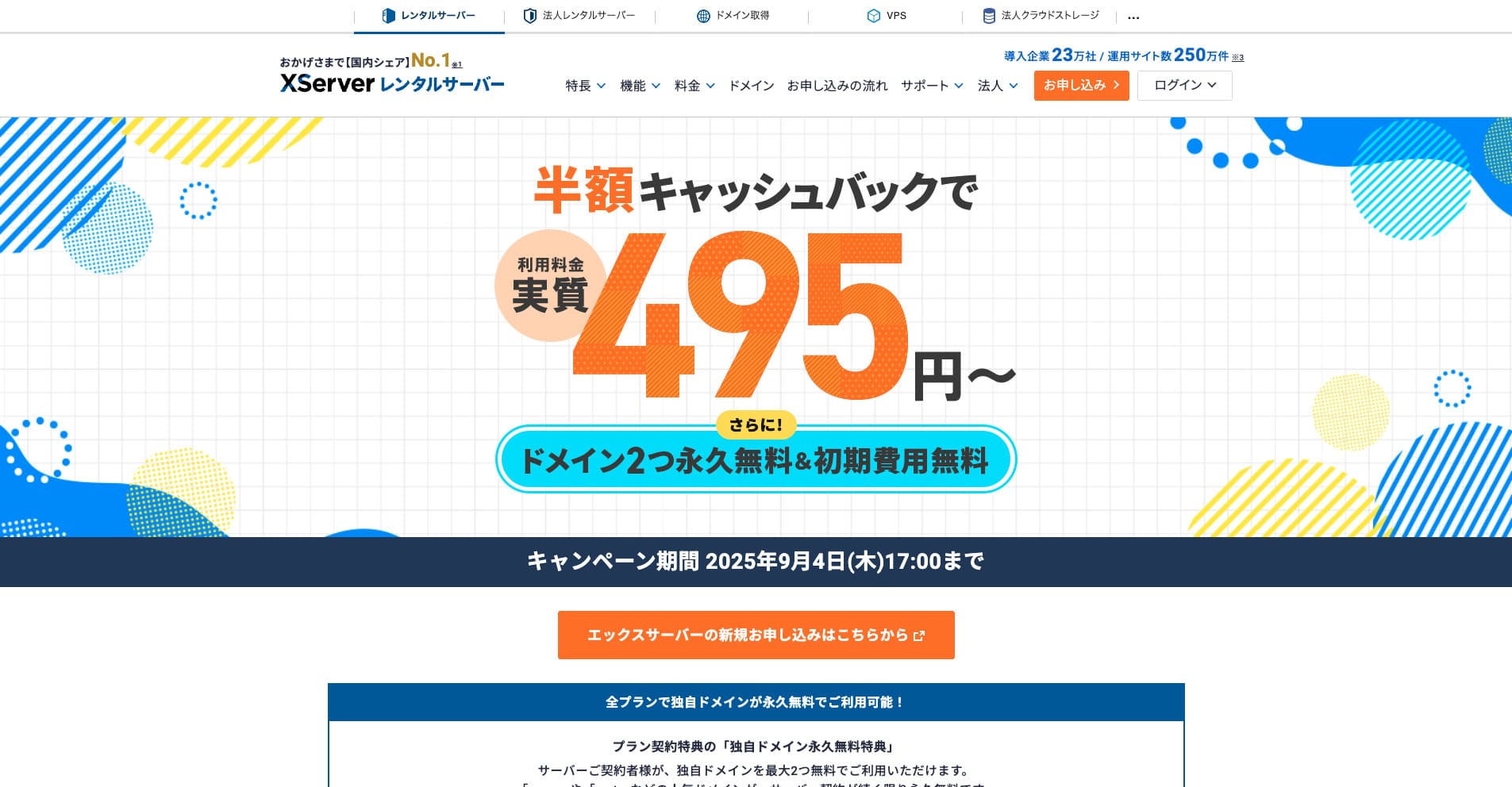
“Xserver” ایک طویل عرصے سے موجود تیز رفتار rental server ہے جس کے پاس ملکی مارکیٹ کا نمبر 1 حصہ ہے۔ یہ افراد اور کمپنیوں دونوں میں مقبول ہے۔ سچ یہ ہے کہ اس میں کوئی خاص خامی نہیں، اور اس کی stability، features، اور support سب بہترین ہیں۔ cashback کے ساتھ آپ اسے 495 yen سے مؤثر طور پر استعمال کر سکتے ہیں۔
34 ستمبر 2025 تک یہ نصف قیمت cashback اور 10 روزہ مفت آزمائش پیش کرتا ہے۔
★ Xserver کی شہرت اور اس کے مضبوط سپورٹ سسٹم کے ساتھ WordPress شروع کرنے کا طریقہ
ConoHa WING
ConoHa WING ایک سرور ہے جس میں WordPress مائیگریشن کی سہولت شامل ہے اور یہ اس سائٹ کے ذریعے بھی استعمال ہوتا ہے۔ اگر آپ “Easy WordPress Setup” استعمال کریں تو کوئی بھی مشکل سیٹنگز کے بغیر WordPress مائیگریٹ کر سکتا ہے۔
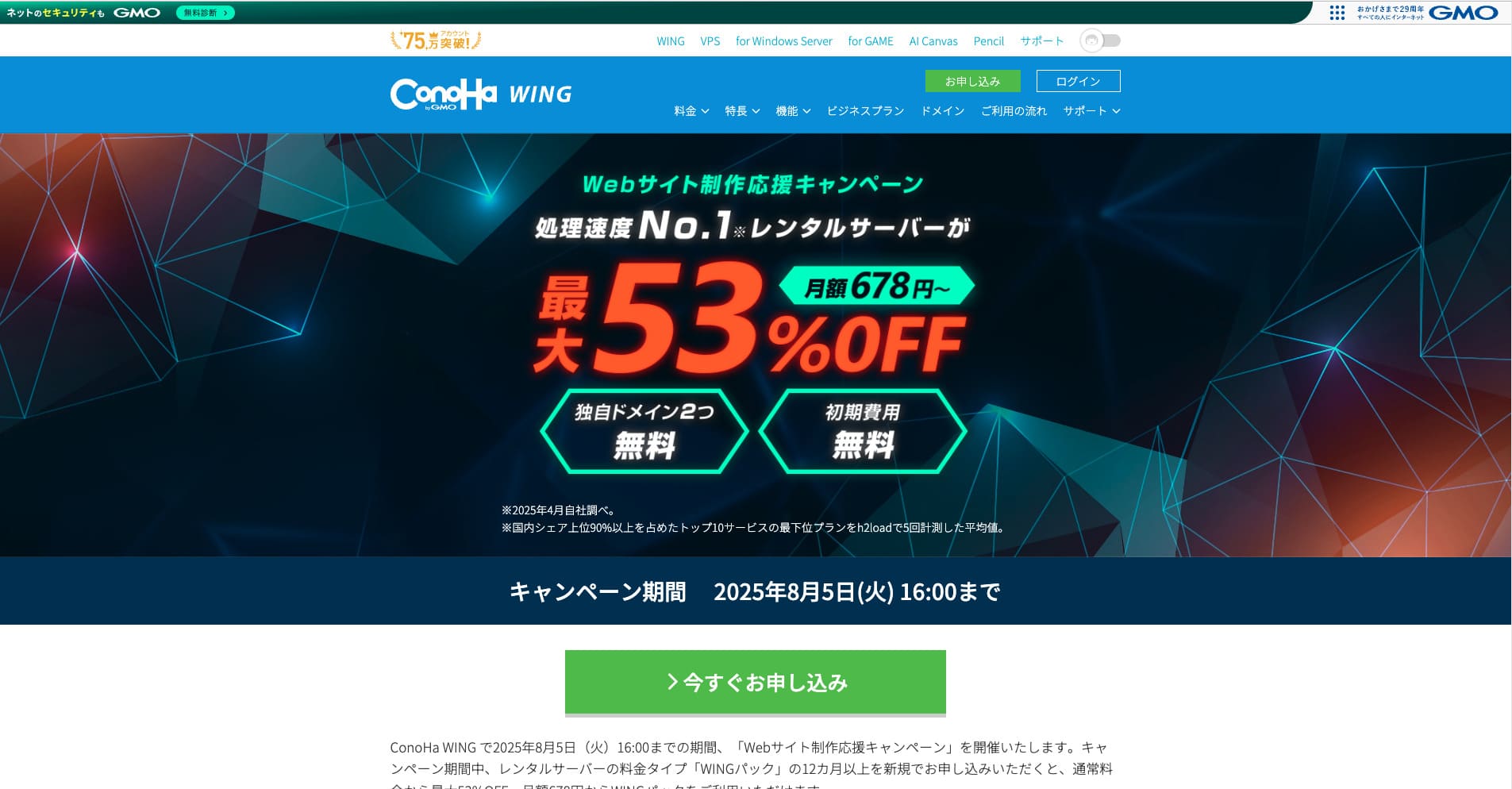
“ConoHa WING” GMO Internet Group کا ایک تیز رفتار سرور ہے، اور اس کے صارفین کی تعداد تیزی سے بڑھ رہی ہے۔ چونکہ سرور کے لیے سائن اپ کرتے ہی WordPress پہلے سے انسٹال ہوتا ہے، اس لیے کوئی بھی آسانی سے شروع کر سکتا ہے۔ یہ لاگت اور کارکردگی کے درمیان اچھا توازن فراہم کرتا ہے، اور ہماری کمپنی بھی اسے استعمال کرتی ہے۔
Until August 5, 2025, server fees are up to 53% off, two domains are free forever, and the first month is free.
★ How to launch a homepage in 10 minutes: ConoHa WING’s reputation and how to start WordPress with it
ColorfulBox
ColorfulBox is a server that lets you use the cPanel management panel, which includes site migration functions. Right now, WordPress migration service is free. Because the server company performs the migration for you, you can move WordPress with confidence.

“ColorfulBox” is a reassuring server with excellent region-based automatic backups. It offers eight plans, allowing you to use the performance you need without waste. It is also one of the few rental servers that offers support around the clock.
Until August 31, 2025, server fees are up to 50% off, you can receive an Amazon gift card worth up to 10,000 yen, and there is also a 30-day free trial.
Lolipop!
LOLIPOP is an inexpensive and easy-to-use server that has WordPress migration functionality. Its “Easy WordPress Move (Server Migration)” feature can be used on the Lite plan and above.
I have also migrated WordPress with Lolipop! myself. The move completed without any problem.
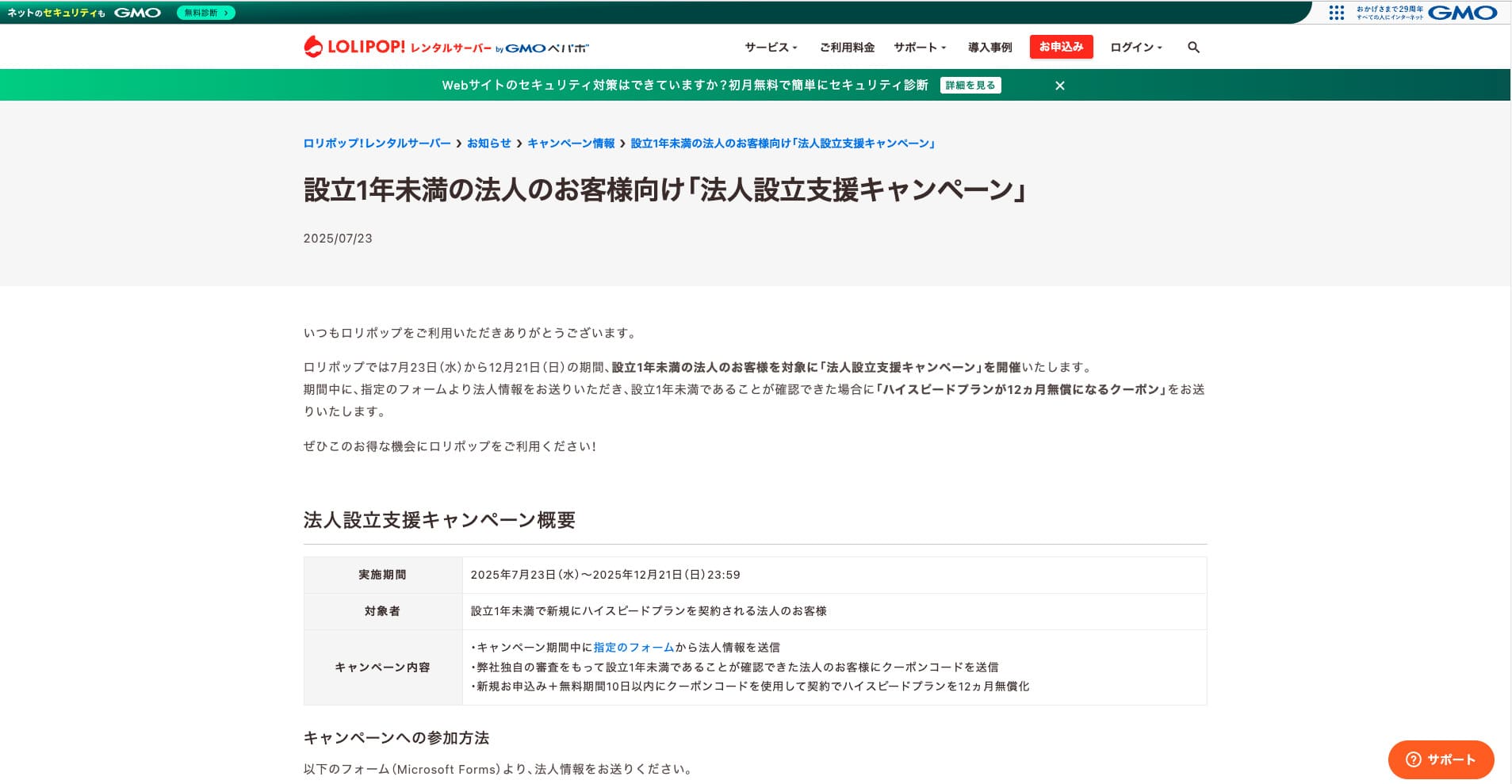
“Lolipop!” is a popular long-established rental server available at a low price. Even with its 99.99% uptime, the Lite plan that supports WordPress can be used from 264 yen per month. Every plan offers strong cost performance.
Until December 21, corporations established less than one year ago can use the High Speed plan free for 12 months, and contracts of 12 months or longer receive one domain for free forever, along with a 10-day free trial.
★ Bad evaluations are a thing of the past: four reviews of Lolipop! and how to start WordPress with it
خلاصہ
Migrating a WordPress site can be made far easier and safer through the right plugins and proper preparation in advance.
By making use of the plugins introduced in this article and putting the additional advice into practice, you can move your own site smoothly into a new environment. When you migrate a site, be sure to make use of these tools and techniques.
However, if you are worried about WordPress migration, use a server that provides migration tools or migration support.
Complete Comparison of 32 WordPress Hosting Services for Individuals, Companies, and Overseas Use
When you think, “I want to start WordPress,” and search for “WordPress recommendations,” you find all kinds of articles covering personal hosting, options for companies and small businesses, overseas hosting, and low-cost servers. Honestly,
- which site should you trust?
- you may just want a simple and understandable answer.
- you may want to get started with WordPress right away.
That is why this article carefully selects recommended choices from 32 hosting providers for individuals, companies, domestic use, and overseas use. It is explained by the SEO lead at an app development company that uses hosting every day.