
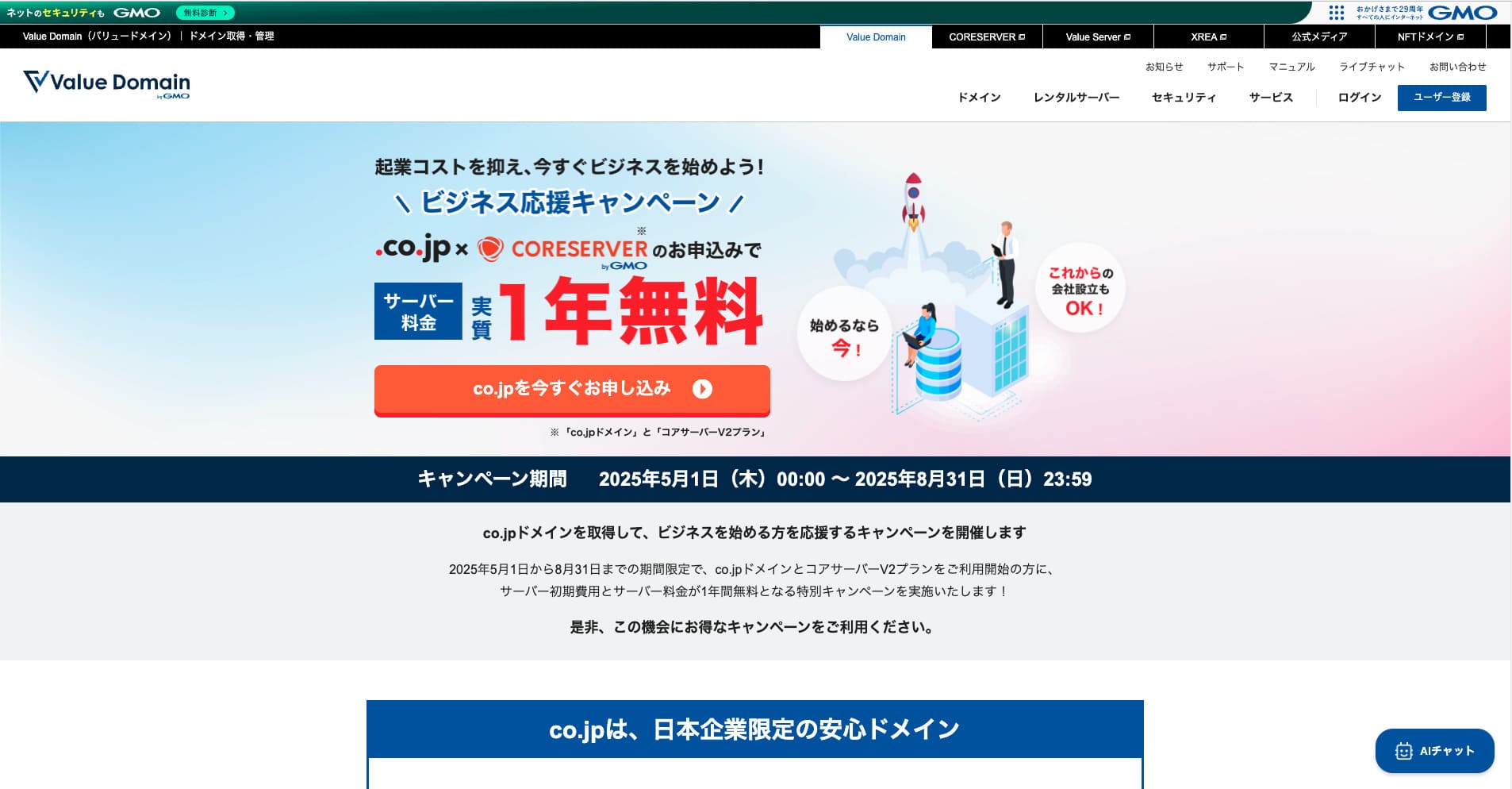
Free .co.jp domain + 12 months of V2 plano server fees free + free initial fee until August 31, 2025, plus a 30-araw na libreng pagsubok
PR
Mga server
Core Server Review [Pinakabago 2025]: Masusing gabay sa presyo, bilis, mga kalamangan, at kahinaan
Nai-publish: 2025.04.18
Na-update: 2025.04.18
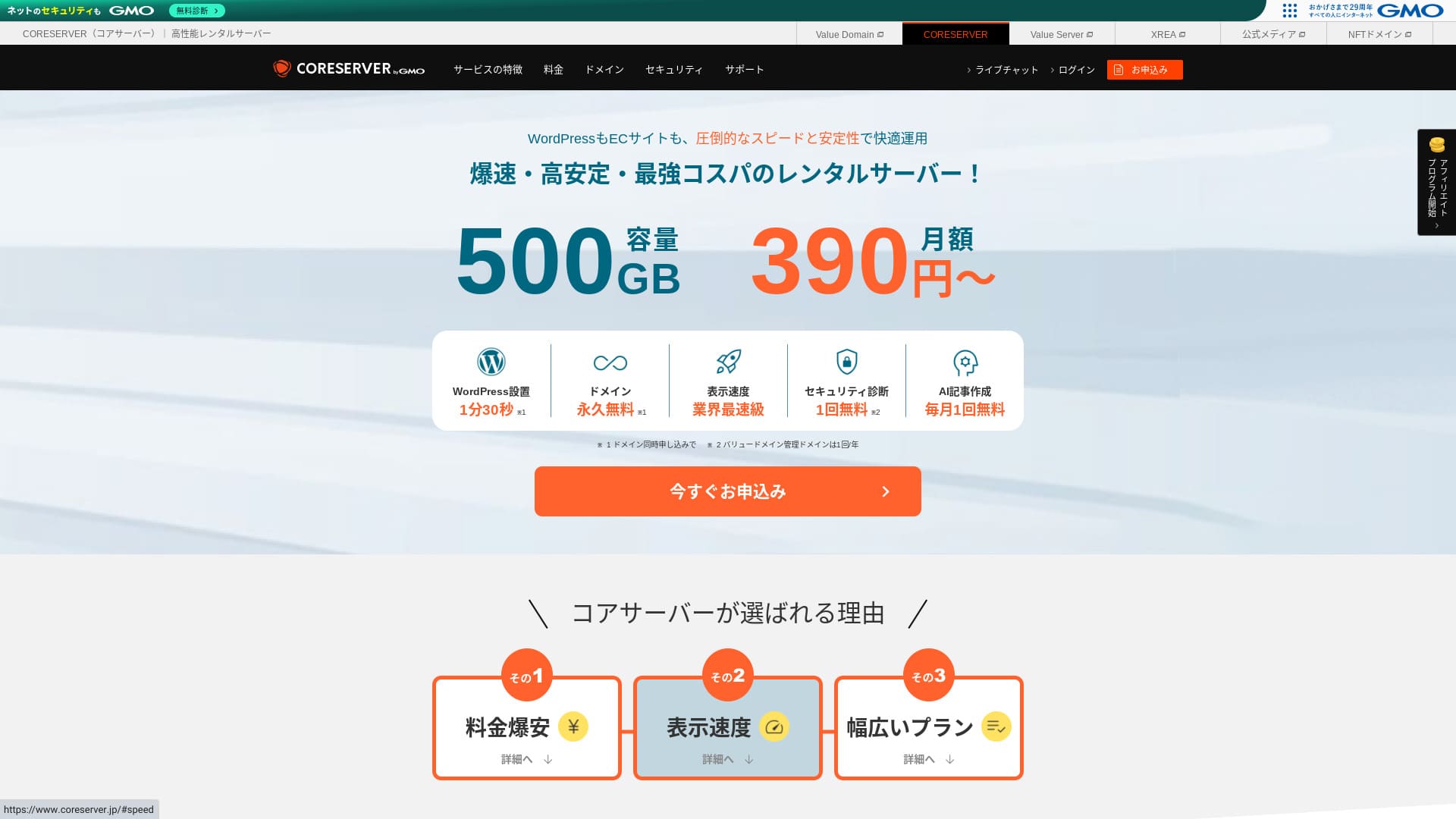
Core Serveray isang rental server na pinapatakbo ng GMO Digirock, Inc., at isa sa pinakamalaking lakas nito ang malawak na hanay ng mga plano na inaalok nito.

Core Server is a service I recommend to mga indibidwal, kumpanya, at nag-iisang may-ari ng negosyo na gumagamit ng WordPress sa unang pagkakataon because:
- Maaari mong mahanap ang tamang server salamat sa malawak nitong saklaw ng mga plano
- It includes an AI article-writing tool
- Its email service is inexpensive yet highly capable
That is why. You will likely be satisfied. You can try it free for 10 days.
A competing server is LOLIPOP. It offers even more kapanatagan ng loob than Core Server because its uptime is publicly disclosed. Please consider it as well.
| Server type | Shared server |
| Display bilis (TTFB) | 210ms |
| Inirerekomendang plano at termino ng kontrata | CORE-MINI 12-month contract |
| Trial / money-back garantiya | 30-araw na libreng pagsubok |
| Monthly fee (12-month contract) | 264 yen |
| Initial setup fee | Free |
| Free domain | None |
| Suporta | Business hours: 10:00-12:00, 13:00-17:00 Phone callback (CORE-B, CORE-C, CORE-Z), email, chat |
| Uptime | Not disclosed |
| Storage | 250GB |
| Number of databases | 10 |
| Seguridad measures | WAF, IPS/IDS |
| SSL | Free SSL |
| Backup / ibalik | 15 generations of backup free, pagbabalik free |
| Number of email accounts | 200 |
| Email seguridad measures | POP/POS, SMTP/SMTPS, IMAP/IMAPS, virus checking, spam filtering, DKIM/DMARC |
| WordPress preinstallation | None |
| Server / website migration service | None |
| CDN | None |

Hikaru Ono
Sa totoo lang, naramdaman ko na maghahati ang opinyon sa control panel ng Core Server. Kung may karanasan ka na sa paggamit ng mga server, hindi ka dapat mahirapang pamahalaan ito. Kung pipiliin mo ang isang V2 na plano, maaari ka ring magsimula sa WordPress nang mas madali.
Even so, please do not worry too much. It comes with top-class official manuals that are very thorough and even include videos.
Paghahambing ng Core Server sa Iba Pang mga Hosting Service
- Overall rating★★★☆☆
- Server bilis ★★★☆☆
- Pagpepresyo ★★★★☆
- Stability ★★★★☆
- Ease of getting started with WordPress* ★★★☆☆
- Operations such as domain management and SSL setup* ★★★☆☆
* Based on my actual experience using it.

Paano pumili mula sa 21 inirerekomendang WordPress hosting service para sa mga indibidwal
Paano pumili mula sa 21 inirerekomendang WordPress hosting service para sa mga indibidwal
serverfield.org
- November 4, 2025 market-research data, sorted by bilis
- Ang mga buwanang bayad ay ang gastos sa unang taon ng pinakamurang plano na maaaring magpatakbo ng WordPress
- Ang Bilis ay ang Time to First Byte na sinusukat sa mga demo site sa ilalim ng parehong mga kondisyon
“Core Server” ay isang mabilis na rental server na pinapatakbo ng GMO Digirock, Inc. Nag-aalok ito ng abot-kayang V1 na plano na madaling gamitin para sa mga indibidwal at isang V2 na plano na nakatuon sa komportable at mahusay na pagganap. Dahil sa malawak nitong saklaw ng mga plano, maaari mong mahanap ang server na pinaka-angkop para sa iyo.
Mga Pagsusuri at Apat na Pangunahing Tampok ng Core Server

Isang Server na may Karaniwang Antas ng Bilis
Core Server produced a standard level of page bilis in our own independent test on this site.
According to Google, a server response time of 200ms or less is recommended. Core Server fell just short at 210ms. So while I would not call it a high-bilis server, it can still be regarded as a server that is slightly faster than standard.
Server response time should be kept under 200 milliseconds.
https://developers.google.com/server/bilis/docs/insights/Server?hl=en
Sa oras ng pagsubok, hindi ako naglapat ng anumang mga setting partikular para sa pag-optimize ng bilis. Gayunpaman, lumabas ang resultang ito. Kung magsisikap ka sa pag-tune nito, posibleng maging mas mabilis pa ito.
Note: Rental Server Bilis Comparison Across 15 Services: This One Was Truly Fast [2024 Edition]
Ang Pagkakaiba ng V1 at V2 ay Tumutulong sa Iyong Hanapin ang Pinakamahusay na Plano
Core Server has seven mga planoo when you break them down in detail, so you can find the one that suits you best. Let’s compare the main differences.
| Plano | Price | Allowed load | Suporta |
|---|---|---|---|
| Core-Mini | 3,168 yen | 1.25 | Email / chat |
| Core-A | 6,336 yen | 2.5 | Email / chat |
| Core-B | 12,672 yen | 10 | Phone / email / chat |
| Core-C | 39,600 yen | 40 | Phone / email / chat |
| Core-X | 6,336 yen | 18 | Email / chat |
| Core-Y | 10,296 yen | 54 | Email / chat |
| Core-Z | 26,136 yen | 144 | Phone / email / chat |
Mura ang plano ng V1 Core-Mini. Gayunpaman, hindi malaki ang pinapayagang karga nito. Habang dumarami ang sabay-sabay na pag-access, mas malamang na magkaroon ng 503 error.
Note: What Is a 503 Error? How to Avoid Web Congestion and Respond in an Emergency
Mas mataas ang gastos ng V2 Core-X plano kumpara sa Core-Mini, subalit ang pinapayagang karga nito ay tumataas nang malaki. Napakahusay nito bilang isang mababang-gastos na plano na may mas malakas na pagtuon sa pagganap. Inirerekomenda ko ito sa mga user na nag-iisip, “Gusto kong panatilihing mababa ang mga gastos hangga't maaari, ngunit hindi ko gustong ikompromiso ang mga spec.”
Unlimited Traffic Transfer
Core Servernag-aalok ng walang limitasyong paglilipat ng data. Kahit na mas maraming tao ang mag-access sa iyong website at tumaas ang paglilipat ng data, hindi ka mauubusan ng dami ng paglilipat. Tumutulong iyon na maiwasan ang sitwasyon kung saan hindi maipakita ang iyong website dahil sa mga limitasyon sa paglilipat.
Note: What Are Traffic and Data Transfer? Managing and Optimizing Web Traffic
However, restrictions may be applied when server load becomes high.
If the overall server load exceeds 80% of the server’s maximum processing capacity, we may place restrictions on accounts that account for 20% or more of the load, or on the top five highest-load accounts.Frequently Asked Questions: About Load Restrictions | Core Server
The AI Writing Tool “Value AI Writer” Is Available at a Discount
Core Servernagbibigay-daan sa iyo na gumamit ng “Value AI Writer” sa may diskwentong presyo. Ang “Value AI Writer” ay isang AI tool na gawa ng GMO at dalubhasa sa paggawa ng mga artikulo sa blog. Kung gagamit ka ng Core Server, ang presyo ay mas mababa ng mahigit 20% kumpara sa pagbili nito nang hiwalay.
It is specialized for SEO and also has stronger integration with WordPress, so it makes mass-producing articles easier than using AI in a general way.
Email Is Also Easy to Use Thanks to Sender Domain Authentication
Core Server is also easy to use for email. It suportas sender domain authentication.
Dahil sinusuportahan nito ang DKIM at DMARC, ang mga kumpanya ay maaaring magpadala ng email sa mga customer nang mas maayos.
Core Server Drawbacks and How to Avoid Them, Honestly Explained

Core Server is capable, but it also has drawbacks. Some of them cannot be prevented or dealt with by the user after signing up.
Uptime Is Not Publicly Disclosed
Core Server does not disclose its uptime. Since you cannot grasp numerically how stable the server is, that is a slight concern. If a blog or website cannot be displayed, it fails to serve its purpose. Seen that way, server uptime is extremely important.
If you want more kapanatagan ng loob, piliin a server that discloses its uptime.
Note: Isang gabay para sa nagsisimula tungkol sa hosting uptime at mga SLA
Still, one good thing about Core Server is that ang opisyal na site nito ay naglalathala ng nakalipas na 10 oras ng data ng bilis ng tugon ng WordPress.
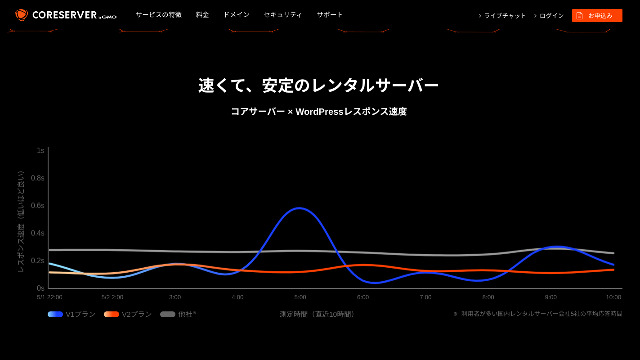
Maaari mong hatulan ang katatagan ng server sa isang magaspang na paraan mula rito. Ang mga V2 na plano, na gumuguhit ng banayad na kurba na mas mababa sa graph, ay tila matatag at mabilis.
Only Some Plano Changes Are Allowed
Core Servernagpapahintulot lamang ng ilang pagbabago sa plano. Nangangahulugan iyon na kapag kinulang ka sa kapasidad ng server o paglilipat ng data, maaaring kailanganin mong lumipat sa server ng ibang kumpanya o umarkila ng isa pang server mula sa parehong kumpanya.
Ang sumusunod na dalawang pagbabago sa plano lamang ang posible.
- From Core-X to Core-Y or Core-Z
- From Core-Y to Core-Z
You cannot downgrade a plano.
Paghahambing ng Core Server sa Dalawang Katulad na Hosting Service
Ihambing natin ang Core Server sa dalawang serbisyo ng hosting na may katulad na mga katangian. Ang pagtingin din sa mas maliliit na punto ay tutulong sa iyo na maiwasan ang pagsisisi pagkatapos mag-sign up.
Lolipop!
LOLIPOP is a server that is about as inexpensive as Core Server. What it does better than Core Server is that it discloses its uptime. On top of that, its uptime is 99.99%, which is at the highest level in the hosting industry. Ang katatagan nito ay walang kapintasan, kaya hindi lamang mga indibidwal kundi pati ang mga kumpanya ay malamang na masisiyahan dito.
Gayunpaman, kapag inihambing mo ang pinakamurang plano na maaaring magpatakbo ng WordPress, ang Core Server ang mas magandang deal. I recommend choosing based on how you weigh presyo laban sa kapanatagan ng loob.

Lolipop! Pagsusuri [2025 Edisyon]: Kung Ano ang Inihayag ng mga Bilis Test, Kasama ang mga Kalamangan at mga Kahinaan
Lolipop! Pagsusuri [2025 Edisyon]: Kung Ano ang Inihayag ng mga Bilis Test, Kasama ang mga Kalamangan at mga Kahinaan
serverfield.org
Star Server
Star Rental Serveray isa ring server na nakikipagkumpitensya sa mababang hanay ng presyo.
Ang Star Server Light plano ay maaaring gamitin nang mas mura pa kaysa sa Core Server.Gayunpaman, habang pinapayagan ka ng Core-Mini ng Core Server na gumawa ng 10 WordPress site, ang Star Server Light na plano ay nagpapahintulot lamang ng isa.
Core Server is stronger in features and specs. Incidentally, neither service discloses uptime, so some concern remains about stability in both cases.

Pagsusuri sa Star Server [2024 Pinakabago]: Kahanga-hangang Mababang Presyo at Masusing Pagsuri sa mga Tunay na Kalamangan at Kahinaan
Pagsusuri sa Star Server [2024 Pinakabago]: Kahanga-hangang Mababang Presyo at Masusing Pagsuri sa mga Tunay na Kalamangan at Kahinaan
serverfield.org
Start a WordPress Website on Core Server in 7 Steps
Let’s start a website with Core Server!
- STEP.1Access the official Core Server website
Mag-scroll pababa sa itaas na pahina at i-click ang “Apply” para sa plano ng presyo na nais mong gamitin.
- STEP.2Apply for the Server and Get a Domain
Pakiusap, kumpirmahin na pinili mo ang tamang plano. Ang pangalan ng server account (ang paunang domain) ay maaaring maging anuman na gusto mo. Hindi mo gagamitin ang paunang domain na ito ko bilang domain ng iyong website. Maaari mo itong gamitin, ngunit hindi ko ito inirerekomenda.
At this point, you cannot piliin simultaneous WordPress installation yet, but after choosing your domain, you will be able to check it. Be sure to use it. It makes starting a WordPress website dramatically easier.
Sa ilalim ng opsyong mag-apply din para sa domain na gagamitin mo sa server na ito, piliin ang “Kumuha ng libreng domain.” Pagkatapos ay ilagay ang anumang string na gusto mo. Mula sa mga available na top-level domain, tulad ng .com at .net, i-click ang gusto mo.
Maaari kang pumili ng mga root domain tulad ng “.com” at “.co.jp.” Ang mga bayad sa pagkuha at pagpapapanibago ay nagkakaiba depende sa root domain. Kung hindi ka sigurado kung alin ang pipiliin, inirerekomenda ko ang “.co.jp” hangga't maaari para sa mga kumpanya. Para sa mga indibidwal, inirerekomenda ko ang “.com” o “.net.” Dahil marami ang pamilyar sa mga domain na ito, mas kaunti ang posibilidad na magmukhang kahina-hinala ang mga ito at may tendensiyang maging mas madaling i-access para sa mga gumagamit.
Note: What Is a Domain? Its Role as an Address on the Internet and How to Get One
Kapag maaari mo nang piliin ang domain, lagyan ng tsek ang “Install WordPress at the same time.”
I-click “Proceed.”
- STEP.3Enter User Information
Ipapalabas ang screen para sa pagpasok ng impormasyon ng user. I-click ang “User registration,” ilagay ang impormasyon tulad ng iyong uri ng paggamit at pangalan, kumpirmahin ang mga nailagay na detalye, at i-click ang “Magrehistro at magpatuloy.”
Kumpletuhin ang kinakailangang pag-verify ng SMS at pagkatapos ay i-click ang “Confirm application.”
Sagutin ang survey o laktawan ito, at pagkatapos ay i-click ang “Go to the control panel.”
- STEP.4Install WordPress
Sa impormasyon ng pamamahala ng control panel, ipinapakita ang “Core Server (1)” na in-apply mo kanina. I-click ito at magpatuloy sa “New Control Panel.”
Pagkatapos niyan, piliin ang “App Installation” mula sa “Tools” at i-click ang “WordPress Blog.”
I-click ang “+ Install this application” at pumili ng domain. Lalabas sa pull-down menu ang domain na in-apply mo kanina, kaya piliin ito.
You can leave the version settings as they are.
Use the following settings for WordPress.
- Admin username: Anything is fine.
- Admin password: Make it as complex as possible. You can easily change it later.
- Administrator email:Isang email address na regular mong ginagamit. Para sa mga kumpanya, inirerekomenda ko ang business email address ng taong namamahala sa website.
- Website title: Anything is fine. You can easily change it later.
- Website tagline: This is the subtitle. Anything is fine. You can easily change it later.
Ang username ng admin at password ng admin ay ginagamit kapag ikaw ay nag-log in sa WordPress. Siguraduhing isulat ang mga ito.
You can leave the “Advanced” settings as they are.
Kapag nailagay na ang lahat, i-click ang “+ Install.” Pagkatapos mai-install ang WordPress, i-click ang URL na ipinapakita sa screen na nagtatapos sa “wp-admin/”. Iyan ang URL ng iyong screen ng admin sa WordPress.
- STEP.5Initial WordPress Setup
Sa lilitaw na screen ng login sa WordPress, ilagay ang username at password na iyong itinakda sa panahon ng pag-install at i-click ang “Log In.”
If a warning says “This site can’t be reached,” the DNS settings have not propagated yet. There is nothing you can do except wait, so try logging in again every few hours.
Note: What Are DNS and Name Servers?
Pagkatapos mag-log in sa WordPress, itakda ang mga permalink. Sa screen ng admin ng WordPress, pumunta sa “Settings” at pagkatapos ay sa “Permalinks.” Piliin ang “Post name” at i-click ang “Save Changes.”
Kapag pinili mo ang “Pangalan ng post,” maaari kang maglagay ng anumang string na gusto mo sa URL kapag nag-publish ng isang artikulo. Inirerekomenda ko ang isang maikling string na tumutulong sa mga mambabasa na maisip ang nilalaman ng artikulo dahil ginagawa nitong mas madaling maunawaan ang website. Kung ito ay masyadong mahaba, ang ilang mga tao ay maaaring makaramdam ng hindi komportable at mag-isip, “Maaari bang ito ay isang mapanganib na site?”
- STEP.6Install Plugins
Return to the WordPress admin screen, go to “Plugins,” then “Add New,” and install the plugins you need.
Kapag nahanap mo na ang plugin na nais mong idagdag, i-click ang “Install Now” at pagkatapos ay “Activate.” Pagkatapos niyan, magpatuloy ayon sa paliwanag para sa bawat plugin.
Tiyaking mag-install ng mga plugin para sa seguridad at backup.
- How to Piliin Five WordPress Plugins That Strengthen Seguridad
- 5 Powerful WordPress Backup Plugins That Help You Recover Your Data
Once you have installed the plugins as well, your WordPress website is fully ready to go!
Summary
“Core Server” ay isang mabilis na rental server na pinapatakbo ng GMO Digirock, Inc. Nag-aalok ito ng abot-kayang V1 na plano na madaling gamitin para sa mga indibidwal at isang V2 na plano na nagbibigay-priyoridad sa komportable at mahusay na pagganap. Dahil sa dami ng mga planong available, madaling mahanap ang pinaka-angkop.
Free .co.jp domain + 12 months of V2 plano server fees free + free initial fee until August 31, 2025, plus a 30-araw na libreng pagsubok
Core Server offers a wide variety of mga planoo.Inirerekomenda ko ang V1 Core-Mini na plano, ngunit kung nagpaplano ka ng website na naglalayong makakuha ng sampu-sampung libong view ng pahina bawat buwan, inirerekomenda ko ang Core-X na nakatuon sa performance.
Complete Comparison of 32 WordPress Hosting Services: Recommendations for Individuals, Companies, and Overseas Use

Kapag naiisip mo, “Gusto kong simulan ang WordPress,” at naghanap para sa “inirerekomendang WordPress hosting,” lahat ng uri ng artikulo ay lumalabas, mula sa hosting para sa mga indibidwal at maliliit na negosyo hanggang sa mga serbisyo sa ibang bansa at mga opsyong mababa ang halaga. Sa totoo lang, maaari mong isipin:
- Which site should I read?
- Nais kong pumili ng server sa simple at madaling maunawaang paraan.
- Please show me how to start WordPress right away.
That is exactly why this article introduces maingat na piniling mga rekomendasyon mula sa 32 serbisyo ng hosting para sa mga indibidwal, mga kumpanya, lokal na paggamit, at paggamit sa ibang bansa. Ipinapaliwanag ito ng SEO lead ng kumpanya ng pagpapaunlad ng app na gumagamit ng mga serbisyo ng hosting araw-araw.