ปลั๊กอิน WordPress 5 ตัวสำหรับย้ายเซิร์ฟเวอร์อย่างสำเร็จ และกุญแจสู่การย้ายที่ดี

ฉันอยากย้าย WordPress อย่างมั่นใจ
การย้ายเว็บไซต์ WordPress มีความเสี่ยงหลายอย่าง เช่น ข้อมูลหายหรืออันดับ SEO ตก แต่ถ้าใช้ปลั๊กอินที่เหมาะสม คุณจะลดความเสี่ยงเหล่านั้นให้ต่ำที่สุดและย้ายได้อย่างมีประสิทธิภาพ
บทความนี้แนะนำปลั๊กอินย้าย WordPress 5 ตัวที่เหมาะกับทั้งมือใหม่และผู้ใช้ขั้นสูง พร้อมอธิบายว่าทำไมแต่ละตัวจึงดี
Complete Comparison of 32 WordPress Hosting Services for Individuals, Companies, and Overseas Use

When you think, “I want to start WordPress,” and search for “WordPress recommendations,” you find all kinds of บทความs covering personal โฮสต์ing, options for companies and small businesses, overseas โฮสต์ing, and low-cost เซิร์ฟเวอร์s. Honestly,
- which เว็บไซต์ should you trust?
- you may just want a เรียบง่าย and understandable answer.
- you may want to get started with WordPress right away.
That is why this บทความ carefully selects recommended choices from 32 โฮสต์ing providers for individuals, companies, domestic use, and overseas use. It is explained by the SEO lead at an app development company that uses โฮสต์ing every day.
การย้ายเว็บไซต์มีเรื่องให้คิดมาก ทั้งไฟล์ ฐานข้อมูล และการตั้งค่าต่าง ๆ ปลั๊กอินด้านล่างช่วยให้ขั้นตอนนี้ง่ายและปลอดภัยขึ้น

Duplicator เป็นปลั๊กอินยอดนิยมสำหรับสร้างแพ็กเกจเว็บไซต์และย้ายไปยังโฮสต์ใหม่
ใช้งานได้สะดวก เหมาะกับคนที่ต้องการย้ายทั้งเว็บไซต์พร้อมไฟล์และฐานข้อมูลในคราวเดียว
All-in-One WP Migration
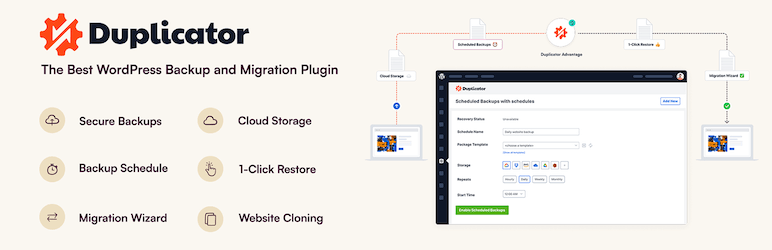
1. ติดตั้ง Duplicator และสร้างแพ็กเกจ
ติดตั้ง Duplicator
- Log in to the WordPress แดชบอร์ด.
- Go to “Plugins” > “Add New,” search for “Duplicator,” install it, and activate it.
Create a แพ็กเกจ
- Go to “Duplicator” > “Packages” and click the “Create New” button.
- Follow the แพ็กเกจ creation wizard to create a สำรองข้อมูล of the เว็บไซต์. Set a แพ็กเกจ name along the way and click the “Next” button.
- The system will run ตรวจสอบs, and if there are no problems, click the “Build” button. Once it finishes, the installer ไฟล์ and the archive ไฟล์ will be generated.
- Download the “Installer” and the “Archive.”
2. ย้ายไปยังเซิร์ฟเวอร์ใหม่
Upload the ไฟล์
- Connect to the new เซิร์ฟเวอร์ by FTP and อัปโหลด the ดาวน์โหลดed “Installer” and “Archive” ไฟล์.
Create a new ฐานข้อมูล
- Using the new เซิร์ฟเวอร์’s administration tools such as cPanel or Plesk, create a new ฐานข้อมูล and ฐานข้อมูล user. Make a note of that ข้อมูล.
3. Run the installer
Start the installer
- Access the URL of the new domain or เซิร์ฟเวอร์ and open the installer ไฟล์, for example
http://yournewdomain.com/installer.php. - The installer script will start. Enter the ฐานข้อมูล ข้อมูล and click the “Next” button.
Configure the ฐานข้อมูล
- Enter the ข้อมูล for the new ฐานข้อมูล you created earlier, including the ชื่อโฮสต์, ฐานข้อมูล name, ชื่อผู้ใช้, and รหัสผ่าน, then click the “Test Database” button to ยืนยัน the connection. If there are no problems, click the “Next” button.
Deploy the data
- A ยืนยันation screen for the installation destination will appear. If everything is fine, click the “Next” button. Importing the data into the ฐานข้อมูล will then begin.
Set the new URL
- Check the settings for the new URL and path, and revise them if necessary. Then click the “Next” button.
Finish the installation
- When the installation completion screen appears, review each step and click the “Log in to เว็บไซต์” button to log in to the new เว็บไซต์.
4. Check after การย้าย
อัปเดตการตั้งค่า permalink
- เข้าสู่ระบบแดชบอร์ด WordPress บนเว็บไซต์ใหม่ แล้วไปที่ “Settings” > “Permalinks”
- คลิกปุ่ม “Save Changes” เพื่อรีเฟรชการตั้งค่า permalink
ตรวจสอบการทำงานของเว็บไซต์
- ตรวจสอบแต่ละหน้าและฟังก์ชันของเว็บไซต์เพื่อยืนยันว่าการย้ายดำเนินการอย่างถูกต้อง
All-in-One WP Migration
This ปลั๊กอิน lets you gather the เว็บไซต์’s เนื้อหา into a single ไฟล์ by using นำเข้า and export functions, then ย้าย it to a new เว็บไซต์.
Its ease of use and its premium option, which makes it possible to ย้าย ไฟล์ beyond size limits, are especially attractive. It is particularly well suited to cases where you are planning a ย้าย to a new domain or โอนย้ายring a เว็บไซต์ between เซิร์ฟเวอร์s.

1. Install All-in-One WP Migration and export the เว็บไซต์
Install All-in-One WP Migration
- Log in to the WordPress แดชบอร์ด.
- Go to “Plugins” > “Add New,” search for “All-in-One WP Migration,” install it, and activate it.
Export the เว็บไซต์ data
- Go to “All-in-One WP Migration” > “Export.”
- Click the “Export To” button, เลือก “File,” and start the export.
- When the export is complete, ดาวน์โหลด the สำรองข้อมูล ไฟล์ that was created.
2. ย้ายไปยังเซิร์ฟเวอร์ใหม่
Install All-in-One WP Migration
- Log in to WordPress on the new เซิร์ฟเวอร์ and install and activate the “All-in-One WP Migration” ปลั๊กอิน there in the same way.
3. Import the เว็บไซต์ data
Import the เว็บไซต์ data
- Go to “All-in-One WP Migration” > “Import.”
- Click the “Import From” button, เลือก “File,” and อัปโหลด the สำรองข้อมูล ไฟล์ you ที่ส่งออก earlier.
- Once the อัปโหลด is complete, click the “Proceed” button to finish the นำเข้า process.
Restore the เว็บไซต์
- When the นำเข้า is complete, a message will appear telling you that the นำเข้า succeeded. Click “Finish.”
4. Check after การย้าย
อัปเดตการตั้งค่า permalink
- เข้าสู่ระบบแดชบอร์ด WordPress บนเว็บไซต์ใหม่ แล้วไปที่ “Settings” > “Permalinks”
- คลิกปุ่ม “Save Changes” เพื่อรีเฟรชการตั้งค่า permalink
ตรวจสอบการทำงานของเว็บไซต์
- ตรวจสอบแต่ละหน้าและฟังก์ชันของเว็บไซต์เพื่อยืนยันว่าการย้ายดำเนินการอย่างถูกต้อง
5. Verify เว็บไซต์ การทำงาน and ปรับแต่งต่อ
ตรวจสอบธีมและปลั๊กอิน
- ยืนยันว่าธีมและปลั๊กอินทำงานได้อย่างถูกต้องบนเซิร์ฟเวอร์ใหม่
- ตรวจสอบการตั้งค่าปลั๊กอินอีกครั้งและอัปเดตหากจำเป็น
ตรวจสอบรูปภาพและลิงก์
- ยืนยันว่ารูปภาพในคลังสื่อแสดงผลได้อย่างถูกต้อง
- ยืนยันว่าลิงก์ภายในเปลี่ยนเส้นทางได้อย่างถูกต้องไปยัง URL ของโดเมนหรือเซิร์ฟเวอร์ใหม่
UpdraftPlus
UpdraftPlus is a ปลั๊กอิน เชี่ยวชาญ in สำรองข้อมูล and restoration, but it also supports การย้าย to a new เว็บไซต์ by using those สำรองข้อมูล ไฟล์.
It offers rich options for อัตโนมัติ สำรองข้อมูลs and cloud storage, allowing you to keep your เว็บไซต์ data safe even during the การย้าย process. Because it can also protect the เว็บไซต์ through regular สำรองข้อมูลs after the การย้าย, it delivers two benefits at once.

1. Install UpdraftPlus and create a สำรองข้อมูล
Install UpdraftPlus
- Log in to the WordPress แดชบอร์ด.
- Go to “Plugins” > “Add New,” search for “UpdraftPlus,” install it, and activate it.
Create a สำรองข้อมูล
- Go to “Settings” > “UpdraftPlus Backups.”
- Click the “Backup Now” button to start the สำรองข้อมูล.
- Check both “Backup ฐานข้อมูล” and “Backup ไฟล์,” then click the “Backup Now” button.
- Once the สำรองข้อมูล is complete, go to the “Backup / Restore” tab and ดาวน์โหลด the สำรองข้อมูล you created. The necessary ไฟล์ are “Database,” “Plugins,” “Themes,” “Uploads,” and “Others.”
2. ย้ายไปยังเซิร์ฟเวอร์ใหม่
Install UpdraftPlus
- Log in to WordPress on the new เซิร์ฟเวอร์ and install and activate the “UpdraftPlus” ปลั๊กอิน there in the same way.
3. Upload the สำรองข้อมูล ไฟล์ and กู้คืน them
Upload the สำรองข้อมูล ไฟล์
- In the WordPress แดชบอร์ด on the new เซิร์ฟเวอร์, go to “Settings” > “UpdraftPlus Backups.”
- Go to the “Backup / Restore” tab and click the “Upload สำรองข้อมูล ไฟล์” button.
- Upload each of the สำรองข้อมูล ไฟล์ you ดาวน์โหลดed earlier one by one.
Restore the เว็บไซต์ data
- After the อัปโหลดs are complete, select the สำรองข้อมูล shown in the “Existing Backups” section and click the “Restore” button.
- Select the components to กู้คืน, such as the ฐานข้อมูล, ปลั๊กอิน, ธีม, อัปโหลดs, and others, and click the “Next” button.
- Wait until the กระบวนการกู้คืน finishes. When it is done, you will see a “Restore successful” message.
4. Check after การย้าย
อัปเดตการตั้งค่า permalink
- เข้าสู่ระบบแดชบอร์ด WordPress บนเว็บไซต์ใหม่ แล้วไปที่ “Settings” > “Permalinks”
- คลิกปุ่ม “Save Changes” เพื่อรีเฟรชการตั้งค่า permalink
ตรวจสอบการทำงานของเว็บไซต์
- ตรวจสอบแต่ละหน้าและฟังก์ชันของเว็บไซต์เพื่อยืนยันว่าการย้ายดำเนินการอย่างถูกต้อง
5. Verify เว็บไซต์ การทำงาน and ปรับแต่งต่อ
ตรวจสอบธีมและปลั๊กอิน
- ยืนยันว่าธีมและปลั๊กอินทำงานได้อย่างถูกต้องบนเซิร์ฟเวอร์ใหม่
- ตรวจสอบการตั้งค่าปลั๊กอินอีกครั้งและอัปเดตหากจำเป็น
ตรวจสอบรูปภาพและลิงก์
- ยืนยันว่ารูปภาพในคลังสื่อแสดงผลได้อย่างถูกต้อง
- ยืนยันว่าลิงก์ภายในเปลี่ยนเส้นทางได้อย่างถูกต้องไปยัง URL ของโดเมนหรือเซิร์ฟเวอร์ใหม่
WP Migrate DB
WP Migrate DB specializes in ฐานข้อมูล การย้าย.
It can อัตโนมัติally replace ฐานข้อมูล values to match the new URL and makes export and นำเข้า ง่าย. It is ideal for developers and users with a more technical background, and it allows detailed ฐานข้อมูล customization and การย้าย.

1. Install WP Migrate DB and export the ฐานข้อมูล
Install WP Migrate DB
- Log in to the WordPress แดชบอร์ด.
- Go to “Plugins” > “Add New,” search for “WP Migrate DB,” install it, and activate it.
Export the ฐานข้อมูล
- Go to “Tools” > “Migrate DB.”
- Enter the new เว็บไซต์’s URL and path into the “Find what:” and “Replace with:” fields.
- Click the “Export Database” button and ดาวน์โหลด the ที่ส่งออก ฐานข้อมูล ไฟล์.
2. ย้ายไปยังเซิร์ฟเวอร์ใหม่
เตรียมเซิร์ฟเวอร์ใหม่
- ติดตั้ง WordPress บนเซิร์ฟเวอร์ใหม่
- สร้างฐานข้อมูลใหม่และจดข้อมูลฐานข้อมูลไว้ รวมถึงชื่อโฮสต์ ชื่อฐานข้อมูล ชื่อผู้ใช้ และรหัสผ่าน
ย้ายไฟล์ที่มีอยู่
- ดาวน์โหลดโฟลเดอร์ “wp-content” จากเซิร์ฟเวอร์ต้นทาง แล้วอัปโหลดไปยังตำแหน่งเดียวกันบนเซิร์ฟเวอร์ใหม่ วิธีนี้ทำได้ง่ายหากใช้ FTP client
3. นำเข้าฐานข้อมูล
นำเข้าฐานข้อมูล
- เข้าสู่ระบบ phpMyAdmin บนเซิร์ฟเวอร์ใหม่และเลือกฐานข้อมูลใหม่
- คลิกแท็บ “Import” อัปโหลดไฟล์ฐานข้อมูลที่ส่งออกไว้ก่อนหน้านี้ แล้วนำเข้าไฟล์นั้น
4. แก้ไขไฟล์ wp-config.php
แก้ไข wp-config.php
- แก้ไขไฟล์ “wp-config.php” บนเซิร์ฟเวอร์ใหม่ แล้วอัปเดตชื่อฐานข้อมูล ชื่อผู้ใช้ รหัสผ่าน และชื่อโฮสต์ด้วยข้อมูลของฐานข้อมูลใหม่
Copy the PHP codedefine('DB_NAME', 'new_ฐานข้อมูล_name'); define('DB_USER', 'new_ฐานข้อมูล_user_name'); define('DB_PASSWORD', 'new_ฐานข้อมูล_รหัสผ่าน'); define('DB_HOST', 'new_ฐานข้อมูล_โฮสต์_name');
5. ตรวจสอบหลังการย้าย
อัปเดตการตั้งค่า permalink
- เข้าสู่ระบบแดชบอร์ด WordPress บนเว็บไซต์ใหม่ แล้วไปที่ “Settings” > “Permalinks”
- คลิกปุ่ม “Save Changes” เพื่อรีเฟรชการตั้งค่า permalink
ตรวจสอบการทำงานของเว็บไซต์
- ตรวจสอบแต่ละหน้าและฟังก์ชันของเว็บไซต์เพื่อยืนยันว่าการย้ายดำเนินการอย่างถูกต้อง
6. ยืนยันการทำงานของเว็บไซต์และปรับแต่งต่อ
ตรวจสอบธีมและปลั๊กอิน
- ยืนยันว่าธีมและปลั๊กอินทำงานได้อย่างถูกต้องบนเซิร์ฟเวอร์ใหม่
- ตรวจสอบการตั้งค่าปลั๊กอินอีกครั้งและอัปเดตหากจำเป็น
ตรวจสอบรูปภาพและลิงก์
- ยืนยันว่ารูปภาพในคลังสื่อแสดงผลได้อย่างถูกต้อง
- ยืนยันว่าลิงก์ภายในเปลี่ยนเส้นทางได้อย่างถูกต้องไปยัง URL ของโดเมนหรือเซิร์ฟเวอร์ใหม่
Migrate Guru
Migrate Guru เชี่ยวชาญสำหรับเว็บไซต์ขนาดใหญ่และสามารถดำเนินการย้ายเว็บไซต์โดยอัตโนมัติในขณะที่คงภาระเซิร์ฟเวอร์ให้น้อยที่สุด
เทคโนโลยีเฉพาะของมันช่วยเร่งกระบวนการย้ายอย่างมาก ทำให้สามารถย้ายเว็บไซต์ WordPress ขนาดใหญ่ได้อย่างง่ายดายและรวดเร็ว
1. Install Migrate Guru
Install Migrate Guru
- Log in to the WordPress แดชบอร์ด.
- Go to “Plugins” > “Add New,” search for “Migrate Guru,” install it, and activate it.
2. Prepare for the การย้าย
Prepare the destination
- Install WordPress on the destination เซิร์ฟเวอร์ in advance.
- Confirm the destination เซิร์ฟเวอร์ ข้อมูล, including the FTP ข้อมูล, ชื่อโฮสต์, ชื่อผู้ใช้, and รหัสผ่าน.
3. Configure Migrate Guru and start the การย้าย
Start Migrate Guru
- In the WordPress แดชบอร์ด, go to “Migrate Guru” > “Migrate Site.”
- Select the type of destination, such as cPanel, FTP, SFTP, or WebHost Manager.
Enter the destination ข้อมูล
- Enter the ข้อมูล for the destination เซิร์ฟเวอร์. For example, if you are using FTP, enter the ชื่อโฮสต์, FTP ชื่อผู้ใช้, and FTP รหัสผ่าน.
- Enter the destination URL and click the “Migrate” button.
Confirm the การย้าย
- Migrate Guru starts the การย้าย process and displays its progress. Wait until the การย้าย is complete.
4. Check after การย้าย
Confirm completion of the การย้าย
- When the การย้าย finishes, you will receive a notification from Migrate Guru. Access the destination เว็บไซต์ and ยืนยัน that it was ย้ายd correctly.
อัปเดตการตั้งค่า permalink
- เข้าสู่ระบบแดชบอร์ด WordPress บนเว็บไซต์ใหม่ แล้วไปที่ “Settings” > “Permalinks”
- คลิกปุ่ม “Save Changes” เพื่อรีเฟรชการตั้งค่า permalink
5. Verify เว็บไซต์ การทำงาน and ปรับแต่งต่อ
ตรวจสอบธีมและปลั๊กอิน
- ยืนยันว่าธีมและปลั๊กอินทำงานได้อย่างถูกต้องบนเซิร์ฟเวอร์ใหม่
- ตรวจสอบการตั้งค่าปลั๊กอินอีกครั้งและอัปเดตหากจำเป็น
ตรวจสอบรูปภาพและลิงก์
- ยืนยันว่ารูปภาพในคลังสื่อแสดงผลได้อย่างถูกต้อง
- ยืนยันว่าลิงก์ภายในเปลี่ยนเส้นทางได้อย่างถูกต้องไปยัง URL ของโดเมนหรือเซิร์ฟเวอร์ใหม่
Additional advice for successful การย้าย WordPress

Prepare thoroughly
Before starting the การย้าย, it is นำเข้าant to อัปเดต ปลั๊กอิน and ธีม and clean out unnecessary data.
Testing is essential
Before the การย้าย, test the process in a staging เว็บไซต์ or local environment and ยืนยัน that there are no problems.
Protect SEO
If the URL structure changes during the การย้าย, set appropriate redirects and อัปเดต the เว็บไซต์map so that you can prevent a decline in SEO rankings.
Check ประสิทธิภาพ
After moving to the new เซิร์ฟเวอร์ environment, ยืนยัน that there is no negative effect on เว็บไซต์ ความเร็ว or user experience and ปรับแต่ง as needed.
Server-company การย้าย is recommended over WordPress-ปลั๊กอิน การย้าย
Using WordPress ปลั๊กอิน for การย้าย inevitably leaves some anxiety. Rather than failing the การย้าย and wasting time and effort, I recommend using a เซิร์ฟเวอร์ company that provides การย้าย tools or low-cost การย้าย support.
XServer Business
If you are a corporation, I recommend XServer Business. It ย้ายs your เซิร์ฟเวอร์ free of charge. Because the ย้าย is done by the เซิร์ฟเวอร์ company itself, there is no risk of failing the การย้าย WordPress. If your company has the budget, use XServer Business rather than spending extra time and effort on the ย้าย yourself.
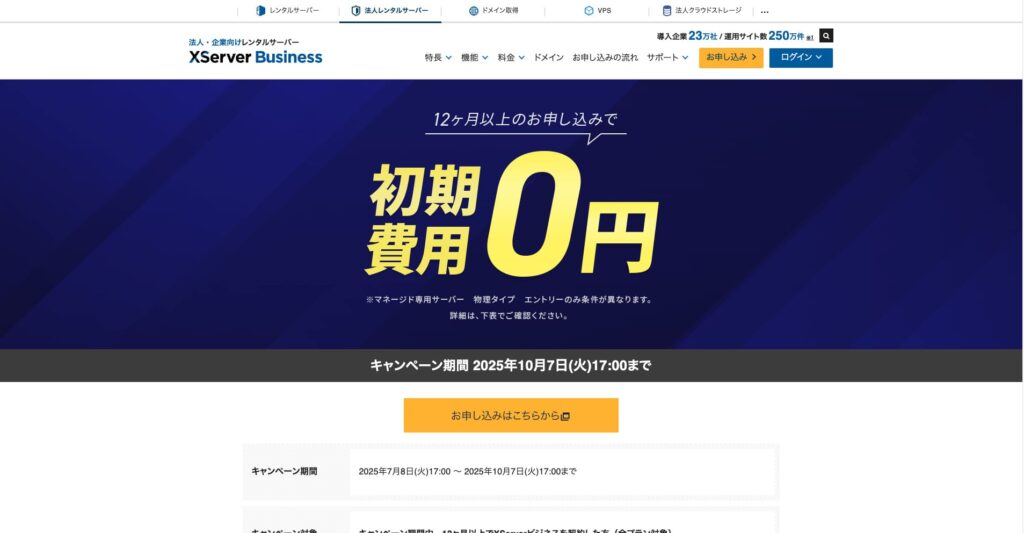
“XServer Business” is the corporate เซิร์ฟเวอร์ from Xเซิร์ฟเวอร์ Inc., which holds the No. 1 domestic share. In our measurements, it ranked No. 2 for display ความเร็ว. It is one of the best choices as a การย้าย destination. Server การย้าย is also free.
Until October 7, 2025, the initial fee (normally from 16,500 yen to 385,000 yen) is free, and เซิร์ฟเวอร์ การย้าย service is also free.
Xserver
XServer is a เซิร์ฟเวอร์ for individuals that comes with การย้าย tools. You can ย้าย WordPress by using its “Easy WordPress Migration” feature.
I have actually used that function myself to ย้าย WordPress. The ย้าย went smoothly.
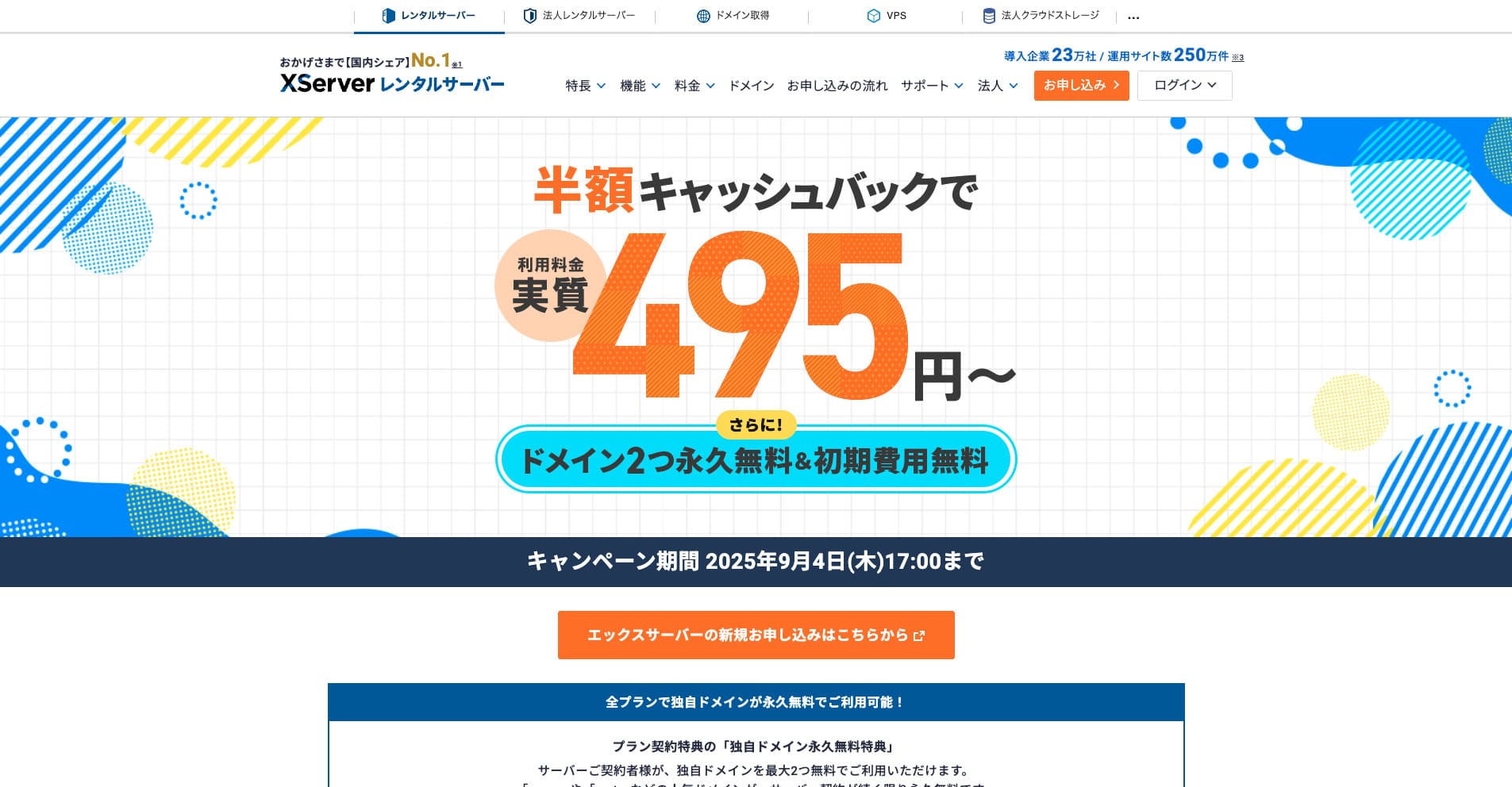
“Xเซิร์ฟเวอร์” is a long-established high-ความเร็ว rental เซิร์ฟเวอร์ with the No. 1 domestic market share. It is popular with both individuals and companies. Honestly, it has no real drawbacks, and its stability, features, and support are all excellent. With cashback, you can use it from an effective 495 yen.
Until September 34, 2025, it offers half-price cashback and a 10-day free trial.
★ Xเซิร์ฟเวอร์’s reputation and how to start WordPress with its strong support system
ConoHa WING
ConoHa WING is a เซิร์ฟเวอร์ that includes การย้าย WordPress functionality and is also used by this เว็บไซต์. If you use “Easy WordPress Setup,” anyone can ย้าย WordPress without difficult settings.
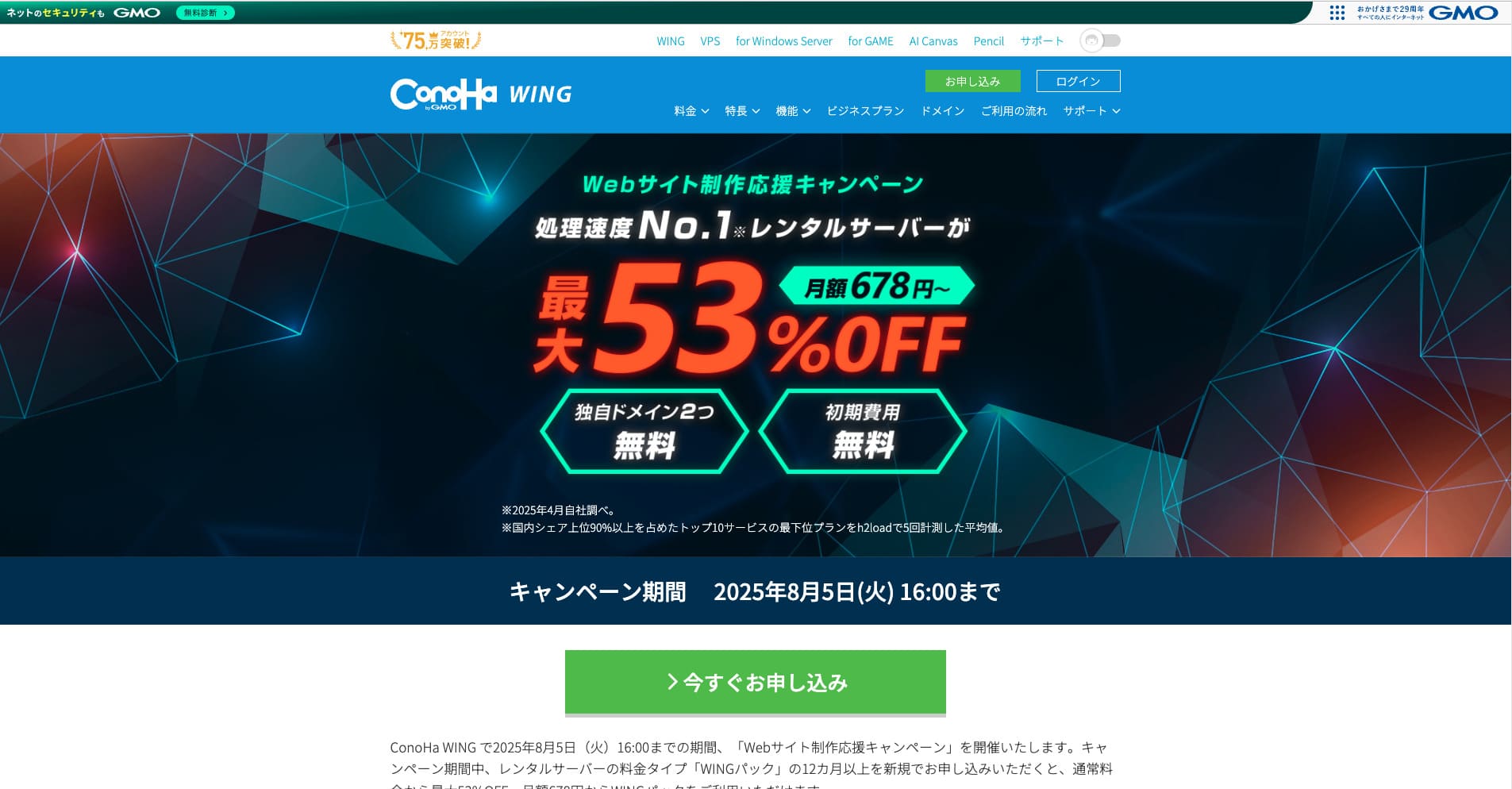
“ConoHa WING” is a high-ความเร็ว เซิร์ฟเวอร์ from the GMO Internet Group, and its number of users is rapidly increasing. Because WordPress is preinstalled when you sign up for the เซิร์ฟเวอร์, anyone can get started easily. It offers a good balance between cost and ประสิทธิภาพ, and our company uses it as well.
Until August 5, 2025, เซิร์ฟเวอร์ fees are up to 53% off, two domains are free forever, and the first month is free.
★ How to launch a homepage in 10 minutes: ConoHa WING’s reputation and how to start WordPress with it
ColorfulBox
ColorfulBox is a เซิร์ฟเวอร์ that lets you use the cPanel management panel, which includes การย้ายเว็บไซต์ functions. Right now, การย้าย WordPress service is free. Because the เซิร์ฟเวอร์ company performs the การย้าย for you, you can ย้าย WordPress with confidence.
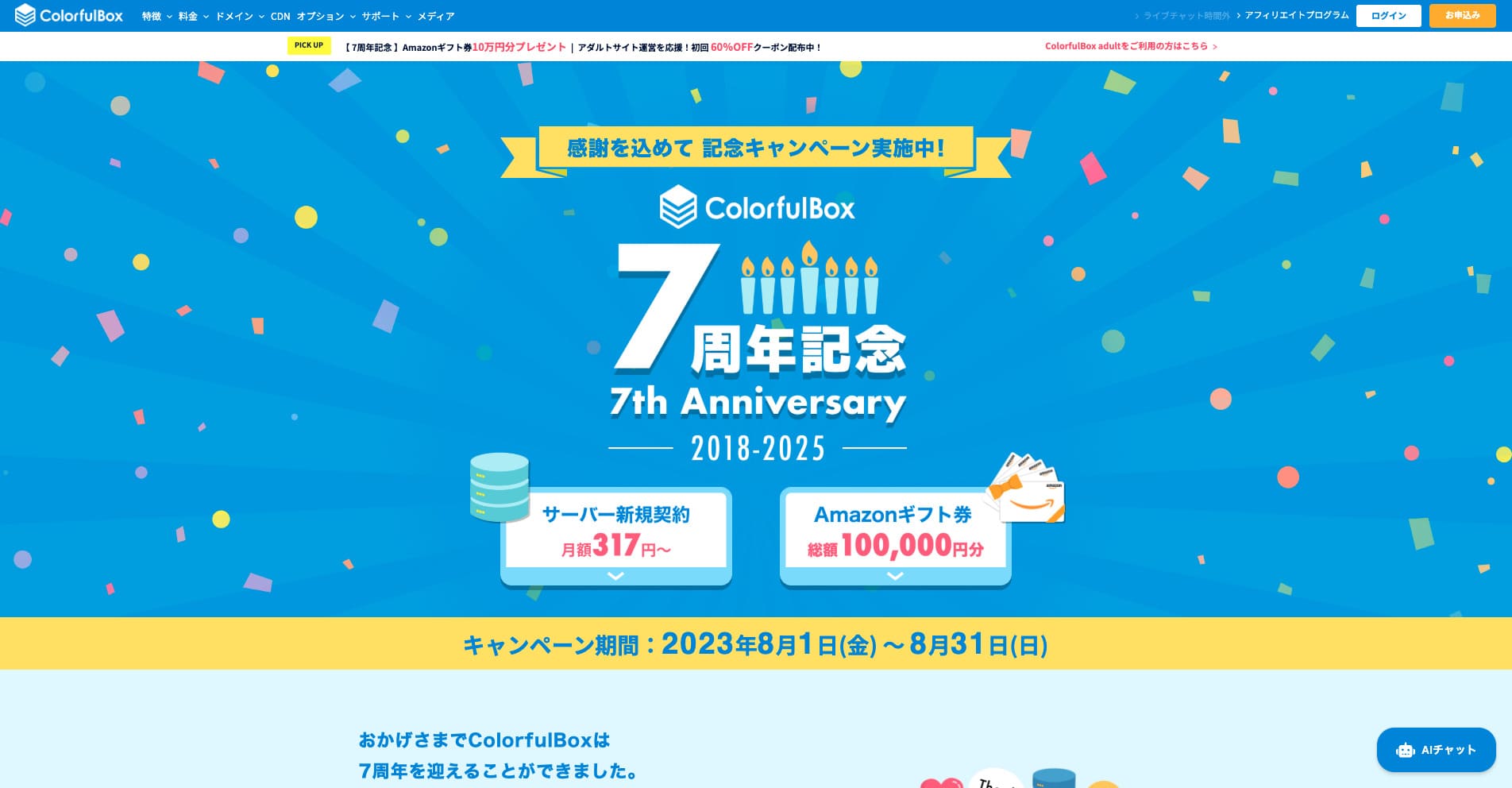
“ColorfulBox” is a reassuring เซิร์ฟเวอร์ with excellent region-based อัตโนมัติ สำรองข้อมูลs. It offers eight plans, allowing you to use the ประสิทธิภาพ you need without waste. It is also one of the few rental เซิร์ฟเวอร์s that offers support around the clock.
Until August 31, 2025, เซิร์ฟเวอร์ fees are up to 50% off, you can receive an Amazon gift card worth up to 10,000 yen, and there is also a 30-day free trial.
Lolipop!
LOLIPOP is an inexpensive and ง่าย-to-use เซิร์ฟเวอร์ that has การย้าย WordPress functionality. Its “Easy WordPress Move (Server Migration)” feature can be used on the Lite plan and above.
I have also ย้ายd WordPress with Lolipop! myself. The ย้าย completed without any problem.
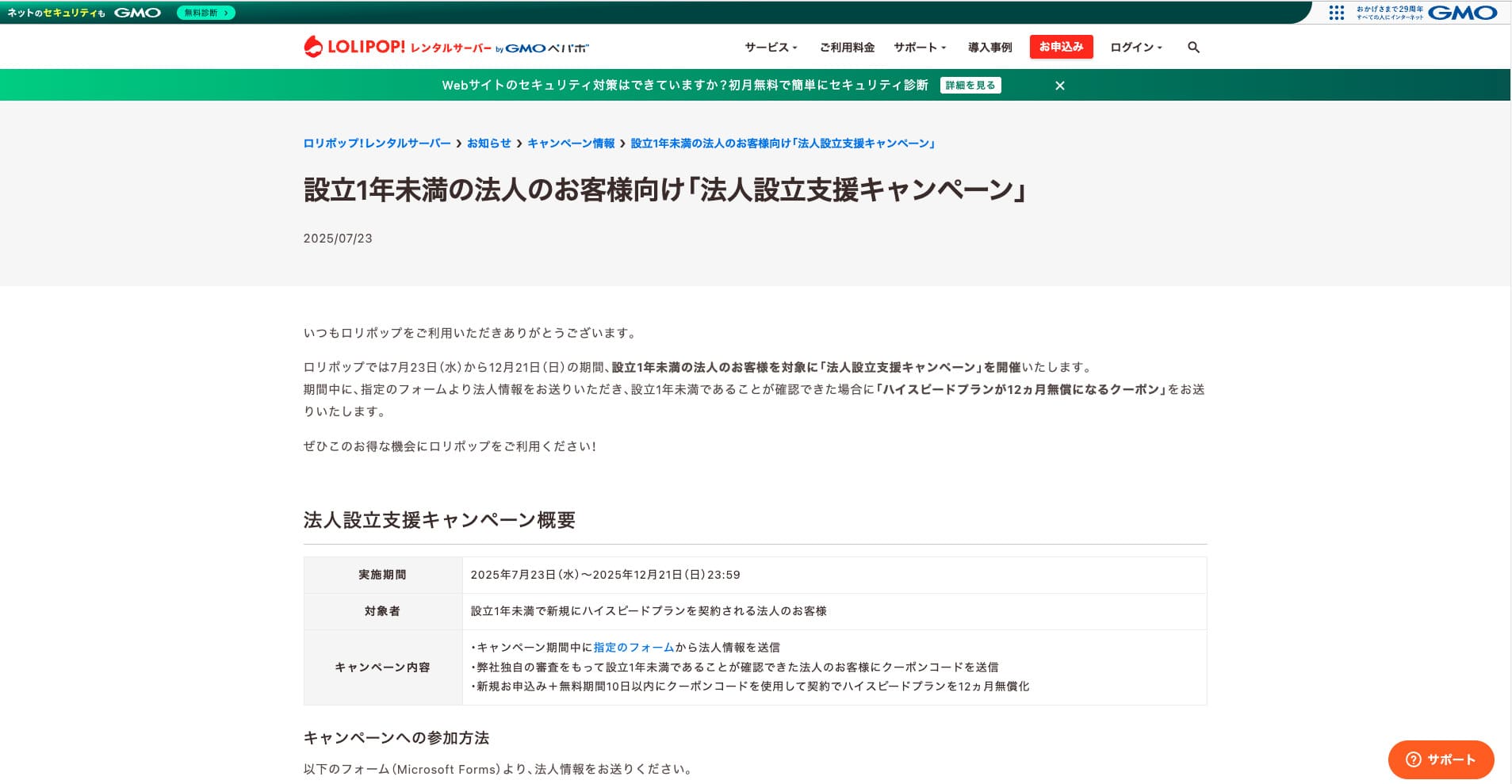
“Lolipop!” is a popular long-established rental เซิร์ฟเวอร์ available at a low price. Even with its 99.99% uptime, the Lite plan that supports WordPress can be used from 264 yen per month. Every plan offers strong cost ประสิทธิภาพ.
Until December 21, corporations established less than one year ago can use the High Speed plan free for 12 months, and contracts of 12 months or longer receive one domain for free forever, along with a 10-day free trial.
★ Bad evaluations are a thing of the past: four reviews of Lolipop! and how to start WordPress with it
Summary
Migrating a WordPress เว็บไซต์ can be made far easier and safer through the right ปลั๊กอิน and proper preparation in advance.
By making use of the ปลั๊กอิน introduced in this บทความ and putting the additional advice into practice, you can ย้าย your own เว็บไซต์ smoothly into a new environment. When you ย้าย a เว็บไซต์, be sure to make use of these tools and techniques.
However, if you are worried about การย้าย WordPress, use a เซิร์ฟเวอร์ that provides การย้าย tools or การย้าย support.
Complete Comparison of 32 WordPress Hosting Services for Individuals, Companies, and Overseas Use
When you think, “I want to start WordPress,” and search for “WordPress recommendations,” you find all kinds of บทความs covering personal โฮสต์ing, options for companies and small businesses, overseas โฮสต์ing, and low-cost เซิร์ฟเวอร์s. Honestly,
- which เว็บไซต์ should you trust?
- you may just want a เรียบง่าย and understandable answer.
- you may want to get started with WordPress right away.
That is why this บทความ carefully selects recommended choices from 32 โฮสต์ing providers for individuals, companies, domestic use, and overseas use. It is explained by the SEO lead at an app development company that uses โฮสต์ing every day.