
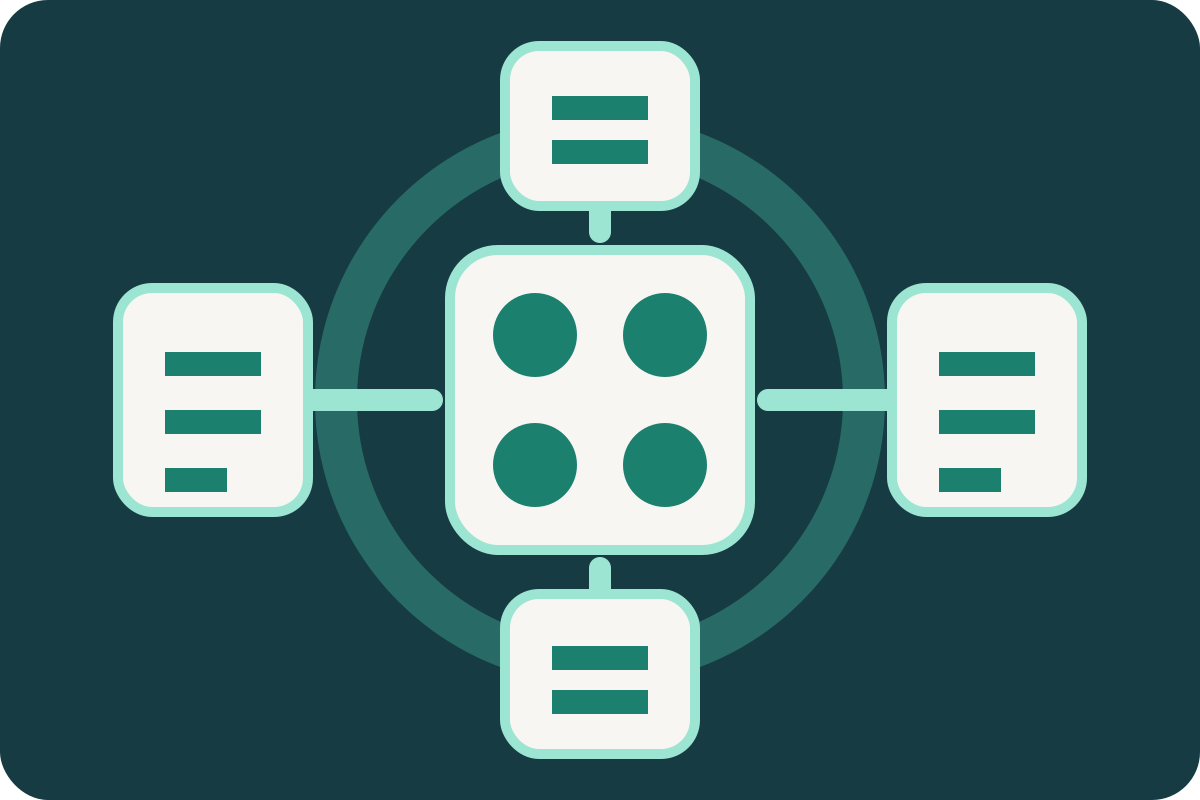
導入前に確認する6原則
インストール数ではなく、目的と運用責任を減らせるかで判断します。「pluginが多いから遅い」「公式Directoryなら安全」と個数・配布元だけで結論を出さず、実際の処理、権限、通信、更新可能性を見ます。
目的と成功条件
追加したい機能、利用者、必須要件、非対象、測定方法を一文で定義します。core、theme、hosting、既存pluginで満たせるなら重複導入しません。
確認例目的:会員だけにPDFを配信/成功:未認証URLでは取得不可
配布元と保守主体
WordPress.org Directory、開発元公式サイト、契約marketplaceなど取得元を固定し、author、support窓口、changelog、license、更新署名・配信経路を確認します。
確認例source・author・support・license・update channel
互換性と依存関係
Requires at least、Requires PHP、Tested up to、必要extension、theme、他plugin、外部APIを確認します。tested up toは動作保証そのものではなく、実サイト構成で試験します。
確認例WordPress / PHP / DB / theme / dependencies / SaaS
権限・通信・データ
管理権限、REST endpoint、cron、file書込、database table、Cookie、個人情報、外部送信、tracking、API keyを棚卸しし、privacy policyと利用規約を確認します。
確認例capability・endpoint・table・external host・personal data
性能と重複処理
frontend asset、query、HTTP request、cron、cache purge、admin処理を測ります。plugin数ではなく、同じ最適化・security・SEO処理の重複と遅い処理を特定します。
確認例baseline → activate → page・admin・cron・logを比較
終了・移行・復元
無効化と削除の違い、作成data・shortcode・block・table・file・accountが残るか、export方法、代替pluginへの移行、rollback可能なbackupを確認します。
確認例disable / uninstall / export / restore / replacement
用途と責任範囲を分類する
同じカテゴリのpluginを複数入れるほど良いわけではありません。機能ownerを一つに決め、重なり、外部依存、障害時影響を記録します。以下は製品推薦ではなく構成を考える分類です。
入力・業務機能
form / reservation / commerce / membership
入力validation、spam対策、mail delivery、payment、在庫、権限、個人情報保持を含みます。画面だけでなく失敗時の再送、監査log、data export・deleteを確認します。
表示・編集機能
block / custom post type / gallery / multilingual
contentへshortcode、block、metadataを保存する場合、plugin停止で本文が壊れないか確認します。theme側の同機能やeditor extensionとの競合も見ます。
検索・共有・分析
SEO / sitemap / schema / analytics / social
title、canonical、robots、sitemap、structured data、tracking scriptを複数pluginが重複出力しないようownerを決めます。効果を順位保証として扱いません。
性能最適化
cache / minify / image / CDN / database cleanup
hostingやCDNの機能と重ねると、古いcache、二重圧縮、script順序変更、管理画面除外漏れが起きます。変更前後の表示とserver指標を測ります。
security・backup
WAF / login / scan / backup / restore
防御層にはなりますが完全保証ではありません。server・CDN側対策と責任を分け、lockout時の復旧経路、backupの保管先と復元試験を用意します。
連携・自動化
mail / CRM / API / webhook / scheduled task
外部service障害、rate limit、credential期限、webhook署名、retry重複、送信data、費用を確認します。plugin停止だけでは外部accountや保存dataが消えない場合があります。
must-use plugin、drop-in、theme組込み機能は通常pluginと操作方法が異なる
mu-pluginは特別なdirectoryから自動有効化され、通常のInstalled Plugins一覧と同じ方法で無効化できない場合があります。object-cache.php等のdrop-in、hostingが強制するplugin、theme同梱機能もあります。管理画面のactive一覧だけを完全な構成表とせず、filesystem、hosting設定、deployment定義を含めてinventoryを作ります。
候補を比較する情報
評価、active installations、最終更新日だけでは決められません。WordPress.org Directoryのreadme metadataは候補を絞る材料ですが、サイト固有の互換性、security、support、data lifecycleを別途検証します。公式Directory掲載は無欠陥や将来保守を保証しません。
| 項目 | 表示・確認例 | 判断方法 |
|---|---|---|
| 目的・重複 | required feature / existing owner | 必須機能を満たす最小構成か。core、theme、hosting、既存pluginと同じ処理を二重化しないか確認する |
| 実行要件 | Requires at least / Requires PHP | 本番・stagingのWordPress、PHP、database、extension、multisite要件に合うか。upgrade計画と矛盾しないか確認する |
| 検証範囲 | Tested up to / changelog | 最近のmajor WordPressで開発元が検証した表示か、release内容と既知問題を読む。表示値だけを動作保証にしない |
| 保守・support | last updated / support / owner | 更新頻度より、security連絡先、issue対応、release note、事業継続性、契約support、引継可能性を見る |
| 依存・外部service | Requires Plugins / API / account / price | 親plugin、addon、外部SaaS、license server、payment、mail等の停止・値上げ・認証切れがサイトへ与える影響を確認する |
| data・終了条件 | tables / options / files / export / uninstall | 保存場所、個人情報、retention、削除時残留、export、代替製品への移行、契約終了後の閲覧可否を確認する |
評価とreview
同じversion・用途・環境のreviewか、support依頼を評価欄へ混ぜていないかを読みます。星の平均だけでsecurityやcompatibilityを判断しません。
active installations
利用規模は運用実績の参考ですが、自サイトの要件適合やcode品質を証明しません。巨大pluginが小規模要件に適するとも限りません。
最終更新日
長期間更新がないことは確認材料ですが、単純なpluginは変更不要な場合もあります。対応WordPress、issue、脆弱性、owner活動を合わせて見ます。
freeとpremium
有料なら安全・高速とは限りません。license更新、support期間、site数、staging利用、機能制限、data export、解約後動作を契約で確認します。
自動更新・手動更新・延期を選び分ける
更新しないことにもsecurity riskがあり、無検証で即時更新することにも互換riskがあります。pluginごとに重要度、変更影響、検証自動化、復旧時間、security情報を基に方針を決めます。WordPressはpluginごとのauto-updateを管理できますが、全pluginへ同じ方針を当てる必要はありません。
自動更新を検討しやすい条件
- 変更範囲が小さく、外部公開面を持つためsecurity修正を早く適用したい
- stagingまたは自動testがあり、更新後のhealth checkと通知を実行できる
- 完全なbackupと短時間のrollback手順が実証されている
- vendorのrelease品質と互換方針を継続観測している
- 決済・会員・予約等の重要導線をsynthetic monitoringで検知できる
手動承認・段階反映が必要な条件
- major release、database migration、editor・checkout・authenticationの大幅変更を含む
- themeや複数addonとの依存が強く、対応versionの組合せが限定される
- 更新時にcache purge、index再構築、外部API変更、manual migrationが必要
- rollbackでdatabase・order・member dataの整合性を失う可能性がある
- 変更内容、必要version、既知問題、support情報が不足している
「backupがある」は、復元できることを確認して初めて更新条件になる
fileだけでなくdatabase、uploads、configuration、外部service状態を含む復旧点が必要です。backupの完了表示だけでなく、別環境へのrestore、所要時間、更新後に発生した注文・投稿・申込をどう扱うかを確認します。security緊急更新では、待つriskと反映riskを評価し、maintenance、WAF等の一時対策も検討します。
競合を安全に切り分ける6ステップ
競合はplugin同士だけでなく、theme、WordPress core、PHP、browser、cache、CDN、外部API、server設定との組合せで生じます。productionで手当たり次第に停止せず、症状を再現できるstagingまたは影響を限定するtroubleshooting環境で調べます。
- 1
症状と直前変更を固定する
URL、user role、device、時刻、操作、期待値、実際値、HTTP status、console・PHP log、直前のcore・theme・plugin・PHP・設定変更を記録します。cacheを消しただけで原因消失としません。
- 2
復元点と検証環境を用意する
file・databaseのbackupとrestore手順を確認し、個人情報を適切に処理したstagingへ複製します。決済、mail、webhook、search indexing等の外部送信をtest modeまたは遮断します。
- 3
cacheと環境差を分離する
browser、page cache、object cache、CDN、OPcache等を識別して必要な層だけ無効化・purgeします。PHP version、extension、memory、theme、environment variableを本番と比較します。
- 4
既定theme・plugin停止で基準を作る
検証環境で通常pluginを全停止し、既定themeへ切り替えて症状が消えるか確認します。管理画面へ入れない場合は公式Troubleshootingのdirectory rename等を検討し、mu-plugin・drop-inが残る点に注意します。
- 5
半分ずつ有効化して組合せを絞る
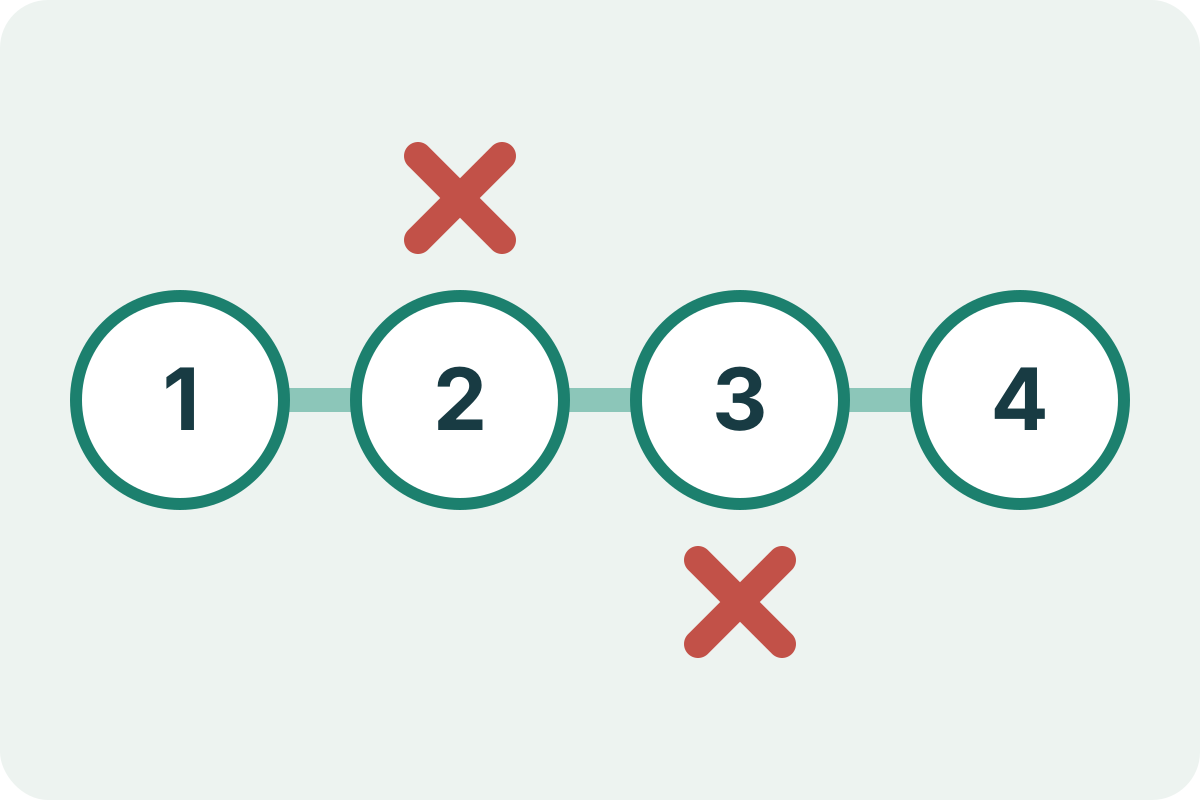
一つずつ戻すより、候補の半分を有効化する二分探索で範囲を絞れます。単体では再現せずA+Bで発生する場合があるため、原因候補、相手、順序、設定値を記録します。
- 6
恒久対応と再発testを決める
設定変更、version固定、代替plugin、theme修正、vendor報告のどれを選ぶか判断します。code変更はchild themeやcustom plugin等の正規管理へ置き、core・配布pluginを直接編集しません。再現操作を回帰testへします。
本番で全plugin停止が許されない場合
maintenance window、trafficの少ない時間、canary環境、Health Checkのtroubleshooting mode等を使い、一般利用者への影響を限定します。payment・reservation・membershipでは、停止中のtransactionやwebhookを失わない手順が必要です。操作権限、作業記録、復旧判断者も事前に決めます。
更新・検証・復旧の基本
管理画面の「更新」クリックだけを作業単位にしません。変更内容を読み、復元点を作り、同じ構成で検証し、段階反映し、利用者導線とserver状態を監視するところまでを一つのreleaseにします。
1. inventoryと変更内容
plugin slug・version、core・PHP・theme・依存、license、auto-update、ownerを記録します。changelog、security advisory、breaking change、migration、必要backup、既知問題を読みます。
2. 復元可能なbackup
database、plugin・theme、uploads、wp-config、server設定を対象にし、保存先、暗号化、保持期間、restore手順、RPO・RTOを確認します。外部SaaS dataも別管理です。
3. stagingで更新
productionと同じversion・設定で一pluginずつ更新します。activation hook、database migration、cron、cache、background jobの完了を待ち、PHP・application logを確認します。
4. 重要導線test
公開ページ、login、editor、form、mail、search、checkout、会員、API、mobile、accessibilityを対象にします。見た目だけでなく保存data、権限、status、performanceを比較します。
5. 本番へ段階反映
maintenance、backup時刻、担当者、順序、cache purge、migration、rollback thresholdを共有します。大量一括更新は原因特定を難しくするため、影響の大きいpluginは分けます。
6. 更新後監視
5xx、PHP error、latency、database、cron、queue、mail、payment、form conversion、security eventを監視します。成功表示だけで完了せず、一定時間後のscheduled taskも確認します。
rollbackは旧plugin fileへ戻すだけでは完了しない
更新がdatabase schemaやdata形式を書き換えた場合、codeだけdowngradeすると不整合が残ります。vendorのdowngrade可否を確認し、必要ならdatabaseを含むbackupから復元します。更新後に受けた注文、申込、投稿を失う場合は、停止・差分移行・手動再処理の判断が必要です。
競合と更新の流れを図で確認する
製品管理画面は版によって変わるため、ここでは特定UIのスクリーンショットではなく、どのpluginにも適用できる切り分け・復旧順序をコードネイティブな図で示します。

事実確認に用いたWordPress公式資料
定義、管理UI、Directory metadata、依存関係、競合切り分け、security、backupを別資料で確認しました。公式Directory規約や表示情報は安全性の保証ではなく、選定時の入力です。
- WordPress Plugin Handbook:What is a Plugin?
- WordPress Documentation:Manage Plugins
- WordPress Plugin Handbook:Plugin Readmes
- WordPress Plugin Handbook:Detailed Plugin Guidelines
- Make WordPress Core:Introducing Plugin Dependencies in WordPress 6.5
- Learn WordPress:Plugin and theme conflicts
- WordPress Documentation:FAQ Troubleshooting
- WordPress Advanced Administration:Hardening WordPress
- WordPress Advanced Administration:Backups
WordPressプラグインのよくある質問
WordPressプラグインは必ず必要ですか?
必ずではありません。core、theme、hostingで要件を満たせるなら追加不要です。不足する機能と運用責任が明確な場合だけ導入します。
プラグインは何個までなら安全ですか?
一律の上限はありません。個数より、各pluginのquery、外部通信、cron、asset、権限、重複処理、保守状況を測ります。1個でも重い・危険な場合があります。
WordPress.org公式Directoryのpluginなら安全ですか?
Directoryは取得元の重要な候補ですが、無欠陥や将来の保守を保証しません。要件、更新、脆弱性、権限、通信、data、supportを自分の構成で確認します。
競合が起きたら全pluginを停止してよいですか?
本番で無計画に停止しません。backupとstagingを用意し、外部送信を止め、基準構成から二分探索します。管理画面へ入れない場合は公式復旧手順を使います。
自動更新は有効にすべきですか?
pluginごとに判断します。検証・backup・監視・rollbackが自動化された低影響pluginでは有効ですが、database migrationや重要導線を持つpluginは段階的な手動承認が適します。
使っていないpluginは無効化だけでよいですか?
不要なら削除を検討します。ただし削除前にdata export、shortcode・block、table・file、外部account、license、再導入方法を確認します。無効化とuninstallの挙動はpluginごとに異なります。
プラグイン運用の関連ガイド
まとめ:プラグインを追加コードではなく運用依存として管理する
WordPressプラグインはcoreを直接変更せず機能を拡張する仕組みですが、code、権限、data、外部通信、依存関係、更新経路をサイトへ追加します。目的とownerを一つにし、Requires at least・PHP・Tested up to・依存・privacy・data出口を確認してください。競合はbackupのある検証環境で基準構成と二分探索により切り分け、更新はchangelog、復元点、staging、重要導線test、段階反映、監視、data整合を含むreleaseとして扱います。
執筆・事実確認
Finite Field 編集部
WordPressの構築、plugin開発、保守、security、performance、障害対応を扱う編集部が、WordPress.org、Developer Resources、Make WordPress Core、Learn WordPressの一次資料・公式資料を照合しました。
WordPressプラグイン構成・保守の相談
追加・更新のたびに不安定になる構成を整理します
同じ機能のpluginが重複している、更新できないpluginがある、競合原因を特定できない、外部serviceとdataの依存が不明、backupはあるがrestoreしたことがない場合に、inventory、責任分界、staging、test、監視、更新・rollback手順を整備します。
個別開発を相談対象サイト、契約、plugin license、個人情報、外部service、保守権限、復旧要件を確認したうえで対応可否をご案内します。完全な互換性、脆弱性ゼロ、無停止、特定の速度・順位を事前に保証するものではありません。