30 दिवसांची पैसे परत हमी
PR
सर्व्हर
GoDaddy पुनरावलोकन: फायदे, तोटे, WordPress सेटअप आणि रद्द करण्याची प्रक्रिया यांचे सविस्तर स्पष्टीकरण
प्रकाशित: 2025.07.13
अद्यतनित: 2025.07.13
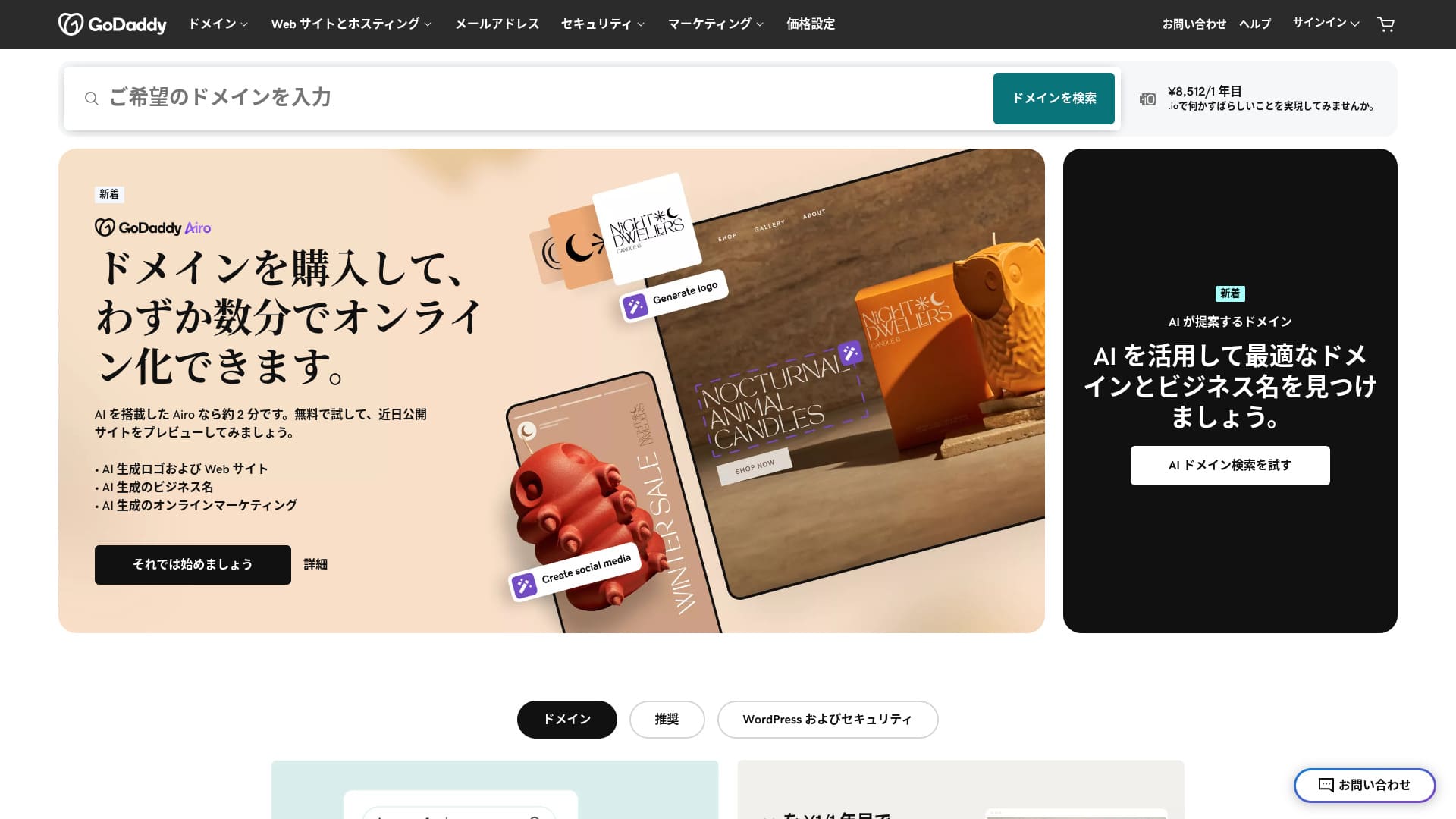
जगातील सर्वात मोठ्या डोमेन रजिस्ट्रारपैकी एकाने दिलेला सर्व्हर.
GoDaddy ही जगातील सर्वाधिक वापरली जाणारी डोमेन व्यवस्थापन कंपनी आहे. कदाचित हे नाव तुम्ही किमान एकदा ऐकले असेल. परदेशी सर्व्हरसाठी हे असामान्य असले तरी, त्याची जपानी भाषेतील वेबसाइटही आहे. आणि तुम्हाला जपानीत सपोर्ट मिळतो.
या लेखात, GoDaddy ची वैशिष्ट्ये आणि प्रतिष्ठा यापासून WordPress सुरू कसे करावे आणि कसे रद्द करावे यापर्यंत सर्व काही मी सविस्तर समजावून सांगतो.
10 परदेशी सर्व्हरची तुलना

परदेशी रेंटल सर्व्हरमध्ये भाषा अडथळे आणि सांस्कृतिक फरक यांमुळे कोणता सर्व्हर निवडायचा हे अनेकांना ठरवणे कठीण जाते.
या लेखात, मी जगभरातील 10 काळजीपूर्वक निवडलेल्या परदेशी भाड्याने घेतलेल्या सर्व्हरची सखोल तुलना करतो आणि त्यांच्या वैशिष्ट्यांचे, किंमत योजना आणि प्रत्यक्ष वापरकर्ता अनुभव तपशीलवार.
नवशिक्यांना आत्मविश्वासाने वापरता येतील अशा निवड निकषांपासून अभियंते शोधत असलेल्या प्रगत वैशिष्ट्यांपर्यंत, विविध गरजा कव्हर करणारी माहिती मी देतो.
GoDaddy पुनरावलोकन: जपानी चॅट सपोर्ट असलेला सर्व्हर
हा विभाग GoDaddy सर्व्हरची वैशिष्ट्ये, WordPress सेटअप, रद्द करण्याची प्रक्रिया, किंमत, सपोर्ट आणि इतर होस्टिंगशी तुलना स्पष्ट करतो.
| सर्व्हर प्रकार | शेअर्ड सर्व्हर |
| प्रदर्शन गती (TTFB) | मोजले नाही |
| शिफारस केलेला प्लॅन आणि कराराचा कालावधी | Basic, 1 वर्ष |
| चाचणी / मनी-बॅक हमी | 30 दिवसांची पैसे परत हमी |
| मासिक शुल्क (12-महिन्यांचा करार) | 899 yen |
| प्रारंभिक प्रशासकीय शुल्क | मोफत |
| मोफत डोमेन | नाही |
| सपोर्ट | 24/7 चॅट, फोन (कामकाजाचे दिवस 10:00-17:00) |
| अपटाइम | 99.9% |
| सर्व्हर साठवण | 10 GB |
| डेटाबेसेसची संख्या | १ |
| ColorfulBox: Strong Appeal in Region-Separated Automatic Backups | मोफत SSL |
| बॅकअप | साप्ताहिक बॅकअप |
| ईमेल खात्यांची संख्या | नाही |
| ईमेल सुरक्षा उपाय | नाही |
| सर्व्हर / वेबसाइट स्थलांतर सेवा | नाही |
| WordPress पूर्वस्थापना | होय |
| Value Server: The Real Capability of GMO's Low-Cost Brand | मोफत |
| डेटा सेंटर | कर्कलँड, वॉशिंग्टन, USA / बीस्टन, UK / याशी, रोमानिया / टेम्पे, अॅरिझोना, USA / बेलग्रेड, सर्बिया |
GoDaddy ची पाच वैशिष्ट्ये

NVMe साठवणेमुळे सर्व्हर जलद आहे
GoDaddy NVMe साठवण वापरते.हा विभाग GoDaddy सर्व्हरची वैशिष्ट्ये, WordPress सेटअप, रद्द करण्याची प्रक्रिया, किंमत, सपोर्ट आणि इतर होस्टिंगशी तुलना स्पष्ट करतो.
सर्व्हर जलद असल्यास साइट पटकन दिसते. साइट पटकन दिसल्यास अभ्यागत ताण न घेता ती पाहू शकतात. कॉर्पोरेट वेबसाइट्स, ई-कॉमर्स साइट्स आणि अॅफिलिएट साइट्ससाठी गती विशेषतः महत्त्वाची आहे.
GoDaddy च्या वेगवान सर्व्हरमुळे, तुम्ही निर्धास्त राहू शकता.
मोफत SSL
हा विभाग GoDaddy सर्व्हरची वैशिष्ट्ये, WordPress सेटअप, रद्द करण्याची प्रक्रिया, किंमत, सपोर्ट आणि इतर होस्टिंगशी तुलना स्पष्ट करतो.हा विभाग GoDaddy सर्व्हरची वैशिष्ट्ये, WordPress सेटअप, रद्द करण्याची प्रक्रिया, किंमत, सपोर्ट आणि इतर होस्टिंगशी तुलना स्पष्ट करतो.हा विभाग GoDaddy सर्व्हरची वैशिष्ट्ये, WordPress सेटअप, रद्द करण्याची प्रक्रिया, किंमत, सपोर्ट आणि इतर होस्टिंगशी तुलना स्पष्ट करतो.
हा विभाग GoDaddy सर्व्हरची वैशिष्ट्ये, WordPress सेटअप, रद्द करण्याची प्रक्रिया, किंमत, सपोर्ट आणि इतर होस्टिंगशी तुलना स्पष्ट करतो.
हा विभाग GoDaddy सर्व्हरची वैशिष्ट्ये, WordPress सेटअप, रद्द करण्याची प्रक्रिया, किंमत, सपोर्ट आणि इतर होस्टिंगशी तुलना स्पष्ट करतो.
https://www.kagoya.jp/kir/server/rentalserver/हा विभाग GoDaddy सर्व्हरची वैशिष्ट्ये, WordPress सेटअप, रद्द करण्याची प्रक्रिया, किंमत, सपोर्ट आणि इतर होस्टिंगशी तुलना स्पष्ट करतो.
WordPress पूर्वस्थापना वैशिष्ट्य
GoDaddy has a WordPress पूर्वस्थापना वैशिष्ट्य. हा विभाग GoDaddy सर्व्हरची वैशिष्ट्ये, WordPress सेटअप, रद्द करण्याची प्रक्रिया, किंमत, सपोर्ट आणि इतर होस्टिंगशी तुलना स्पष्ट करतो.हा विभाग GoDaddy सर्व्हरची वैशिष्ट्ये, WordPress सेटअप, रद्द करण्याची प्रक्रिया, किंमत, सपोर्ट आणि इतर होस्टिंगशी तुलना स्पष्ट करतो.
हा विभाग GoDaddy सर्व्हरची वैशिष्ट्ये, WordPress सेटअप, रद्द करण्याची प्रक्रिया, किंमत, सपोर्ट आणि इतर होस्टिंगशी तुलना स्पष्ट करतो.
WAF मुळे उच्च सुरक्षा
हा विभाग GoDaddy सर्व्हरची वैशिष्ट्ये, WordPress सेटअप, रद्द करण्याची प्रक्रिया, किंमत, सपोर्ट आणि इतर होस्टिंगशी तुलना स्पष्ट करतो.हा विभाग GoDaddy सर्व्हरची वैशिष्ट्ये, WordPress सेटअप, रद्द करण्याची प्रक्रिया, किंमत, सपोर्ट आणि इतर होस्टिंगशी तुलना स्पष्ट करतो.हा विभाग GoDaddy सर्व्हरची वैशिष्ट्ये, WordPress सेटअप, रद्द करण्याची प्रक्रिया, किंमत, सपोर्ट आणि इतर होस्टिंगशी तुलना स्पष्ट करतो.
हा विभाग GoDaddy सर्व्हरची वैशिष्ट्ये, WordPress सेटअप, रद्द करण्याची प्रक्रिया, किंमत, सपोर्ट आणि इतर होस्टिंगशी तुलना स्पष्ट करतो.
साप्ताहिक बॅकअप प्रणाली
हा विभाग GoDaddy सर्व्हरची वैशिष्ट्ये, WordPress सेटअप, रद्द करण्याची प्रक्रिया, किंमत, सपोर्ट आणि इतर होस्टिंगशी तुलना स्पष्ट करतो.हा विभाग GoDaddy सर्व्हरची वैशिष्ट्ये, WordPress सेटअप, रद्द करण्याची प्रक्रिया, किंमत, सपोर्ट आणि इतर होस्टिंगशी तुलना स्पष्ट करतो.हा विभाग GoDaddy सर्व्हरची वैशिष्ट्ये, WordPress सेटअप, रद्द करण्याची प्रक्रिया, किंमत, सपोर्ट आणि इतर होस्टिंगशी तुलना स्पष्ट करतो.
साप्ताहिक बॅकअप प्रणाली is generally sufficient, but if you want daily backups whenever possible, make use of WordPress plugins.
https://www.kagoya.jp/kir/server/rentalserver/Five Powerful WordPress Backup Plugins to मदत You Recover Data
GoDaddy चा तोटा म्हणजे सर्वात स्वस्त प्लॅनमध्ये फक्त एकच वेबसाइट तयार करता येते

हा विभाग GoDaddy सर्व्हरची वैशिष्ट्ये, WordPress सेटअप, रद्द करण्याची प्रक्रिया, किंमत, सपोर्ट आणि इतर होस्टिंगशी तुलना स्पष्ट करतो.हा विभाग GoDaddy सर्व्हरची वैशिष्ट्ये, WordPress सेटअप, रद्द करण्याची प्रक्रिया, किंमत, सपोर्ट आणि इतर होस्टिंगशी तुलना स्पष्ट करतो.
हा विभाग GoDaddy सर्व्हरची वैशिष्ट्ये, WordPress सेटअप, रद्द करण्याची प्रक्रिया, किंमत, सपोर्ट आणि इतर होस्टिंगशी तुलना स्पष्ट करतो.
हा विभाग GoDaddy सर्व्हरची वैशिष्ट्ये, WordPress सेटअप, रद्द करण्याची प्रक्रिया, किंमत, सपोर्ट आणि इतर होस्टिंगशी तुलना स्पष्ट करतो.
GoDaddy ची दोन स्पर्धक सर्व्हरशी तुलना करा
हा विभाग GoDaddy सर्व्हरची वैशिष्ट्ये, WordPress सेटअप, रद्द करण्याची प्रक्रिया, किंमत, सपोर्ट आणि इतर होस्टिंगशी तुलना स्पष्ट करतो.
IONOS
हा विभाग GoDaddy सर्व्हरची वैशिष्ट्ये, WordPress सेटअप, रद्द करण्याची प्रक्रिया, किंमत, सपोर्ट आणि इतर होस्टिंगशी तुलना स्पष्ट करतो.
हा विभाग GoDaddy सर्व्हरची वैशिष्ट्ये, WordPress सेटअप, रद्द करण्याची प्रक्रिया, किंमत, सपोर्ट आणि इतर होस्टिंगशी तुलना स्पष्ट करतो.हा विभाग GoDaddy सर्व्हरची वैशिष्ट्ये, WordPress सेटअप, रद्द करण्याची प्रक्रिया, किंमत, सपोर्ट आणि इतर होस्टिंगशी तुलना स्पष्ट करतो.
हा विभाग GoDaddy सर्व्हरची वैशिष्ट्ये, WordPress सेटअप, रद्द करण्याची प्रक्रिया, किंमत, सपोर्ट आणि इतर होस्टिंगशी तुलना स्पष्ट करतो.हा विभाग GoDaddy सर्व्हरची वैशिष्ट्ये, WordPress सेटअप, रद्द करण्याची प्रक्रिया, किंमत, सपोर्ट आणि इतर होस्टिंगशी तुलना स्पष्ट करतो.हा विभाग GoDaddy सर्व्हरची वैशिष्ट्ये, WordPress सेटअप, रद्द करण्याची प्रक्रिया, किंमत, सपोर्ट आणि इतर होस्टिंगशी तुलना स्पष्ट करतो.
| आयटम | GoDaddy | IONOS |
|---|---|---|
| सर्वात मोठी ताकद | डोमेन वापरकर्त्यांच्या संख्येत क्रमांक 1 | चांगला मूल्य-परतावा |
| चाचणी / मनी-बॅक हमी | 30 दिवसांची पैसे परत हमी | 30 दिवसांची पैसे परत हमी |
| अपटाइम | 99.9% | 99.98% |
| साठवण | 10 GB | 50 GB |
| पहिल्या वर्षाचा सर्व्हर खर्च | 14,388 yen | 1,798 yen |

IONOS पुनरावलोकन: युरोपसाठी परवडणारा आणि स्थिर सर्व्हर, WordPress सोबतही कार्यक्षम
IONOS पुनरावलोकन: युरोपसाठी परवडणारा आणि स्थिर सर्व्हर, WordPress सोबतही कार्यक्षम
serverfield.org
HOSTINGER
हा विभाग GoDaddy सर्व्हरची वैशिष्ट्ये, WordPress सेटअप, रद्द करण्याची प्रक्रिया, किंमत, सपोर्ट आणि इतर होस्टिंगशी तुलना स्पष्ट करतो.हा विभाग GoDaddy सर्व्हरची वैशिष्ट्ये, WordPress सेटअप, रद्द करण्याची प्रक्रिया, किंमत, सपोर्ट आणि इतर होस्टिंगशी तुलना स्पष्ट करतो.
तथापि, HOSTINGER फक्त इंग्रजीत सपोर्ट देते. GoDaddy सोबत तुम्हाला जपानीत चॅट सपोर्ट मिळतो. मी प्रत्यक्षात चॅटमध्ये प्रश्न विचारल्यावर लगेच उत्तर आले. मृदू आणि तत्पर सपोर्ट हवा असल्यास मी GoDaddy ची शिफारस करतो.
| तुलना | GoDaddy | HOSTINGER |
|---|---|---|
| सर्वात मोठी ताकद | डोमेन वापरकर्त्यांच्या संख्येत क्रमांक 1 | चांगला मूल्य-परतावा |
| चाचणी / मनी-बॅक हमी | 30 दिवसांची पैसे परत हमी | 30 दिवसांची पैसे परत हमी |
| अपटाइम | 99.9% | 99.9% |
| साठवण | 10 GB | 100 GB |
| पहिल्या वर्षाचा सर्व्हर खर्च | 14,388 yen | 4,405 yen |

Hostinger पुनरावलोकन [2025 आवृत्ती]: WordPress कडून अधिकृत शिफारस, फायदे, तोटे आणि तुलना
Hostinger पुनरावलोकन [2025 आवृत्ती]: WordPress कडून अधिकृत शिफारस, फायदे, तोटे आणि तुलना
serverfield.org
GoDaddy सोबत आत्ताच WordPress वेबसाइट सुरू करण्यासाठी सात पावले
हा विभाग GoDaddy सर्व्हरची वैशिष्ट्ये, WordPress सेटअप, रद्द करण्याची प्रक्रिया, किंमत, सपोर्ट आणि इतर होस्टिंगशी तुलना स्पष्ट करतो.
- पायरी 1हा विभाग GoDaddy सर्व्हरची वैशिष्ट्ये, WordPress सेटअप, रद्द करण्याची प्रक्रिया, किंमत, सपोर्ट आणि इतर होस्टिंगशी तुलना स्पष्ट करतो.
हा विभाग GoDaddy सर्व्हरची वैशिष्ट्ये, WordPress सेटअप, रद्द करण्याची प्रक्रिया, किंमत, सपोर्ट आणि इतर होस्टिंगशी तुलना स्पष्ट करतो.GoDaddyहा विभाग GoDaddy सर्व्हरची वैशिष्ट्ये, WordPress सेटअप, रद्द करण्याची प्रक्रिया, किंमत, सपोर्ट आणि इतर होस्टिंगशी तुलना स्पष्ट करतो.
- पायरी 2हा विभाग GoDaddy सर्व्हरची वैशिष्ट्ये, WordPress सेटअप, रद्द करण्याची प्रक्रिया, किंमत, सपोर्ट आणि इतर होस्टिंगशी तुलना स्पष्ट करतो.
हा विभाग GoDaddy सर्व्हरची वैशिष्ट्ये, WordPress सेटअप, रद्द करण्याची प्रक्रिया, किंमत, सपोर्ट आणि इतर होस्टिंगशी तुलना स्पष्ट करतो.
- पायरी 3हा विभाग GoDaddy सर्व्हरची वैशिष्ट्ये, WordPress सेटअप, रद्द करण्याची प्रक्रिया, किंमत, सपोर्ट आणि इतर होस्टिंगशी तुलना स्पष्ट करतो.
हा विभाग GoDaddy सर्व्हरची वैशिष्ट्ये, WordPress सेटअप, रद्द करण्याची प्रक्रिया, किंमत, सपोर्ट आणि इतर होस्टिंगशी तुलना स्पष्ट करतो.
- पायरी 4WordPress स्थापित करा
हा विभाग GoDaddy सर्व्हरची वैशिष्ट्ये, WordPress सेटअप, रद्द करण्याची प्रक्रिया, किंमत, सपोर्ट आणि इतर होस्टिंगशी तुलना स्पष्ट करतो.
हा विभाग GoDaddy सर्व्हरची वैशिष्ट्ये, WordPress सेटअप, रद्द करण्याची प्रक्रिया, किंमत, सपोर्ट आणि इतर होस्टिंगशी तुलना स्पष्ट करतो.
- पायरी 5हा विभाग GoDaddy सर्व्हरची वैशिष्ट्ये, WordPress सेटअप, रद्द करण्याची प्रक्रिया, किंमत, सपोर्ट आणि इतर होस्टिंगशी तुलना स्पष्ट करतो.
हा विभाग GoDaddy सर्व्हरची वैशिष्ट्ये, WordPress सेटअप, रद्द करण्याची प्रक्रिया, किंमत, सपोर्ट आणि इतर होस्टिंगशी तुलना स्पष्ट करतो.
हा विभाग GoDaddy सर्व्हरची वैशिष्ट्ये, WordPress सेटअप, रद्द करण्याची प्रक्रिया, किंमत, सपोर्ट आणि इतर होस्टिंगशी तुलना स्पष्ट करतो.
- पायरी 6हा विभाग GoDaddy सर्व्हरची वैशिष्ट्ये, WordPress सेटअप, रद्द करण्याची प्रक्रिया, किंमत, सपोर्ट आणि इतर होस्टिंगशी तुलना स्पष्ट करतो.
हा विभाग GoDaddy सर्व्हरची वैशिष्ट्ये, WordPress सेटअप, रद्द करण्याची प्रक्रिया, किंमत, सपोर्ट आणि इतर होस्टिंगशी तुलना स्पष्ट करतो.
- पायरी 7हा विभाग GoDaddy सर्व्हरची वैशिष्ट्ये, WordPress सेटअप, रद्द करण्याची प्रक्रिया, किंमत, सपोर्ट आणि इतर होस्टिंगशी तुलना स्पष्ट करतो.
हा विभाग GoDaddy सर्व्हरची वैशिष्ट्ये, WordPress सेटअप, रद्द करण्याची प्रक्रिया, किंमत, सपोर्ट आणि इतर होस्टिंगशी तुलना स्पष्ट करतो.
हा विभाग GoDaddy सर्व्हरची वैशिष्ट्ये, WordPress सेटअप, रद्द करण्याची प्रक्रिया, किंमत, सपोर्ट आणि इतर होस्टिंगशी तुलना स्पष्ट करतो.
GoDaddy कसे रद्द करावे
कालरेषा
- पायरी 1हा विभाग GoDaddy सर्व्हरची वैशिष्ट्ये, WordPress सेटअप, रद्द करण्याची प्रक्रिया, किंमत, सपोर्ट आणि इतर होस्टिंगशी तुलना स्पष्ट करतो.
Go to GoDaddyहा विभाग GoDaddy सर्व्हरची वैशिष्ट्ये, WordPress सेटअप, रद्द करण्याची प्रक्रिया, किंमत, सपोर्ट आणि इतर होस्टिंगशी तुलना स्पष्ट करतो.
- पायरी 2हा विभाग GoDaddy सर्व्हरची वैशिष्ट्ये, WordPress सेटअप, रद्द करण्याची प्रक्रिया, किंमत, सपोर्ट आणि इतर होस्टिंगशी तुलना स्पष्ट करतो.
हा विभाग GoDaddy सर्व्हरची वैशिष्ट्ये, WordPress सेटअप, रद्द करण्याची प्रक्रिया, किंमत, सपोर्ट आणि इतर होस्टिंगशी तुलना स्पष्ट करतो.
- पायरी 3हा विभाग GoDaddy सर्व्हरची वैशिष्ट्ये, WordPress सेटअप, रद्द करण्याची प्रक्रिया, किंमत, सपोर्ट आणि इतर होस्टिंगशी तुलना स्पष्ट करतो.
हा विभाग GoDaddy सर्व्हरची वैशिष्ट्ये, WordPress सेटअप, रद्द करण्याची प्रक्रिया, किंमत, सपोर्ट आणि इतर होस्टिंगशी तुलना स्पष्ट करतो.
- पायरी 4हा विभाग GoDaddy सर्व्हरची वैशिष्ट्ये, WordPress सेटअप, रद्द करण्याची प्रक्रिया, किंमत, सपोर्ट आणि इतर होस्टिंगशी तुलना स्पष्ट करतो.
हा विभाग GoDaddy सर्व्हरची वैशिष्ट्ये, WordPress सेटअप, रद्द करण्याची प्रक्रिया, किंमत, सपोर्ट आणि इतर होस्टिंगशी तुलना स्पष्ट करतो.
हा विभाग GoDaddy सर्व्हरची वैशिष्ट्ये, WordPress सेटअप, रद्द करण्याची प्रक्रिया, किंमत, सपोर्ट आणि इतर होस्टिंगशी तुलना स्पष्ट करतो.
- पायरी 5हा विभाग GoDaddy सर्व्हरची वैशिष्ट्ये, WordPress सेटअप, रद्द करण्याची प्रक्रिया, किंमत, सपोर्ट आणि इतर होस्टिंगशी तुलना स्पष्ट करतो.
हा विभाग GoDaddy सर्व्हरची वैशिष्ट्ये, WordPress सेटअप, रद्द करण्याची प्रक्रिया, किंमत, सपोर्ट आणि इतर होस्टिंगशी तुलना स्पष्ट करतो.
हा विभाग GoDaddy सर्व्हरची वैशिष्ट्ये, WordPress सेटअप, रद्द करण्याची प्रक्रिया, किंमत, सपोर्ट आणि इतर होस्टिंगशी तुलना स्पष्ट करतो.
- पायरी 6हा विभाग GoDaddy सर्व्हरची वैशिष्ट्ये, WordPress सेटअप, रद्द करण्याची प्रक्रिया, किंमत, सपोर्ट आणि इतर होस्टिंगशी तुलना स्पष्ट करतो.
हा विभाग GoDaddy सर्व्हरची वैशिष्ट्ये, WordPress सेटअप, रद्द करण्याची प्रक्रिया, किंमत, सपोर्ट आणि इतर होस्टिंगशी तुलना स्पष्ट करतो.
हा विभाग GoDaddy सर्व्हरची वैशिष्ट्ये, WordPress सेटअप, रद्द करण्याची प्रक्रिया, किंमत, सपोर्ट आणि इतर होस्टिंगशी तुलना स्पष्ट करतो.
GoDaddy बद्दल वारंवार विचारले जाणारे प्रश्न
GoDaddy कोणत्या प्रकारची कंपनी आहे?
हा विभाग GoDaddy सर्व्हरची वैशिष्ट्ये, WordPress सेटअप, रद्द करण्याची प्रक्रिया, किंमत, सपोर्ट आणि इतर होस्टिंगशी तुलना स्पष्ट करतो.
GoDaddy साठी साइन अप कसे करावे?
हा विभाग GoDaddy सर्व्हरची वैशिष्ट्ये, WordPress सेटअप, रद्द करण्याची प्रक्रिया, किंमत, सपोर्ट आणि इतर होस्टिंगशी तुलना स्पष्ट करतो.
सारांश
हा विभाग GoDaddy सर्व्हरची वैशिष्ट्ये, WordPress सेटअप, रद्द करण्याची प्रक्रिया, किंमत, सपोर्ट आणि इतर होस्टिंगशी तुलना स्पष्ट करतो.हा विभाग GoDaddy सर्व्हरची वैशिष्ट्ये, WordPress सेटअप, रद्द करण्याची प्रक्रिया, किंमत, सपोर्ट आणि इतर होस्टिंगशी तुलना स्पष्ट करतो.
हा विभाग GoDaddy सर्व्हरची वैशिष्ट्ये, WordPress सेटअप, रद्द करण्याची प्रक्रिया, किंमत, सपोर्ट आणि इतर होस्टिंगशी तुलना स्पष्ट करतो.
हा विभाग GoDaddy सर्व्हरची वैशिष्ट्ये, WordPress सेटअप, रद्द करण्याची प्रक्रिया, किंमत, सपोर्ट आणि इतर होस्टिंगशी तुलना स्पष्ट करतो.