Until October 7, 2025, the initial fee (normally 16,500 yen to 385,000 yen) is free, and server migration service is also free
PR
Servers
XServer Business review [2025 latest]: speed, pricing और features का विस्तृत परीक्षण
प्रकाशित: 2025.05.13
अपडेट: 2025.05.13
रेटिंग: 5.0
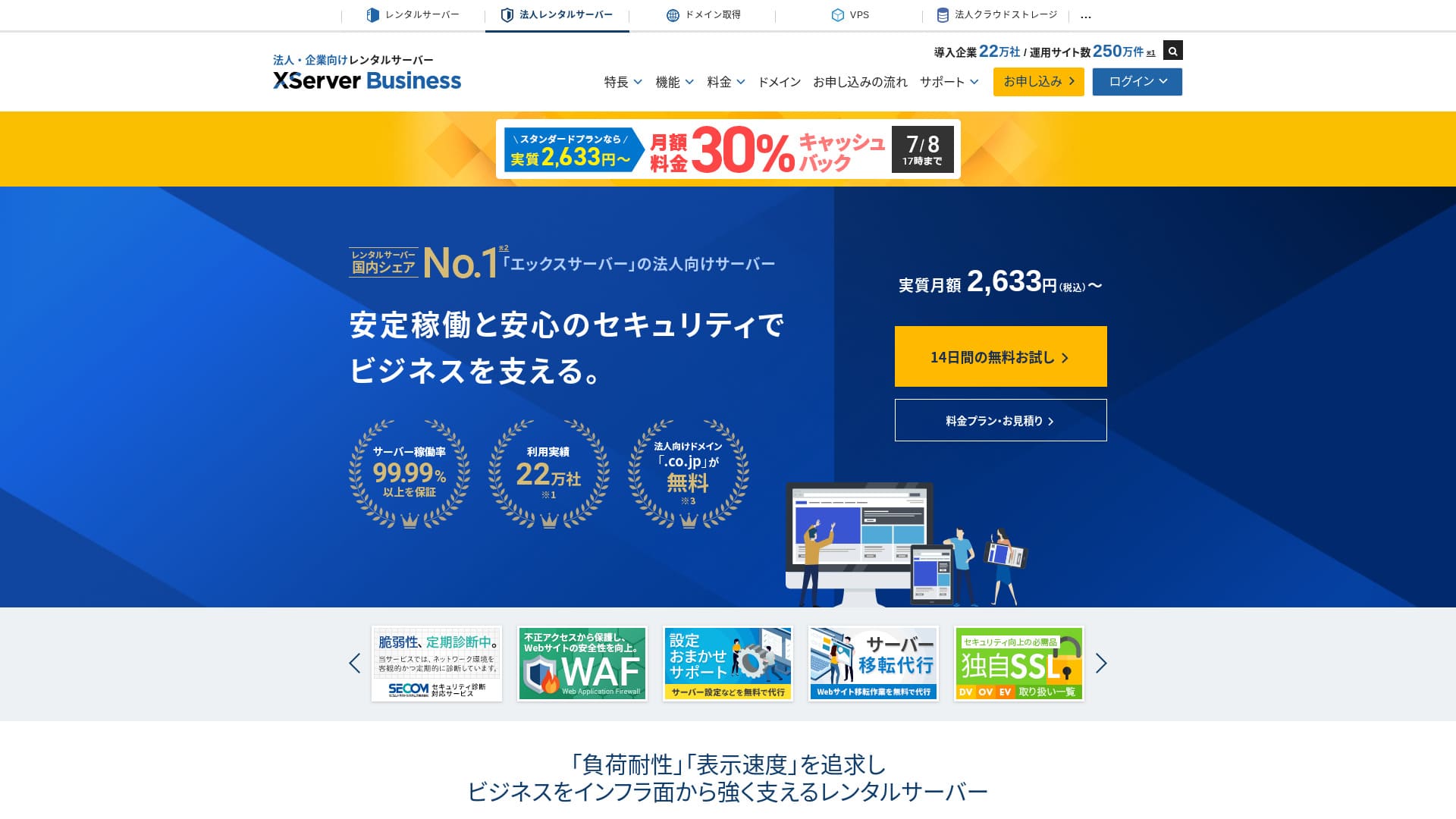
XServer Business Xserver Inc. की ultra-fast business hosting service है. यह तेज भी है और high-capacity भी, इसलिए email, WordPress websites और landing pages चलाने के लिए बहुत आरामदायक है.
| Server type | Shared hosting / Managed dedicated server |
| Speed (TTFB) | 40ms |
| Recommended plan | Shared Standard, 12 months |
| Free trial | 10-day free trial |
| Monthly price | 2,926 yen |
| Initial setup fee | 16,500 yen |
| Free domains | दो domains हमेशा के लिए free |
| Uptime | 99.99% guarantee |
| Storage | 700 GB |
| Databases | Unlimited |
| Security | WAF / tamper alerts / Secom security diagnostics |
| Backups | 14 दिन के automatic backups / restore free |
| SSL | Unlimited |
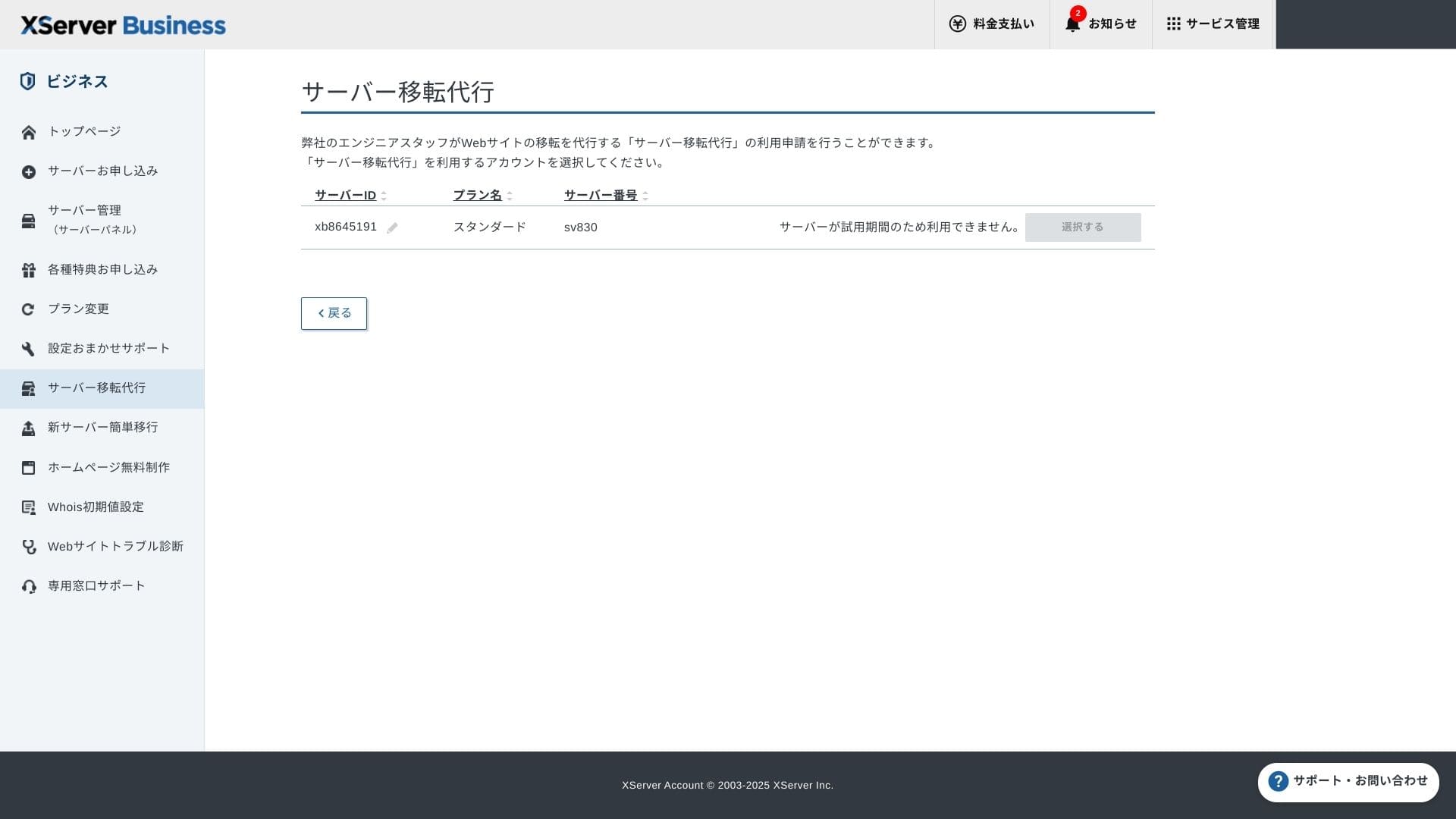
| Migration | पहली बार full-service migration free |
| WordPress preinstalled | हां |
| Email security measures | Antivirus / spam filter / high-performance spam filter / POP over SSL / SMTP over SSL / IMAP over SSL / DKIM / DMARC |
| Server / website migration service | Free full-service migration(first time only, up to 10 sites) |
| WordPress preinstalled | Yes |
| CDN | None |

Hikaru Ono
XServer Business server sign-up के समय ही WordPress शुरू करने देता है, इसलिए नई website बनाने वाली companies के लिए यह बहुत अच्छा विकल्प है. Existing site वाली businesses को भी migration free होने से भरोसा मिलता है.
यह long-term use के लिए high-quality server है.
- Data based on market research as of November 4, 2025, arranged in order of speed
- Monthly prices WordPress-supporting cheapest plan के first-year cost पर आधारित हैं
- Speed समान conditions में measured TTFB है
"XServer Business" is the business hosting service from Xserver Inc., the company with the No. 1 market share in Japan. In our measurements, it ranked No. 2 for speed. It is one of the best choices when you need to move to a new server, and migration is free as well.

WordPress से जुड़ा review
Easy WordPress installation
XServer Business sign-up के समय ही WordPress install कर सकता है. इससे नई corporate website launch करना काफी आसान हो जाता है.
Hikaru Ono
Even without an in-house IT department, you can start WordPress reliably and without trouble.
Let's launch your website with XServer Business
- STEP.1Visit the official XServer Business website
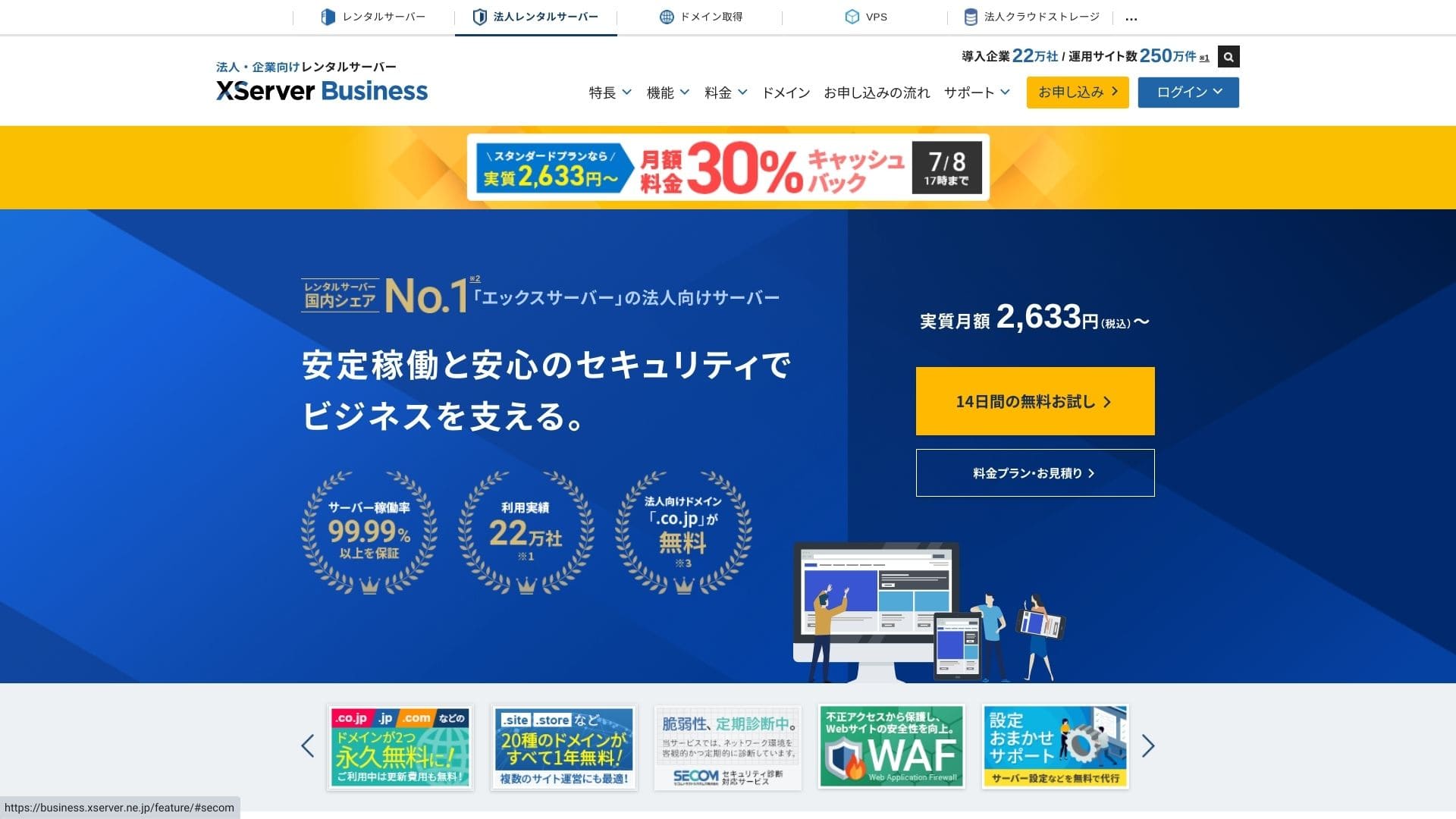
Click "14-day free trial" on the top page. Then, under "First-time customers," click "Start now! New application."
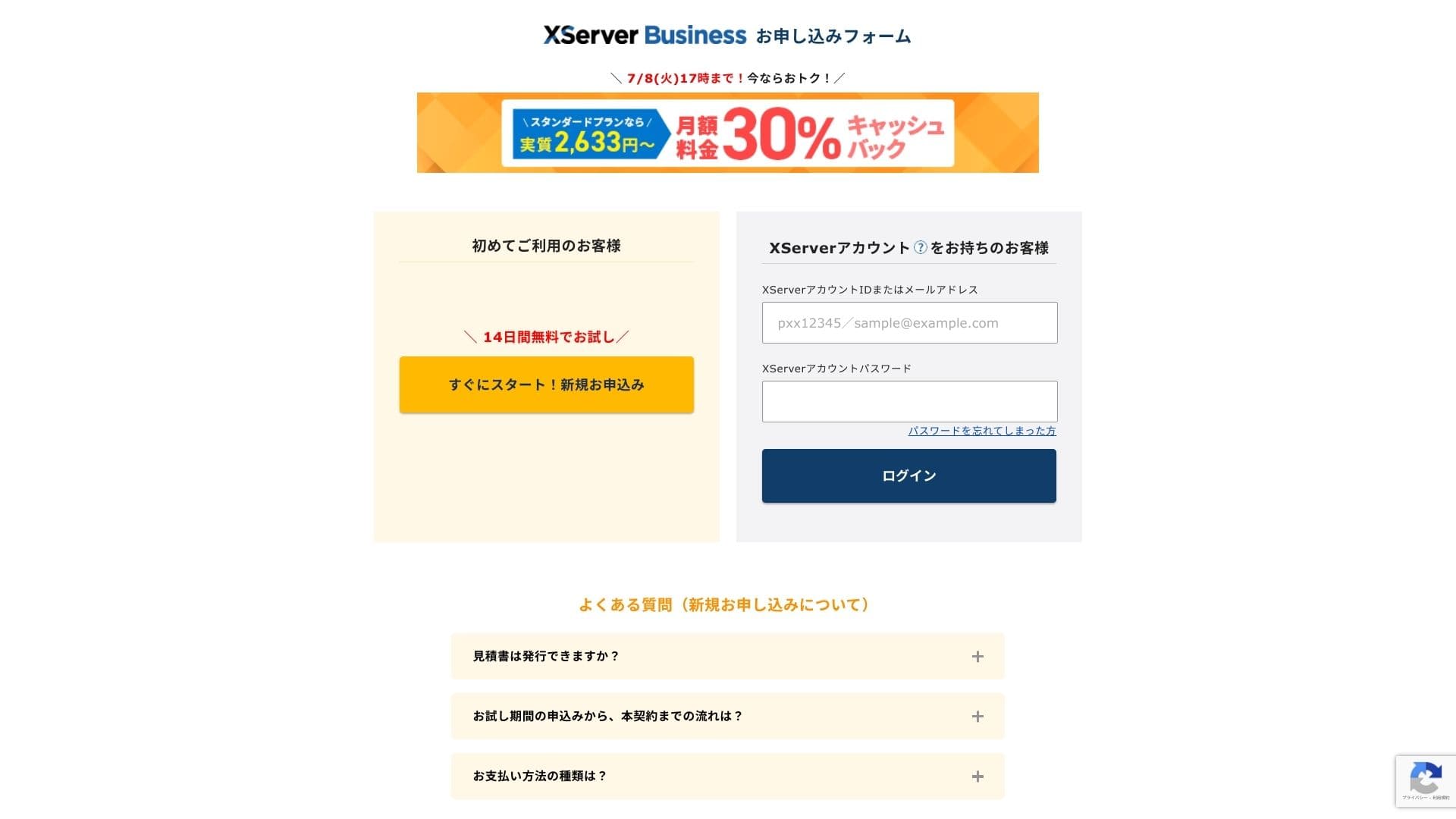
- STEP.2Choose your application details
You can leave the server ID as it is. Choose the shared server, then select a plan. I recommend the Standard plan. If traffic grows and the specifications become insufficient, you can upgrade later.
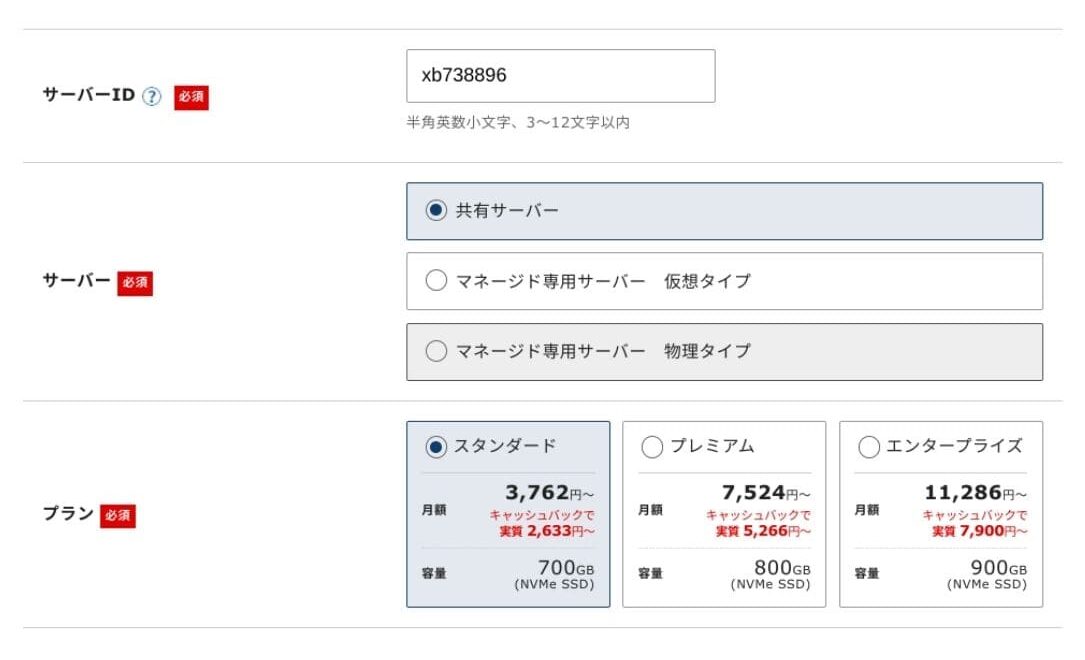
Click "Proceed to customer information entry."
- STEP.3Create your Xserver Account and enter your customer information
Enter your email address, name, address, and the other required details.
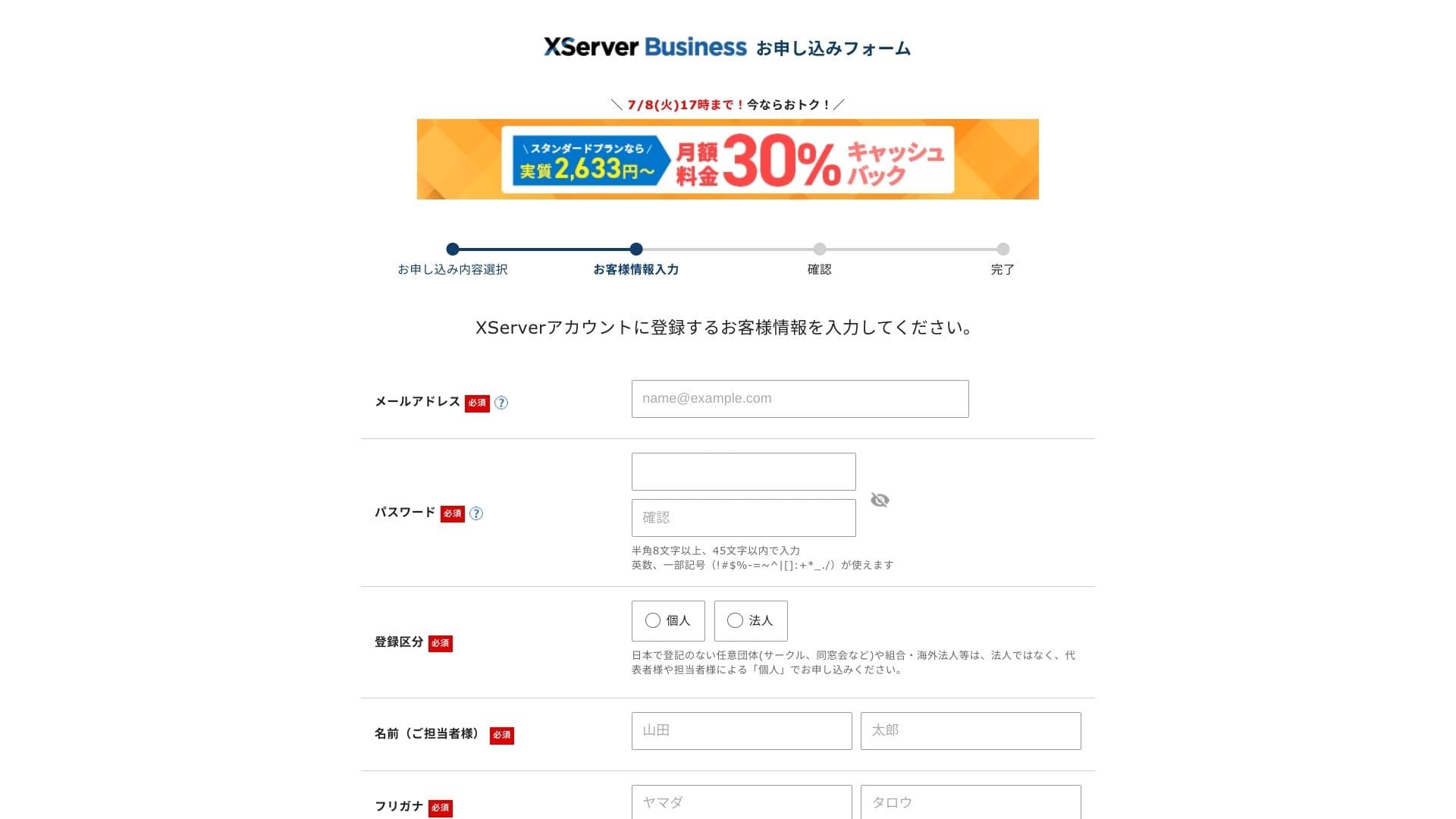
Review the Terms of Use and the Handling of Personal Information. If you agree, check the box and click "Next."
Enter the verification code shown on the screen. A verification code will be sent to the email address you registered, so check that message first.
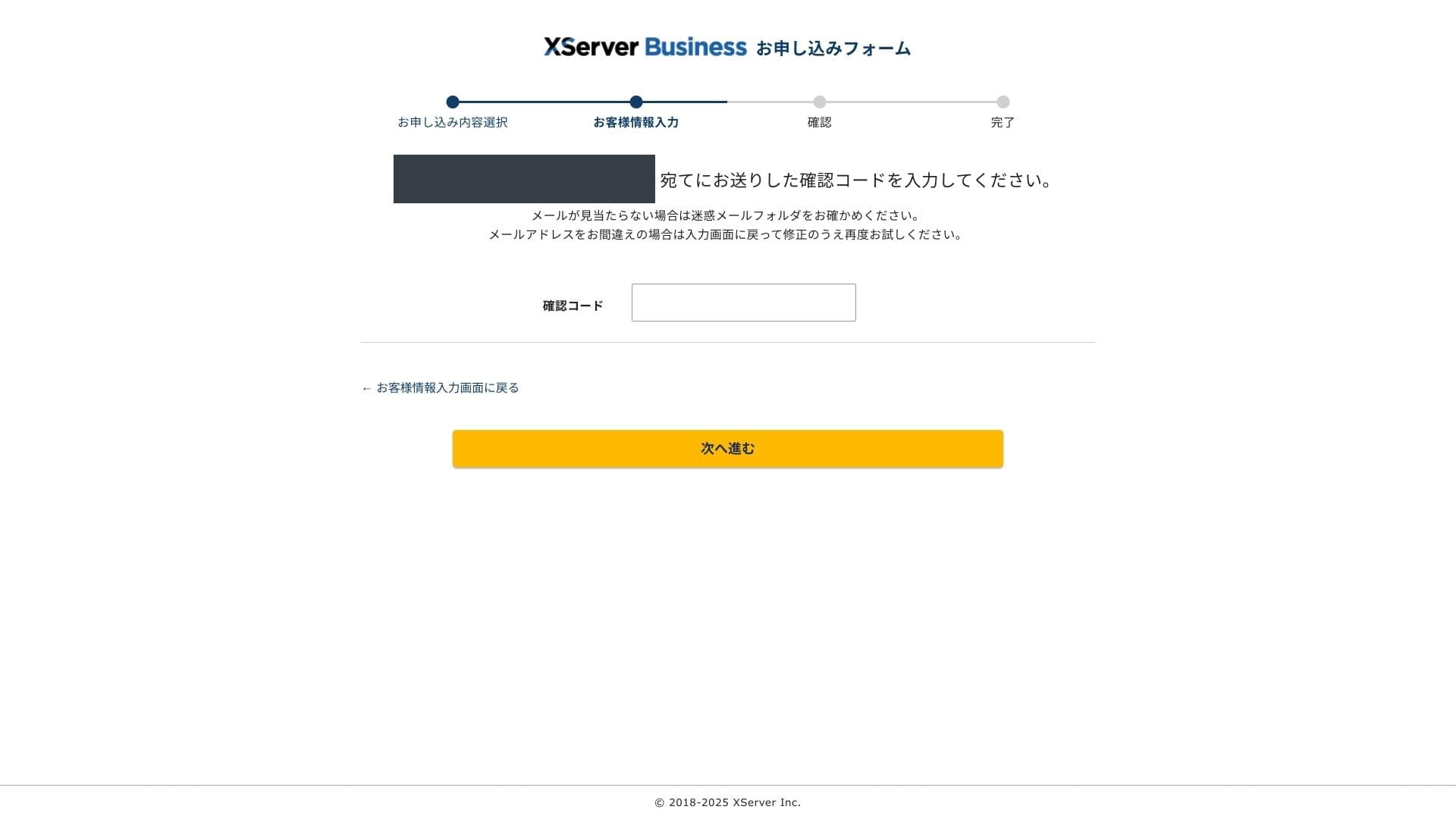
- STEP.4Review
Review your application details and Xserver Account information one more time. If everything looks correct, click "Proceed to SMS / phone verification."
Your application details will be reviewed again using your phone number.
Enter the phone number to use, choose either SMS or an automated voice call to receive the verification code, and click "Get verification code." Once you receive it, enter the code.
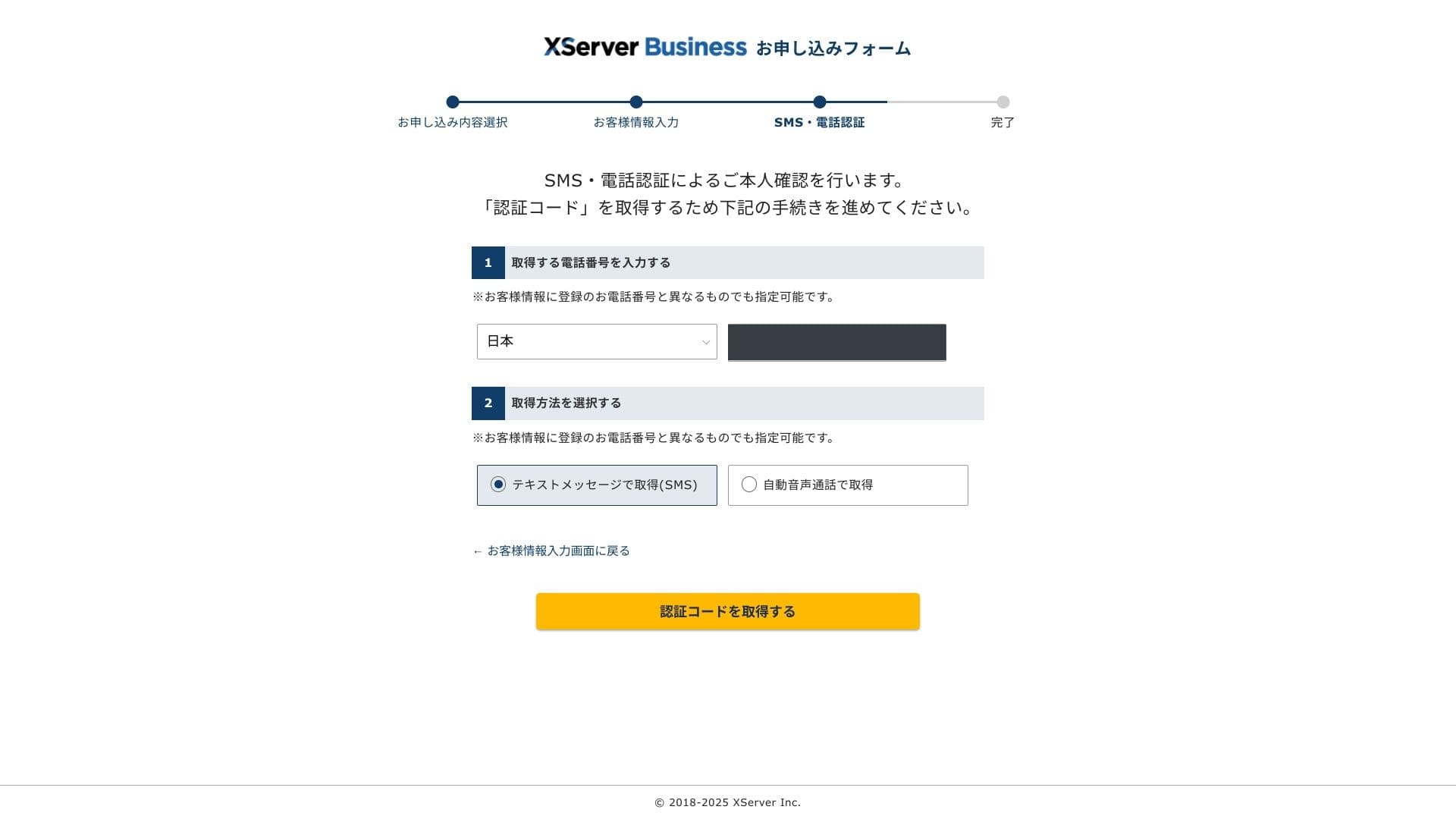
When you see "Your application has been completed," the application is finished.
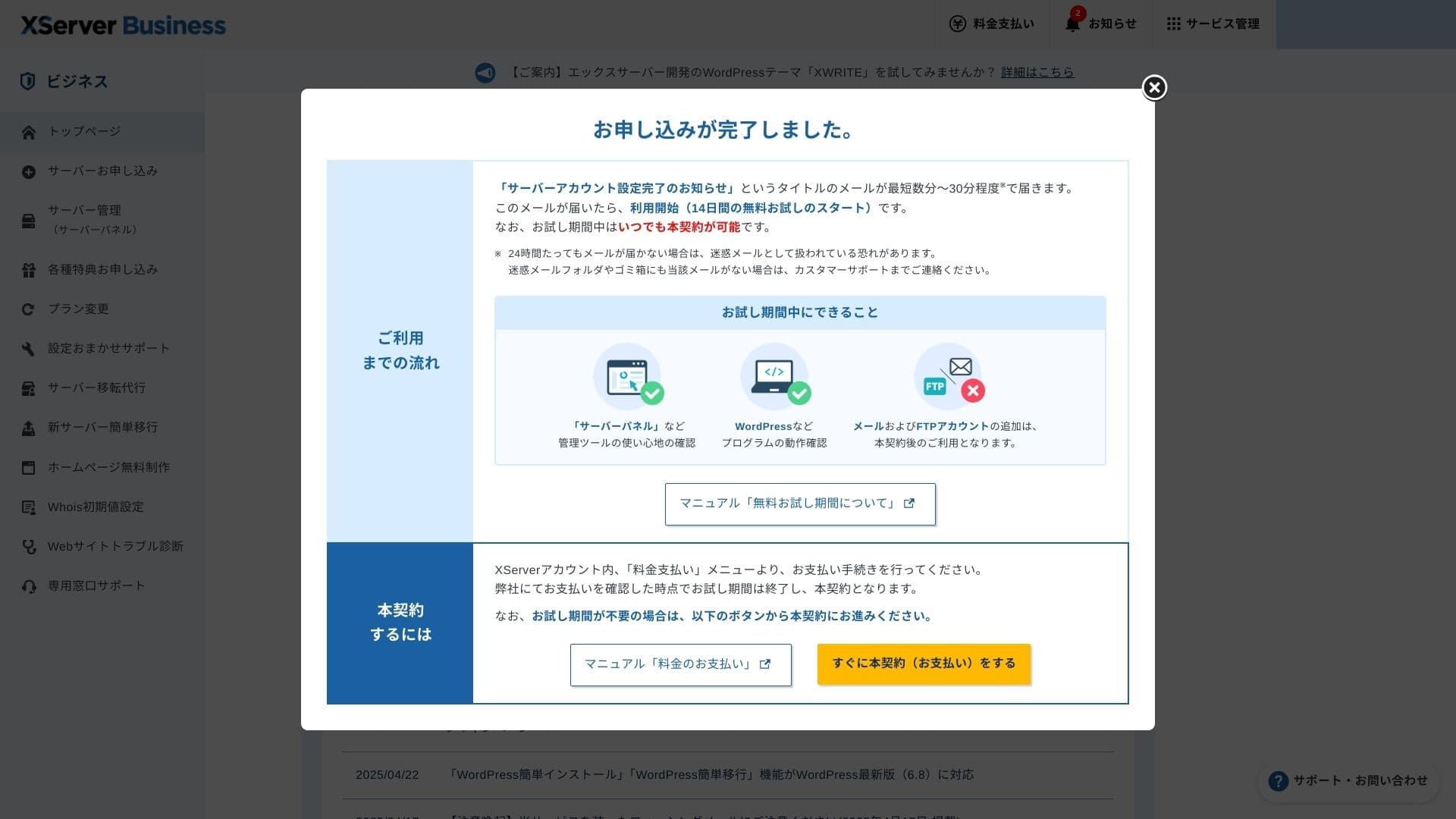
Once this page appears, complete the payment from "Proceed to paid contract now." If you do not complete the paid contract, you cannot use the one-year free domain benefit or the email features.
- STEP.5Get your custom domain and configure it
Log in to the Server Panel from the Xserver Account admin screen. Get your domain from the Domain section. It is a good deal to use the one-year free benefit.
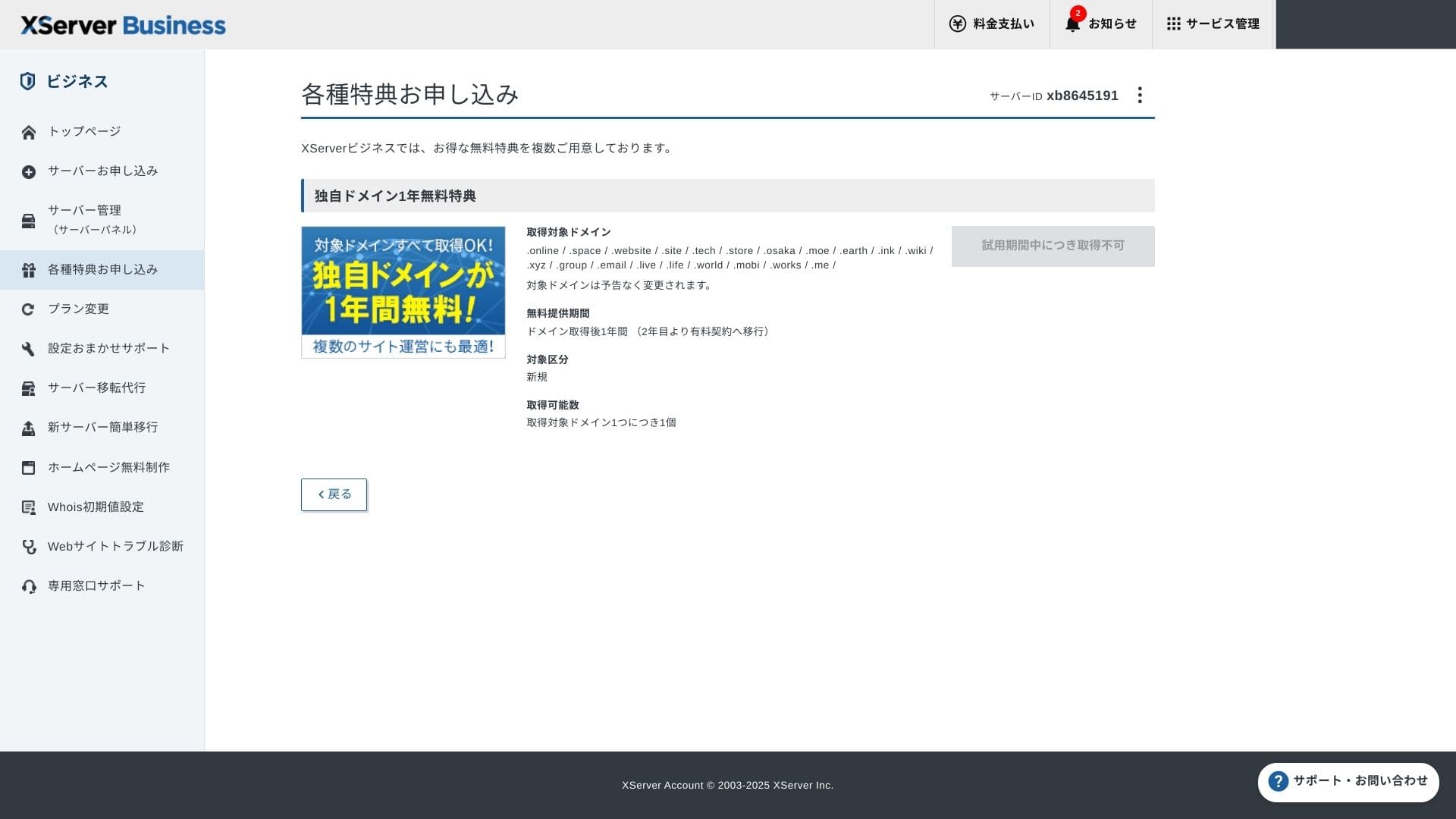
Get your custom domain. From Apply for special offers in the admin screen, choose Permanent free custom domain benefit, then click Use this benefit.
Choose New registration as the category. Enter any string you want for the domain name. Your domain matters, so think carefully before deciding.
★ What is a domain? Its role as an address on the internet and how to obtain one
Search for the domain name you want and choose it. Click "Apply to get the selected domain." Review the application details on the Review screen. Check the box to agree to the Terms of Use and the Handling of Personal Information, then click "Submit your application."
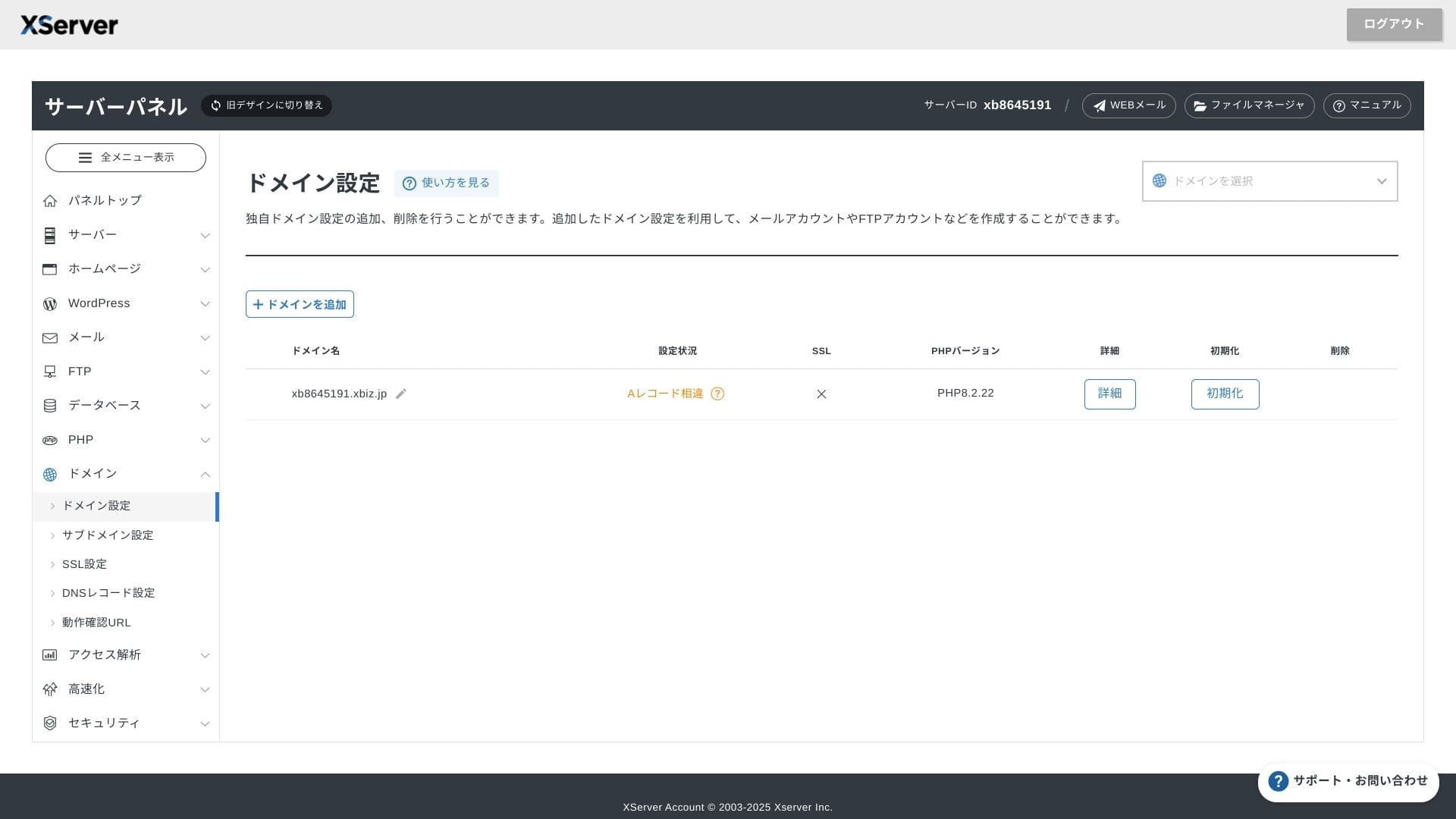
Next, configure the domain. From the admin screen, choose "Server Management." This opens the Server Panel. Under "Domain," click "Domain Settings." Click "Add Domain Setting," enter the custom domain you obtained, and click "Proceed to Review."
Check the details on the Review screen and click "Add." When the completion screen appears, the domain setup is complete.
- STEP.6Install WordPress and complete the initial setup
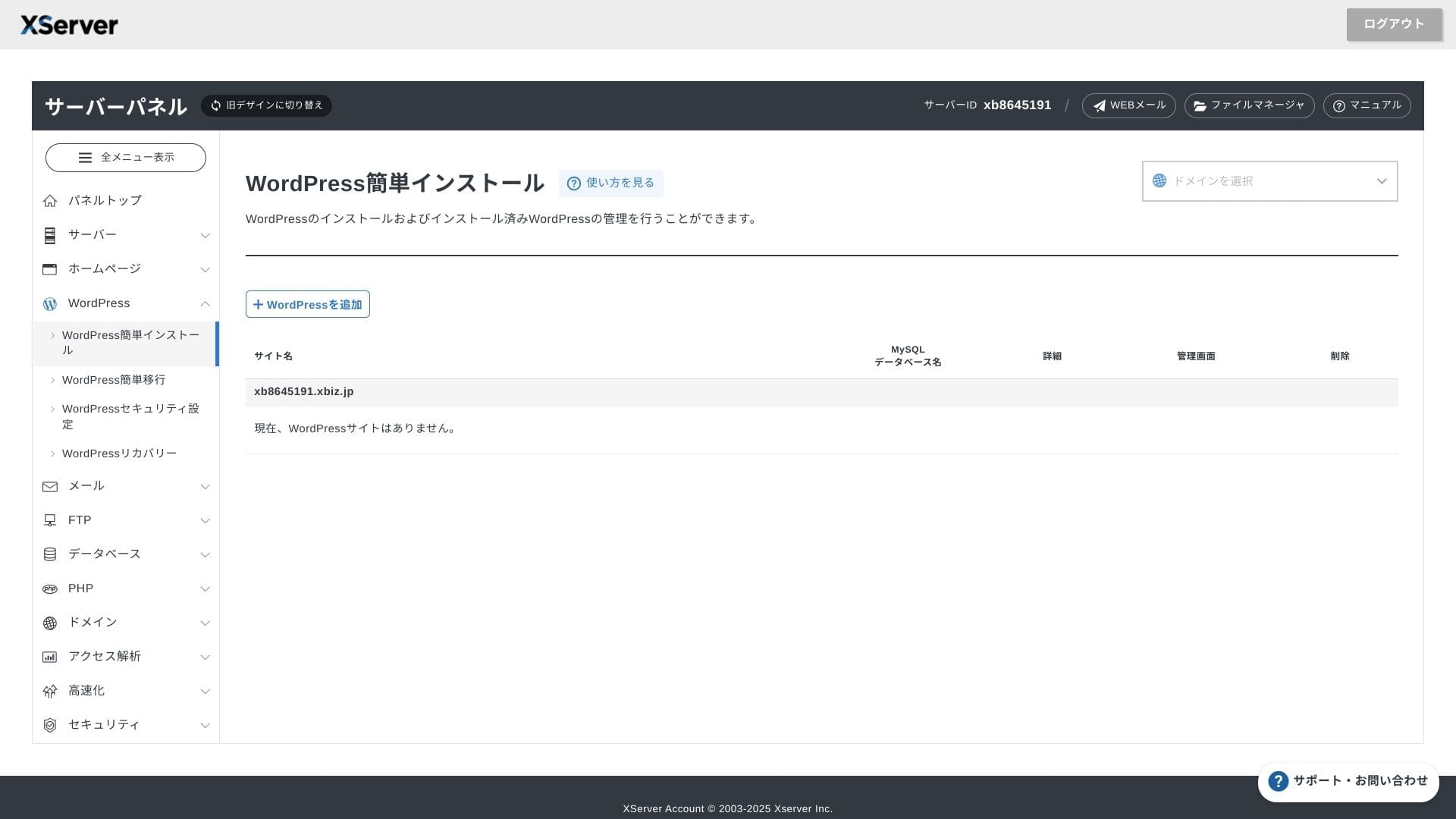
From WordPress in the Server Panel, choose Easy WordPress Installation.
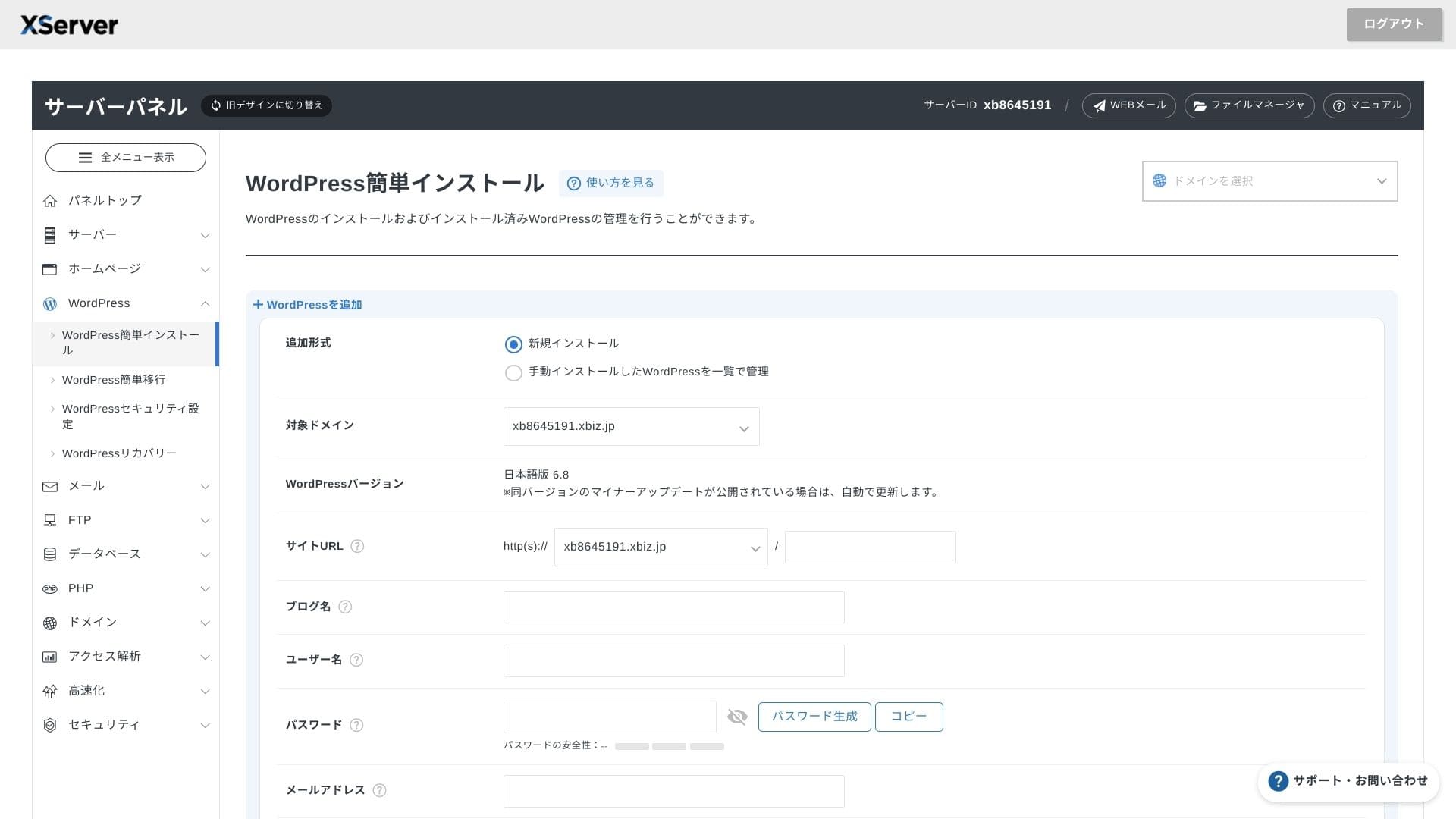
Click WordPress Installation and enter the installation settings for WordPress.
- Site URL: Select the domain name you obtained earlier
- Site title: The title of your website
- Username: Any username for WordPress login
- Password: A WordPress login password, preferably as complex as possible
- Email address: Use the email address you normally use. For a business site, a company email is recommended
- Database: Generate the database automatically
After entering everything, click "Proceed to Review" and then click "Install." When the completion screen appears, the installation is complete.
Next, handle the initial WordPress setup. Click Admin panel URL on the WordPress installation completion screen. On the login screen that appears, enter the username and password you wrote down earlier and click Log in.
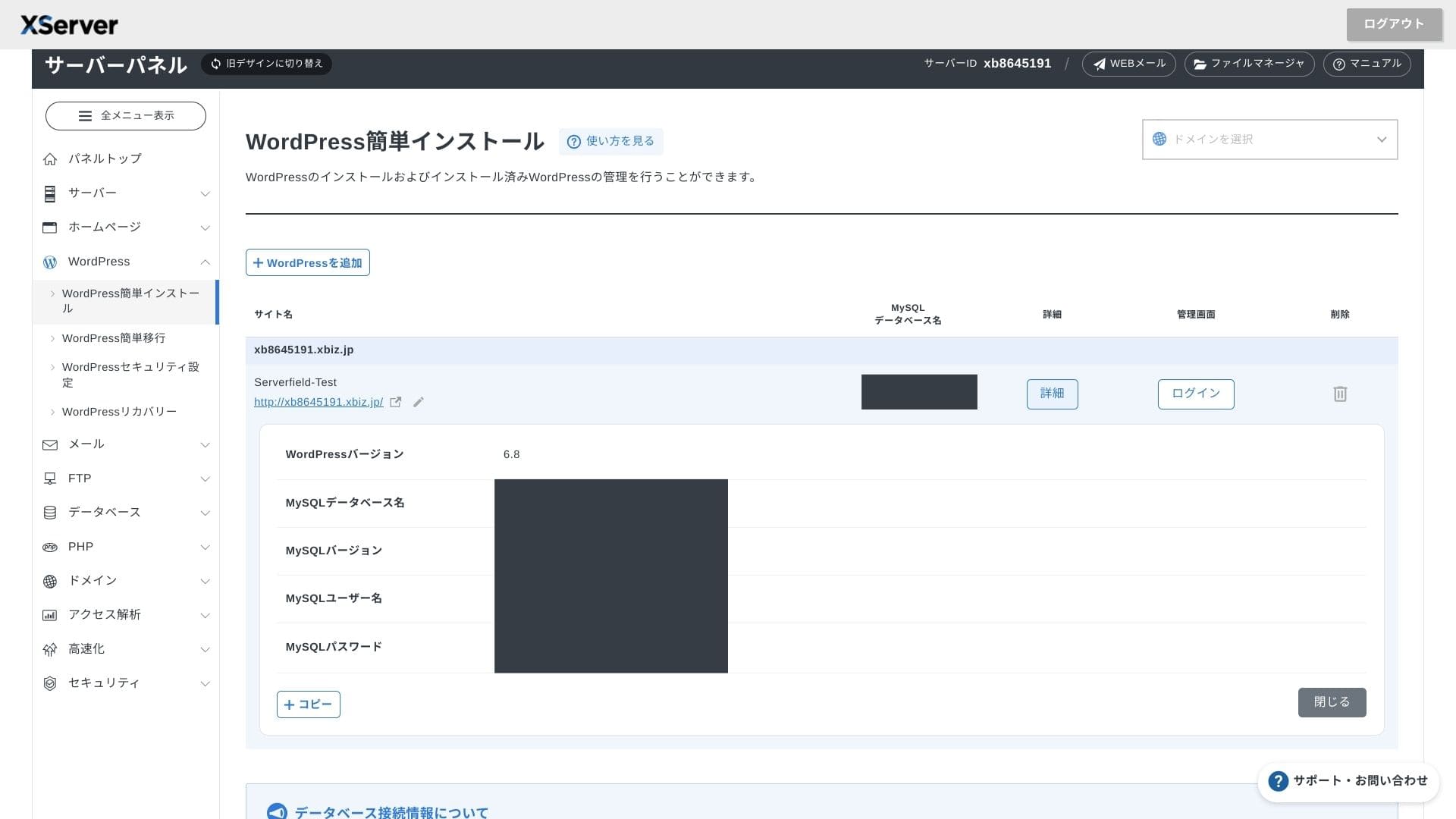
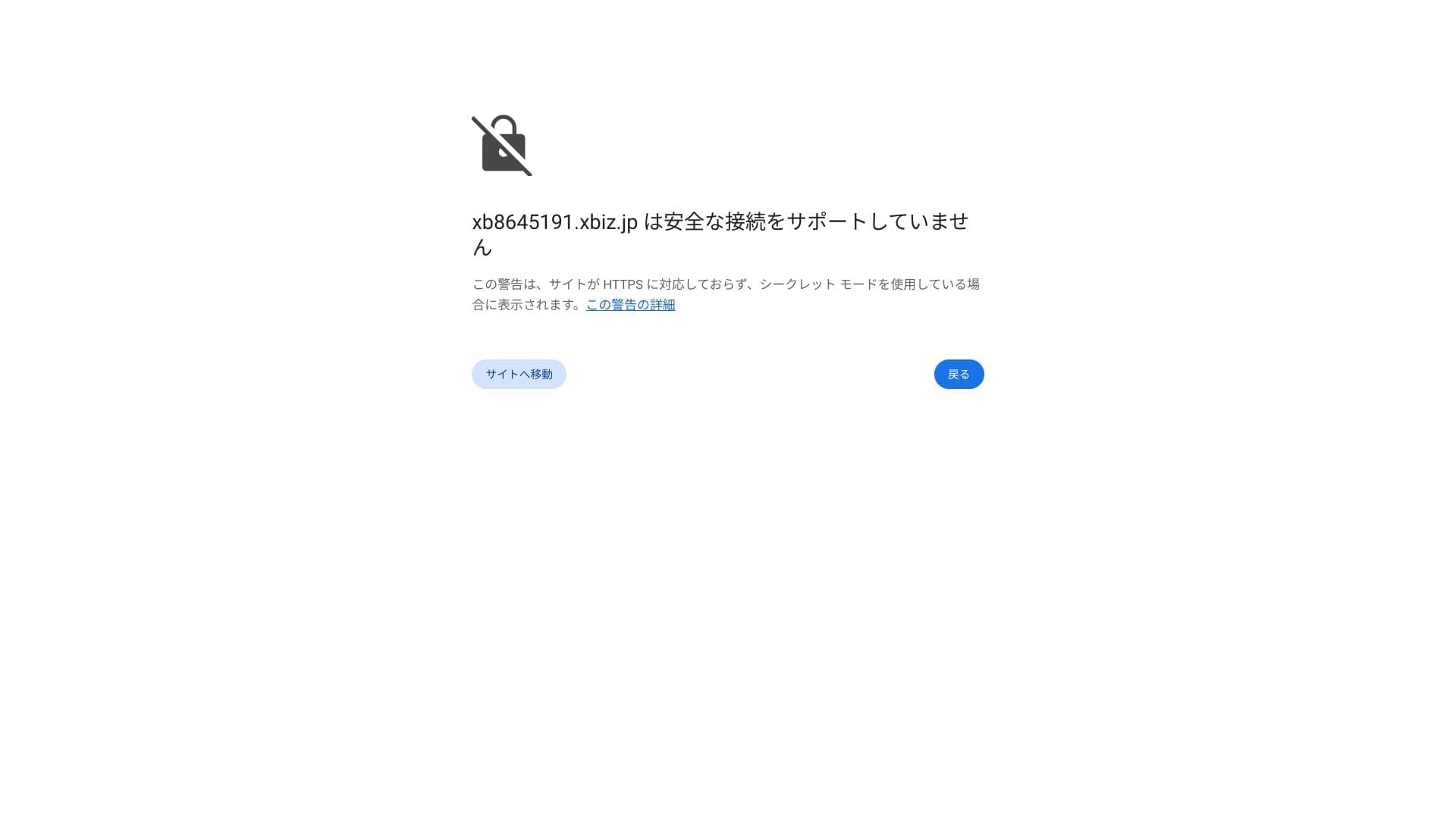
If you see a warning saying A secure connection is not supported, the DNS settings have not propagated yet. In that case, all you can do is wait, so try logging in again every hour or so.
★ What are DNS and nameservers? Connecting your domain and server
Set your permalinks. In the WordPress admin screen, go to Settings and then Permalinks. Choose Post name and click Save Changes.
If you choose Post name, you will be able to enter any string you want in each article URL. I recommend a short string that helps readers imagine the article content. If the URL is too long, some people may feel uneasy and wonder whether the site is unsafe.
- STEP.7Install plugins
Go back to the WordPress admin screen, open Plugins, then Add New, and install the plugins you need.
When you find the plugin you want through search, click Install Now and then Activate. After that, follow the instructions for each plugin.
Be sure to install security and backup plugins.
- 5 security-focused WordPress plugins and how to choose them
- 5 powerful WordPress backup plugins to recover your data
Once the plugins are in place, your WordPress website is ready to go.
Multiple sites चलाना
Multidomain, subdomains और email accounts unlimited होने के कारण एक ही contract में multiple sites, campaign pages और internal portals को संभालना आसान हो जाता है.
WordPress site migration
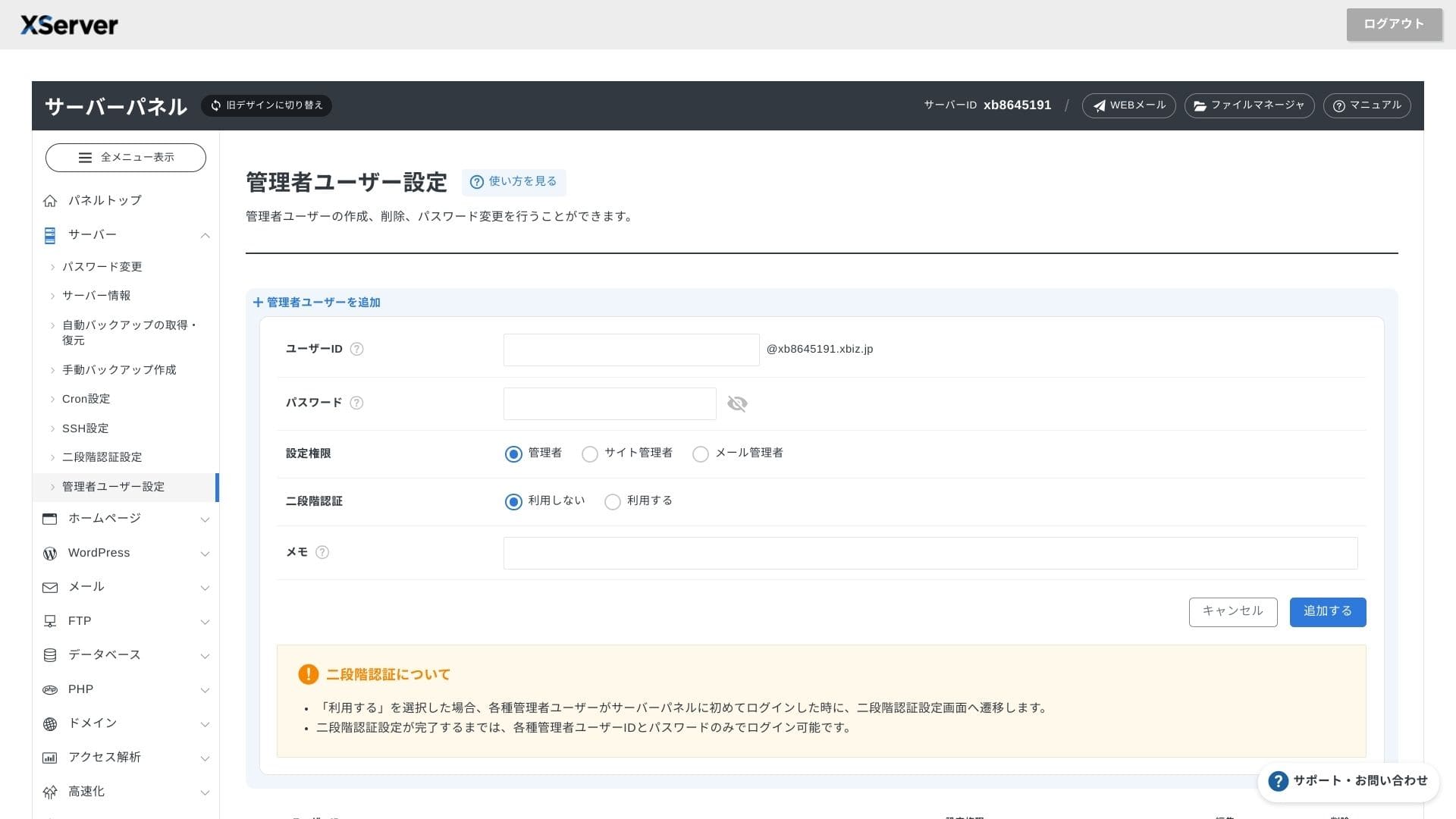
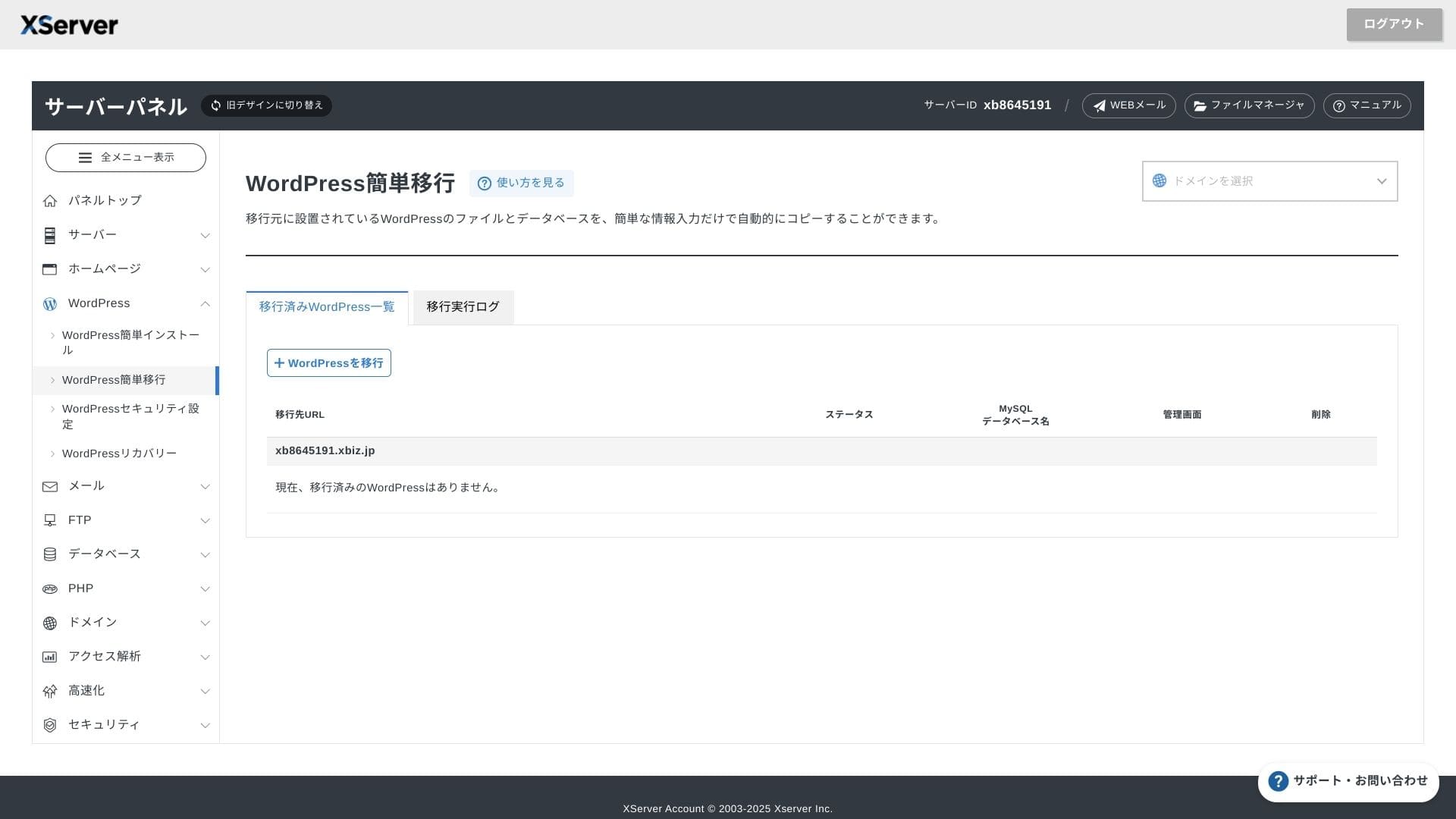
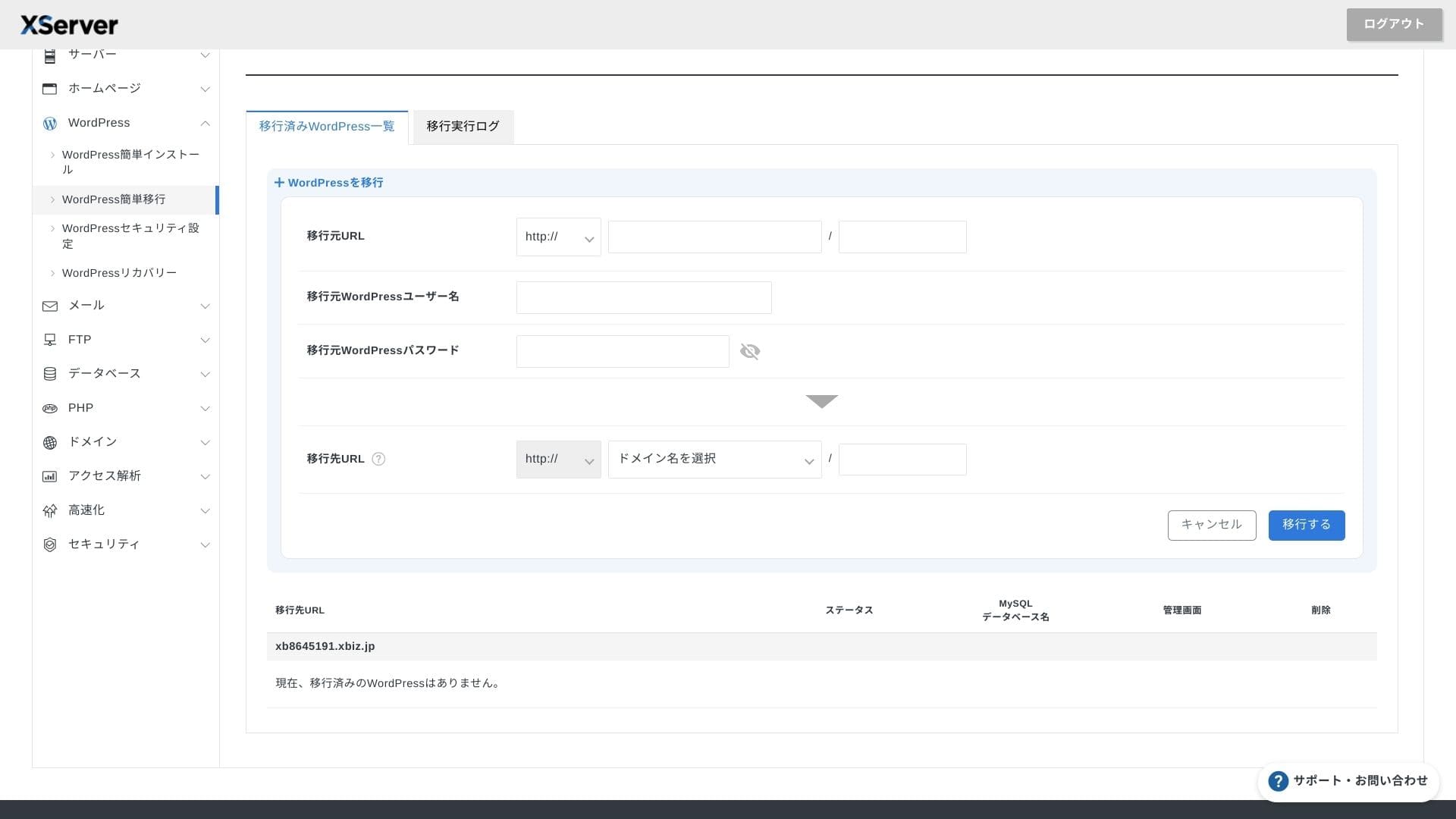
यह service Easy WordPress Migration और managed migration दोनों देती है. Existing site को दूसरे server से लाने वाली teams के लिए यह practical value रखता है.
Hikaru Ono
If you are comfortable with servers and domains, using Easy WordPress Migration and setting it up yourself is smoother because you do not have to wait for the managed migration service.
In particular, the managed migration service also handles the DNS switch, so I especially recommend it for businesses that already have traffic and absolutely want to avoid DNS mistakes during migration.
Performance और specs review
हमारे measurements पर आधारित performance
XServer Business का measured TTFB 40ms था, जो business hosting category में बहुत तेज परिणाम है.
Google 200ms से कम server response time की सलाह देता है, इसलिए 40ms का परिणाम SEO और user experience दोनों के लिए मजबूत माना जा सकता है.
You should reduce your server response time under 200ms.
Improve Server Response Time
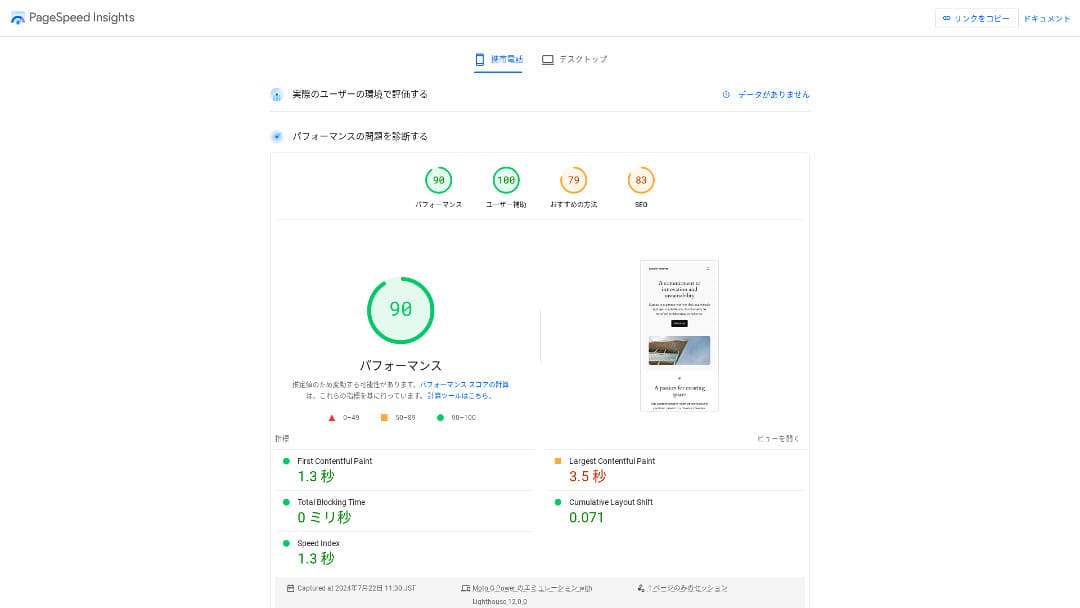
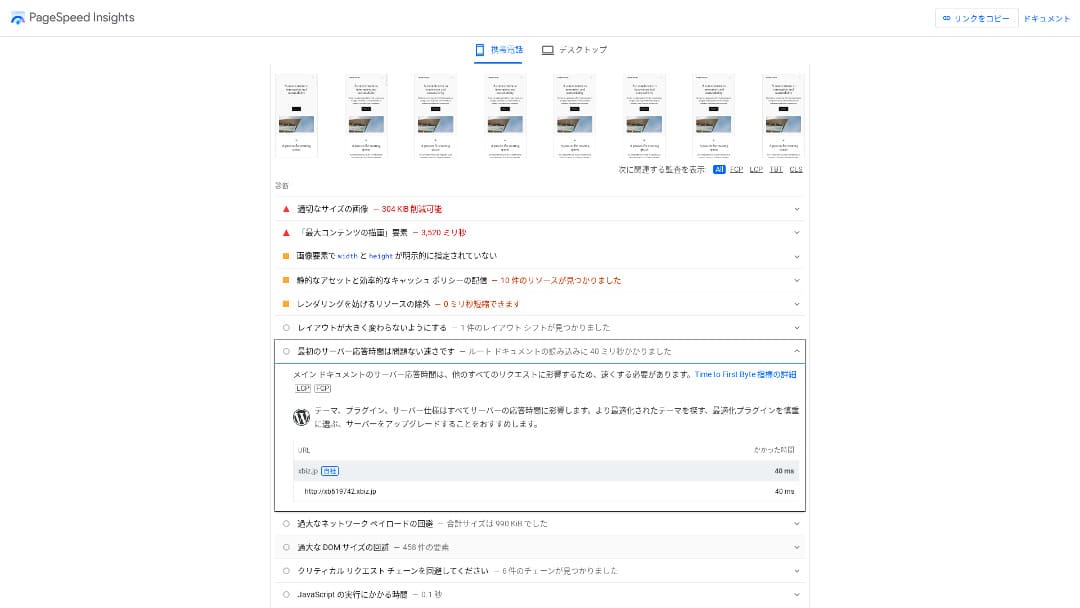
हमारे द्वारा measured 18 servers में यह दूसरा सबसे तेज था. केवल Kinsta उससे आगे था.
Hikaru Ono
It is the fastest domestic server. For corporate sites and ecommerce sites where even 0.1 seconds affects traffic and sales, that speed is a major advantage.
10 Gbps direct domestic backbone और NVMe RAID10 storage जैसी infrastructure details इसकी speed को support करती हैं.
Disk capacity
Shared plans को 700 GB, 800 GB और 900 GB तक बढ़ाया गया है, इसलिए email retention, multiple sites और large assets रखने वाली businesses के लिए capacity पर्याप्त दिखाई देती है.700 GB / 800 GB / 900 GB (all NVMe). Even if you launch many landing pages with lots of photos and videos, you still have plenty of headroom.
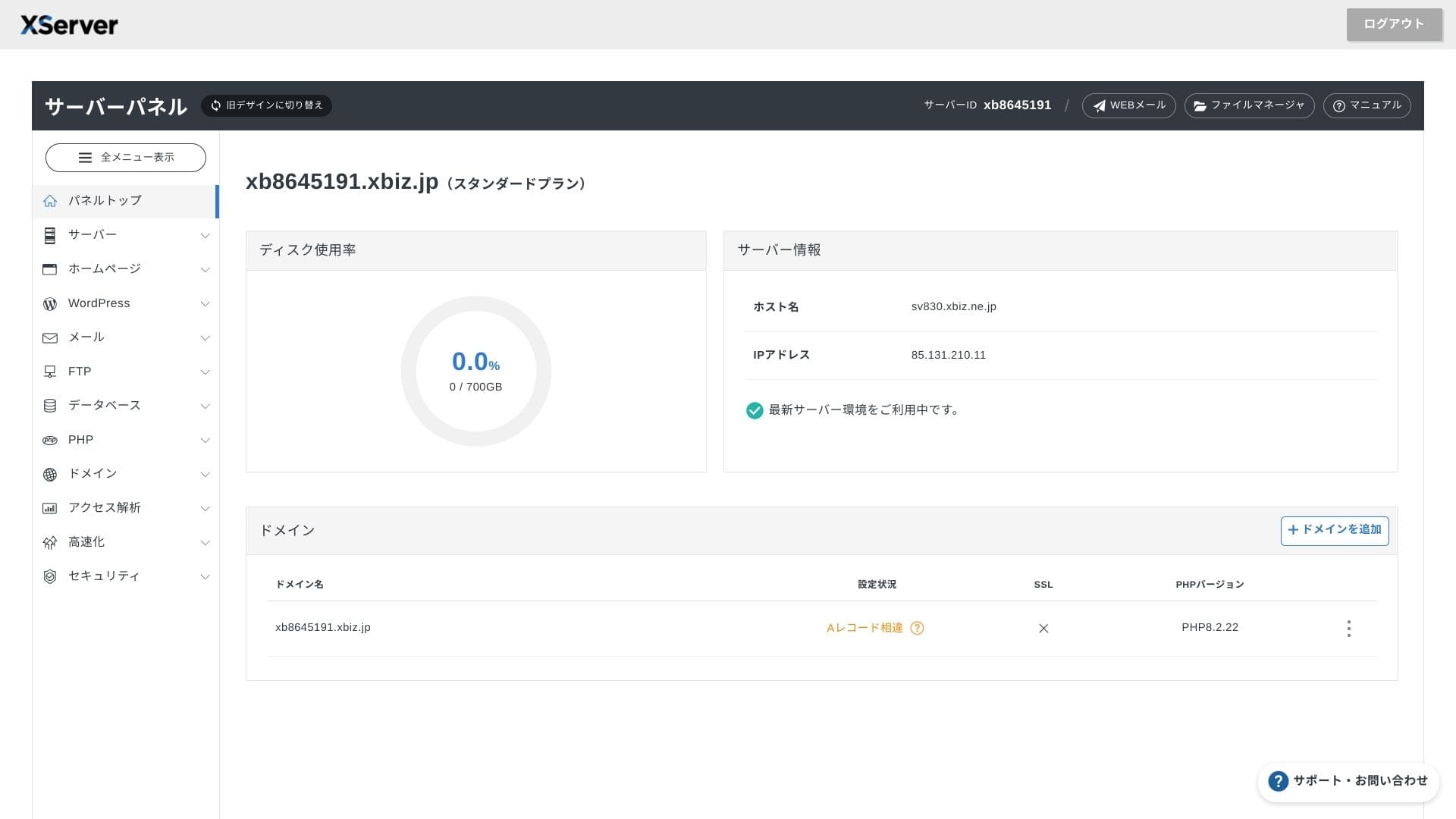
Finance या healthcare जैसे क्षेत्रों में जहां email को वर्षों तक रखना पड़ सकता है, वहां यह large capacity व्यावहारिक महत्व रखती है.
You can also build on-premises-style storage such as WebDAV or Nextcloud and manage internal documents securely over a VPN connection.
Hikaru Ono
XServer Businessalone can reduce the workload on your operations team while still leaving enough headroom for future business growth.
Transfer volume
XServer Business campaigns, LPs और growing corporate sites के लिए पर्याप्त transfer margin देता है. High traffic को handle करने की क्षमता business operations में उपयोगी है.
★ What are traffic and data transfer volumes? Managing and optimizing web traffic
Server stability और uptime
Shared plan में भी monthly 99.99% SLA शामिल है. यदि downtime limit से अधिक होती है, तो compensation rules मौजूद हैं, इसलिए reliability को contract level पर समझा जा सकता है.
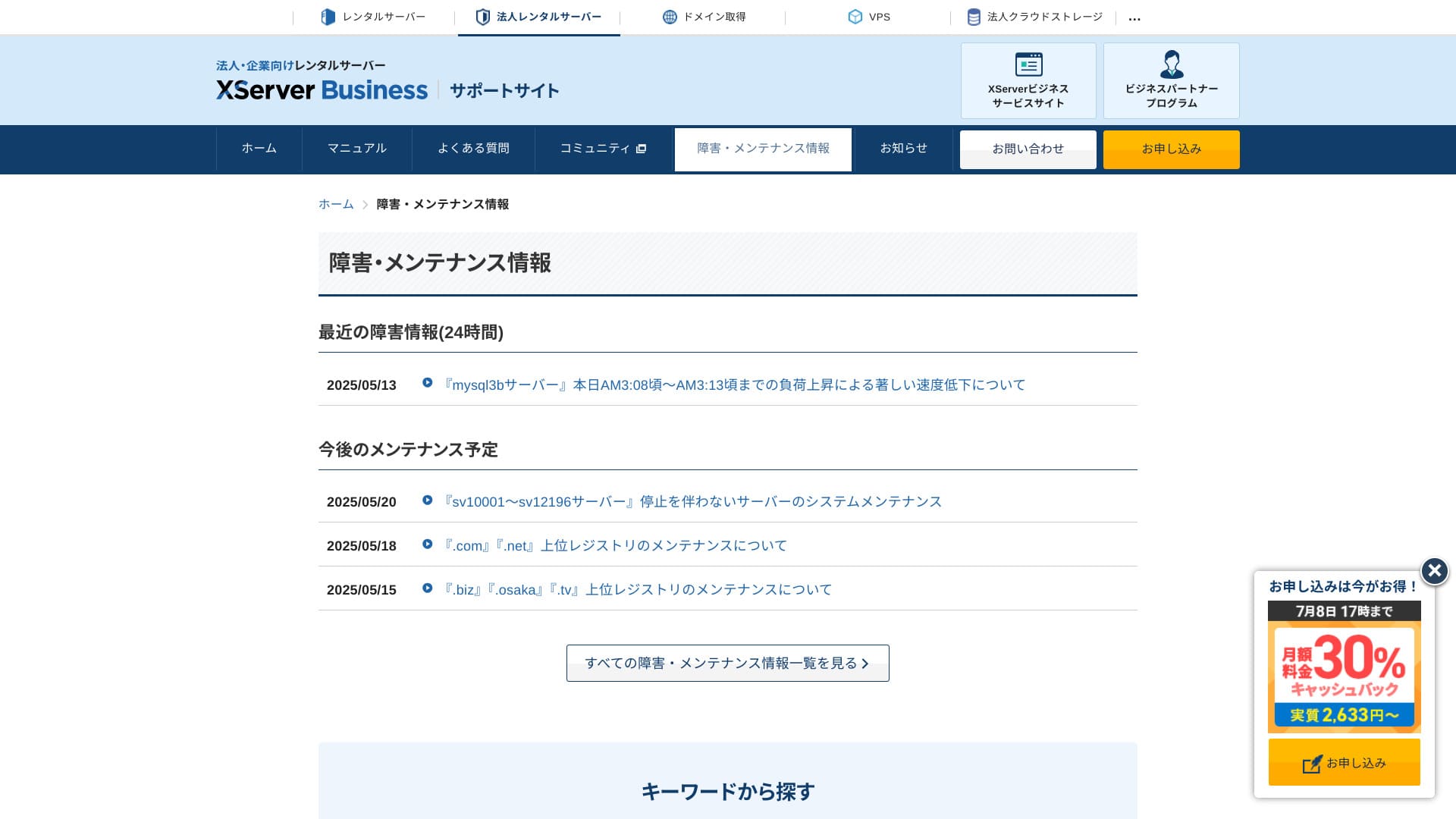
Because server outages and maintenance information are openly published on the official site, anyone can check them at any time.
Hikaru Ono
A company that shares this information openly instead of hiding it is easier to trust.
Pricing और cost
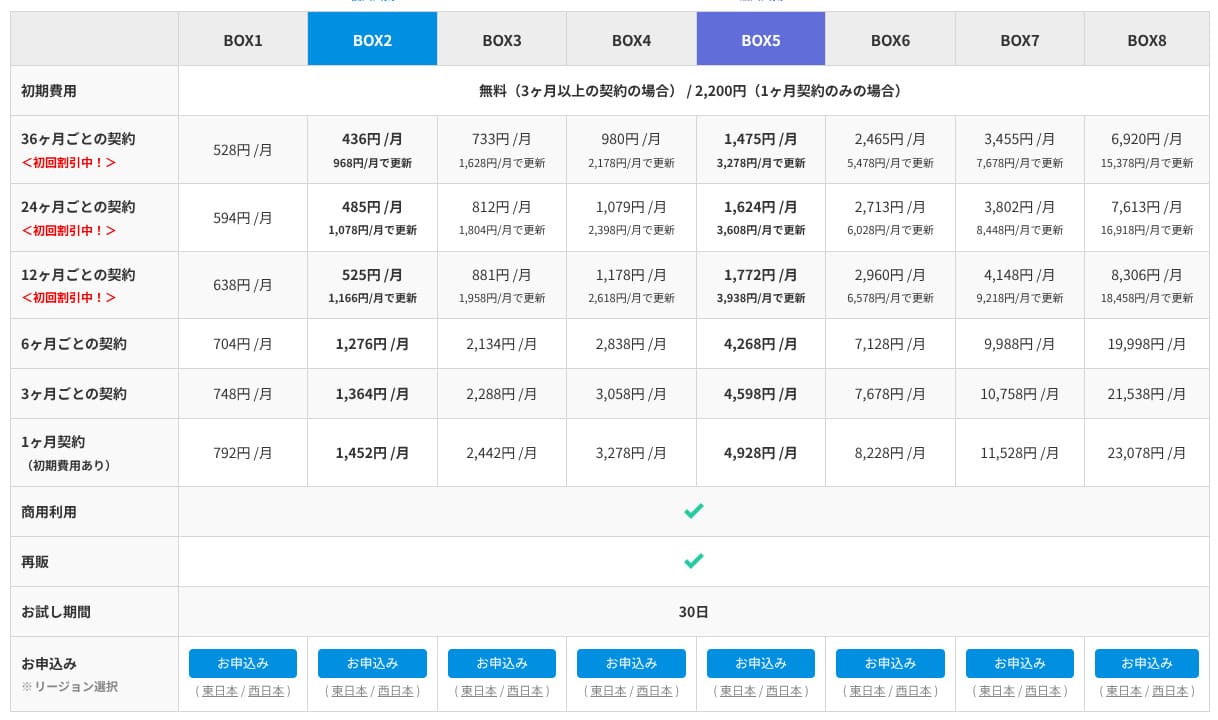
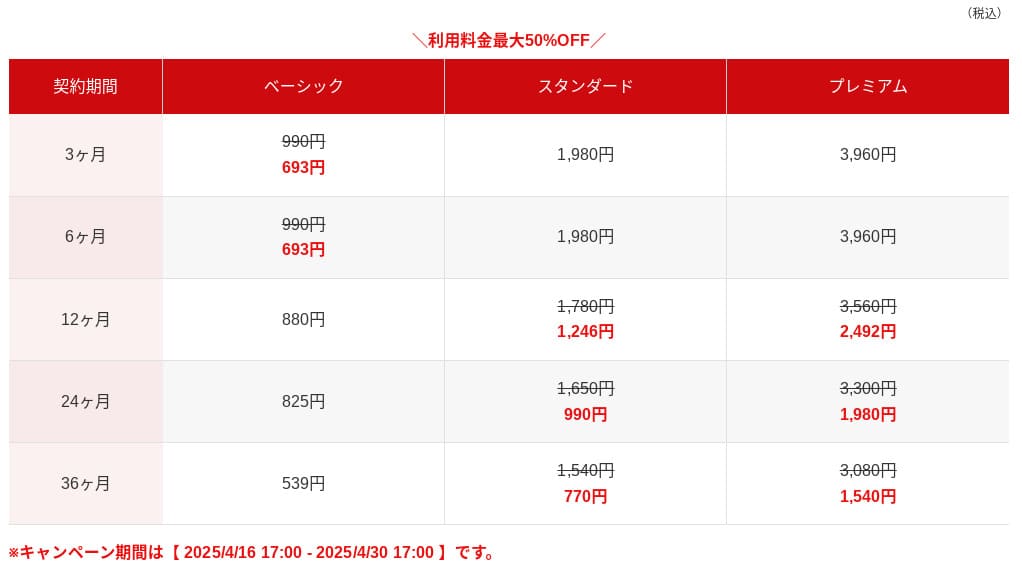
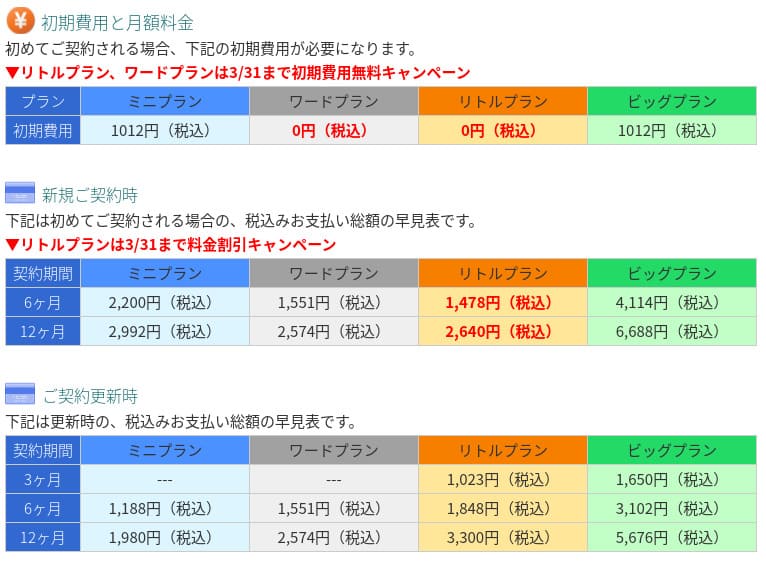
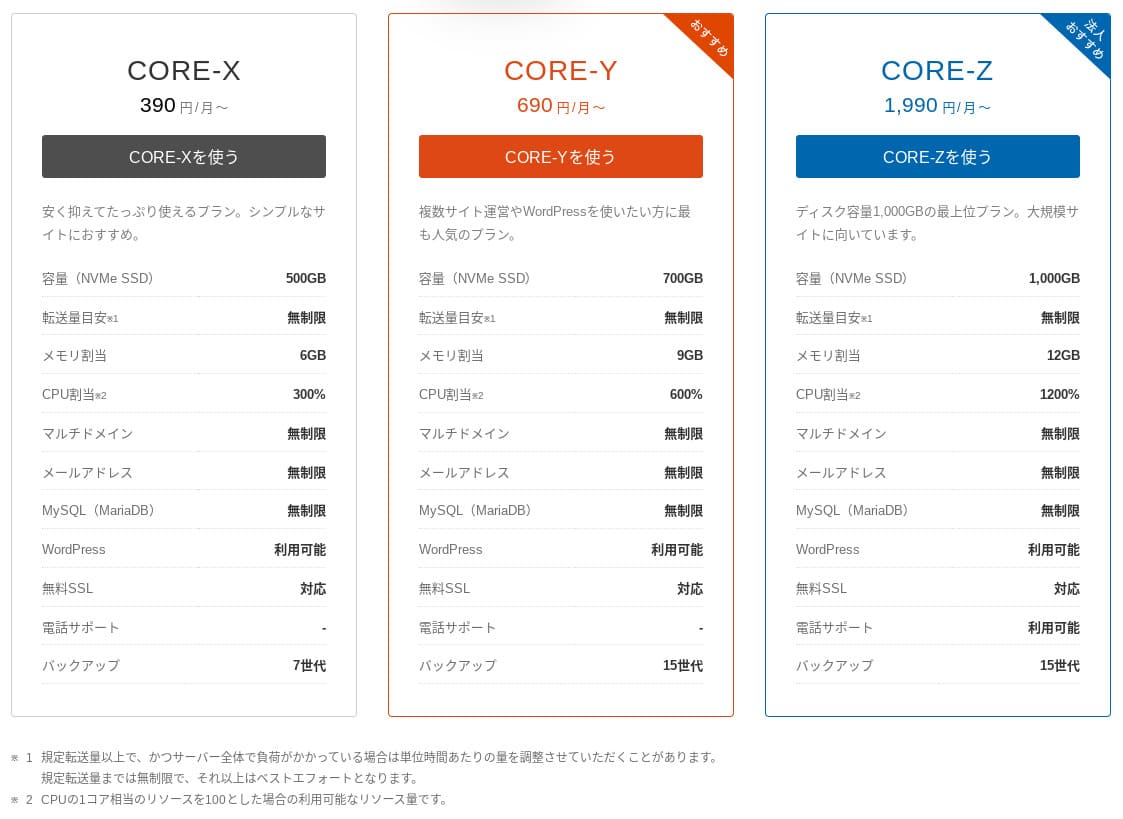
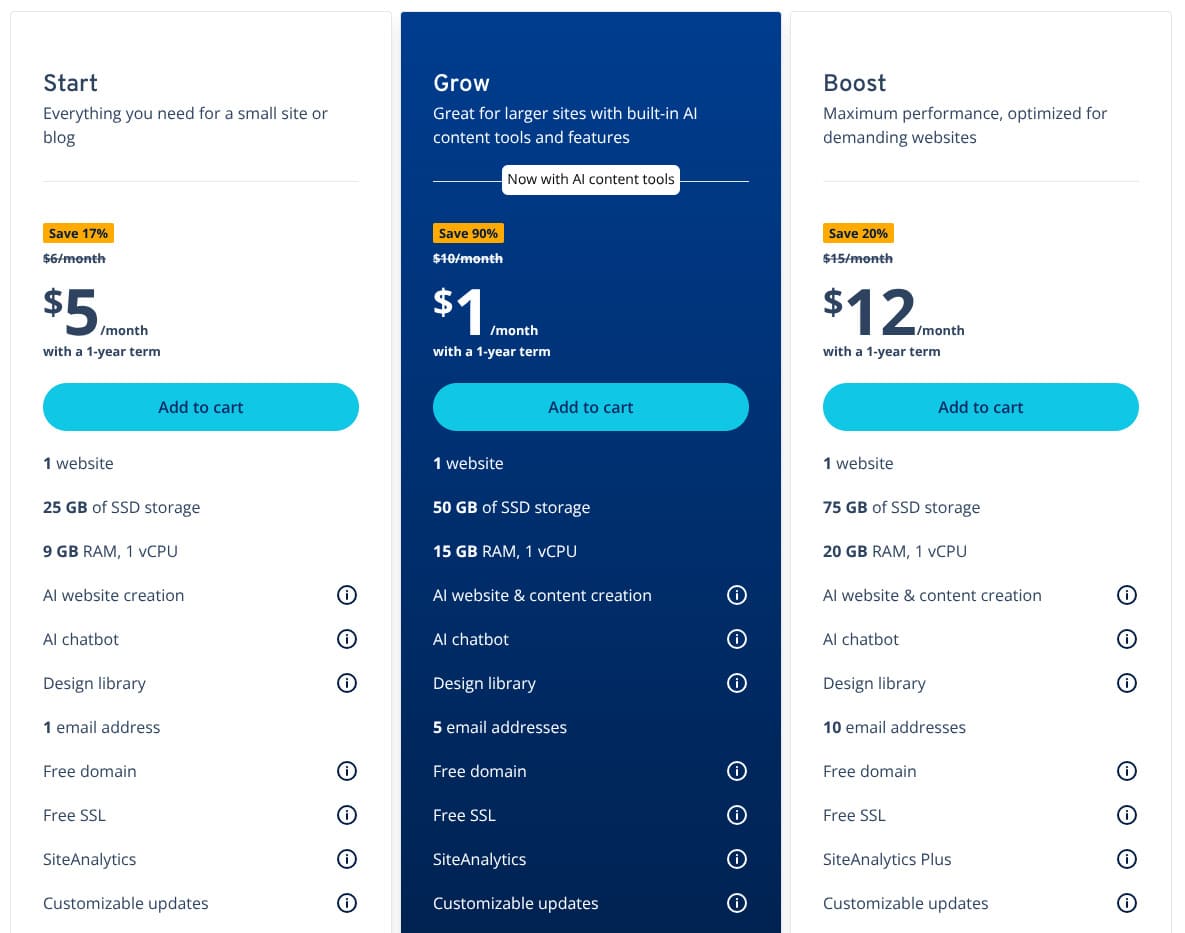
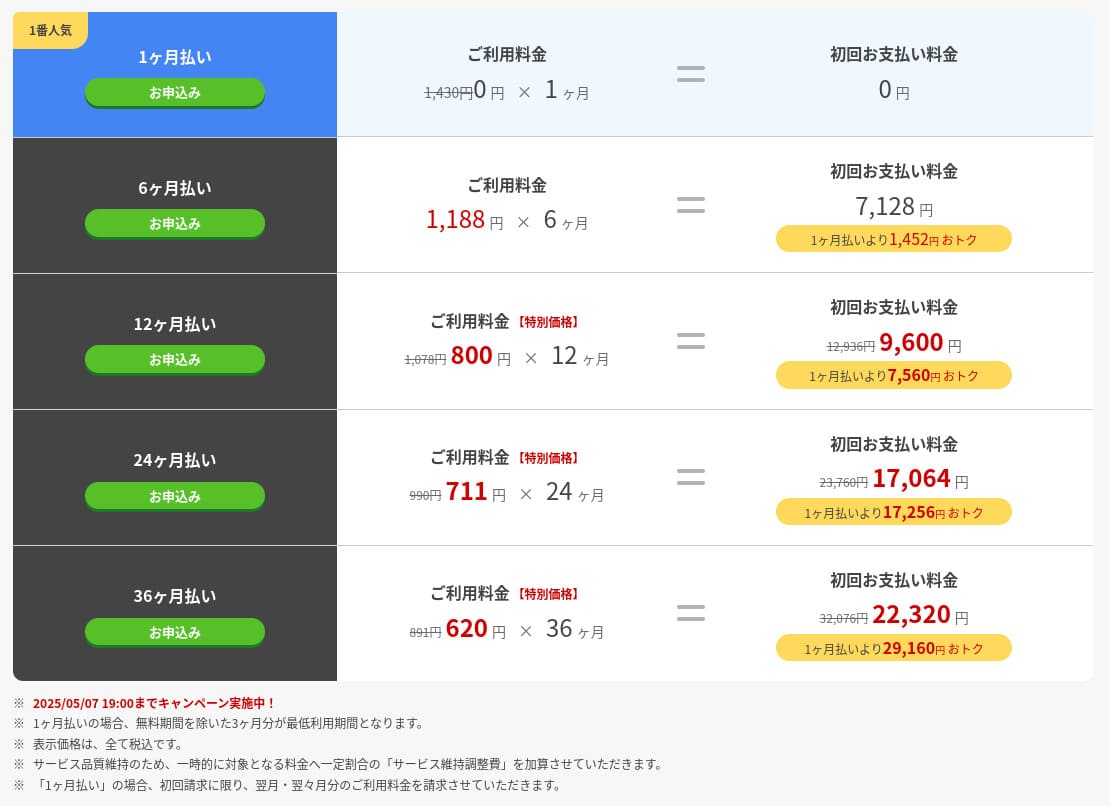
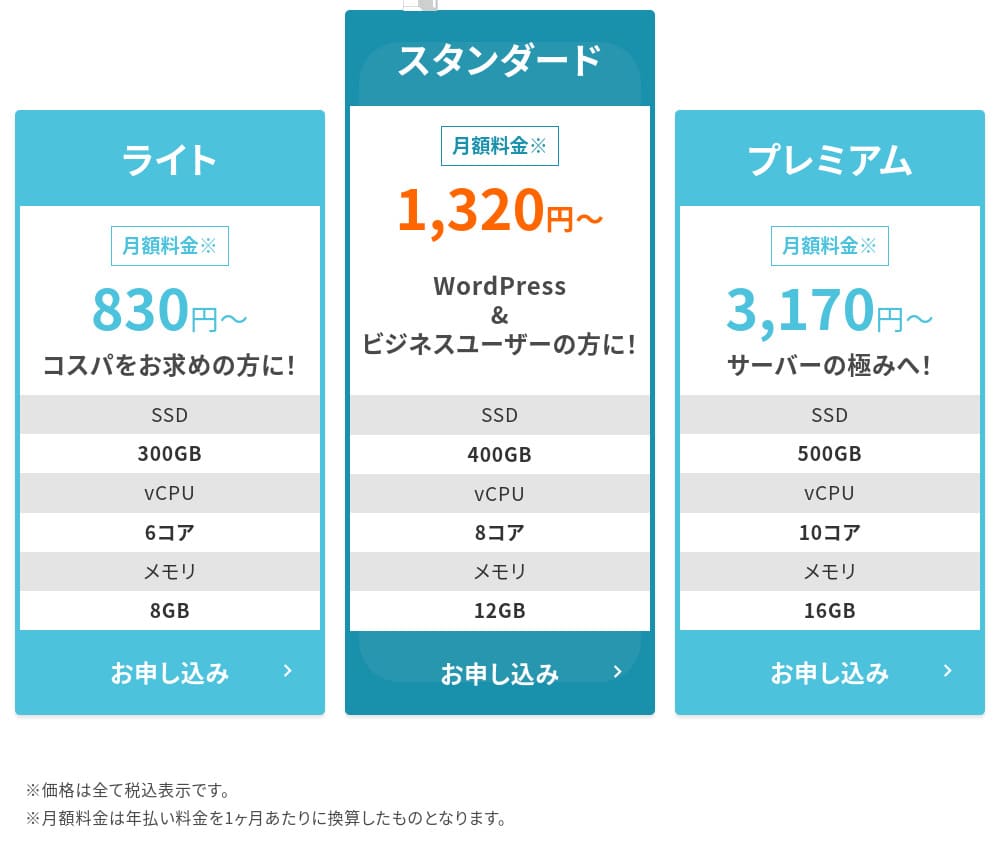
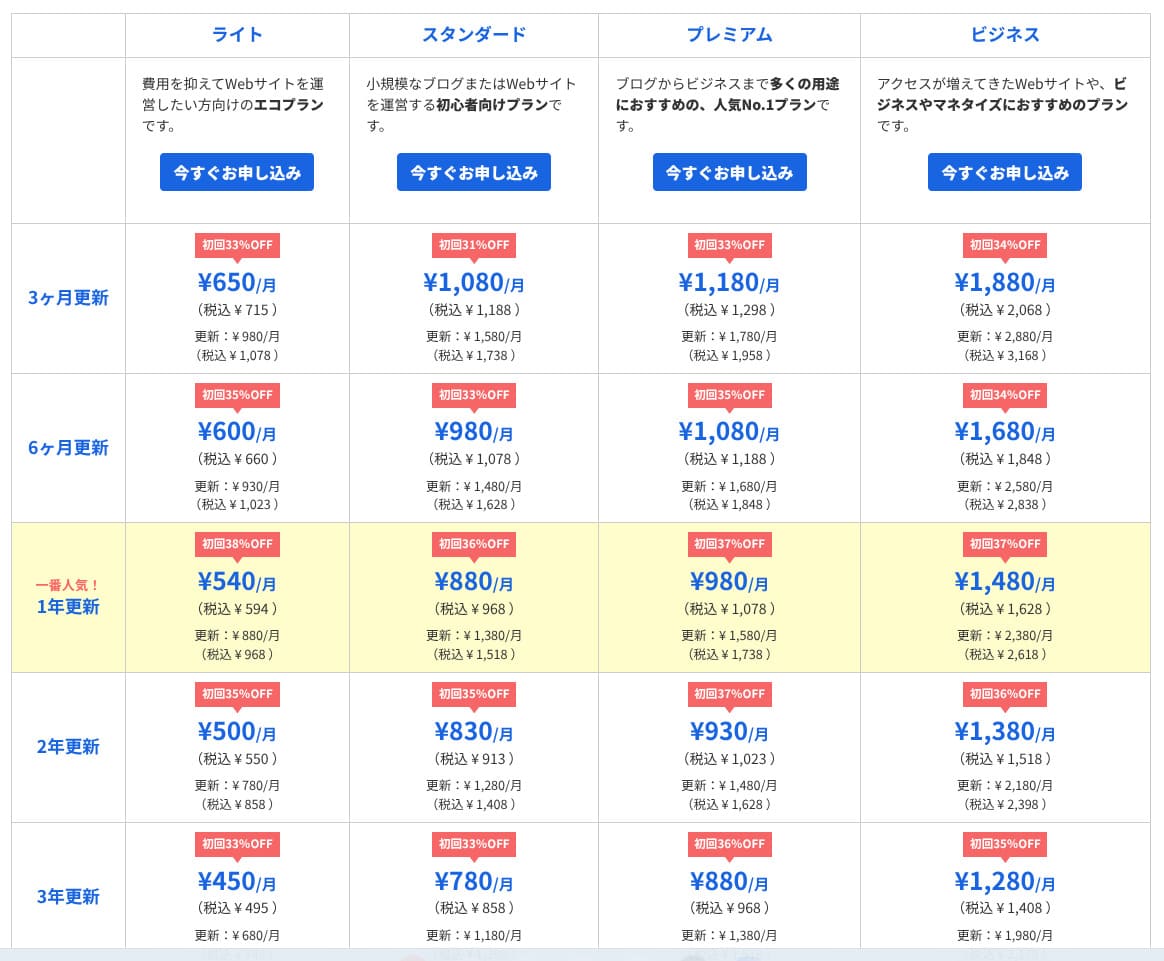
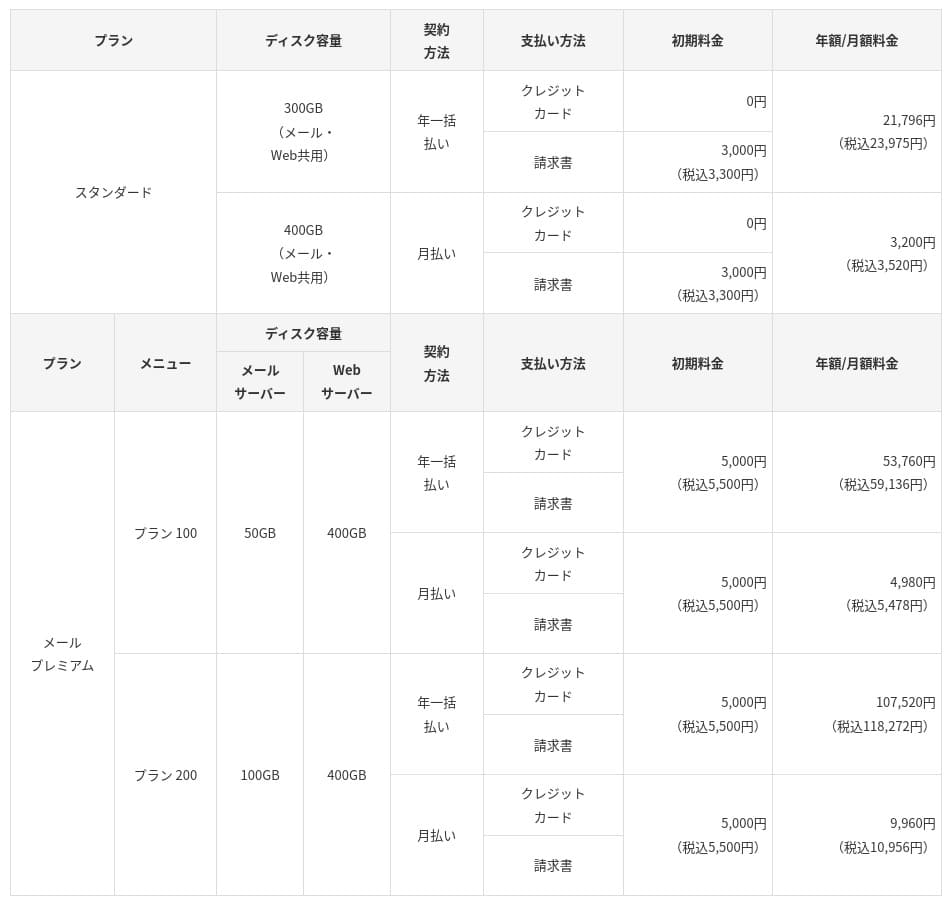
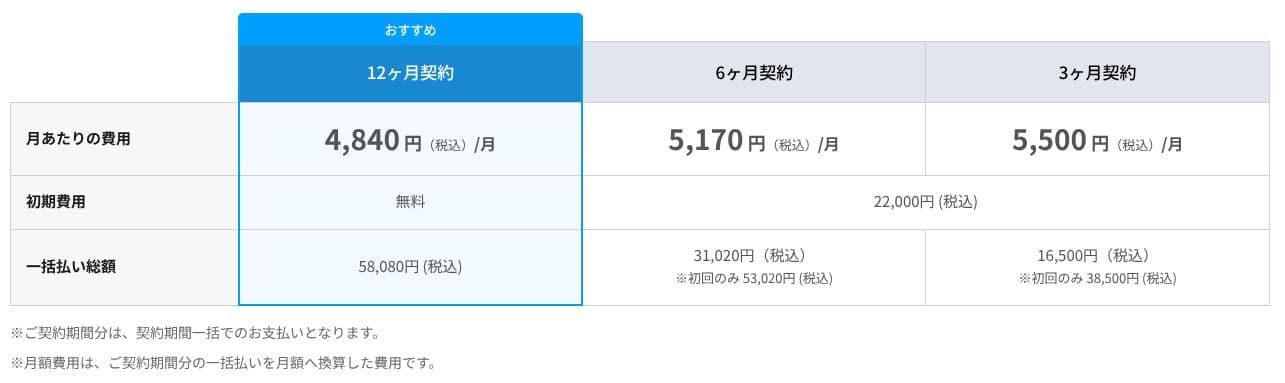
Initial fee और monthly cost
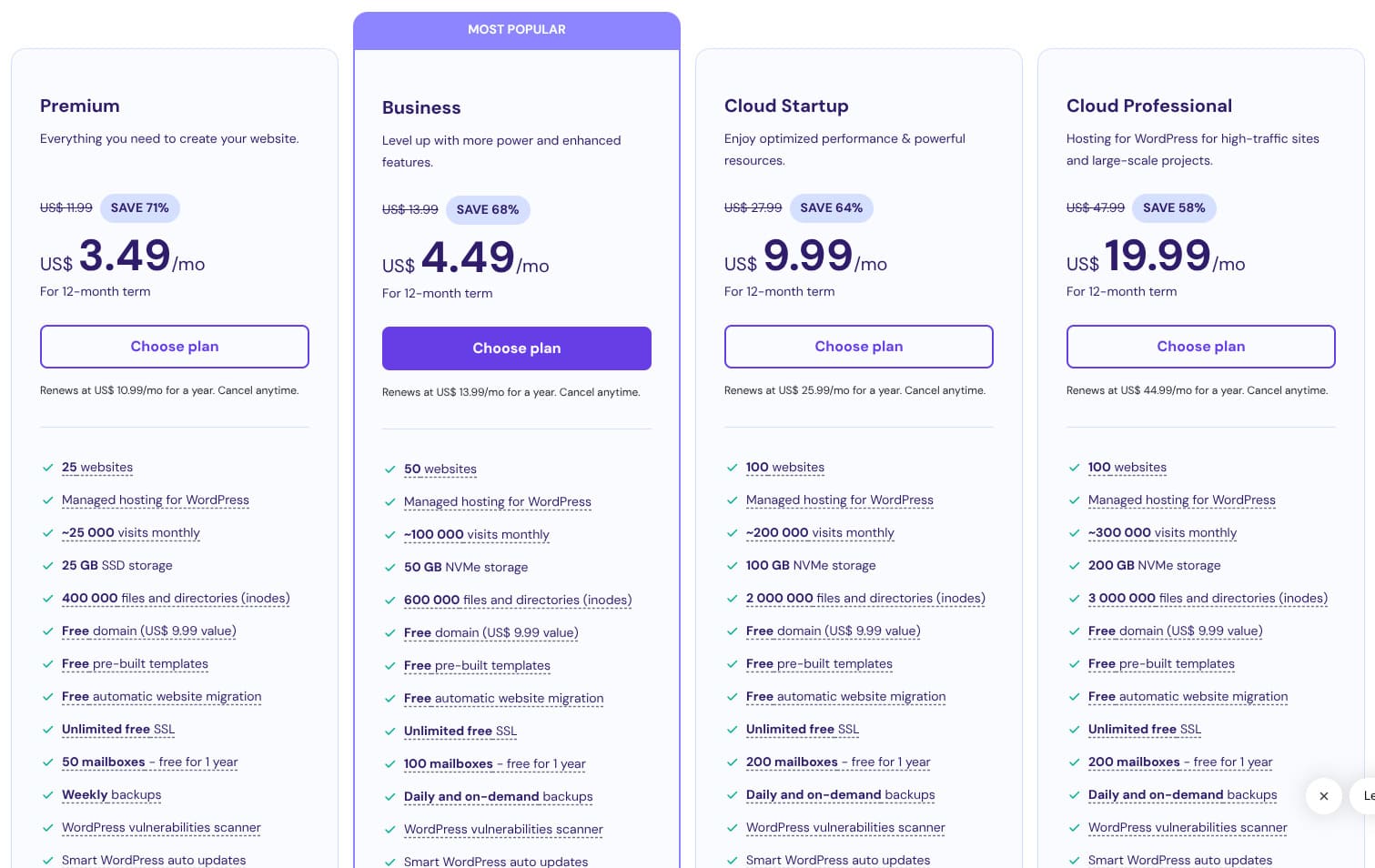
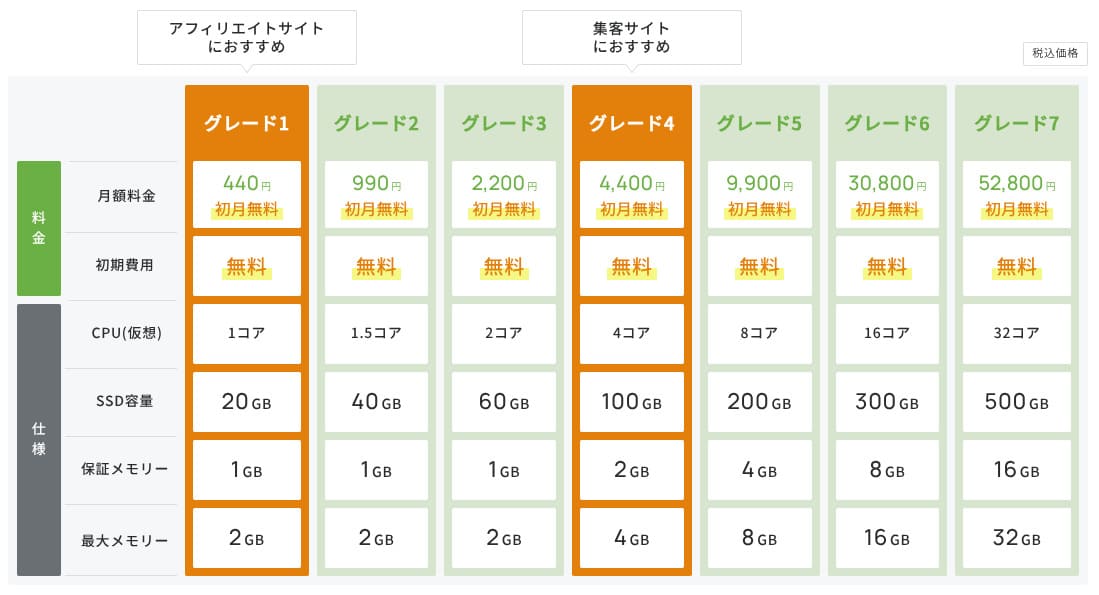
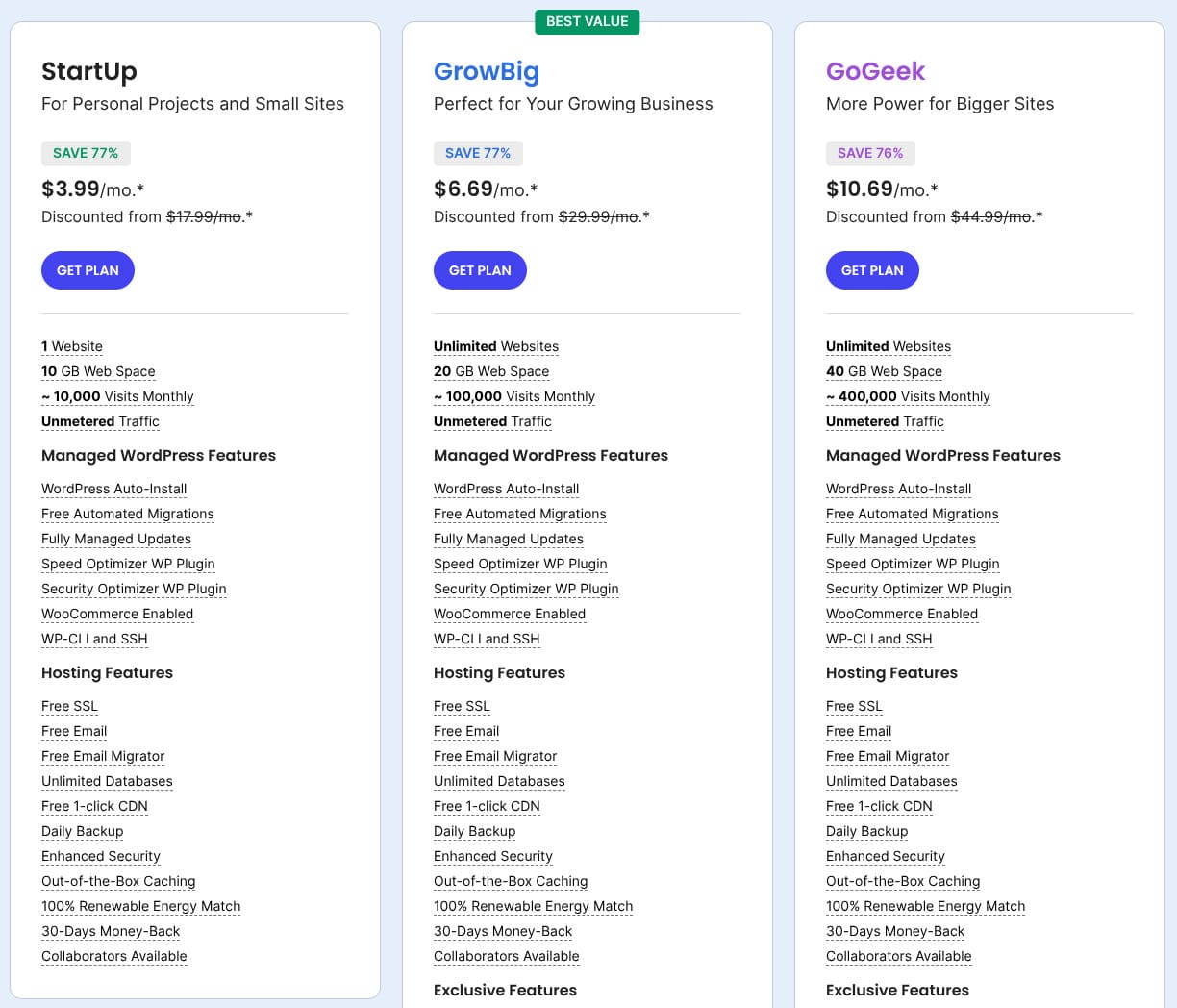
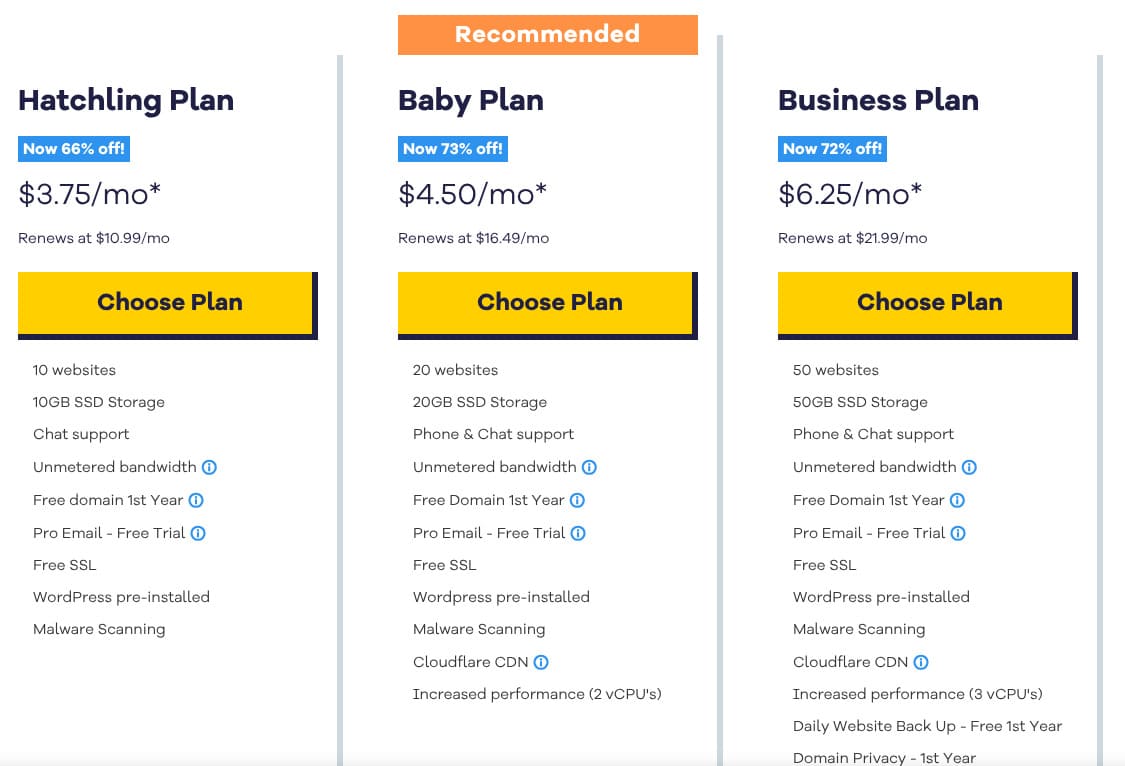
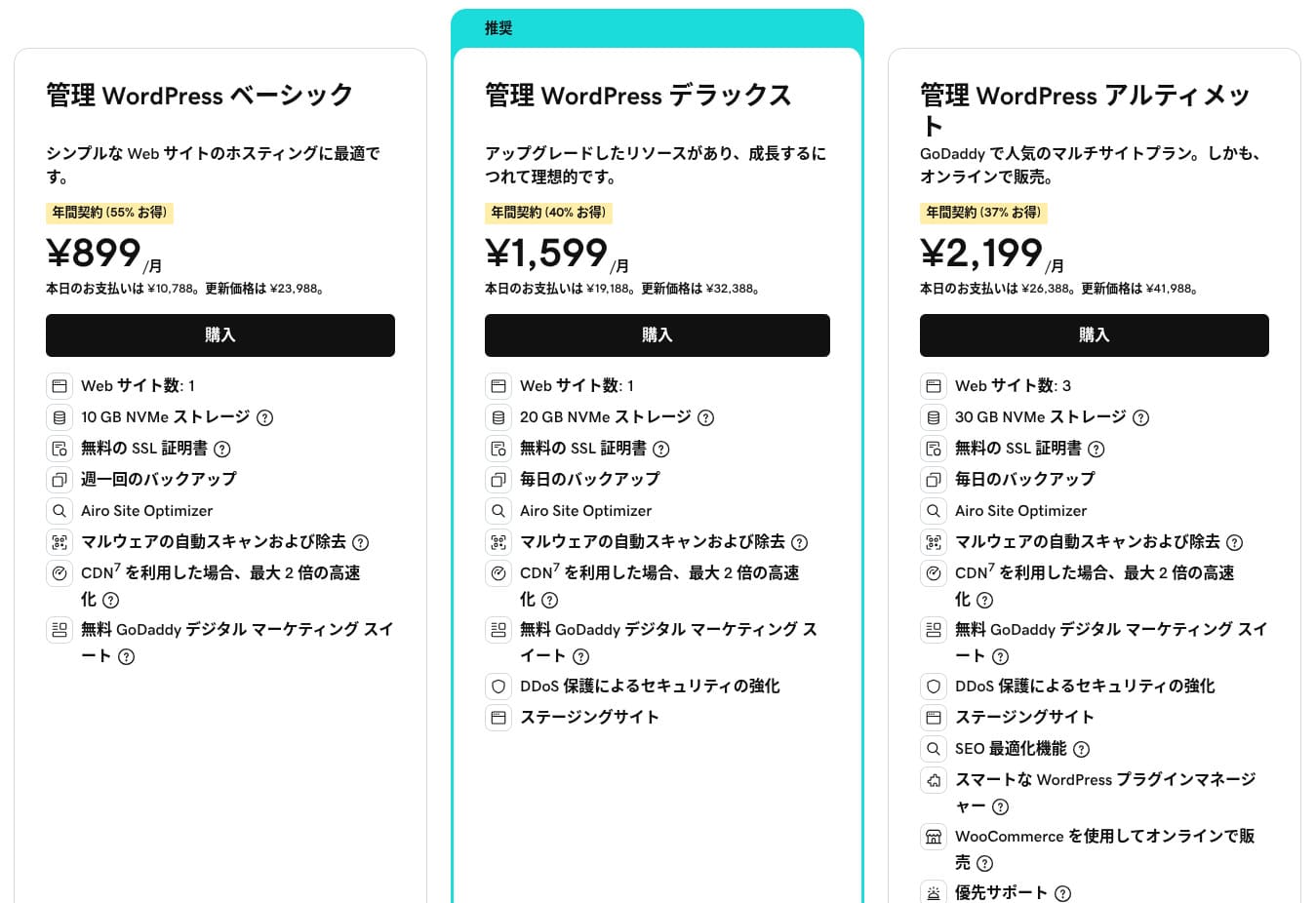
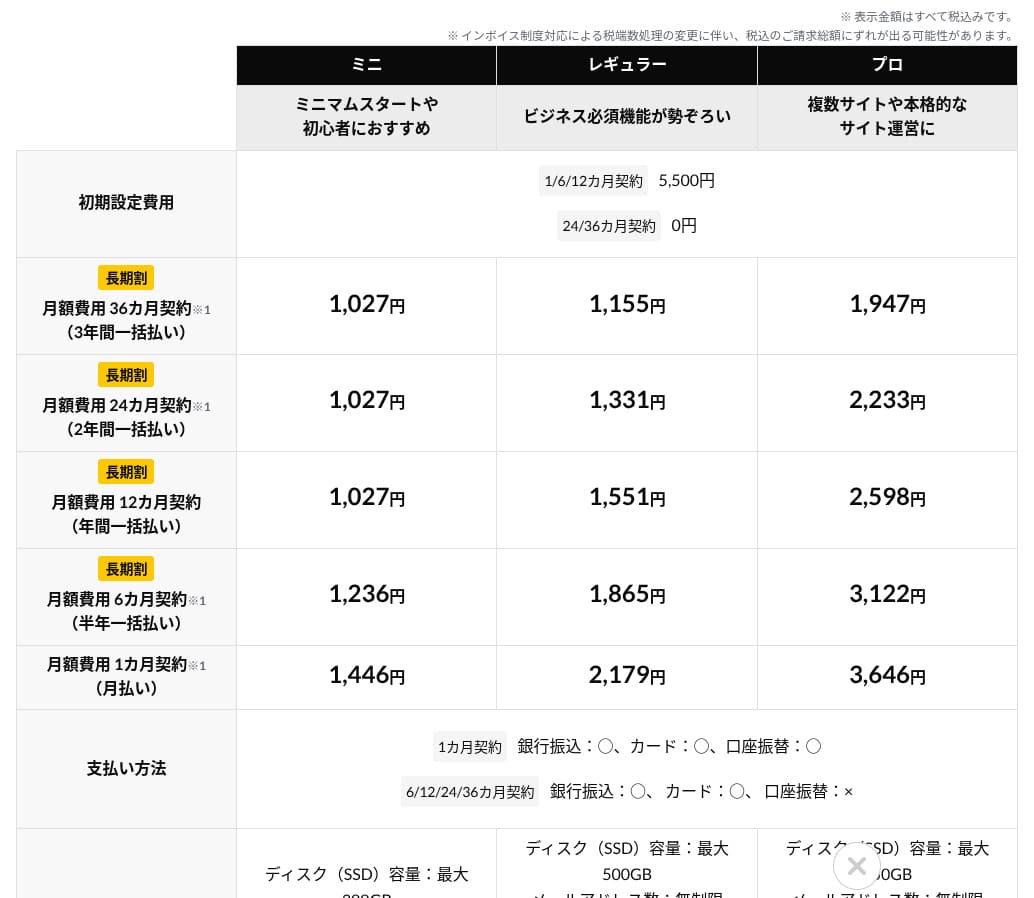
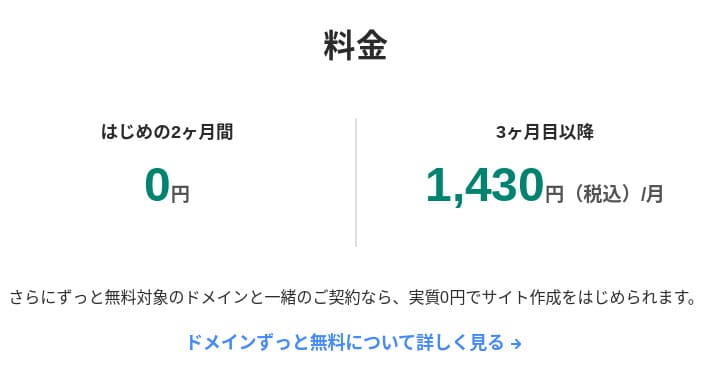
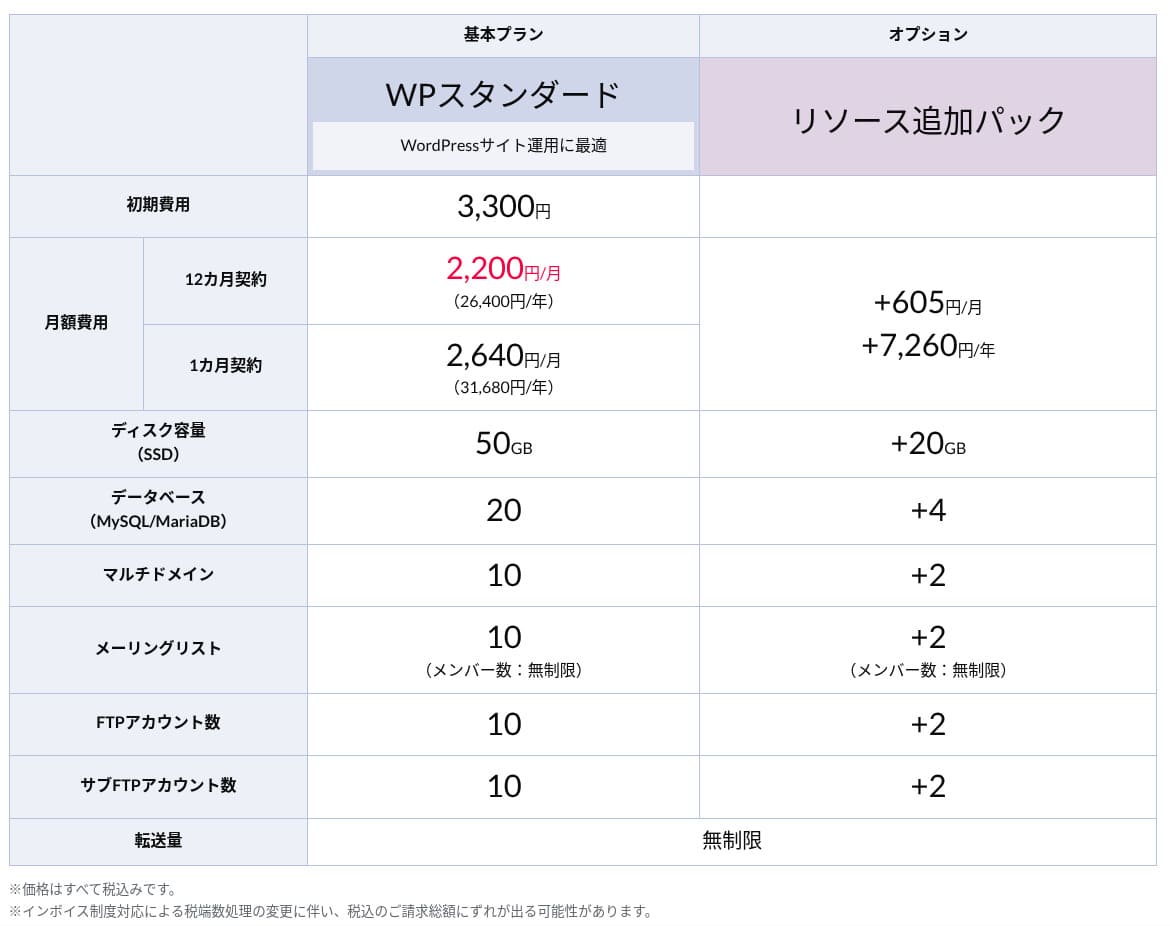
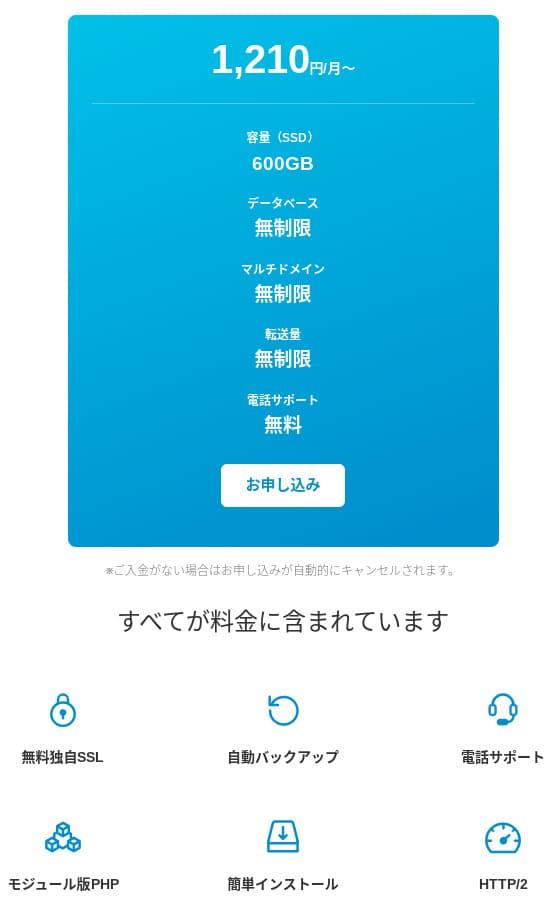
XServer Business का monthly fee low-cost shared hosting से अधिक है, लेकिन इसमें speed, security, migration और support का package शामिल है. Infrastructure outsourcing के दृष्टिकोण से इसकी cost का मूल्यांकन करना चाहिए.
- XServer Business
- Kinsta
- wpx
- Lolipop!
- Star Server
- Rakko Server
- XServer
- ConoHa
- ColorfulBox
- Shin Rental Server
- Little Server
- CORESERVER
- DreamHost
- Bluehost
- Sakura
- Namecheap
- Shin Free Server
- XREA
- Value Server
- Hostinger
- KAGOYA
- SiteGround
- HostGator
- IONOS
- Onamae.com
- ABLENET
- mixhost
- GoDaddy
- iCLUSTA+
- MuuMuu Server
- WADAX
- WebARENA
- Heteml
- CPI Rental Server
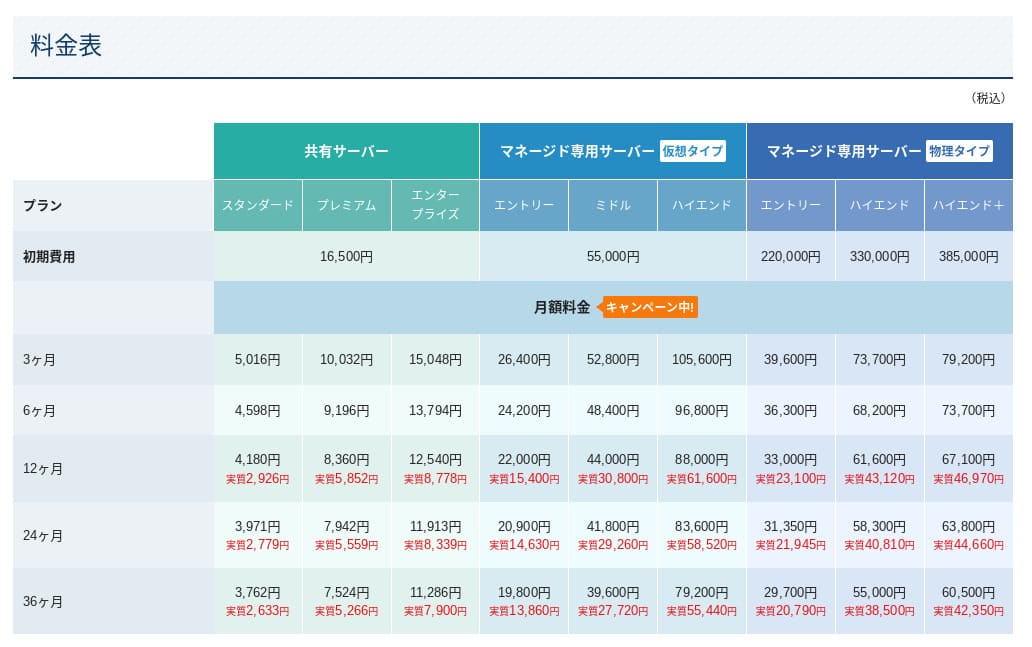
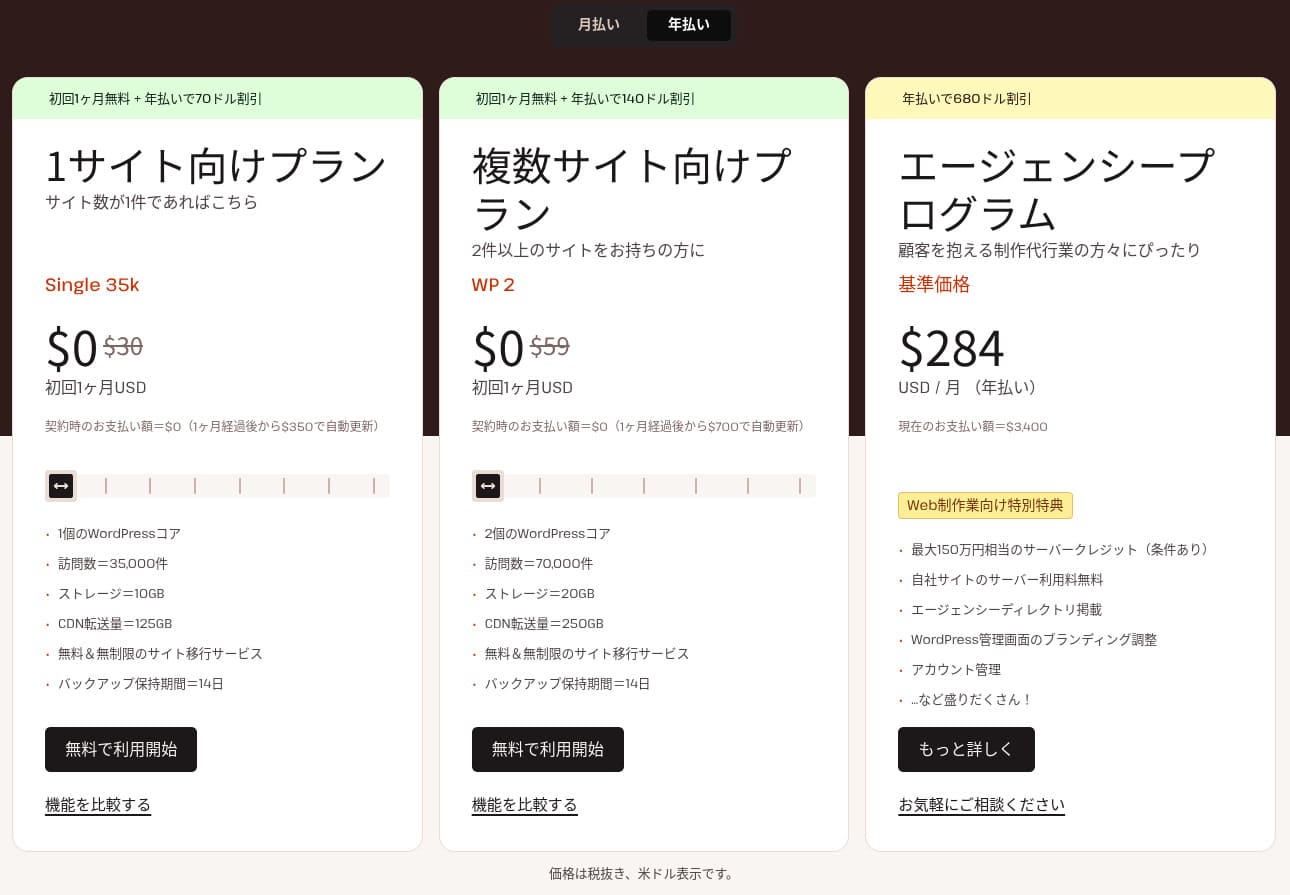
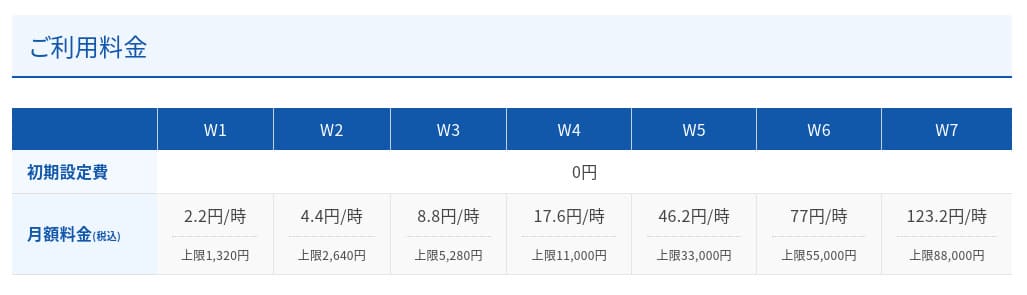
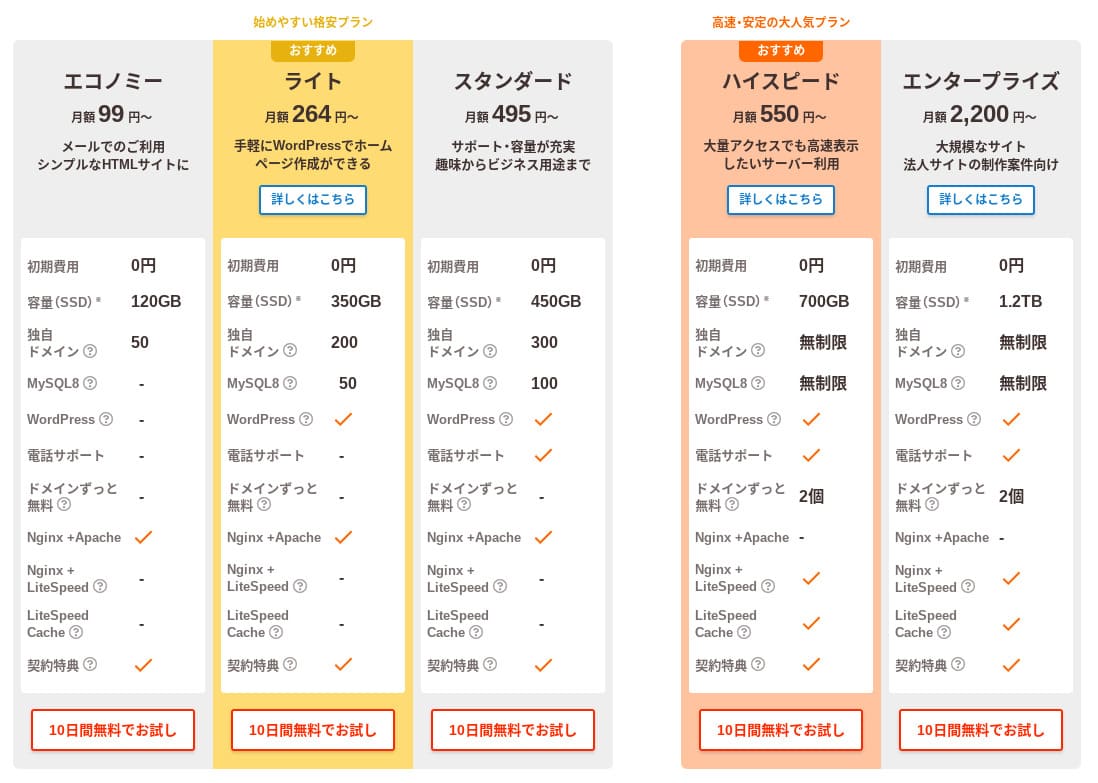
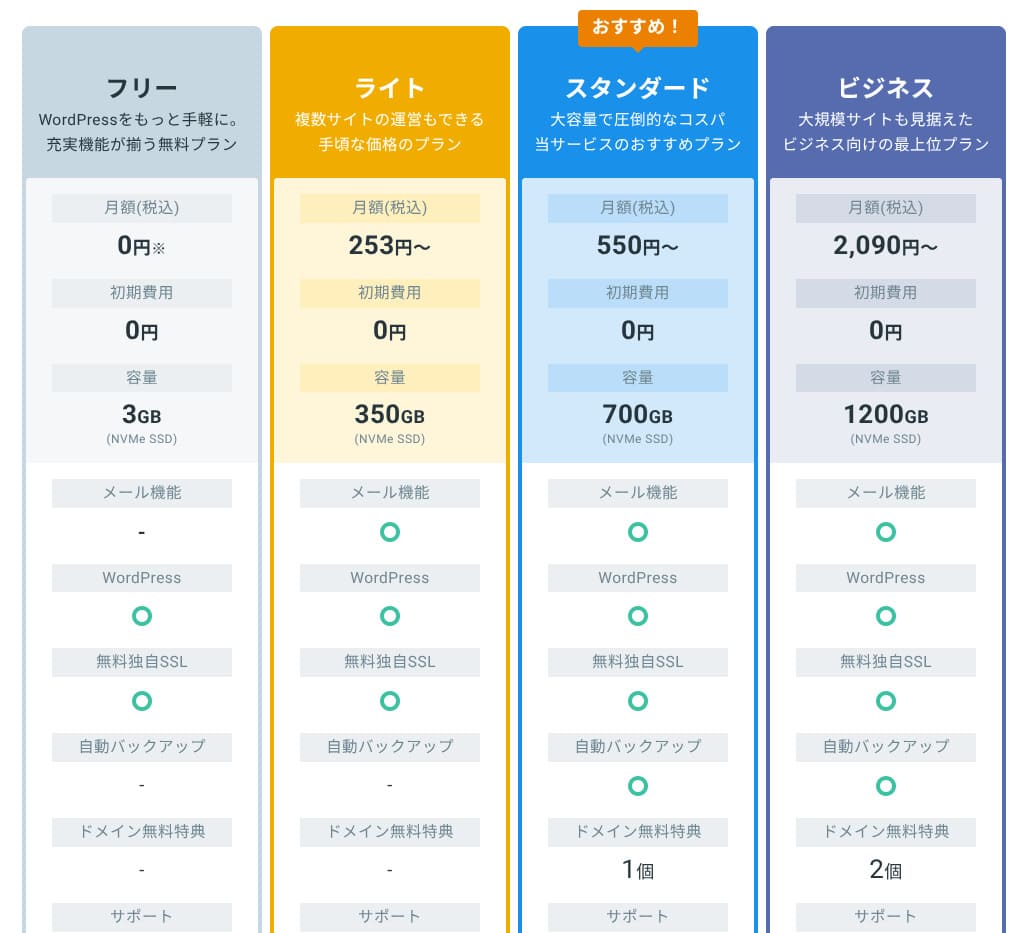
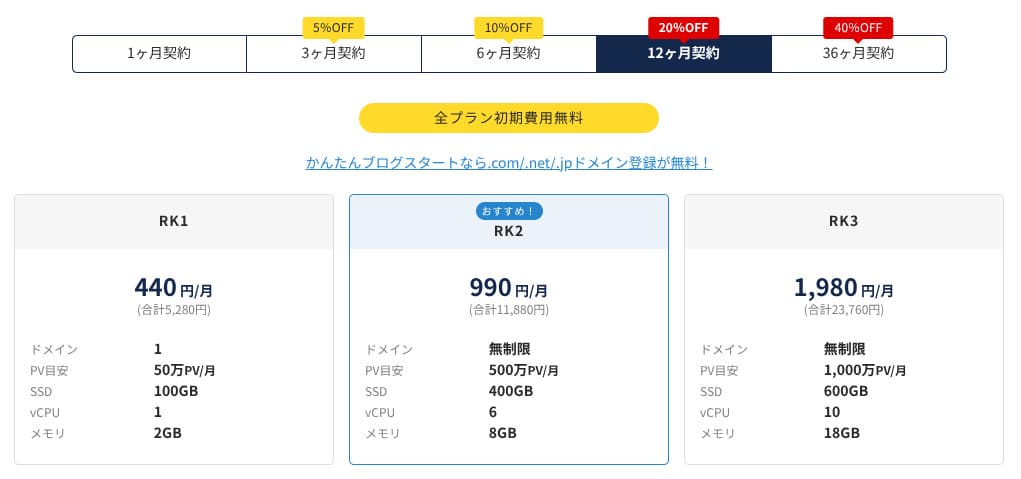
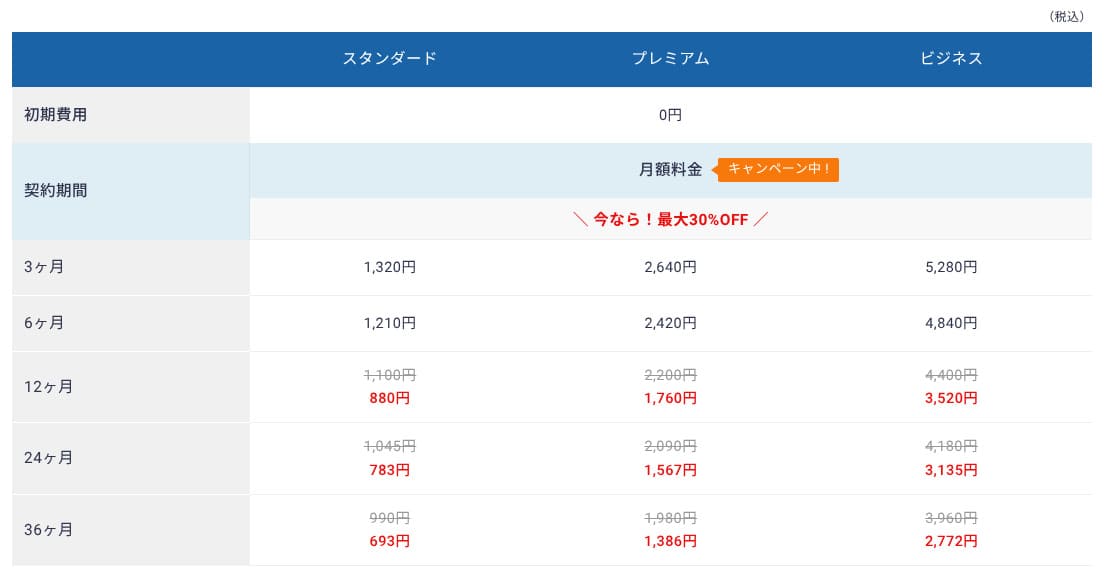
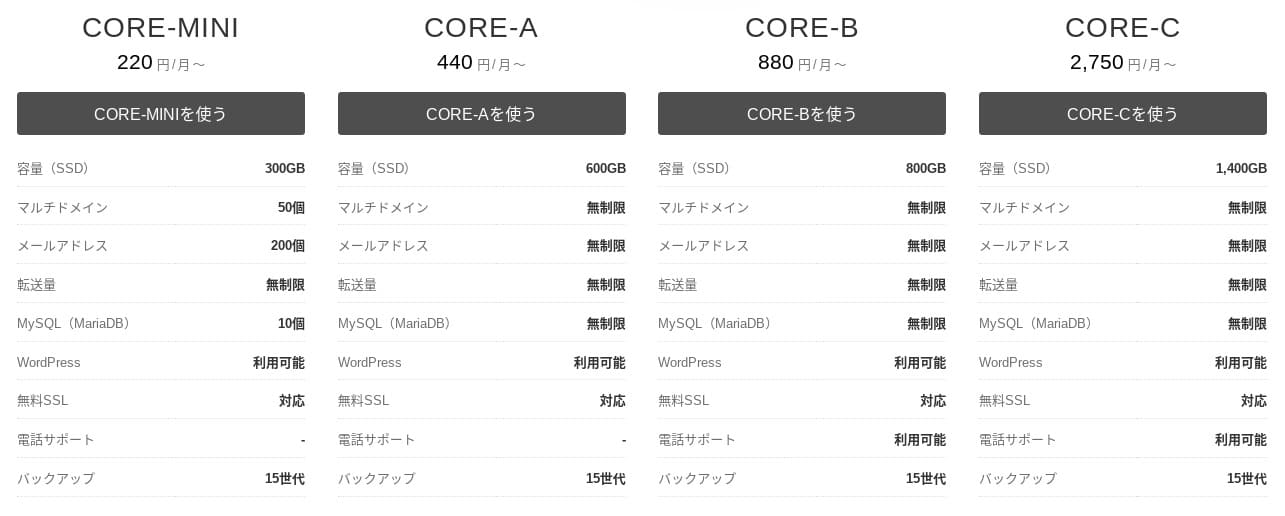
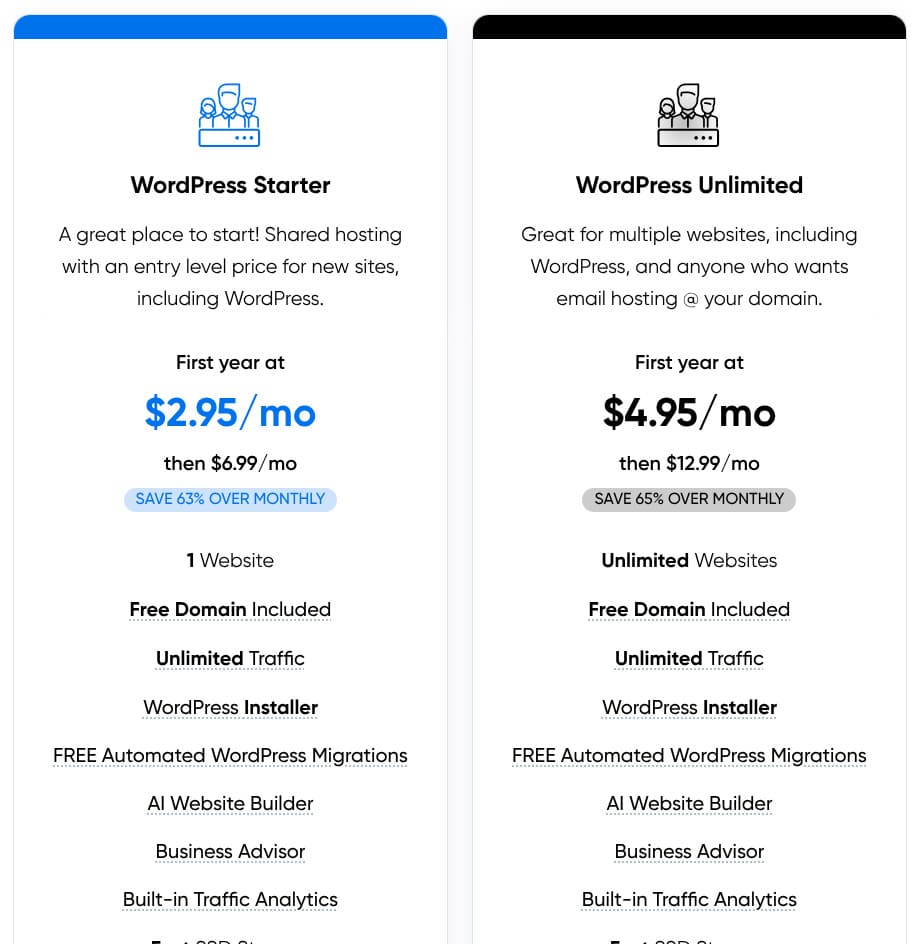
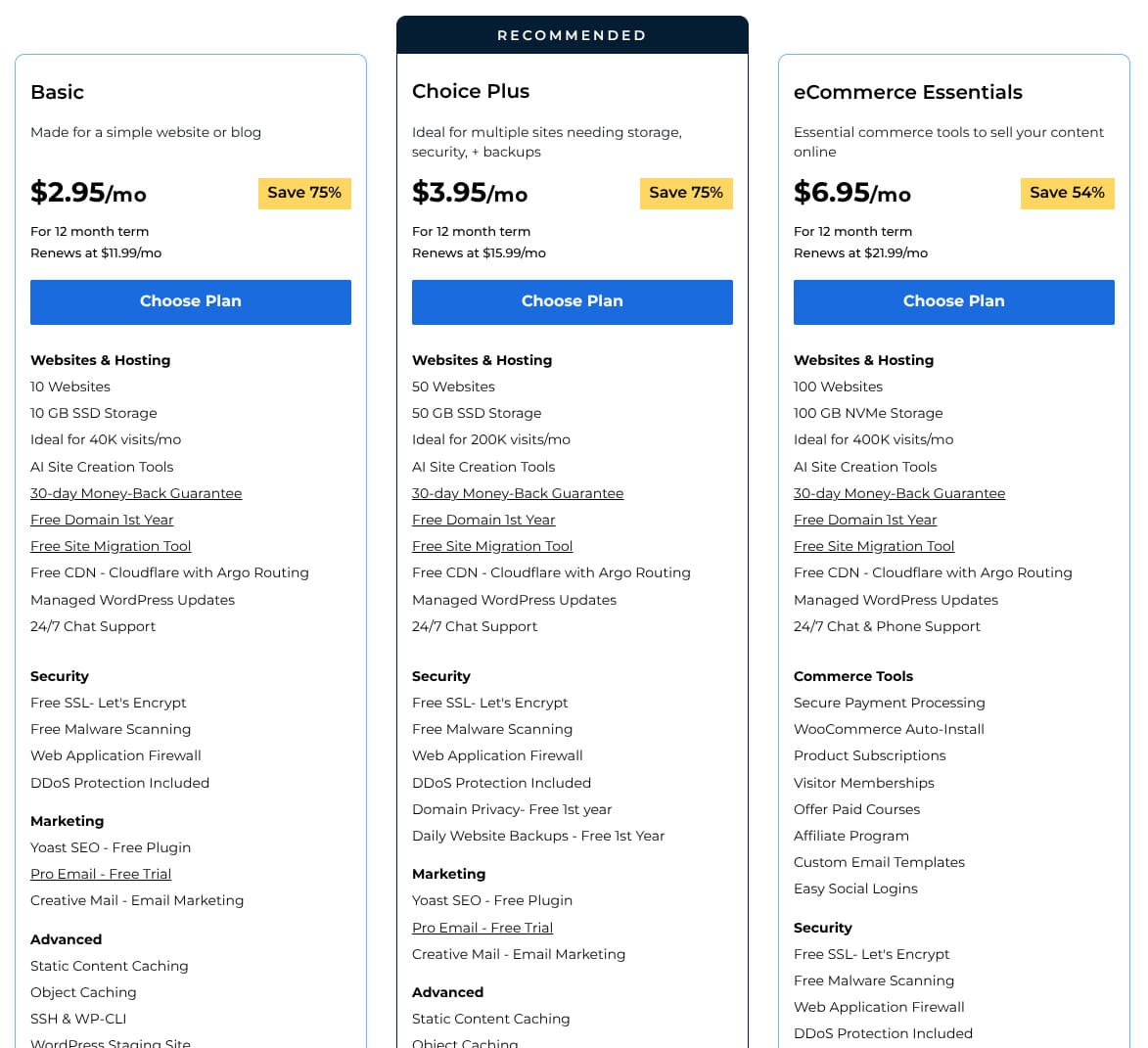
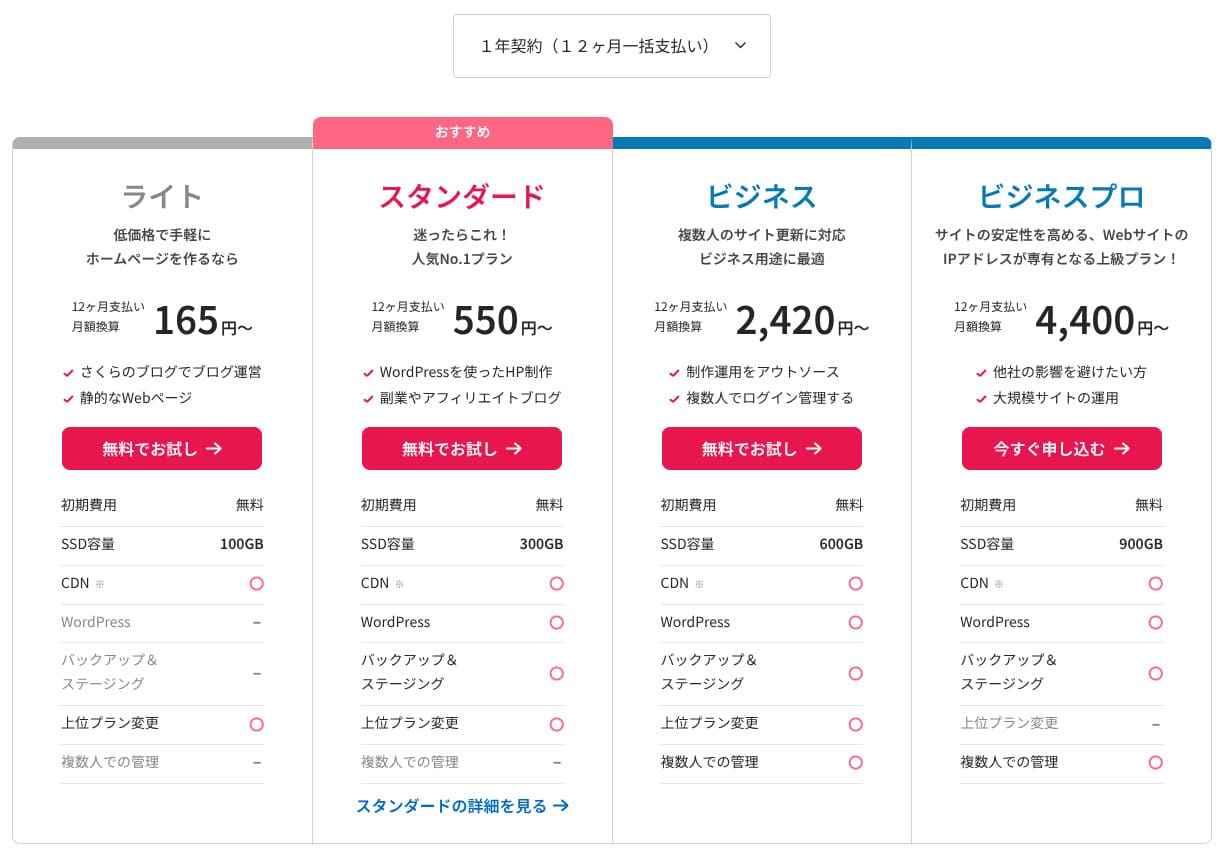
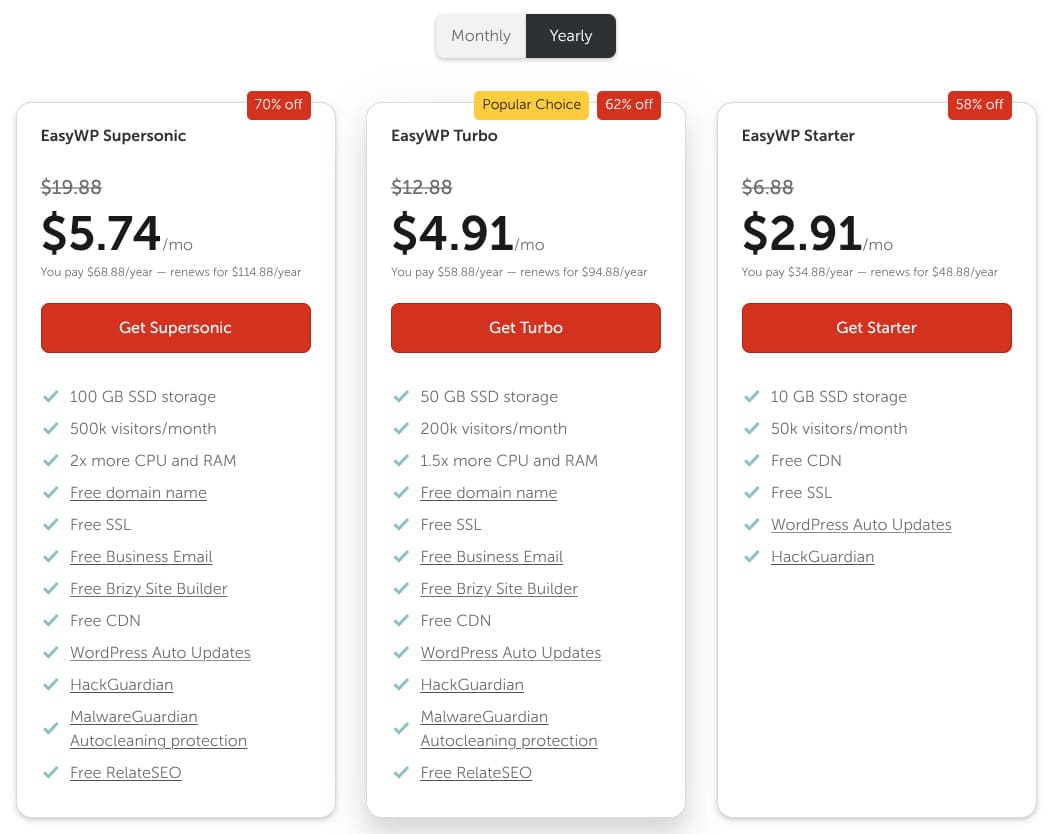
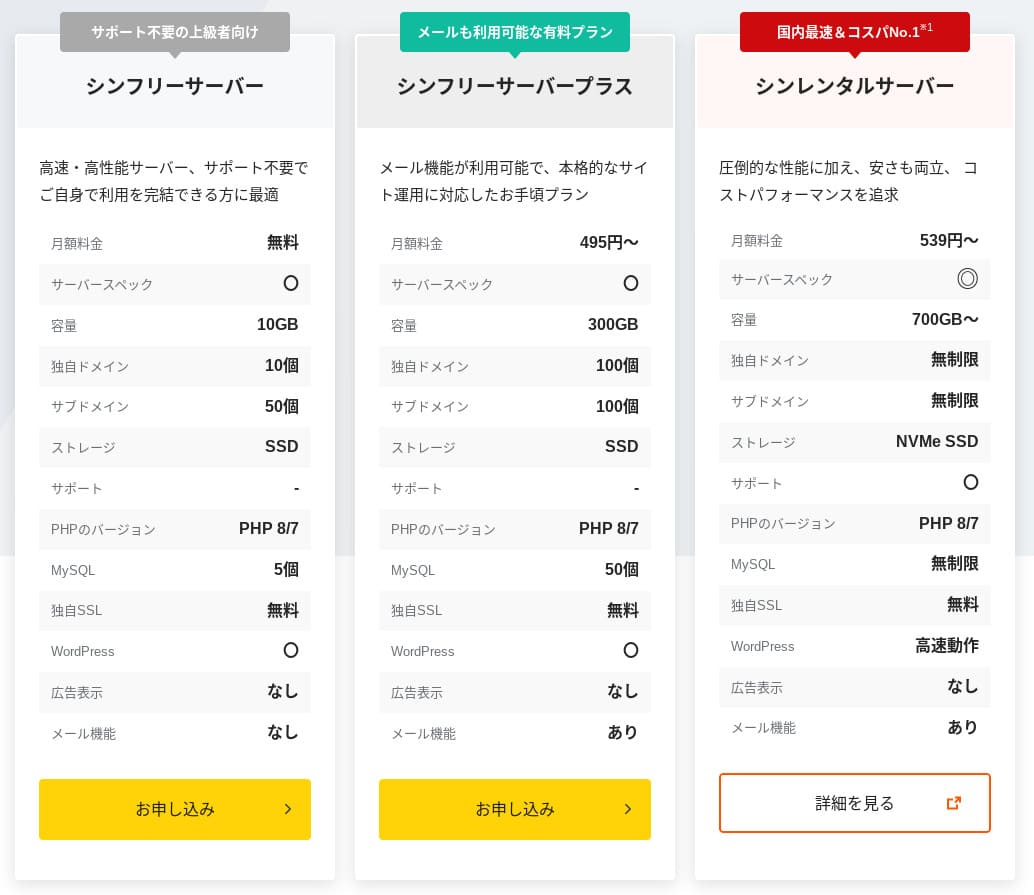
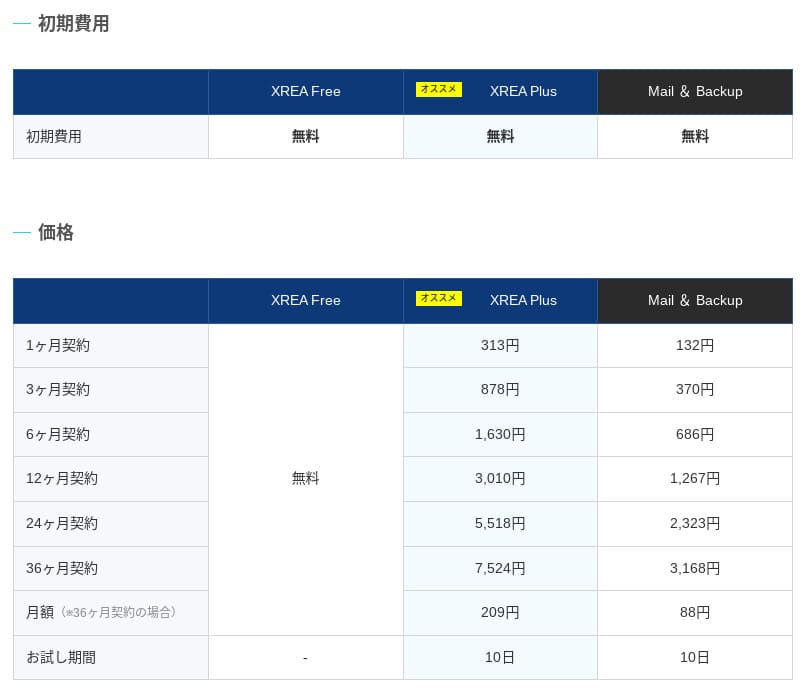
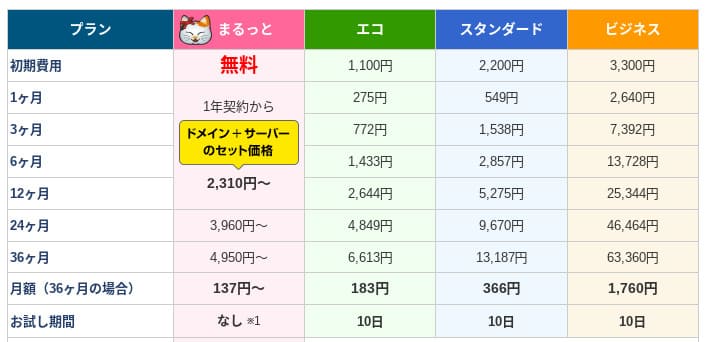
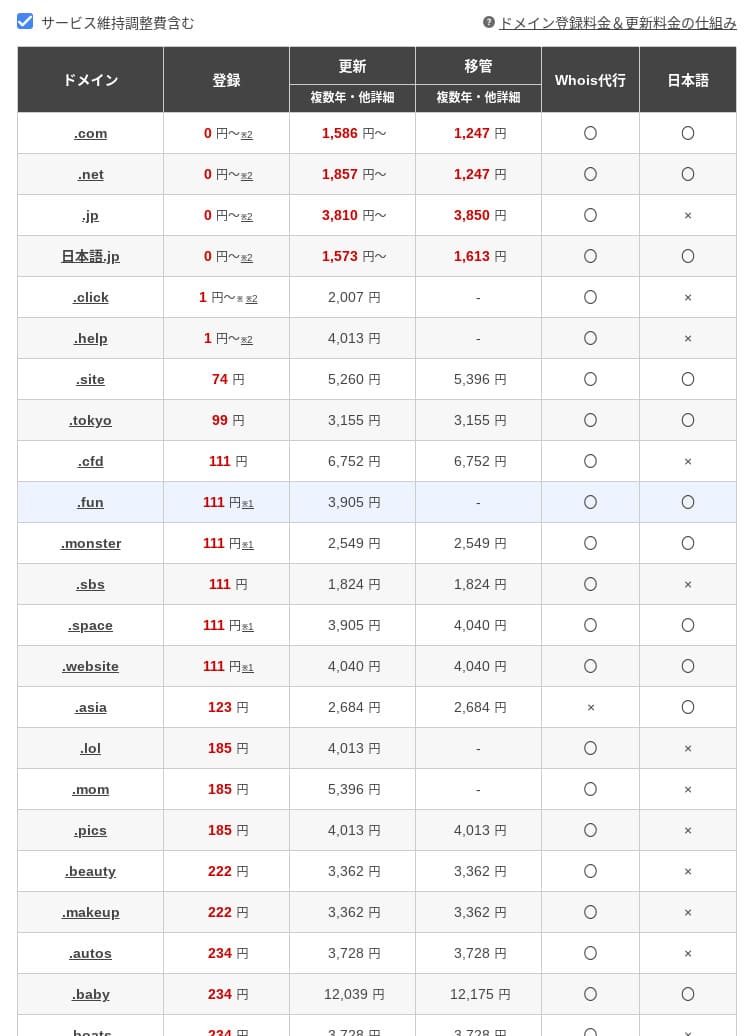
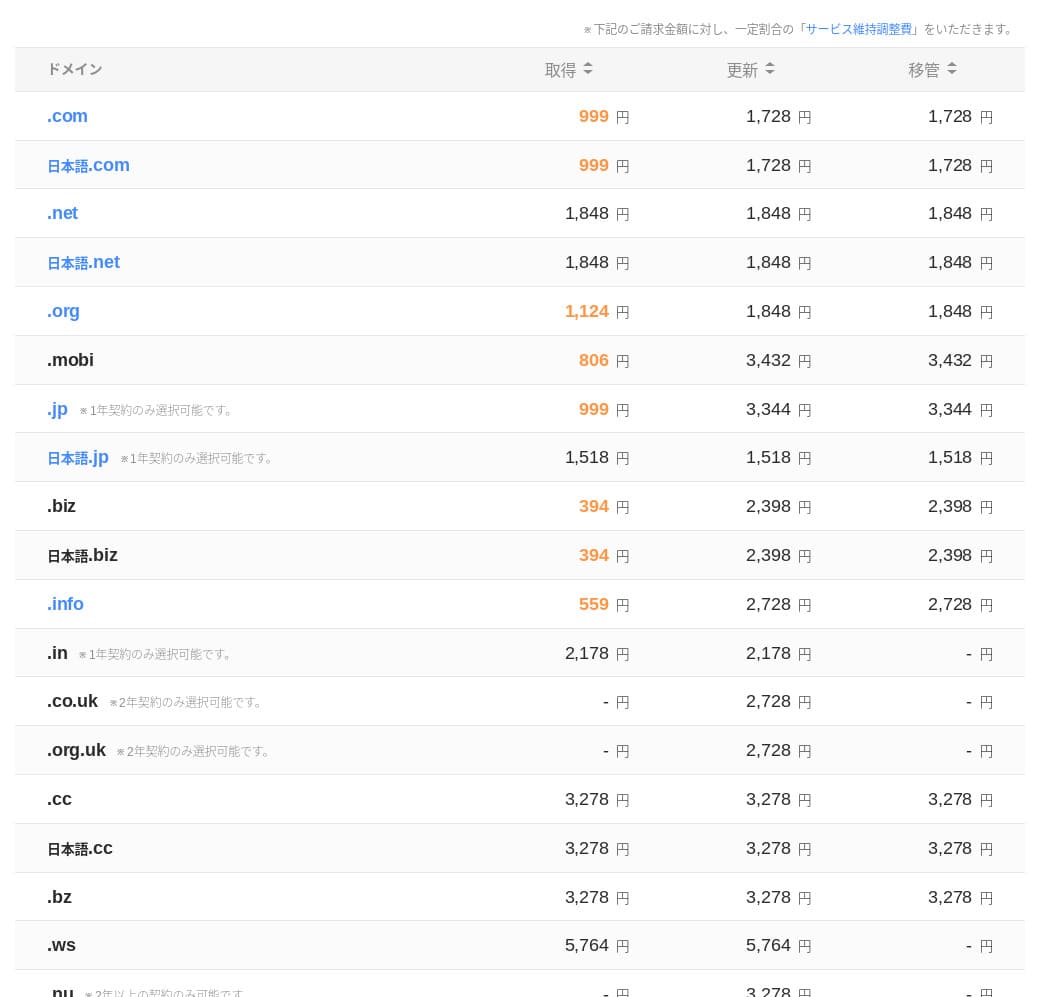
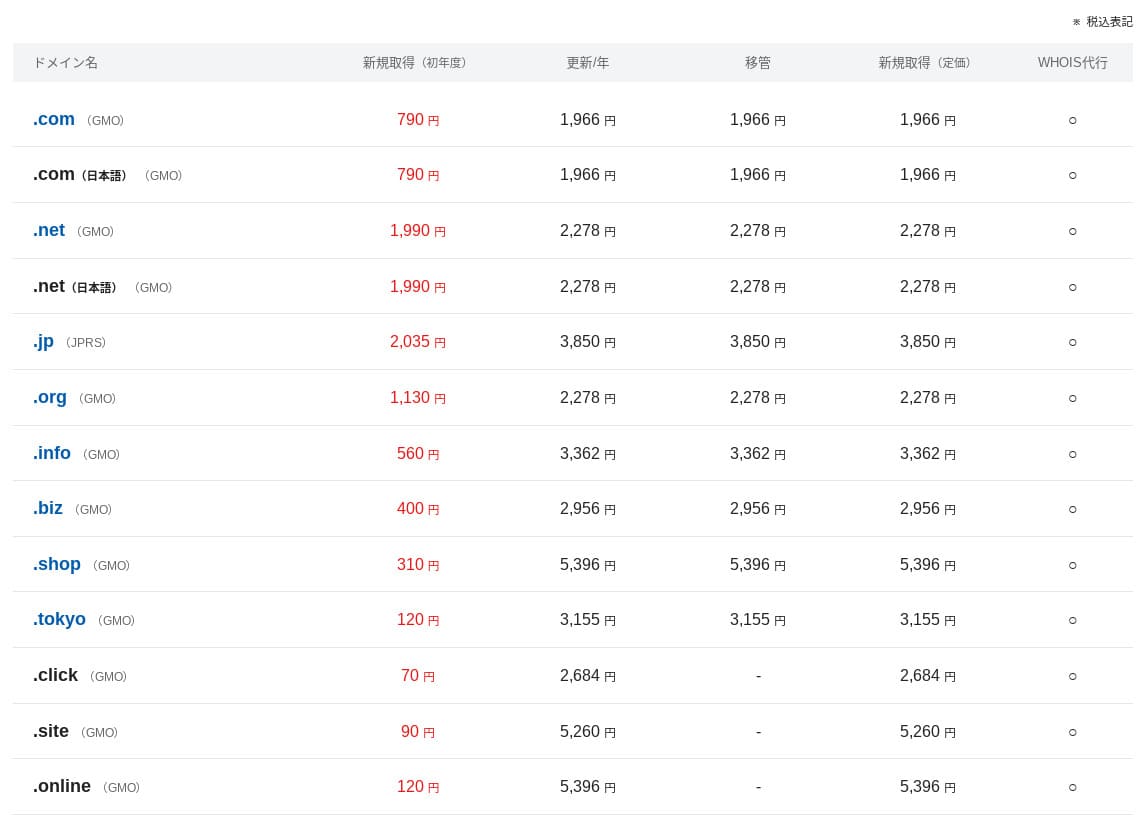
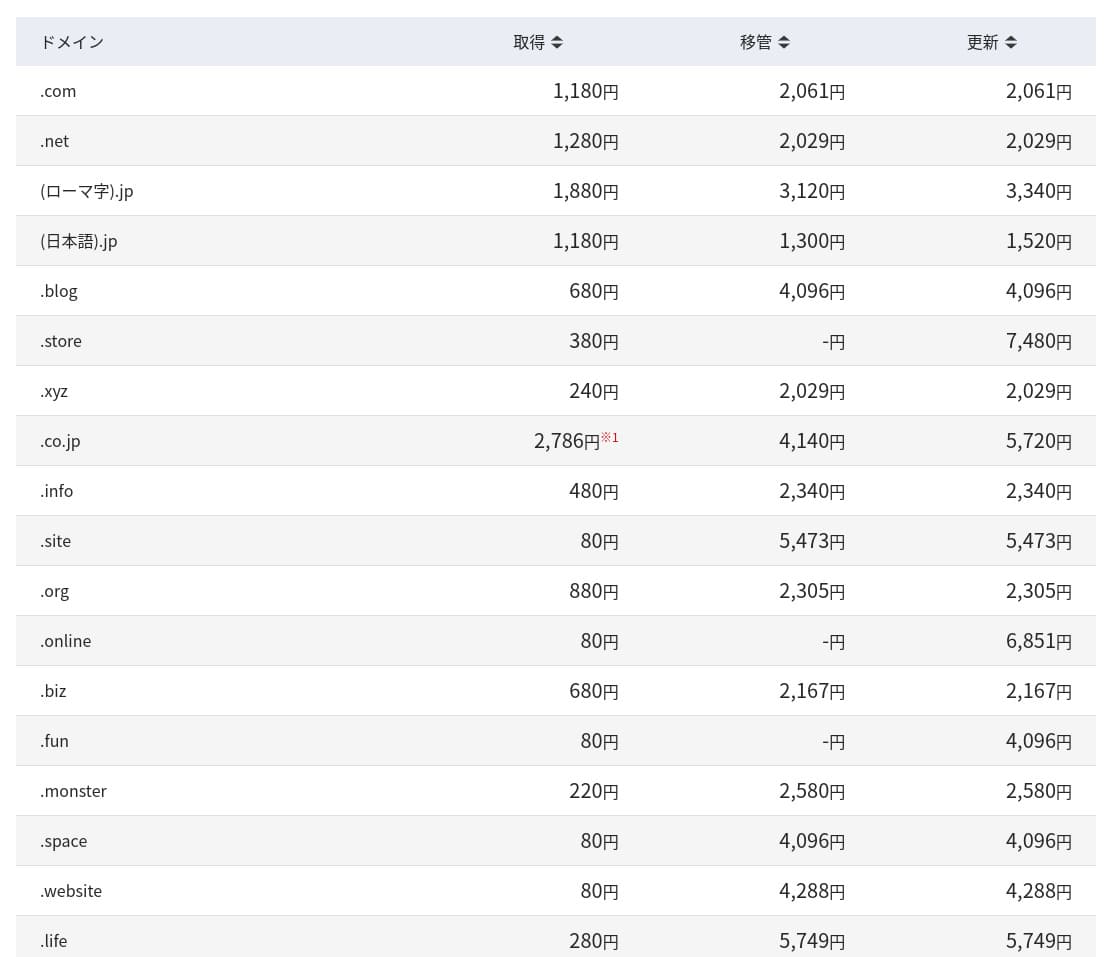
Domain pricing
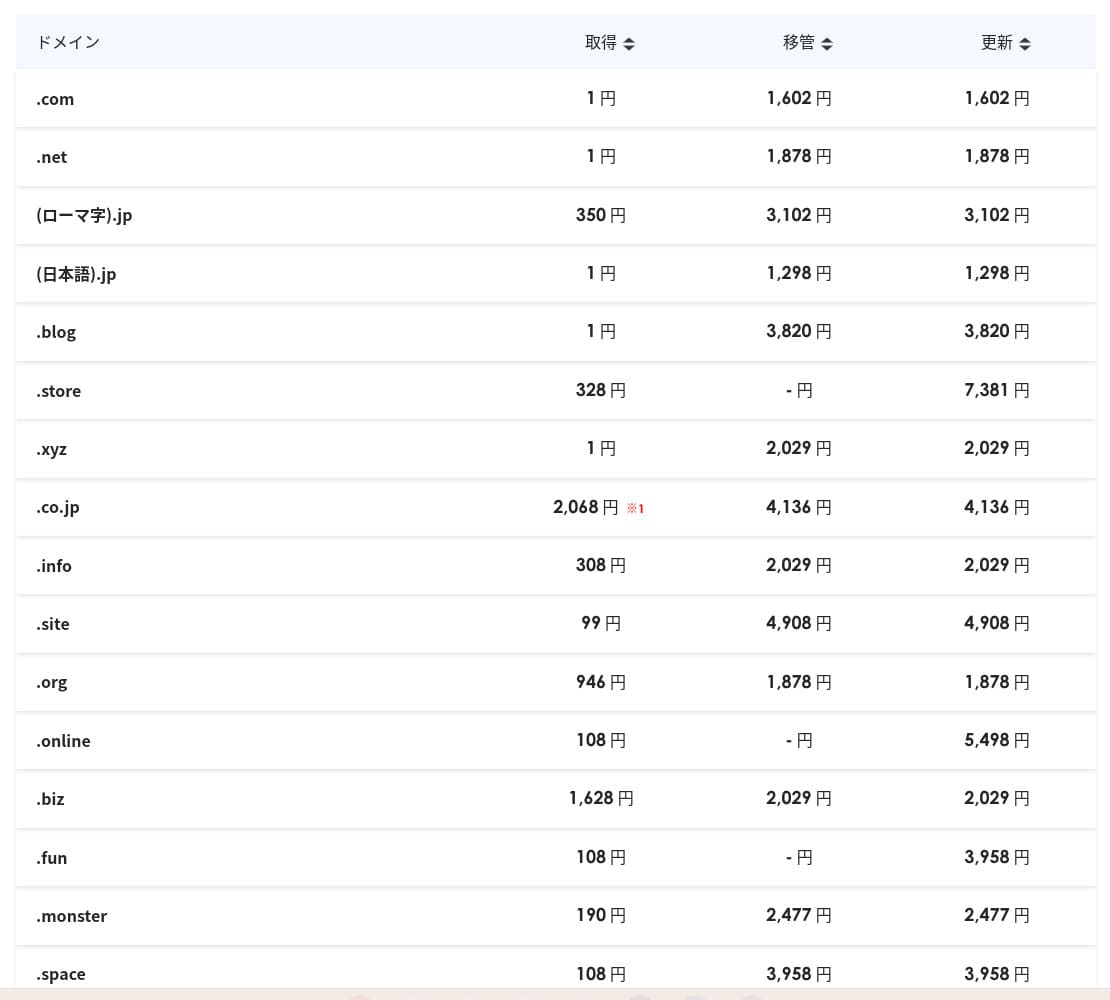
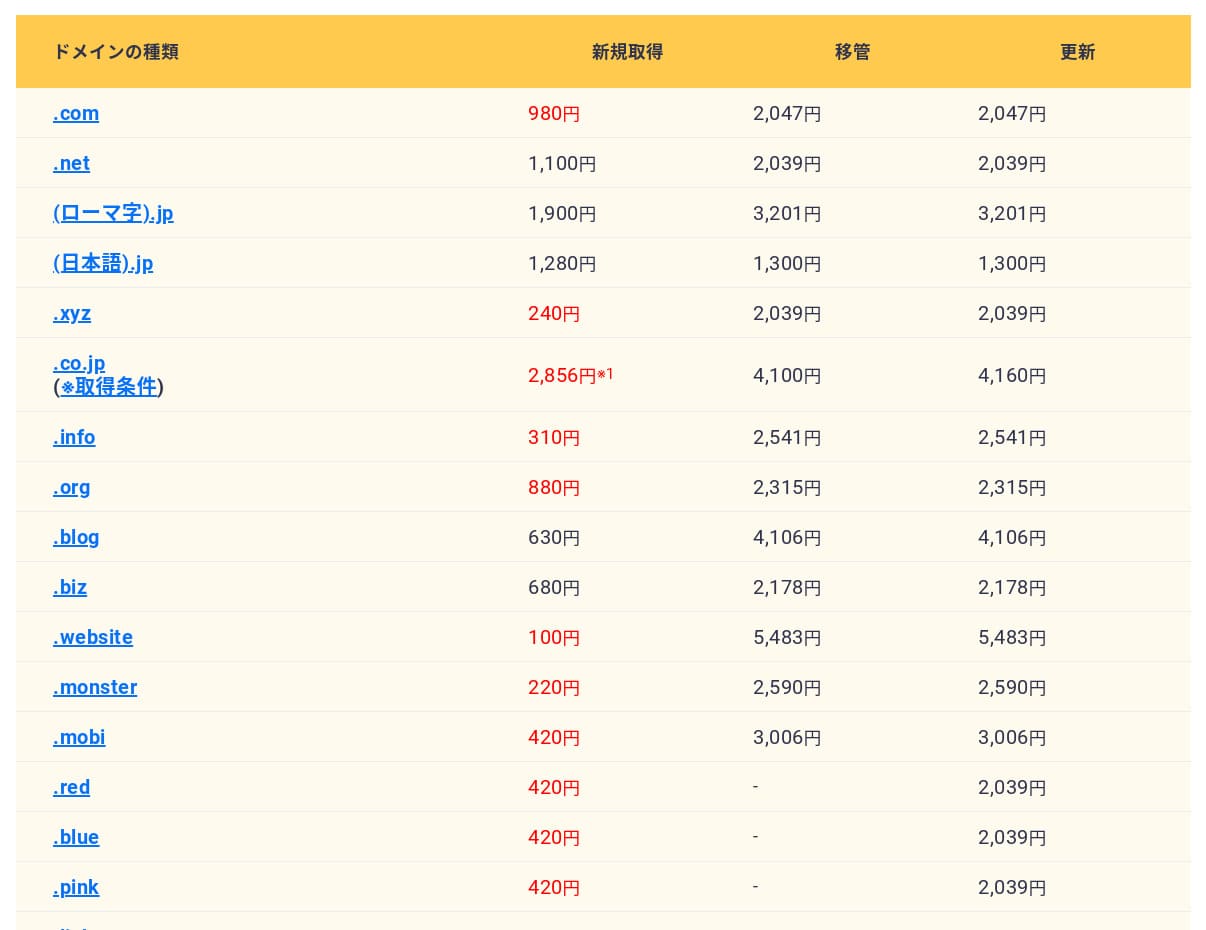
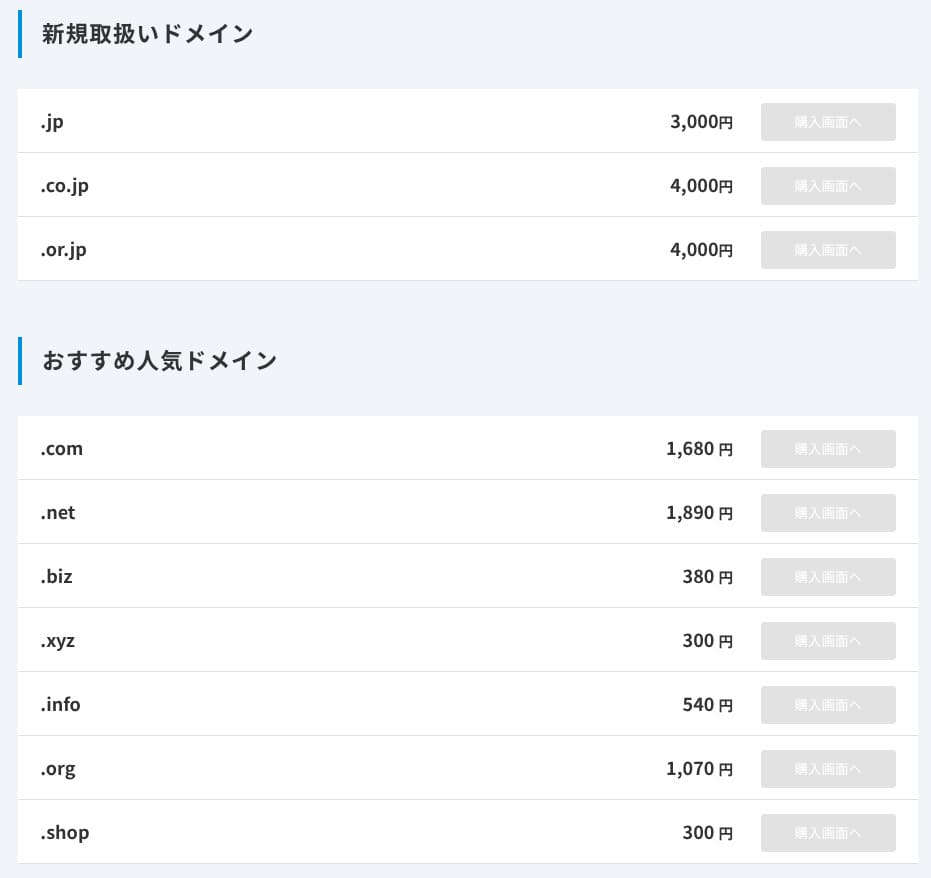
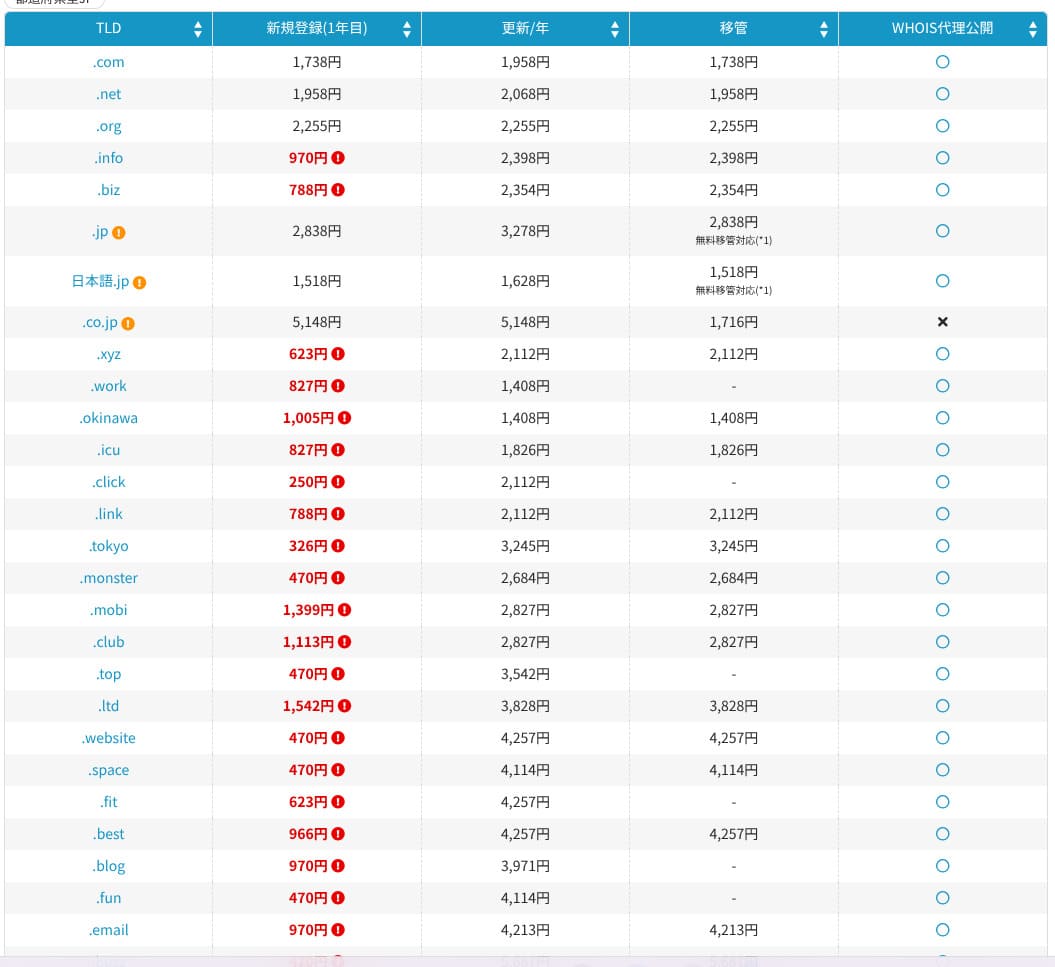
XServer Businessincludes one free domain such as .com or .net, plus a second one (chosen from .blog, .online, or .site) that is also free forever. The permanent free custom domain benefit supports new registration, transfers from other companies, switching an already obtained domain, and changing the eligible domain.
Hikaru Ono
Because these domains are meant for long-term business use, this free benefit is not something to overlook.
- XServer Domain
- Onamae.com
- MuuMuu Domain
- Value Domain
- Shin Domain
- Star Domain
- Colorful Domain
- Rakko Domain
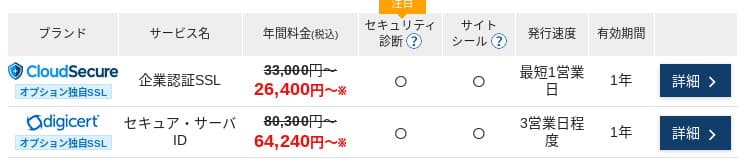
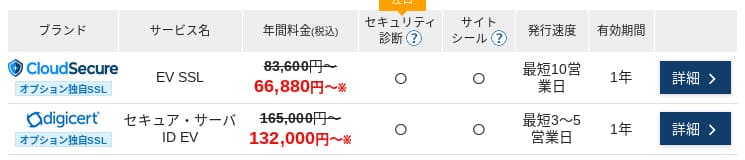
SSL certificate cost
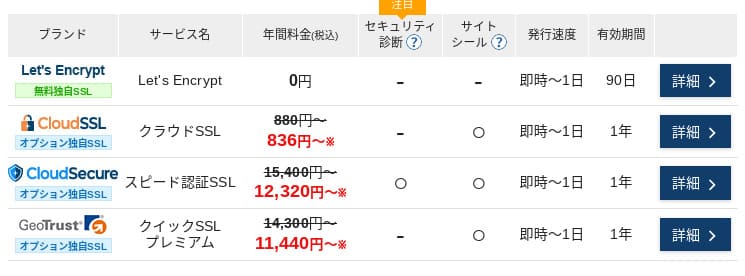
Let's Encrypt के साथ domain-validated SSL free है. Paid DV, OV और EV certificates भी official one-stop ordering से उपलब्ध हैं, इसलिए requirements के अनुसार choice की जा सकती है.
Prices can vary depending on the campaign.
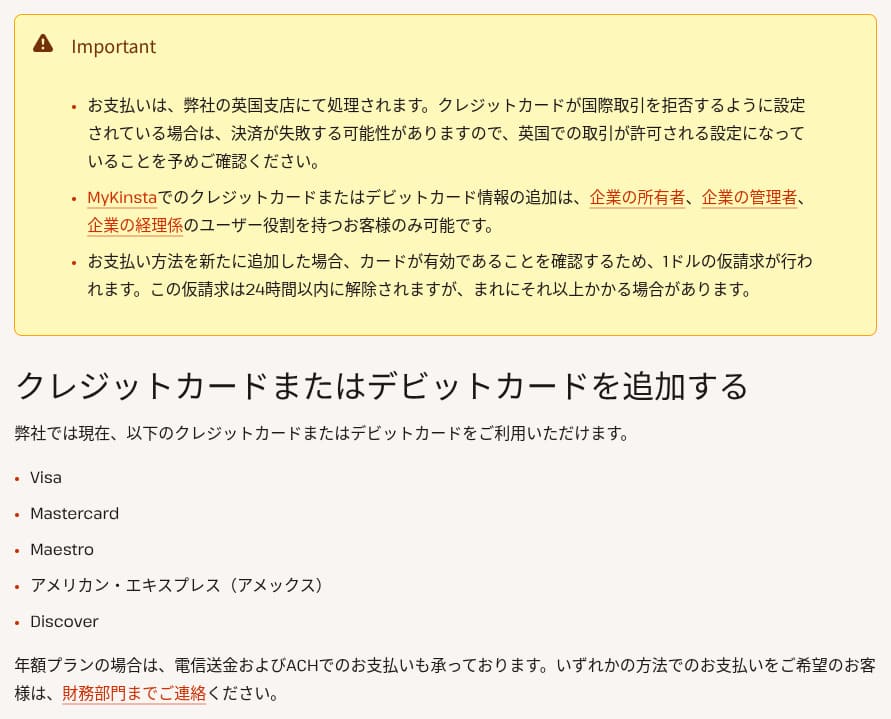
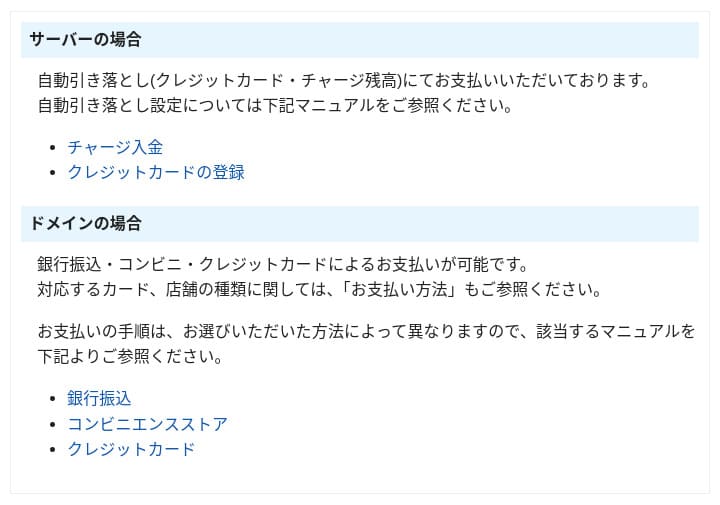
Payment methods
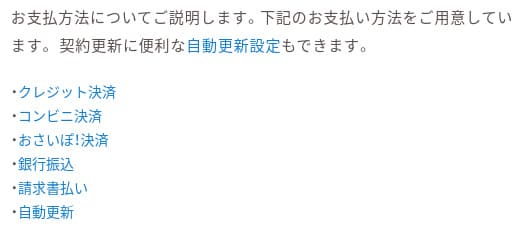
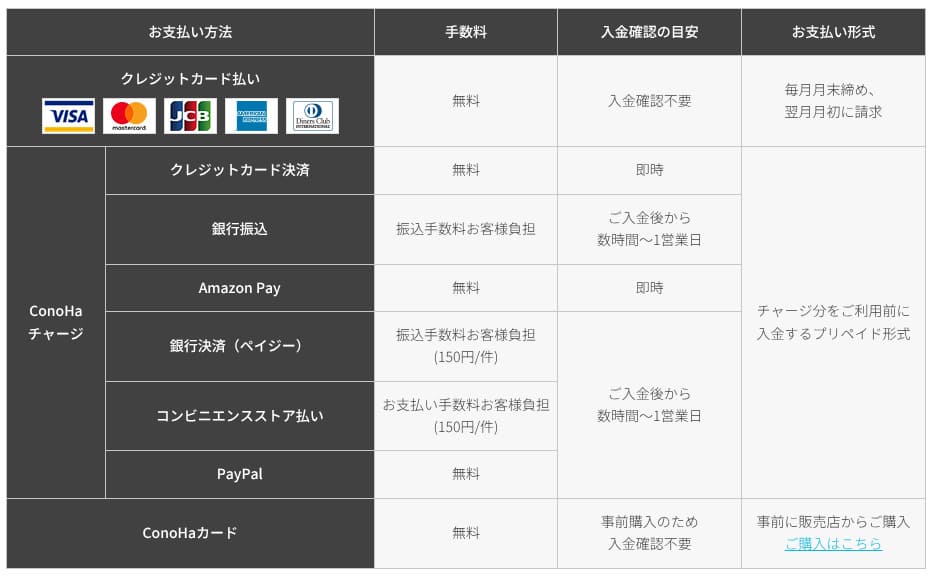
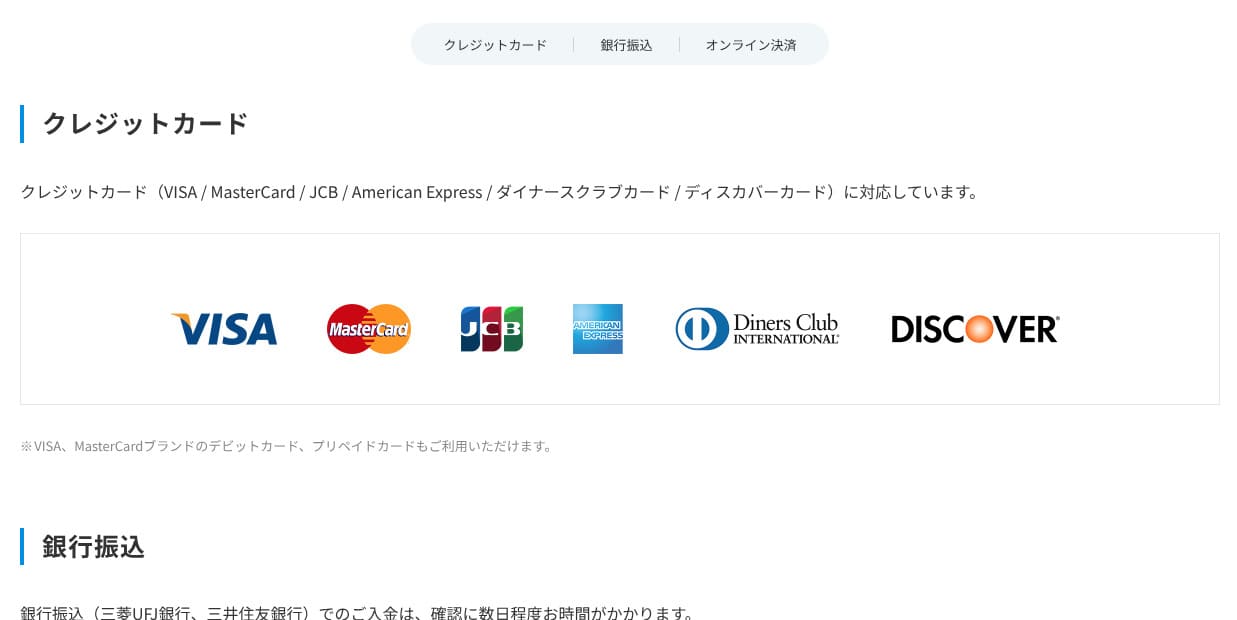
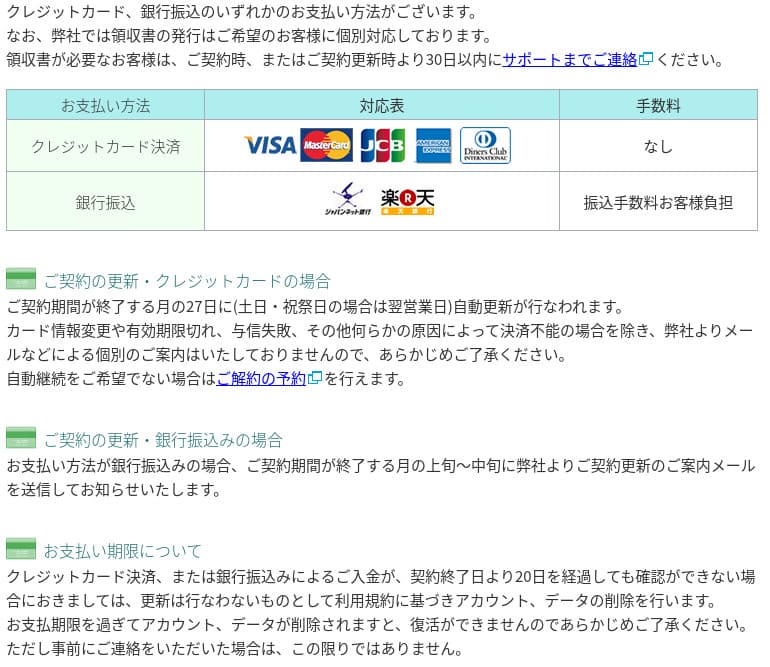
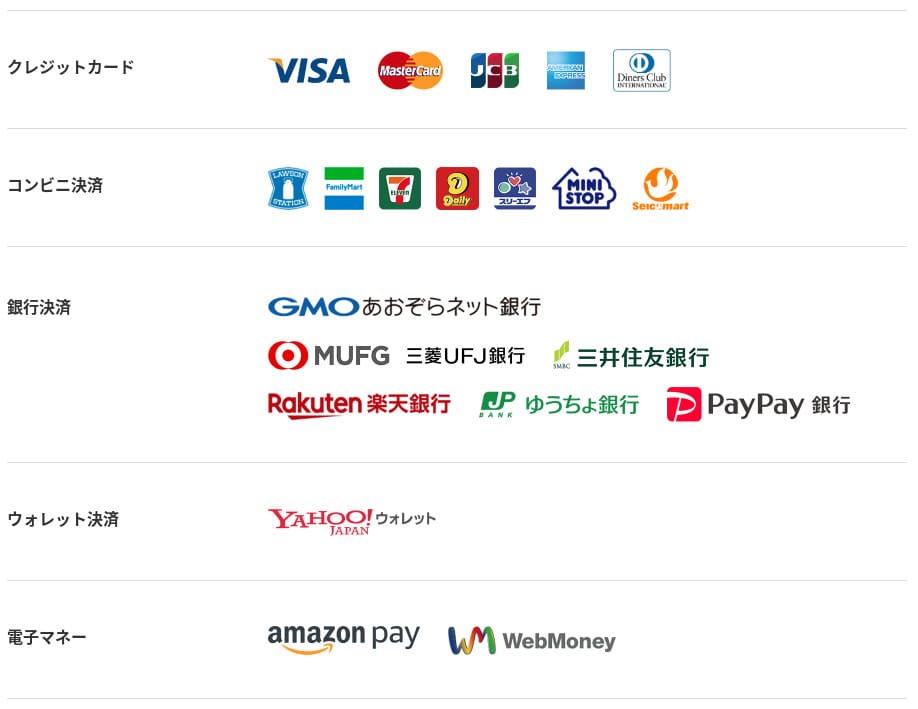
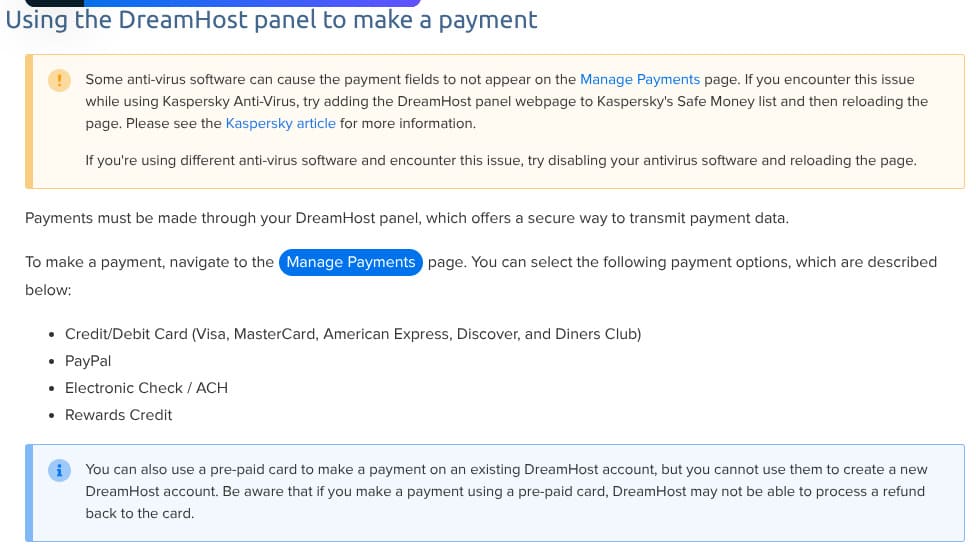
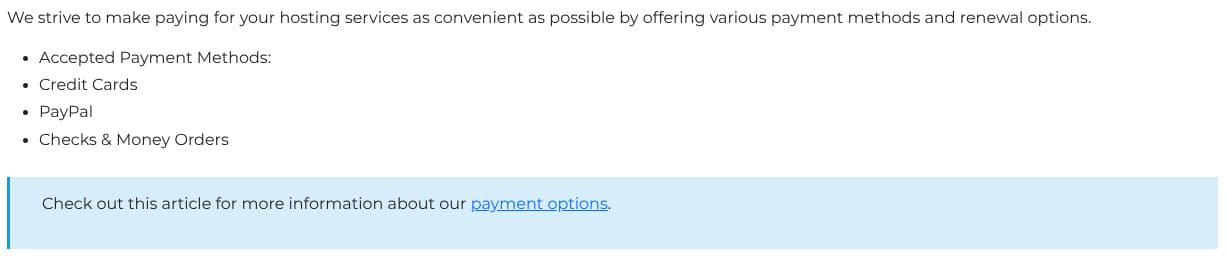
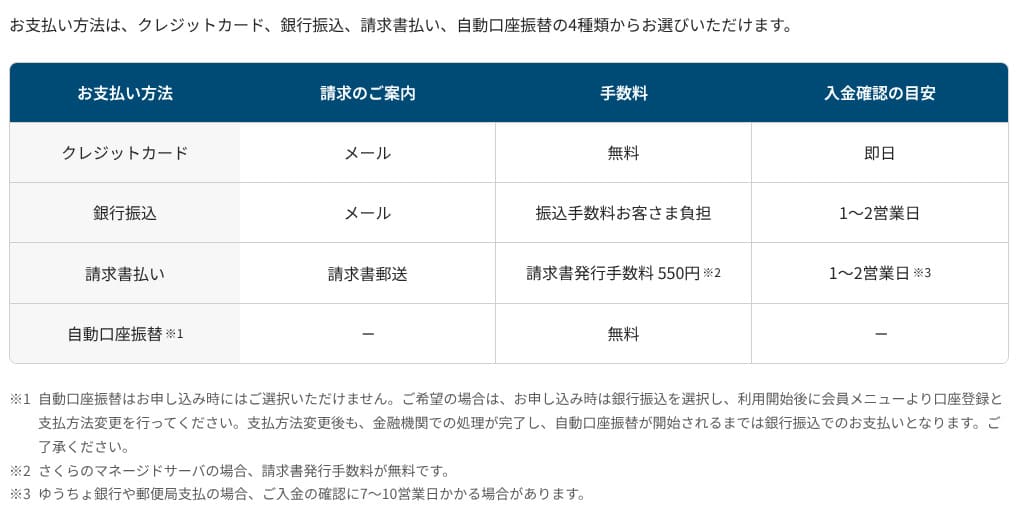
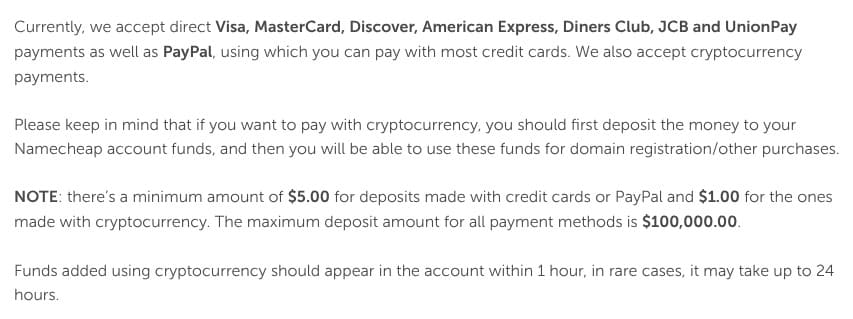
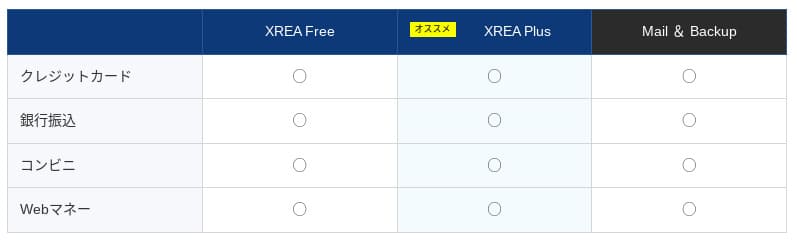
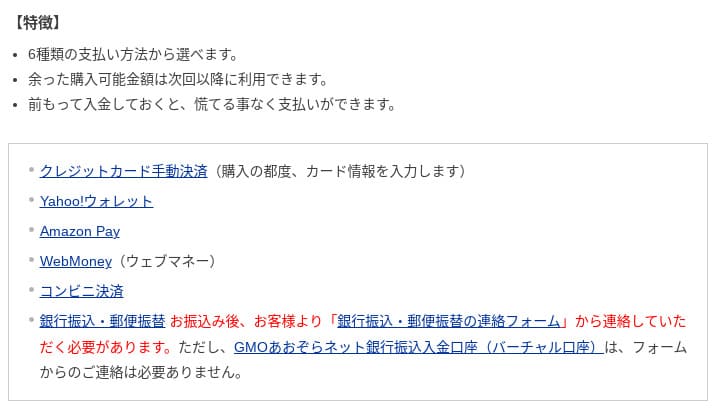
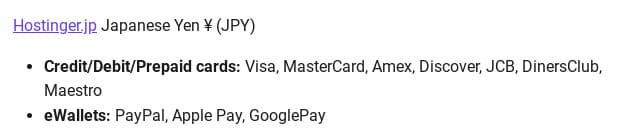
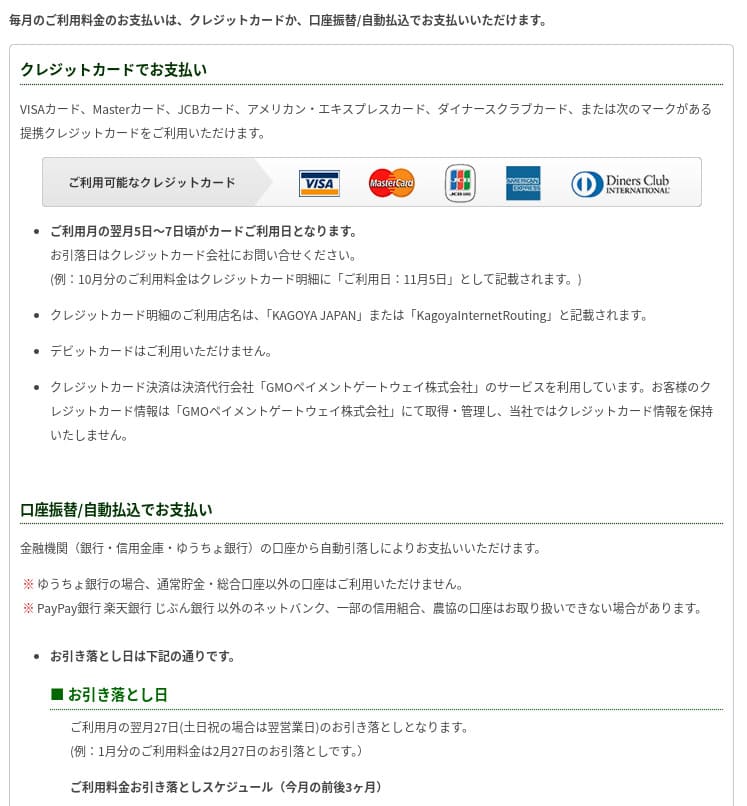
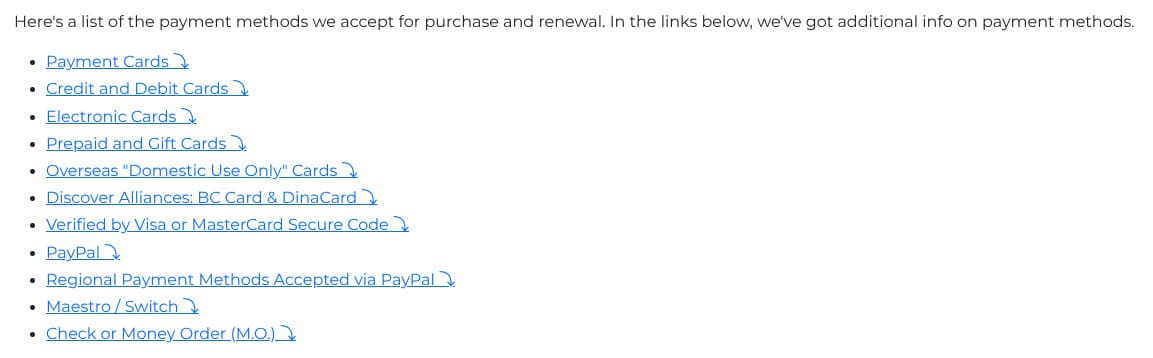
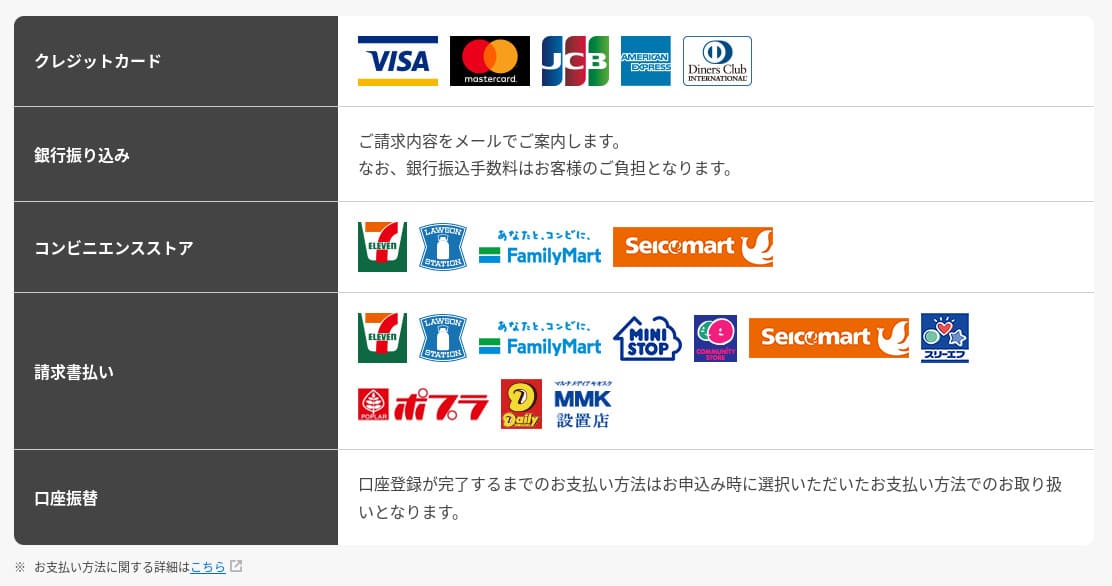
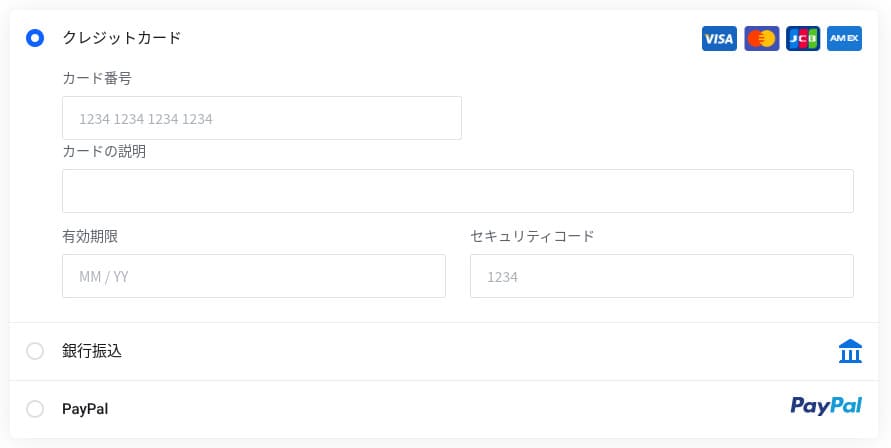
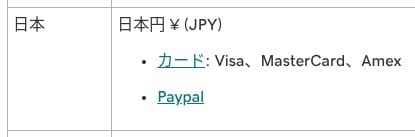
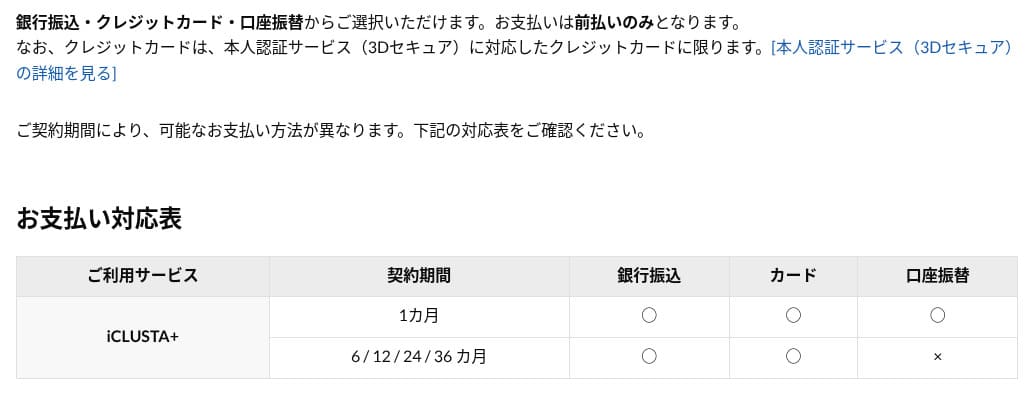
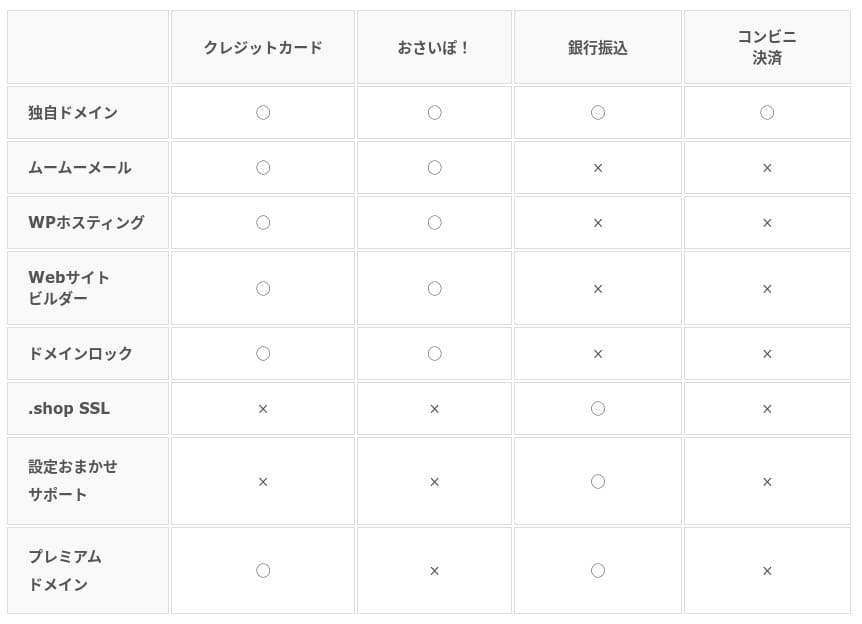
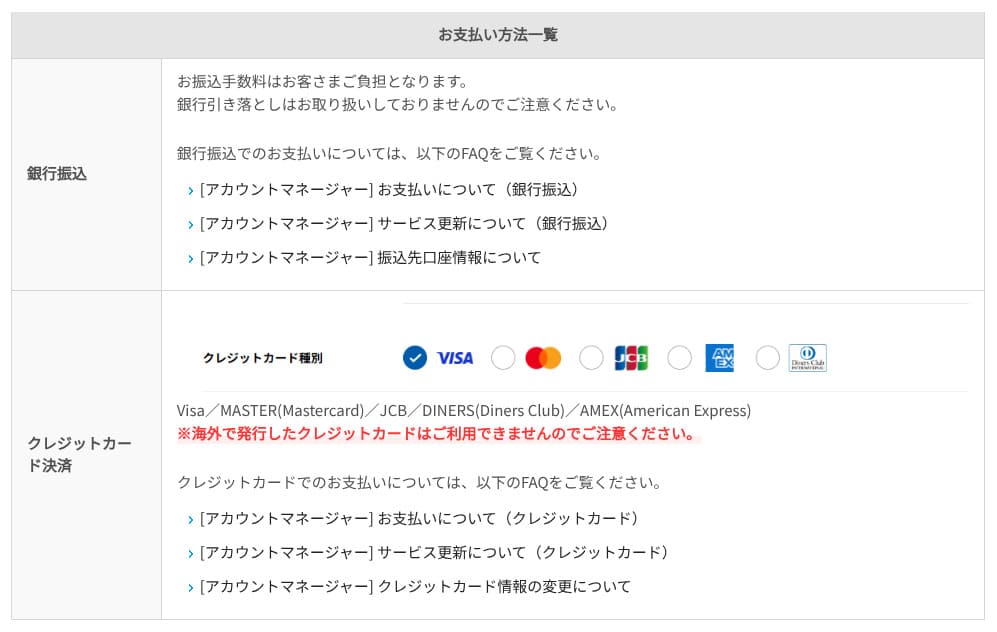
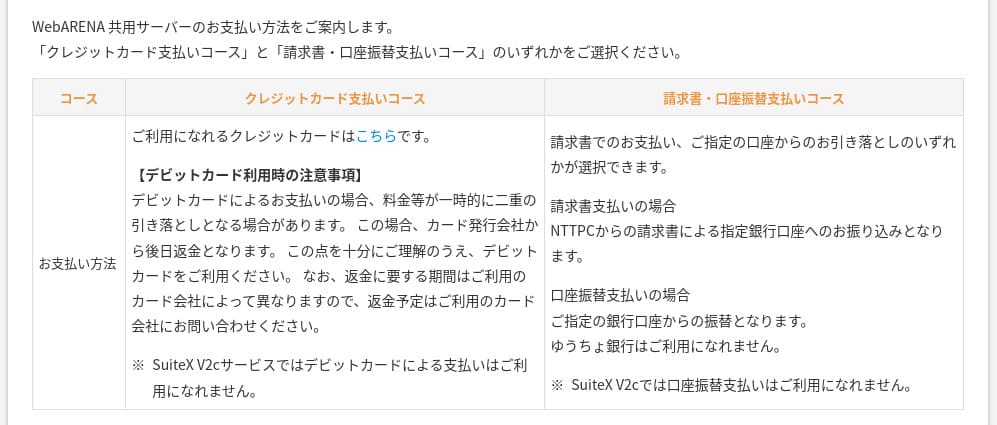
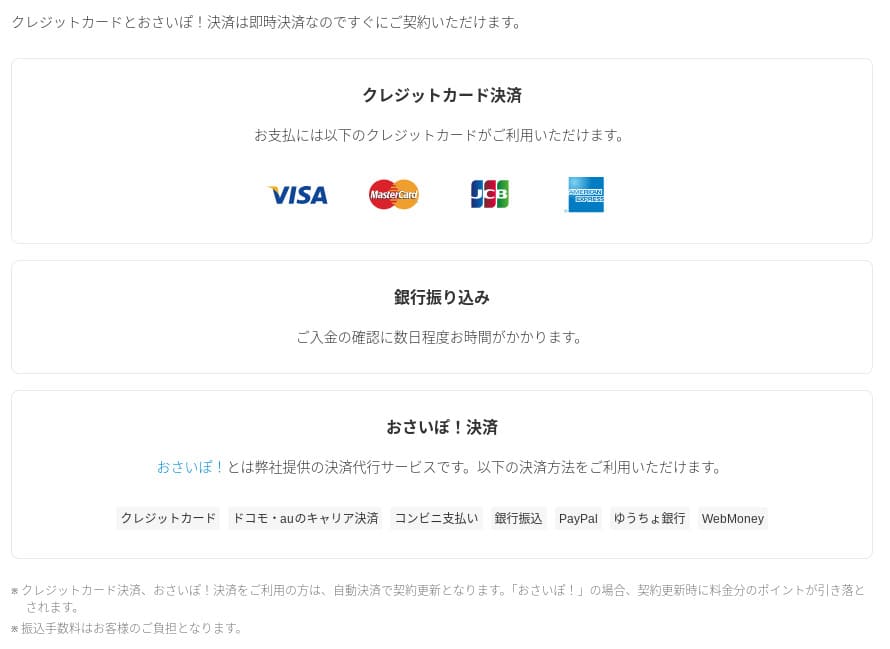
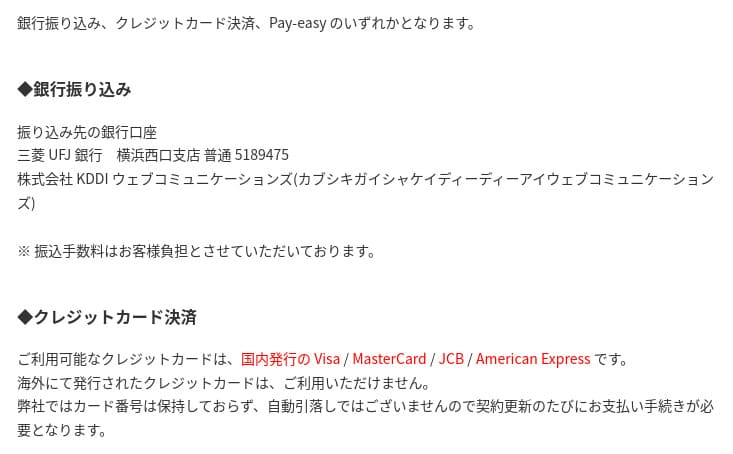
XServer Businesssupports credit cards, bank transfer, Pay-easy, convenience store payment, and invoice billing. It can also issue PDF quotations and invoices, so adoption is smooth even for companies that need internal approval.
Hikaru Ono
Because many domestic hosting services do not support invoice payments, this is one of XServer Business's strengths.
- XServer Business
- Kinsta
- wpx
- Lolipop!
- Star Server
- Rakko Server
- XServer
- ConoHa
- ColorfulBox
- Shin Rental Server
- Little Server
- CORESERVER
- DreamHost
- Bluehost
- Sakura
- Namecheap
- Shin Free Server
- XREA
- Value Server
- Hostinger
- KAGOYA
- SiteGround
- HostGator
- IONOS
- Onamae.com
- ABLENET
- mixhost
- GoDaddy
- iCLUSTA+
- MuuMuu Server
- WADAX
- WebARENA
- Heteml
- CPI Rental Server







Ease of use और support
Control panel की usability
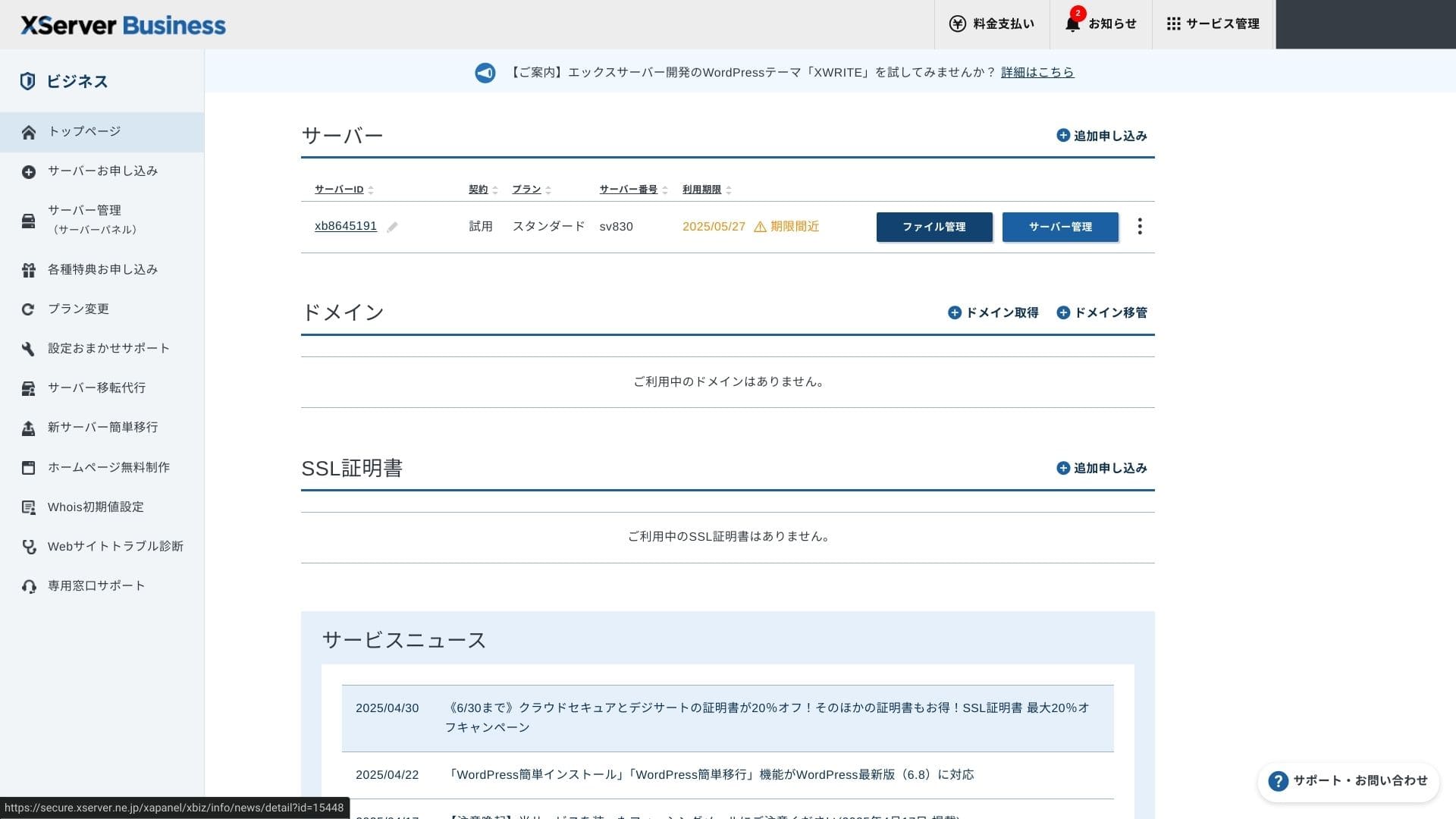
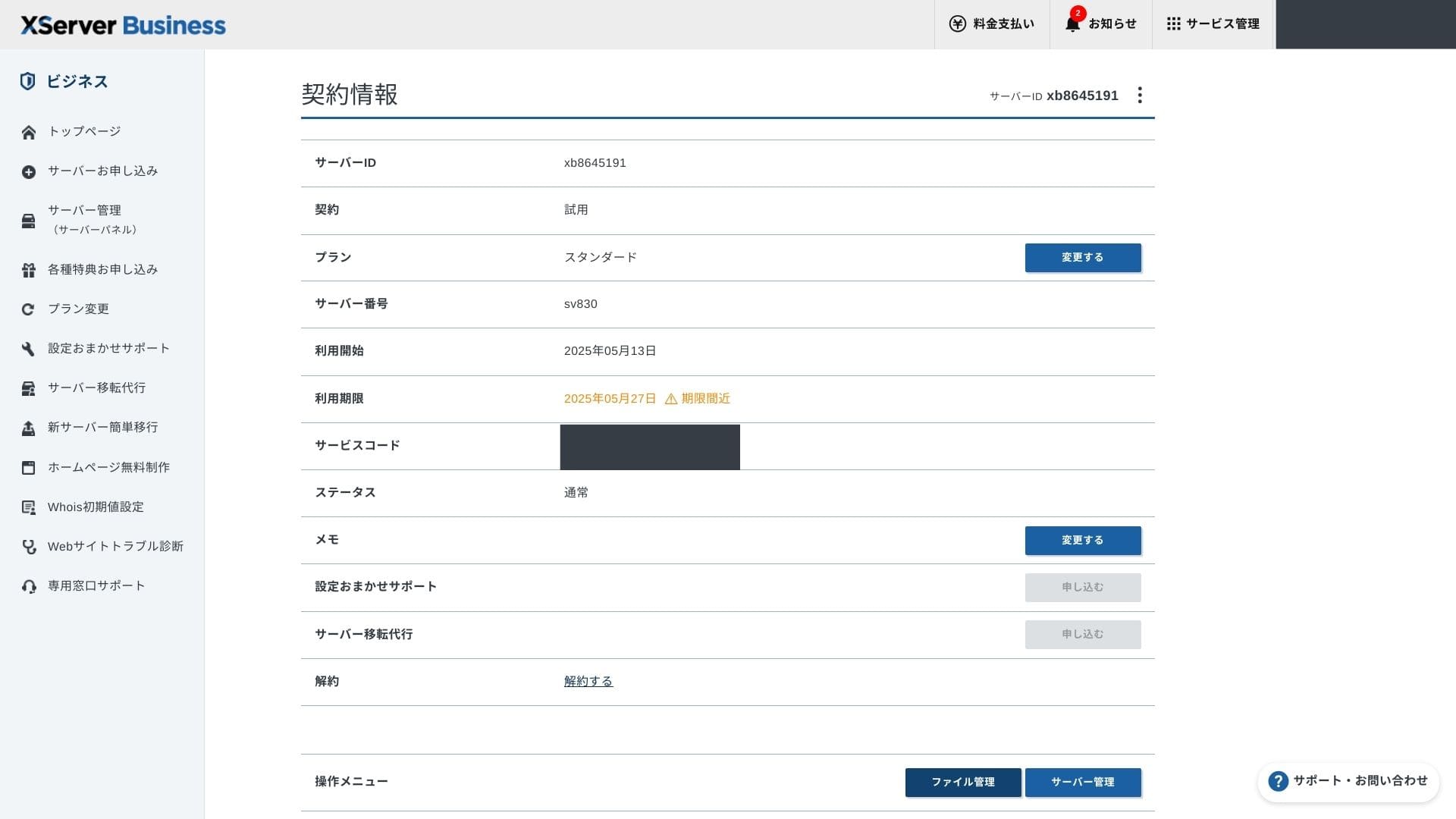
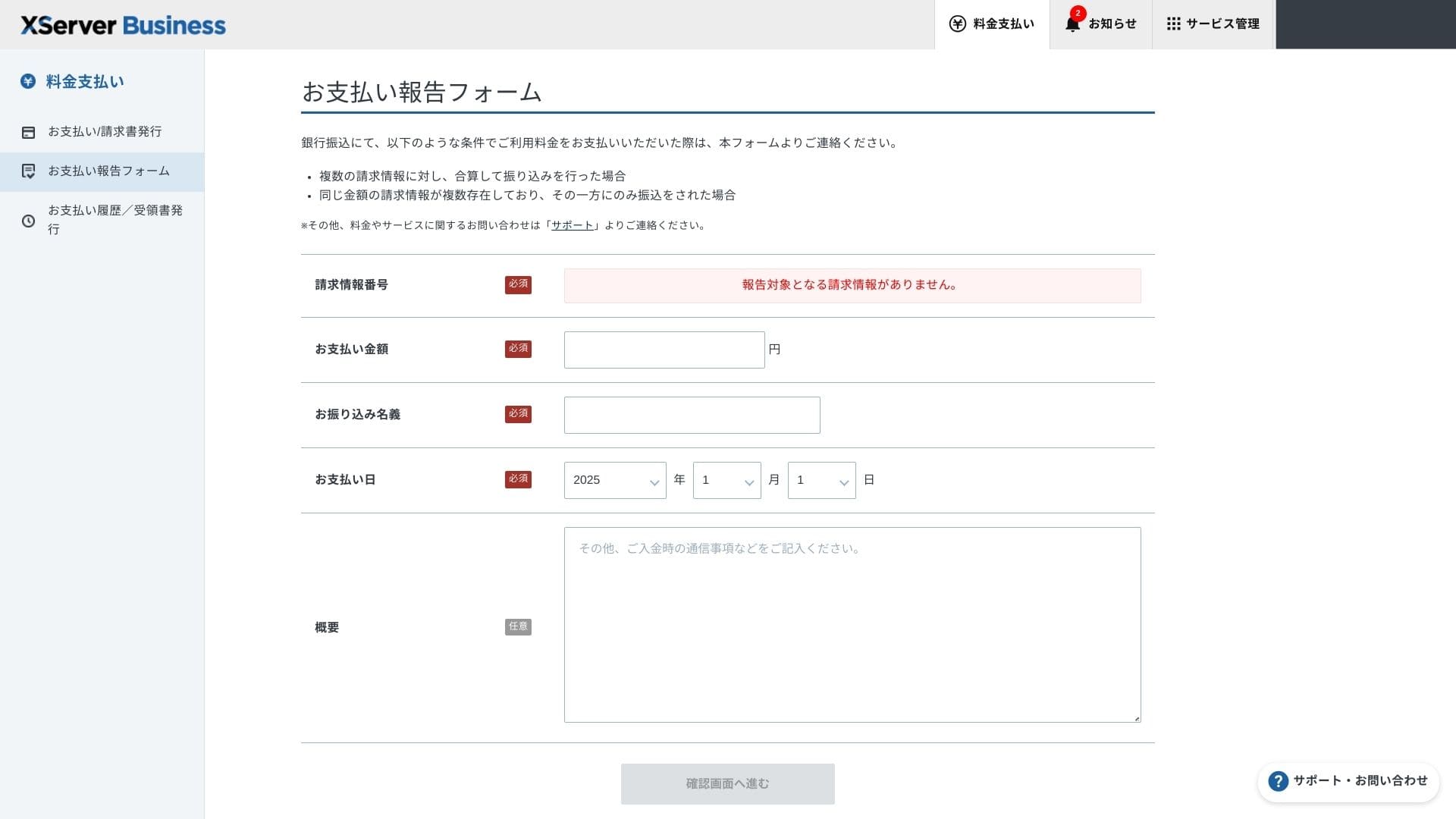
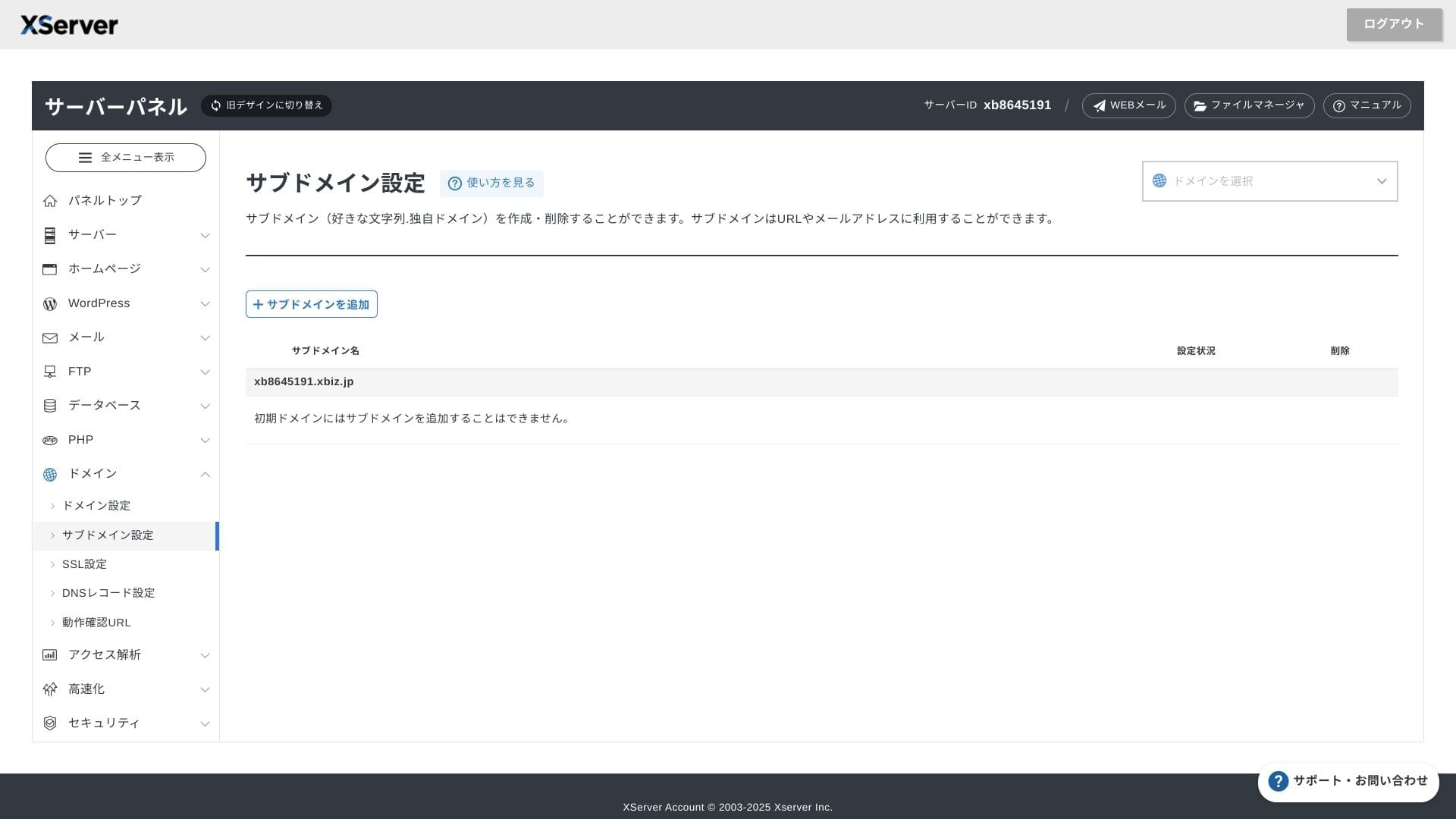
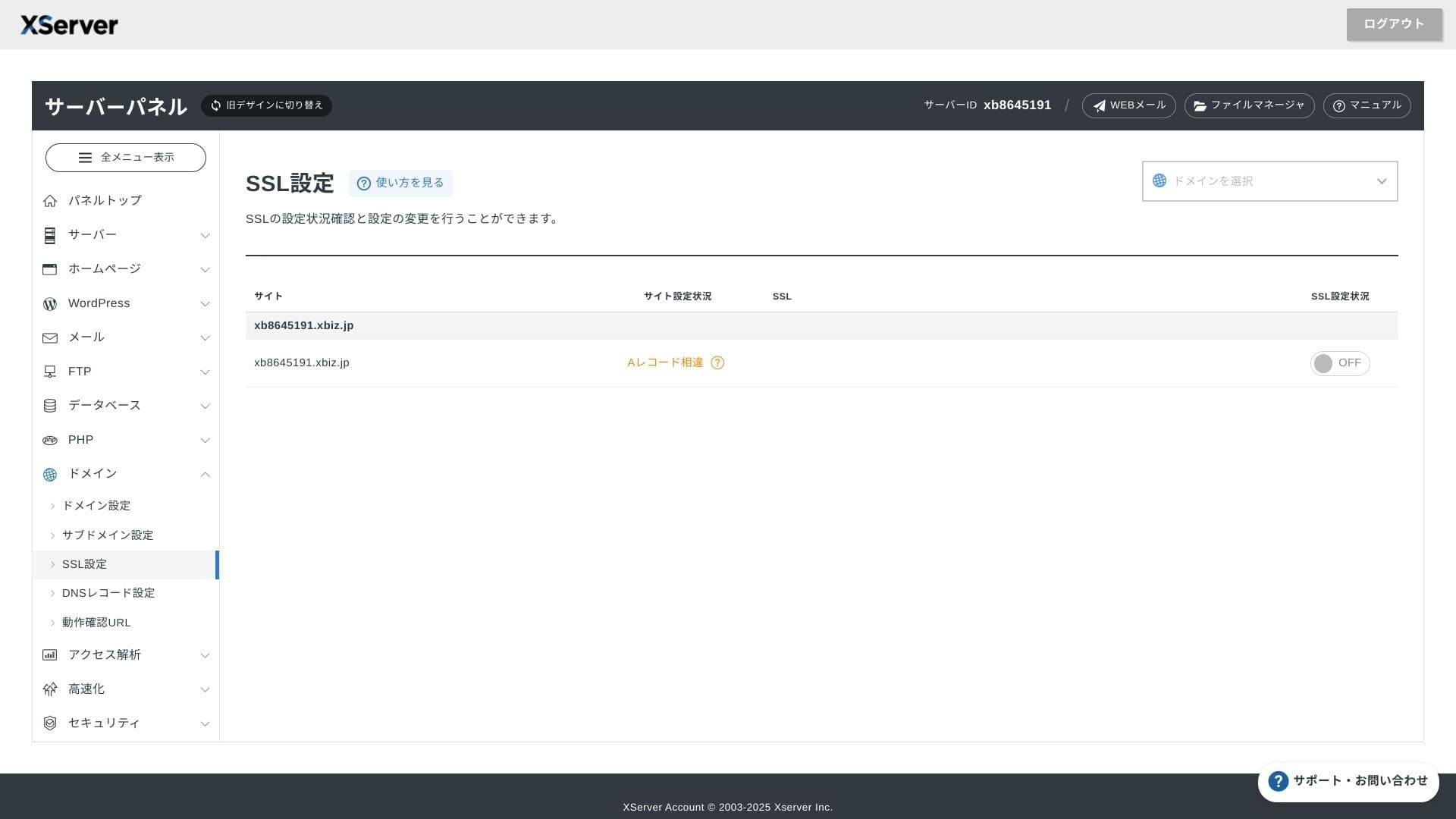
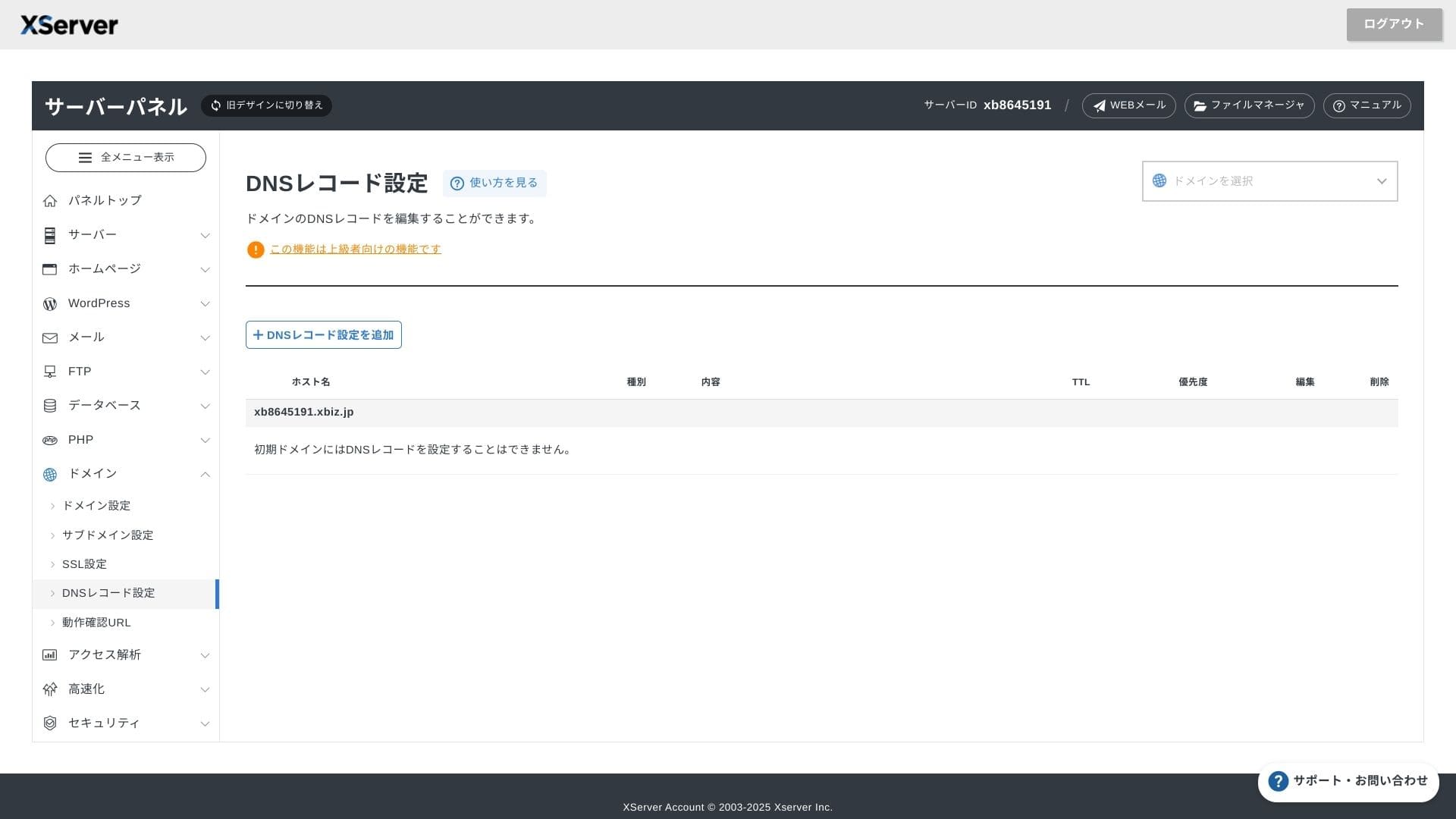
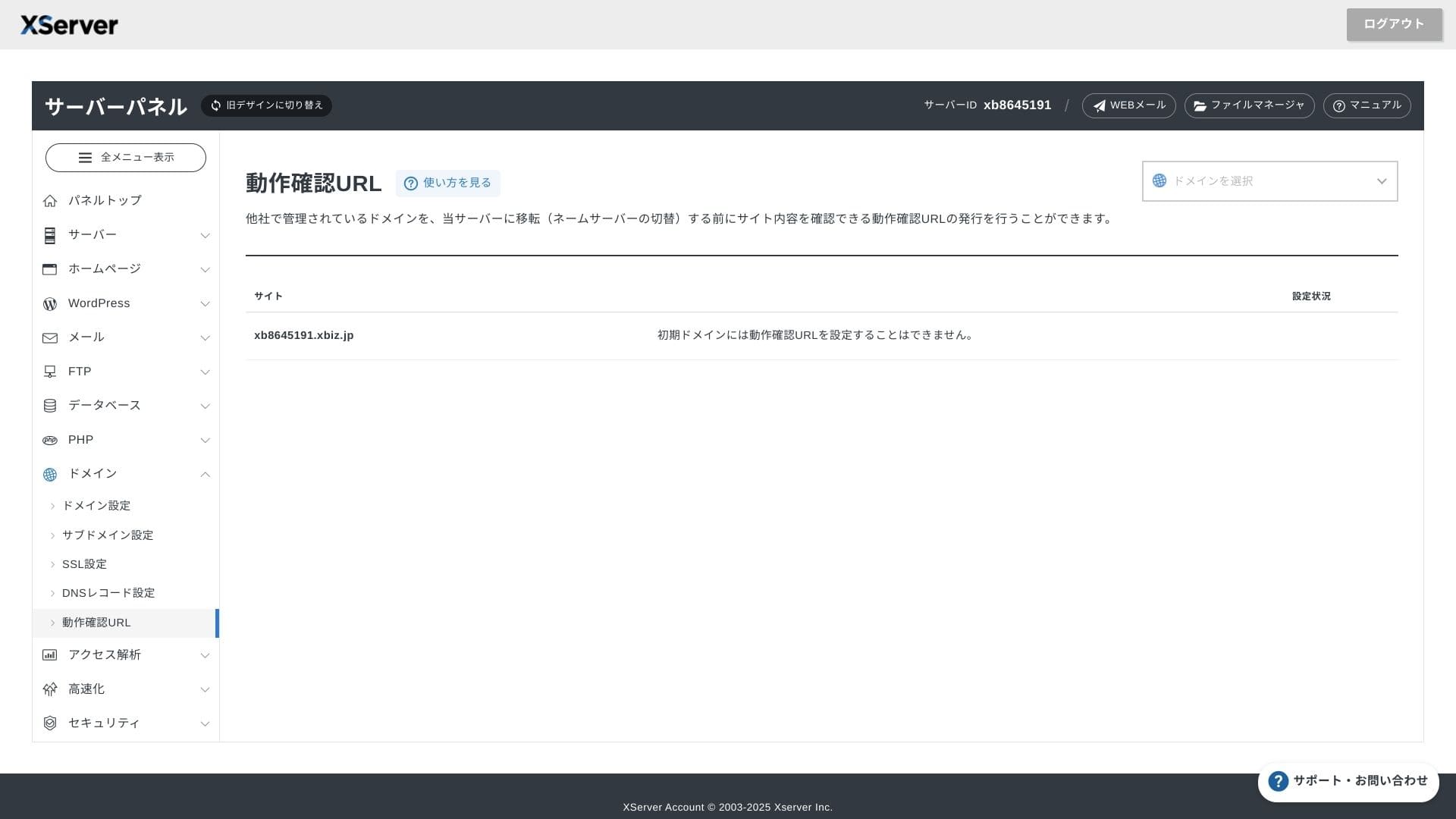
XServer Businessuses its own UI so file operations, SSL settings, and email settings are all handled with one click. Because the official documentation clearly states that setup is completed within 24 hours, it is easy to plan your launch schedule.
Hikaru Ono
The server panel has been redesigned, and it is now even easier to use.
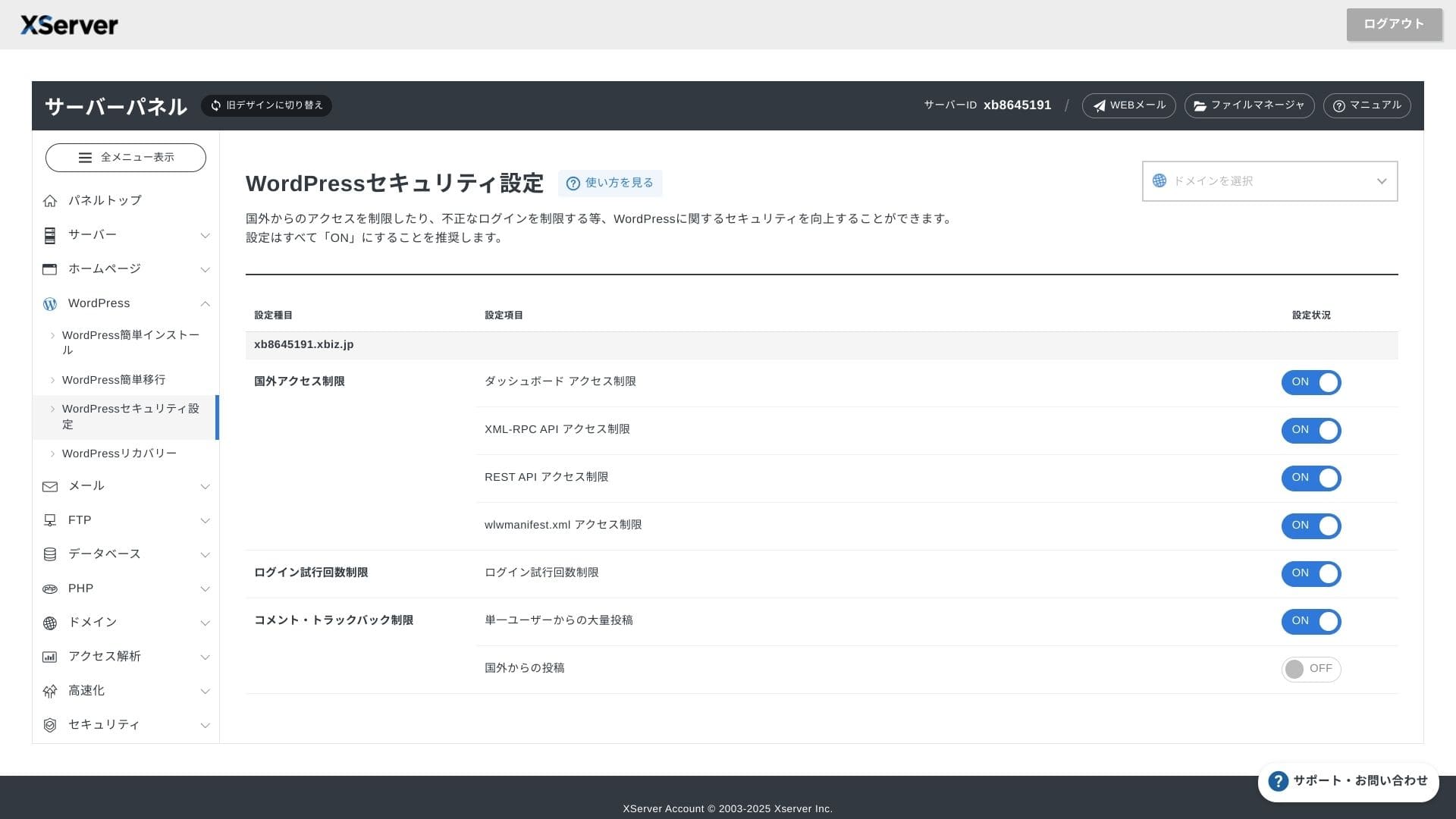
- Home screen
- Billing
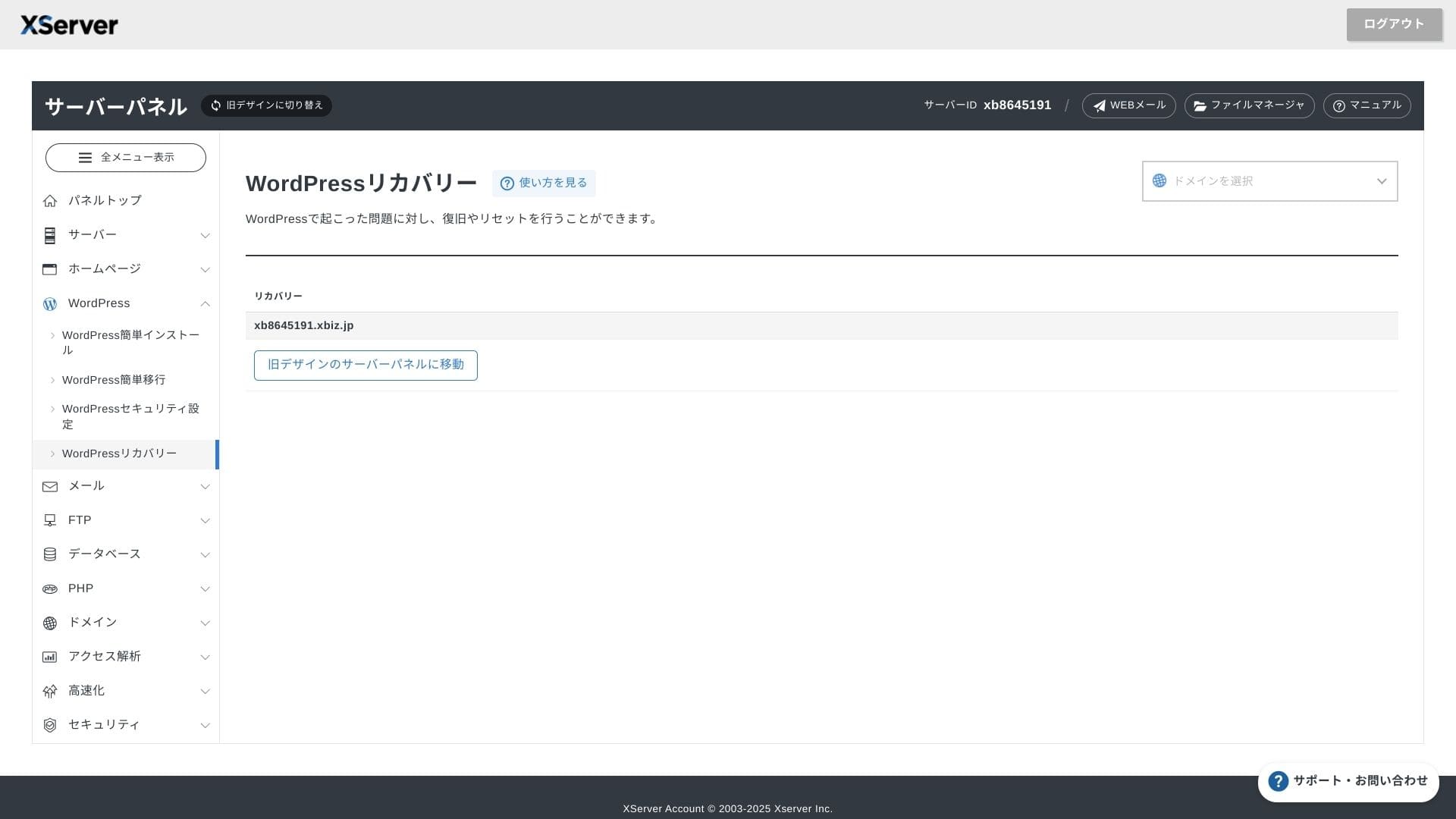
- WordPress
- Domain
- Backup
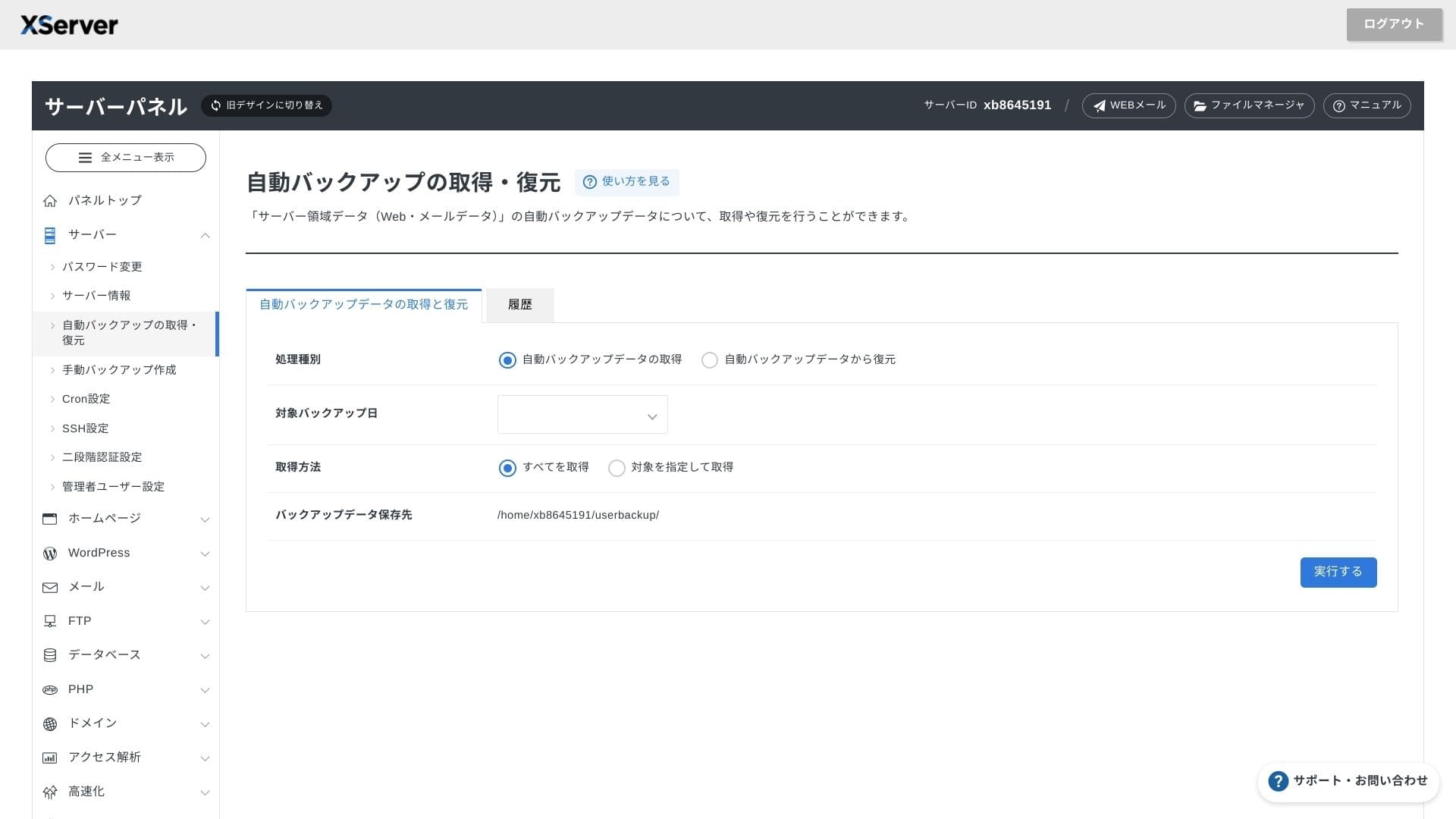
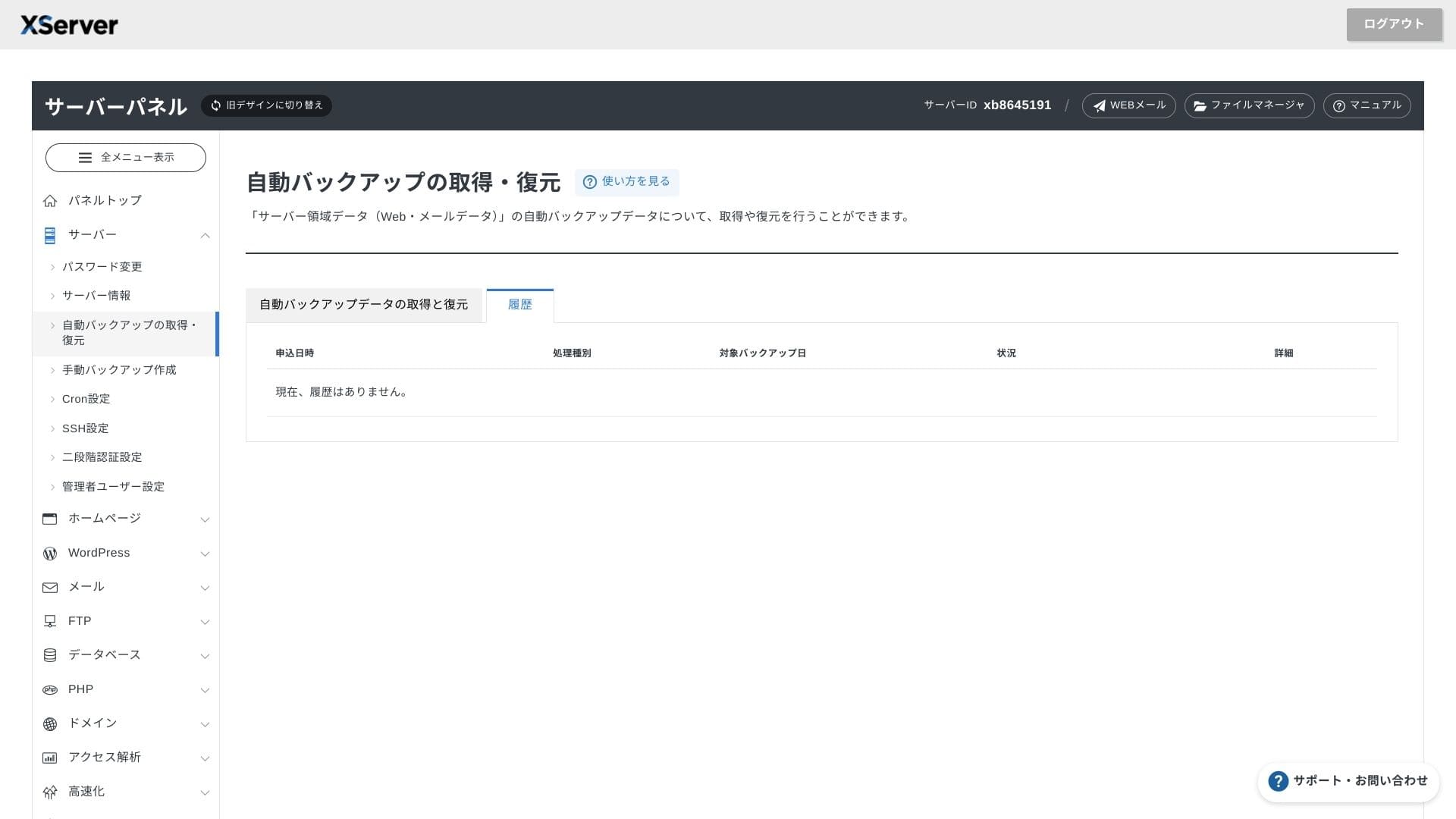
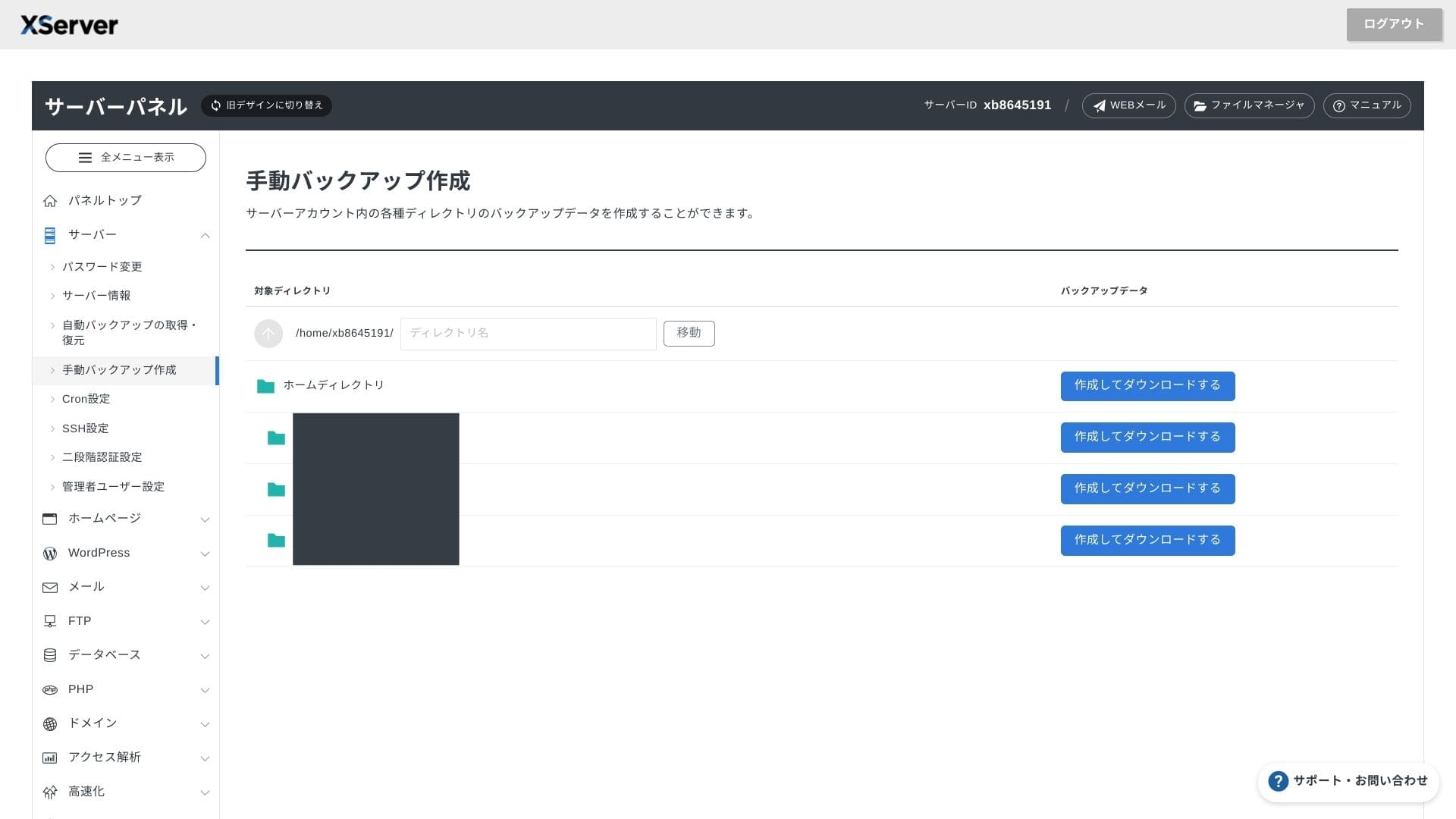
Support system
Weekdays पर phone, email और chat support उपलब्ध है. Setup mistakes या migration concerns वाले teams के लिए यह practical reassurance देता है.
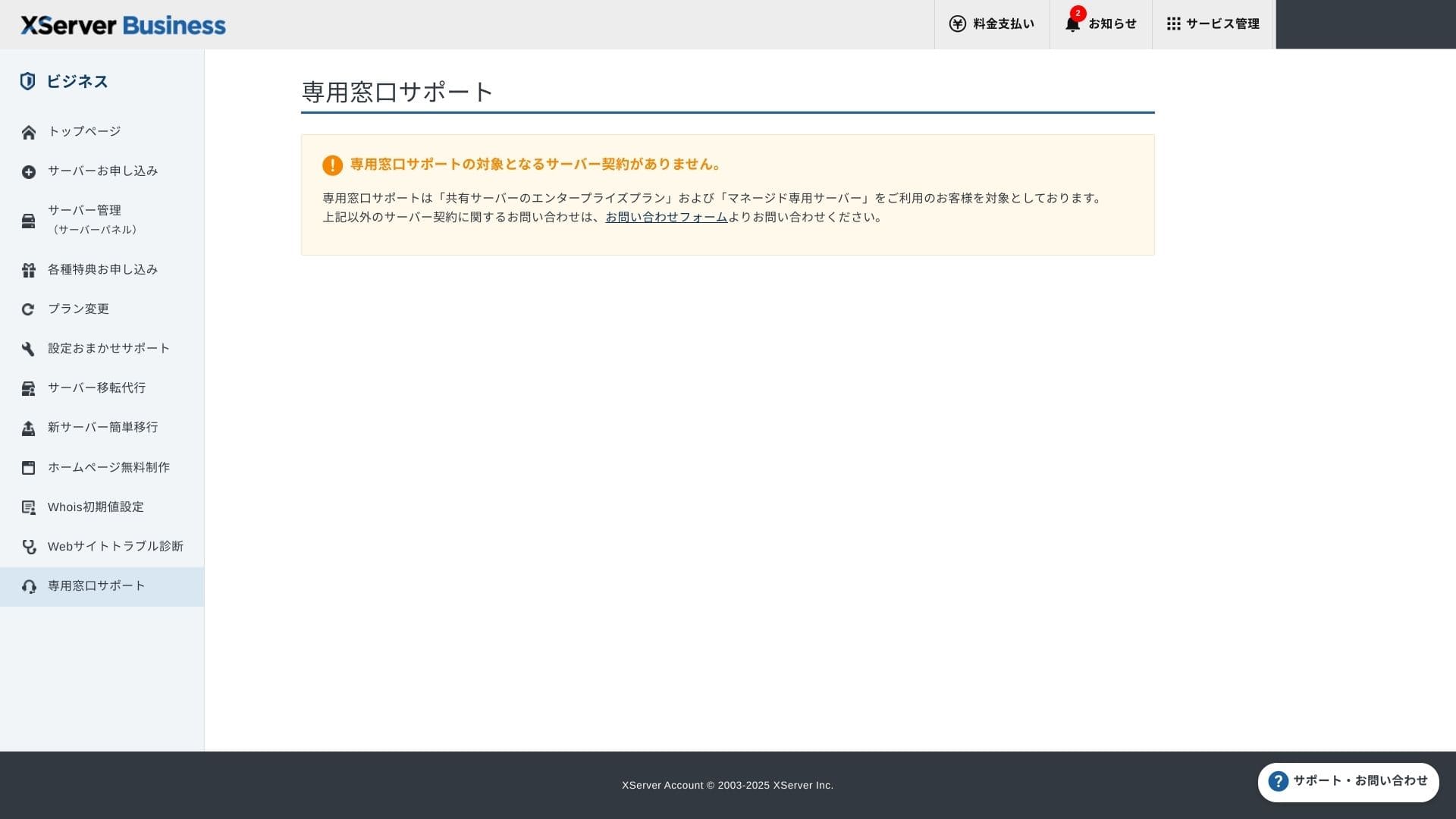
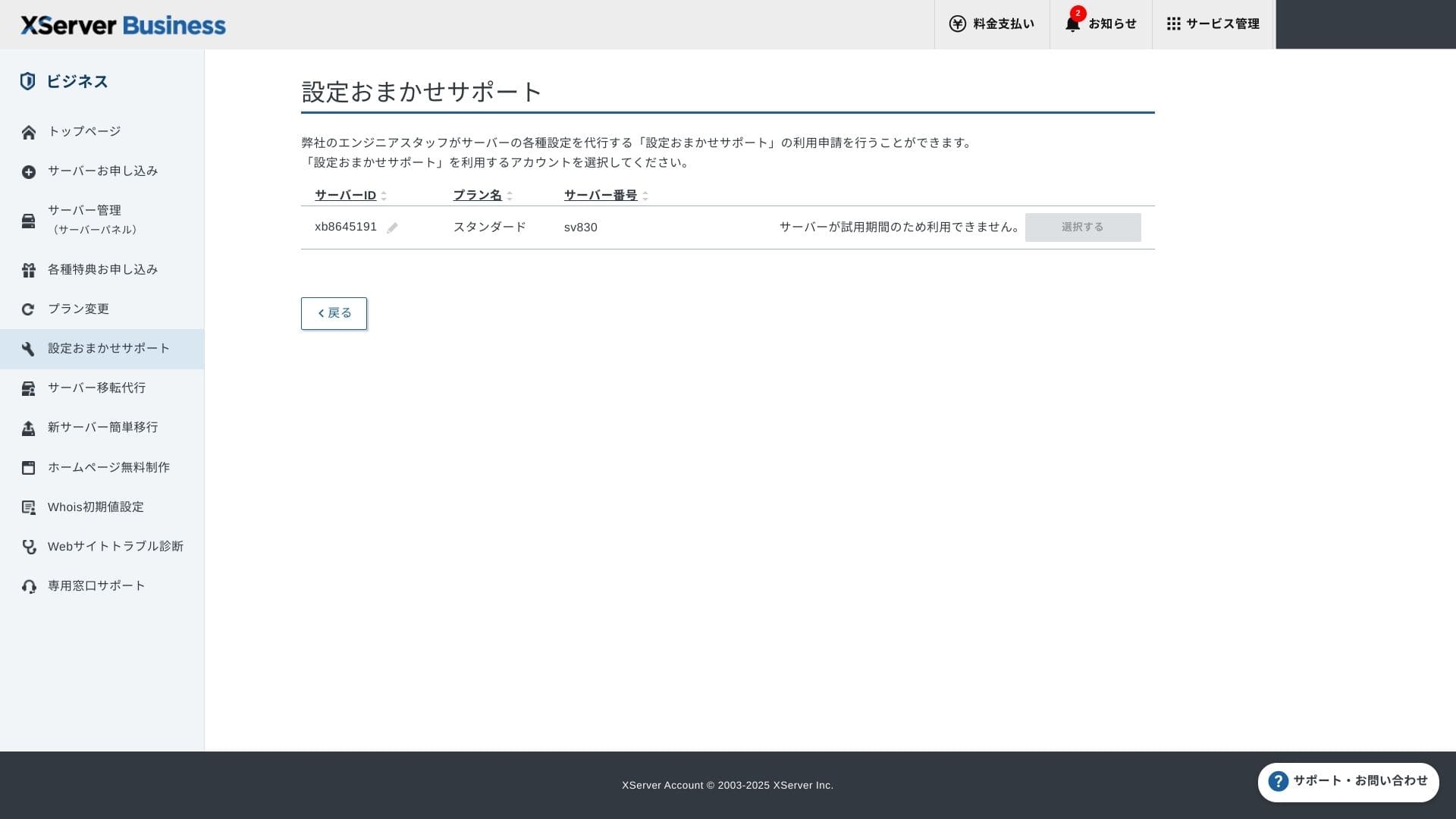
Setup support free और unlimited है. DNS changes से लेकर Cron settings तक सहायता मांगी जा सकती है, इसलिए dedicated IT staff न होने पर भी यह उपयोगी है.
Managed services
Managed server migration service पहली बार free है. HTML site हो या CMS site, दोनों को copy करके migration करने की strong track record इसे downtime-sensitive projects के लिए आकर्षक बनाती है.
Manuals और FAQs
Official PDF catalog में payment methods से plan upgrades तक सब कुछ शामिल है और search करना आसान है. कई users support contact करने से पहले ही answers ढूंढ सकते हैं.
Email features
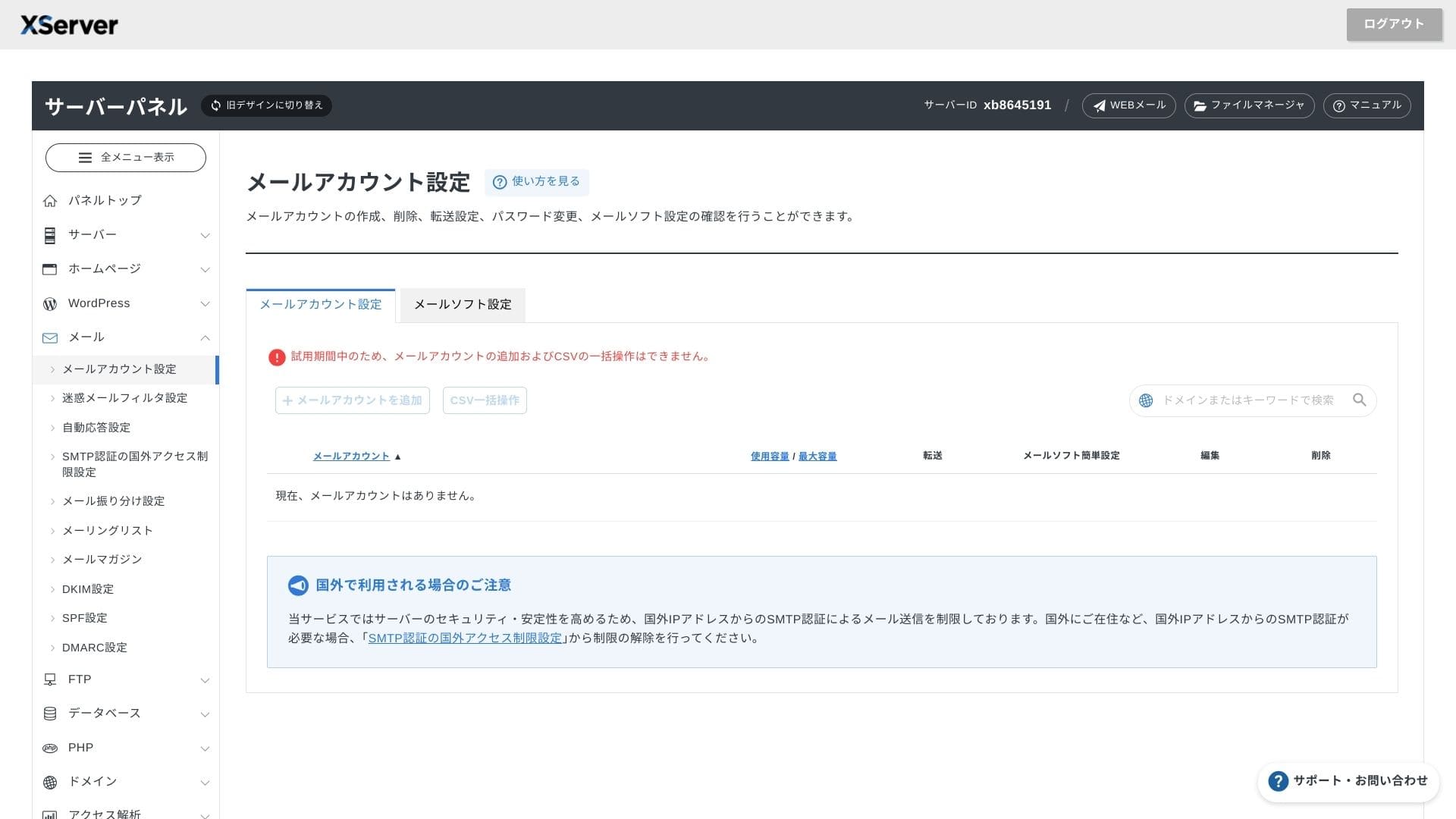
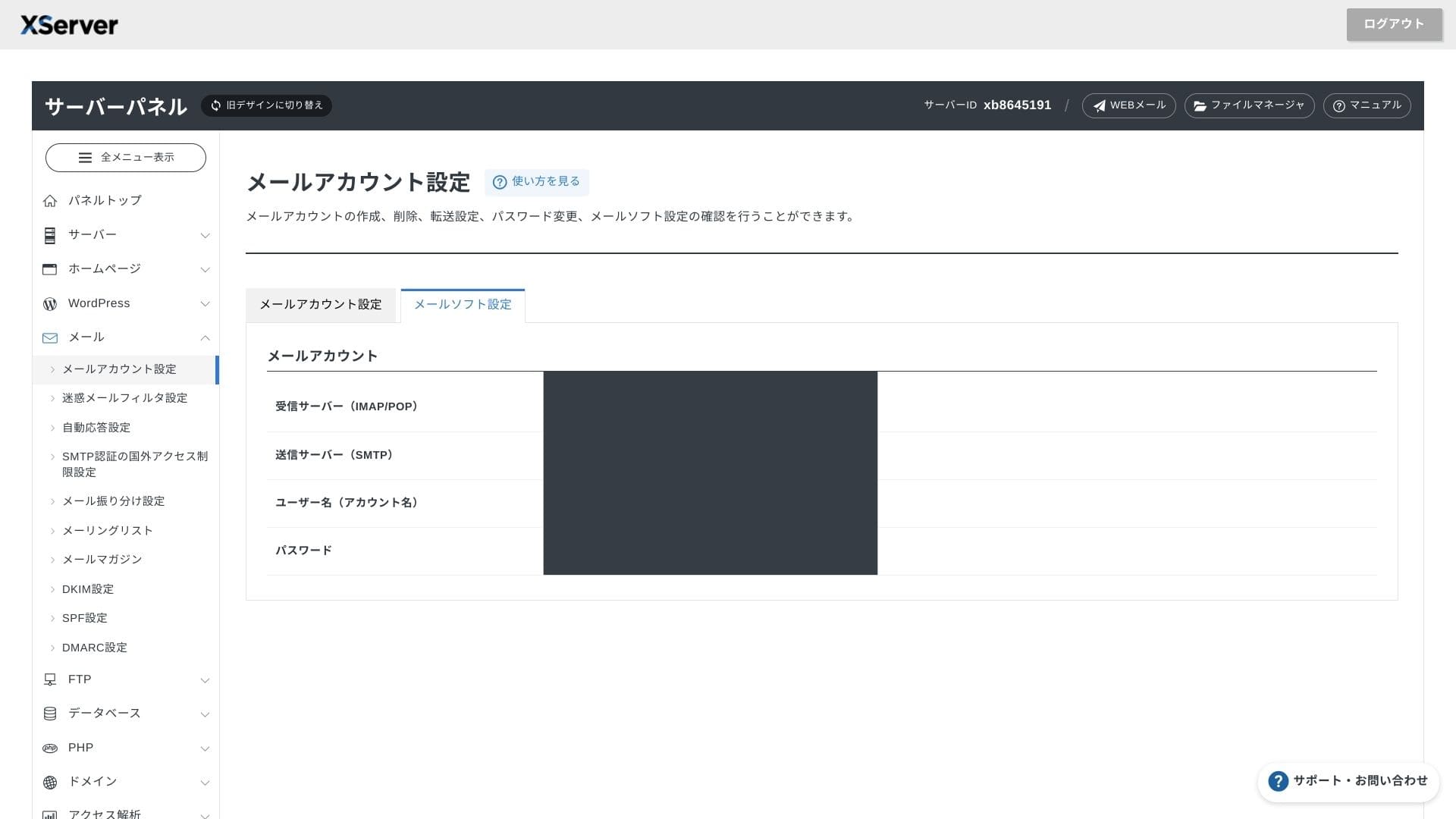
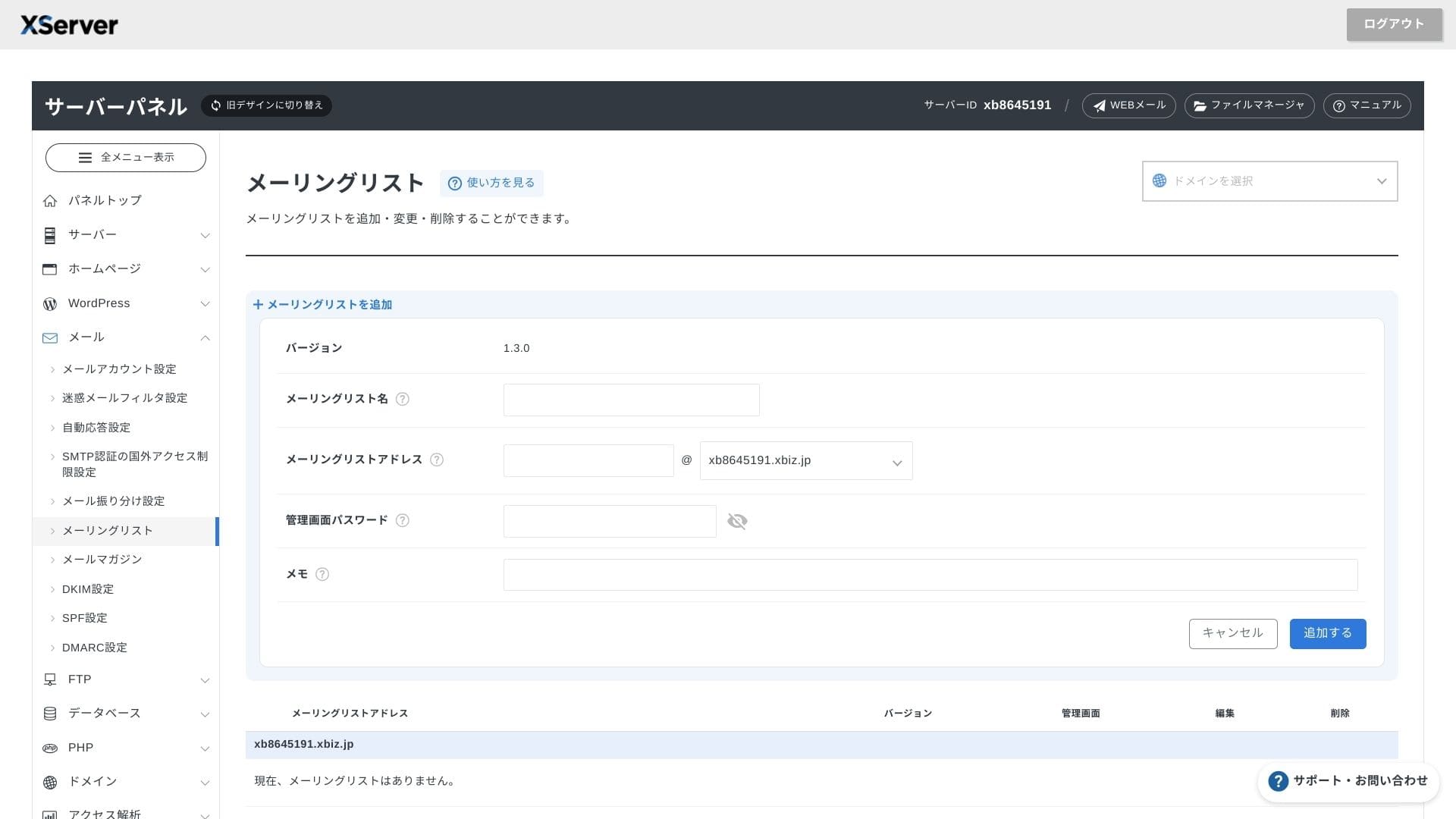
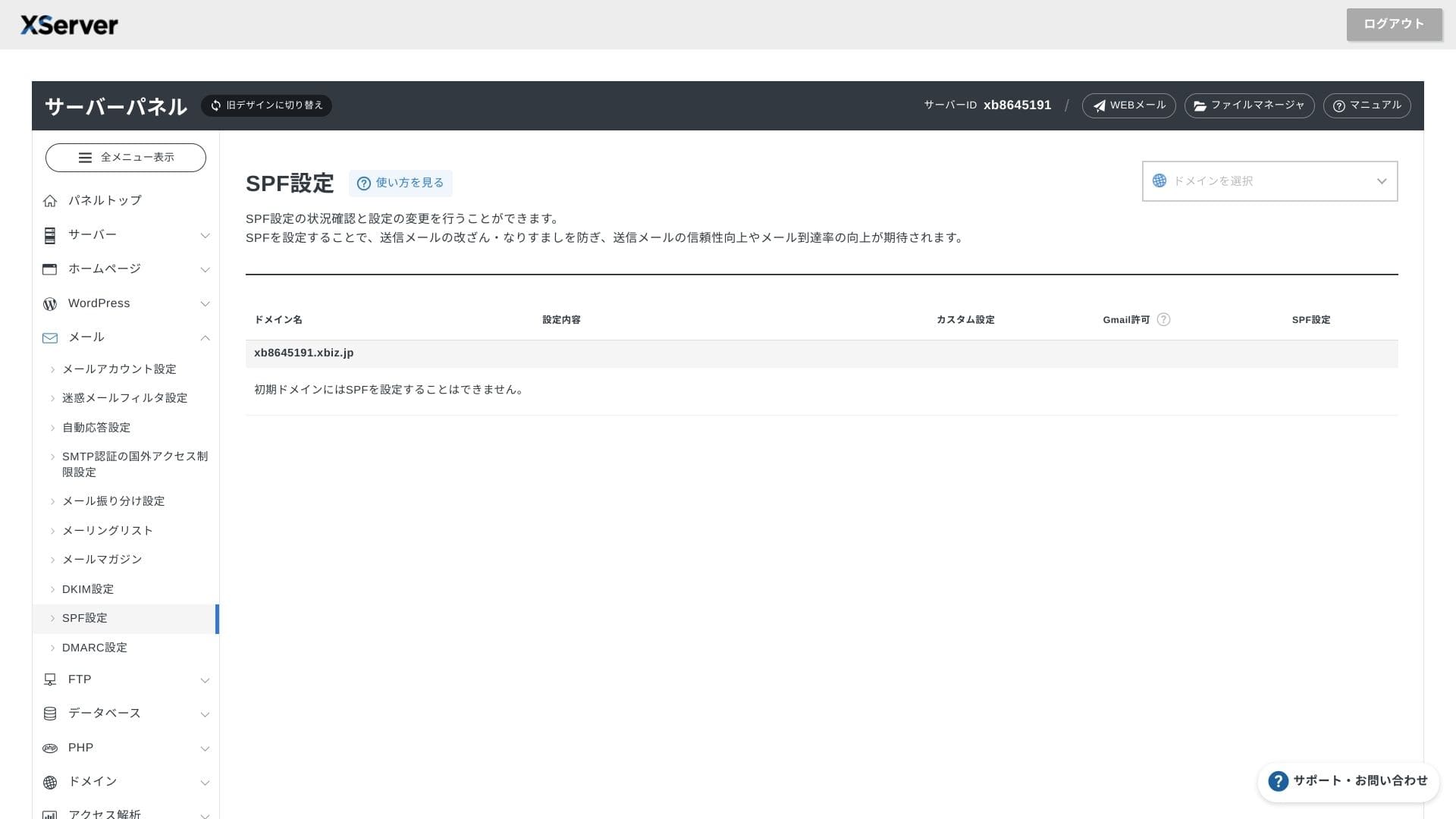
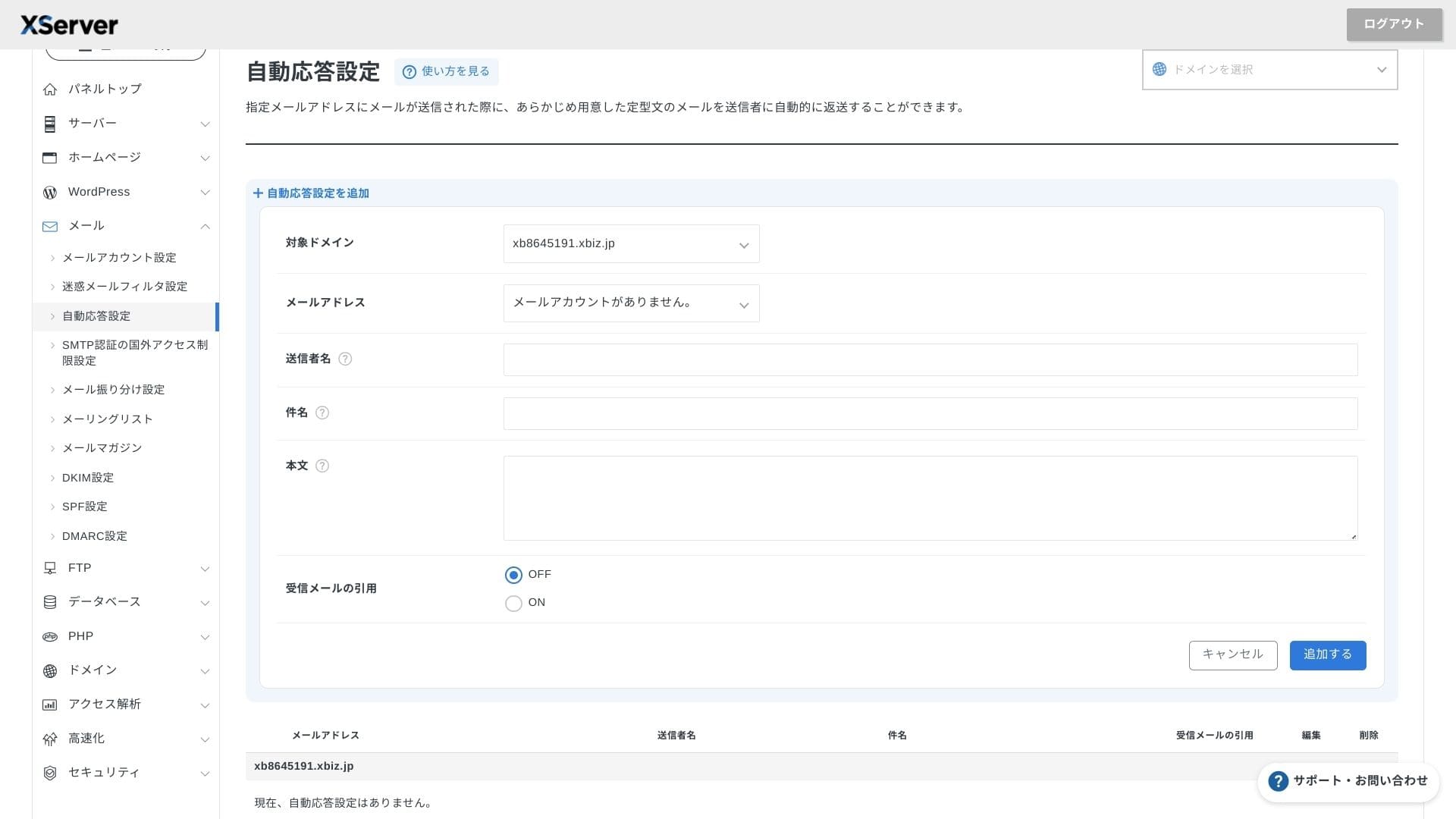
XServer Business unlimited email accounts देता है, spring 2025 में webmail UI refresh किया गया, और Cloudmark Authority आधारित high-performance spam filter 1,000 accounts तक free में मिलता है. Company के अनुसार इसका effective detection rate 99% से अधिक है.
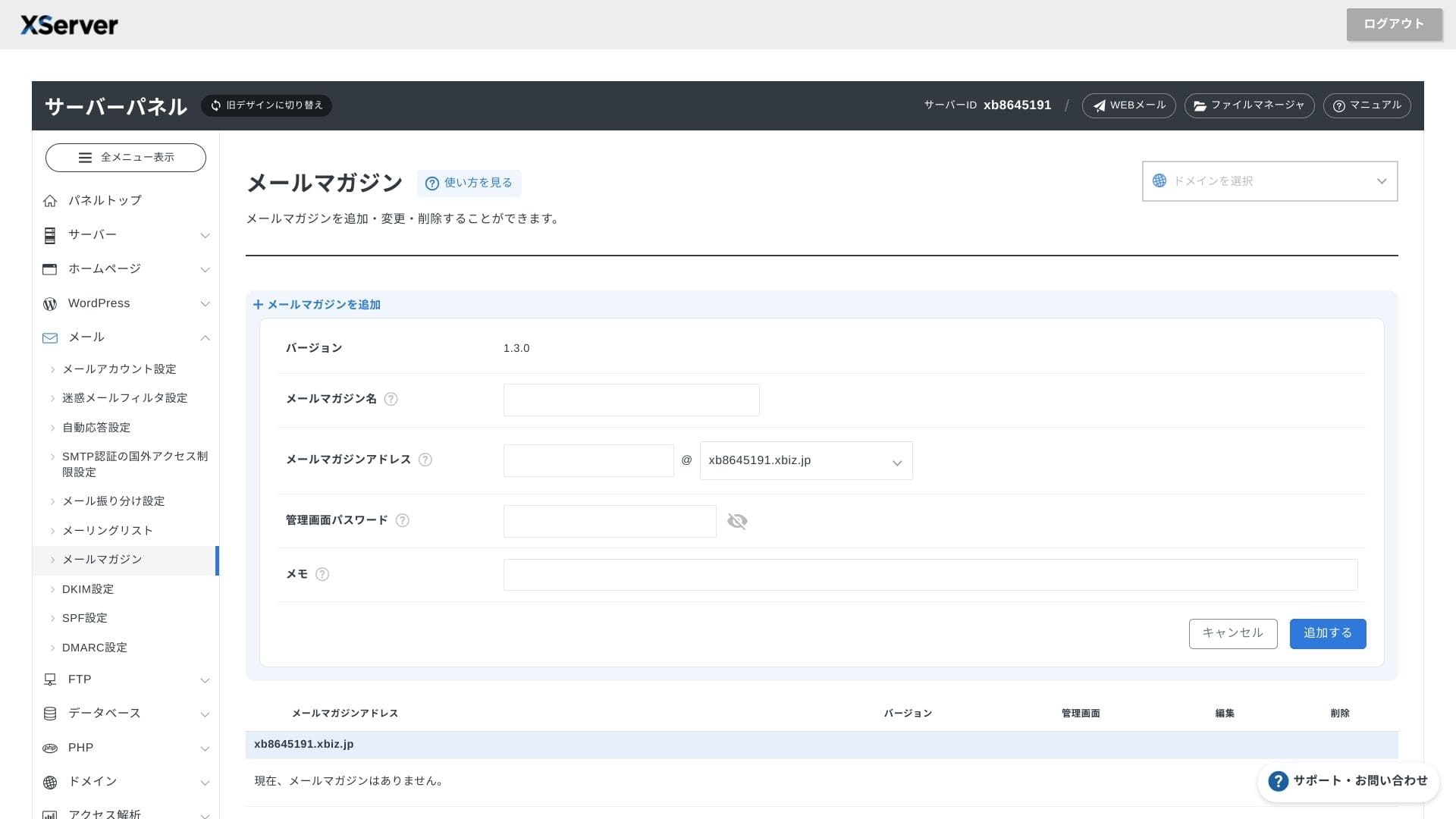
Newsletters और mailing lists बनाना भी आसान है, इसलिए customer updates या internal department communication जल्दी भेजी जा सकती है.
Hikaru Ono
Business server से जैसी उम्मीद होती है, email features उतनी ही मजबूत दिखाई देती हैं.
Security और backups
Security measures
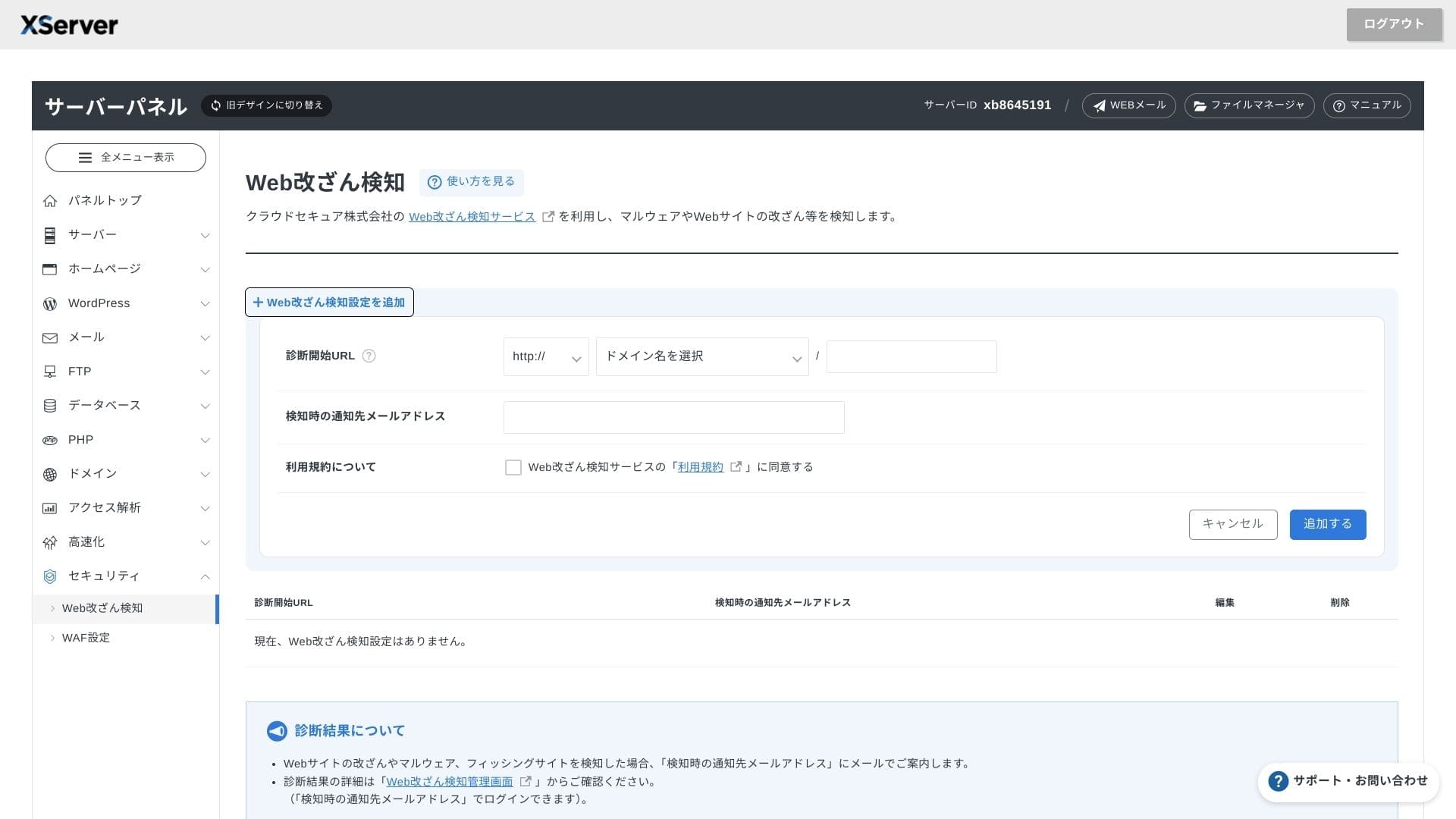
WAF और website tamper detection standard में शामिल हैं. यह vulnerability attacks और unauthorized file replacement को block करता है, और abnormal events होने पर email notifications भी भेजता है. Secom की external security diagnostic भी साल में एक बार free मिलती है.
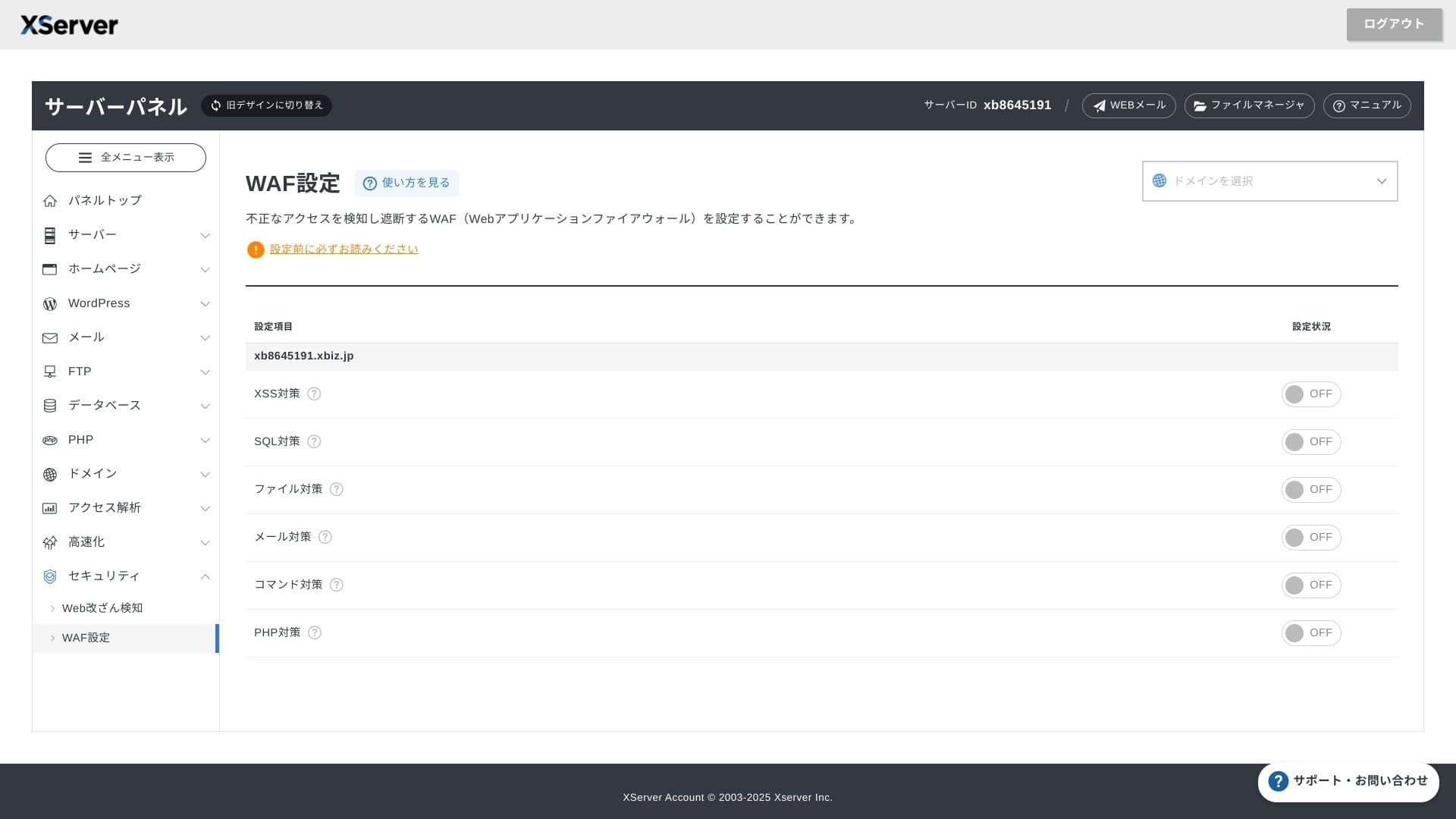
Website tamper detection का लाभ यह है कि problem को देर से पकड़ने के बजाय जल्दी notice किया जा सकता है.
Automatic backups
हर plan में web, mail और database data का पिछले 14 दिनों तक automatic backup रखा जाता है. Panel से one-click restore free होने के कारण mistakes या malware incidents के बाद recovery cost कम हो जाती है.
Competing business rental servers के साथ comparison
सारांश
XServer Business एक business-focused rental server है जो speed, security और operational support को one-stop package में देता है.
- Small और midsize businesses जो multiple sites चलाना चाहती हैं और infrastructure outsource करना चाहती हैं
- वे लोग जो DX work को अन्य duties के साथ संभाल रहे हैं और configuration mistakes को लेकर चिंतित हैं
- ऐसी teams जो future traffic growth की उम्मीद करती हैं लेकिन AWS-level operating cost नहीं चाहतीं
इन स्थितियों में monthly price difference से मिलने वाला return आसानी से अधिक हो सकता है. दूसरी ओर यदि आपको केवल एक static page चाहिए या root access वाली custom platform चलानी है, तो सस्ता shared server या VPS अधिक उपयुक्त हो सकता है.
आखिरकार समझदारी का तरीका यह है कि personnel cost और outage risk दोनों को monetary terms में बदला जाए, और फिर तय किया जाए कि XServer Business की monthly fee उचित है या नहीं.
"XServer Business" जापान में market share में अग्रणी Xserver Inc. की business hosting service है. हमारे measurements में यह speed में second place पर था, और server migration भी free है, इसलिए migration projects के लिए यह खास तौर पर मजबूत विकल्प है.
Initial fee free campaign और migration service free