XREA Review [2025 Latest]: Pros and Cons of Using WordPress on Free Hosting, Plus Comparisons with Other Free Servers
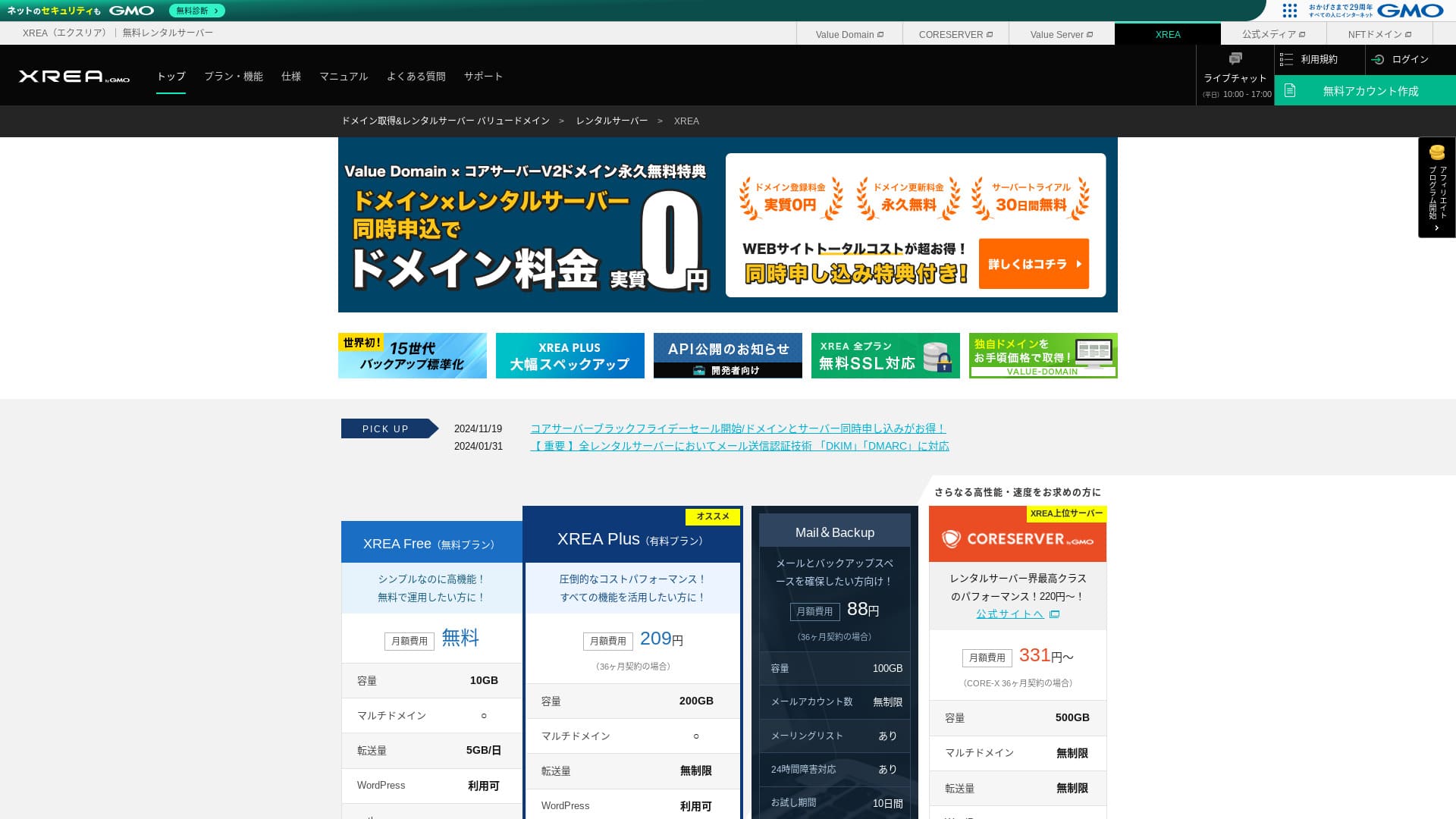
XREA
 is operated by GMO Digirock, Inc. and provides free hosting. Unlike typical free hosting services, it also offers chat support.

XREA
is recommended for people looking for free hosting because:
- You can use WordPress for free
- You can get chat support
- It comes with 15 generations of backups
That is why. You will likely be satisfied. Since it is free, be sure to give it a try.
A competing server is スターレンタルサーバー
 . It can also be used for free, but the features in its upgraded paid plans are better than those of XREA
. Please consider it as well.
. It can also be used for free, but the features in its upgraded paid plans are better than those of XREA
. Please consider it as well.
| Server type | Shared server |
| Display speed (TTFB) | Not measured |
| Recommended plan and contract term | Free |
| Trial / money-back guarantee | None |
| Monthly fee (12-month contract) | Free |
| Initial setup fee | Free |
| Free domain | None |
| Support | Email and chat (10:00-17:00) |
| Uptime | Not disclosed |
| Storage | 10GB |
| Number of databases | 5 |
| Security measures | None |
| SSL | Free SSL, shared SSL |
| Backup / restore | 15 generations of backups free, restores free |
| Number of email accounts | 100 |
| Email security measures | POP over SSL, IMAP over SSL, SMTP over SSL, virus scanning |
| Server / website migration service | None |
| WordPress preinstallation | None |
| CDN | None |

XREA felt a little quirky to me in terms of control-panel usability. That is just my personal impression. Still, anyone can use it if they work through it while looking at the detailed official manuals.
For a free server, it gives you more than enough features and support.
XREA Compared with Other Servers
- OverallRating ★★★☆☆
- Server speed Not measured
- Pricing ★★★★★
- Stability ★★★☆☆
- Ease of getting started with WordPress* ★★★☆☆
- Operations such as domain management and SSL setup* ★★★☆☆
* Based on my personal experience using it.

- November 4, 2025 market-research data, by speed sorted
- Monthly fees are the first-year cost of the cheapest plan that can run WordPress
- Speed is the Time to First Byte measured on demo sites under the same conditions
| Hosting service (plan) | Speed | Monthly fee | WordPress Preinstalled | Uptime | Support (hours) |
|---|---|---|---|---|---|
| Average and Recommended | 222.2ms | 1,109 yen | Yes | 99.99% or higher | 24/7 or more |
| Kinsta
| 30ms | 30 USD (4,525 yen) | Yes | 99.9% | Chat (24/7 in Japanese) and email |
【Hostinger】
 (Premium) (Premium) | 31ms | 439 yen | No | 99.9% | chat (24/7) |
XServerビジネス
 (Shared Server) (Shared Server) | 40ms | 2,926 yen | Yes | 99.99% | Phone and email (weekdays 10:00-18:00) |
wpX Speed
 (W1) (W1) | 40ms | 1,320 yen | No | Not disclosed | Phone and email (10:00-18:00) |
LOLIPOP
 (Light) (Light) | 80ms | 495 yen | Yes | 99.99% | Email and chat (weekdays 10:00-18:00) |
| スターレンタルサーバー
(Free) | 90ms | 418 yen | No | Not disclosed | No |
| Rakko Server(RK1) | 120ms | 440 yen | Yes | Not disclosed | Email (weekdays 10:00-19:00) |
エックスサーバー
 (Standard) (Standard) | 130ms | 770 yen | Yes | 99.99% | Phone, email, and chat (weekdays 10:00-18:00) |
mixhost
 (Light) (Light) | 150ms | 594 yen | Yes | 99.99% | Email (weekdays 10:00-18:00) |
ConoHa WING
 (Basic) (Basic) | 160ms | 941 yen | Yes | 99.99% | Phone, email, and chat (weekdays 10:00-18:00) |
ColorfulBox
 (BOX1) (BOX1) | 190ms | 383 yen | Yes | Not disclosed | Phone (24-hour reception), chat, LINE, and email (weekdays 09:30-12:00, 13:00-17:30) |
シンレンタルサーバー
 (Basic) (Basic) | 200ms | 985 yen | Yes | Not disclosed | Phone and email (10:00-18:00) |
リトルサーバー
 (Mini) (Mini) | 200ms | 165 yen | No | Not disclosed | Email (business hours not disclosed) |
Core Server
 (MINI) (MINI) | 210ms | 264 yen | Yes | Not disclosed | Email and chat (10:00-12:00, 13:00-17:00) |
| DreamHost(WordPress Starter) | 400ms | 2.99 USD (461 yen) | No | 100% | Chat (24/7), email, and phonecallback |
| Bluehost(Basic) | 420ms | 4.99 USD (769 yen) | No | 100% | chat (24/7) |
さくらのレンタルサーバ
 (Standard) (Standard) | 440ms | 550 yen | No | 99.99% | Chat, email, phone, and callback reservations (10:00-18:00) |
| Namecheap(EasyWP Supersonic) | 440ms | 9.88 USD (1,523 yen) | No | 99.9% | chat (24/7) |
| Shin Free Server | N/A | Free | No | Not disclosed | No |
| XREA
(Free) | N/A | Free | No | Not disclosed | No |
Value Server
 (Eco) (Eco) | N/A | 220 yen | No | Not disclosed | Email and chat (weekdays 10:00-17:00) |
| KAGOYA JAPAN(Grade 1) | N/A | 440 yen | Yes | 99.999% | Phone and email (weekdays 10:00-17:00) |
| SiteGround(StartUp) | N/A | 3.99 USD (615 yen) | No | 99.99% | Chat (24/7), email, and phone |
| Hostgator(Baby) | N/A | 4.45 USD (686 yen) | No | 99.9% | Phone and chat (24/7) |
| IONOS(Start) | N/A | 1.00 USD (154 yen) | No | 99.98% | Phone, email, and chat (24/7) |
onamae.com Rental Server
 | N/A | 2,398 yen | No | 99.99% | Phone, email, and chat (weekdays 10:00-18:00) |
ABLENET RentalServer
 (Light) (Light) | N/A | 830 yen | No | 99.99% | Email (business hours not disclosed) |
| GoDaddy(Basic) | N/A | 899 yen | Yes | 99.9% | Chat (24/7) and phone (weekdays 10:00-17:00) |
iCLUSTA+ byGMO
 (Mini) (Mini) | N/A | 1,027 yen | No | 100% | Phone (weekdays 10:00-18:00) Email is available 24/7 |
ムームーサーバー
 | N/A | 1,430 yen | No | 99.99% | Email and chat (9:30-13:00, 14:00-17:30) |
WADAX
 (WP Standard) (WP Standard) | N/A | 2,200 yen | No | 99.9% | Weekdays 09:00-22:00, weekends 09:00-18:00 |
| WebARENA SuiteX | N/A | 1,997 yen | No | 100% | Email and chat (weekdays 09:30-17:00) |
heteml
 | N/A | 2,035 yen | No | 99.99% | Phone and email (weekdays 10:00-18:00) |
CPI
 (Shared) (Shared) | N/A | 4,840 yen | No | 100% | Phone and email (weekdays 10:00-18:00) |
XREA Review and Five Key Features

A No-Cost Server That Can Also Run WordPress
XREA
is a free server. There is no monthly fee and no initial administrative fee.Even so, you can still use WordPress. It is perfect for people who want to cut costs to the absolute minimum. We compared it with domestic servers under the following conditions.
- Initial setup fee
- 12-month server contract
- Cost of one year of domain fees
- Cheapest plan that can use WordPress
| Hosting company | Cost for one year |
|---|---|
| Value Server
| 750 yen |
| ConoHa WING
| 11,292 yen |
| エックスサーバー
| 10,560 yen |
| LOLIPOP
| 5,016 yen |
| さくらのレンタルサーバ
| 9,390 yen |
There are major differences in features and specifications, but a price that stays around one-tenth as much is still appealing.
Comes with Chat Support
XREA
comes with chat support.
Most free servers offer little to no support. With XREA, you can get help when you run into trouble, so even people with no server experience can use it with confidence.
Live chat support is available on weekdays from 10:00 to 17:00. Email support is also available.
Comes with 15 Generations of Backups
XREA can retain as many as 15 generations of backups. That is extremely generous. Even paid servers often make backups a paid option or charge a separate restoration fee.
For example, LOLIPOP
requires an additional paid option costing 330 yen per month on its lower-tier plans before you can use backups.
Backups are important. Even if your website is infected with malware or you accidentally delete data, you can recover if you have a backup. Without one, everything you have built up through your efforts can disappear.
With 15 generations of backups, you can run your website with peace of mind.
You Can Create Five WordPress Sites
XREA lets you create up to five WordPress sites.
Note: What Is WordPress? The System for Starting a Website and the Points to Watch Out For
There are many ways to use it, such as adding a hobby blog alongside your company website. When you signed up for the server, you may have thought one site was enough, but as time passes you might take on a new business or pick up new hobbies.
It saves you the trouble of signing up for another server, and it does not cost anything either.
You Can Use Free Custom SSL
XREA lets you use free custom SSL. Some free servers do not provide free custom SSL because of feature limitations.
SSL is essential security for a website. It is reassuring that even a free server provides it.
Note: What Are SSL and TLS? The Mechanism and Benefits of Protecting Information Through Encryption
The Drawbacks of XREA, Told Honestly

Free servers are attractive, but they also have drawbacks, so make sure to check them before you use one. Even if the financial burden is small, you still spend time and effort.
Ads Are Displayed
XREA
automatically displays ads at the top of your website. Because ads appear in the most visible part of the page, it is difficult to use for a corporate website. They may also clash with your company's atmosphere.
People who want to earn advertising revenue, such as through affiliate marketing, probably do not want ads displayed that do not contribute to their own profit.
To hide the ads, you need to use the paid plan XREA
Plus. If you are going to use XREA Plus, it is better to consider other paid servers as well.
The Transfer Allowance Is Low
XREA
has a low transfer allowance. As a result, as traffic grows, the website becomes harder to display. Publishing a website that people cannot actually view defeats the purpose.
Note: What Are Traffic and Transfer Volume? Managing and Optimizing Web Traffic
Uptime Is Not Disclosed
What is quite worrying is that its uptime is not disclosed. We cannot judge in numerical terms how stable it is. If the server is not stable, the website will not display reliably either. A website people cannot view defeats the purpose.
Note: A Beginner's Guide to Understanding Hosting Uptime and SLAs
It is reassuring to use a server with uptime of 99.99% or higher, which is the benchmark for high uptime. At 99.99%, the server is down for less than one hour over a 365-day contract period. The rest of the time, your website can be viewed properly.
Compare XREA with Two Competing Servers
Shin Free Server
Shin Free Server is a free server that does not display ads. That makes it easier to use even for things like corporate websites. Its transfer allowance is on an entirely different scale, so you do not need to worry about running short.
However, unlike XREA, it has no support. You need the skill to solve problems on your own while checking the manual and searching the web.
| Comparison item | XREA
| Shin Free Server |
|---|---|---|
| Main feature | Free | Free |
| Trial / money-back guarantee | None | None |
| Uptime | Not disclosed | Not disclosed |
| Storage | 10GB | 10GB |
| First-year server cost | 0 yen | 0 yen |

Star Server Free
Star Server Free is a free server run by a long-established domestic hosting company.
However, it has more drawbacks than XREA, such as ads being displayed on smartphones and the lack of support. Because its transfer allowance is not published, it becomes worrying whether it will remain visible as traffic grows.
| Comparison item | XREA
| Star Server Free |
|---|---|---|
| Main feature | Free | Free |
| Trial / money-back guarantee | None | None |
| Uptime | Not disclosed | Not disclosed |
| Storage | 10GB | 2GB |
| First-year server cost | 0 yen | 0 yen |

Start a WordPress Website on XREA in 7 Steps
- STEP.1Access the official site
Click "Create Account" on the top page.
- STEP.2Register as a Value Domain user
This is the user account creation screen. Enter a username, password, and email address. Review the details and click "Register."
After completing email verification, register your user information such as your name and address. It is easier if you complete SMS verification as well. Click "Review entered information," then after checking the membership agreement and privacy policy, click "Register user."
The confirmation screen appears again, so click "OK" to finish user registration.
Once you have selected a domain, make sure to check "Install WordPress at the same time."
Click "Next."
- STEP.3Sign up for XREA
Log in to Value Domain, select "XREA" from "Server," click "Create a new XREA account," and then click "Get XREA (Free)."
You can use any string you like for the desired account name.
You can use a .shop domain free for one year. If you do not have a strong preference, use a .shop domain. However, from the second year onward, renewing a .shop domain costs 5,440 yen per year, which is quite expensive.
We recommend well-known domains such as .com and .net. Their renewal fees are also reasonable, at under 2,000 yen.
Note: What Is a Domain? Its Role as an Address on the Internet and How to Obtain One
Check the terms of use for the server and backup, then click "Register." Your account will then be created.
If you did not get a .shop domain: Get a domain through Value Domain
At the top of the Value Domain page, select "Domain Registration." Enter any string you like and search, and available domains will be displayed.
Check the domain name and contract term. One year is fine. Since you have already applied for XREA, check "Do not use a server." Review the registration details and click "Next."
Choose a payment method, check that you have reviewed the terms of use, and click "Confirm application." That completes the domain acquisition.
Open the XREA control panel, select "Domain Settings," and click "Create new domain setting." Enter the domain name you acquired earlier and click "Create new domain setting." This sets the domain on XREA.
- STEP.4Create a database
Create a database so that you can use WordPress.
Note: What Is a Database? The Management and Operation System Essential to WordPress
Log in to the XREA control panel. From the menu, go to "Database" then "MsSQL," and click "Create new database."
- Database name: Anything is okay
- Password: Anything is okay. Make it as complex as possible
- Character encoding: Leave it as is
- Memo: You do not need to write anything
After entering the above, click "Create new database" and the database will be created.
- STEP.5Install WordPress
In the XREA control panel, open "Site Settings" and click the domain where you want to install WordPress. Once the screen changes, click "WordPress."
Specify the installation path. If CMS Install is not clickable, interact with the installation URL once and it will become clickable.
When you can proceed with installation, configure WordPress as follows.
- Database name: The database name you created earlier
- Username: Anything is okay. It is difficult to change later
- Password: The password you created when making the database
- Database host name: localhost
- Table prefix: Anything is okay.
Once you have entered everything, click "Submit" and then "Run installation."
Now configure the WordPress information further.
- Site title: Anything is okay. You can change it later
- Username: Anything is okay. It is difficult to change later
- Password: Anything is okay. Make it as complex as possible
- Database host name: Your everyday email address
- Search engine visibility: Anything is okay. Check it if you want everyone to be able to find it
You use the username and password when logging in to WordPress. Be sure to write them down.
When the installation is finished, click "Log in."
- STEP.6Configure SSL
Open "Site Settings" in the XREA control panel. Click "Create new site setting."
Open the domain name where you configured WordPress, select "Free SSL" under SSL, and click "Create new site setting."
- STEP.7Install plugins
Return to the WordPress admin screen and go to "Plugins" then "Add New" to install the plugins you need.
When you find a plugin you want to install by searching, click "Install Now" and then "Activate." After that, proceed according to the instructions for each plugin.
Be sure to install security and backup plugins.
- How to Choose Five WordPress Plugins That Strengthen Security
- Five Powerful WordPress Backup Plugins That Let You Recover Your Data
Once you have installed the plugins, your WordPress website is ready.
Summary
Using the free hosting service XREA
lets you create a WordPress website by paying only for the domain. It does have drawbacks, but few things are as welcome as something free. Use it wisely.
Complete Comparison of 32 WordPress Hosting Services: Recommendations for Individuals, Companies, and Overseas Use

When you think, “I want to start WordPress,” and search for “recommended WordPress hosting,” you find all kinds of articles, from options for individuals and for companies or small businesses to overseas servers and inexpensive servers. Honestly speaking,
- Which site should I look at?
- I want to choose a server in a simple, easy-to-understand way!
- Please show me how to start WordPress right away.
Have you ever felt that way? That is why this article carefully selects the best choices from 32 hosting services for individuals, companies, domestic use, and overseas use and introduces them. The explanation comes from the SEO lead at an app development company that uses hosting services every day.