首月免費 & 14 天免費試用
PR
伺服器
KAGOYA JAPAN 評測:61,000 家企業在用。它的 WordPress 獨享伺服器是否划算?
釋出於:2025.04.18
更新於:2025.04.18
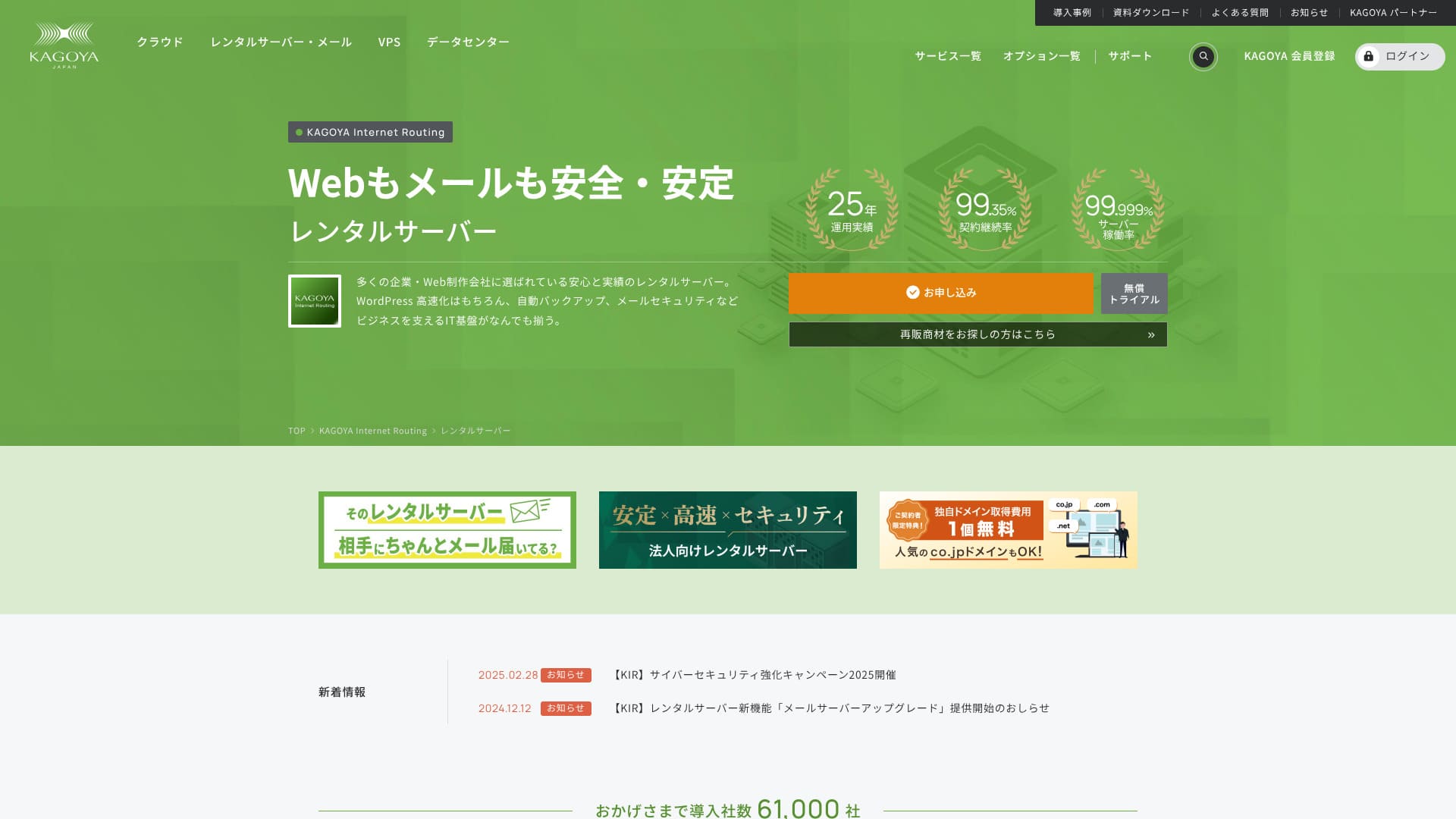
總部位於京都市的 KAGOYA JAPAN 運營自有資料中心。80% 的使用者是企業,共有 61,000 家公司在使用這項服務。

KAGOYA JAPAN 適合想要使用穩定伺服器的人,原因如下:
- 提供 WordPress 獨享伺服器
- 方案每月 440 日元起
- 線上率達到 99.999%
因此,它應該能滿足大多數使用者的需求,而且首月還可以免費試用。
競爭對手之一是 XServer。它擁有日本國內第一的市場份額,使用者規模也比 KAGOYA JAPAN 更大,也值得考慮。
| 伺服器型別 | 共享伺服器 / 雲伺服器 / WordPress 獨享伺服器 / VPS |
| 載入時間(TTFB) | Unmeasured |
| 推薦方案與合約期限 | WordPress 獨享伺服器 1 級方案 / 12 個月 |
| 試用 / 退款保證 | None |
| 月費(12 個月合約) | 440 yen |
| 初始管理費 | Free |
| 免費域名 | None |
| 支援 | 工作日 10:00-17:00 |
| 線上率 | 99.999% 保證 |
| 伺服器容量 | 20GB |
| 資料庫數量 | 1 |
| 安全措施 | 控制面板訪問限制 / 登入嘗試限制 / XML-RPC API 訪問限制 / REST API 訪問限制 / 大量評論限制 / Trackback 限制 / 外部 IP 地址評論 / Trackback 限制 |
| SSL | 免費 SSL |
| 備份與恢復 | 包含一代備份 / 免費恢復 |
| 可建立的郵箱賬號數 | None |
| 郵件安全措施 | None |
| 伺服器 / 網站遷移服務 | 遷移服務:11,000 日元 無遷移工具 |
| WordPress 預裝 | 是 |
| CDN | 付費 |

Hikaru Ono
選擇 KAGOYA JAPAN 的 WordPress 獨享伺服器後,簽約完成時就會自動安裝 WordPress,你可以立刻開始運營網站或部落格。
由於線上率很高,這臺伺服器非常適合企業使用。
KAGOYA JAPAN 與其他服務商對比
- 綜合評價★★★★☆
- 伺服器速度 Unmeasured
- 價格 ★★★★☆
- 穩定性 ★★★★★
- WordPress 上手難度* ★★★★★
- 域名管理與 SSL 設定等操作* ★★★★☆

針對個人推薦的 21 款 WordPress 租用伺服器徹底比較與選擇指南
針對個人推薦的 21 款 WordPress 租用伺服器徹底比較與選擇指南
serverfield.org
- November 4, 2025based on market research data,by speedArranged
- The monthly fee is the lowest-price plan for WordPress usage in the first year of contract.
- The speed is the Time to First Byte value of a demo site with the same conditions.
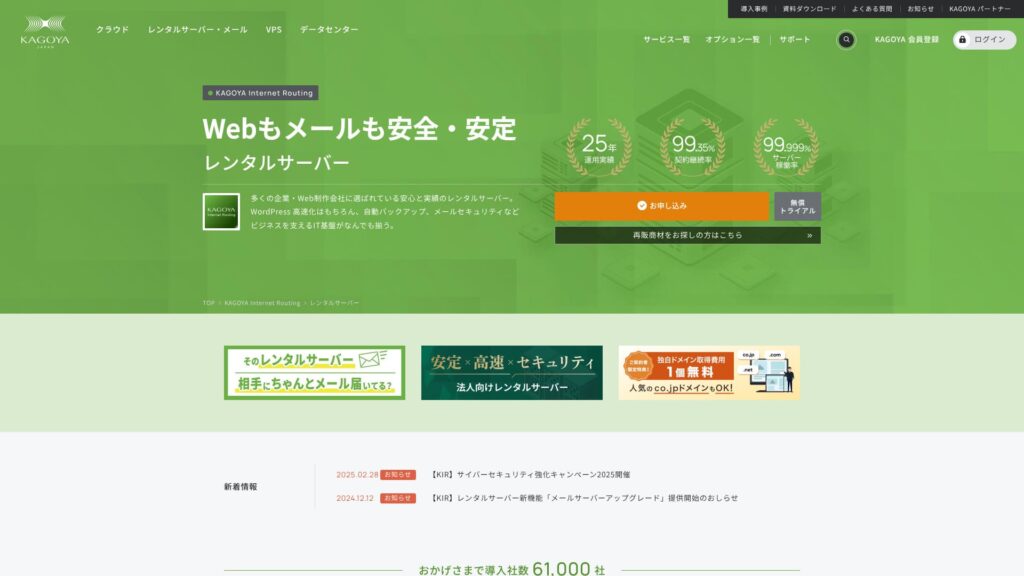
KAGOYA JAPAN 由 KAGOYA JAPAN 株式會社提供租用伺服器,擁有 20 多年的運營經驗,價格也很實惠。其線上率高達 99.999%,穩定性極佳,讓人安心。
KAGOYA JAPAN 的口碑與 4 個關鍵特點

線上率 99.999% 的租用伺服器
KAGOYA JAPAN 運營的租用伺服器線上率高達 99.999%.Its stability ranks among the very best in Japan.
高可用性來自於良好的運維管理和強大的安全性。你可以放心運營自己的網站。此外,網站不穩定並不會給人留下好印象。
KAGOYA JAPAN 讓你安心無憂。
WordPress 獨享伺服器價格實惠
KAGOYA JAPAN 的 WordPress 獨享伺服器很實惠。雖然功能限制較多,但如果你只是租用伺服器來專注運營 WordPress 網站,這些功能已經足夠。下面比較的是以下條件。
- 初始管理費
- 簽訂 12 個月合約。
- 按一年費用計算的域名註冊費。
- 以下是可使用的最便宜 WordPress 方案。
| 主機服務商 | 首年總費用 |
|---|---|
| KAGOYA JAPAN | 4,840 yen |
| ConoHa WING | 11,292 yen |
| Xserver | 10,560 yen |
| Lolipop! | 5,940 yen |
| Sakura Rental Server | 6,600 yen |
它甚至比以低價著稱的 Lolipop! 還便宜。不同於 KAGOYA JAPAN 的 WordPress 獨享伺服器,Lolipop! 支援電子郵件。不過,Lolipop! 不包含 KAGOYA JAPAN 可免費使用的備份功能。
功能上雖有差異,但如果你專注於自己的網站,KAGOYA JAPAN 是個不錯的選擇。
備份
KAGOYA JAPAN can back up data up to 10GB in size.
However, the only data that can be backed up is one generation, meaning one item only. Furthermore, you must set the backup timing or perform it manually. It’s a bit of a hassle, and it’s also unsettling because it’s only one item.
Let's use a backup-type WordPress plugin.
★ Top 5 Strongest WordPress Backup Plugins for Data Recovery
無限傳輸流量
KAGOYA JAPAN offers unlimited data transfer on both its rental servers and its WordPress dedicated servers.No matter how much traffic you receive, you will not be subject to transfer limits.
★ What is Traffic and Transfer Volume? Management and Optimization of Web Traffic
KAGOYA JAPAN 缺點的誠實解析

KAGOYA JAPAN 的方案很有吸引力,但也有缺點。尤其是 WordPress 獨享伺服器存在不少功能限制,因此在簽約前務必仔細檢視細節。
WordPress 獨享伺服器不能用於郵箱
WordPress dedicated servers cannot be used for email.Companies that want to keep a company email address need to choose KAGOYA JAPAN's rental server or use another company's email service.
That said, even if email cannot be used on the server itself, you can still assign your existing email address to the contact address on your WordPress website. So this does not create any operational problem for the website.
WordPress 獨享伺服器不能使用 WAF
WordPress-specific servers do not offer WAFs.WAFs are the next generation of security. They are designed to address even the newest, unprecedented cyberattacks. They are available on most major domestic servers.
KAGOYA JAPAN can also use a WAF when you choose its rental server, but WordPress dedicated servers come with restrictions. Even so, if you are using WordPress, you can address this with a WordPress plugin that supports WAF functionality.
★ Top 5 WordPress Plugins to Enhance Security and How to Choose Them
與 KAGOYA JAPAN 相似的 2 款伺服器對比
Xserver
XServer is a server known for its high uptime, just like KAGOYA JAPAN. It has extensive backup and security features, and many companies have used it over the years.
Xserver costs roughly twice as much per year as KAGOYA JAPAN's WordPress dedicated server, but there is nothing lacking in its features or specs. It can handle both website operations and email delivery.If you want to use the server for purposes beyond running your website, Xserver is the better choice.
If your use is limited to running a website, KAGOYA JAPAN is the lower-cost option.

Xserver 評價【2025年最新】:速度、價格、優缺點徹底解析
Xserver 評價【2025年最新】:速度、價格、優缺點徹底解析
serverfield.org
Sakura Rental Server
Sakura Rental Server is another server with strong adoption among businesses, just like KAGOYA JAPAN. Its key strength is stability. Where it surpasses KAGOYA JAPAN's WordPress dedicated server is backup functionality.It includes automatic backups across eight generations, and you can also use that feature to create a WordPress test environment.
In terms of features, it is considerably stronger than the WordPress dedicated server.However, the annual cost is about 2,000 yen higher, so if you prioritize cost performance, KAGOYA JAPAN is the better choice.

Sakura Rental Server Reviews & Ratings【Scary Slow?】Great for Individual Businesses◎價格 Pros & Cons Explained
Sakura Rental Server Reviews & Ratings【Scary Slow?】Great for Individual Businesses◎價格 Pros & Cons Explained
serverfield.org
立即用 KAGOYA JAPAN 開始你的 WordPress 網站的 7 個步驟
讓我們用 KAGOYA JAPAN 開始建站吧!
- STEP.1訪問官方網站。
Click “Apply” on the KAGOYA JAPAN WordPress-dedicated server website.
Choose your payment method. We recommend using a credit card for immediate website setup. Click “Apply Online”.
- STEP.2伺服器簽約與會員註冊
選擇方案。推薦使用 WordPress 獨享伺服器 1 級方案。點選“下一步”,確認申請詳情後再次點選“下一步”。
確認使用條款和個人資訊處理說明後,點選“下一步”。
點選“KAGOYA Member Registration”,確認會員條款和個人資訊同意事項後,點選“下一步”。
輸入姓名和地址等會員資訊。點選“進入郵件確認”。
- STEP.3輸入客戶資訊和信用卡資訊。
Enter your customer information and verify it, then enter your card information.
After the provisional registration is completed and authentication is successful, the account registration is complete.
- STEP.4WordPress 初始設定
登入使用者控制面板。
Go to WING→Site Management→Site Settings→WordPress. The site URL you set during registration will be displayed. Click the management screen URL.
In the displayed WordPress login screen, enter the WordPress username/WordPress password you set during registration and click “Login.”
※If you see a warning message saying “Cannot access this site,” the DNS settings have not been reflected. There is nothing you can do but wait; try logging in every few hours.
★ DNS/Name Server: What They Are
When you open “Appearance” in the WordPress management screen, the WordPress theme “Cocoon” is installed. Activate the parent theme first, and then activate the child theme.You must always activate both the parent and child themes.
Return to the WordPress management screen and open “Settings”→“General.” Set the site title/catchphrase. This will be the name and catchphrase of your homepage. After entering it, click “Save Changes.”
- STEP.5Plugin Installation
Return to the WordPress management screen and go to “Plugins”→“Add New” to install the necessary plugins.
If you find a plugin you want to install, search for it and click “Install Now” and “Activate.” Afterwards, proceed according to the instructions for each plugin.
It is essential to install security and backup plugins.
- Top 5 WordPress Plugins to Enhance Security and How to Choose Them
- Top 5 Strongest WordPress Backup Plugins for Data Recovery
With the plugins installed, you’re ready to launch your WordPress homepage!
總結
KAGOYA JAPAN 由 KAGOYA JAPAN 株式會社提供租用伺服器,擁有 20 多年的運營經驗,價格也很實惠。其線上率高達 99.999%,穩定性極佳,讓人安心。
首月免費 & 14 天免費試用
KAGOYA JAPAN offers a server with exceptional stability.提供價格實惠的 WordPress 獨享伺服器。Although frequently used by businesses, it can also be used by individuals. Please give it a try.
32 款 WordPress 託管服務商完整比較:個人、企業及跨國網站推薦

When you decide to start WordPress and search for "best WordPress hosting," you find all kinds of articles, from personal and business options to overseas and low-cost servers. Honestly,
- Which site should I trust?
- I want to choose a server in a simple, easy-to-understand way.
- Please show me how to start WordPress right away.
Don't you feel that way? In this article, I carefully selected recommendations from 32 hosting providers for individuals, businesses, and domestic and international use. The explanation comes from the SEO specialist at an app development company that uses hosting servers every day.