Năm plugin WordPress để di chuyển máy chủ thành công và những điểm then chốt để làm tốt

Tôi muốn di chuyển WordPress một cách tự tin.
Việc di chuyển một site WordPress tiềm ẩn nhiều rủi ro, bao gồm mất dữ liệu và tụt hạng SEO. Tuy nhiên, bằng cách dùng đúng plugin, bạn có thể giảm thiểu những rủi ro đó và hoàn tất việc di chuyển một cách hiệu quả.
Trong bài viết này, tôi giới thiệu top 5 plugin di chuyển dữ liệu WordPress phù hợp cho tất cả mọi người từ người mới bắt đầu đến người dùng nâng cao, đồng thời đi sâu vào lý do tại sao mỗi plugin lại tốt.
Complete Comparison of 32 WordPress Hosting Services for Individuals, Companies, and Overseas Use

Khi bạn nghĩ: “Tôi muốn bắt đầu tạo blog WordPress” và tìm kiếm “khuyên dùng WordPress”, bạn sẽ tìm thấy đủ loại bài viết đề cập đến hosting cá nhân, tùy chọn cho công ty và doanh nghiệp nhỏ, hosting nước ngoài và các máy chủ giá rẻ. Thành thật mà nói,
- which site should you trust?
- you may just want a simple and understandable answer.
- you may want to get started with WordPress right away.
That is why this article carefully selects recommended choices from 32 hosting providers for individuals, companies, domestic use, and overseas use. It is explained by the SEO lead at an app development company that uses hosting every day.
Five plugin that make WordPress di chuyển smoother

Duplicator
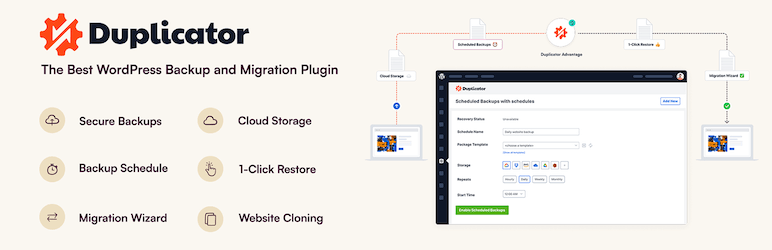
Duplicator là một plugin thực hiện việc di chuyển dữ liệu bằng cách đóng gói toàn bộ trang web, tải lên môi trường hosting mới và triển khai tại đó.
Thao tác trực quan của công cụ này rất thân thiện ngay cả với người mới bắt đầu, cho phép sao lưu và di chuyển trang web dễ dàng mà không yêu cầu cấu hình phức tạp. Với phiên bản Pro, bạn có thể sử dụng các tính năng nâng cao hơn, nhờ đó hỗ trợ tốt cho việc chuyển đổi các trang web quy mô lớn.
1. Cài đặt Duplicator và tạo một gói (package)
Cài đặt Duplicator
- Log in to the WordPress dashboard.
- Đi tới “Plugins” (Plugin) > “Add New” (Thêm mới), tìm kiếm từ khóa “Duplicator”, cài đặt và kích hoạt plugin.
Tạo a package
- Đi tới “Duplicator” > “Packages” (Gói) và nhấp vào nút “Create New” (Tạo mới).
- Làm theo trình hướng dẫn tạo gói (package) để tạo bản sao lưu cho trang web. Đặt tên cho gói trong quá trình thực hiện và nhấp vào nút “Next”.
- Hệ thống sẽ chạy kiểm tra, và nếu không có vấn đề gì, hãy nhấp vào nút “Build”. Sau khi hoàn tất, tệp cài đặt và tệp lưu trữ sẽ được tạo.
- Tải xuống bản “Installer” và bản “Archive”.
2. Di chuyển sang máy chủ mới
Tải lên các tệp tin
- Kết nối với máy chủ mới qua FTP và tải lên các tệp “Installer” và “Archive” đã tải xuống.
Tạo a new cơ sở dữ liệu
- Sử dụng các công cụ quản trị của máy chủ mới như cPanel hoặc Plesk để tạo một cơ sở dữ liệu và người dùng cơ sở dữ liệu mới. Hãy ghi lại thông tin đó.
3. Chạy trình cài đặt
Chạy trình cài đặt
- Truy cập vào URL của tên miền hoặc máy chủ mới và mở tệp cài đặt, ví dụ
http://yournewdomain.com/installer.php. - Trình cài đặt sẽ bắt đầu. Nhập thông tin cơ sở dữ liệu và nhấp vào nút “Tiếp theo”.
Cấu hình cơ sở dữ liệu
- Nhập thông tin cho cơ sở dữ liệu mới bạn vừa tạo ở trên, bao gồm tên máy chủ (host name), tên cơ sở dữ liệu (database name), tên người dùng (user name) và mật khẩu (password), sau đó nhấp vào nút “Test Database” để xác nhận kết nối. Nếu không có vấn đề gì, hãy nhấp vào nút “Next”.
Deploy the data
- Một màn hình xác nhận cho điểm đích cài đặt sẽ xuất hiện. Nếu mọi thứ đều ổn, hãy nhấp vào nút “Tiếp theo”. Việc nhập dữ liệu vào cơ sở dữ liệu sẽ bắt đầu.
Set the new URL
- Check the settings for the new URL and path, and revise them if necessary. Then click the “Next” button.
Hoàn tất cài đặt
- Khi màn hình hoàn tất cài đặt xuất hiện, hãy kiểm tra lại từng bước và nhấp vào nút “Đăng nhập vào trang web” để đăng nhập vào trang web mới.
4. Check after di chuyển
Update permalink settings
- Log in to the WordPress dashboard on the new site and go to “Settings” > “Permalinks.”
- Click the “Save Changes” button to refresh the permalink settings.
Check site operation
- Kiểm tra từng trang và chức năng của trang web để xác nhận rằng quá trình di chuyển đã được thực hiện chính xác.
All-in-One WP Migration
Plugin này cho phép bạn thu thập toàn bộ nội dung của trang web thành một tệp duy nhất bằng cách sử dụng chức năng nhập và xuất, sau đó di chuyển nó sang một trang web mới.
Tính dễ sử dụng cùng tùy chọn cao cấp (premium) hỗ trợ di chuyển các tệp vượt giới hạn kích thước là những điểm đặc biệt hấp dẫn của công cụ này. Nó đặc biệt phù hợp cho các trường hợp bạn đang lên kế hoạch chuyển sang một tên miền mới hoặc chuyển trang web giữa các máy chủ.

1. Cài đặt All-in-One WP Migration và xuất dữ liệu trang web
Cài đặt All-in-One WP Migration
- Log in to the WordPress dashboard.
- Đi tới “Plugins” (Plugin) > “Add New” (Thêm mới), tìm kiếm từ khóa “All-in-One WP Migration”, cài đặt và kích hoạt plugin.
Export the site data
- Go to “All-in-One WP Migration” > “Export.”
- Nhấp vào nút “Export To”, chọn “File” và bắt đầu xuất.
- Khi quá trình xuất hoàn tất, hãy tải xuống tệp sao lưu vừa được tạo.
2. Di chuyển sang máy chủ mới
Cài đặt All-in-One WP Migration
- Đăng nhập vào WordPress trên máy chủ mới, sau đó cài đặt và kích hoạt plugin “All-in-One WP Migration” tại đó theo cùng một cách.
3. Import the site data
Import the site data
- Go to “All-in-One WP Migration” > “Import.”
- Nhấp vào nút “Import From”, chọn “File” và tải lên tệp sao lưu đã xuất trước đó.
- Sau khi tải lên hoàn tất, nhấp vào nút “Tiếp tục” để hoàn thành quá trình nhập dữ liệu.
Restore the site
- Khi nhập dữ liệu hoàn tất, một thông báo sẽ xuất hiện cho biết việc nhập đã thành công. Nhấn “Hoàn tất”.
4. Check after di chuyển
Update permalink settings
- Log in to the WordPress dashboard on the new site and go to “Settings” > “Permalinks.”
- Click the “Save Changes” button to refresh the permalink settings.
Check site operation
- Kiểm tra từng trang và chức năng của trang web để xác nhận rằng quá trình di chuyển đã được thực hiện chính xác.
5. Verify site operation and optimize it
Kiểm tra chủ đề (theme) và các plugin
- Xác nhận rằng giao diện (theme) và các plugin đang hoạt động bình thường trên máy chủ mới.
- Review plugin settings again and update them if necessary.
Check images and links
- Confirm that the images in the media library display correctly.
- Xác nhận rằng các liên kết nội bộ đang chuyển hướng chính xác đến URL của tên miền hoặc máy chủ mới.
UpdraftPlus
UpdraftPlus là một plugin chuyên dùng để sao lưu và khôi phục, nhưng nó cũng hỗ trợ di chuyển sang một trang web mới bằng cách sử dụng các tệp sao lưu đó.
Nó cung cấp các tùy chọn phong phú cho việc sao lưu tự động và lưu trữ đám mây, cho phép bạn bảo vệ an toàn dữ liệu trang web ngay cả trong quá trình di chuyển (migration). Ngoài ra, vì nó có thể bảo vệ trang web bằng việc sao lưu định kỳ sau khi chuyển đổi, dịch vụ này mang lại lợi ích kép.

1. Cài đặt UpdraftPlus và tạo một bản sao lưu
Cài đặt UpdraftPlus
- Log in to the WordPress dashboard.
- Đi tới “Plugins” (Plugin) > “Add New” (Thêm mới), tìm kiếm từ khóa “UpdraftPlus”, cài đặt và kích hoạt plugin.
Tạo a sao lưu
- Go to “Settings” > “UpdraftPlus Backups.”
- Nhấp vào nút “Backup Now” để bắt đầu sao lưu.
- Tích chọn cả “Sao lưu cơ sở dữ liệu” và “Sao lưu tệp tin”, sau đó nhấp vào nút “Sao lưu ngay”.
- Sau khi quá trình sao lưu hoàn tất, hãy chuyển sang tab “Sao lưu / Khôi phục” và tải bản sao lưu bạn vừa tạo về máy. Các tệp cần thiết bao gồm “Cơ sở dữ liệu” (Database), “Plugin”, “Giao diện” (Theme), “Thư mục tải lên” (Upload) và “Khác”.
2. Di chuyển sang máy chủ mới
Cài đặt UpdraftPlus
- Đăng nhập vào WordPress trên máy chủ mới, sau đó cài đặt và kích hoạt plugin “UpdraftPlus” tại đó theo cùng một cách.
3. Tải lên các tệp sao lưu và khôi phục chúng
Tải lên các tệp sao lưu
- Trong trang quản trị WordPress trên máy chủ mới, đi tới “Settings” (Cài đặt) > “UpdraftPlus Backups” (Sao lưu UpdraftPlus).
- Chuyển sang tab “Backup / Restore” (Sao lưu / Khôi phục) và nhấp vào nút “Upload backup files” (Tải lên các tệp sao lưu).
- Tải lên lần lượt từng tệp sao lưu mà bạn đã tải xuống trước đó.
Restore the site data
- Sau khi quá trình tải lên hoàn tất, hãy chọn bản sao lưu hiển thị trong phần “Bản sao lưu hiện tại” và nhấp vào nút “Khôi phục”.
- Chọn các thành phần cần khôi phục, chẳng hạn như cơ sở dữ liệu, plugin, giao diện (theme), tệp tải lên và các thành phần khác, rồi nhấp vào nút "Tiếp theo".
- Vui lòng đợi cho đến khi quá trình khôi phục hoàn tất. Sau khi xong, bạn sẽ thấy thông báo “Khôi phục thành công”.
4. Check after di chuyển
Update permalink settings
- Log in to the WordPress dashboard on the new site and go to “Settings” > “Permalinks.”
- Click the “Save Changes” button to refresh the permalink settings.
Check site operation
- Kiểm tra từng trang và chức năng của trang web để xác nhận rằng quá trình di chuyển đã được thực hiện chính xác.
5. Verify site operation and optimize it
Kiểm tra chủ đề (theme) và các plugin
- Xác nhận rằng giao diện (theme) và các plugin đang hoạt động bình thường trên máy chủ mới.
- Review plugin settings again and update them if necessary.
Check images and links
- Confirm that the images in the media library display correctly.
- Xác nhận rằng các liên kết nội bộ đang chuyển hướng chính xác đến URL của tên miền hoặc máy chủ mới.
WP Migrate DB
WP Migrate DB specializes in cơ sở dữ liệu di chuyển.
Công cụ này có thể tự động thay thế các giá trị trong cơ sở dữ liệu để khớp với URL mới, đồng thời giúp việc xuất nhập dữ liệu trở nên dễ dàng. Nó lý tưởng cho các nhà phát triển và người dùng có nền tảng kỹ thuật tốt hơn, cho phép tùy chỉnh và di chuyển cơ sở dữ liệu một cách chi tiết.

1. Cài đặt WP Migrate DB và xuất dữ liệu cơ sở dữ liệu
Cài đặt WP Migrate DB
- Log in to the WordPress dashboard.
- Đi tới “Plugins” (Plugin) > “Add New” (Thêm mới), tìm kiếm từ khóa “WP Migrate DB”, cài đặt và kích hoạt plugin.
Xuất cơ sở dữ liệu
- Go to “Tools” > “Migrate DB.”
- Enter the new site’s URL and path into the “Find what:” and “Replace with:” fields.
- Nhấp vào nút “Export Database” và tải xuống tệp cơ sở dữ liệu đã xuất.
2. Di chuyển sang máy chủ mới
Chuẩn bị máy chủ mới
- Cài đặt WordPress trên máy chủ mới.
- Tạo một cơ sở dữ liệu mới và ghi lại thông tin cơ sở dữ liệu, gồm tên máy chủ, tên cơ sở dữ liệu, tên người dùng và mật khẩu.
Di chuyển các tệp hiện có
- Tải thư mục “wp-content” từ máy chủ gốc xuống và tải nó lên cùng vị trí trên máy chủ mới. Việc này dễ dàng nếu bạn dùng trình FTP.
3. Nhập cơ sở dữ liệu
Nhập cơ sở dữ liệu
- Đăng nhập phpMyAdmin trên máy chủ mới và chọn cơ sở dữ liệu mới.
- Nhấp vào tab “Import”, tải lên tệp cơ sở dữ liệu bạn đã xuất trước đó và nhập nó.
4. Chỉnh sửa tệp wp-config.php
Edit wp-config.php
- Chỉnh sửa tệp “wp-config.php” trên máy chủ mới. Cập nhật tên cơ sở dữ liệu, tên người dùng, mật khẩu và tên máy chủ (host name) bằng thông tin của cơ sở dữ liệu mới.
Sao chép mã PHP define('DB_NAME', 'new_database_name'); define('DB_USER', 'new_database_user_name'); define('DB_PASSWORD', 'new_database_password'); define('DB_HOST', 'new_database_host_name');
5. Check after di chuyển
Update permalink settings
- Log in to the WordPress dashboard on the new site and go to “Settings” > “Permalinks.”
- Click the “Save Changes” button to refresh the permalink settings.
Check site operation
- Kiểm tra từng trang và chức năng của trang web để xác nhận rằng quá trình di chuyển đã được thực hiện chính xác.
6. Verify site operation and optimize it
Kiểm tra chủ đề (theme) và các plugin
- Xác nhận rằng giao diện (theme) và các plugin đang hoạt động bình thường trên máy chủ mới.
- Review plugin settings again and update them if necessary.
Check images and links
- Confirm that the images in the media library display correctly.
- Xác nhận rằng các liên kết nội bộ đang chuyển hướng chính xác đến URL của tên miền hoặc máy chủ mới.
Migrate Guru
Migrate Guru là công cụ chuyên dụng cho các trang web lớn, hỗ trợ di chuyển dữ liệu tự động với mức tải máy chủ tối thiểu.
Công nghệ độc quyền của hãng giúp đẩy nhanh đáng kể quá trình di chuyển (migration), giúp việc chuyển đổi các trang web WordPress lớn hơn trở nên dễ dàng và nhanh chóng.
1. Cài đặt Migrate Guru
Cài đặt Migrate Guru
- Log in to the WordPress dashboard.
- Đi tới “Plugins” (Plugin) > “Add New” (Thêm mới), tìm kiếm từ khóa “Migrate Guru”, cài đặt và kích hoạt plugin.
2. Chuẩn bị cho việc di chuyển máy chủ
Prepare the destination
- Cài đặt trước WordPress trên máy chủ đích.
- Xác nhận thông tin máy chủ đích, bao gồm thông tin FTP, tên máy chủ (host name), tên người dùng và mật khẩu.
3. Cấu hình Migrate Guru và bắt đầu di chuyển
Start Migrate Guru
- In the WordPress dashboard, go to “Migrate Guru” > “Migrate Site.”
- Select the type of destination, such as cPanel, FTP, SFTP, or WebHost Manager.
Enter the destination information
- Nhập thông tin của máy chủ đích. Ví dụ: nếu bạn sử dụng FTP, hãy nhập tên máy chủ (host name), tên người dùng FTP (FTP user name) và mật khẩu FTP (FTP password).
- Enter the destination URL and click the “Migrate” button.
Xác nhận việc di chuyển dữ liệu
- Migrate Guru sẽ bắt đầu quá trình di chuyển và hiển thị tiến trình. Vui lòng đợi cho đến khi quá trình di chuyển hoàn tất.
4. Check after di chuyển
Xác nhận hoàn thành di chuyển dữ liệu
- Khi quá trình di chuyển hoàn tất, bạn sẽ nhận được thông báo từ Migrate Guru. Hãy truy cập trang web đích và xác nhận rằng việc di chuyển đã diễn ra chính xác.
Update permalink settings
- Log in to the WordPress dashboard on the new site and go to “Settings” > “Permalinks.”
- Click the “Save Changes” button to refresh the permalink settings.
5. Verify site operation and optimize it
Kiểm tra chủ đề (theme) và các plugin
- Xác nhận rằng giao diện (theme) và các plugin đang hoạt động bình thường trên máy chủ mới.
- Review plugin settings again and update them if necessary.
Check images and links
- Confirm that the images in the media library display correctly.
- Xác nhận rằng các liên kết nội bộ đang chuyển hướng chính xác đến URL của tên miền hoặc máy chủ mới.
Additional advice for thành công WordPress di chuyển

Prepare thoroughly
Trước khi bắt đầu quá trình di chuyển trang web, điều quan trọng là phải cập nhật các plugin, các chủ đề (themes) và dọn sạch các dữ liệu không cần thiết.
Testing is essential
Trước khi di chuyển, hãy kiểm tra quy trình trong trang web thử nghiệm (staging site) hoặc môi trường cục bộ và xác nhận không có vấn đề gì xảy ra.
Protect SEO
Nếu cấu trúc URL thay đổi trong quá trình di chuyển trang web, hãy thiết lập các lệnh chuyển hướng (redirect) phù hợp và cập nhật sơ đồ trang web (sitemap) để ngăn chặn việc sụt giảm thứ hạng SEO.
Check performance
Sau khi chuyển sang môi trường máy chủ mới, hãy xác nhận rằng không có ảnh hưởng tiêu cực nào đến tốc độ trang web hoặc trải nghiệm người dùng, đồng thời tối ưu hóa nếu cần thiết.
Server-company di chuyển is recommended over WordPress-plugin di chuyển
Việc sử dụng các plugin WordPress để di chuyển trang web chắc chắn sẽ để lại một số lo lắng. Thay vì để xảy ra lỗi trong quá trình di chuyển gây lãng phí thời gian và công sức, tôi khuyên bạn nên sử dụng công ty cung cấp máy chủ có sẵn các công cụ di chuyển hoặc dịch vụ hỗ trợ di chuyển chi phí thấp.
XServer Business
If you are a corporation, I recommend XServer Business. Nó di chuyển máy chủ của bạn miễn phí. Vì việc di chuyển do chính công ty máy chủ thực hiện nên không có rủi ro thất bại khi di chuyển WordPress. Nếu công ty của bạn có ngân sách, hãy sử dụng XServer Business thay vì tự mình dành thêm thời gian và công sức cho việc di chuyển.
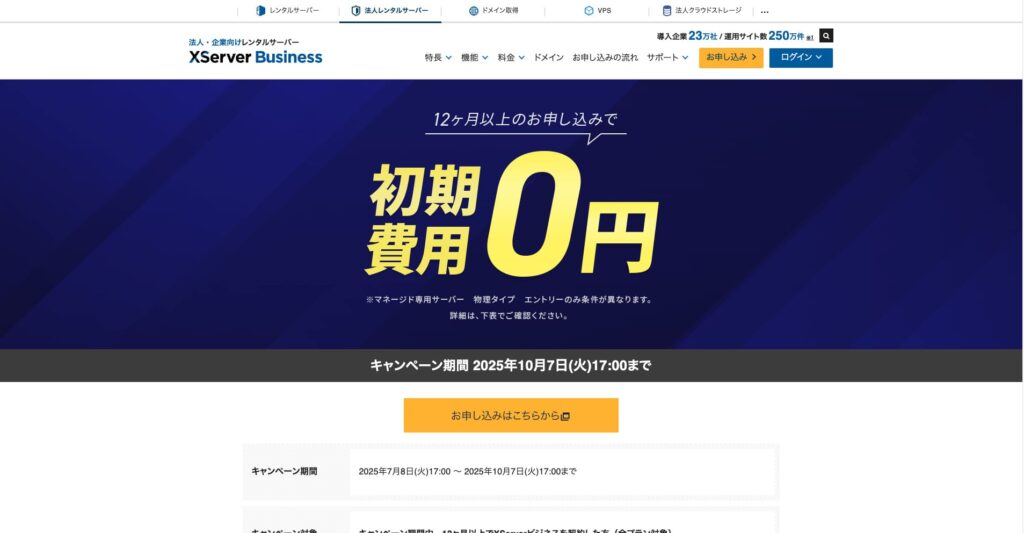
“XServer Business” là dòng máy chủ doanh nghiệp từ Công ty Cổ phần Xserver, đơn vị đang nắm giữ thị phần số 1 tại thị trường trong nước. Trong các đo lường của chúng tôi, dịch vụ này xếp thứ 2 về tốc độ hiển thị. Đây là một trong những lựa chọn tốt nhất làm điểm chuyển đổi máy chủ. Việc di chuyển máy chủ cũng được miễn phí.
Cho đến ngày 7 tháng 10 năm 2025, miễn phí khởi tạo (thông thường từ 16.500 yên đến 385.000 yên) và miễn phí dịch vụ di chuyển máy chủ.
Xmáy chủ
XServer là máy chủ dành cho cá nhân đi kèm với các công cụ di chuyển. Bạn có thể di chuyển WordPress bằng cách sử dụng tính năng "Di chuyển WordPress dễ dàng" của nó.
I have actually used that function myself to migrate WordPress. The move went smoothly.
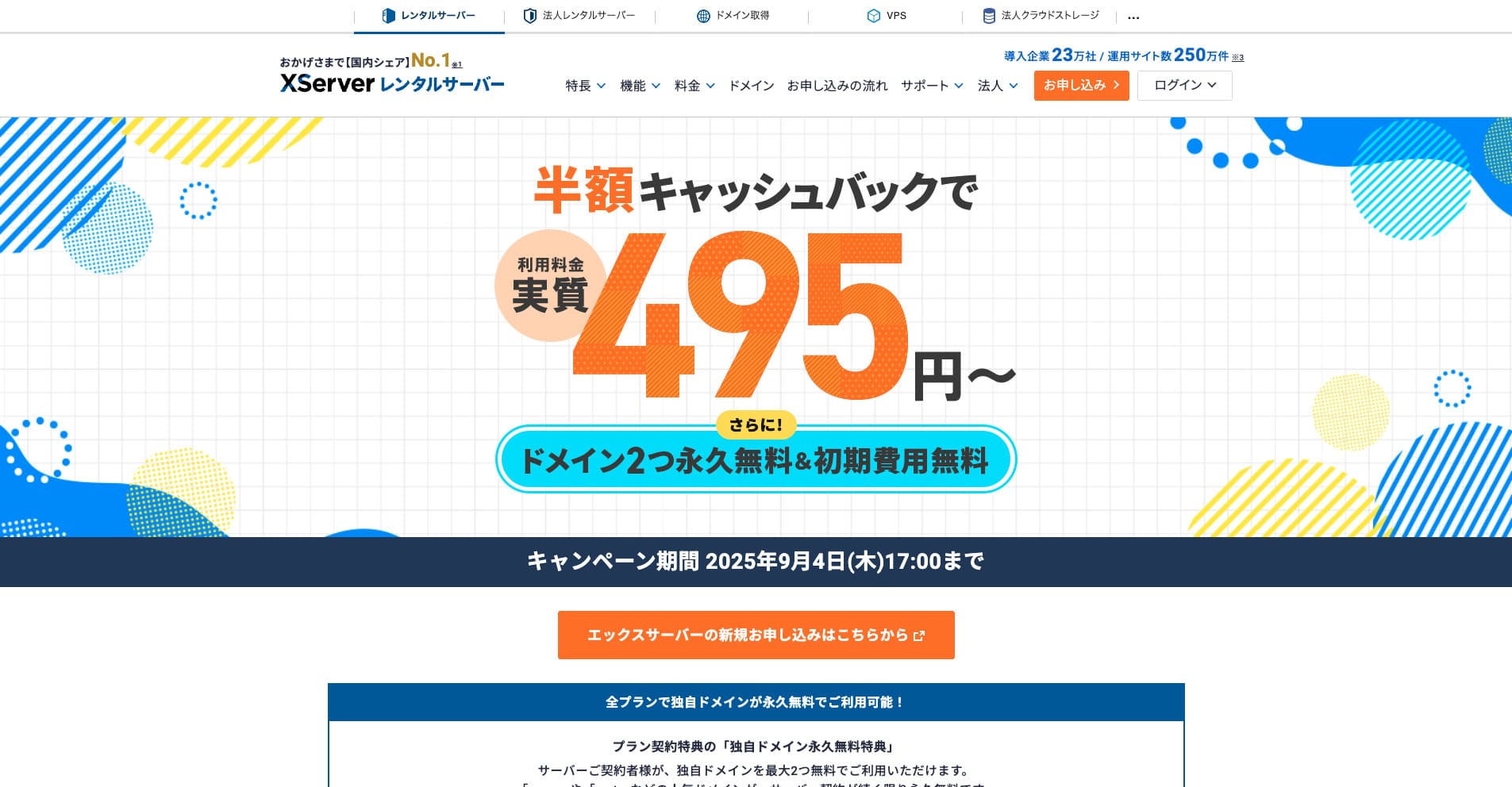
“Xserver” là máy chủ cho thuê tốc độ cao có lịch sử lâu đời và nắm giữ thị phần số 1 tại thị trường Nhật Bản. Dịch vụ này phổ biến đối với cả cá nhân lẫn doanh nghiệp. Thành thật mà nói, nó không có nhược điểm nào đáng kể, cả độ ổn định, tính năng và hỗ trợ khách hàng đều xuất sắc. Nhờ ưu đãi hoàn tiền, bạn có thể sử dụng nó với mức chi phí thực tế chỉ từ 495 yên.
Until September 34, 2025, it offers half-price cashback and a 10-day free trial.
★ Uy tín của Xserver và cách bắt đầu sử dụng WordPress với hệ thống hỗ trợ mạnh mẽ của nó
ConoHa WING
ConoHa WING là máy chủ bao gồm chức năng di chuyển WordPress và cũng được trang web này sử dụng. Nếu bạn sử dụng "Cài đặt WordPress dễ dàng", bất kỳ ai cũng có thể di chuyển WordPress mà không cần các thiết lập phức tạp.
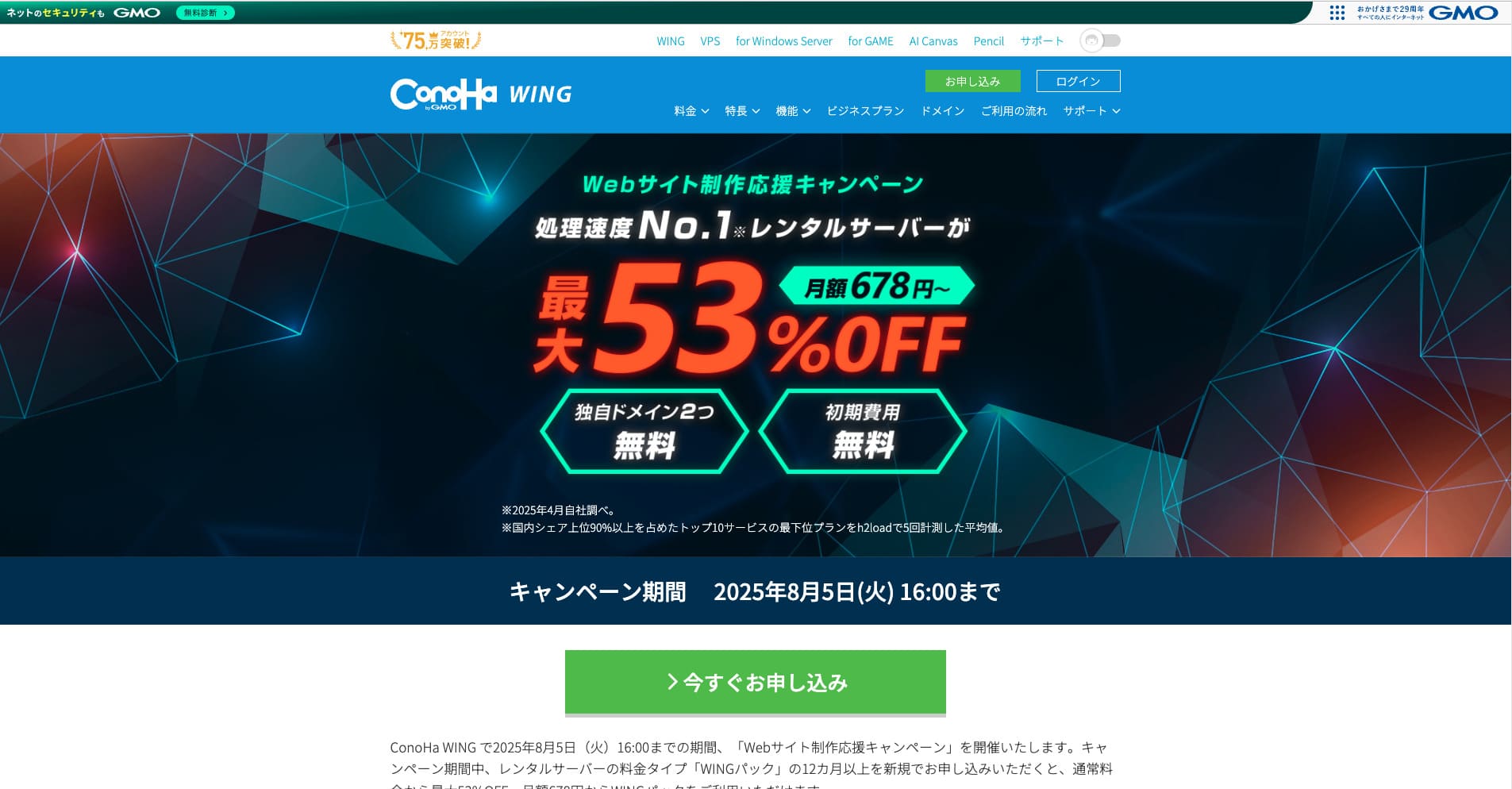
“ConoHa WING” là dòng máy chủ tốc độ cao của Tập đoàn GMO Internet, và số lượng người dùng đang tăng lên nhanh chóng. Vì WordPress được cài đặt sẵn khi bạn đăng ký thuê máy chủ nên bất kỳ ai cũng có thể bắt đầu dễ dàng. Dịch vụ này mang lại sự cân bằng tốt giữa chi phí và hiệu suất, và công ty chúng tôi cũng đang sử dụng máy chủ này.
Cho đến ngày 5 tháng 8 năm 2025, phí máy chủ được giảm giá lên đến 53%, miễn phí trọn đời hai tên miền và miễn phí tháng đầu tiên.
★ How to launch a homepage in 10 minutes: ConoHa WING’s reputation and how to start WordPress with it
ColorfulBox
ColorfulBox là máy chủ cho phép bạn sử dụng bảng quản lý cPanel, bao gồm các chức năng di chuyển trang web. Hiện tại, dịch vụ di chuyển WordPress được miễn phí. Vì công ty máy chủ thực hiện việc di chuyển cho bạn, bạn có thể tự tin chuyển WordPress.

“ColorfulBox” là một máy chủ mang lại sự an tâm cao với tính năng tự động sao lưu định kỳ theo vùng xuất sắc. Nó cung cấp tám gói cước, cho phép bạn tận dụng hiệu suất mình cần mà không lãng phí. Đây cũng là một trong số ít máy chủ cho thuê cung cấp hỗ trợ suốt ngày đêm.
Cho đến ngày 31 tháng 8 năm 2025, phí máy chủ được giảm giá lên đến 50%, nhận thẻ quà tặng Amazon trị giá lên tới 10.000 yên và dùng thử miễn phí 30 ngày.
Lolipop!
LOLIPOP là máy chủ rẻ và dễ sử dụng có chức năng di chuyển WordPress. Tính năng "Di chuyển WordPress dễ dàng (Di chuyển máy chủ)" của nó có thể được sử dụng trên gói Lite trở lên.
I have also migrated WordPress with Lolipop! myself. The move completed without any problem.
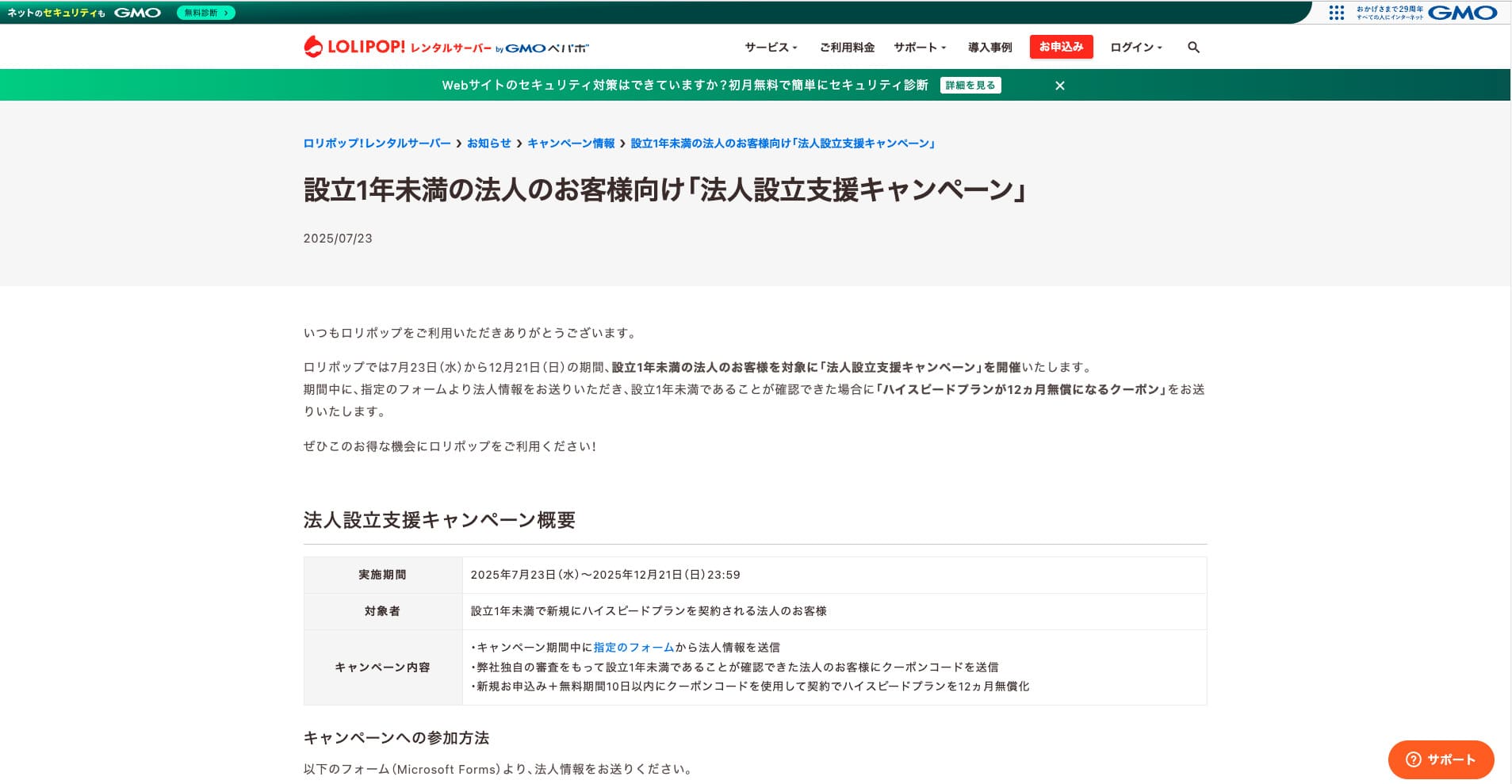
“Lolipop!” là một dịch vụ máy chủ cho thuê lâu đời phổ biến có mức giá thấp. Ngay cả với thời gian hoạt động liên tục (uptime) đạt 99,99%, gói Lite hỗ trợ WordPress cũng có thể sử dụng từ mức 264 yên một tháng. Mọi gói cước đều mang lại hiệu quả chi phí mạnh mẽ.
Until December 21, corporations established less than one year ago can use the High Speed plan free for 12 months, and contracts of 12 months or longer receive one domain for free forever, along with a 10-day free trial.
★ Bad evaluations are a thing of the past: four reviews of Lolipop! and how to start WordPress with it
Summary
Việc di chuyển website WordPress có thể được thực hiện dễ dàng và an toàn hơn nhiều nếu sử dụng đúng plugin và chuẩn bị kỹ lưỡng trước khi thực hiện.
Bằng cách sử dụng các plugin được giới thiệu trong bài viết này và thực hành theo các lời khuyên bổ sung, bạn có thể di chuyển trang web của mình sang một môi trường mới một cách suôn sẻ. Khi bạn thực hiện di chuyển trang web, hãy chắc chắn tận dụng các công cụ và kỹ thuật này.
However, if you are worried about WordPress di chuyển, use a máy chủ that provides di chuyển tools or di chuyển hỗ trợ.
Complete Comparison of 32 WordPress Hosting Services for Individuals, Companies, and Overseas Use
Khi bạn nghĩ: “Tôi muốn bắt đầu tạo blog WordPress” và tìm kiếm “khuyên dùng WordPress”, bạn sẽ tìm thấy đủ loại bài viết đề cập đến hosting cá nhân, tùy chọn cho công ty và doanh nghiệp nhỏ, hosting nước ngoài và các máy chủ giá rẻ. Thành thật mà nói,
- which site should you trust?
- you may just want a simple and understandable answer.
- you may want to get started with WordPress right away.
That is why this article carefully selects recommended choices from 32 hosting providers for individuals, companies, domestic use, and overseas use. It is explained by the SEO lead at an app development company that uses hosting every day.