10-day miễn phí dùng thử
PR
VPS
Fast at Over 130Mbps: Building Outline VPN on ABLENET VPS
Đăng: 2025.06.26
Cập nhật: 2025.06.26
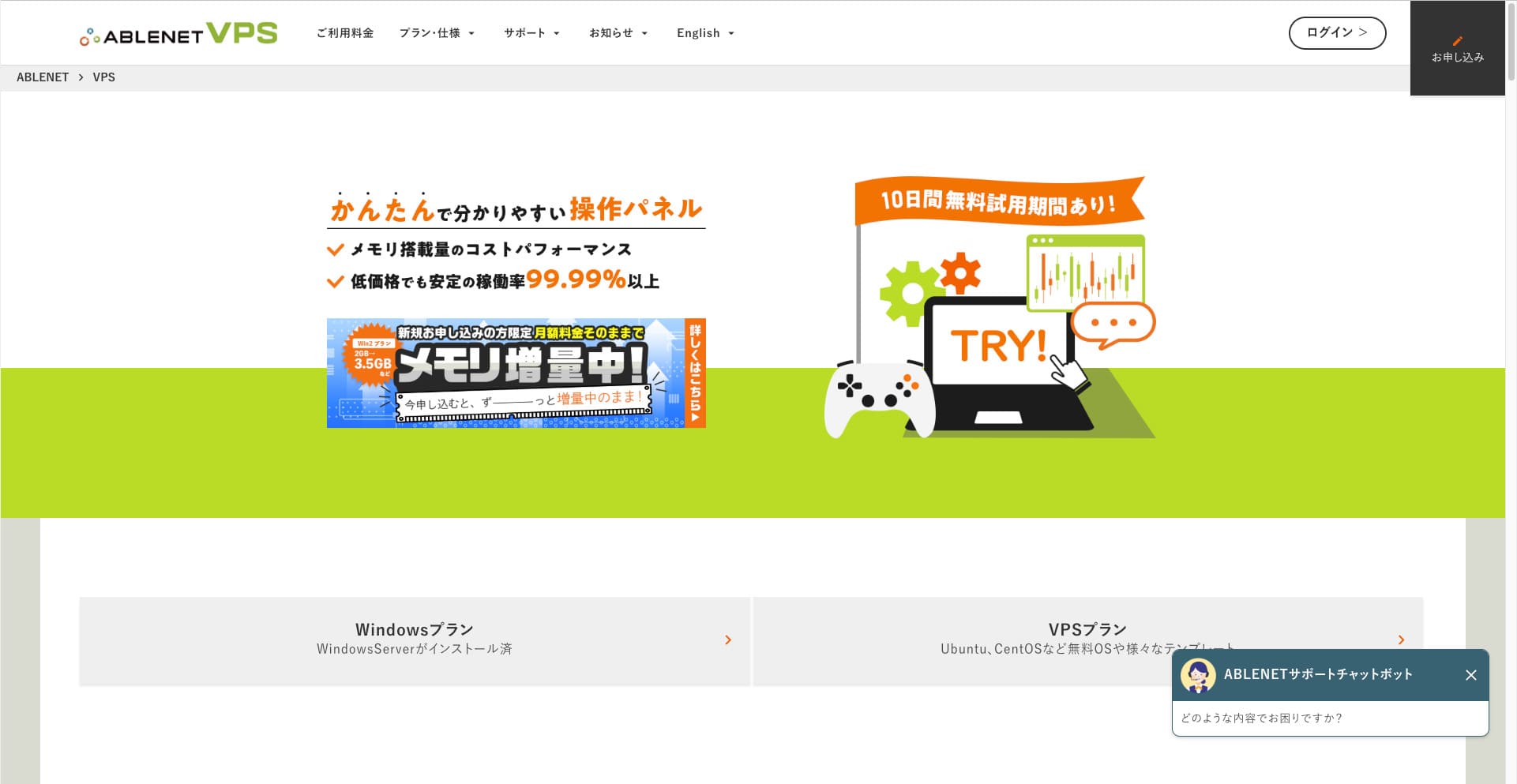
People who want to browse the internet through a VPN are becoming more common.
Sử dụng mạng riêng ảo VPN (Virtual Private Network) giúp tăng cường bảo mật và cũng cho phép bạn truy cập các dịch vụ và nội dung chỉ dành riêng cho Nhật Bản từ nước ngoài.
Mặc dù vậy, bạn vẫn thường lo lắng về tốc độ và sự an toàn của kết nối VPN.
Cách tốt nhất để có kết nối VPN an toàn và nhanh chóng là tự xây dựng môi trường VPN của riêng bạn. Để làm được điều đó, bạn cần một môi trường máy chủ cho VPN. Lần này, tôi đã xây dựng một môi trường VPN bằng ABLENET VPS and Outline VPN.
Vì sao I Recommend ABLENET VPS
The biggest reason I chose ABLENET VPS is its stability.
- Operating history: Đây là một trong những công ty máy chủ lâu đời hàng đầu Nhật Bản với hơn 25 năm hoạt động. Dịch vụ VPS của họ cũng đã có mặt từ năm 2011.
- Uptime: An uptime of over 99.99% gives you clear, measurable peace of mind.
- Traffic allowance: It also offers unlimited dữ liệu transfer, making it ideal for sử dụng as a VPN.
Tại Nhật Bản, Xserver và Sakura Internet cũng cung cấp dịch vụ VPS, nhưng ABLENET cũng đáng tin cậy không kém. Truyền tải dữ liệu không giới hạn hiện nay có thể là tiêu chuẩn của nhiều công ty máy chủ, nhưng ABLENET là một trong những đơn vị tiên phong.

Hikaru Ono
Thông tin này đã từng xuất hiện trên trang chính thức trước đây, nhưng có vẻ như đã có một người dùng chuyên sâu trên ABLENET đã sử dụng tới 25TB chỉ trong một tháng duy nhất. Bạn thực sự có thể nói rằng dung lượng truyền dữ liệu thực sự là không giới hạn.
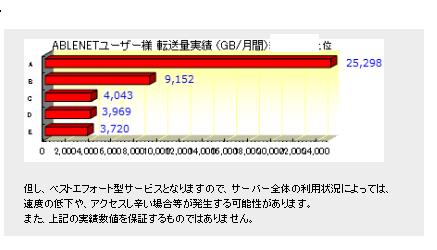
Vì vậy, nếu bạn dự kiến sử dụng nhiều dữ liệu cho các việc như xem phim và nội dung video hoặc làm công việc lập trình, tôi khuyên bạn nên chọn building your VPN on ABLENET VPS.
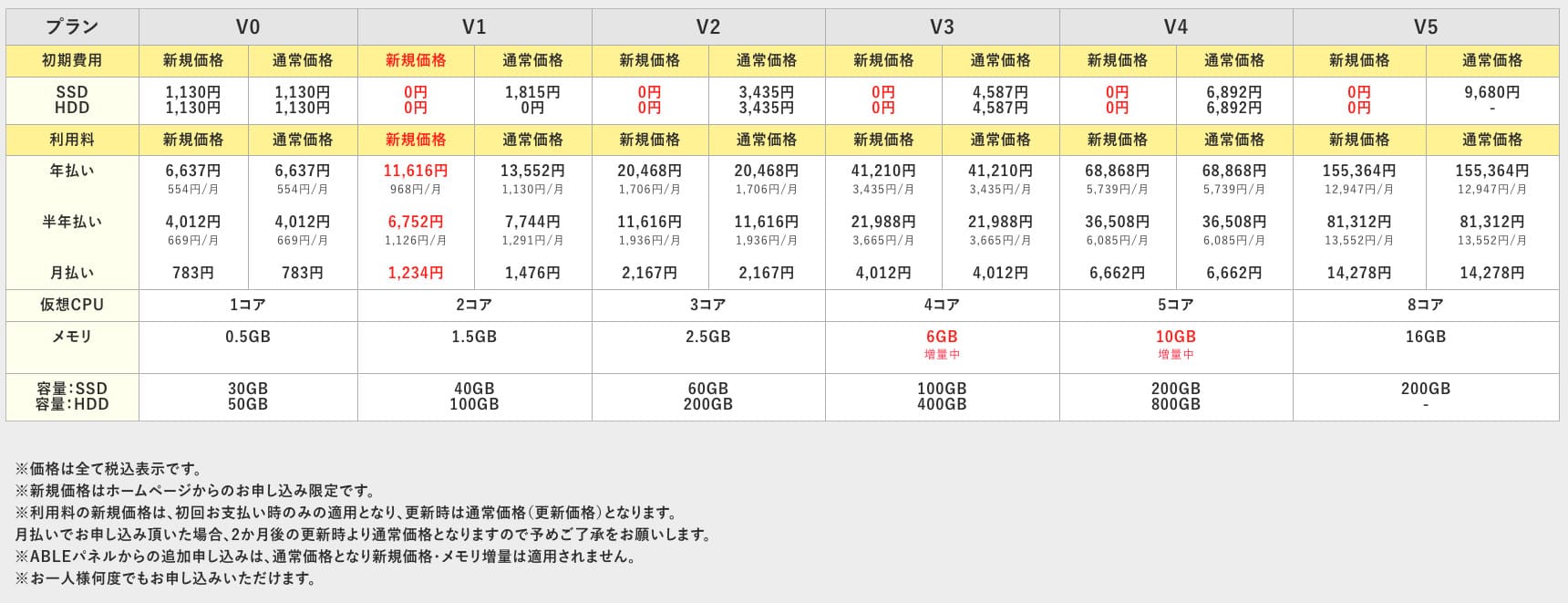
ABLENET VPS là máy chủ ảo VPS ổn định với thời gian hoạt động liên tục (Uptime) 99,99%, mặc dù có mức giá phải chăng. Nó cung cấp một loạt các gói dịch vụ, từ gói V0 dễ tiếp cận với bộ nhớ 0,5GB đến gói cấu hình cao V5 với bộ nhớ 16GB, do đó bạn có thể tìm thấy tùy chọn phù hợp cho nhu cầu của mình.

What Is Outline VPN? A Simple VPN Setup Even Beginners Can Understand
VPN (Virtual Private Network) is a technology that creates an encrypted tunnel across the internet and prevents eavesdropping and tampering by third parties. Bằng cách định tuyến lưu lượng truy cập của bạn qua một máy chủ VPN, nó cũng có thể ẩn địa chỉ IP thực của bạn và cải thiện tính ẩn danh.
Outline VPN is designed to make this kind of VPN kết nối extremely đơn giản.
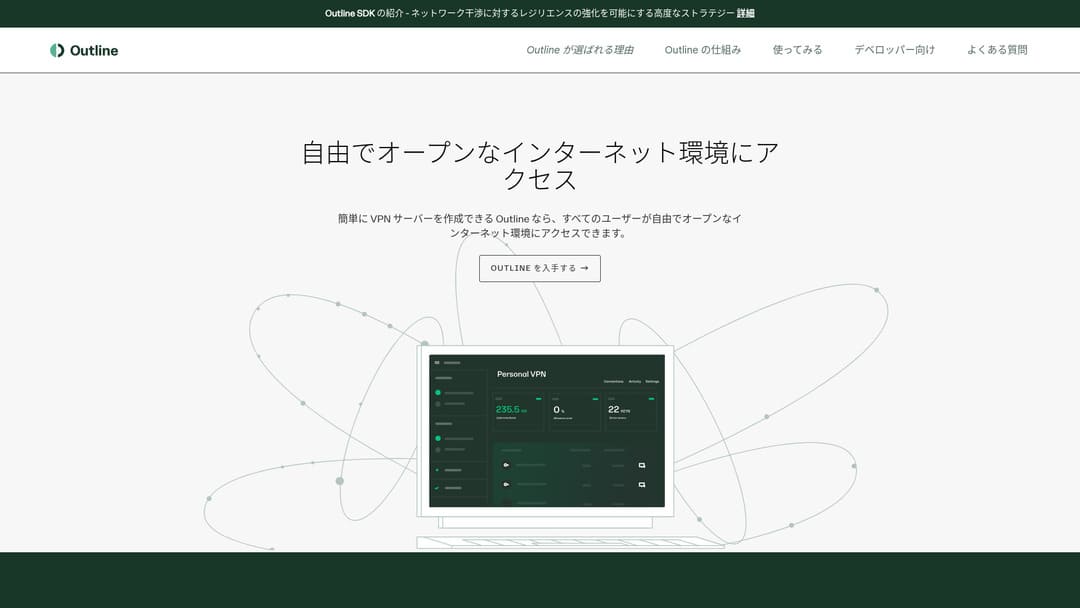
"Outline" là một ứng dụng miễn phí và dễ dàng từ Jigsaw, một công ty thuộc Google, cho phép bạn kết nối thông qua VPN. Ngay cả khi bạn chưa từng thiết lập VPN trước đây, bạn có thể bắt đầu chỉ bằng vài cú nhấp chuột.
Download from the official site
Hikaru Ono
This time, I am using Outline VPN so that anyone can build a VPN easily.
Build Outline VPN on ABLENET VPS in 6 Easy Steps
Now, let me walk you through the actual process of building Outline VPN on ABLENET VPS in detail.
Step 1: Get Started with ABLENET VPS
Nếu you have not yet signed up for ABLENET VPS, take care of that first.
Get Started with ABLENET VPS
- STEP.1Choose a plan on ABLENET VPS
Go to ABLENET VPS and click "Apply."
Bạn có thể chọn gói Windows hoặc gói máy chủ ảo VPS. Đối với thiết lập VPN này, hãy sử dụng gói VPS. Tôi khuyên bạn nên chọn gói V1 không mất phí khởi tạo ban đầu và được trang bị bộ nhớ SSD tốc độ cao.
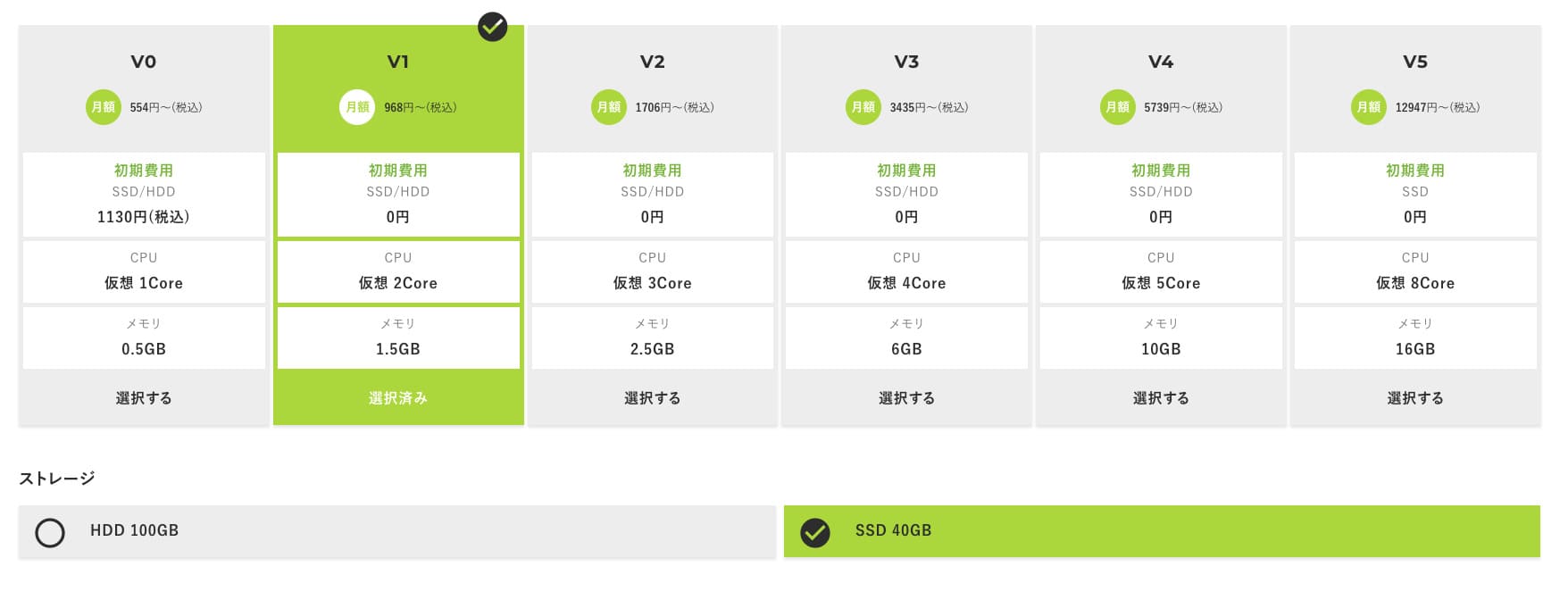
Bắt đầu với gói V1, và nếu sau này cảm thấy thông số kỹ thuật chưa đủ, hãy nâng cấp lên V2 hoặc V3. Sau khi dịch vụ của bạn bắt đầu hoạt động, bạn có thể yêu cầu nâng cấp thông số từ bảng điều khiển ABLE.
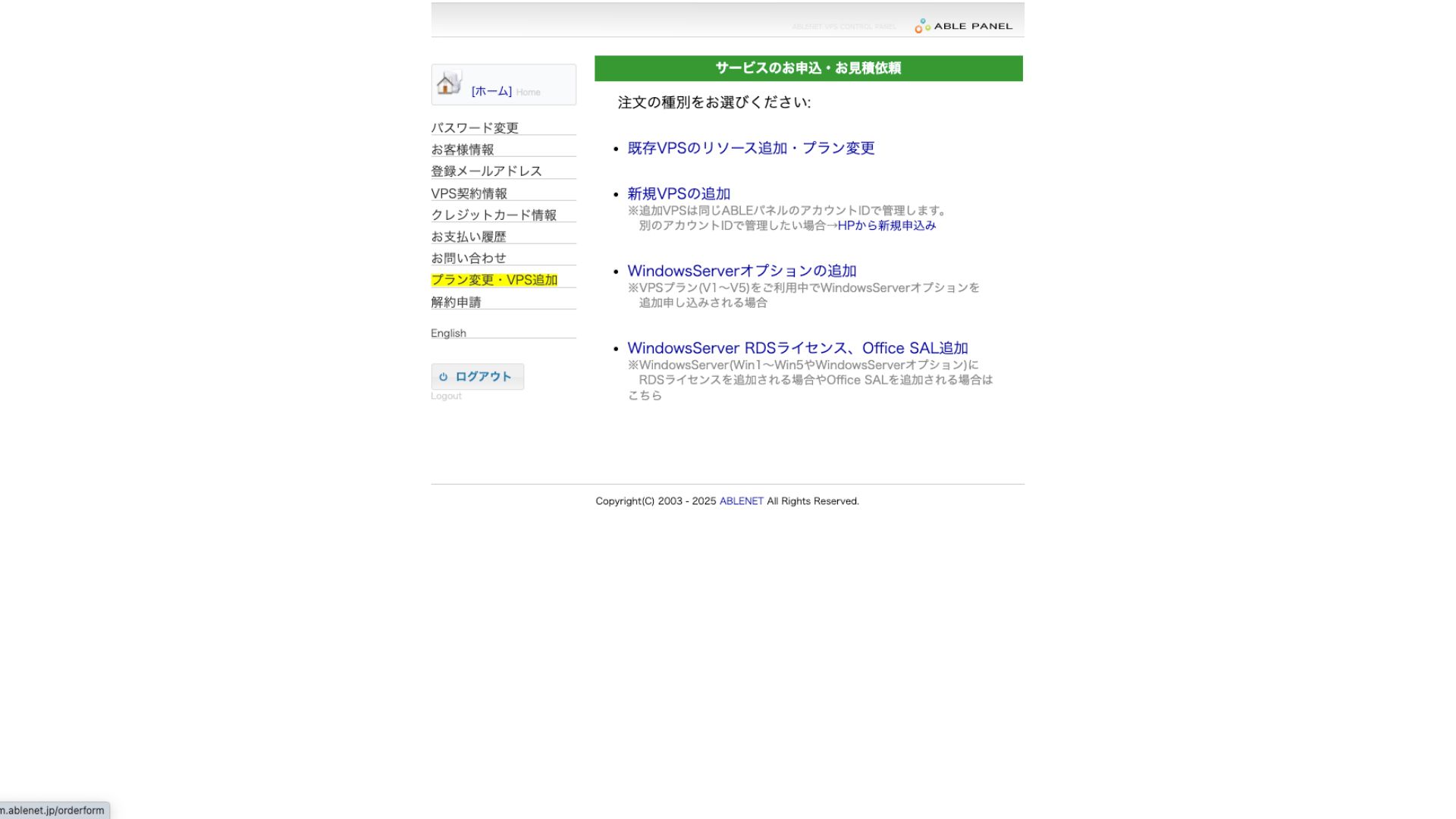
Về phương thức thanh toán, bạn có thể sử dụng chương trình dùng thử qua thẻ tín dụng.

Xem xét các điều khoản sử dụng và đánh dấu vào ô chọn.
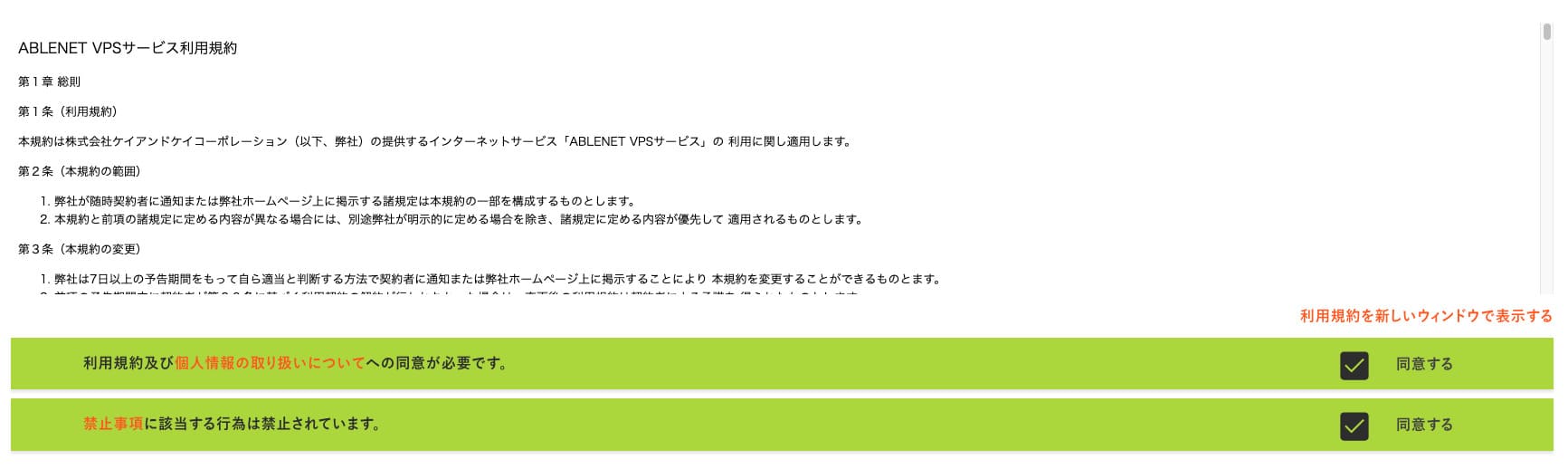
Click "Proceed to select the contract term."
- STEP.2Select the contract term
Hợp đồng hàng năm là phương án tiết kiệm hơn cho thời hạn thuê máy chủ. Vì lần này chúng ta sử dụng gói VPS nên không cần thêm tùy chọn nào.
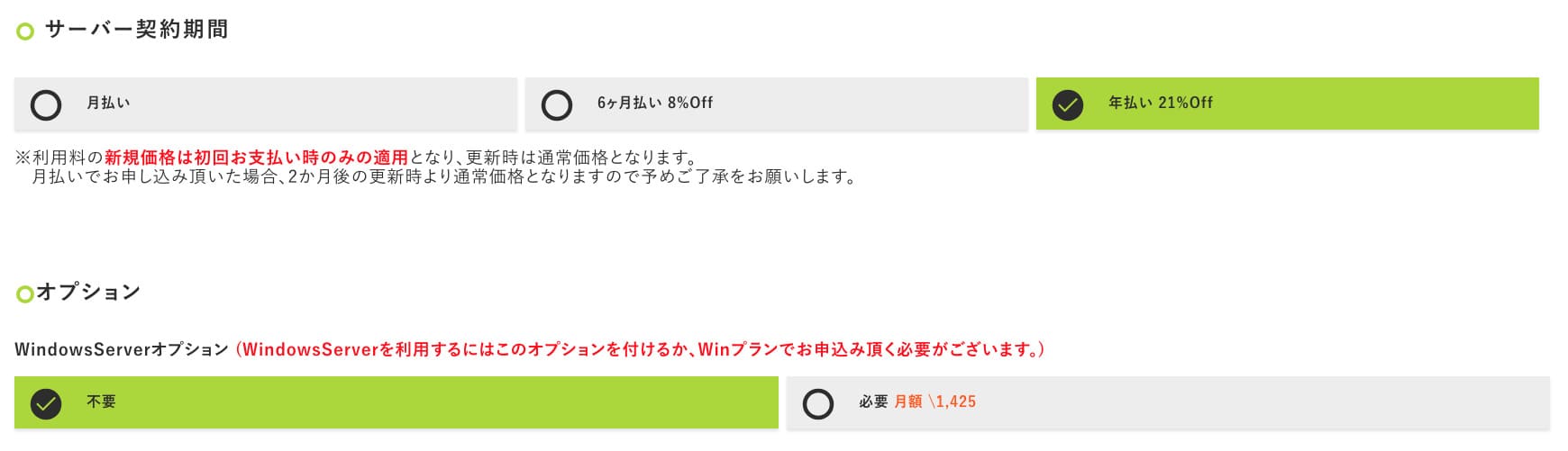
After filling it in, click "Proceed to the estimate screen." Review the estimate, and if everything looks fine, click "Proceed to enter applicant information."
- STEP.3Enter applicant information
Nhập tên, địa chỉ và các thông tin chi tiết khác của người đăng ký. Chuyển sang màn hình xem lại đơn hàng và gửi đơn đăng ký.
- STEP.4Enter payment information
Nếu bạn thanh toán bằng thẻ tín dụng, hãy nhập thông tin chủ thẻ và các chi tiết bắt buộc khác. Nếu tất cả đều chính xác, hãy nhấp vào “Confirm order” (Xác nhận đơn hàng) để gửi.
Once you receive the email with your VPS information, the application is complete.
Step 2: Install Outline Manager - Simple Setup
Tiếp theo, cài đặt Outline Manager trên máy tính để bạn có thể cấu hình và quản lý máy chủ VPN.
Install Outline Manager
- STEP.1Visit the official Outline site
Go to Outline.
- STEP.2Download Outline Manager
From the "Get Outline Manager" section, download the version of Outline Manager that matches your computer's OS (Windows, macOS, or Linux).
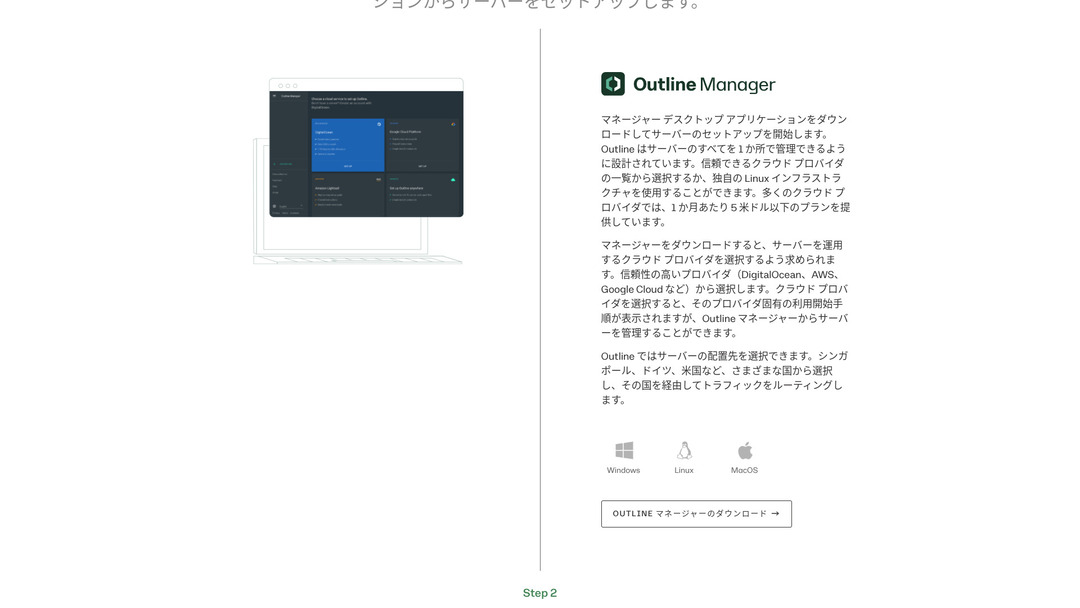
- STEP.3Install
Chạy tệp đã tải xuống và làm theo hướng dẫn trên màn hình để cài đặt Outline Manager.
Bước 3: Xây dựng máy chủ Outline trên máy chủ ảo VPS của bạn bằng Outline Manager
Use Outline Manager to cài đặt an Outline máy chủ on ABLENET VPS.
Xây dựng máy chủ Outline trên VPS của bạn bằng Outline Manager
- STEP.1Launch Outline Manager
After cài đặtation is complete, launch Outline Manager.
- STEP.2Click "Set up máy chủ"
Khi bạn khởi chạy lần đầu tiên, màn hình thiết lập máy chủ sẽ xuất hiện. Nhấp vào "Thiết lập máy chủ."
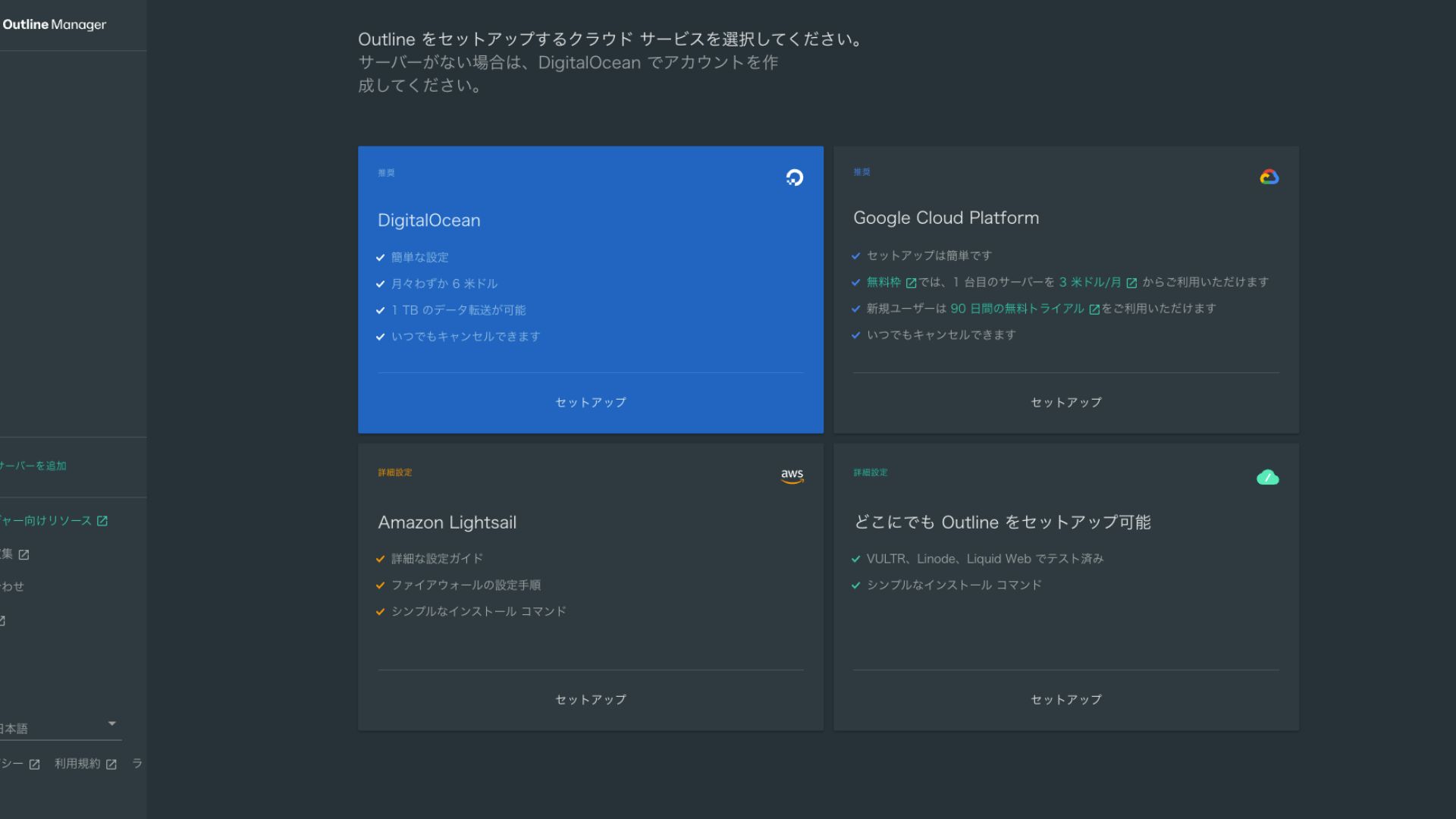
- STEP.3Select "Set up Outline anywhere"
You will see the cloud provider selection screen. Choose "Set up Outline anywhere."
- STEP.4Nhập lệnh cài đặt
Màn hình hiển thị lệnh được dùng để cài đặt máy chủ Outline trên VPS của bạn. Hãy nhập lệnh này theo cách thủ công.
Hikaru OnoVì bạn không thể sao chép và dán nó, hãy cẩn thận để không phạm bất kỳ sai sót nào.
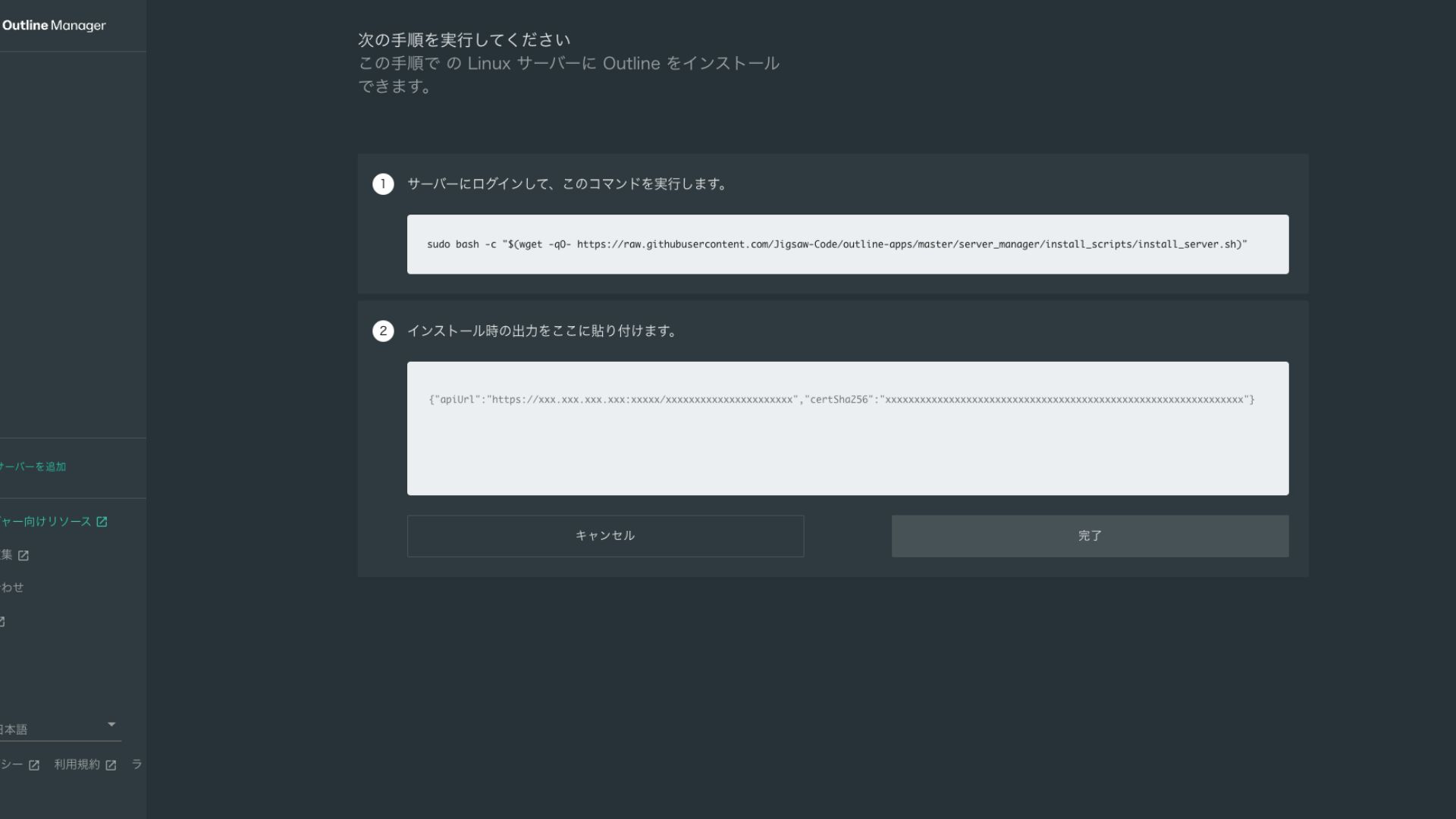
- STEP.5Run the command
- Installation can take several minutes. Watch the messages shown on screen carefully and wait until it finishes.
- You may be asked a few questions along the way, but in most cases pressing Enter to accept the default choice is fine.
- STEP.6Enter the information in Outline Manager
Sau khi cài đặt hoàn tất, Outline Manager sẽ hiển thị màn hình để bạn nhập "Thông tin chi tiết máy chủ".
- Admin API URL: URL API được tạo trong quá trình cài đặt trên VPS được hiển thị ở đây. Thông thường nó được tự động cập nhật trong Outline Manager, nhưng nếu không, hãy sao chép và dán URL API hiển thị trong thiết bị đầu cuối SSH.
- Máy chủ location (optional): Bạn có thể nhập vị trí máy chủ (ví dụ: Tokyo, Nhật Bản). Điều này chỉ dành cho mục đích quản lý và không ảnh hưởng đến kết nối.
- STEP.7Nhấp vào "Done with server"
Sau khi nhập đầy đủ thông tin, hãy nhấp vào "Hoàn tất thiết lập máy chủ."
Step 4: Create an Access Key and Allow VPN Connections
Sau khi máy chủ Outline được xây dựng xong, hãy tạo khóa truy cập để kết nối VPN thực tế.
Create an Access Key and Allow VPN Connections
- STEP.1Check the Outline Manager screen
Một khóa truy cập mặc định sẽ hiển thị trên màn hình Outline Manager. Tại đây, nó được gắn nhãn là Key 0.
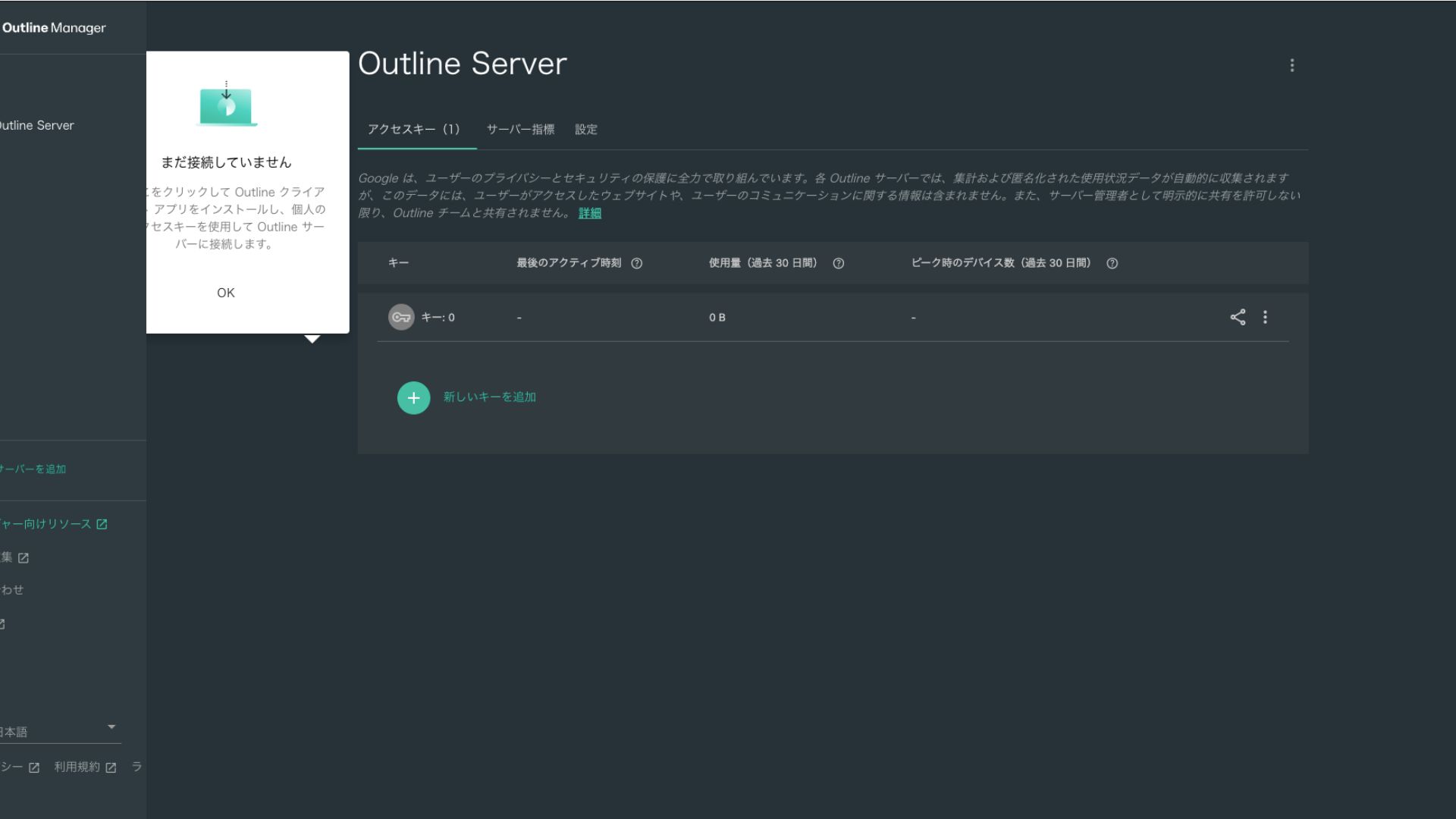
- STEP.2Chia sẻ khóa truy cập
Khóa truy cập bạn đã tạo là bắt buộc khi kết nối với ứng dụng Outline client. Khi bạn chọn khóa truy cập, nút "Chia sẻ lời mời" sẽ xuất hiện.
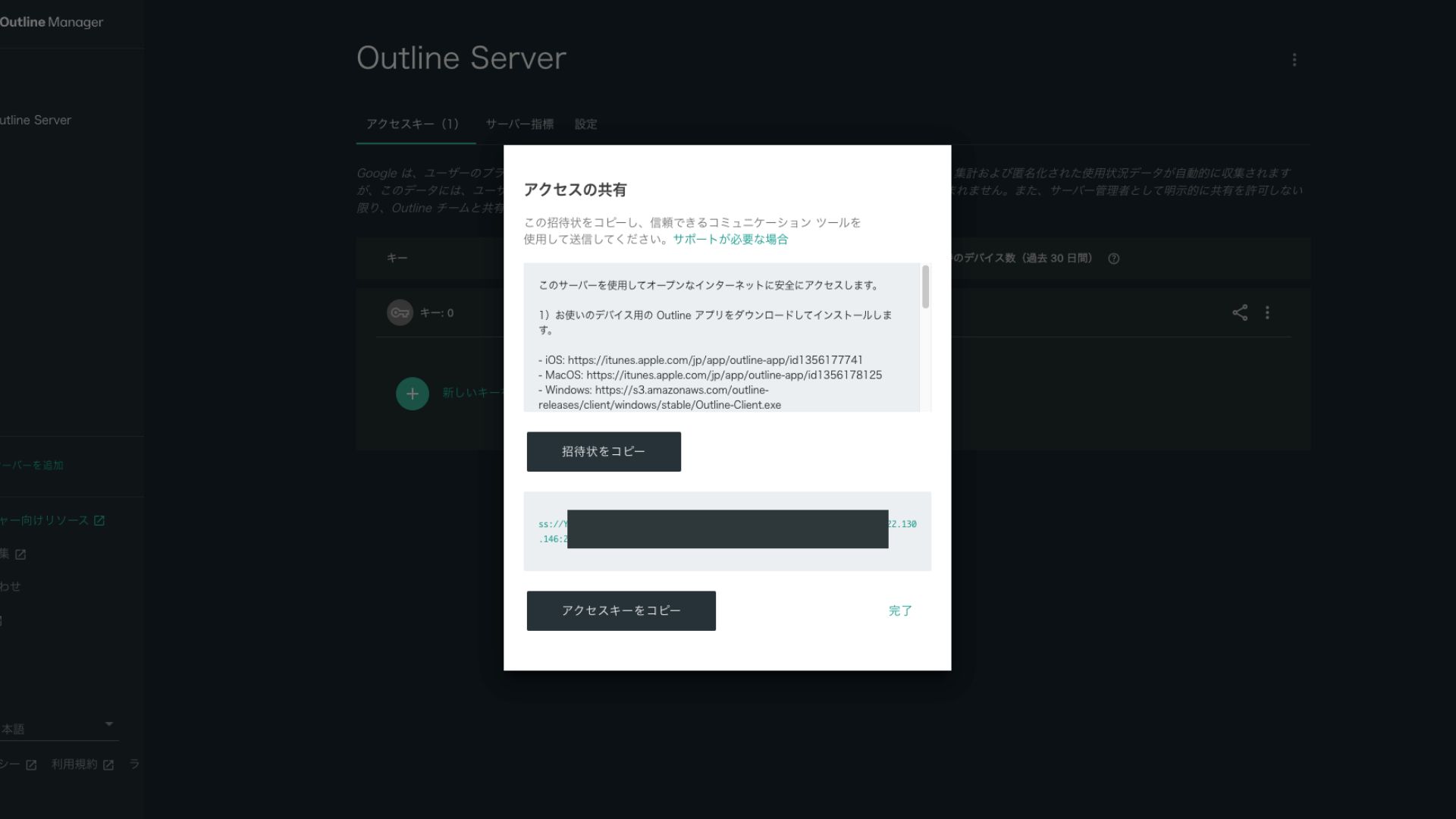
Nhấp vào đây sẽ sao chép URL của khóa truy cập. Hãy chia sẻ URL này với thiết bị bạn muốn kết nối qua VPN.
Step 5: Install the Outline Client and Connect to the VPN
Cài đặt ứng dụng Outline trên thiết bị bạn muốn sử dụng để kết nối VPN (máy tính, điện thoại thông minh, máy tính bảng, v.v.). Lần này, tôi đã cài đặt nó trên điện thoại thông minh Android.
Connect to Outline VPN Using the Issued Access Key
- STEP.1Launch the Outline client
Khởi chạy ứng dụng Outline bạn đã cài đặt.
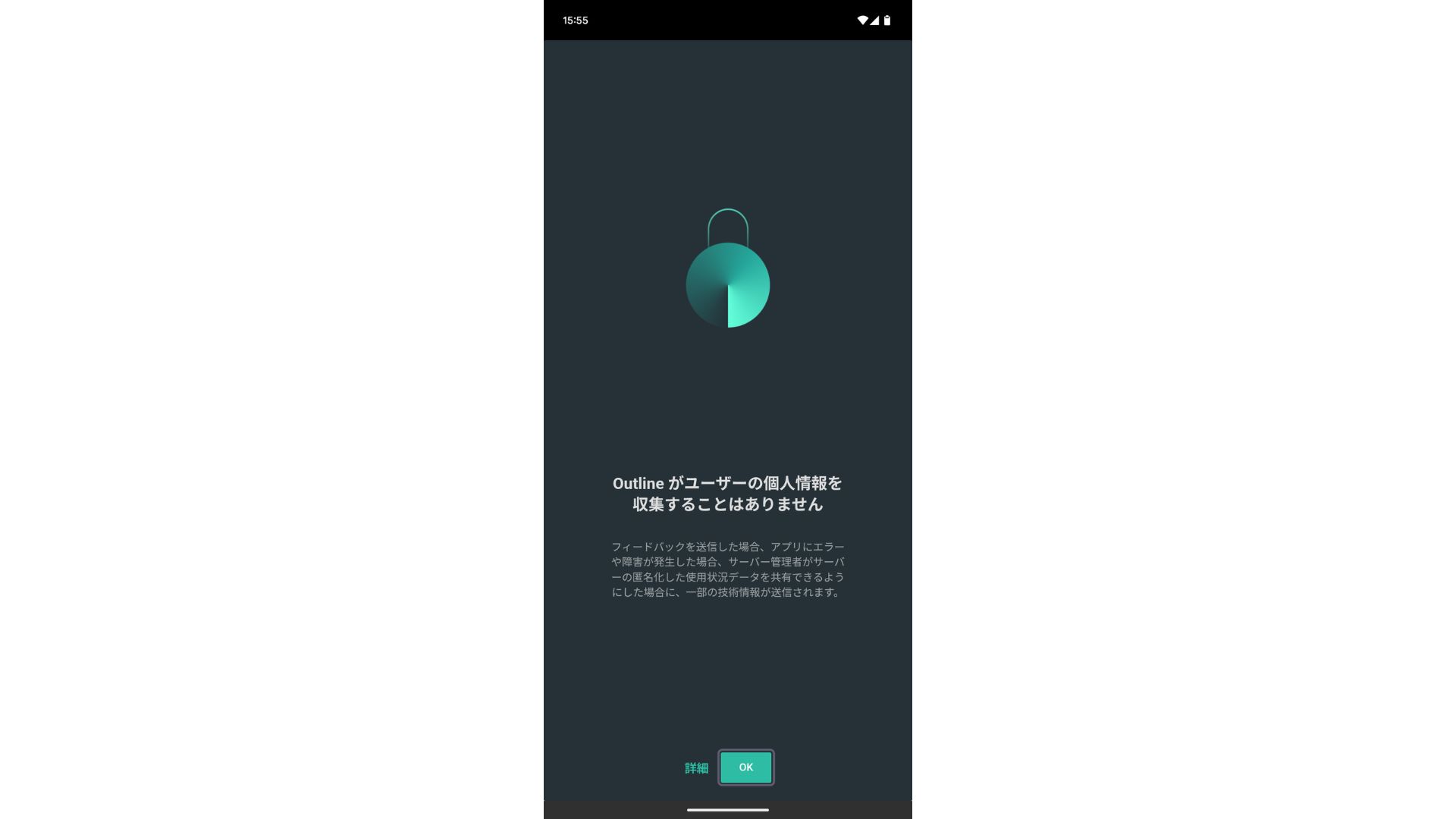
- STEP.2Thêm khóa truy cập
- On a PC: Nhấp vào "Thêm máy chủ" hoặc nút tương tự, dán URL khóa truy cập bạn đã sao chép ở Bước 4, và nhấp vào "Thêm máy chủ".
- On a smartphone or tablet: Khi bạn mở ứng dụng, bạn có thể được yêu cầu nhập khóa truy cập. Hãy sao chép và dán URL khóa truy cập được chia sẻ ở Bước 4. Nếu mã QR được hiển thị, bạn cũng có thể quét mã đó.
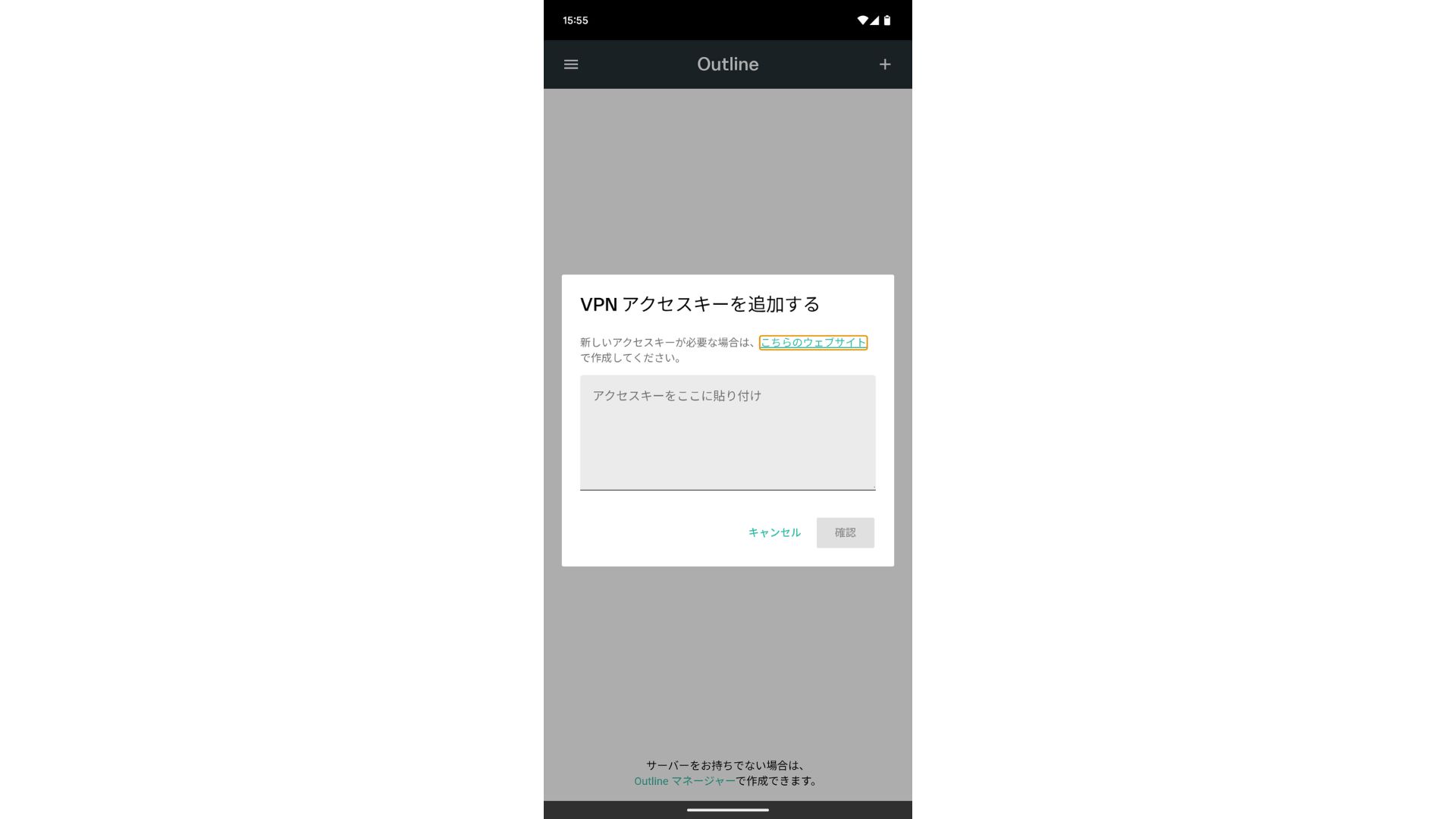
Sau khi thêm khóa truy cập, hãy nhấn Xác nhận.
- STEP.3Connect
Sau khi máy chủ đã được thêm vào, hãy nhấn "Kết nối".
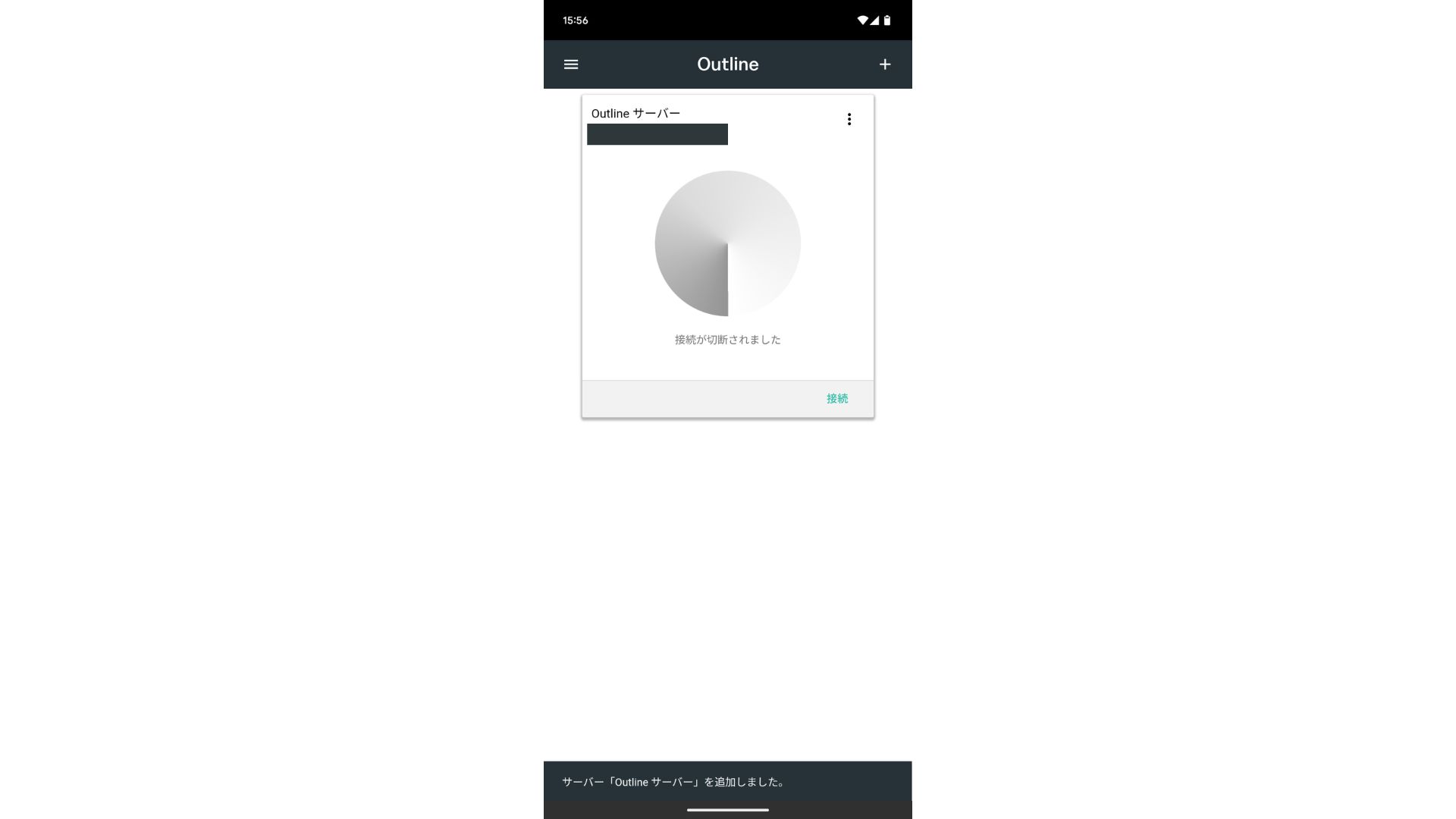
Nhấn "OK" trên yêu cầu kết nối.
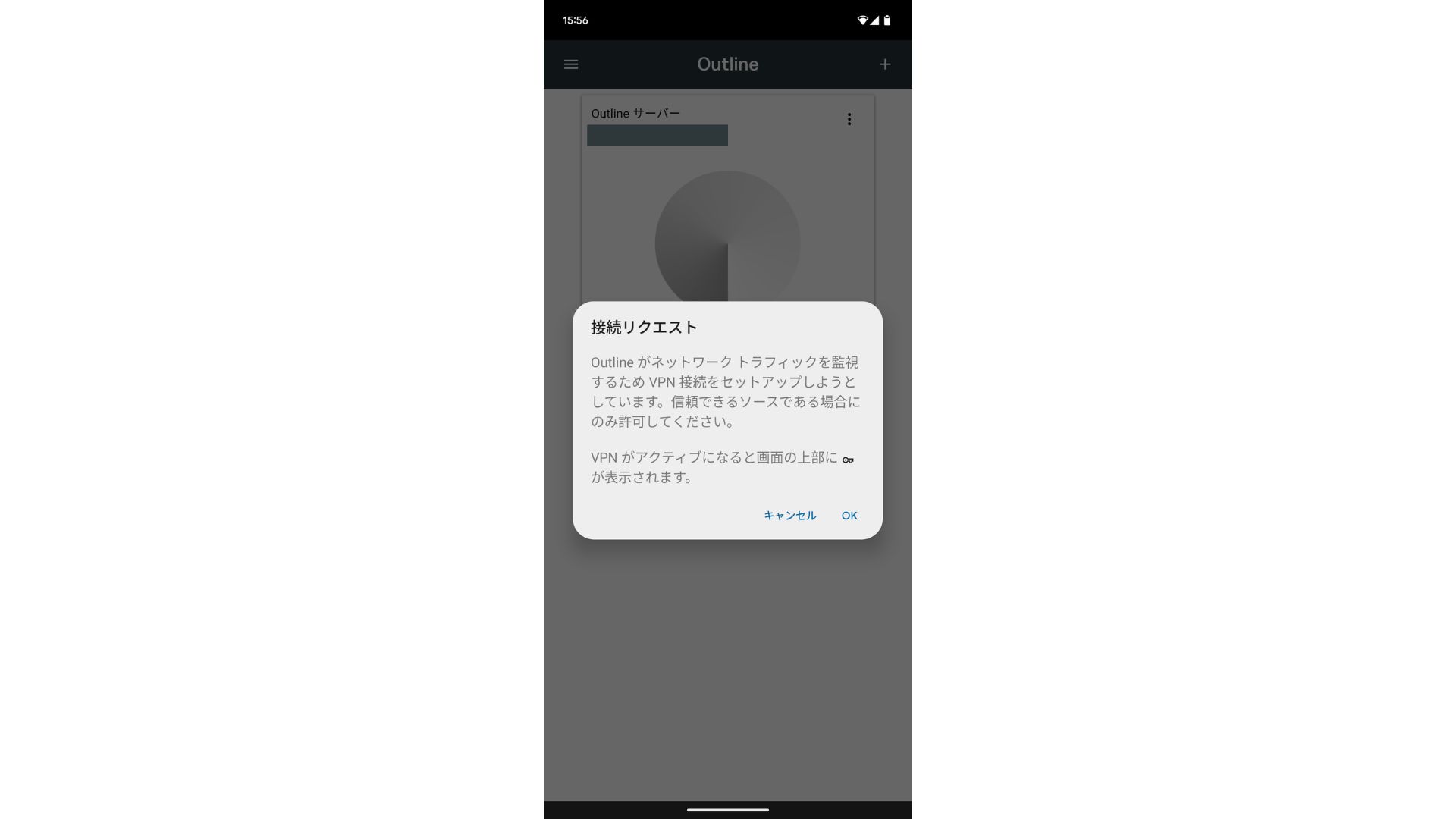
Kết nối hiện đã hoàn tất.
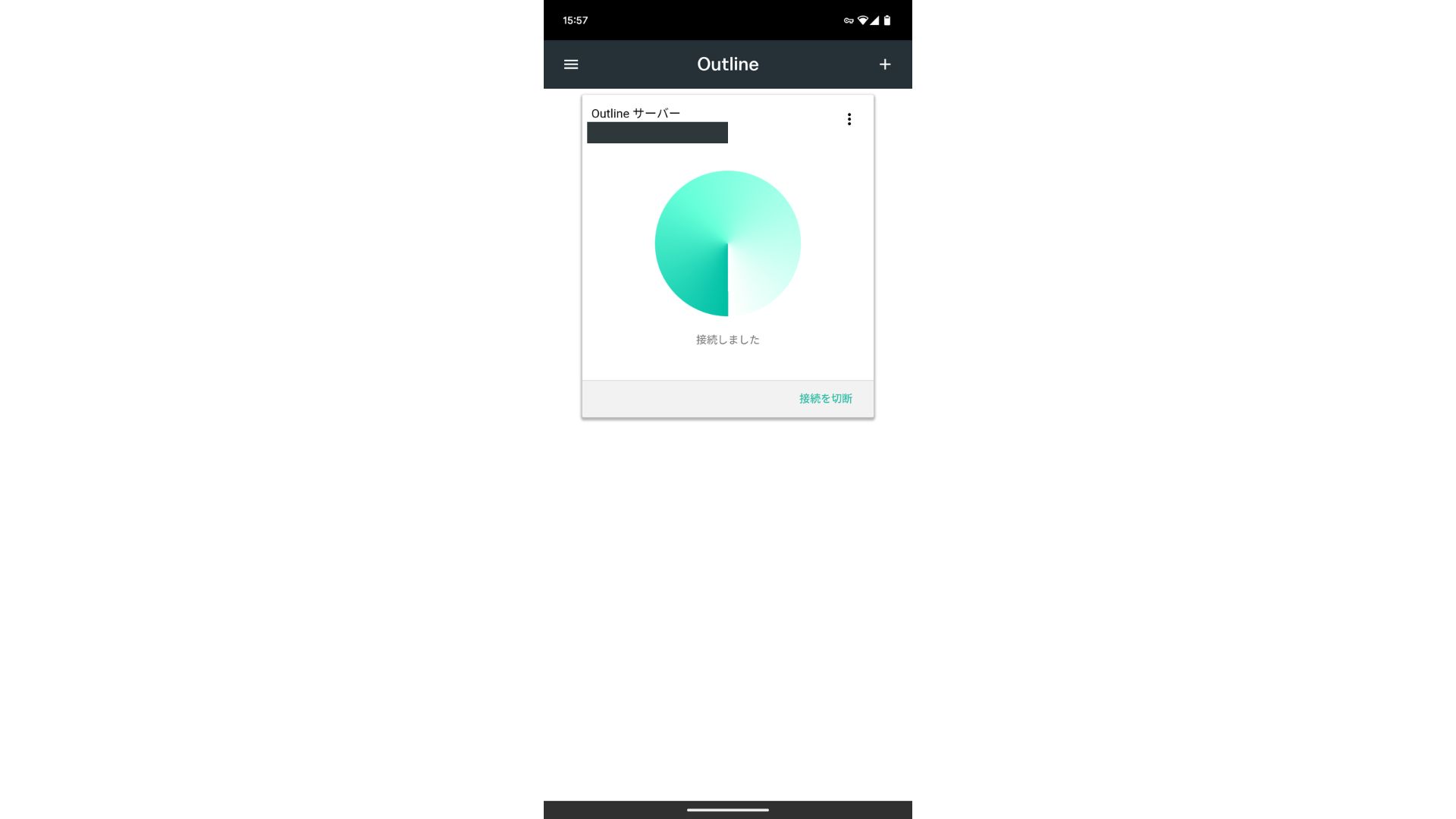
Sau khi máy chủ được thêm vào, nút Kết nối sẽ xuất hiện. Nhấp vào nút này để bắt đầu kết nối VPN.
Với điều đó, kết nối VPN của bạn bằng cách sử dụng Outline VPN and ABLENET VPS đã hoàn tất. Lưu lượng truy cập internet của bạn được mã hóa, giúp bảo mật hơn và nó sẽ được định tuyến qua vị trí của máy chủ mà bạn đã chọn.
ABLENET VPS and Outline VPN Are Fast and Comfortable
People often say internet tốc độs are chậmer over a VPN, so you may be wondering how nhanh ABLENET VPS is. When I measured it, it hit 130Mbps, which showed that it provides comfortable hiệu năng without frustration.
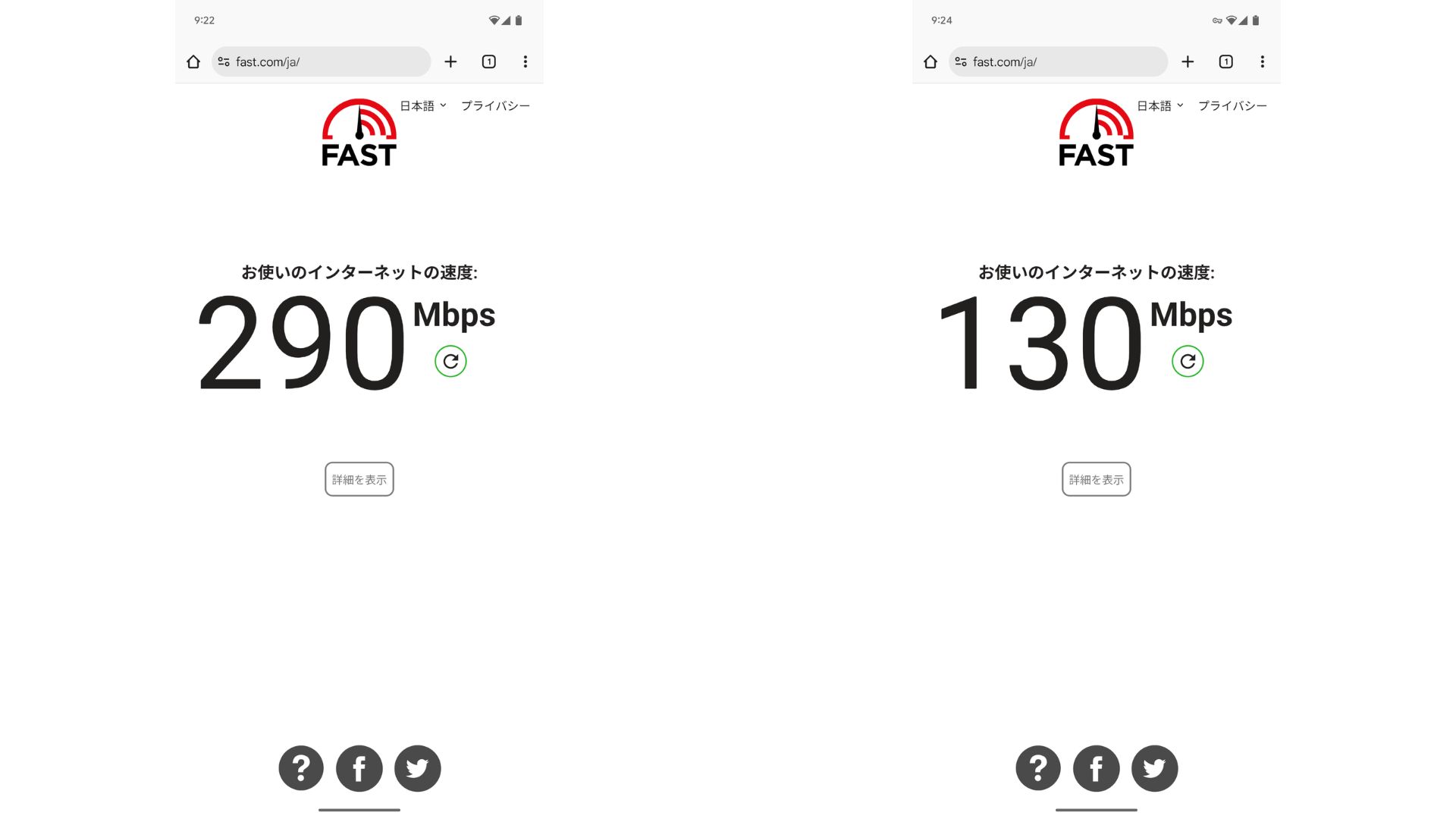
So với việc không sử dụng VPN, nó vẫn duy trì được khoảng một nửa tốc độ. Lý do dịch vụ này có thể đạt được hiệu năng như vậy là vì ABLENET VPS sử dụngs a shared 200Mbps line. Since 100Mbps is more common in general, it is nhanh.

Hikaru Ono
Thanks to ABLENET VPS, I was able to communicate at a very high tốc độ.
ABLENET VPS Specs and Pricing
| Máy chủ type | VPS |
| Connection tốc độ | Shared 200Mbps |
| IPv4 | 1 address |
| IPv6 | 65,536 addresses |
| Traffic allowance | Unlimited |
| Recommended plan and contract term | V1 annual plan |
| Virtual CPU | 2 cores |
| Memory | 1.5GB |
| Storage | 40GB SSD or 100GB HDD |
| Trial / refund guarantee | 10-day miễn phí dùng thử |
| Monthly giá (12-month contract) | 968 yen |
| Initial admin phí | Free |
| Support | |
| Uptime | 99.99% or higher |
| OS | Ubuntu Server 22.04 LTS / Ubuntu Server 20.04 LTS / AlmaLinux 9.5 / AlmaLinux 8.10 / Rocky Linux 9.5 / Rocky Linux 8.10 / Oracle Linux 9.5 / Oracle Linux 8.10 / CentOS Stream8 / CentOS Stream9 / Minecraft Server(ubuntu/java/Integrated)/Rust Server(ubuntu)/Palworld Server(ubuntu)/ARK Server(ubuntu)/7days Server(ubuntu)/Valheim Server(ubuntu)/Ubuntu Desktop 22.04 with MT4/5/Ubuntu Desktop 22.04 with AutoGPT/ CentOS 7.9 and more |
Summary
Với Outline VPN, công cụ giúp xây dựng VPN dễ dàng, ngay cả những người chưa từng sử dụng VPN bao giờ cũng có thể bắt đầu trong thời gian ngắn.
However, becasử dụng VPNs tend to be chậmer, I khuyên dùng ABLENET VPS, cung cấp một kết nối nhanh chóng. Với thanh toán hàng năm, nó có chi phí chưa đến 1.000 yên mỗi tháng, do đó nó cũng mang lại hiệu năng chi phí xuất sắc. Trên hết, việc truyền dữ liệu không giới hạn và sự ổn định với thời gian hoạt động liên tục (Uptime) trên 99,99% của nó cho phép bạn tận hưởng một môi trường internet không bị căng thẳng.
ABLENET VPS là máy chủ ảo VPS ổn định với thời gian hoạt động liên tục (Uptime) 99,99%, mặc dù có mức giá phải chăng. Nó cung cấp một loạt các gói dịch vụ, từ gói V0 dễ tiếp cận với bộ nhớ 0,5GB đến gói cấu hình cao V5 với bộ nhớ 16GB, do đó bạn có thể tìm thấy tùy chọn phù hợp cho nhu cầu của mình.
10-day miễn phí dùng thử