Download from the official site
PR
VPS
Просте налаштування: безпечні VPN-з’єднання з Outline та XServer VPS
Опубліковано: 2025.06.26
Оновлено: 2025.06.26
Хочете кращу безпеку в інтернеті, але боїтеся, що налаштування буде складним? Хочете користуватися японськими сервісами з-за кордону, але не можете отримати доступ? Якщо ви про це турбуєтеся, VPN може стати у пригоді.
Саме тут стає корисним VPN-з’єднання. Якщо вам потрібен недорогий і простий спосіб користуватися VPN, я рекомендую поєднання Outline VPN і XServer VPS.
Outline VPN is an open-source VPN tool developed by Google, and its biggest strength is how simple it is to use. By using XServer VPS, наданого компанією Xserver Inc., великим японським провайдером, відомим високопродуктивними та стабільними серверними середовищами, ви зможете побудувати власне комфортне та безпечне VPN-середовище.
If you are thinking, "Що таке Outline VPN?" or "VPS sounds difficult...," do not worry. Once you read this article, you will be able to set up a VPN connection without getting lost and enjoy a safe and secure internet experience.
Початок роботи з XServer VPS: Outline VPN для повних новачків

Що таке Outline VPN? Просте пояснення VPN для початківців
VPN (віртуальна приватна мережа) — це технологія, яка створює зашифрований тунель в інтернеті та захищає ваші комунікації від перехоплення чи зміни третіми особами. Шляхом маршрутизації трафіку через VPN-сервер вона також дозволяє приховати вашу реальну IP-адресу та підвищити анонімність.
Outline VPN is designed to make this VPN connection process extremely simple.
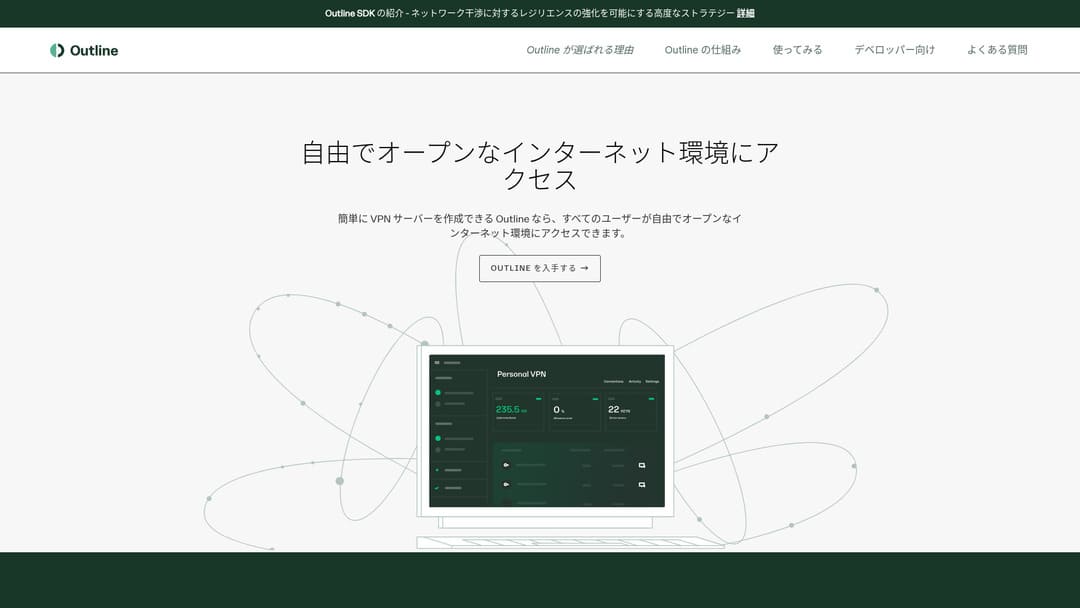
Outline is a free, easy-to-use application for connecting to a VPN, provided by Jigsaw, part of Google. Even if you have never launched a VPN before, you can start using one in just a few clicks.
It does not require difficult technical knowledge. The goal is to make VPN use as easy as installing an app and pressing a button to finish the connection.
Чому Outline VPN та XServer VPS є таким потужним поєднанням
Outline VPN сам по собі простий і зручний у використанні, але сервер, на якому він працює, є не менш важливим. Саме тут XServer VPS comes in.
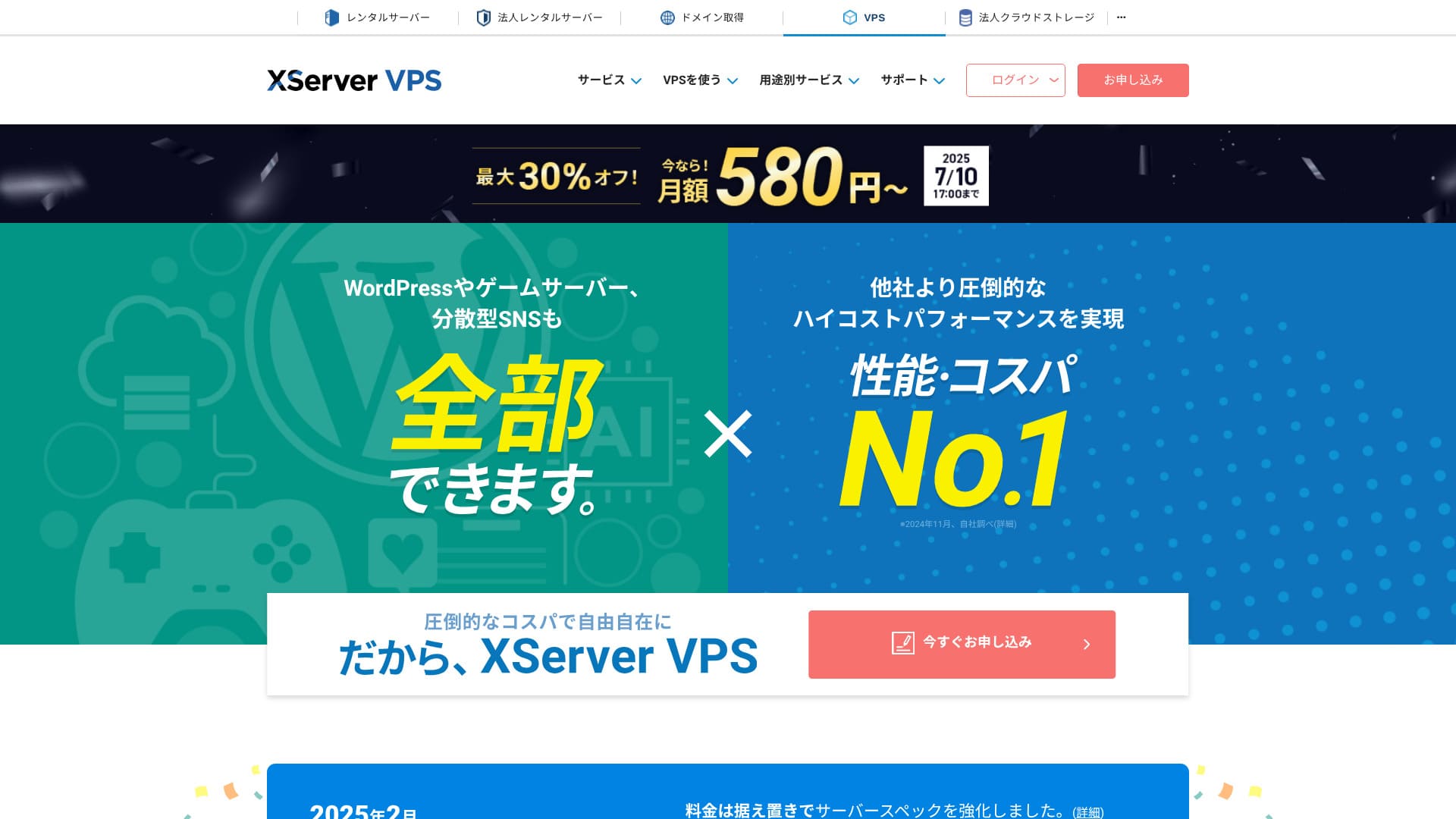
XServer VPS — це послуга VPS від відомого високошвидкісного хостингу, який посідає 1-ше місце за часткою на ринку Японії. Він пропонує широкий вибір — від бюджетного тарифу на 2 ГБ до високоємних планів на 8 ГБ. Завдяки наявності телефонної та електронної підтримки навіть люди без досвіду роботи з VPS можуть легко використовувати його для підключення до VPN або створення вебсайтів.
Up to 30% off through August 5, 2025, plus a 10-day free trial

XServer VPS вирізняється своїм швидким і стабільним мережевим середовищем, а також потужною системою підтримки. Управління власним сервером вимагає певної роботи, але якщо ви поєднаєте його з Outline VPN, you gain the following advantages.
- Reliable domestic location: Оскільки сервер розташований в Японії, ви можете впевнено користуватися ним.
- High security: Because you manage it yourself, you can apply security measures properly.
- Stable communication speed: Because you can use Xсервер's high-performance infrastructure, you can expect comfortable connection speeds.
- вартість performance: Compared with rental VPN services, it can be more economical over the long term. The longer the contract, the cheaper it becomes.
Створення власного VPN-сервера може здатися складним завданням, але з Outline Manager ви зможете легко налаштувати його, ввівши лише кілька команд.
Easy to Use: Build Outline VPN on XServer VPS in 6 Кроки

Now let me walk you through the actual steps for building Outline VPN on XServer VPS.
Крок 1: Prepare XServer VPS - Start Here
If you have not signed up for XServer VPS yet, start by completing the contract.
Preparing XServer VPS
- STEP.1: Create an account on the official XServer websiteGo to XServer VPS. Click Apply now. If you do not already have an account, choose Start now! New application.Enter your email address, name, and other required information to complete registration.
- STEP.2: Apply for a сервер in your XServer accountChoose the VPS plan that matches your needs. If this is your first time, it is best to start with a relatively affordable plan. The 12-month 2GB plan is a good value at the campaign price.
- КРОК 3: Завершіть процедуру оформлення договоруFollow the on-screen instructions to finish the contract process.
- КРОК 4: Виберіть операційну систему сервераНа екрані вибору ОС сервера я наполегливо рекомендую обрати останню стабільну версію Ubuntu or Debian. Those are the recommended environments for Outline VPN, and setup will go more smoothly.
- STEP.5: Initial setupПісля укладення договору увійдіть у панель керування сервером Xserver та виконайте початкове налаштування VPS. Це включає встановлення імені хоста та пароля root. Обов'язково виберіть надійний пароль root і збережіть його в безпечному місці, щоб не забути.
- STEP.6: Confirm SSH accessДля налаштування VPN-сервера необхідно підключитися до VPS через SSH.
- For Windows: Install an SSH client such as Tera Term, then confirm that you can connect using the VPS IP address, the port number (usually 22), the username (root), and the password.
- For macOS/Linux: Open Terminal and run
ssh root@your-vps-ip-address. On your first connection, you may see a security confirmation message, so type yes. Then enter the root password you set.
Крок 2: Install Outline Manager - Easy Setup
Далі встановіть Outline Manager на свій ПК, щоб мати змогу налаштовувати VPN-сервер та керувати ним.
Install Outline Manager
- STEP.1: Go to the official Outline websiteVisit Outline.
- STEP.2: Download Outline ManagerFrom the Get Outline Manager section, download the version of Outline Manager that matches your PC operating system (Windows, macOS, or Linux).
- STEP.3: Install itRun the downloaded file and follow the on-screen instructions to install Outline Manager.
Крок 3: Створення сервера Outline на VPS за допомогою Outline Manager
Use Outline Manager to install an Outline сервер on XServer VPS.
Створення сервера Outline на VPS за допомогою Outline Manager
- STEP.1: Launch Outline ManagerAfter installation is complete, launch Outline Manager.
- STEP.2: Click Set up серверПри першому запуску з'явиться екран налаштування сервера. Натисніть «Налаштувати сервер».
- STEP.3: Choose Use your own серверВам буде показано екран вибору хмарного провайдера, але виберіть «Set up Outline anywhere» (Налаштувати Outline будь-де) та використовуйте власний сервер.
- STEP.4: Copy the installation commandНа екрані з'явиться команда для встановлення сервера Outline на ваш VPS. Виберіть всю команду та скопіюйте її.
- STEP.5: Connect to the VPS over SSHPaste the copied installation command into the terminal or command prompt connected over SSH and press Enter to run it.
- STEP.6: Run the command
- The installation can take several minutes. Read the messages on the screen carefully and wait until it finishes.
- You may be asked a few questions during the process, but in most cases it is fine to press Enter and accept the default choice.
- STEP.7: Enter the information into Outline ManagerПісля завершення встановлення Outline Manager відобразить екран, де потрібно ввести дані сервера.
- Administrator API URL: The API URL generated during VPS installation is shown. In most cases it is reflected in Outline Manager automatically, but if it is not shown, copy and paste the API URL displayed in the SSH terminal.
- Server location (optional): Ви можете вказати розташування сервера, наприклад Токіо, Японія. Це призначено виключно для зручності керування та не впливає на підключення.
- КРОК 8: Натисніть «Завершити налаштування сервера»Після введення всієї інформації натисніть «Завершити налаштування сервера».
Крок 4: Створення ключів доступу та дозволи на підключення до VPN
Після створення сервера Outline згенеруйте ключі доступу, необхідні для підключення до VPN.
Create access keys and allow VPN connections
- STEP.1: Check the Outline Manager screenOn the Outline Manager screen, you will see one default access key.
- STEP.2: Add a new access key if neededIf you want to create a new access key, click the Add new key button.
- STEP.3: Rename the access key if you wantYou can rename the access key you created to match the device or user that will connect. Select the key, click Edit name, and change it.
- STEP.4: Share the access keyThe access key you create is required when you connect with the Outline client. When you select the access key, a button labeled Share invite appears. Click it to copy the access-key URL, then share that URL with the device you want to connect.
Крок 5: Встановлення клієнта Outline — працює на будь-якому пристрої
Install the Outline client on the device that will connect to the VPN, such as a PC, smartphone, or tablet.
Install the Outline client
- STEP.1: Go to the official Outline websiteVisit Outline.
- STEP.2: Download the Outline clientFrom the Get Outline Client section, download and install the Outline client for your device's operating system.
- PC (Windows, macOS, Linux): Run the downloaded file to install it.
- Smartphone / tablet (Android, iOS): Search for Outline in the App Store or Google Play Store and install it.
Крок 6: Підключення до Outline VPN за допомогою виданого ключа доступу
Once the Outline client is installed, it is time to connect to the VPN.
Connect to Outline VPN with the issued access key
- STEP.1: Launch the Outline clientLaunch the Outline client you installed.
- STEP.2: Add the access key
- For PC: Натисніть кнопку «Add server» або аналогічну, вставте URL-адресу ключа доступу, скопійовану на кроці 4, і натисніть «Add server».
- For smartphone / tablet: При запуску програми вона може запитати у вас ключ доступу. Скопіюйте та вставте URL-адресу ключа доступу, надану на кроці 4. Якщо відображається QR-код, ви також можете відсканувати його.
- STEP.3: ConnectПісля додавання сервера з'явиться кнопка підключення. Натисніть її, щоб запустити VPN-з'єднання.
- STEP.4: Confirm the connectionWhen the connection succeeds, the Outline client shows Connected, and a VPN icon appears in the status bar at the top of the screen or in a similar location.
With that, your VPN connection using Outline VPN and XServer VPS завершено. Ваш інтернет-трафік тепер зашифрований, що робить його безпечнішим, і маршрутизується через обрану локацію сервера.
Benefits and Use Cases of Outline VPN and XServer VPS

How Fast Is It? How Stable Is It? A Full Look at the Benefits of Outline VPN
Outline VPN is based on the Shadowsocks protocol, so you can expect communication that is relatively lightweight and fast.
By using the high-performance infrastructure of XServer VPS, you can achieve an even more stable communication environment. Still, you should understand that VPN speed can vary depending on physical distance and network congestion.
Access Safely from Anywhere: Use Cases for Outline VPN
- безпека on public Wi-Fi: Public Wi-Fi in places such as cafes and hotels can be weak on security. By using a VPN connection, you encrypt your communications and prevent third parties from eavesdropping on them.
- Bypassing access restrictions from overseas: If you want to access services or content that are available only in Japan while you are abroad, routing your connection through a VPN сервер in Japan may make that possible.
- Privacy protection: Маршрутизуючи трафік через VPN-сервер, ви можете приховати свою реальну IP-адресу та make it harder for websites and advertising trackers to follow you.
- Bypassing censorship: In some countries and regions, internet censorship may be in place. Using a VPN may help you get around those restrictions.
Comfortable Access from Overseas Too: Bypass Regional Restrictions
By using Outline VPN and XServer VPS, ви можете розгорнути VPN-сервер в обраній вами локації. Наприклад, якщо ви перебуваєте за кордоном і хочете користуватися японськими сервісами, ви можете пустити свій трафік через VPS-сервер в Японії, завдяки чому це виглядатиме так, ніби ви звертаєтеся до сервісу зсередини країни.
As a result, you may be able to use content that had been unavailable because of regional restrictions.
Tips for Using Outline VPN More Comfortably

Як використовувати додаток на кількох пристроях: діліться доступом із родиною або командою
The access key you create can be shared and used on multiple devices.
By issuing a new access key in Outline Manager and adding it to the Outline client on another device, you can easily use the VPN connection across multiple devices. This is convenient when you want to share a VPN with family members or a small team.
Check and Manage Data Usage - Prevent Overuse
In Outline Manager, you can check the data usage for each access key.
This lets you see who is using how much data, and you can also set data limits if needed. By setting limits, you can prevent unintended overuse of bandwidth.
рекомендовані Settings to Improve безпека Even Further
- VPS security measures: Перевірте налаштування брандмауера на XServer VPS and close unnecessary ports. It is also important to keep the operating system and software fully up to date.
- Strong passwords: Set strong, hard-to-guess passwords for the VPS root account and the Outline Manager access keys.
- Два-factor authentication: Увімкніть двофакторну автентифікацію для вашого облікового запису Xserver та входу до VPS скрізь, де це можливо.
Підсумок: насолоджуйтеся безпечним та комфортним використанням VPN завдяки Outline та XServer VPS

Outline VPN provides powerful VPN functionality that goes far beyond what its simple interface might suggest. Because Outline Manager handles the difficult setup automatically, even beginners can build and use a VPN environment with confidence.
When you combine it with XServer VPS, the flexibility of Outline VPN збільшується ще більше. Ви можете розмістити свій VPN-сервер де завгодно та користуватися стабільним високошвидкісним зв'язком.
Use this article as your guide, and try building a safe and comfortable internet environment of your own with Outline VPN and XServer VPS.