
Up to 55% off the first purchase, plus an extra 25% off and a 30-day money-back guarantee
PR
Serverid
mixhosti ülevaade [2025 värskeim]: kiire hosting rahvusvahelise haarde ja tugeva turvalisusega
Avaldatud: 2025.07.13
Uuendatud: 2025.07.13
Hinnang: 4.0
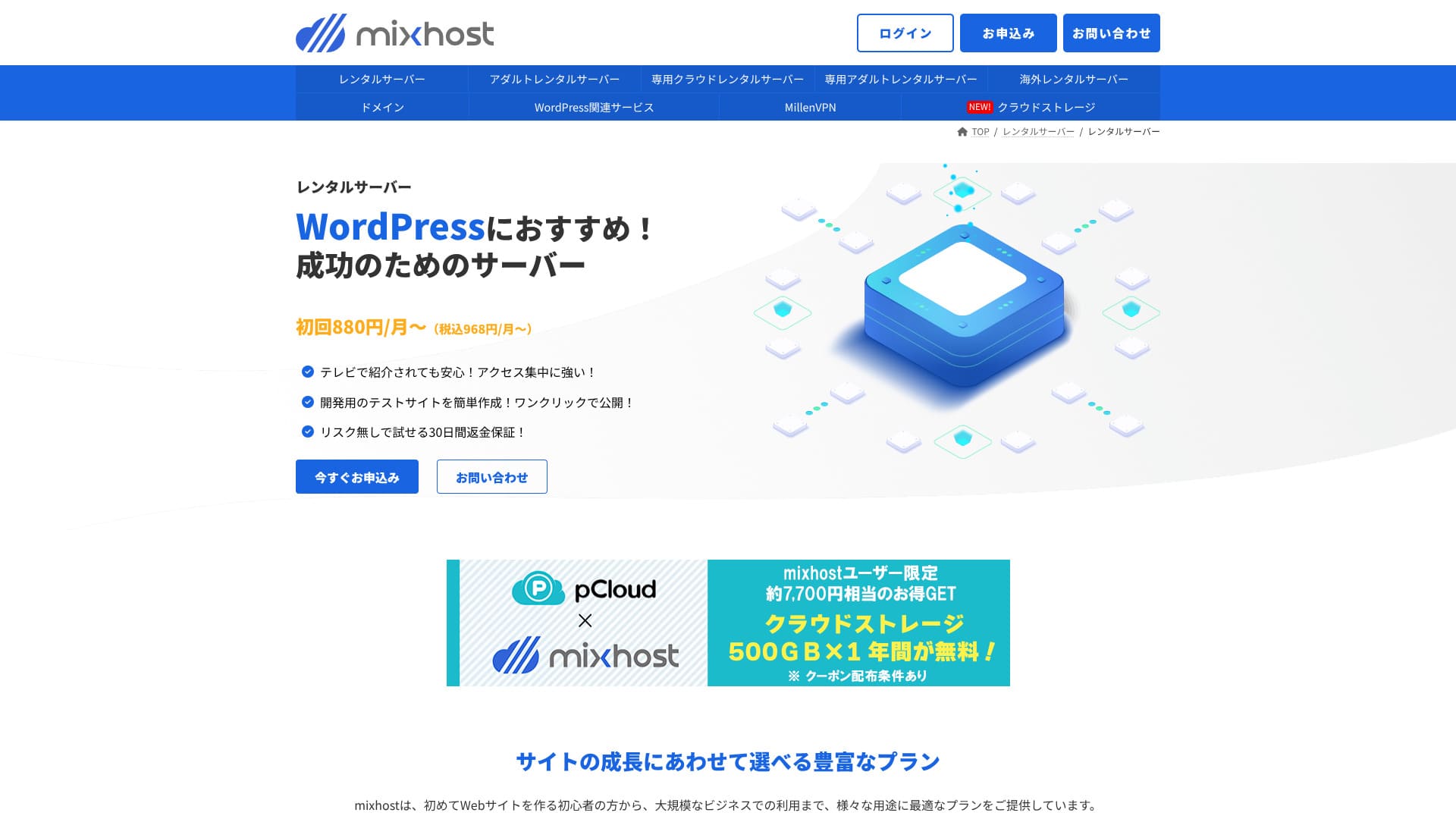
mixhost on AzPocket Inc. hallatav teenus. See on soodne hostinguteenus, millel on korralik tugisüsteem. See on tugev ka sellistes valdkondades nagu välismaised serverid, VPN-id ja pilvesalvestus ning pakub laia valikut serveritega seotud teenuseid.

Põhjused, miks soovitan mixhost inimestele, kes juba kasutavad WordPressi, ning neile, kes soovivad luua saidi välismaisele sihtrühmale.
- Varundustaristu on väga stabiilne
- Tugivõimalusi on lai valik
- See pakub ka välismaiseid servereid
Seetõttu soovitan seda. Arvan, et enamik kasutajaid jääb rahule, ning 30-päevase raha tagasi garantiiga saab seda kindlamalt proovida.
Üks konkureeriv server on ColorfulBox. Selle paindlikud tunnipõhiselt alustatavad paketid võivad mõnel juhul olla mixhostist veelgi ahvatlevamad, seega tasub ka seda võrrelda.
| Server type | Shared hosting / dedicated cloud hosting |
| Speed (TTFB) | 150 ms |
| Recommended plan and term | Shared hosting Light, 12 months |
| Trial / money-back guarantee | 30-day money-back guarantee |
| Monthly price (12-month term) | 594 yen |
| Initial administrative fee | Free |
| Free domain | 1 domain free for life |
| Support | |
| Uptime | 99.99% guarantee |
| Storage | 100 GB |
| Number of databases | Unlimited |
| Security measures | WAF / DDoS protection / malware detection and cleanup |
| SSL | Free custom SSL |
| Backup / restore | Standard plan and above include automatic backups for 14 days |
| Number of email accounts | Unlimited |
| Email security | — |
| WordPress preinstall | Yes |
| Server / website migration service | 10,890 yen |
| CDN | None |
| Data center | San Jose, West Coast, United States |

Hikaru Ono
mixhost made it easy to start WordPress right when I signed up for the server. It also offers a wide range of options related to performance and security, so it fits people who want to run a site with future growth in mind.
Pricing was revised in 2025, making it easier to get started.
mixhost competitor comparison
- Overall rating★★★★☆
- Server speed ★★★★☆
- Pricing ★★★★☆
- Stability ★★★★★
- Ease of getting started with WordPress* ★★★★★
- Operations such as domain management and SSL setup* ★★★☆☆
* These ratings reflect my hands-on experience.

How to compare 10 recommended overseas hosting services and choose one
How to compare 10 recommended overseas hosting services and choose one
serverfield.org
- Data based on market research as of November 4, 2025, arranged in order of speed
- Monthly prices are the first-year cost of the cheapest plan that supports WordPress
- Speed is the Time to First Byte measured on demo sites under the same conditions
WordPress-related reviews
Lihtne WordPressi paigaldus
mixhost pakub funktsiooni "WordPress Quick Start", väga kiiret seadistusvoogu, mis võib saidi pärast registreerimise lõppu valmis teha kõigest 90 sekundiga. See lahendab serverilepingu, WordPressi paigalduse ja SSL-i seadistuse korraga ning eemaldab kohad, kus algajad sageli takerduvad.
There is no need to create a database manually or edit configuration files, and the login information for your first admin-screen sign-in is issued automatically.
Hikaru Ono
I was able to start using WordPress in about five minutes from the time I applied for the server contract.
Let's launch a website with mixhost!
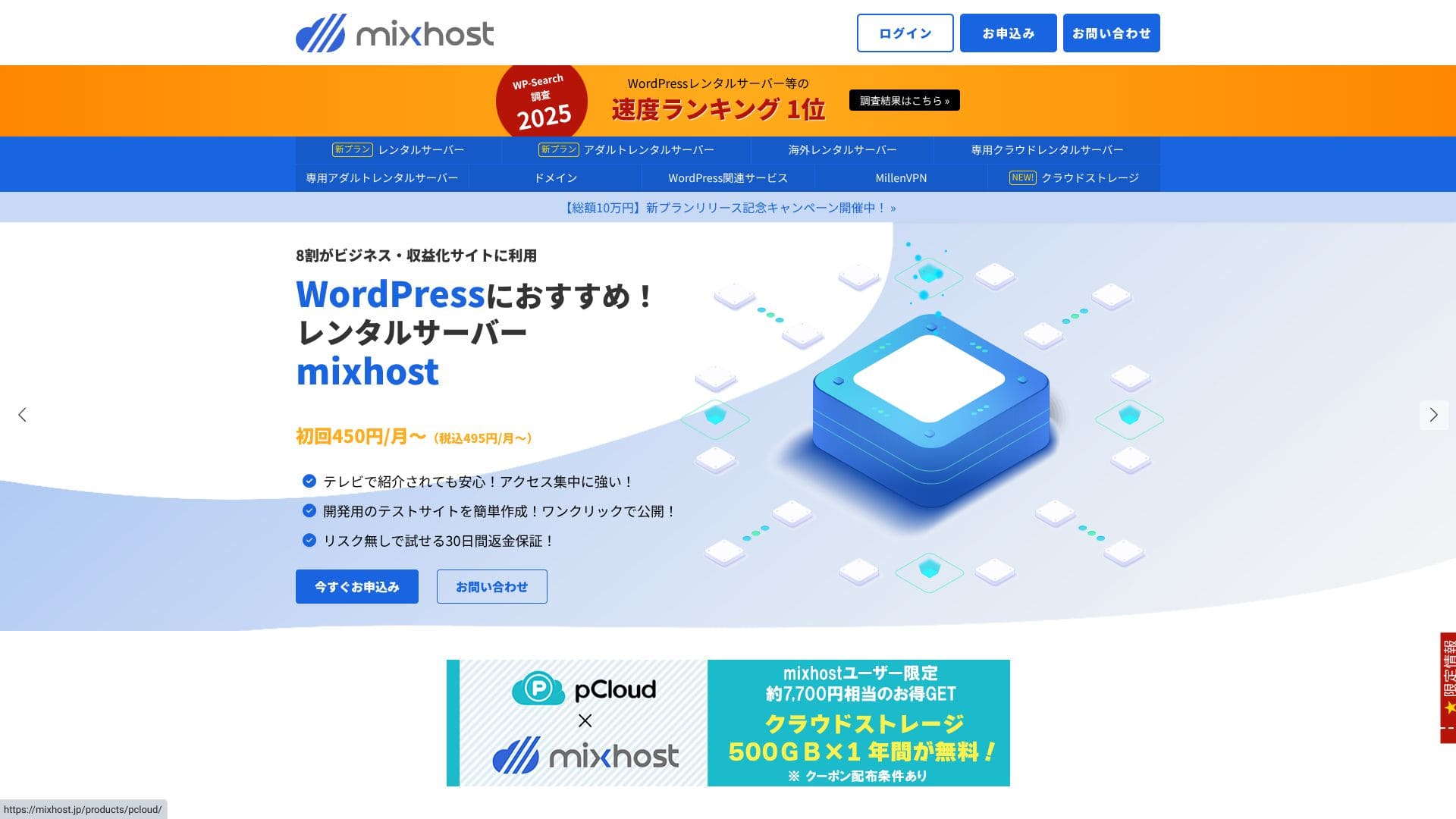
- STEP.1Visit the mixhost official site
Click "Apply Now."
- STEP.2Sign up for the server and get a domain
Choose a plan. I recommend the Light plan. You can upgrade to a higher plan whenever you need to.
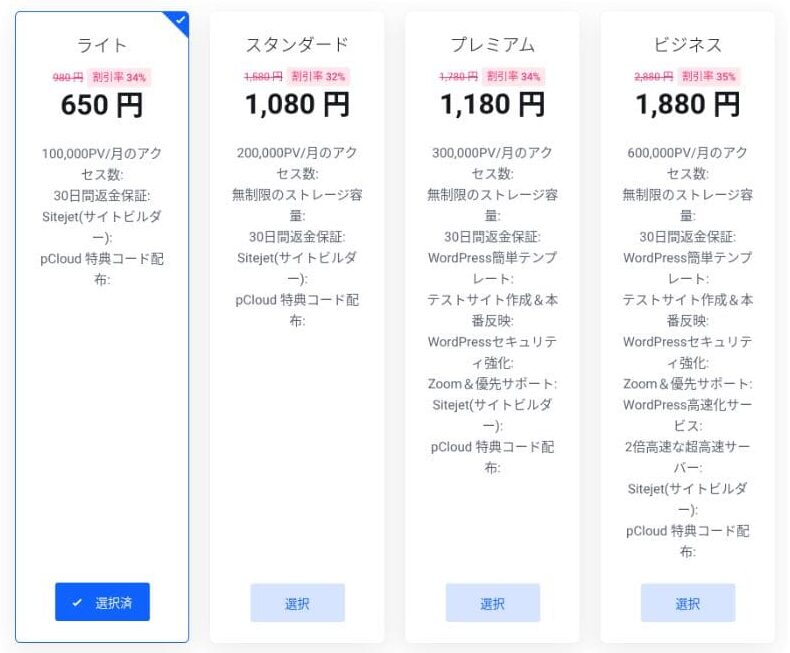
I recommend the 12-month billing term.
This is the primary domain setup step. Decide on your domain name, enter any string you like into "Enter the domain you want," search for the domain, and if it is available, click "Add to cart."
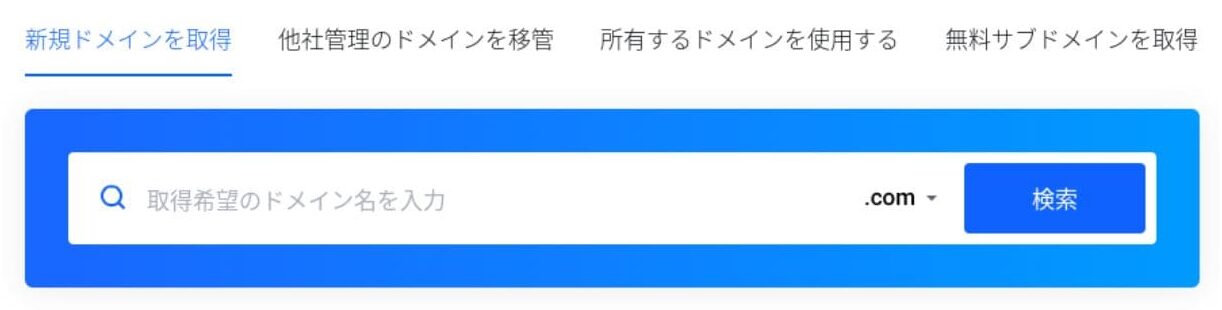
mixhostalso lets you install WordPress on a subdomain. You can choose "Get a free subdomain" if you want to use a subdomain instead.
★ What is a domain? Its role as an address on the internet and how to get one
There is also a Whois privacy service as a domain add-on. If you do not want your name, address, and other registrant details to be made public, click "Add to cart."
For "WordPress Quick Start," make sure you choose "Use it."Using it makes starting a WordPress site dramatically easier.If you want to build a site even more easily, choose the "Easy WordPress Template." A WordPress theme will also be installed.
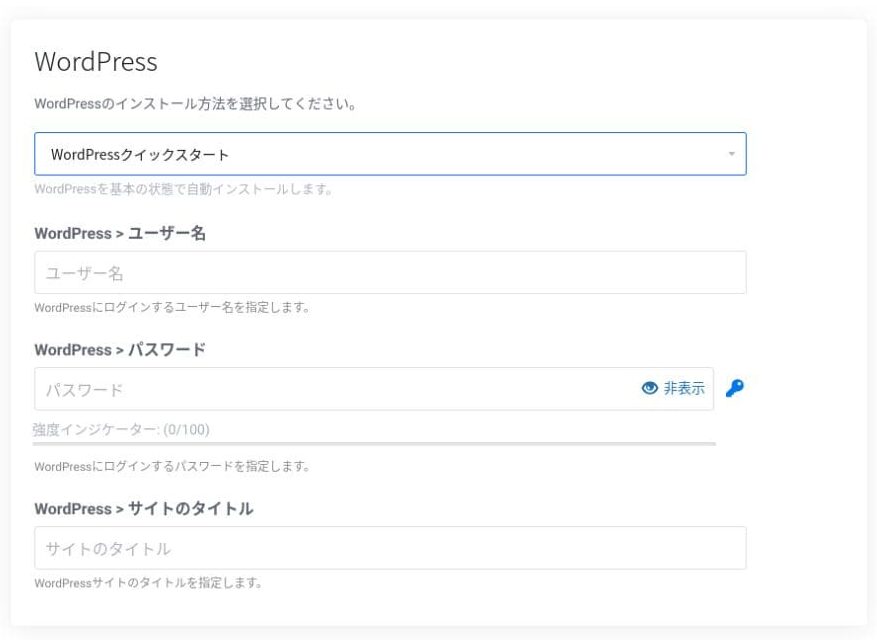
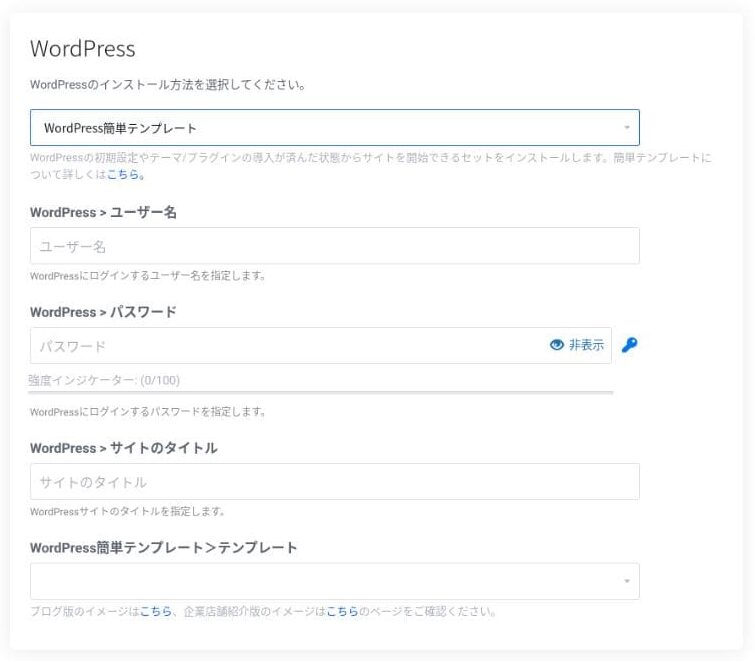
Enter the information needed for WordPress.
- Site title: anything is fine
- Username: anything is fine
- Password: make it as strong as possible
You can change the site name later, so if you have not decided yet, enter something temporary.
Your WordPress username and WordPress password are important.Write them down. You will need them to log in to the WordPress site you created.
Enter your member information and payment method.
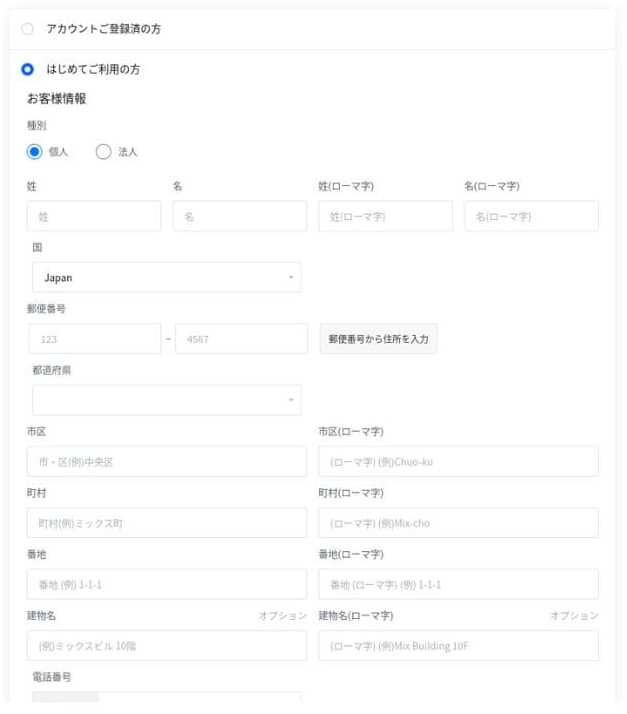
If everything looks correct, review the terms of service and click "Apply."
WordPress installation starts at the same time as your application. Once the installation is complete, you will receive a notification email.
When you log in to your account dashboard, you will see the following screen.
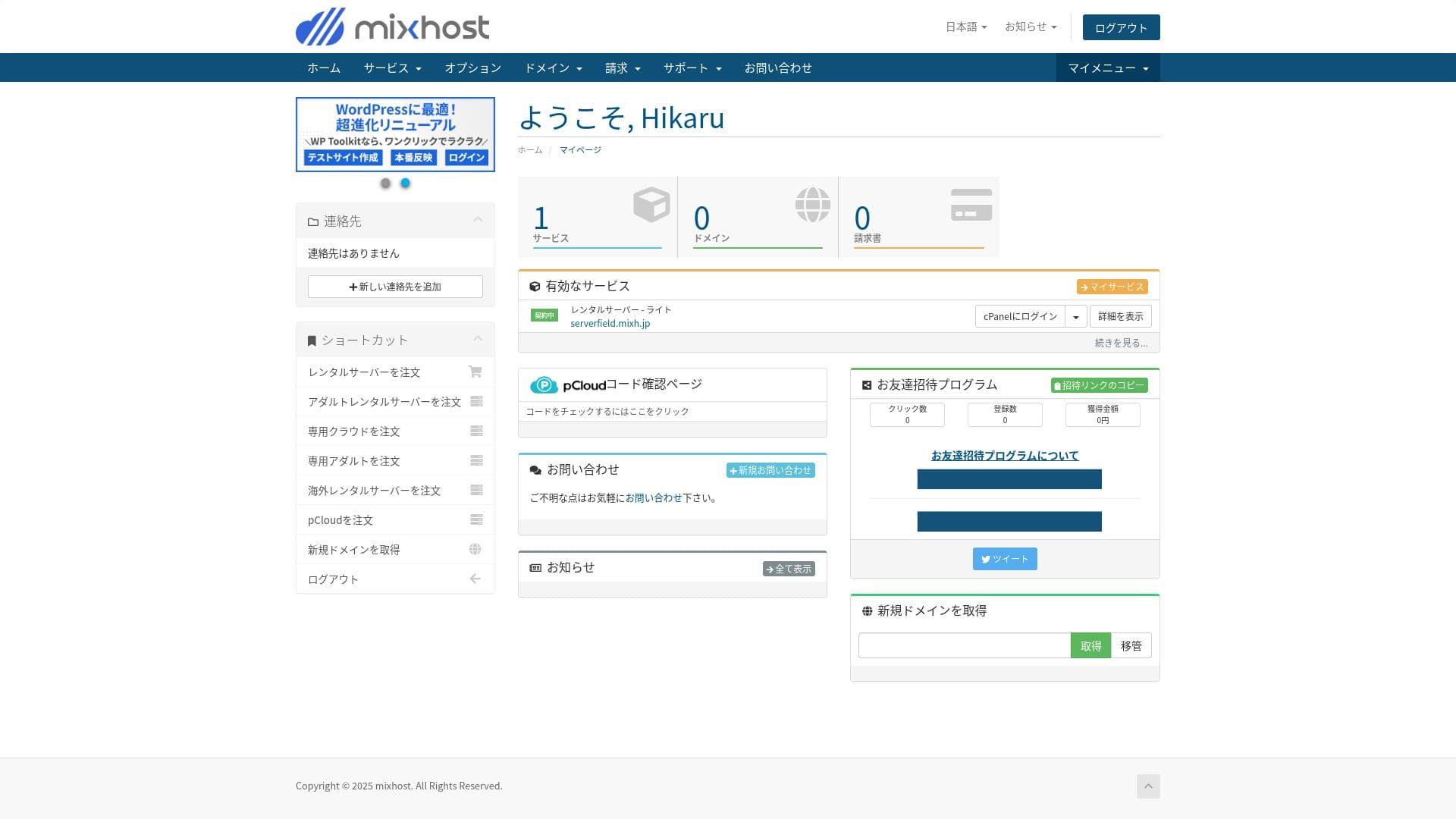
- STEP.3Initial WordPress settings
After the signup is complete, access "https://your-acquired-domain/wp-admin/". It will take you to the WordPress admin screen.
Log in to WordPress using the username and password you set during server signup. If you see a message saying "Your connection is not private," wait a while. DNS has not finished propagating yet, so try again every few hours.
★ What are DNS and name servers? How domains and servers are connected
After logging in to WordPress, set up your permalinks. Go to "Settings" and then "Permalinks" in the WordPress admin screen. Choose "Post name" and then click "Save Changes."
Using "Post name" lets you enter any string you like in the URL when you publish an article. I recommend using a short string that gives readers a clear idea of the article content. If it is too long, some readers may worry that the site looks untrustworthy.
- STEP.4Install plugins
Go back to the WordPress admin screen, open "Plugins," then "Add New," and install the plugins you need.
When you find the plugin you want through search, click "Install Now" and then "Activate." After that, follow the instructions for each plugin.
Make sure you install plugins for security and backups.
- Five WordPress security plugins that can strengthen your site and how to choose them
- Five powerful WordPress backup plugins to recover your data
Once the plugins are in place, your WordPress site is ready to go!
Running multiple sites
On Standard and higher plans, storage, databases, and email accounts are unlimited. From “WordPress Manager” inside cPanel, you can manage multiple sites in one place and sign in to each admin screen with a single click.
Hikaru Ono
Even the Light plan allows you to run multiple sites because the number of domains and databases is unlimited.
Performance and specs review
Our measurements: speed review and why it is fast
mixhost is a fast server. Its TTFB (Time to First Byte, in other words, the speed at which the page begins displaying its main content) was 150 ms.
Because it is faster than the server speed Google recommends, you can use it with confidence.
You should reduce your server response time under 200ms.Improve Server Response Time
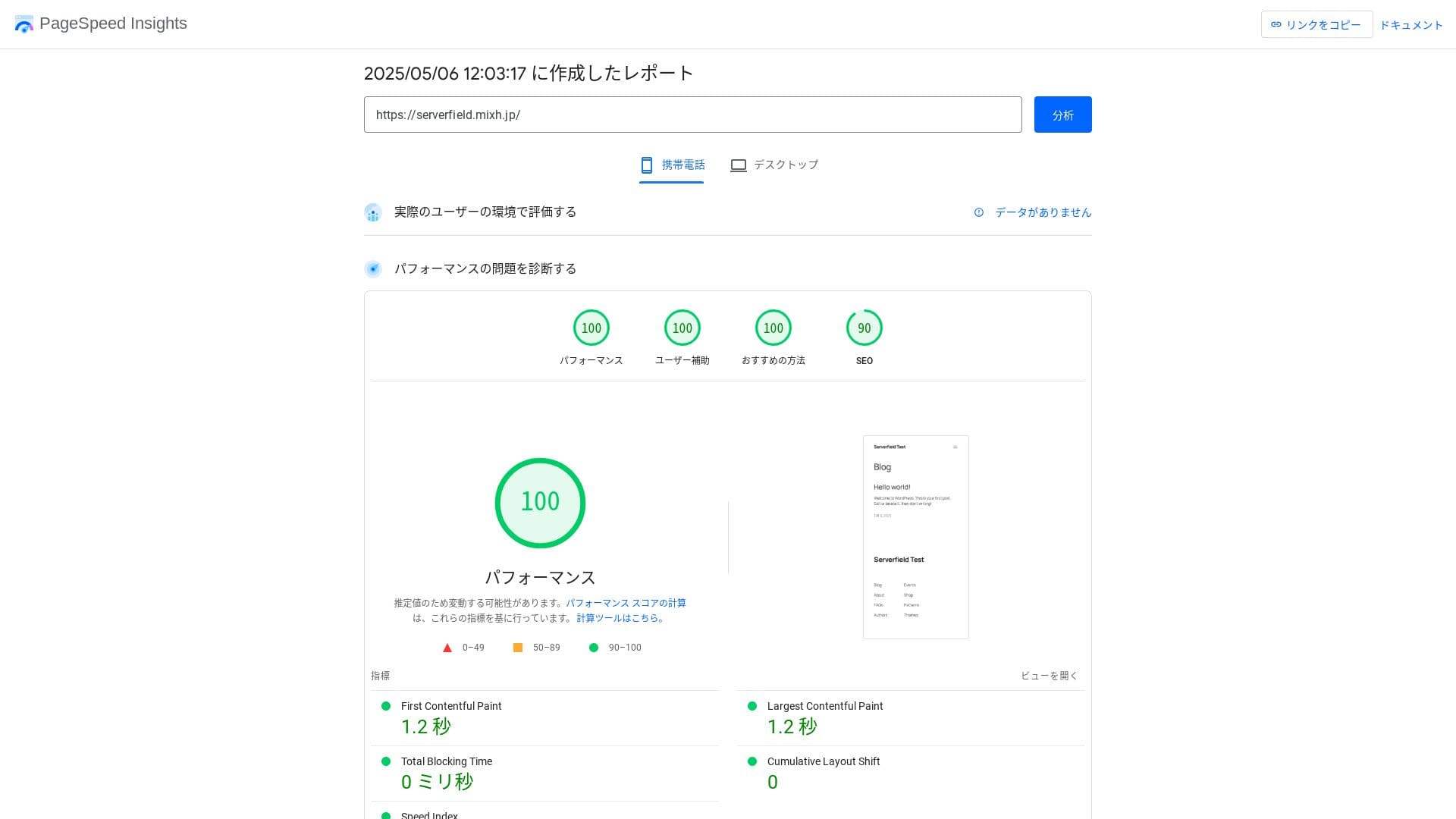
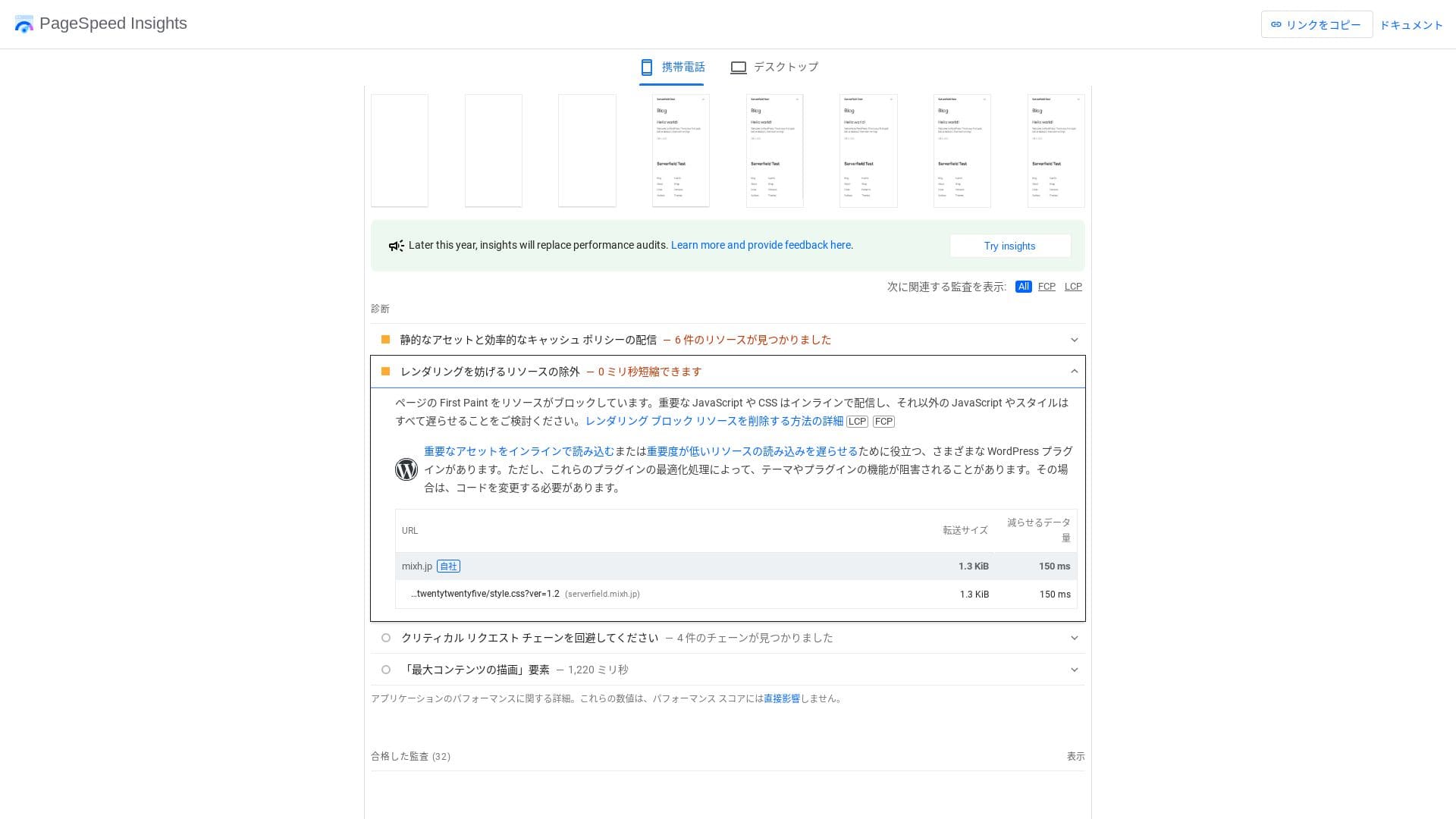
It is fast even when compared with competing servers.
★ Rental hosting speed comparison across 16 companies: Which one is truly fast? [2025 latest edition]
LiteSpeed Web Server
mixhost uses a combination of LiteSpeed Web Server, NVMe SSD, and HTTP/3. The company states that this can be up to 84 times faster than an Apache environment. By working together with the WordPress plugin “LiteSpeed Cache,” it can keep response times stable even during traffic spikes.
LiteSpeed is a commercial web server that is compatible with Apache. Its cache processing is fast, and it supports the latest protocols such as HTTP/3 as quickly as possible.
Storage capacity
The Light plan introduced in April 2025 includes 100 GB, and the other plans provide unlimited capacity on redundant cloud storage. If you are just starting a website or blog, 100 GB is more than enough. This site itself uses only around 2 GB.
Hikaru Ono
mixhost lets you upgrade your plan. As a rule of thumb, if you are using around 80% of your storage, it is time to upgrade.
Simply installing WordPress uses only about 100 MB, so it does not even consume 1% of the Light plan’s storage.
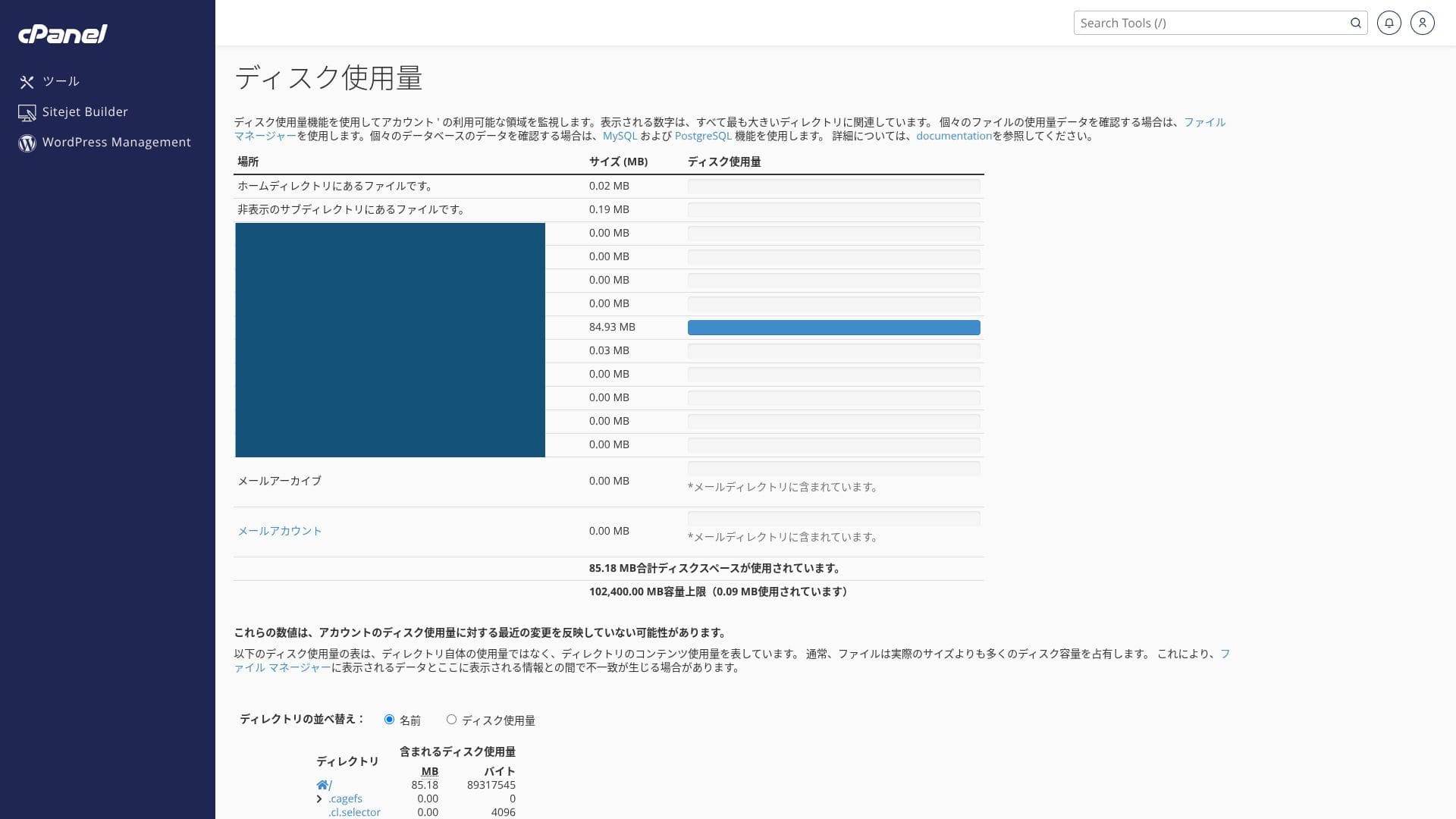
It uses NVMe SSD. This is a data transfer method that is several times faster than conventional SATA SSDs, and it greatly reduces read and write time for database-driven CMSs.
Data transfer
mixhost supports very generous data transfer. Data transfer is the total amount of data the server can send and receive externally, and usage rises as page views increase. The Light plan allows 50 GB per month, Standard 100 GB per month, Premium 200 GB per month, and Business 800 GB per month, so there is plenty of room.
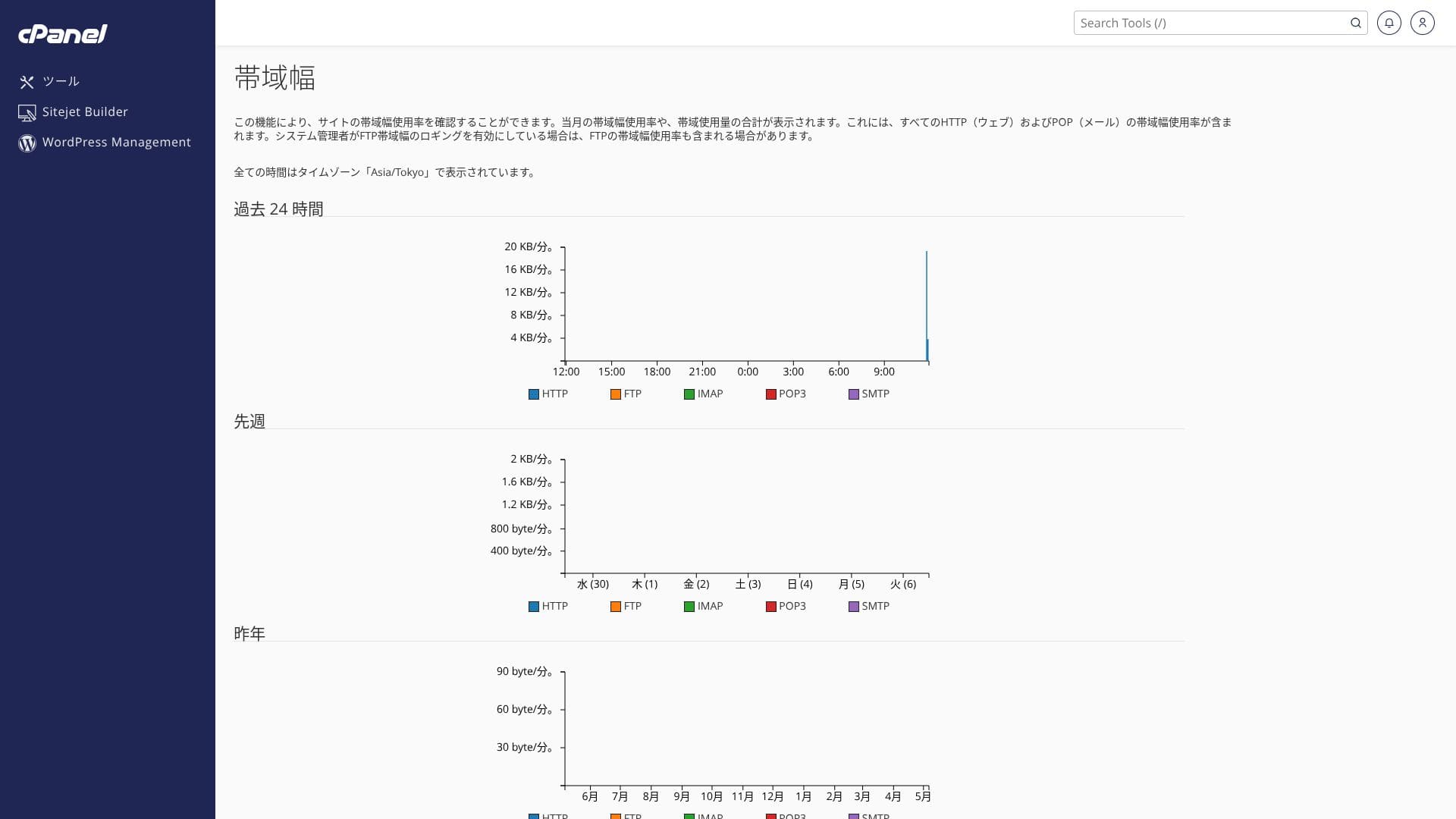
It can handle sudden spikes in attention. You can check your transfer usage from “Service details” in your account page, and recent usage can be checked from “Bandwidth” in cPanel.
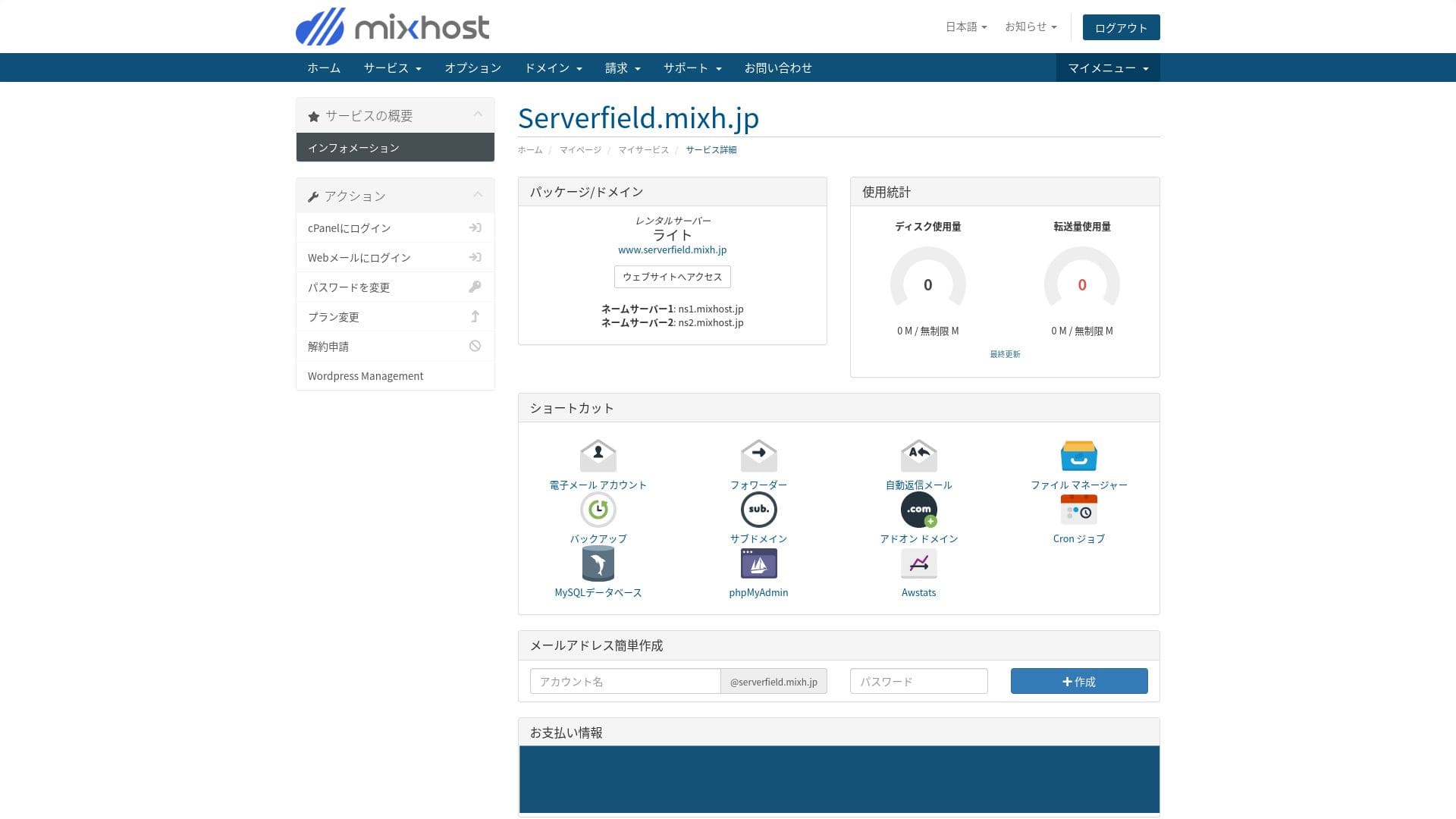
Hikaru Ono
To be honest, every domestic hosting company, including mixhost, secures more than enough transfer capacity, so there is no need to worry too much about it.
★ What are traffic and data transfer? Managing and optimizing web traffic
Server stability and uptime
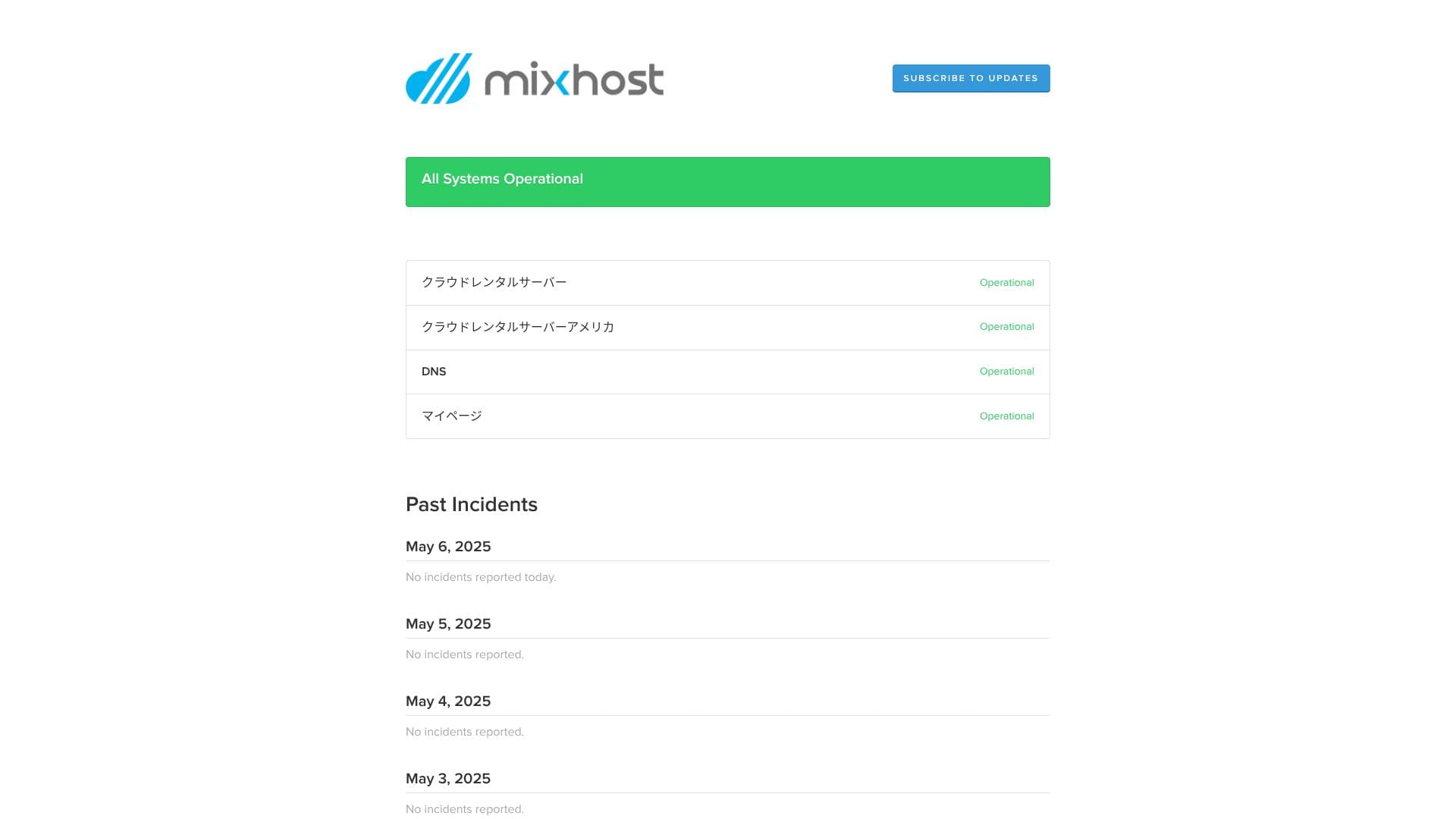
mixhost guarantees 99.99% uptime. If it falls below 99.99%, users receive a refund.
It uses a redundant cloud server environment built on multiple servers. Even if one server fails, traffic switches automatically to another server, so stability is extremely high. That allows you to operate your site with peace of mind.
It publicly discloses server outage and maintenance information, which is a good sign of honesty.
★ A must-read for beginners: Understand rental server uptime and SLAs
Pricing and cost review
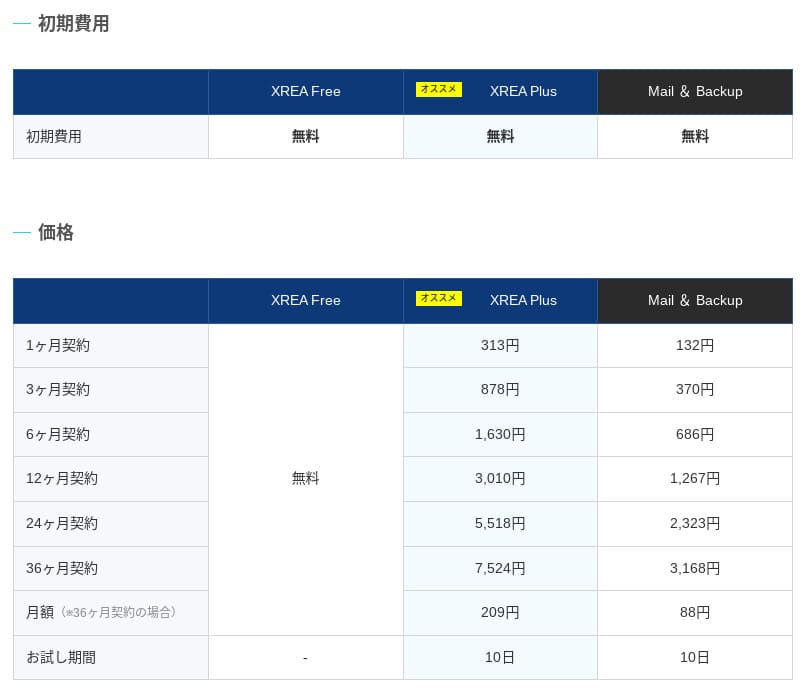
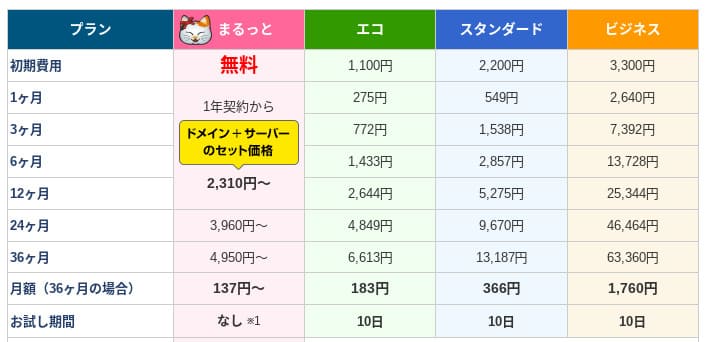
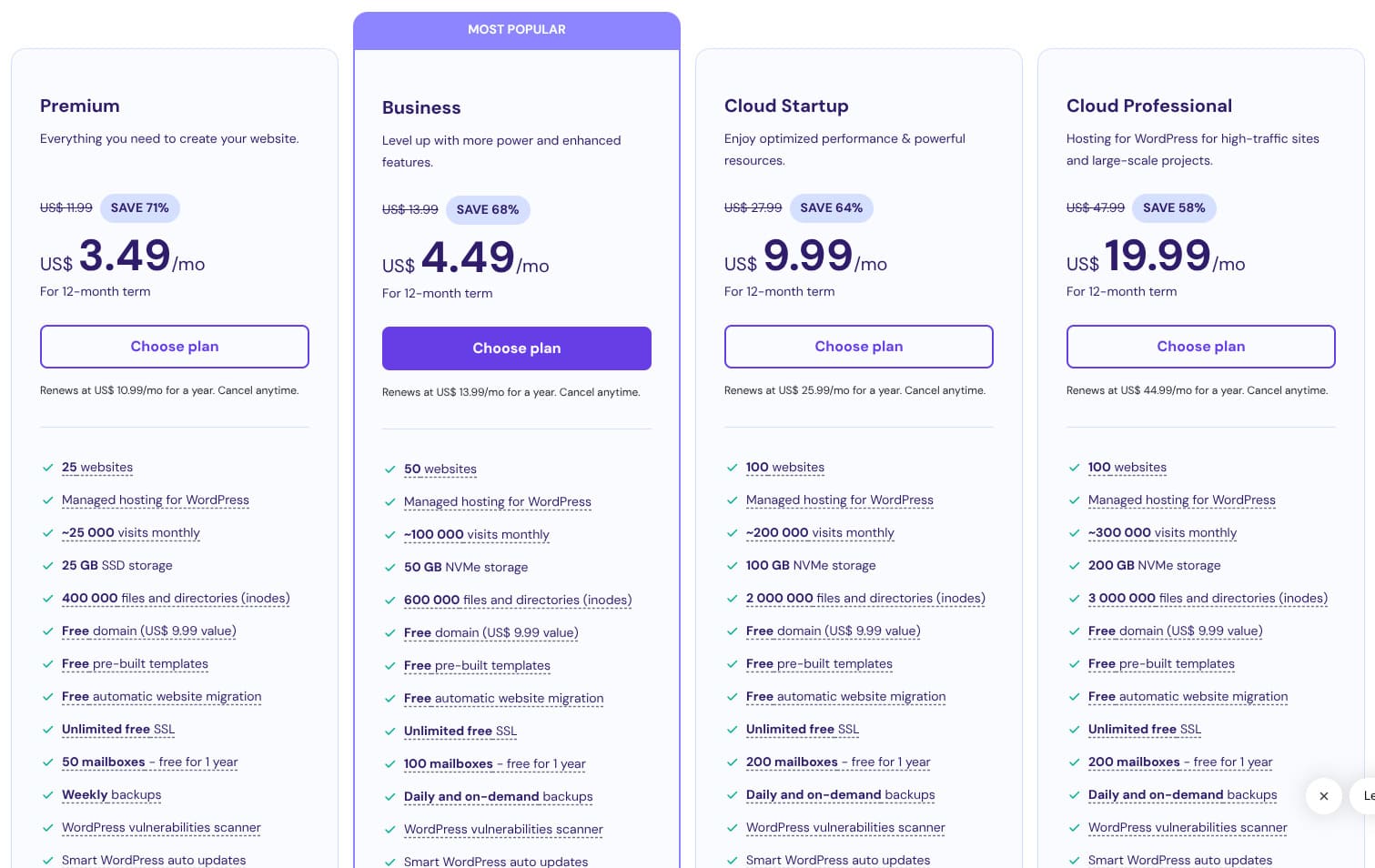
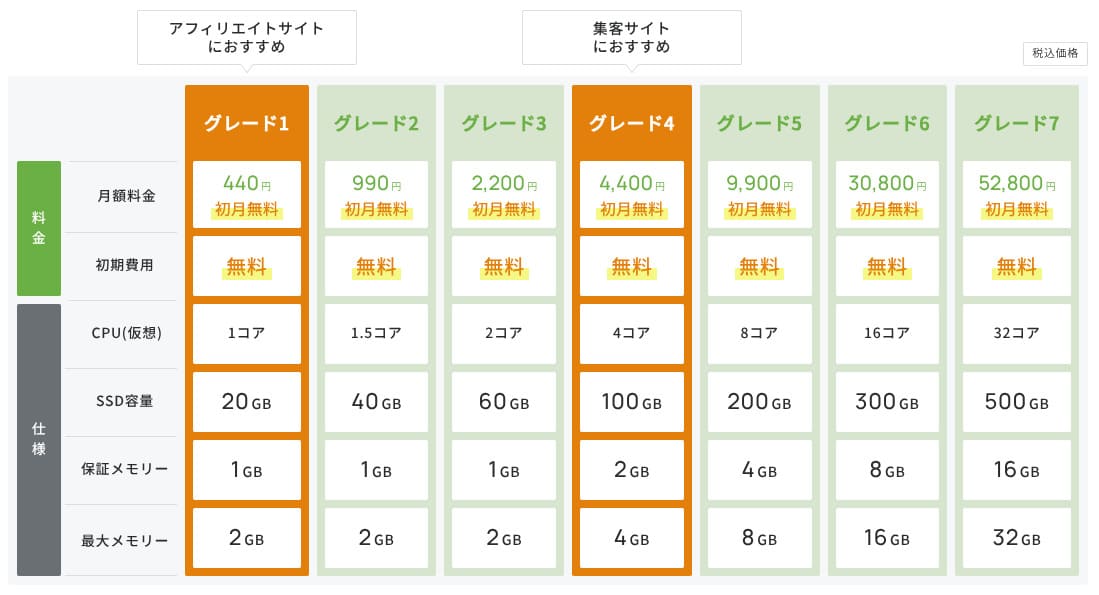
Initial fees and monthly pricing
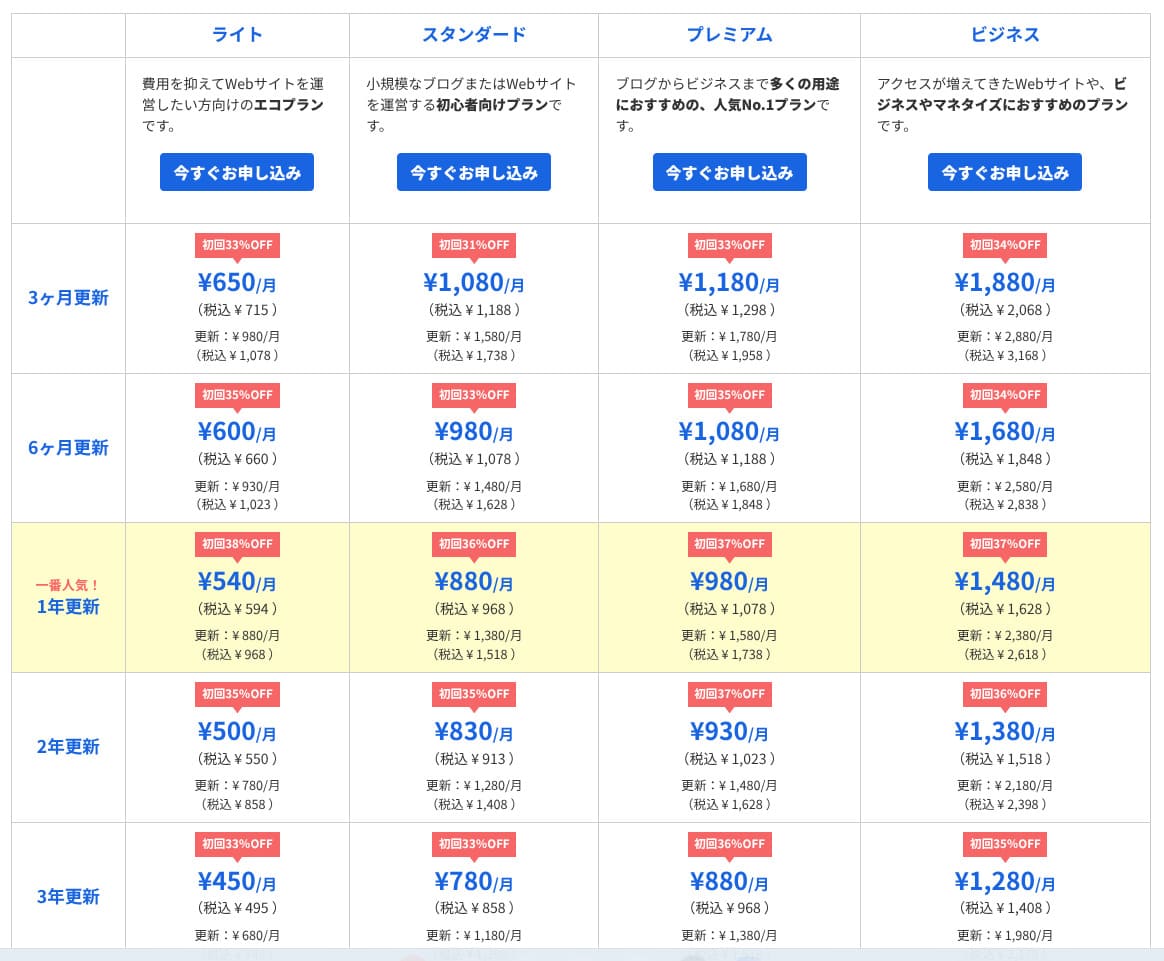
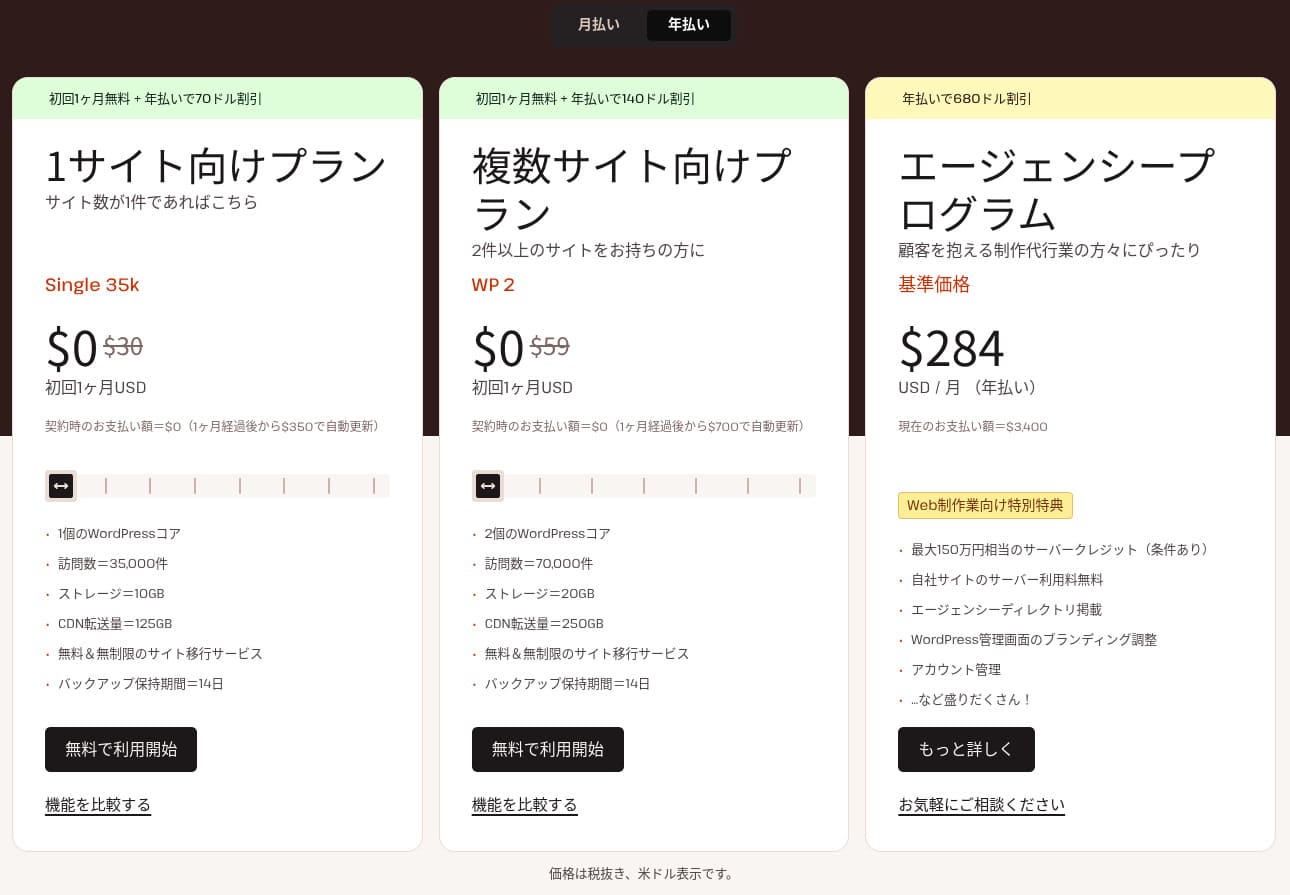
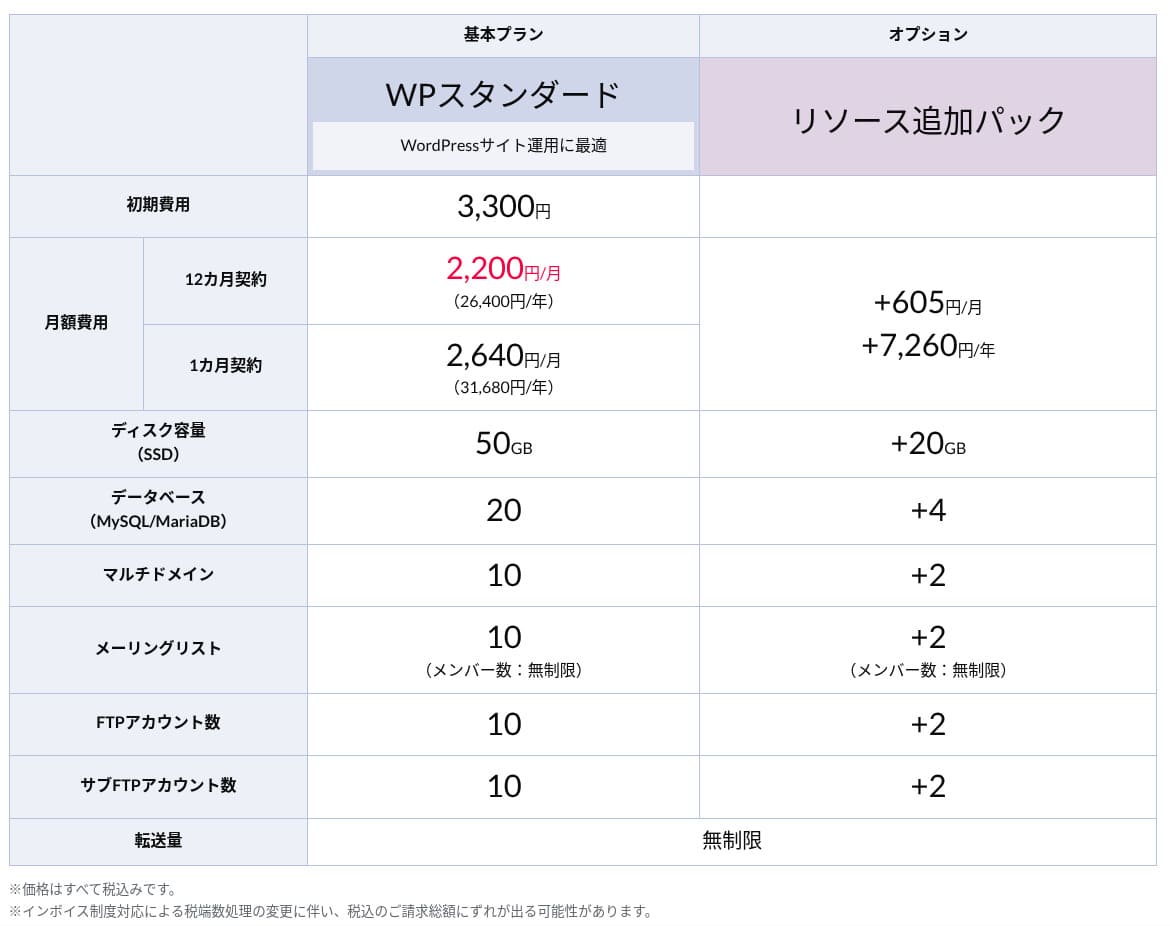
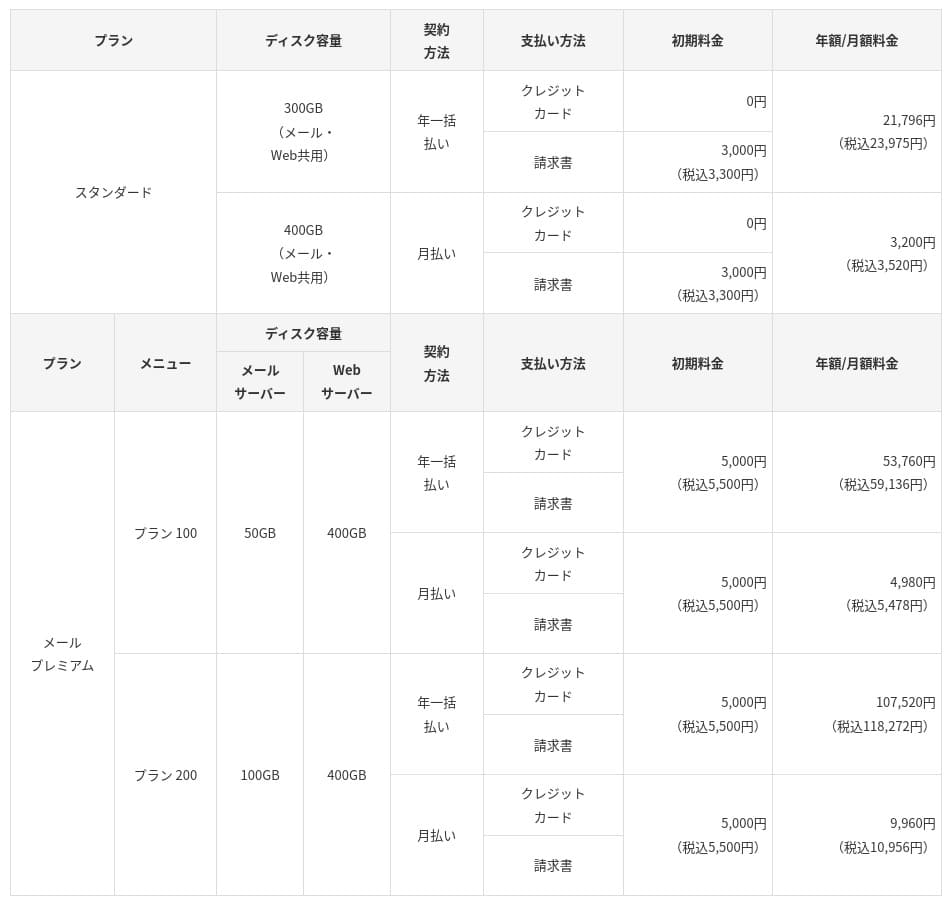
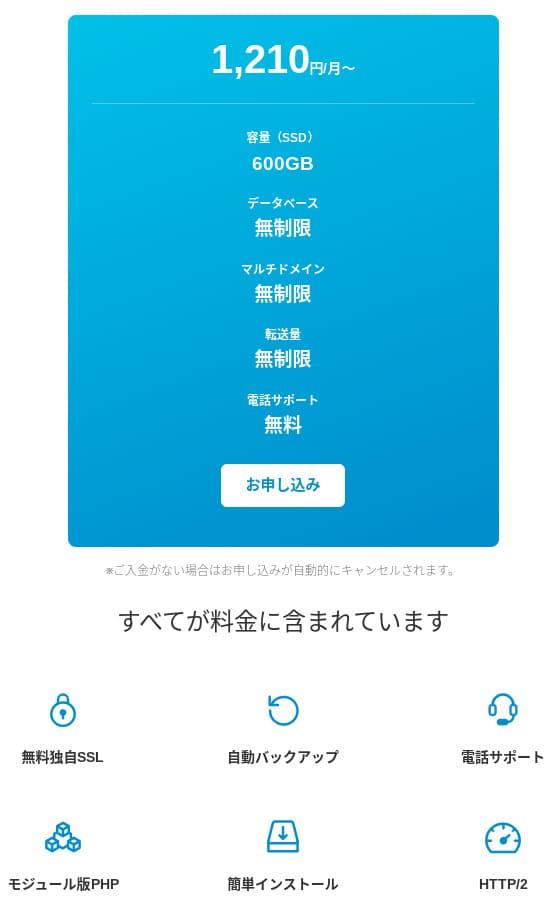
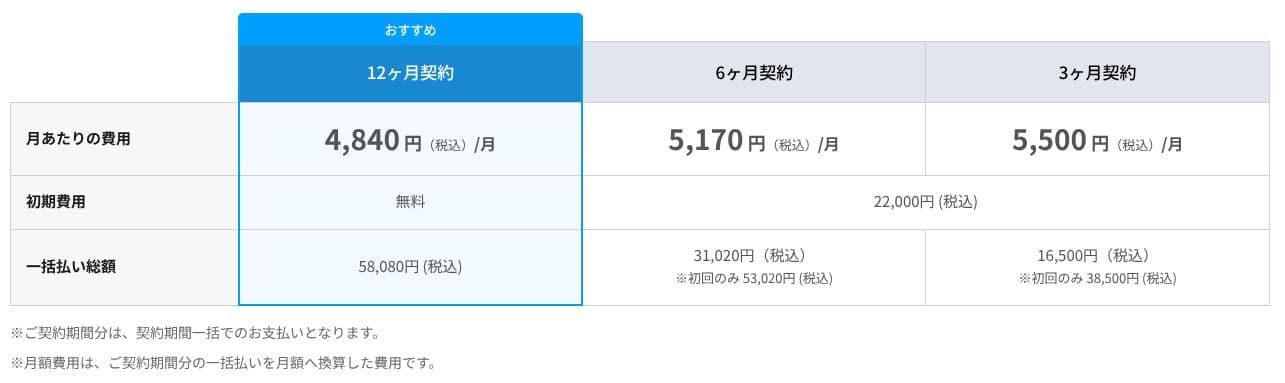
mixhost charges no initial fee on any plan. Monthly pricing gets cheaper as the contract term gets longer. On the affordable Light plan, the initial 12-month contract costs 594 yen per month including tax. On a 36-month contract, it drops to 495 yen per month including tax, which is excellent value.
The signup pricing is low, but remember that the price returns to the standard rate at renewal. On the Light plan, the 12-month renewal rate is 968 yen per month including tax.
- mixhost
- Kinsta
- XServer Business
- wpx
- Lolipop!
- Star Rental Server
- Rakko Server
- XServer
- ConoHa
- Colorful Box
- Shin Rental Server
- Little Server
- CORESERVER
- DreamHost
- Bluehost
- Sakura
- Namecheap
- Shin Free
- XREA
- Value Server
- HOSTINGER
- KAGOYA
- SiteGround
- Hostgator
- IONOS
- Onamae.com
- ABLENET
- GoDaddy
- iCLUSTA+
- MuuMuu Server
- WADAX
- WebARENA
- heteml
- CPI Rental Server
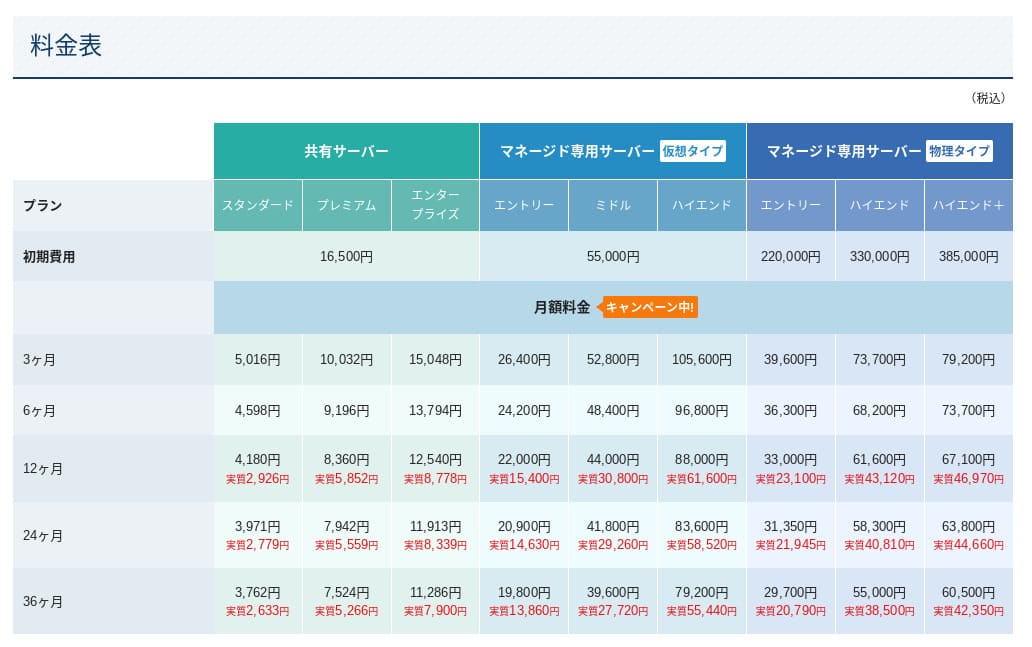
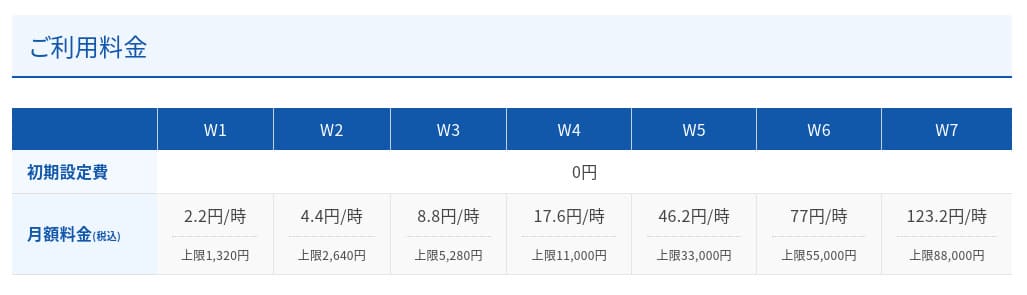
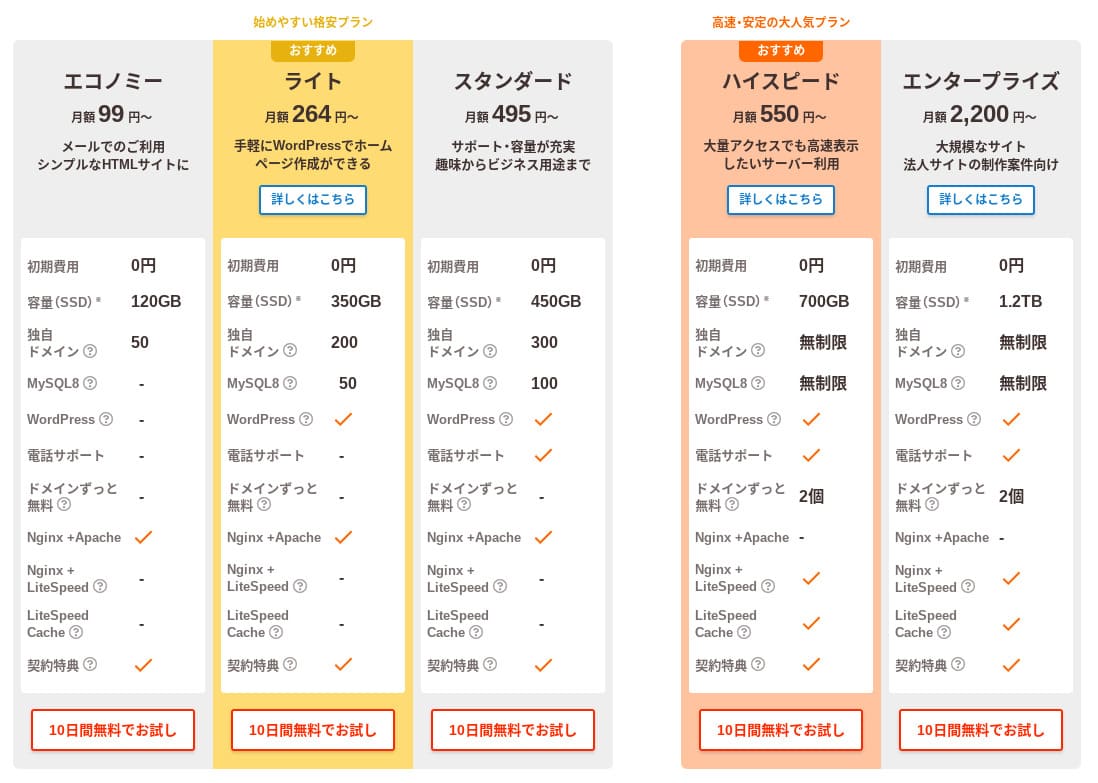
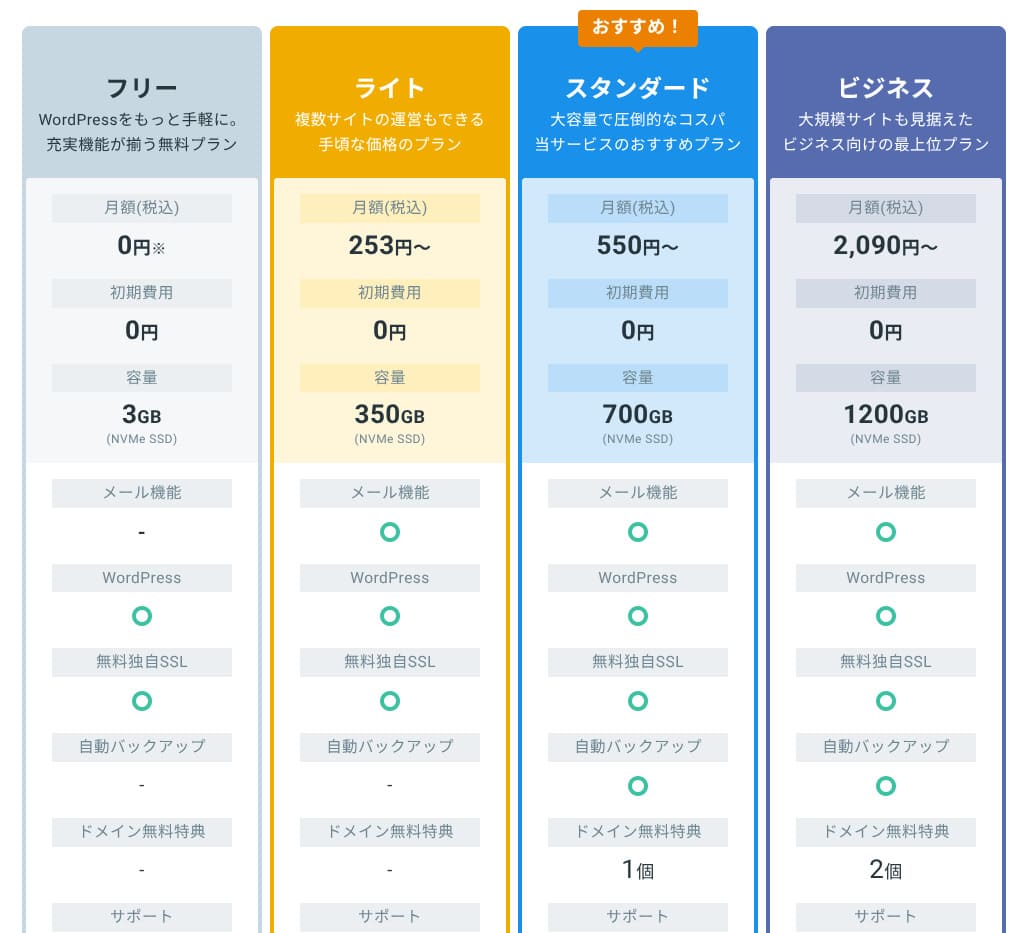
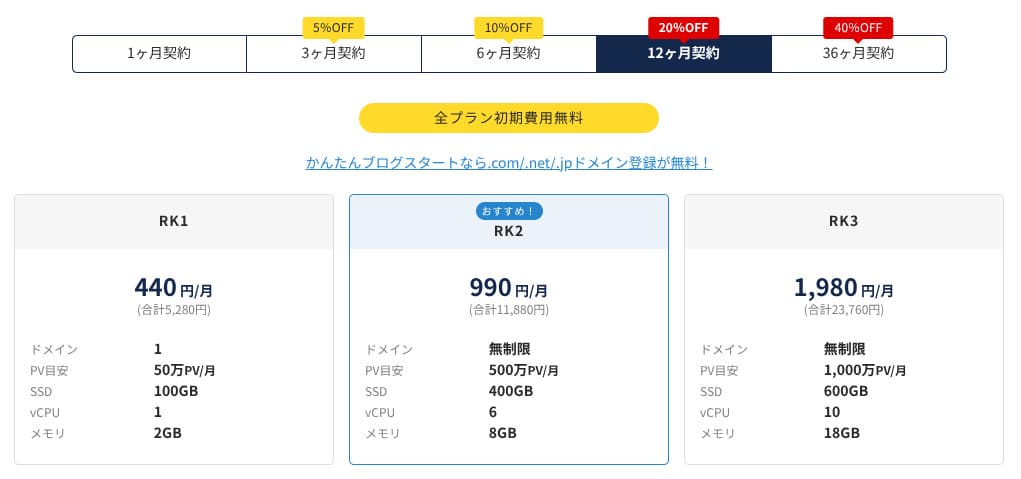
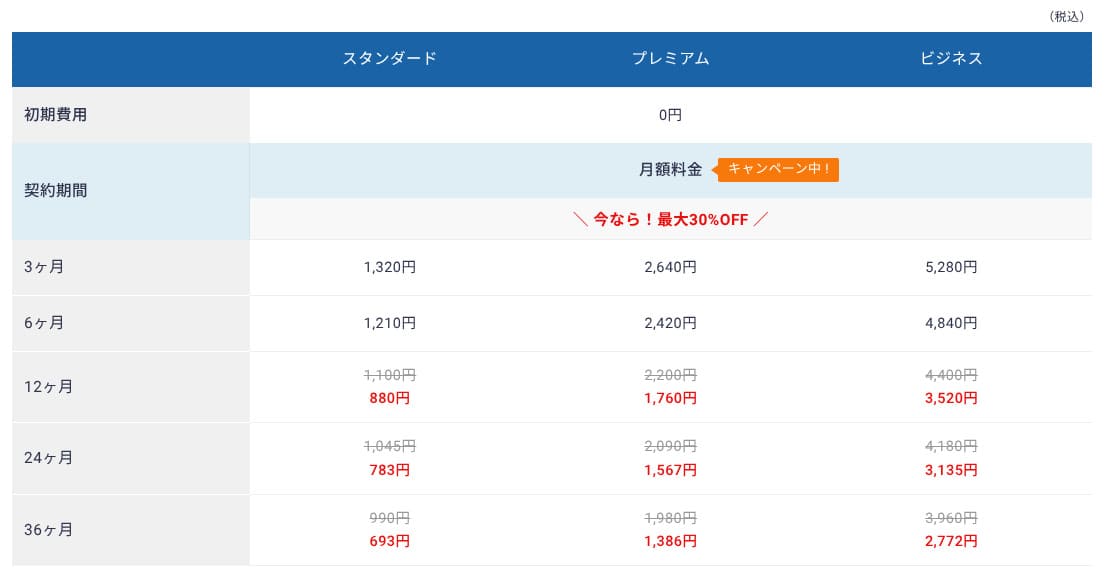
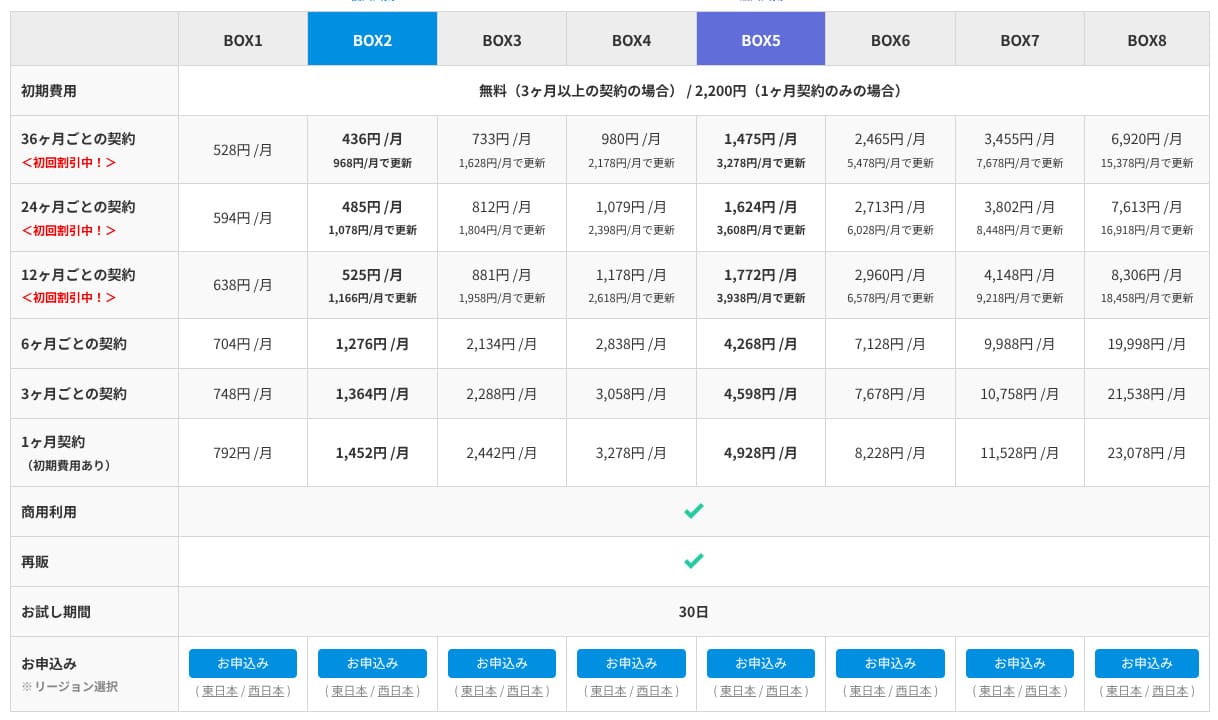
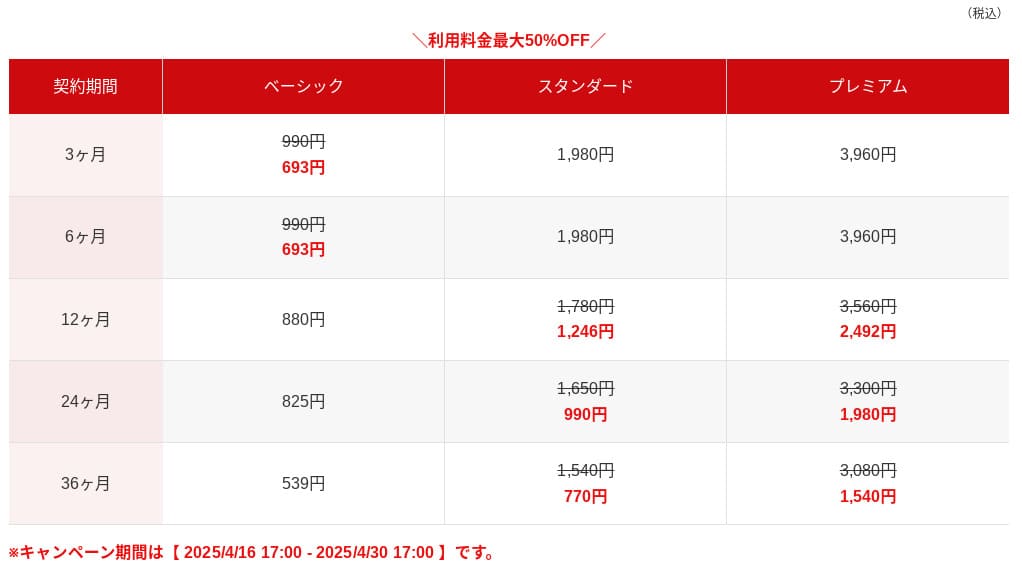
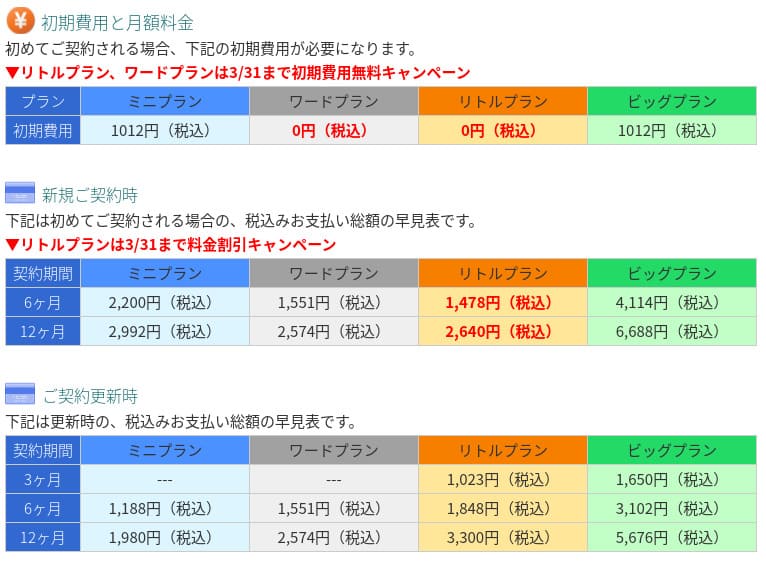
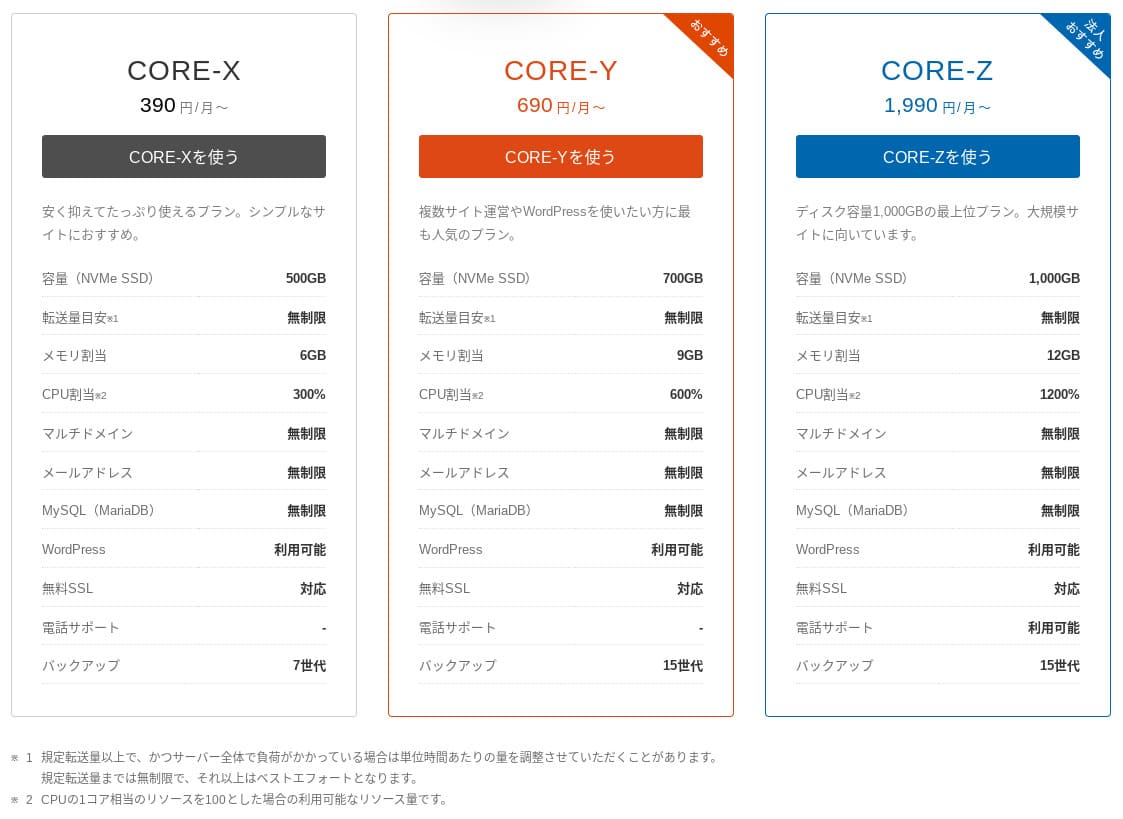
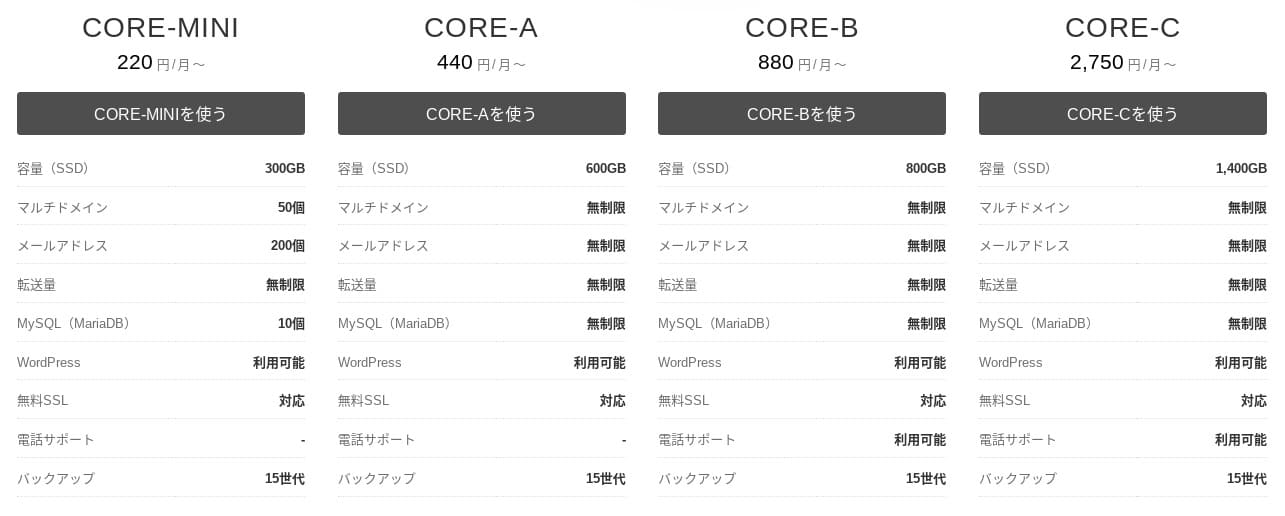
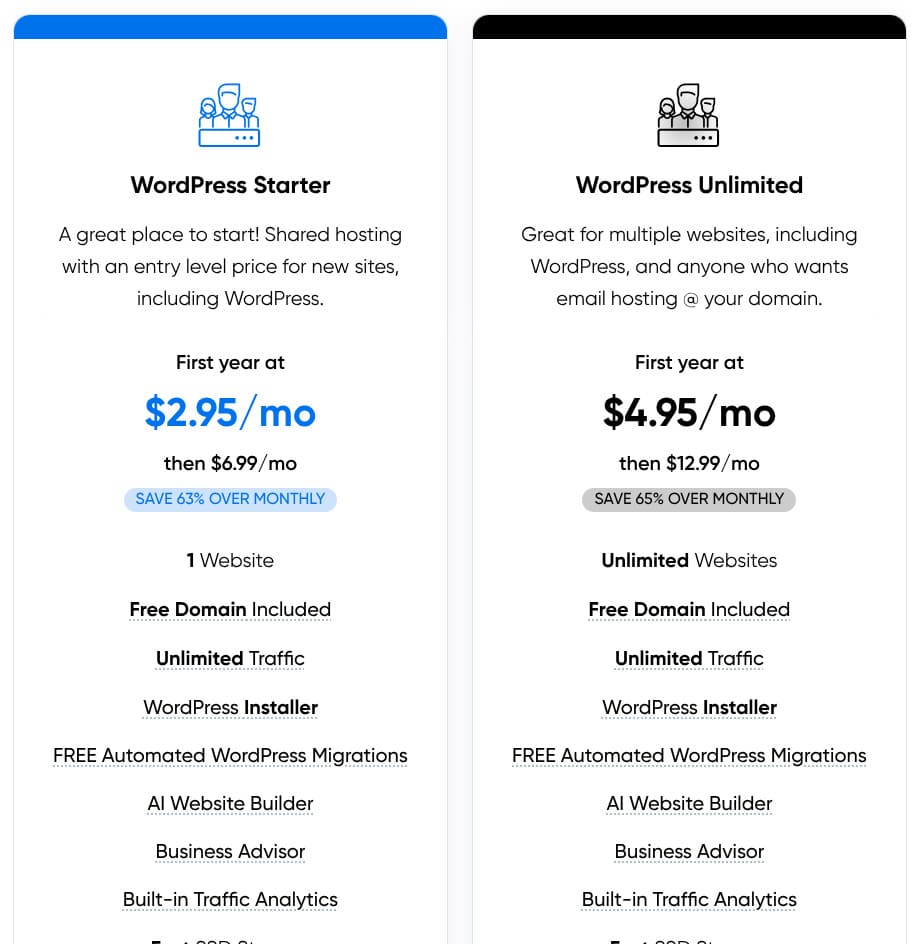
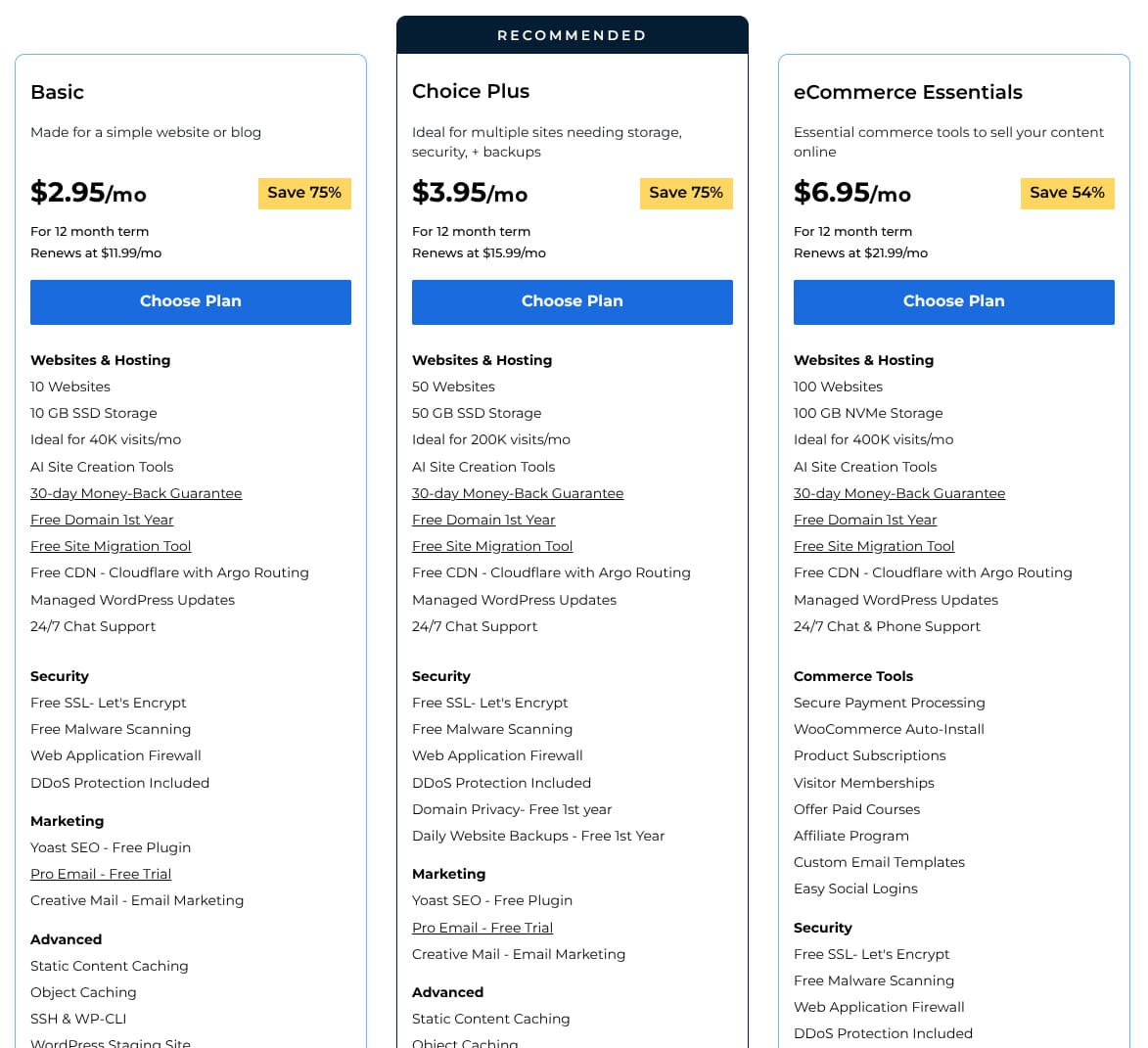
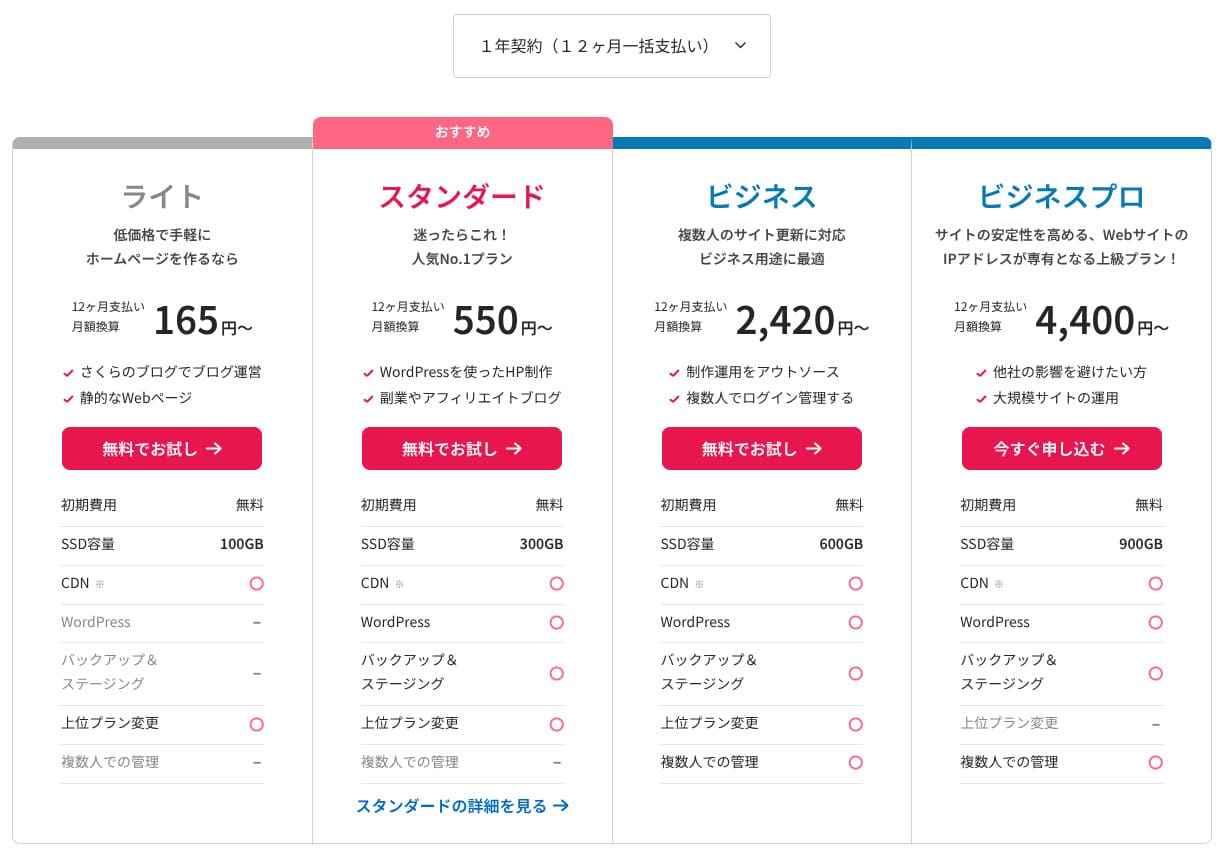
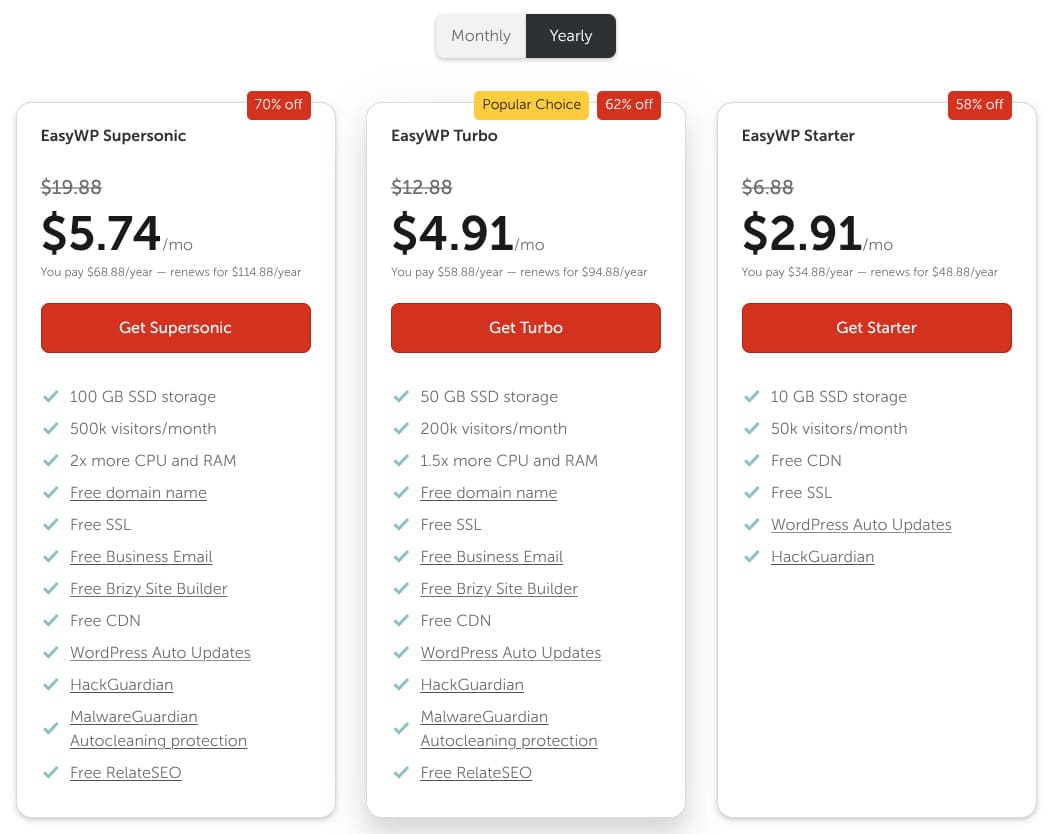
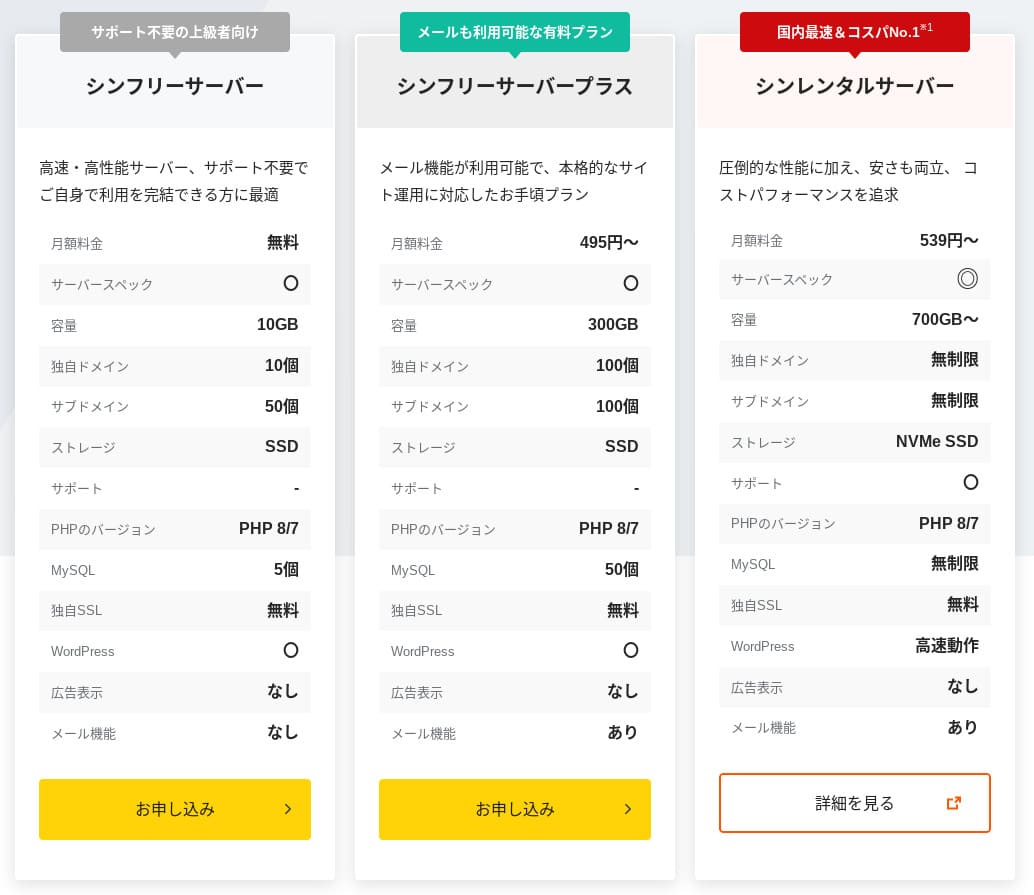
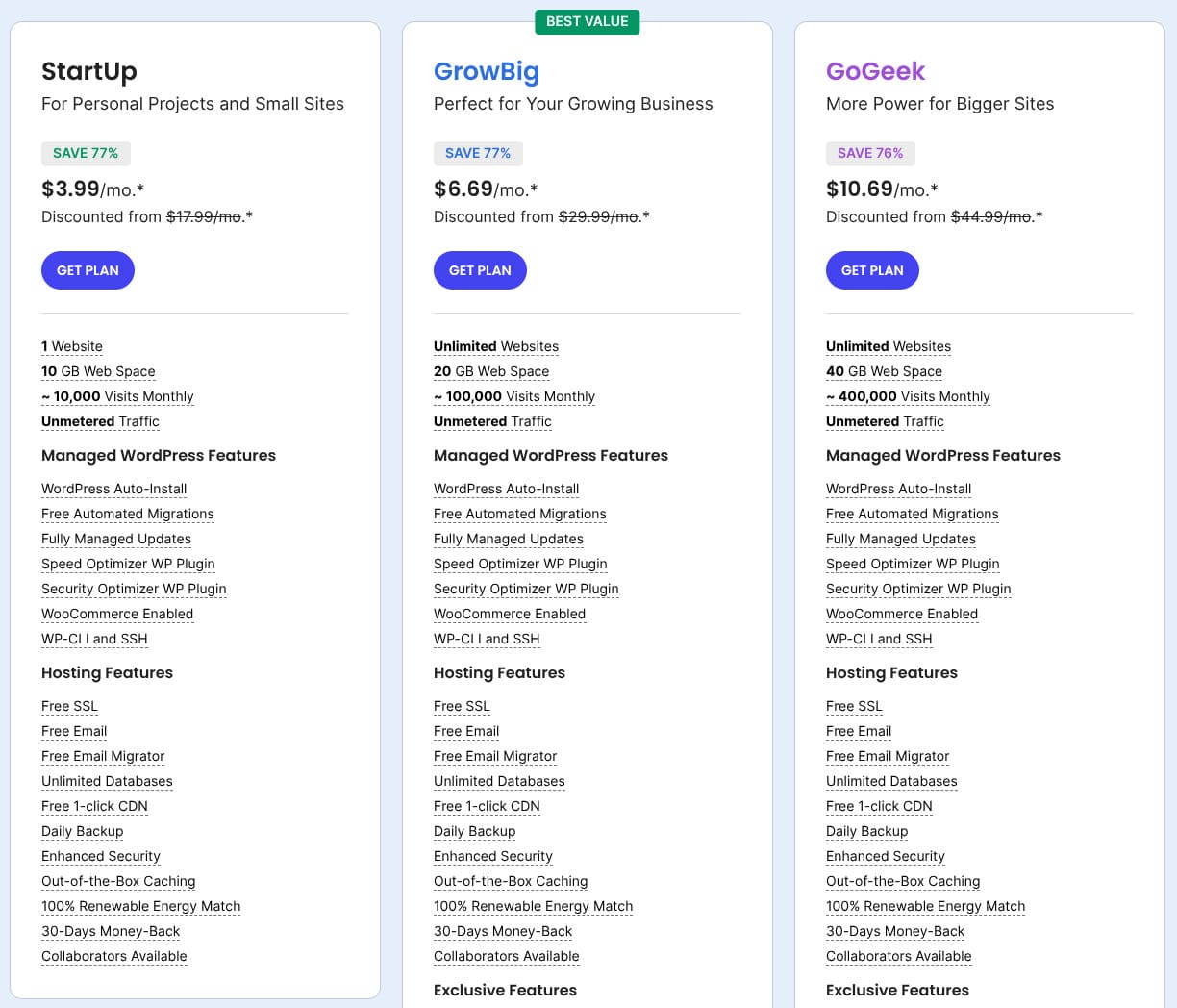
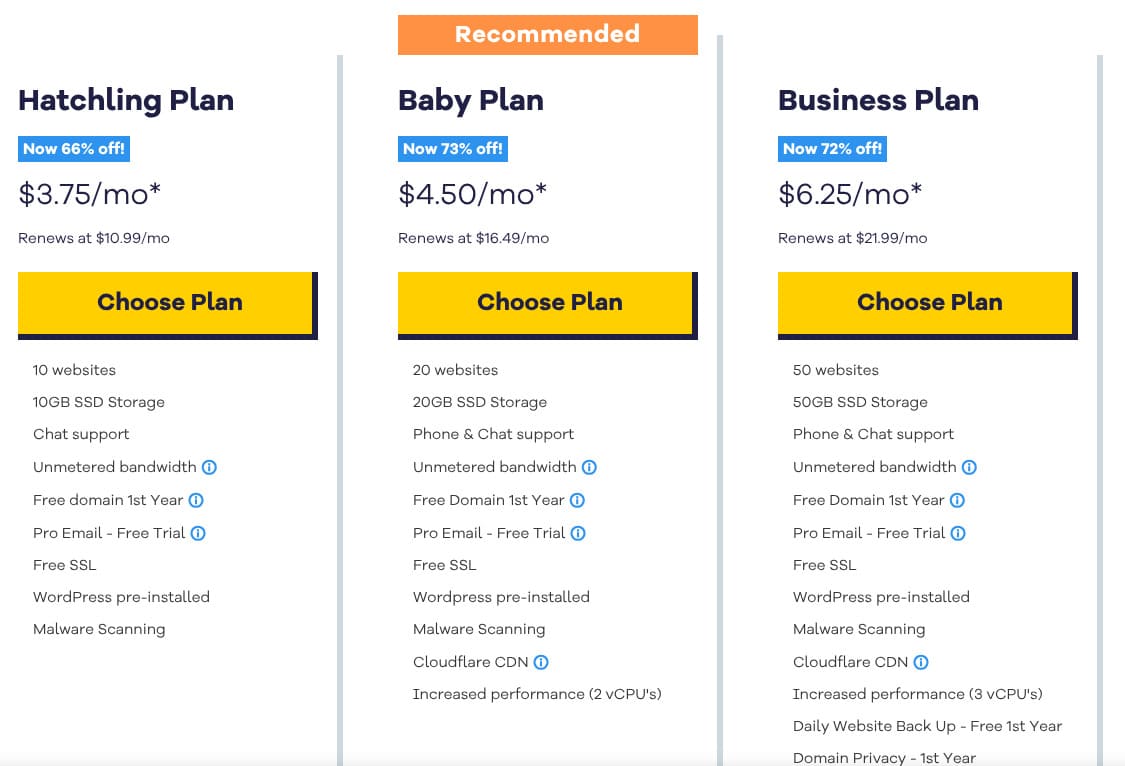
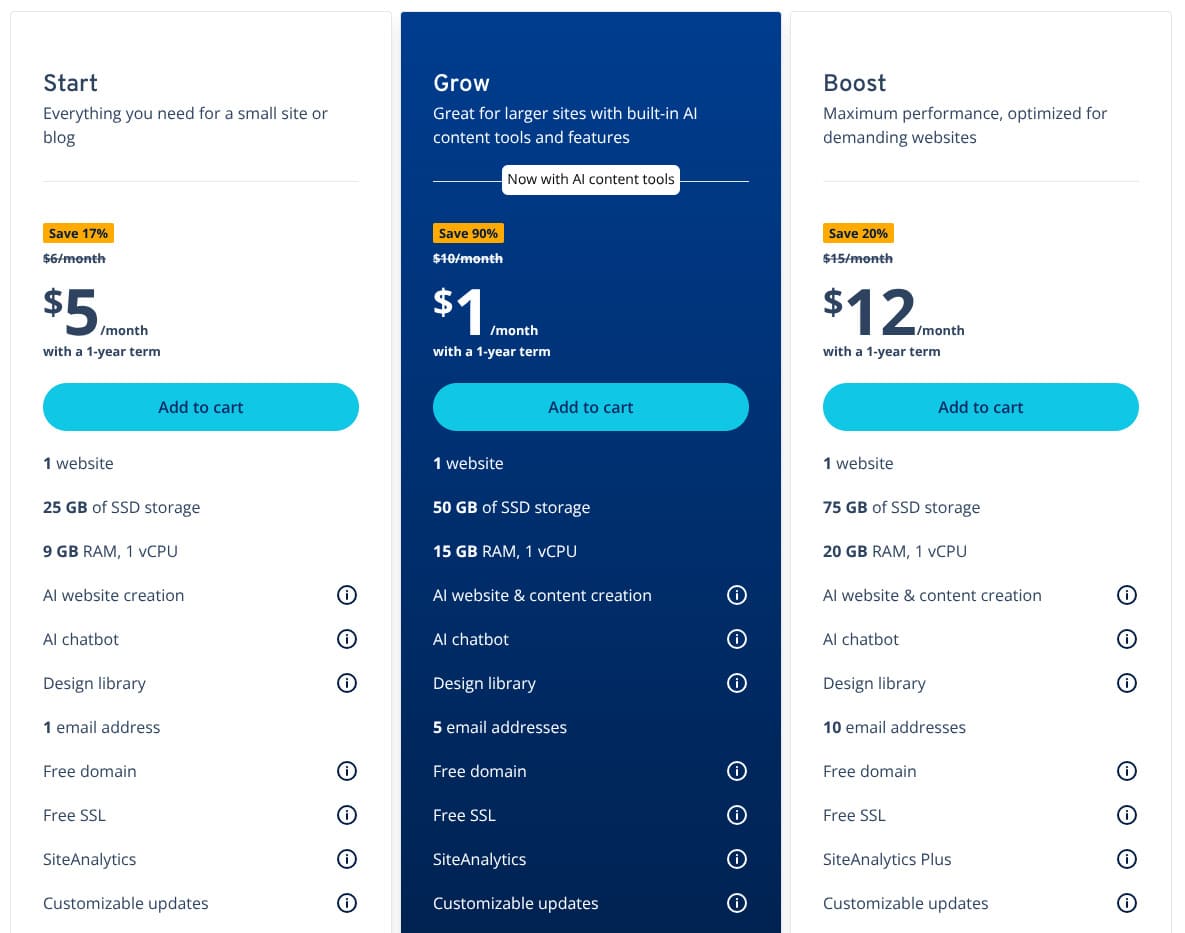
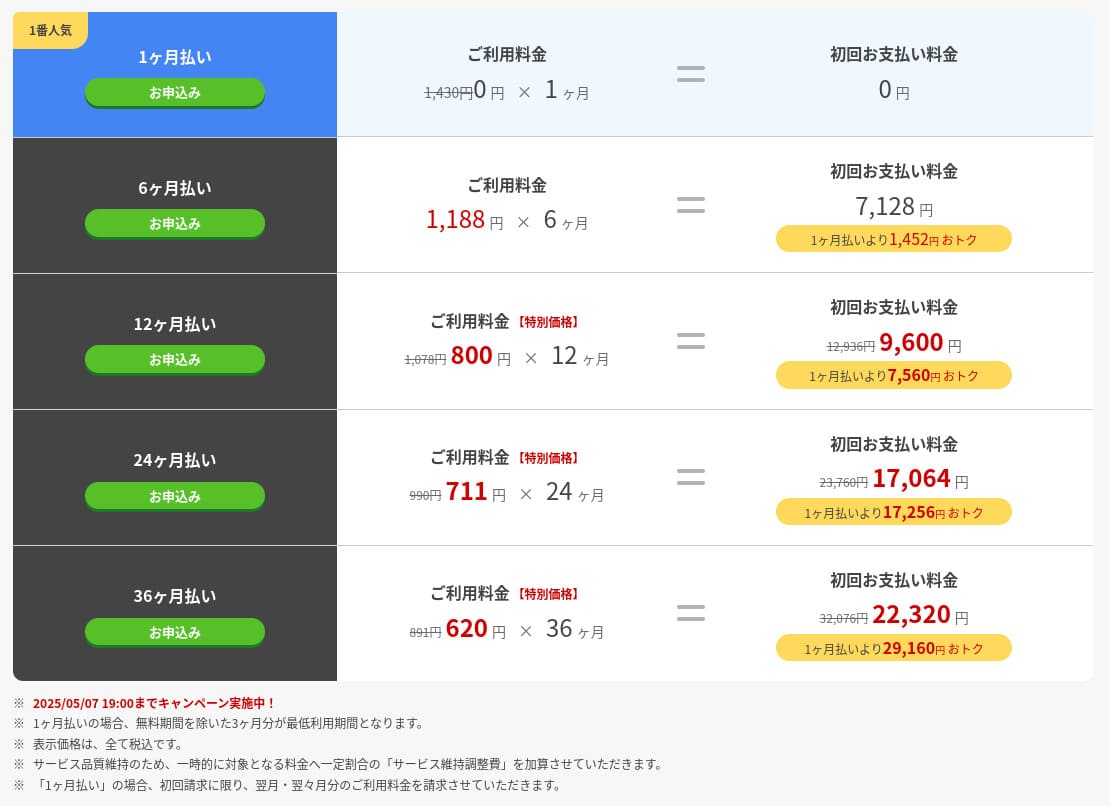
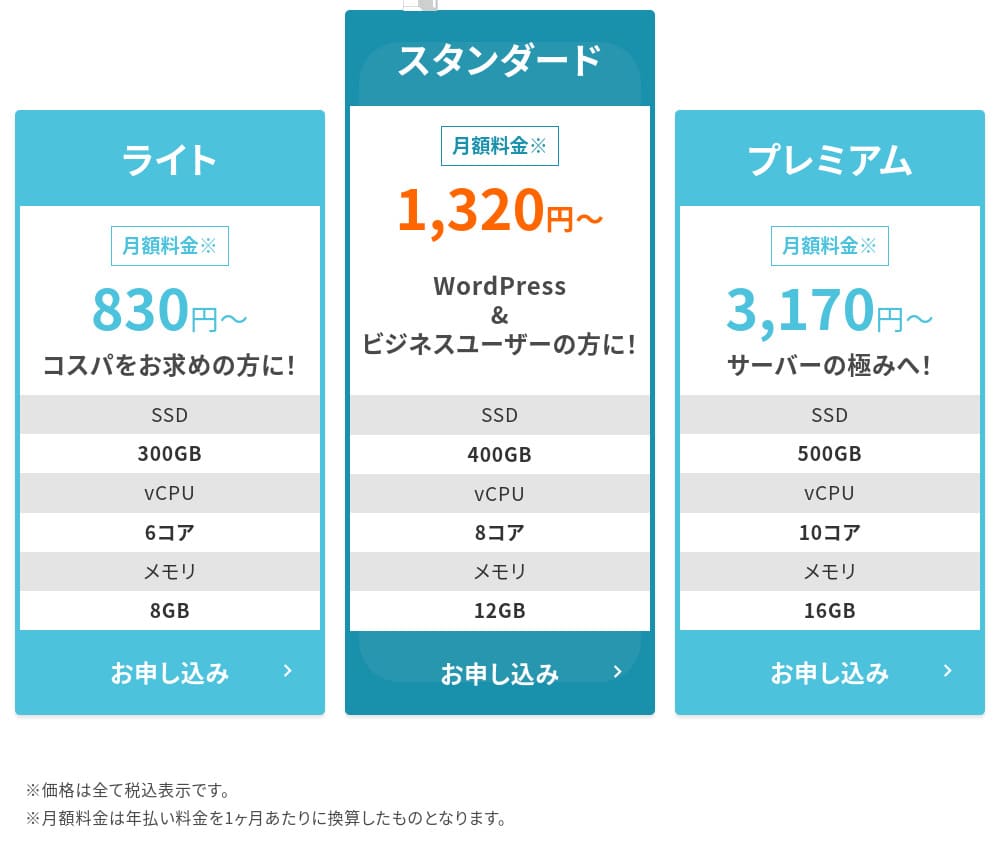
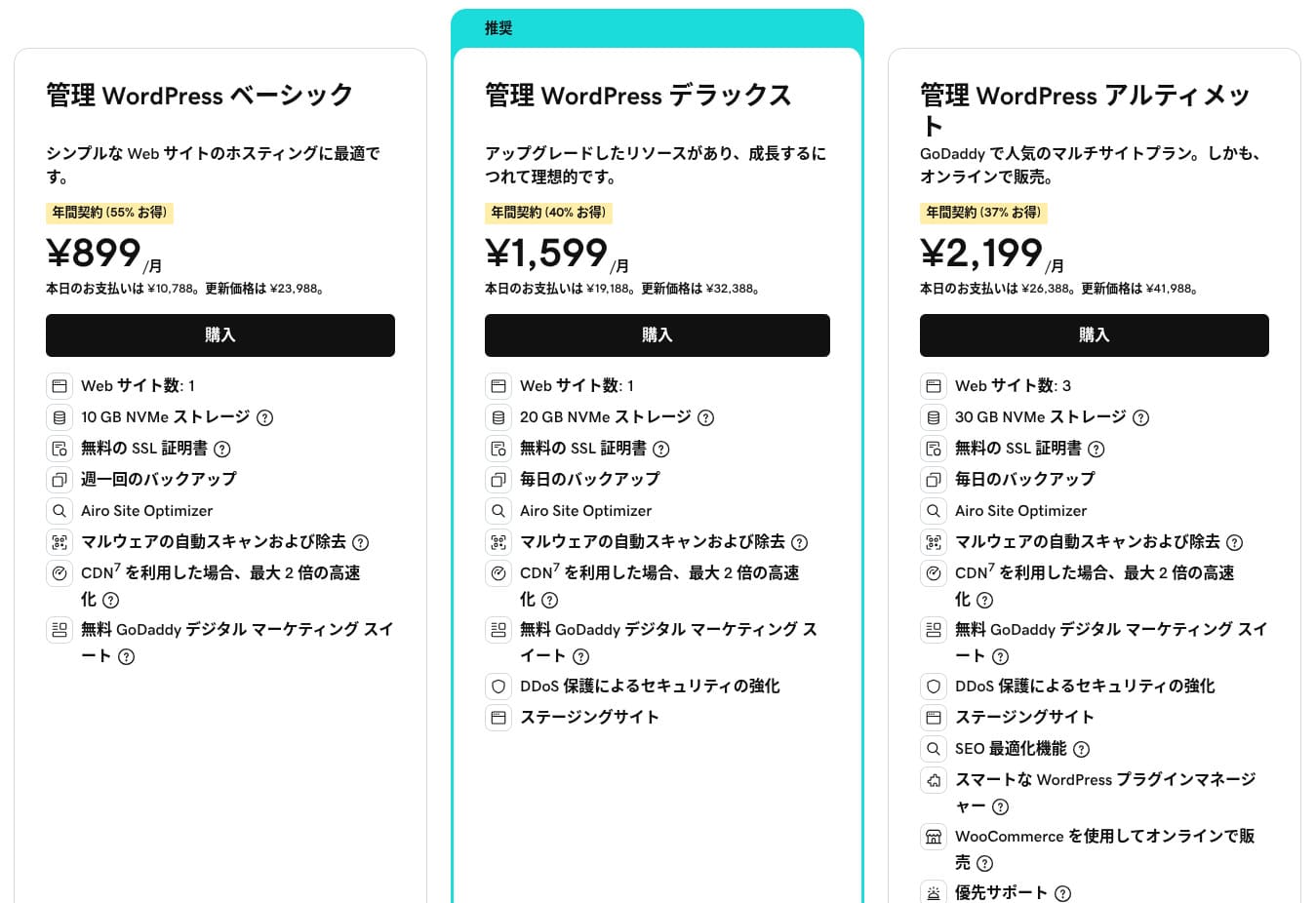
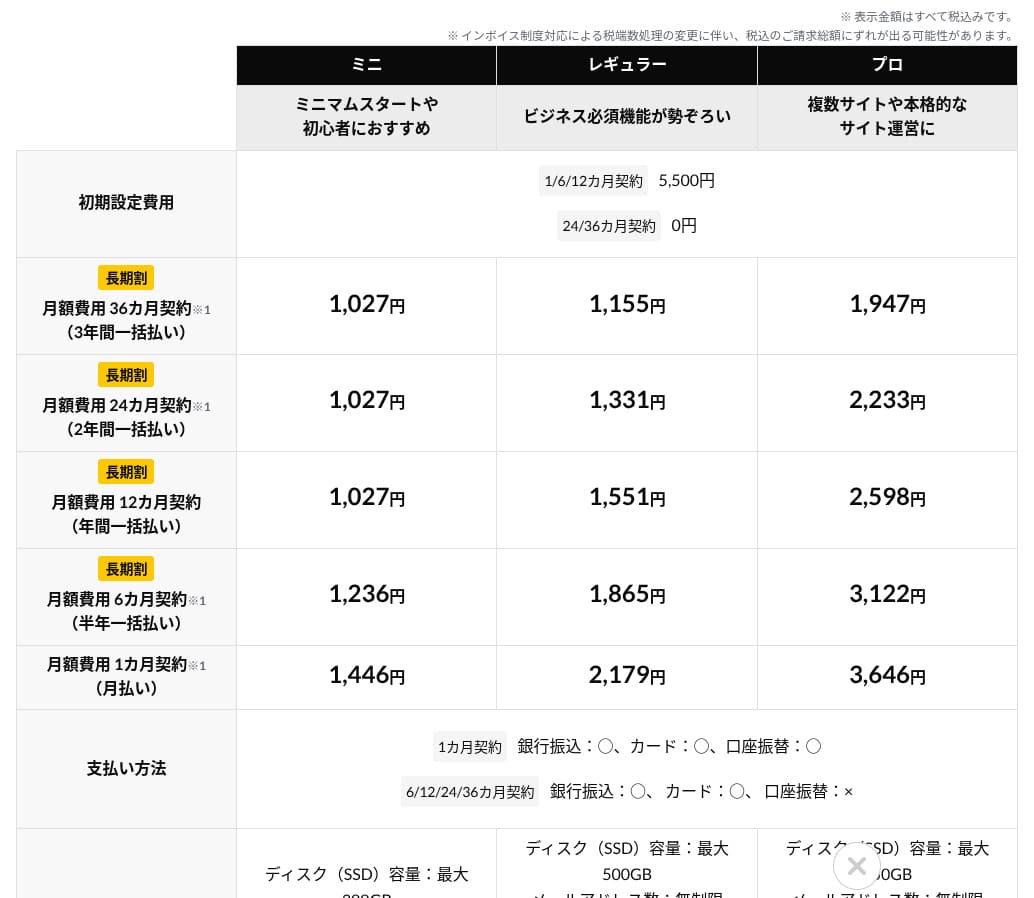
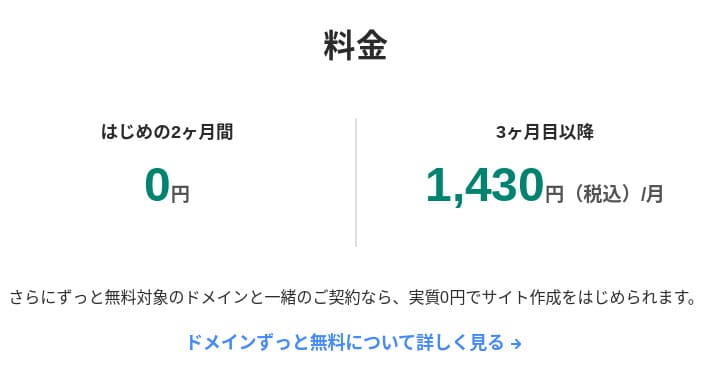
Domain pricing
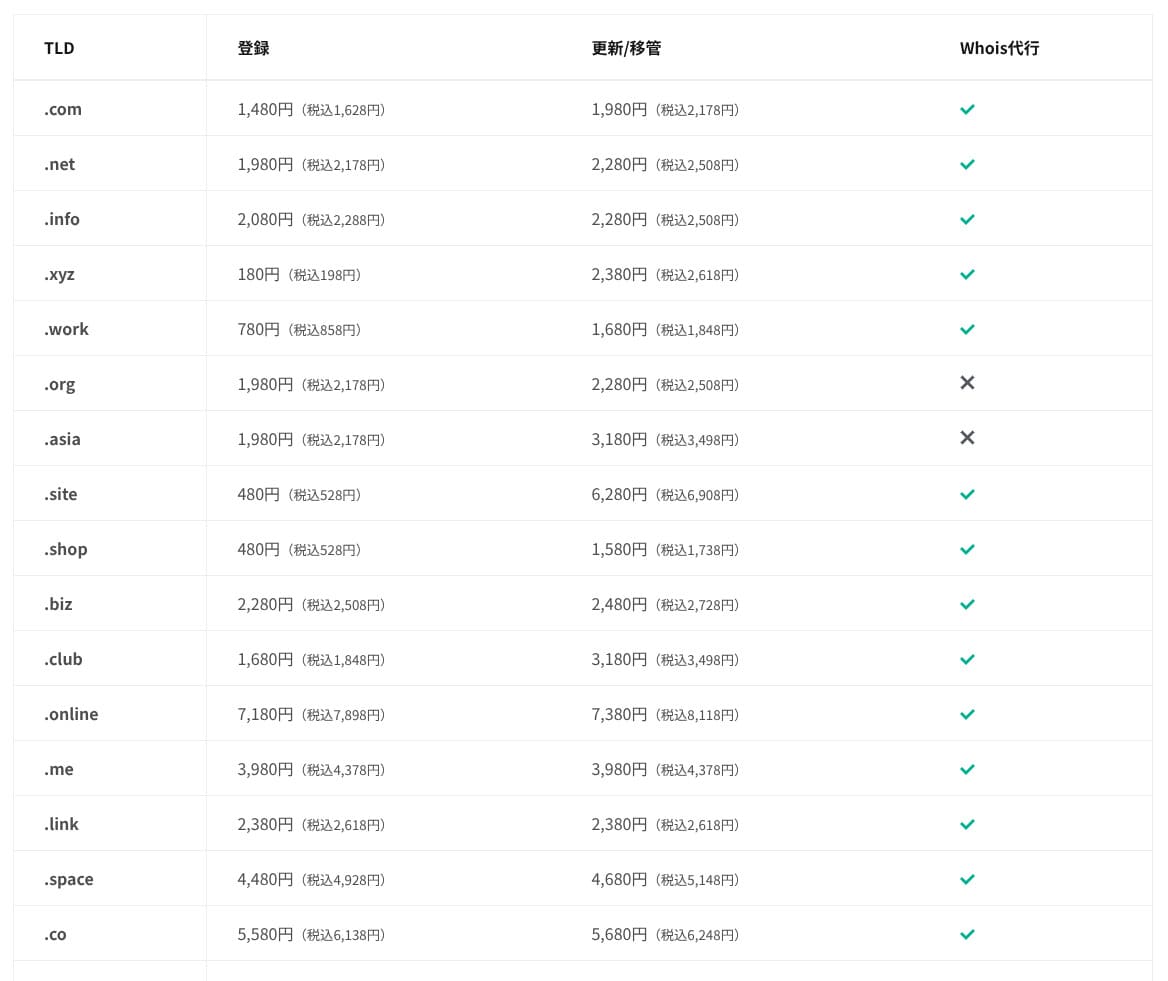
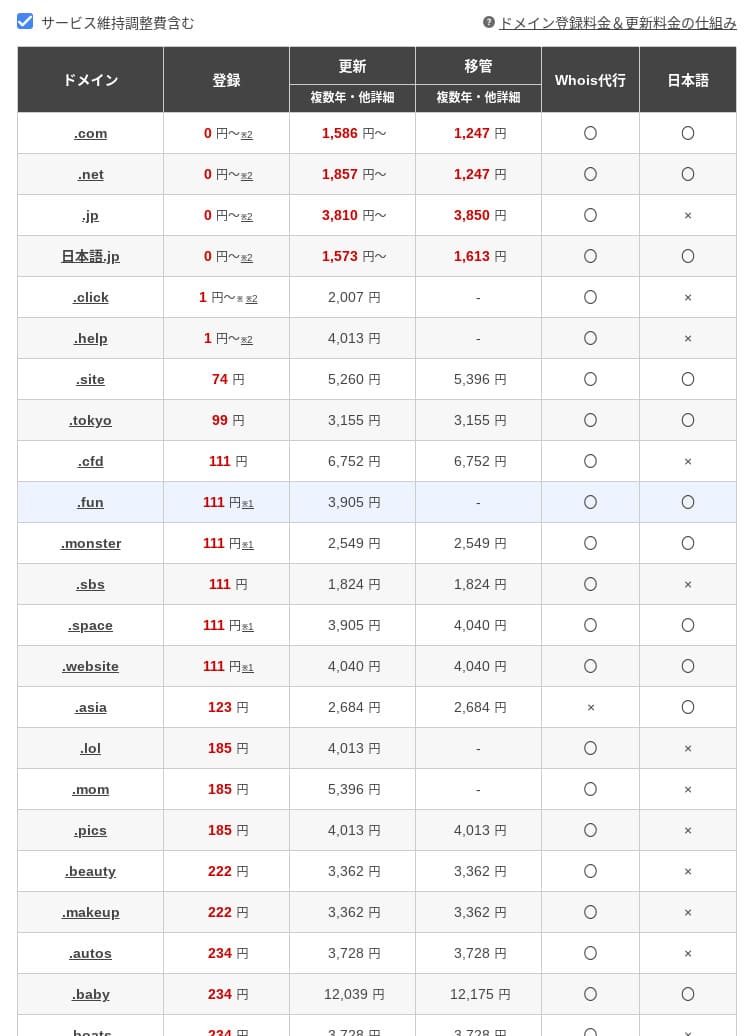
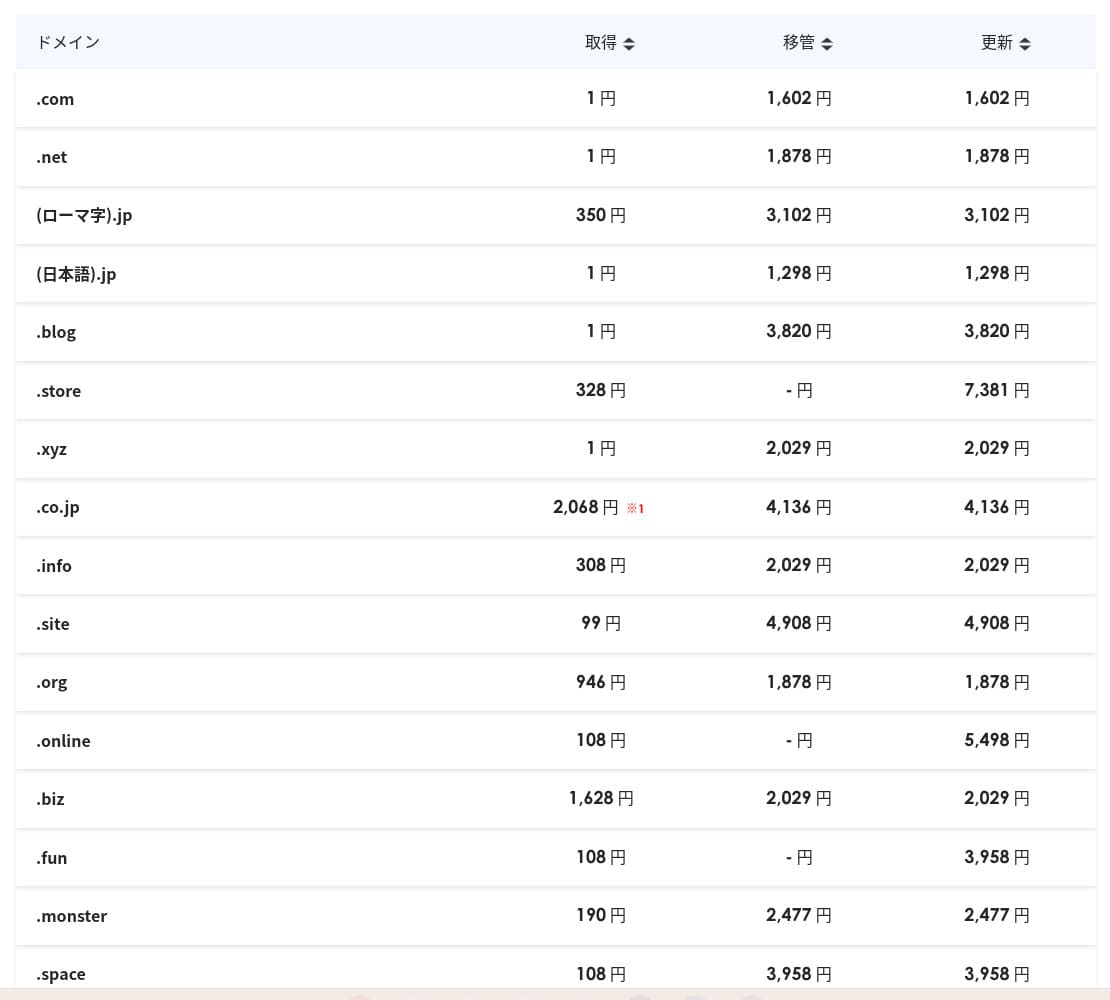
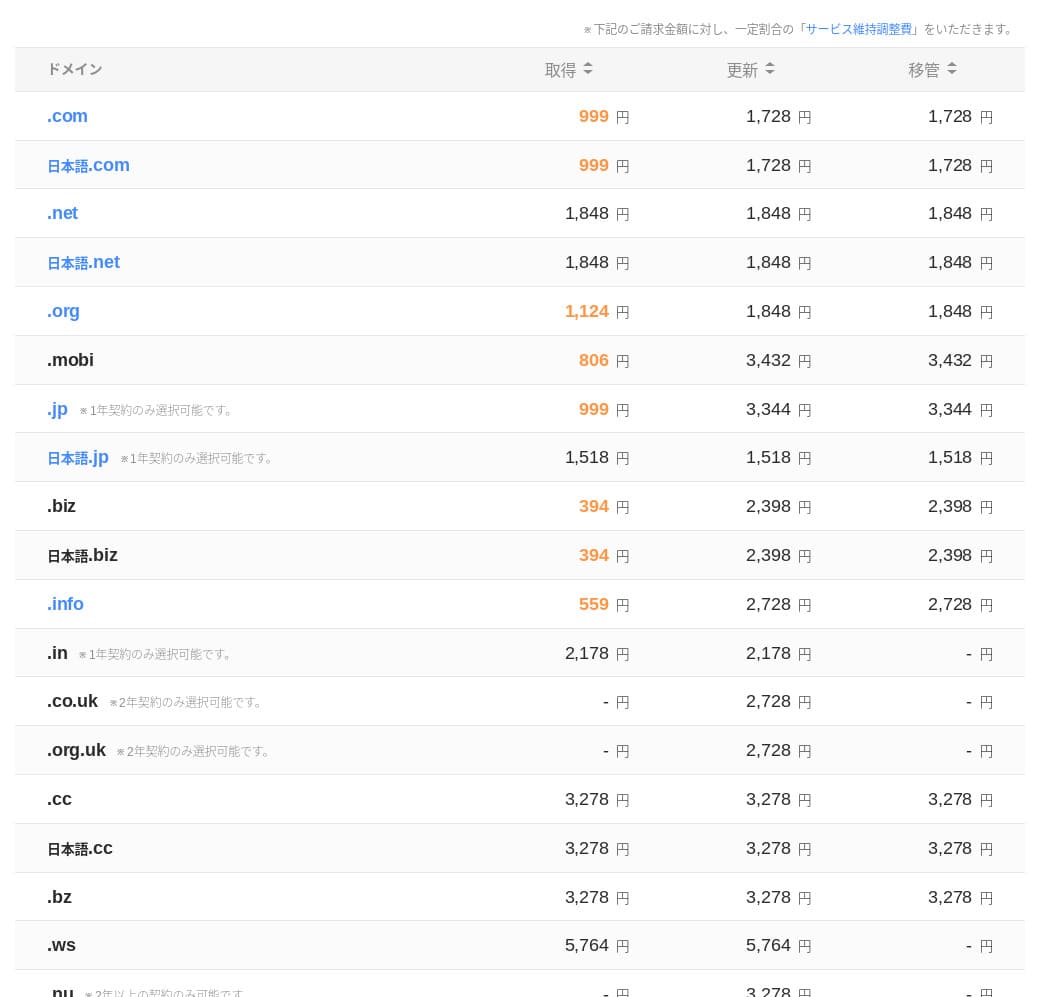
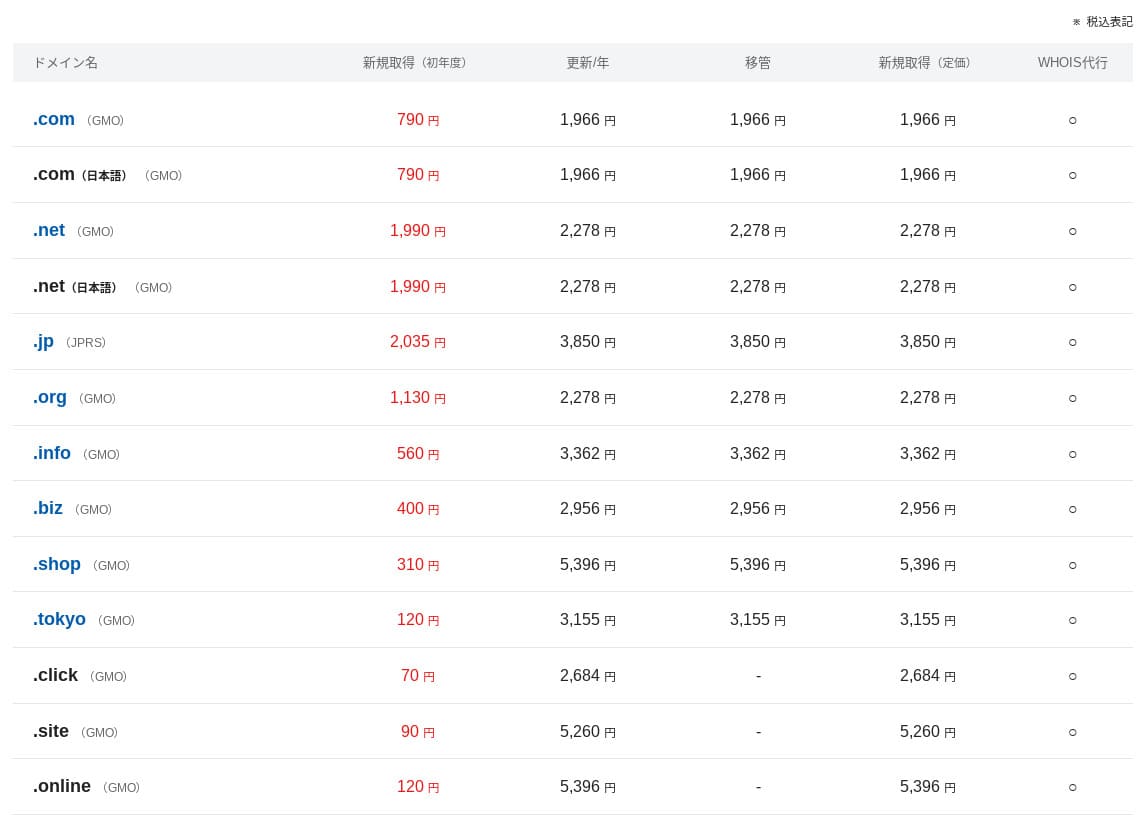
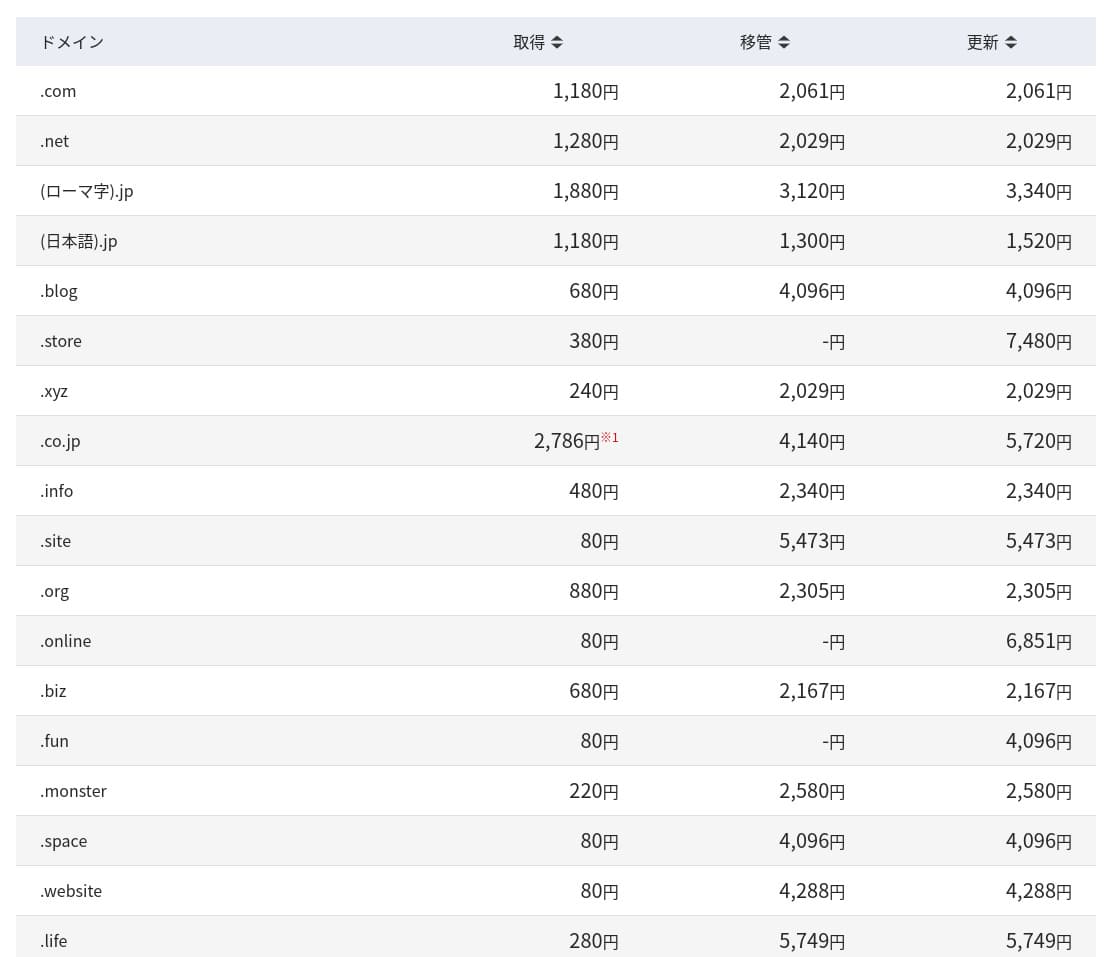
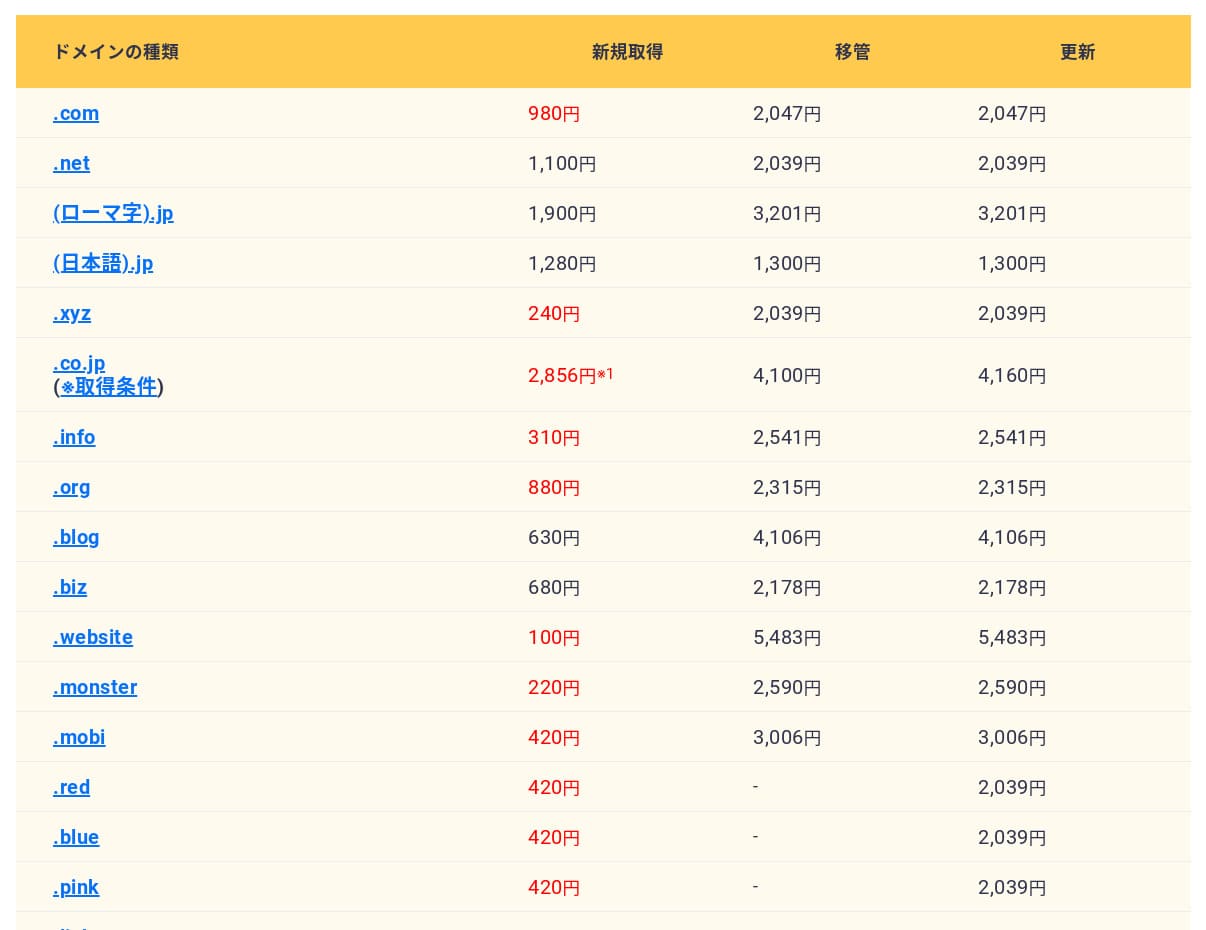
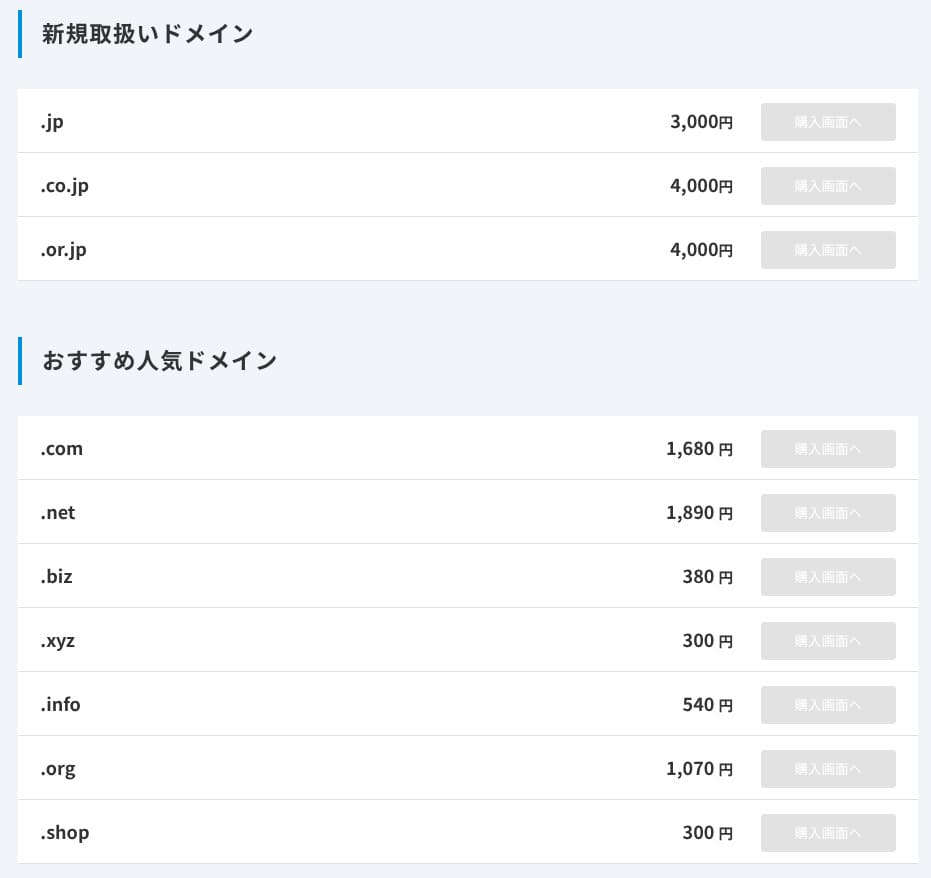
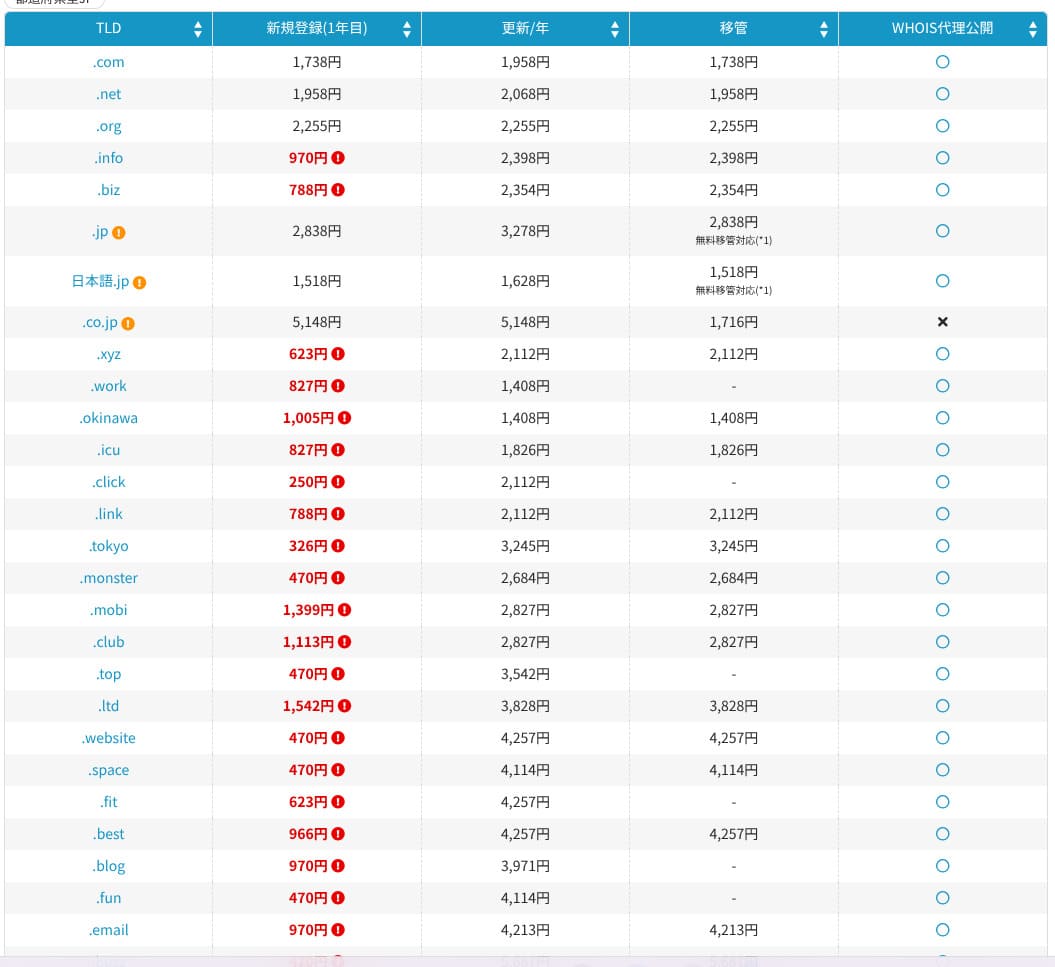
On Standard and higher plans, one domain from 11 types such as .com and .net is free for the first year. Ongoing renewal costs are slightly higher than the rates offered by typical registrars.
Hikaru Ono
When you sign a long-term contract with XServer or ConoHa WING, you can keep using two domains for free for as long as the server contract remains active. In this respect, mixhost is at a disadvantage compared with those services.
- mixhost
- Onamae.com
- XServer Domain
- MuuMuu Domain
- Value Domain
- Shin Domain
- Star Domain
- Colorful Domain
- Rakko Domain
SSL certificate costs
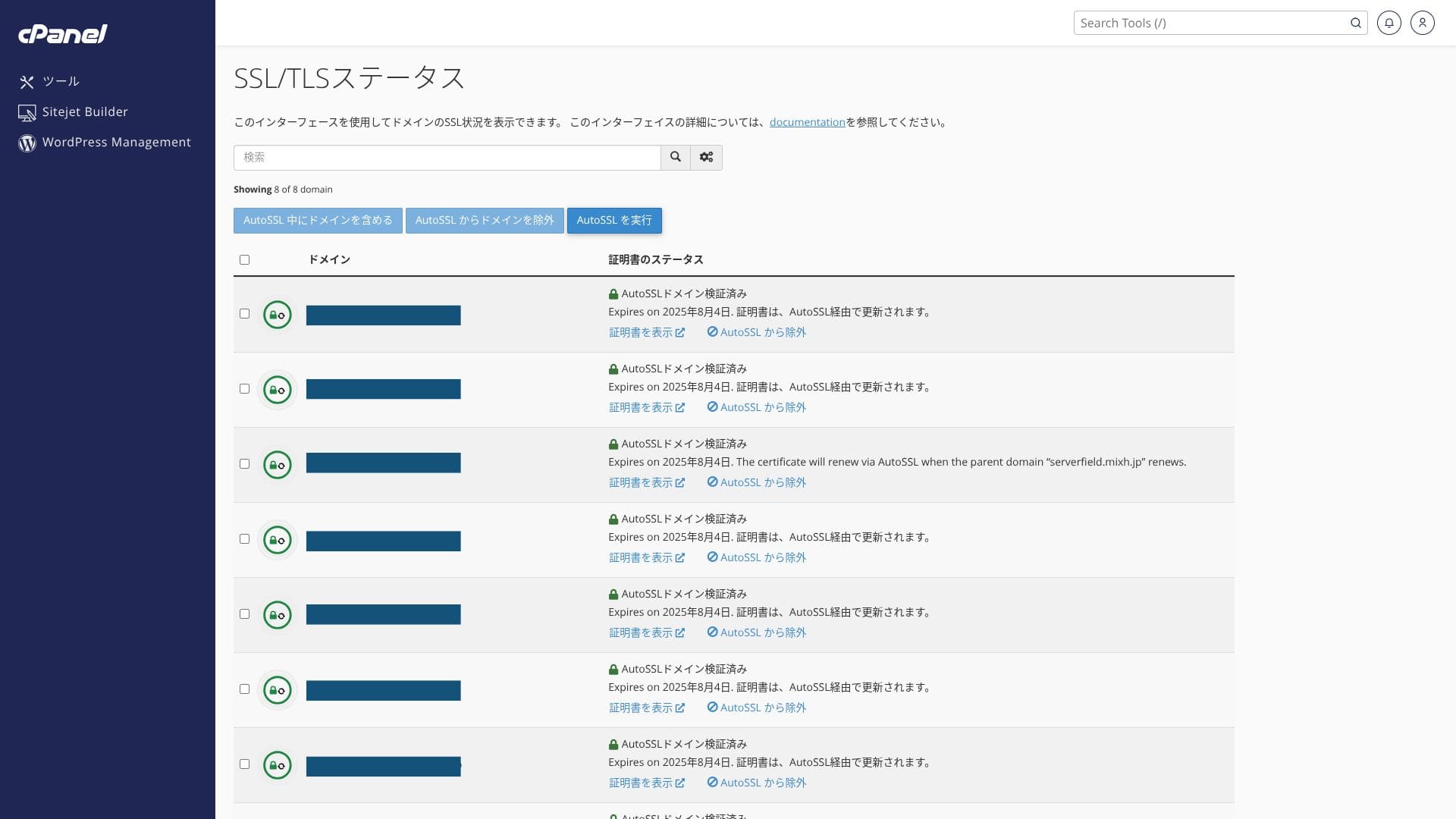
It includes free custom SSL through Let’s Encrypt as standard. Because the certificate is renewed automatically within 24 hours by the “AutoSSL” function in cPanel, there is no extra cost.
The WordPress site installed at the time of signup already had SSL/TLS configured from the start. There is no need for the account holder to set up SSL during signup. You only need to configure SSL later when you add a domain after the initial contract.
SSL settings can be run from “AutoSSL” inside “SSL/TLS Status” in cPanel.
Payment methods
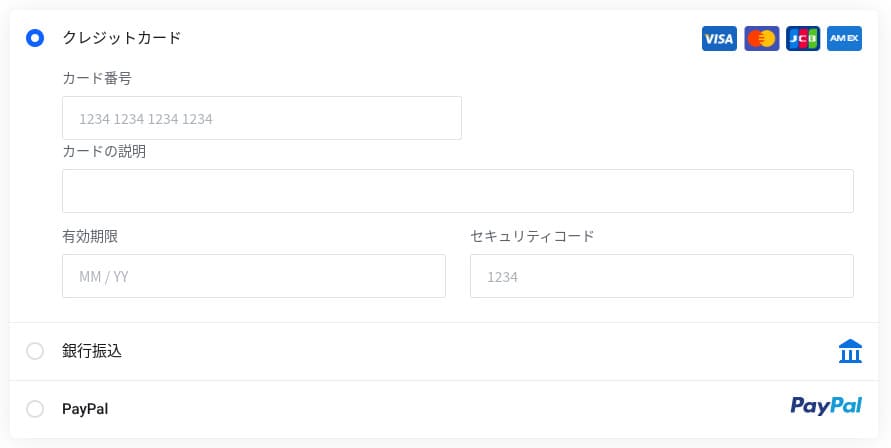
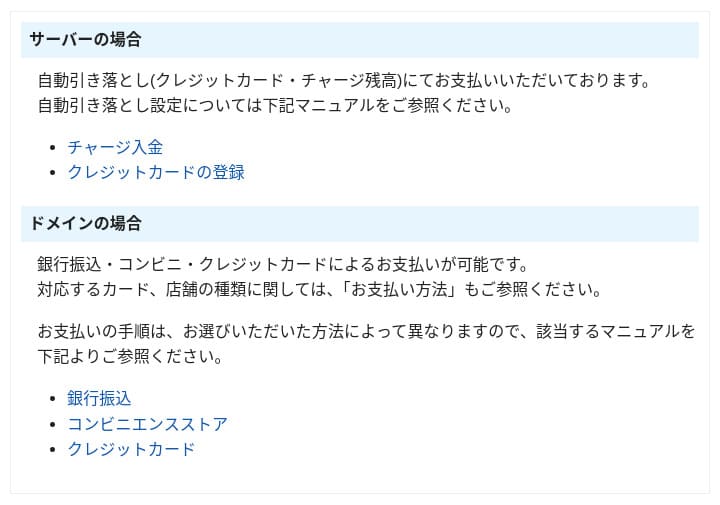
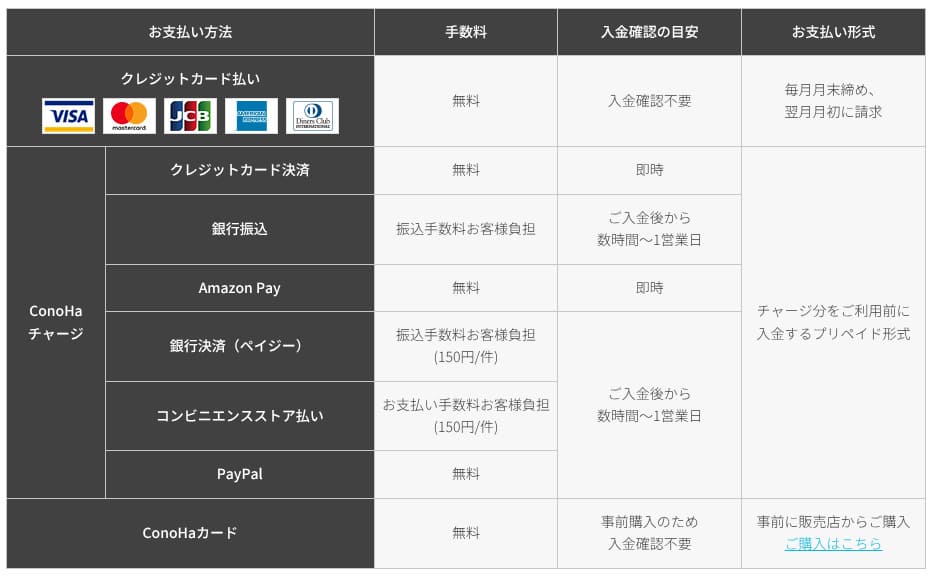
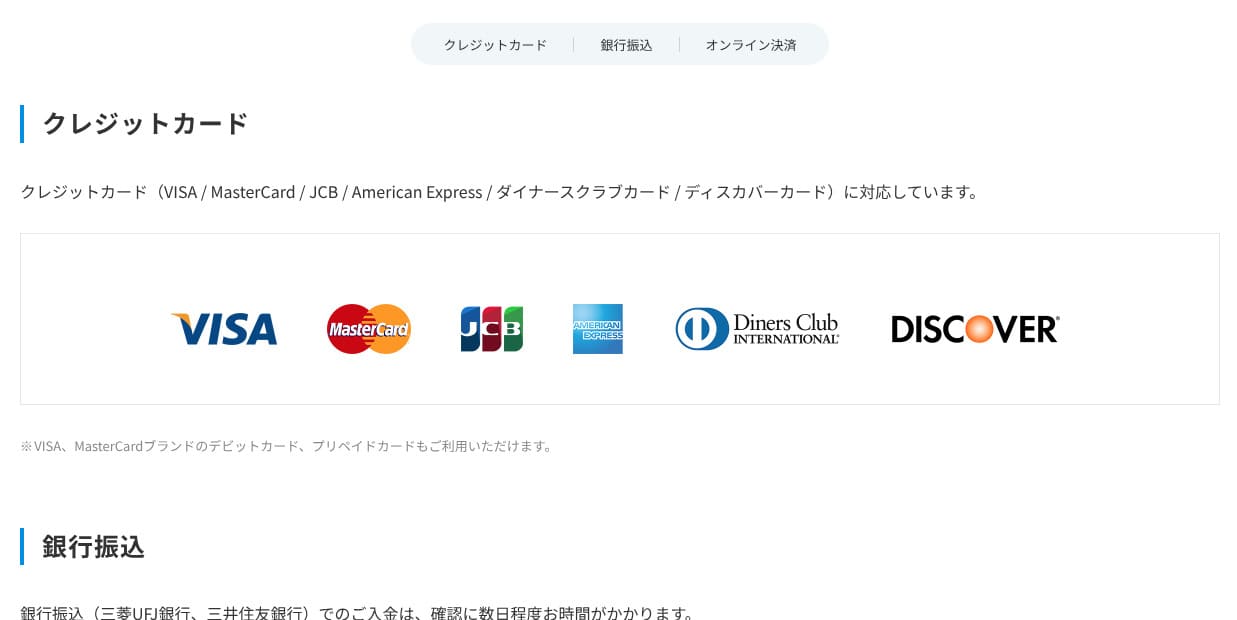
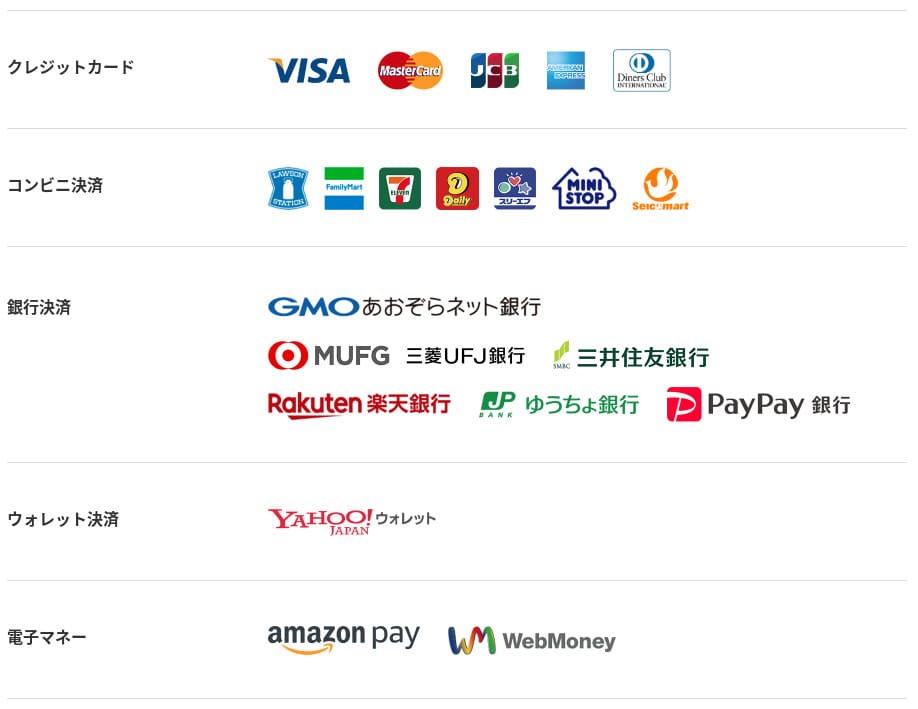
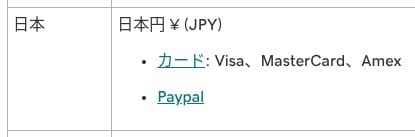
mixhost accepts credit cards, PayPal, and bank transfer.
- mixhost
- Kinsta
- XServer Business
- wpx
- Lolipop!
- Star Rental Server
- Rakko Server
- XServer
- ConoHa
- Colorful Box
- Shin Rental Server
- Little Server
- CORESERVER
- DreamHost
- Bluehost
- Sakura
- Namecheap
- Shin Free
- XREA
- Value Server
- HOSTINGER
- KAGOYA
- SiteGround
- Hostgator
- IONOS
- Onamae.com
- ABLENET
- GoDaddy
- iCLUSTA+
- MuuMuu Server
- WADAX
- WebARENA
- heteml
- CPI Rental Server
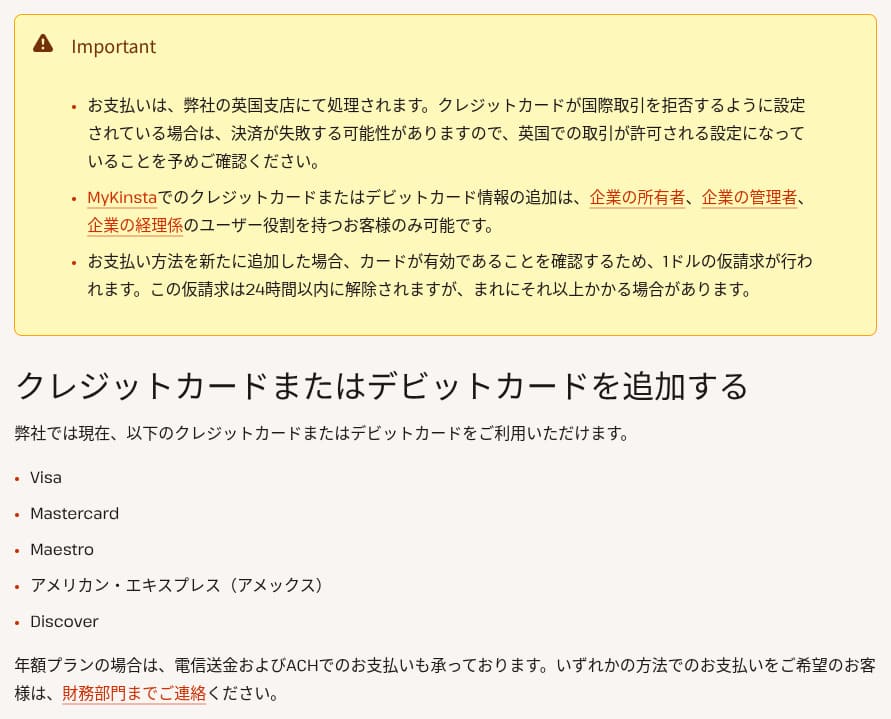







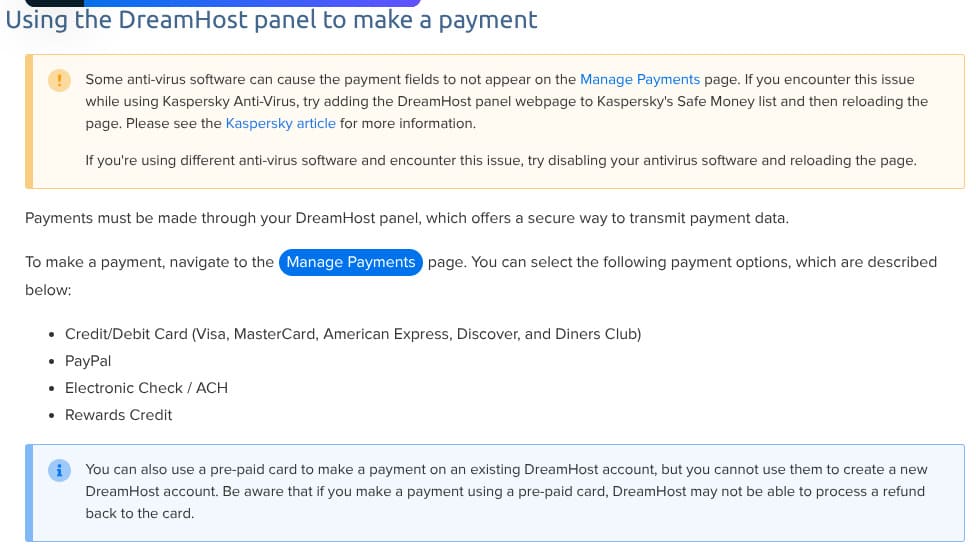
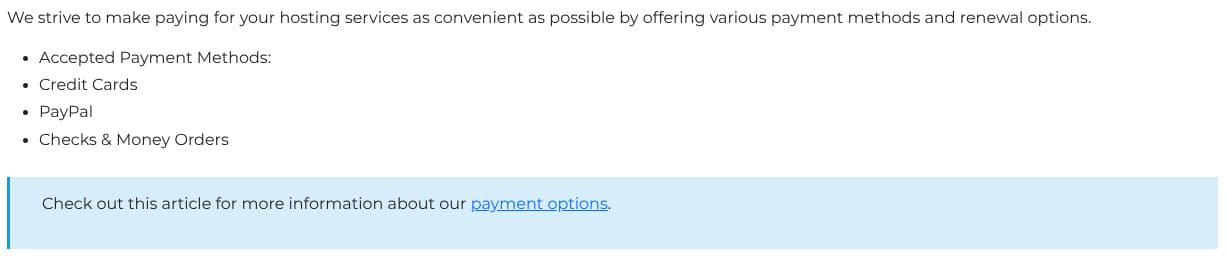
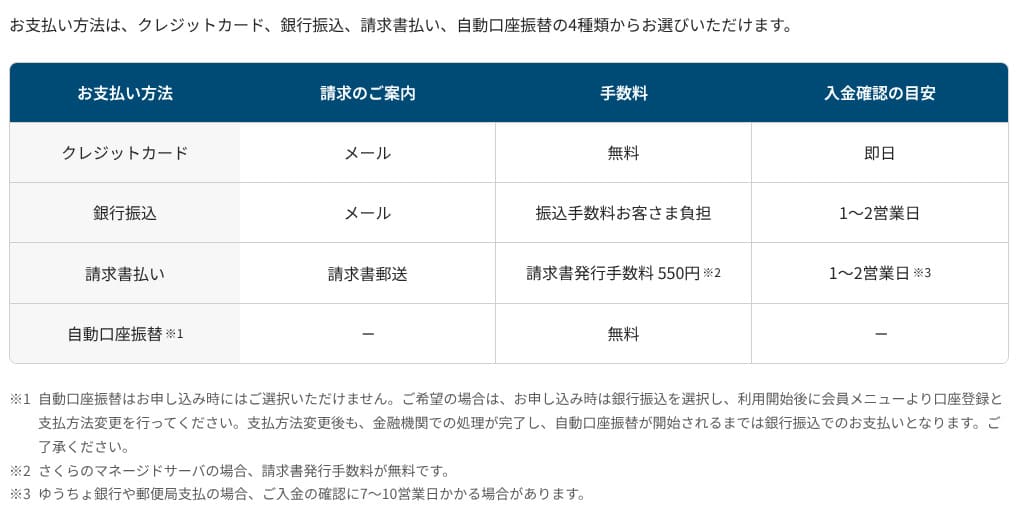
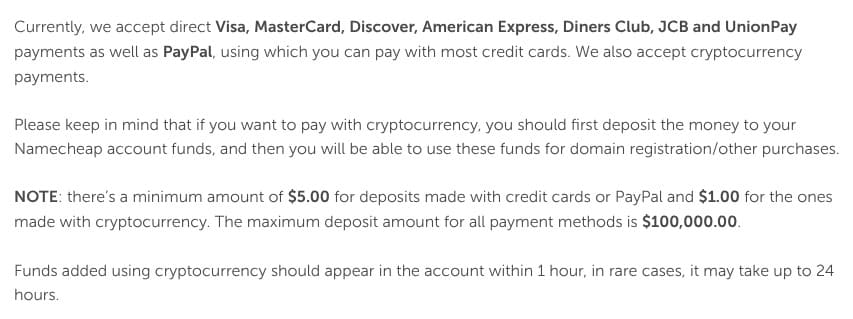

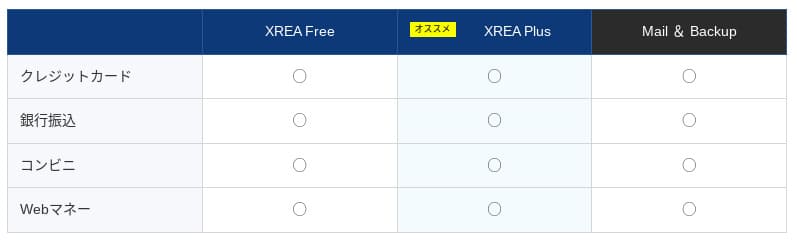


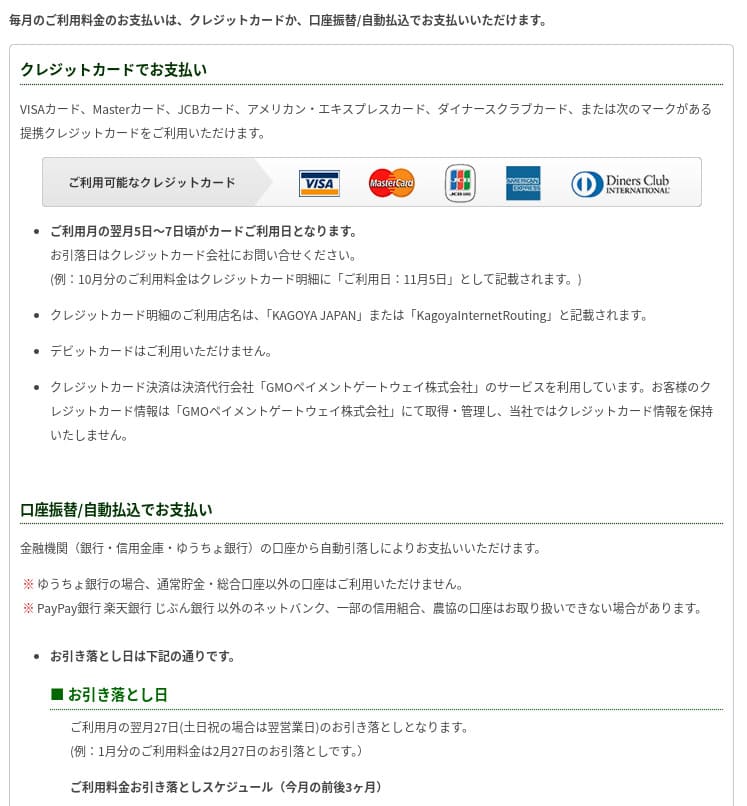

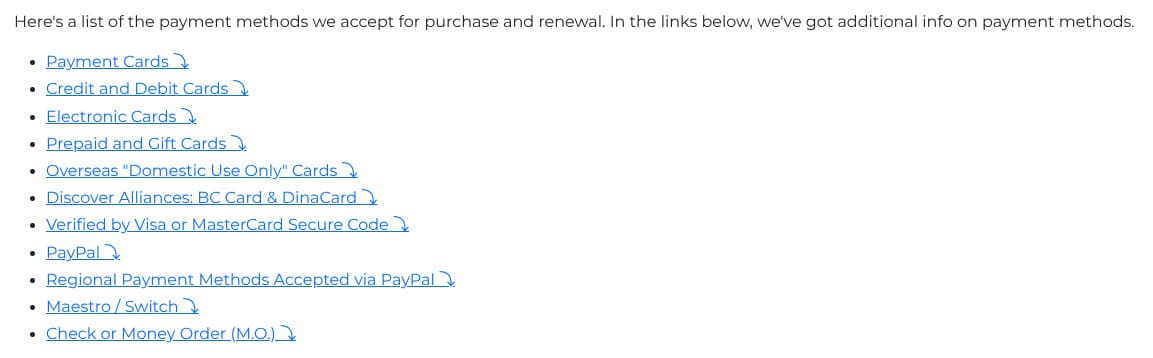

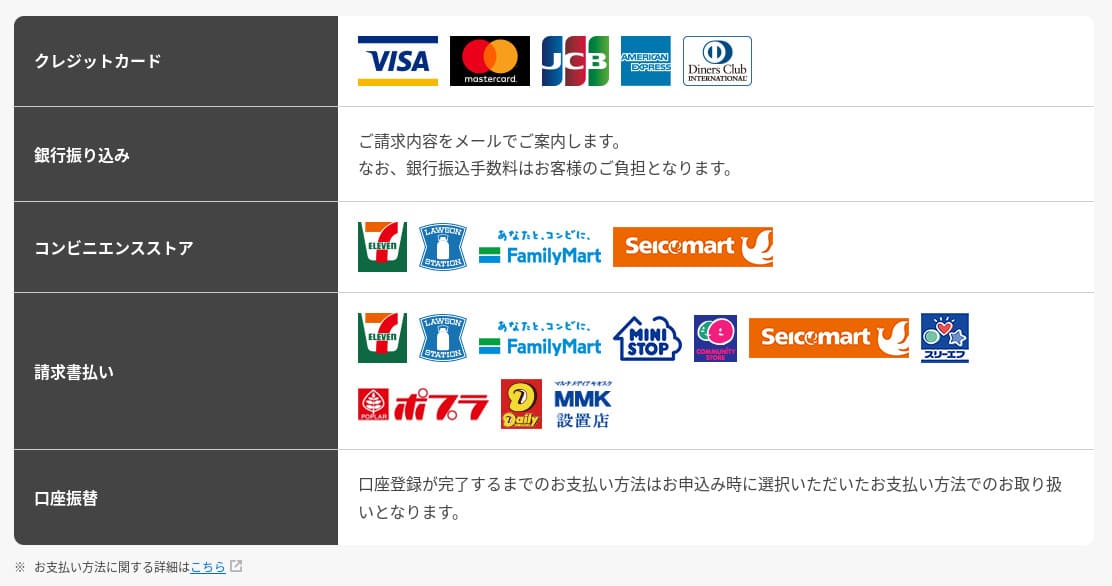

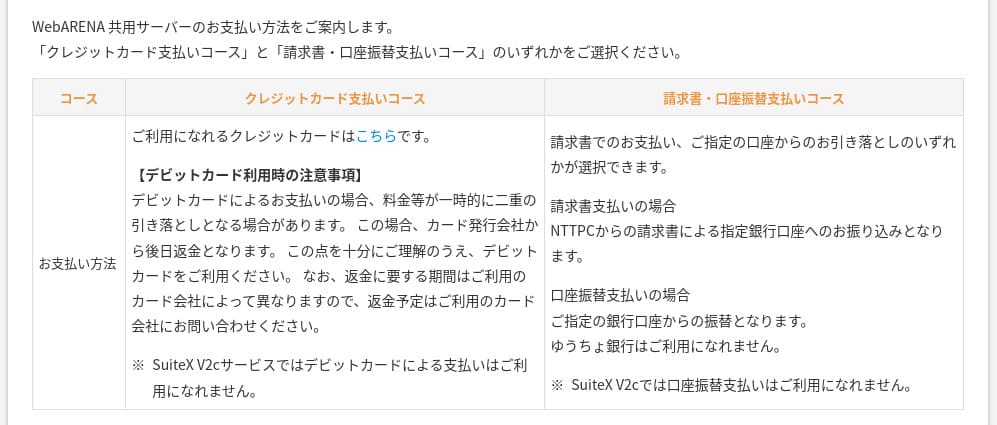
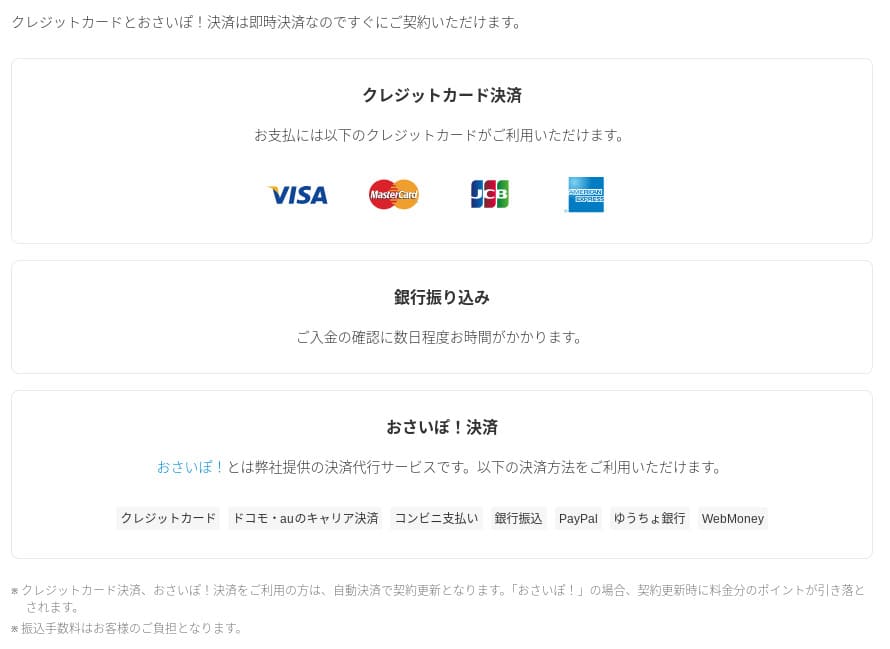
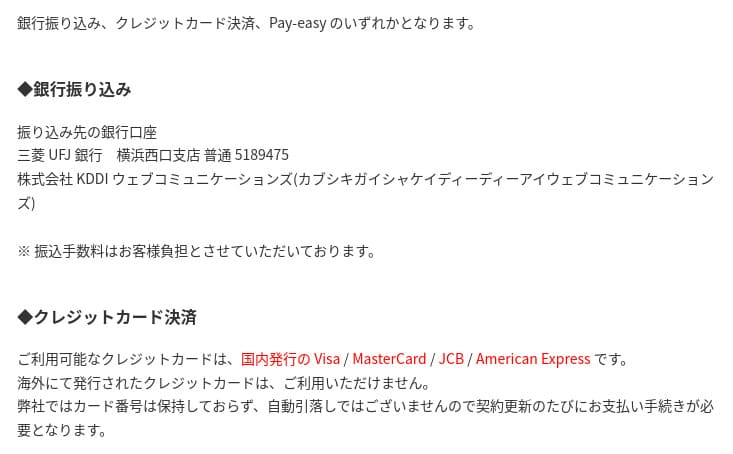
If you want to pay with PayPal, note that a 36-month contract cannot be renewed automatically because of system limitations.
Important notes when ordering a contract term longer than one year with PayPal
Ease of use and support review
Ease of use of the control panel
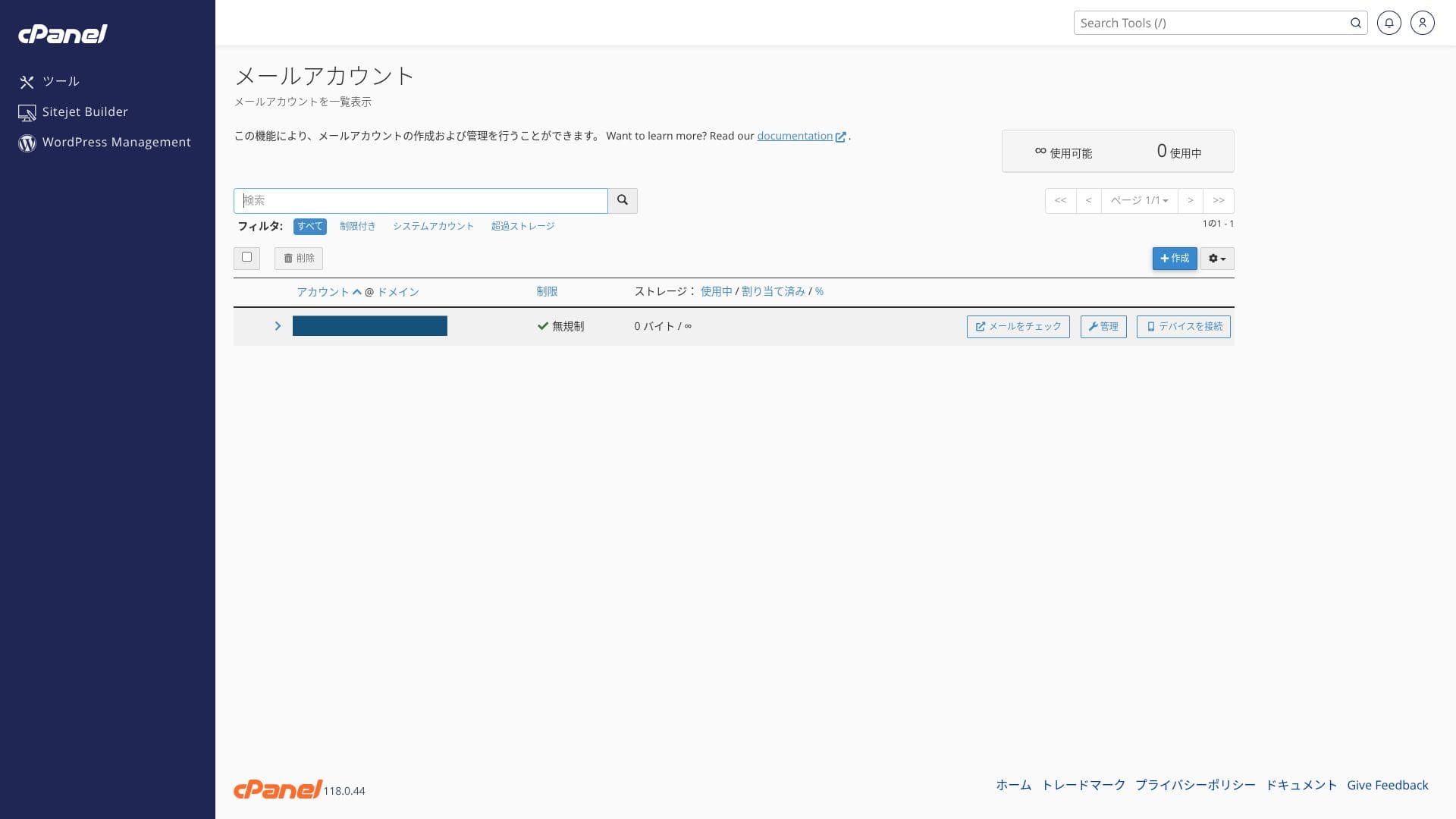
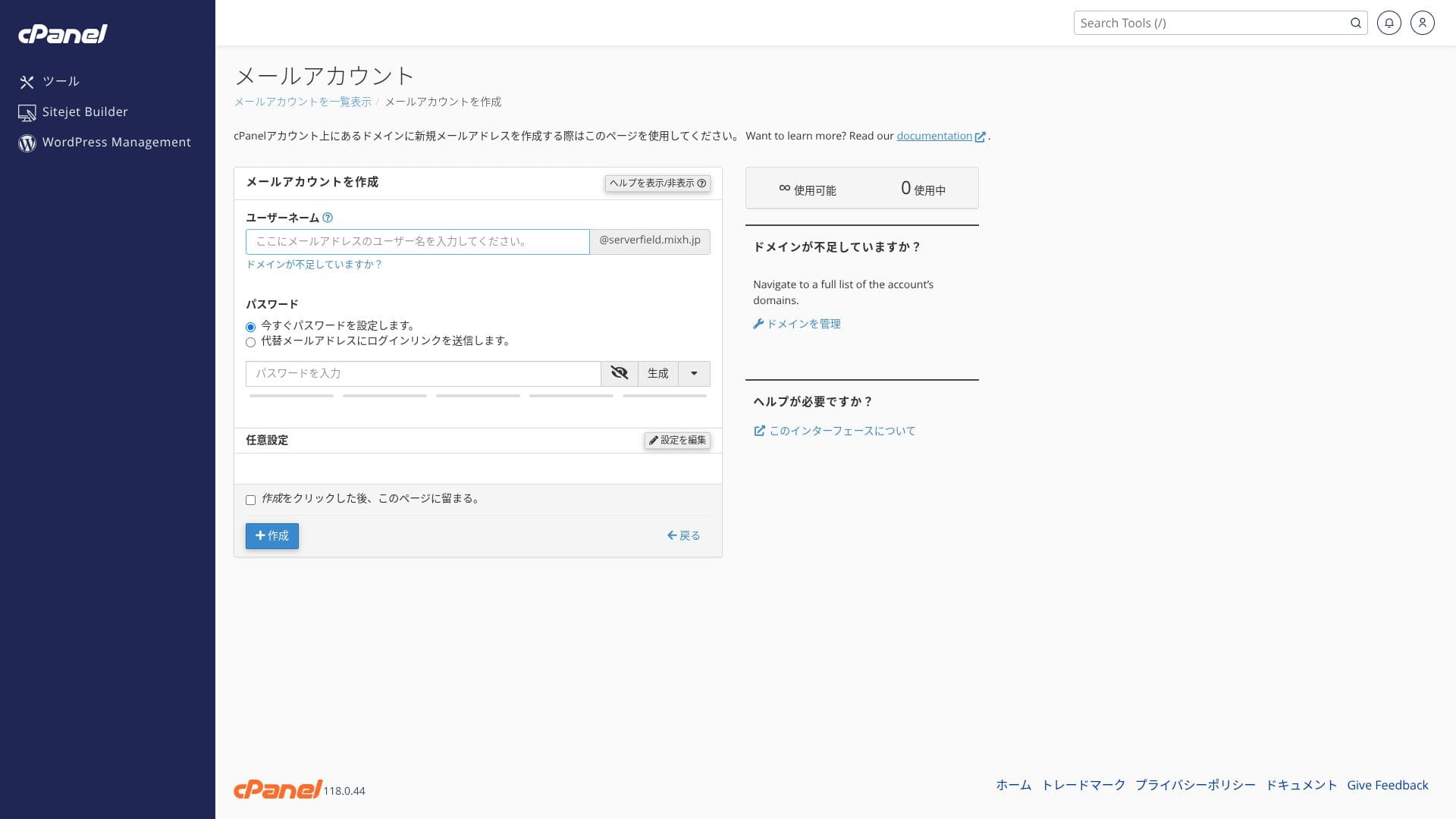
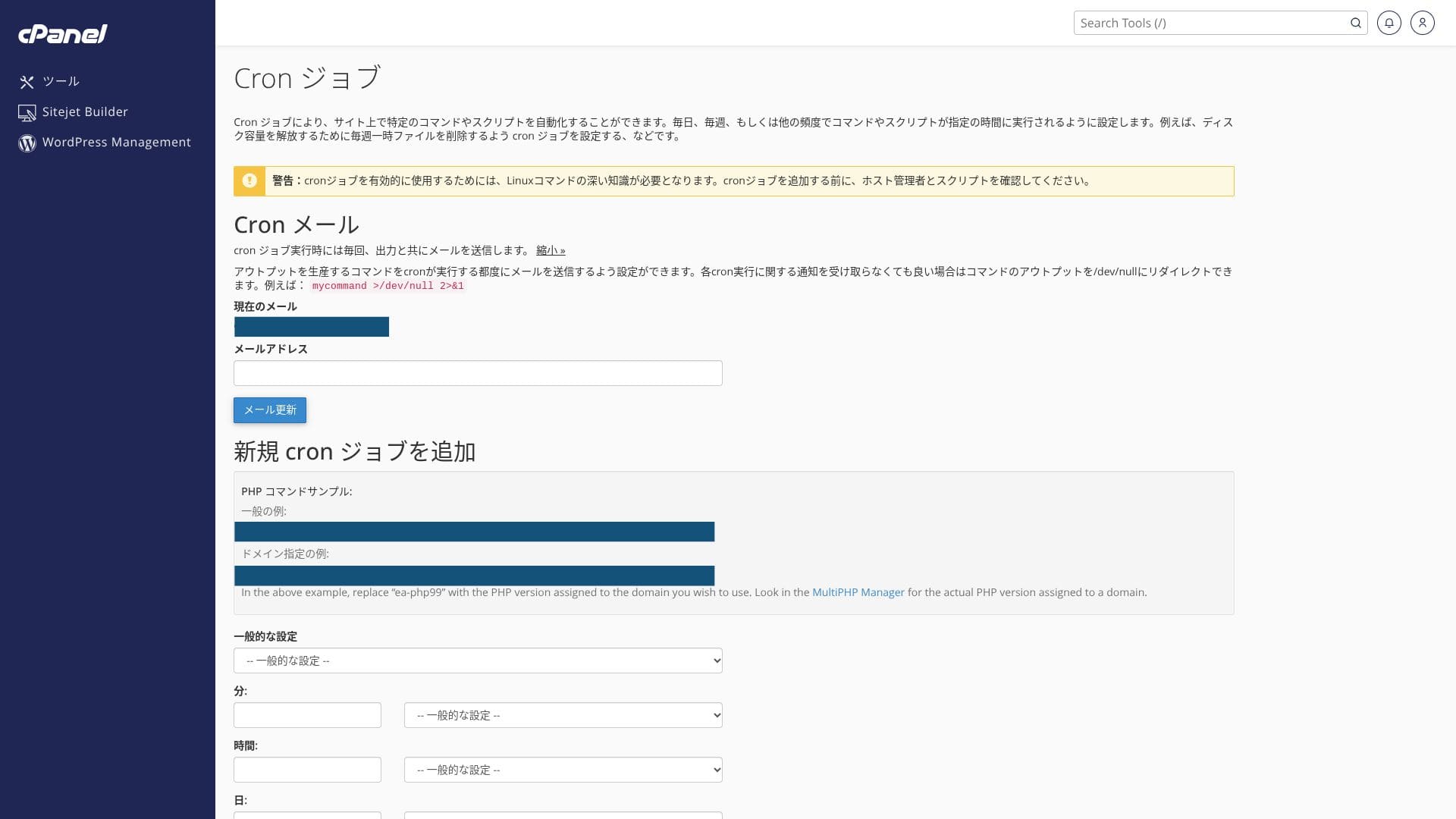
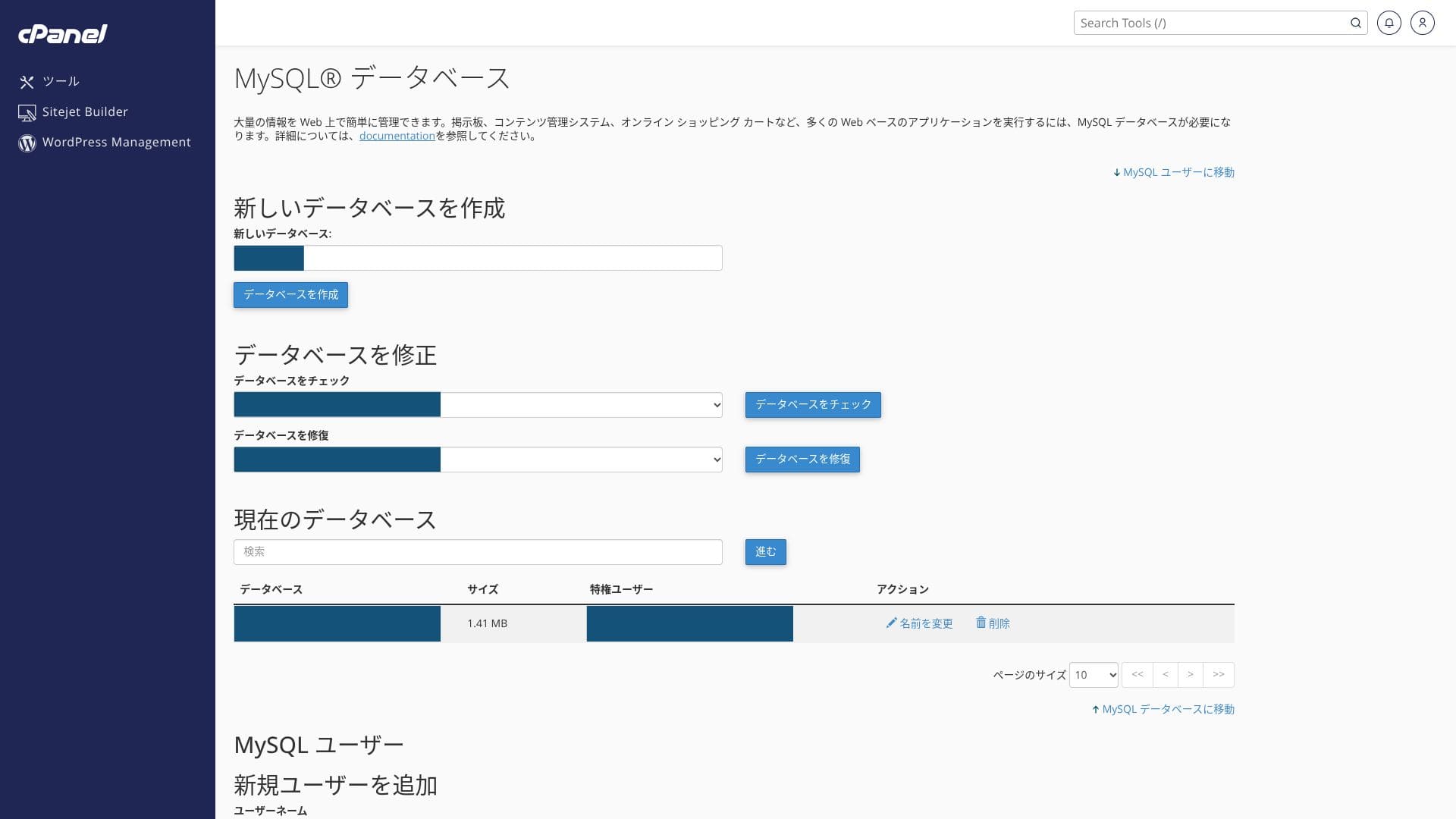
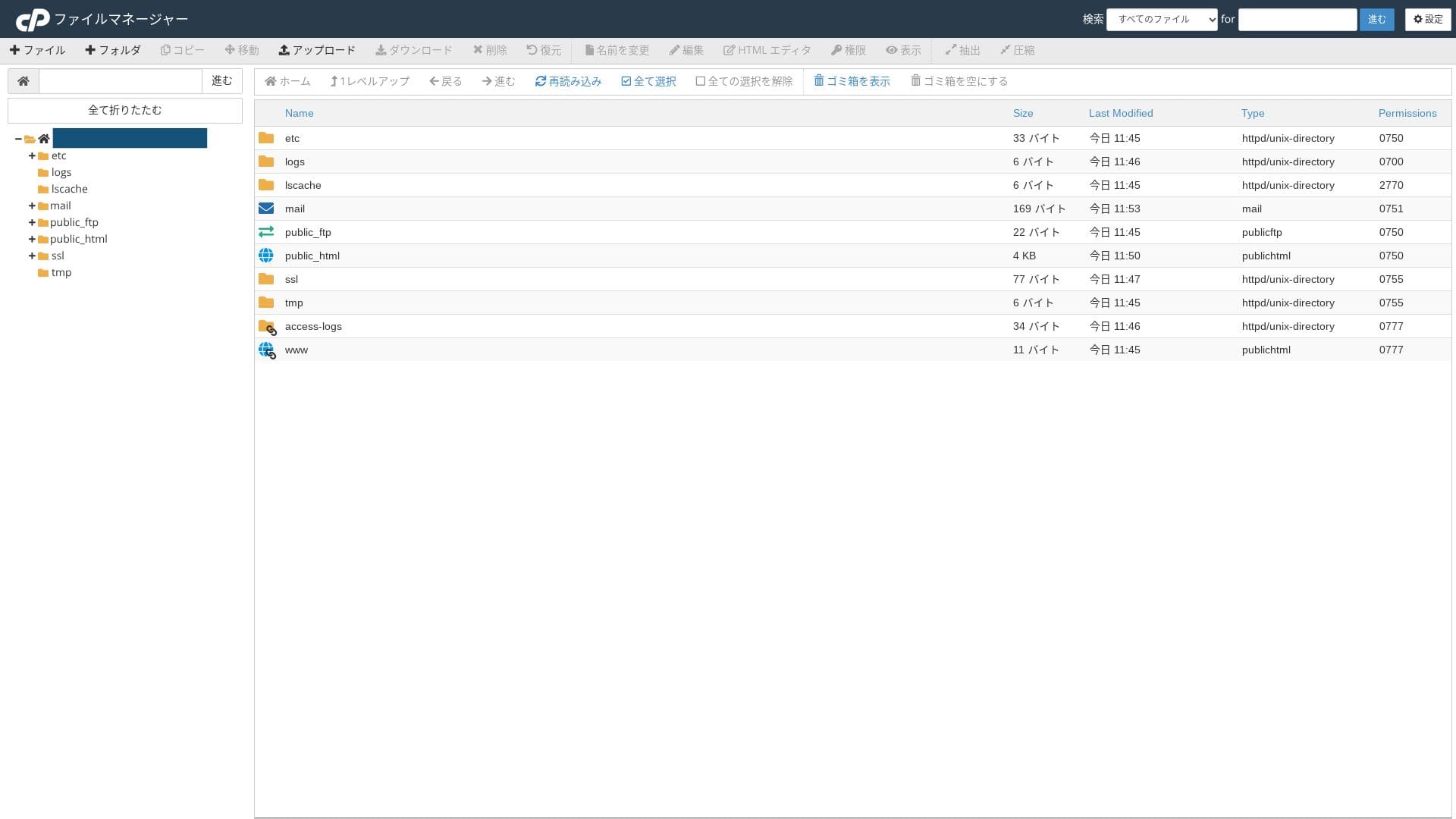
It uses the industry-standard cPanel alongside mixhost’s own control panel. You can handle email settings, SSL issuance, and app installation through a GUI.
- Home
- My Services
- WordPress
- Domains
- Backups
- Bandwidth
- Email Accounts
- Cron
- DB
- File Manager
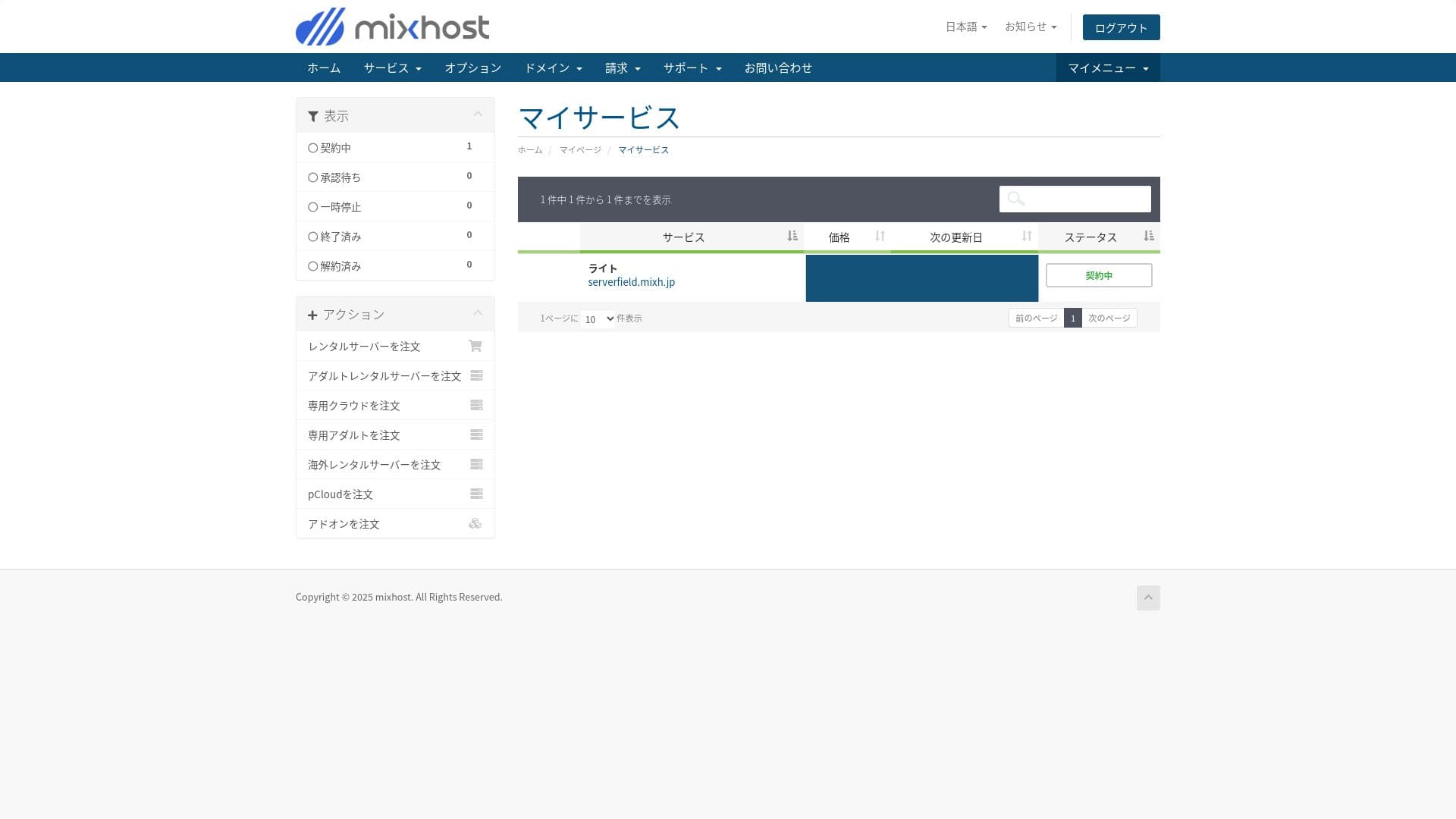
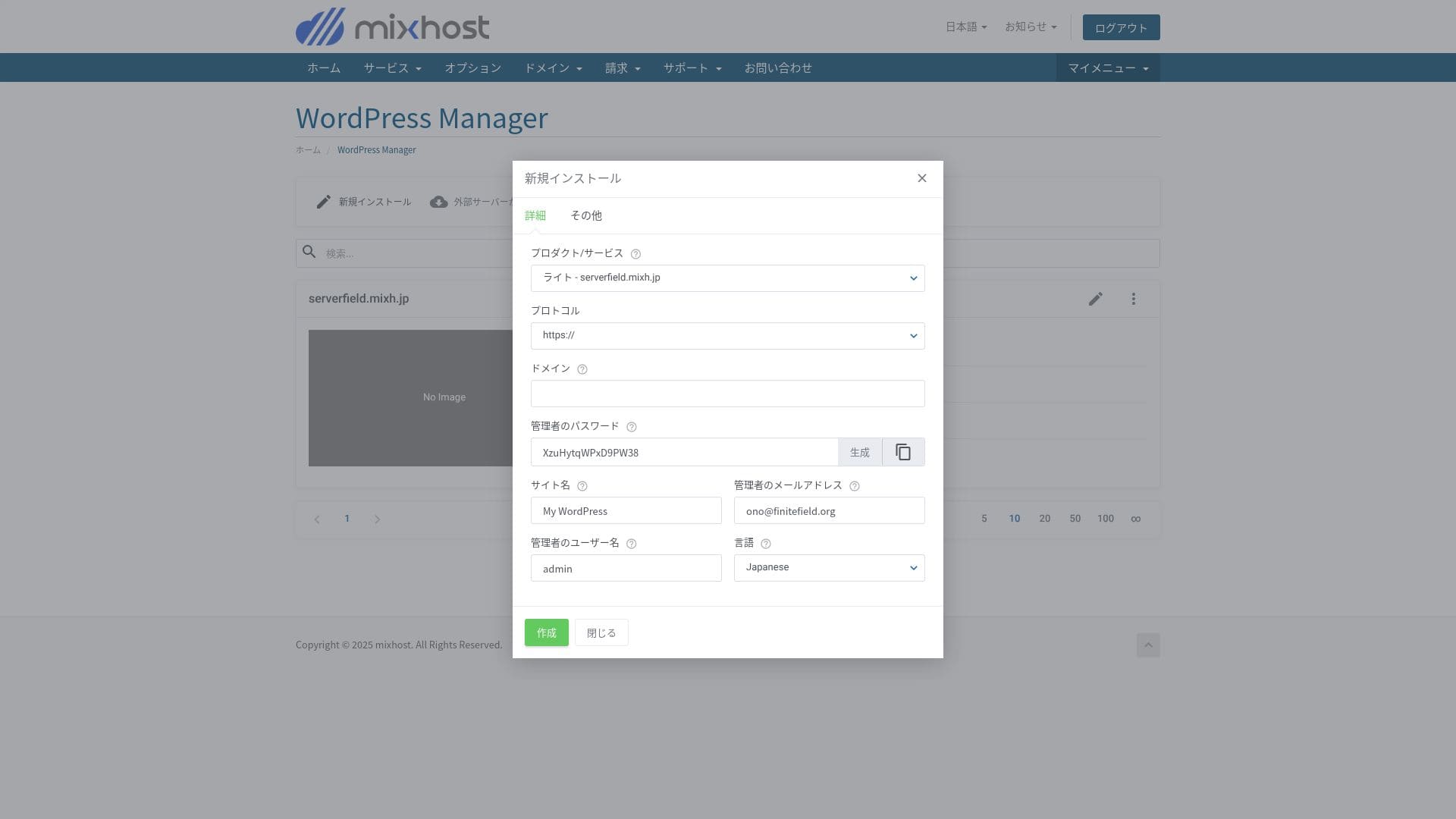
You can install WordPress from the "WordPress Manager" in mixhost's control panel.
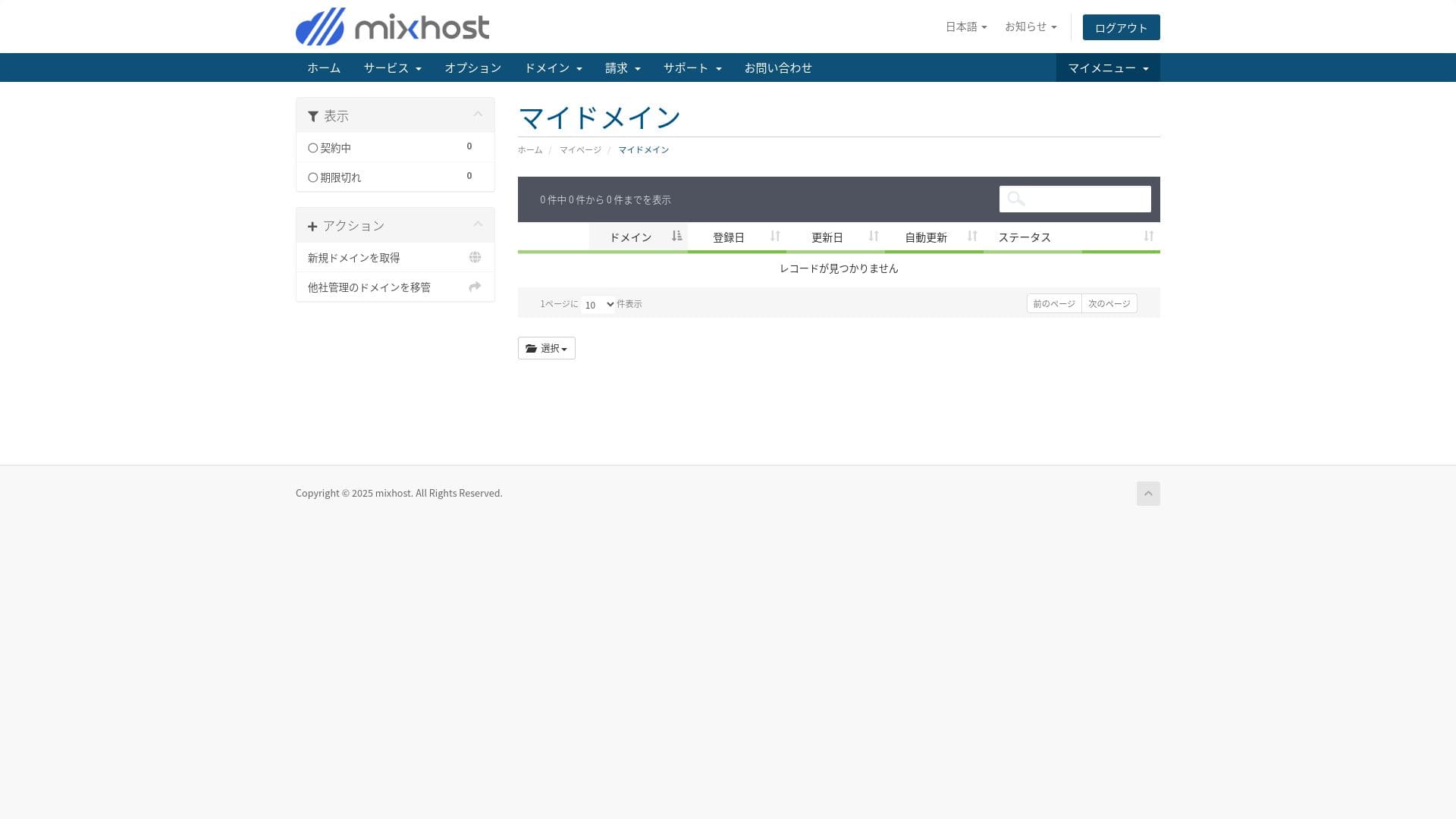
The Light plan does not include backups, so there is no screenshot here. Use a WordPress backup plugin instead.
Hikaru Ono
Because you use both the proprietary control panel and cPanel, you may feel unsure of where to click at first.
Support structure
All plans include email and chat support. Premium and above also add two Zoom support sessions per month, and those plans are prioritized over the lower plans.
Managed services
Professional staff can support technically demanding work such as one free WordPress migration per year and SSL activation support either free of charge or at a low cost.
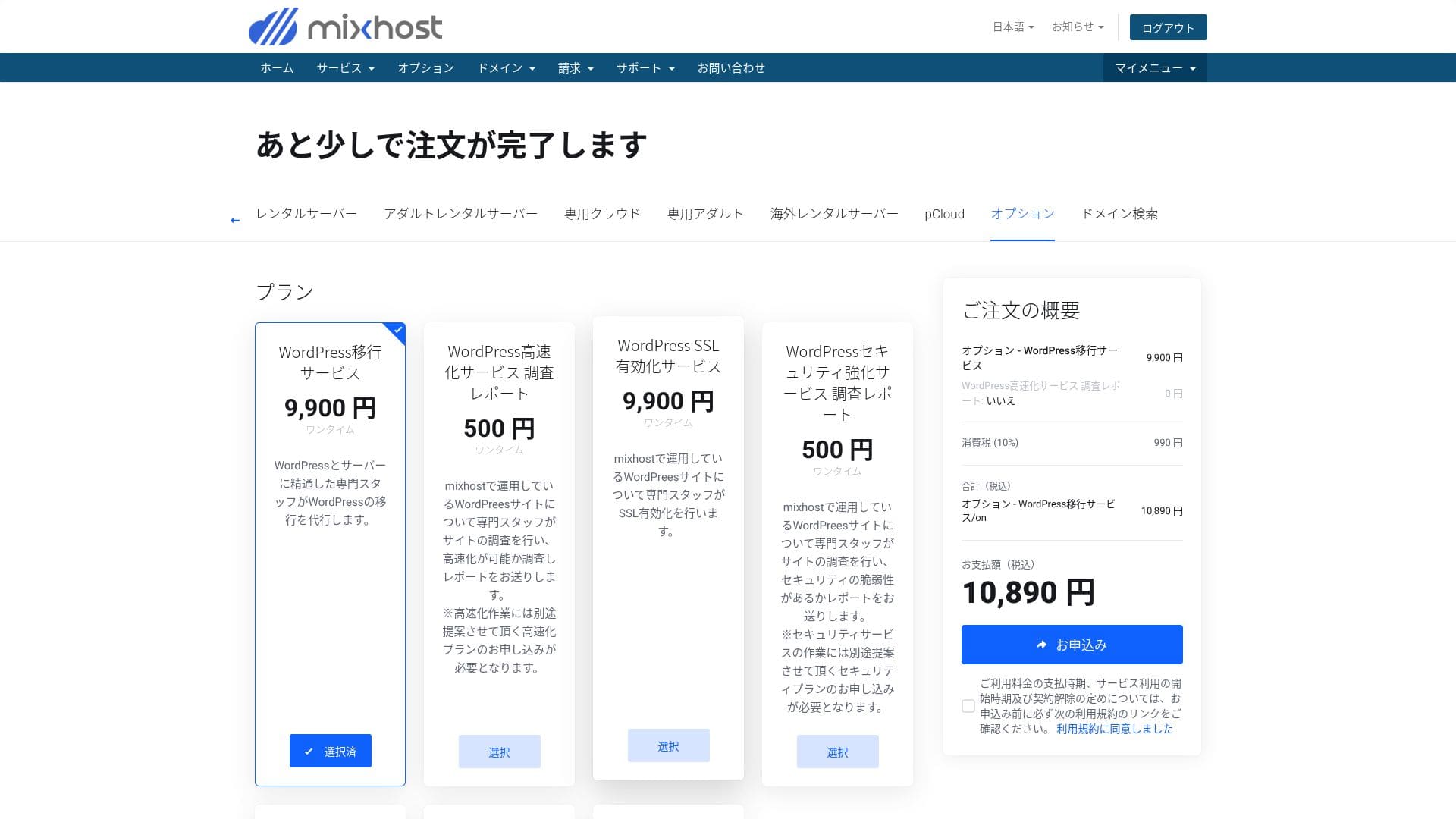
- WordPress migration service: 10,890 yen per site
- Speed investigation: 550 yen per request, speed tuning plan: from 9,900 yen per month
- Security investigation: 550 yen per request, spot plan: 21,890 yen per month, maintenance plan: 10,890 yen per month
- SSL activation service: 10,890 yen per site
Hikaru Ono
You can migrate WordPress yourself using tools. But if you are anxious about it or you do not have the time, make active use of the managed services.
Quality of manuals and FAQ
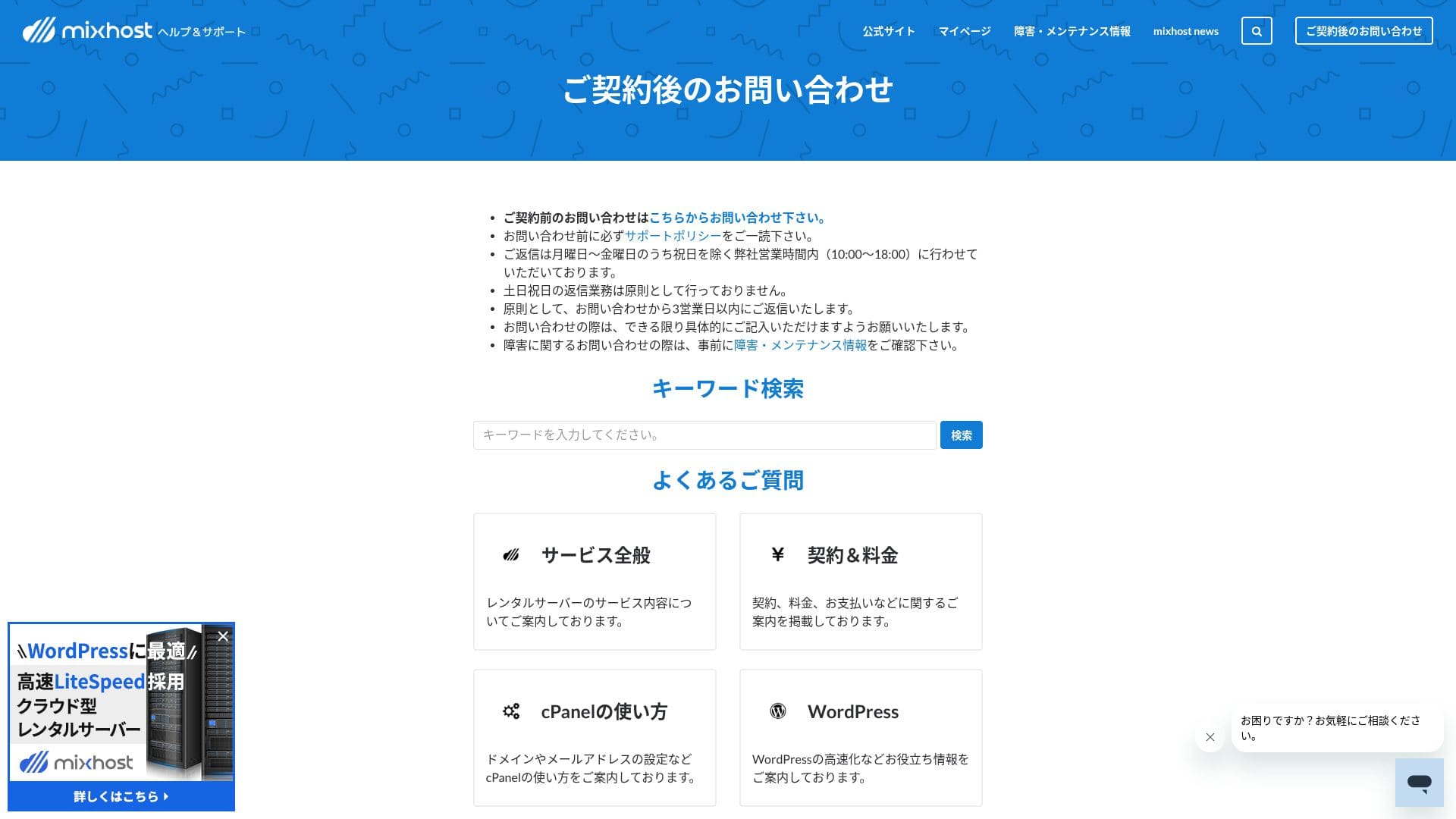
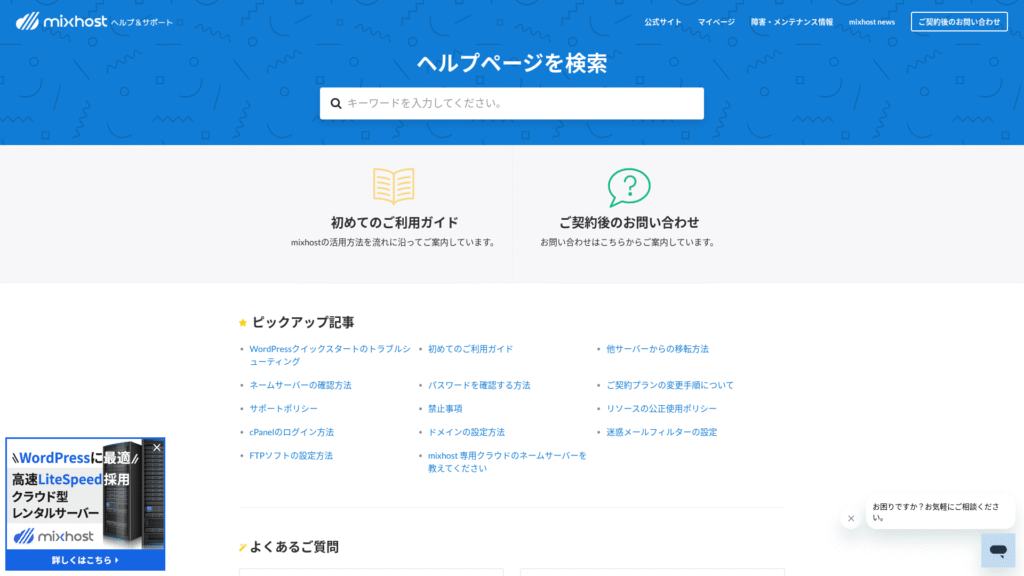
The official help center publishes a very large number of articles in Japanese. In most cases, you can find the fix for an error by using the keyword search.
Email feature review
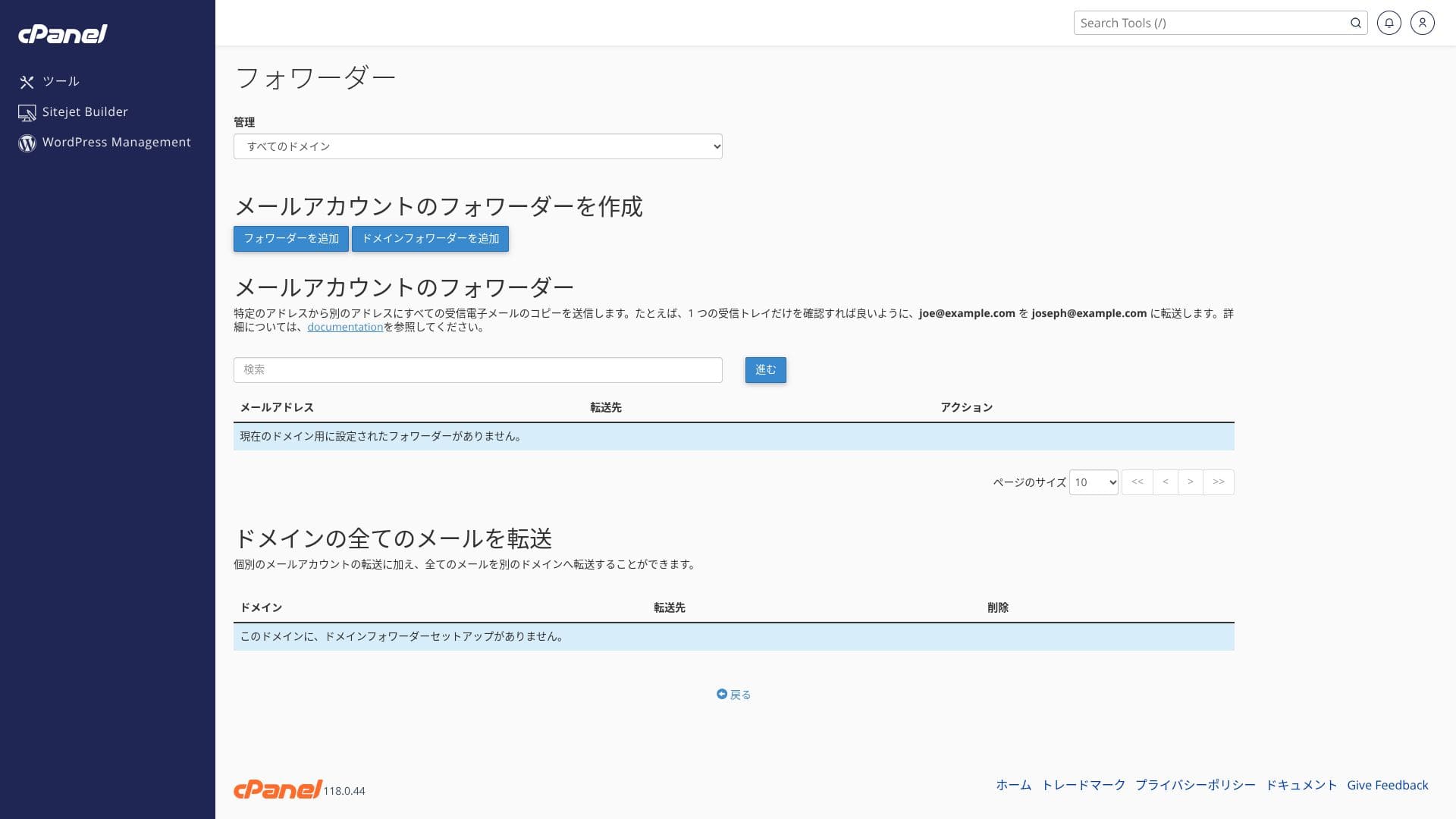
mixhost has a low outbound email limit. That means it works fine for everyday business email and handling inquiries, but it is safer to use a separate service for newsletter distribution.
| Item | All plans | Notes |
|---|---|---|
| Number of email accounts | Unlimited | Available on both custom domains and subdomains |
| Receiving protocols | IMAP / POP3 (SSL/TLS) | Can be configured in Outlook, the Gmail app, and others |
| Sending protocol | SMTP (587 / 465, SSL supported) | Supports STARTTLS and SMTPS |
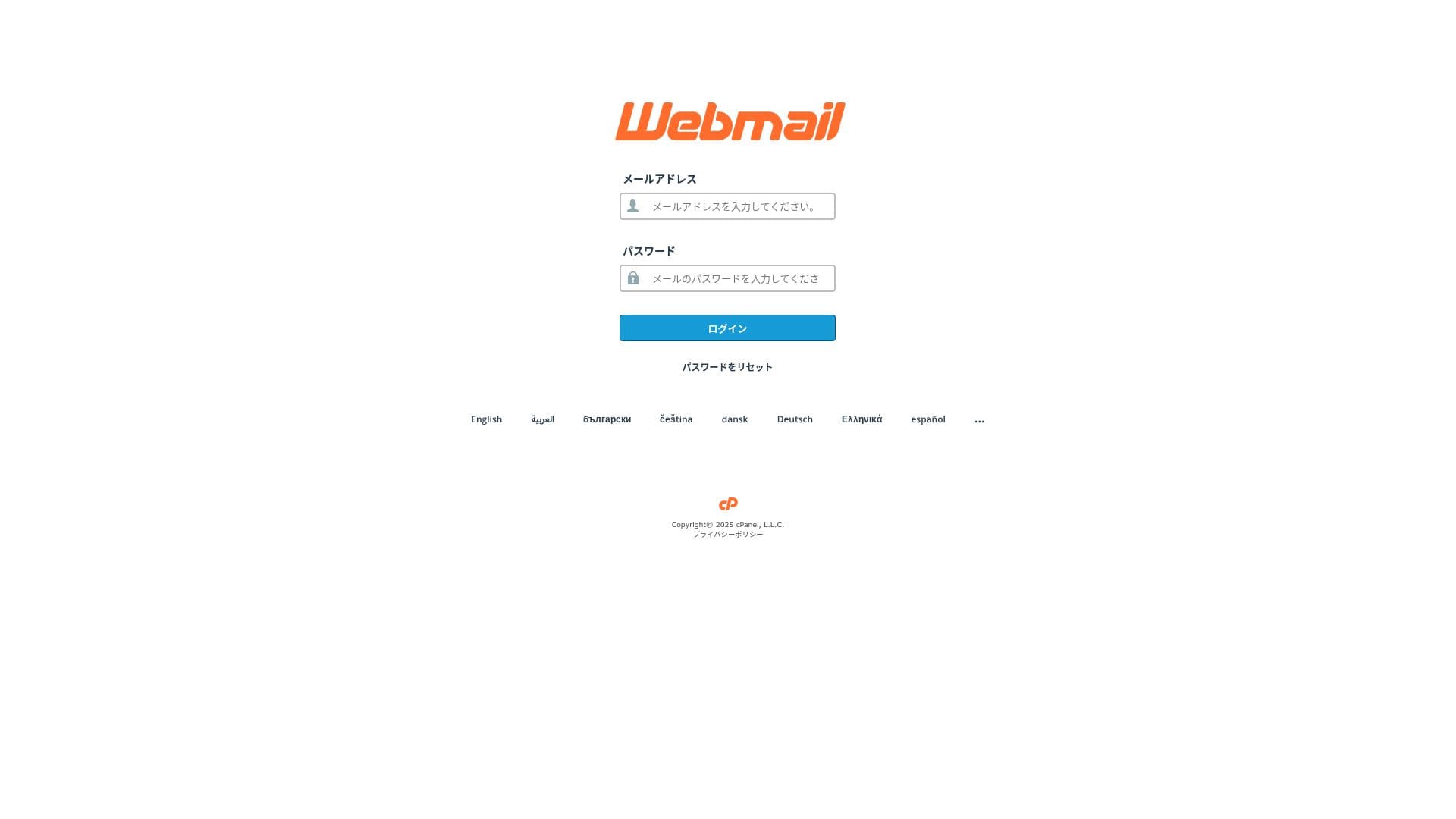
| Webmail | Roundcube | Browser-based email client included |
| Spam filtering | SpamAssassin | Threshold can be adjusted in cPanel |
| Virus filtering | ClamAV | Available only on Standard and above |
| Plan | Per hour | Per 24 hours |
|---|---|---|
| Light | 50 emails | 100 emails |
| Standard and above | 100 emails | 1,000 emails |
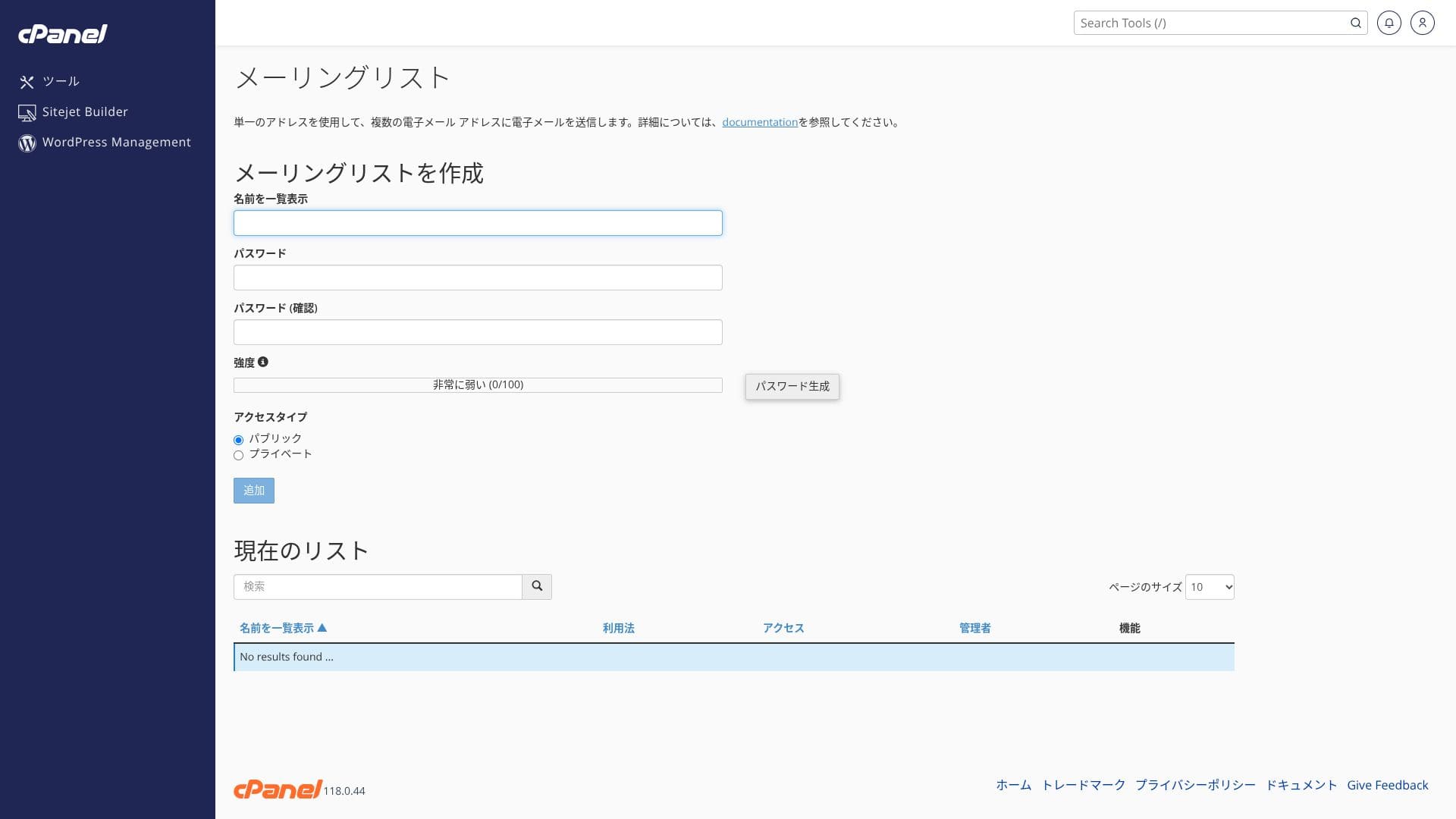
The upper limits are defined by the fair-use policy. For normal in-house business operations, such as 30 employees sending around 20 emails per day each, which is about 600 emails in total, there is plenty of room. However, it is not suitable for large-scale bulk distribution.
- SMTP and IMAP encrypted with free custom SSL reduce the risk of eavesdropping even on outside networks.
- cPanel provides a setup wizard for SPF, DKIM, and DMARC records, which makes anti-spoofing measures easy.
- The server itself runs with AI-powered WAF and DDoS protection, and the email service runs on the same redundant cloud infrastructure, so failover happens automatically during trouble. The service also carries a 99.99% uptime guarantee.
Hikaru Ono
Because the setup cost is zero and SSL and anti-spam measures are included as standard, I think even small and midsize companies without an IT specialist can handle it comfortably.
Security and backup review
Security measures
mixhost comes standard with DDoS protection and free SSL. Premium and above also include an AI-powered WAF and automatic malware removal. A WAF (Web Application Firewall) is a defense mechanism that blocks attacks specific to web applications, such as SQL injection, in real time.
Hikaru Ono
Because the Light plan is not as strong on security as the higher plans, make sure you install WordPress security plugins.
Five WordPress security plugins that can strengthen your site and how to choose them
Automatic backup feature
Igas paketis peale Lighti salvestatakse viimase 14 päeva kohta kord päevas varukoopia teise piirkonda. Seda saab kuupäeva järgi ise taastada cPaneli jaotises "JetBackup".
Hikaru Ono
Kui valid Light-paketi, mis varukoopiaid ei sisalda, paigalda kindlasti WordPressi varundusplugin.
Viis tugevat WordPressi varunduspluginat andmete taastamiseks
Muud funktsioonid
pCloud
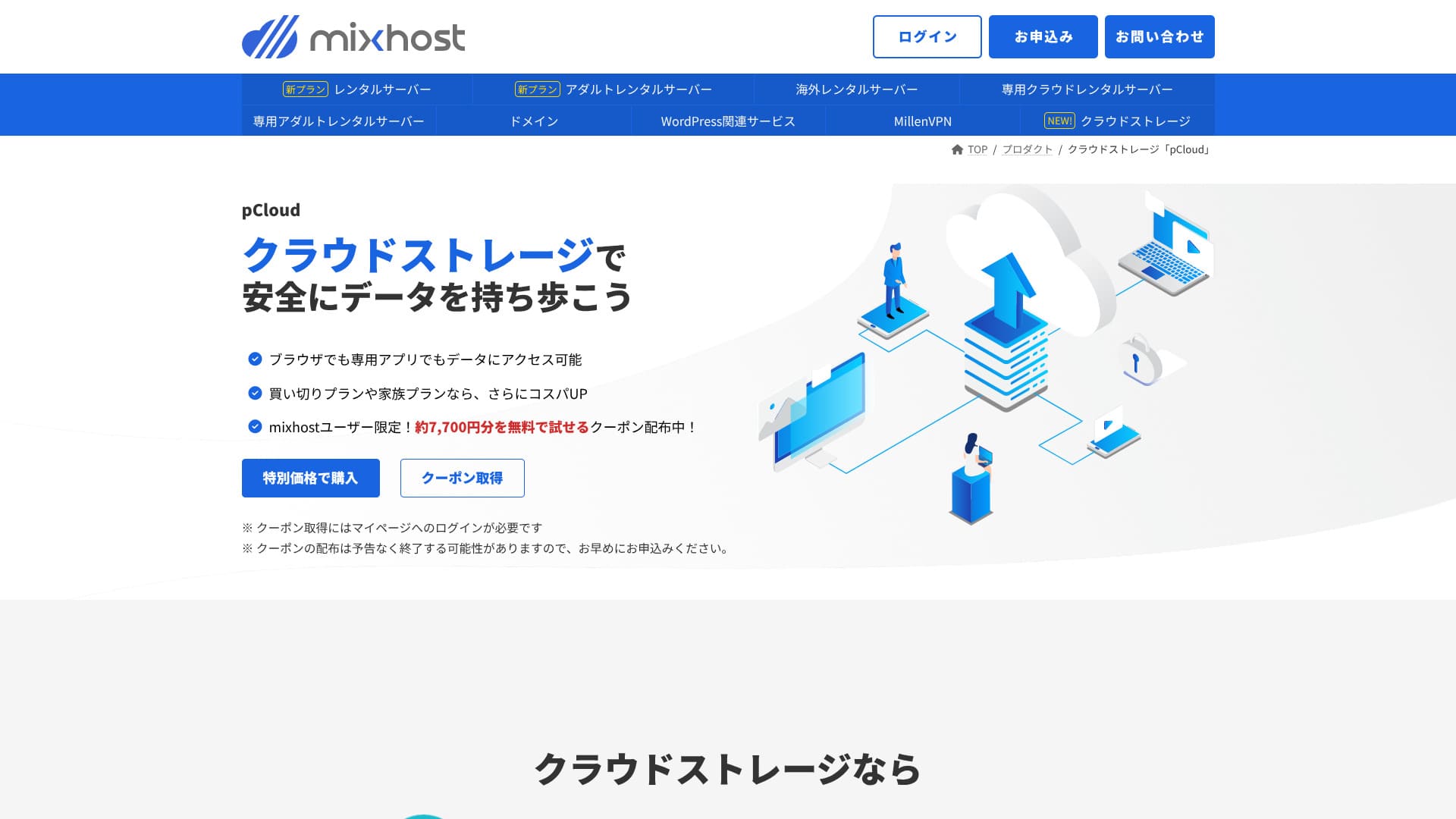
pCloud on pilvesalvestusteenus, mida kasutab 21 miljonit inimest.
mixhost kasutajad saavad kupongi, millega saab 500 GB mahtu üheks aastaks tasuta proovida; selle väärtus on ligikaudu 7 700 jeeni. See on mugav suurte failide jagamiseks ja meeskonnatööks.
Sitejet
Ilma lisatasuta saab kasutada koodivaba veebiehitajat "Sitejet", millega saab veebisaiti luua lohistamise teel. See sisaldab ka AI-tekstiloome ja pilditöötluse funktsioone, mistõttu sobib see hästi väikeettevõtete maandumislehtede loomiseks.
Hikaru Ono
Sellega saab veebisaidi luua isegi lihtsamalt kui WordPressiga.
Sitejeti kasutamine
- STEP.1Logi juhtpaneelist sisse cPanelisse
- STEP.2Klõpsa Sitejetis "Click to get started"

- STEP.3Klõpsa Sitejet Builderis "Try Sitejet"
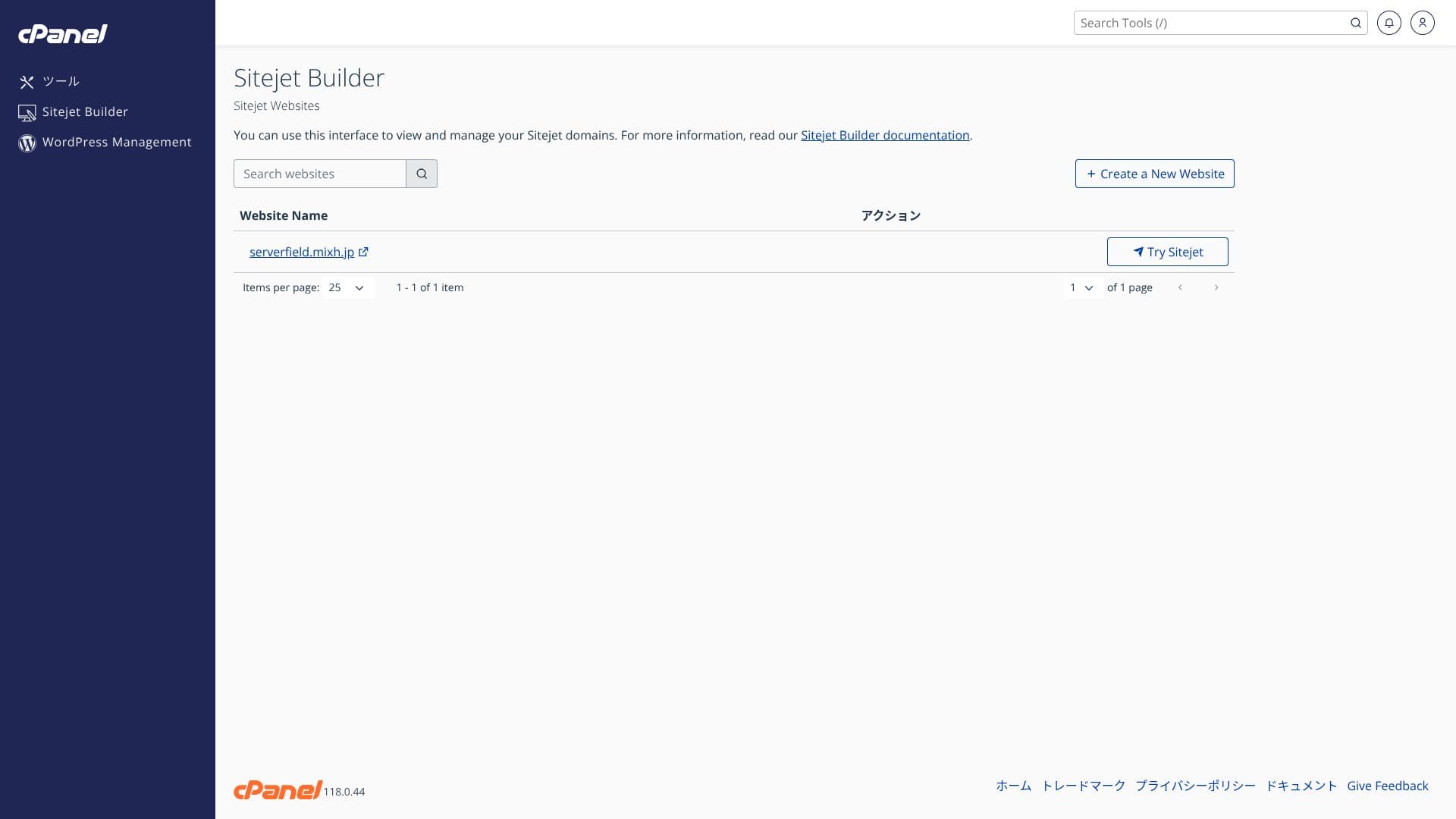
- STEP.4Vali mall, mida soovid kasutada

Välismaine hosting
Välismaise hostingu valik, mis võimaldab valida USA lääneranniku San Jose asukoha, annab madala latentsusega seadistuse, mis sobib üleilmsetele e-poe saitidele ja ingliskeelsele meediale. Hind on umbes 330 jeeni kõrgem kui kodumaisel Standard-paketil.
Hikaru Ono
Väga vähesed Jaapani hostingufirmad haldavad servereid välismaal. Kuna tuge saab endiselt jaapani keeles, soovitan seda neile, kes otsivad välismaist serverit.
Kokkuvõte
“mixhost" on AzPocket Inc. pilvepõhine kiire server. See pakub ka välismaale paigaldatud servereid, mis teeb selle eriti atraktiivseks inimestele, kes avaldavad sisu rahvusvahelisele sihtrühmale. WordPress on serveriga liitumisel eelpaigaldatud, nii et alustada on väga lihtne.
Kuni 55% allahindlust esimeselt ostult, lisaks veel 25% allahindlust ja 30-päevane raha tagasi garantii
mixhost sobib hästi kasutajatele, kes soovivad korraga head hinna ja kvaliteedi suhet, suurt kiirust ja tähelepanelikku tuge.
- Individual bloggers and affiliate marketers: Quick Start and LiteSpeed Cache help you build a site that is fast and SEO-friendly from the moment it goes live.
- Small and midsize businesses and ecommerce operators: Free custom SSL and automatic backups provide peace of mind on security, while unlimited email helps centralize internal information sharing.
- Production companies and developers: You can manage multiple sites in one place and use staging-friendly workflows that make testing and publishing easy.
Because the Light plan does not include backups, I recommend Standard or above for corporate and business use. Make use of the 30-day money-back guarantee and try the actual speed and the usability of the admin screens on your own website or blog.
Compare 10 overseas hosting services

When choosing overseas hosting, many people are unsure which provider to pick because of language barriers and cultural differences.
This article thoroughly compares 10 carefully selected overseas hosting companies from around the world and explains each service’s features, pricing plans, and real-world usability.
It covers a wide range of needs, from decision points that help beginners choose safely to advanced features sought by technical users.