GoDaddy Review: A thorough explanation of the pros, cons, WordPress setup, and cancellation process
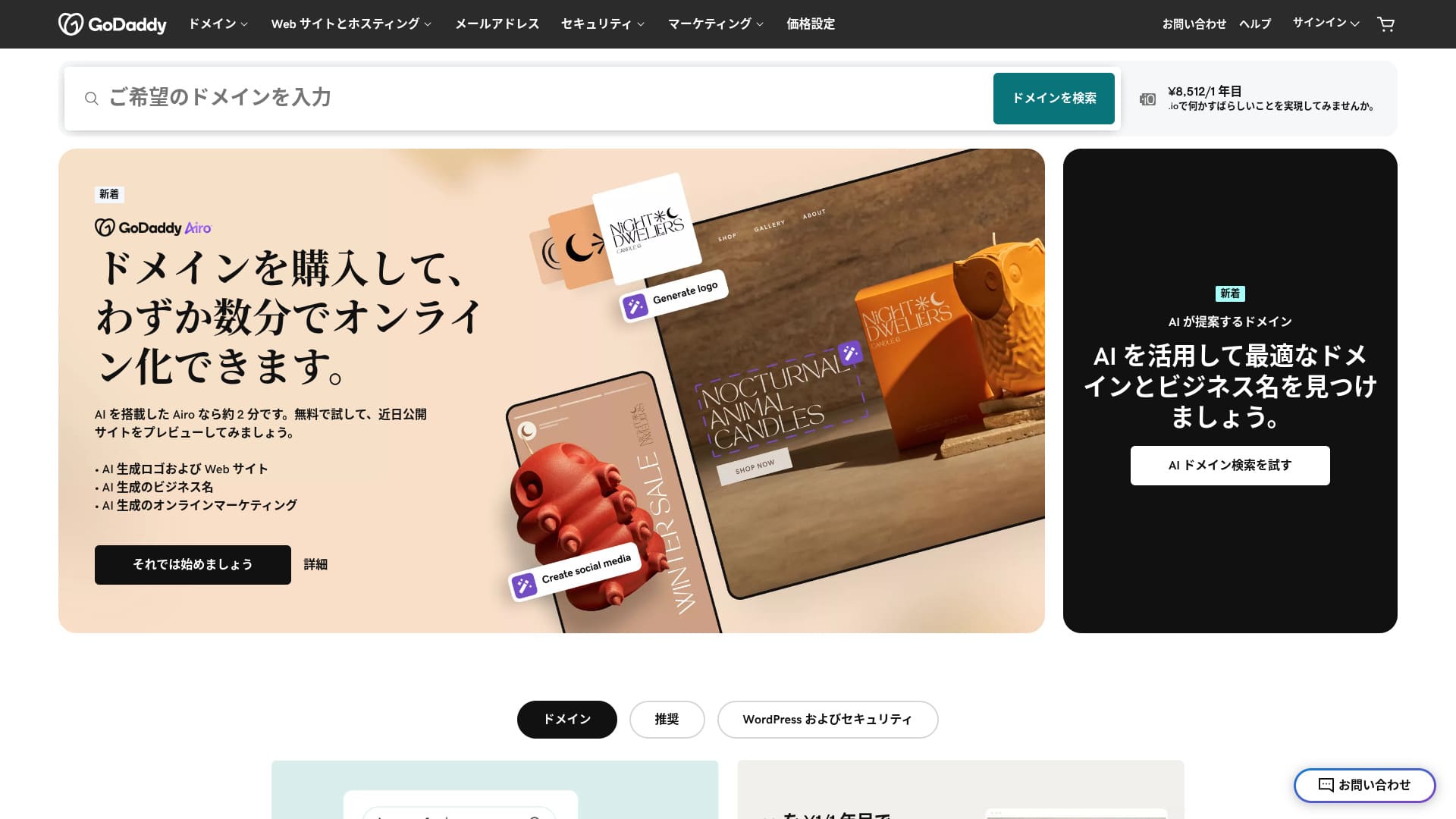
A server provided by one of the world's largest domain registrars.
GoDaddy is the most widely used domain management company in the world. You may have heard the name at least once. Unusually for an overseas server, it also offers a Japanese-language website. And you can receive support in Japanese.
In this article, I thoroughly explain everything from GoDaddy's features and reputation to how to start WordPress and how to cancel.
Compare 10 overseas servers

With overseas rental servers, many people are unsure which server to choose because of language barriers and cultural differences.
In this article, I thoroughly compare 10 carefully selected overseas rental servers from around the world and explain each one's features, pricing plans, and actual user experience in detail.
I provide information that covers a wide range of needs, from selection criteria that beginners can use with confidence to advanced features that engineers look for.
- GoDaddy review: a server with Japanese chat support
- Five features of GoDaddy
- The drawback of GoDaddy is that the cheapest plan lets you create only one website
- Compare GoDaddy with two competing servers
- Seven steps to start a WordPress website with GoDaddy right now
- How to cancel GoDaddy
- Frequently asked questions about GoDaddy
- Summary
GoDaddy review: a server with Japanese chat support
“GoDaddy” is one of the world’s largest hosting companies, headquartered in Scottsdale, Arizona. One of its strengths is that it is easy to use because Japanese-language pages are available. Even the lowest-priced plan comes with a WAF, giving it strong security.
| Server type | Shared server |
| Display speed (TTFB) | Not measured |
| Recommended plan and contract term | Basic, 1 year |
| Trial / money-back guarantee | 30-day money-back guarantee |
| Monthly fee (12-month contract) | 899 yen |
| Initial administrative fee | Free |
| Free domain | None |
| Support | 24/7 chat, phone (weekdays 10:00-17:00) |
| Uptime | 99.9% |
| Server storage | 10 GB |
| Number of databases | 1 |
| SSL | Free SSL |
| Backup | Weekly backup |
| Number of email accounts | None |
| Email security measures | None |
| Server / website migration service | None |
| WordPress preinstall | Yes |
| CDN | Free |
| Data centers | Kirkland, Washington, USA / Beeston, UK / Iași, Romania / Tempe, Arizona, USA / Belgrade, Serbia |
Five features of GoDaddy

The server is fast thanks to NVMe storage
GoDaddy uses NVMe storage. It is faster than a standard SATA SSD.
If the server is fast, the site displays quickly. If the site displays quickly, visitors can browse it without stress. Speed is especially important for corporate websites, e-commerce sites, and affiliate sites.
With GoDaddy's fast server, you can feel at ease.
Free SSL
GoDaddy comes with free SSL. SSL is the standard form of security for websites. When a site uses SSL, its address starts with https.
Browsers also display it as a safe site. If a site does not use SSL, messages such as “Not secure” may appear, and that becomes one reason your number of visitors does not grow as expected.
With GoDaddy, you can enable SSL for free and encourage visitor acquisition.
★ What are SSL and TLS? How encryption protects data and why it matters
WordPress preinstall feature
GoDaddy has a WordPress preinstall feature. WordPress is already installed when you sign up. That means you do not have to go through the trouble of installing WordPress after the contract is complete.
Even people with no experience using servers or WordPress can start WordPress with confidence.
High security with WAF
GoDaddy comes standard with a highly secure WAF. This cloud-based firewall protects websites from threats such as DDoS attacks.
WAF is also offered by domestic servers. However, it is usually provided only by servers with somewhat higher pricing.
A weekly backup system
GoDaddy provides a weekly backup system. Even if unexpected trouble occurs, such as data corruption, deletion, or tampering, you can restore your site if backup data is available.
A weekly backup system is generally sufficient, but if you want daily backups whenever possible, make use of WordPress plugins.
★ Five powerful WordPress backup plugins that help you recover your data
The drawback of GoDaddy is that the cheapest plan lets you create only one website

The drawback is that the cheapest plan lets you create only one website. If you want to build a personal site in addition to your company website, you have to upgrade your plan.
GoDaddy's lowest-priced plan costs 1,199 yen per month. That is about the same as a somewhat expensive domestic server plan for individuals. In those domestic servers, even the lowest-priced plan usually lets you create multiple sites. Some servers even let you add sites without limit.
So, to be honest, being limited to just one website at this price means the pricing is high, and that is a drawback.
Compare GoDaddy with two competing servers
I compared GoDaddy with two competing overseas servers.
IONOS
IONOS is a hosting company based in Germany. Because it has servers across Europe, it is a recommended server for building websites aimed at people living in Europe.
It is less expensive than GoDaddy. Its uptime is also extremely stable at 99.98%. If you want to prioritize price, IONOS is definitely the better choice.
However, IONOS is not very good in terms of support before you sign up. Before the contract, it offers phone support only. For most people, calling the support team of an overseas server is unrealistic. By contrast, GoDaddy lets you use chat support before the contract. In terms of support, GoDaddy is more user-friendly.
| Item | GoDaddy | IONOS |
|---|---|---|
| Biggest strength | No.1 in number of domain users | Good value |
| Trial / money-back guarantee | 30-day money-back guarantee | 30-day money-back guarantee |
| Uptime | 99.9% | 99.98% |
| Storage | 10 GB | 50 GB |
| First-year server cost | 14,388 yen | 1,798 yen |

HOSTINGER
HOSTINGER is affordable hosting with large storage. If you want to use an overseas server more cheaply than GoDaddy, it is a candidate worth considering.
However, HOSTINGER offers support only in English. With GoDaddy, you can receive chat support in Japanese. When I actually asked a question in chat, a reply came back immediately. If you want kind support, I recommend GoDaddy.
| Comparison | GoDaddy | HOSTINGER |
|---|---|---|
| Biggest strength | No.1 in number of domain users | Good value |
| Trial / money-back guarantee | 30-day money-back guarantee | 30-day money-back guarantee |
| Uptime | 99.9% | 99.9% |
| Storage | 10 GB | 100 GB |
| First-year server cost | 14,388 yen | 4,405 yen |

Seven steps to start a WordPress website with GoDaddy right now
- STEP.1Sign in to GoDaddy
Go to the official GoDaddy website and log in to your account.
- STEP.2Go to My Products
After logging in, choose “My Products” from the top menu in the dashboard. The domains and hosting plans you manage will appear there.
- STEP.3Choose WordPress hosting
Go to the “Web Hosting” section and click the “Manage” button next to your managed WordPress plan.
- STEP.4Install WordPress
The hosting management screen appears. From there, click the “Set Up” button.
In “Select a Domain,” choose the domain where you want to install WordPress. If you already obtained a domain through GoDaddy, you can select it from the list.
- STEP.5Configure WordPress
In “Site Settings,” enter the site name and the administrator information for WordPress.
Set the administrator username, password, and email address. These become the credentials you use to log in to the WordPress admin screen.
- STEP.6Automatic installation is completed
After entering all the information, click “Install.” GoDaddy automatically installs WordPress and completes the setup.
- STEP.7Access the WordPress dashboard
Once the installation is complete, you can log in to the WordPress dashboard. The administrator URL is “yourdomain.com/wp-admin,” and from there you can configure and customize WordPress.
Set up your theme and plugins, publish the site, and you are done.
How to cancel GoDaddy
- STEP.1Log in to GoDaddy
Go to GoDaddy and log in to your account.
- STEP.2Go to My Products
Click “My Products” at the top of the dashboard and go to the page where all purchased services are listed.
- STEP.3Select the service you want to cancel
Click the “Manage” button next to the service you want to cancel, such as a domain, hosting plan, or email service.
- STEP.4Turn off automatic renewal
After you move to the service management screen, first turn off automatic renewal. This prevents the next charge from being processed.
Go to the “Renewal Options” or “Billing Information” section and set “Auto-Renew” to “Off.”
- STEP.5Delete the service
After turning off automatic renewal, look for the “Cancel” or “Delete” option. Selecting it completely cancels the service.
A confirmation message appears, so review the details and click the “Confirm” button.
- STEP.6If you want to delete your GoDaddy account entirely
If you want to delete your GoDaddy account itself, you need to contact the support team. Use the official GoDaddy support page to contact support by phone or chat and proceed with the account deletion process.
Make sure that you receive the email from GoDaddy about the service cancellation.
Frequently asked questions about GoDaddy
What kind of company is GoDaddy?
GoDaddy is the world's largest domain management company. In addition to domain management, it provides hosting and a website builder.
How do you sign up for GoDaddy?
Go to the official GoDaddy website and sign up from “Create Account.”
Summary
GoDaddy is a server where you can receive Japanese chat support. Because it is a globally famous domain management company, it provides a sense of reassurance. However, it is not particularly cheap, so compare carefully before choosing it.
Because GoDaddy comes with a 30-day money-back guarantee, I recommend trying it once for the time being.
“GoDaddy” is one of the world’s largest hosting companies, headquartered in Scottsdale, Arizona. Because it supports Japanese-language pages and Japanese chat support, one of its strengths is that it is easy to introduce even as an overseas server.