
14-day free trial
PR
কাজ
wpX Speed review: speed tests, সুবিধা-অসুবিধা এবং অন্যান্য hosts-এর সঙ্গে তুলনা
প্রকাশিত: 2025.04.18
আপডেট: 2025.04.18
রেটিং: 4.0
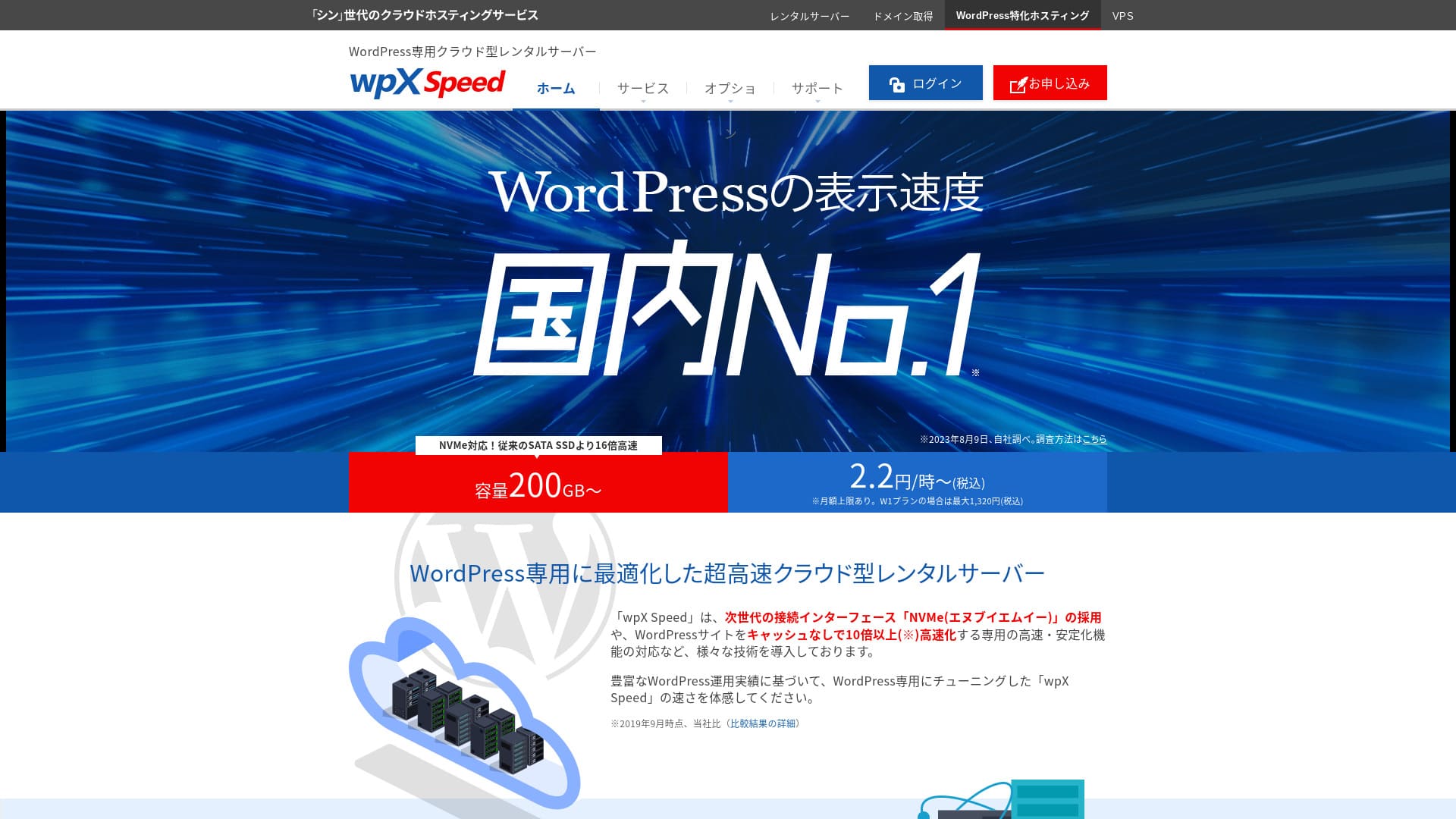
wpX Speed ShinCloud Co., Ltd. পরিচালিত ultra-fast cloud server, যা হঠাৎ বেড়ে যাওয়া traffic সামলানোর জন্য তৈরি। Traffic spike হলেও auto-scaling feature site down হওয়া ঠেকায়।

আমি wpX Speed প্রথমবার WordPress ব্যবহার করা individuals, companies এবং sole proprietors-দের জন্য recommend করি কারণ:
- আমাদের measurements-এ এটি দ্বিতীয় দ্রুততম server ছিল
- Auto scale এবং reserved resources-এর কারণে এটি viral traffic সহ্য করতে পারে
- Pay-only-for-what-you-use pricing শুরু করা সহজ করে
এই কারণেই এটি সন্তোষজনক option। 14 দিনের free trial-এ এটি পরীক্ষা করা যায়।
A competing server is ConoHa WING. It can also be started on an hourly basis, and its lower pricing is stronger than wpX Speed in that respect. Consider it as well.
★ ConoHa WING Review: Why 750,000 Users Choose It, Tested Through Speed, Pros, and Cons
| Server type | Shared server |
| Display speed (TTFB) | 40ms |
| Recommended plan | W1, 12 months |
| Trial | 14 days |
| Monthly fee | 2.2 yen প্রতি ঘণ্টা, সর্বোচ্চ 1,320 yen প্রতি মাস |
| Initial fee | Free |
| Storage | 200GB |
| Security | WAF, overseas IP restrictions, login attempt limits |
| SSL | Free custom SSL |
| Backup | 7 দিনের automatic backups, restore free |
| Unlimited accounts, তবে features সীমিত | |
| Security measures | WAF, access restrictions from overseas IP addresses, login attempt limits, mass comment and trackback restrictions, restrictions on comments and trackbacks from overseas IP addresses |
| SSL | Free custom SSL, custom SSL |
| Backup / restore | 7 days of automatic backups free of charge, restore free of charge |
| Number of email accounts | Unlimited |
| Email security features | SMTP-AUTH, IMAP |
| Server / website migration service | None |
| WordPress pre-installation | None |
| CDN | None |

Hikaru Ono
wpX Speed-এ application থেকে WordPress installation পর্যন্ত flow বেশ smooth মনে হয়েছে। Fast server environment-এর কারণে companies ও business use-এর জন্য আমি এটি recommend করি।
আটটি plans পর্যন্ত scale up করা যায় বলে long-term use-এর জন্যও এটি উপযুক্ত।
অন্য servers-এর সঙ্গে wpX Speed-এর তুলনা
- Overall rating rating★★★★☆
- Server speed ★★★★★
- Pricing ★★★☆☆
- Stability ★★★★☆
- WordPress start করার ease ★★★★☆
- Domain ও SSL operations ★★★★★
* এটি আমার actual usage experience-এর ভিত্তিতে।

Comparison of 21 Recommended WordPress Hosting Services for Individuals and How to Choose
Comparison of 21 Recommended WordPress Hosting Services for Individuals and How to Choose
serverfield.org
- 4 November 2025 এর market research data, speed order
- Monthly fees হলো WordPress চালানো যায় এমন cheapest plan-এর first-year cost
- Speed হলো একই conditions-এ demo sites-এ measured TTFB value
wpX Speed-এর reputation-এর পেছনে 6টি প্রধান features

আমাদের independent tests-এ display speed-এ দ্বিতীয় স্থান
আমাদের independent testing-এ wpX Speed XServer Business-এর সঙ্গে display speed-এ second place পেয়েছে।
Google server response time (TTFB) 200ms-এর মধ্যে রাখার পরামর্শ দেয়। wpX Speed এর measured result ছিল 40ms, তাই এটিকে ultra-fast server বলা যায়।
Server response times need to be kept under 200 milliseconds.
https://developers.google.com/server/speed/docs/insights/Server?hl=ja
Server দ্রুত হলে pages দ্রুত খোলে, visitors অপেক্ষা করে না, এবং SEO ও product sales-এও ভালো প্রভাব পড়ে।
★ এটি কি সত্যিই দ্রুত? আমরা 11 hosting services-এর speed ranking করেছি
Auto-scale feature যা performance নিজে নিজে বাড়ায়
wpX Speed sudden traffic spikes-এর বিরুদ্ধে শক্তিশালী, কারণ এতে auto-scaling feature আছে। current plan হঠাৎ বেড়ে যাওয়া traffic process করতে না পারলে CPU ও cores যোগ করে plan নিজে থেকেই upgrade হয়।
এই flexibility-এর কারণে traffic surge থেকে হওয়া 503 error-ও অতটা ভয়ের বিষয় থাকে না।
★ 503 error কী? Web congestion, তা এড়ানোর উপায় এবং emergency responses
অবশ্য automatic plan upgrades budget-এর ওপর চাপ দিতে পারে। তবে auto-scaling on বা off করা যায়, এবং plan changes-এর conditions ও budget নিজে ঠিক করা যায়।
Reserved resources দিয়ে স্থিতিশীল operation
wpX Speed resources reserve রাখে, তাই site display স্থিতিশীল থাকে।
সাধারণ shared hosting-এ একই server-এর অন্য site-এ traffic বাড়লে আপনার site-এর performance কমে যেতে পারে, কারণ CPU ও cores-এর মতো resources কম পড়ে।
কিন্তু reserved resources থাকায় wpX Speed অন্য sites দ্বারা প্রভাবিত হয় না। অন্যভাবে বললে, এটি shared hosting-এর বড় দুর্বলতা কমায়।
waste ছাড়া hourly pricing
wpX Speed hourly pricing model নেয়। আপনি যত ব্যবহার করেন ততই pay করেন, তাই অপ্রয়োজনীয় খরচ কমে।
- W1 plan: 2.2 yen প্রতি ঘণ্টা, monthly cap 1,320 yen
- W2 plan: 4.4 yen প্রতি ঘণ্টা, monthly cap 2,640 yen
- W3 plan: 8.8 yen প্রতি ঘণ্টা, monthly cap 5,280 yen
billing hourly হলেও monthly cap আছে, তাই মাসে দিনের সংখ্যা বদলালেও cost uncontrolled হয় না।
Hourly pricing-এর কারণে বড় upfront commitment ছাড়া কম খরচে service পরীক্ষা করা সহজ।
WAF security feature ব্যবহার
wpX Speed এ WAF আছে। WAF আধুনিক security measure, যা firewall-এর মতো traditional measures-এর সঙ্গে মিলে পুরনো measures এড়িয়ে যাওয়া attacks ঠেকাতে সাহায্য করে।
অনেক low-cost hosting service-এ WAF paid option। কিন্তু wpX Speed এ এটি free-তে enable করা যায়।
7 দিনের backups দিয়ে ভরসা
wpX Speed এ 7 দিনের backup feature অন্তর্ভুক্ত।
Backups খুব গুরুত্বপূর্ণ। WAF-এর মতো security থাকলেও attack থেকে data tampering বা accidental deletion হতে পারে। Backup data থাকলে site-কে trouble-এর আগের অবস্থায় restore করা যায়।
কিছু hosting service-এ backup paid option, কিন্তু wpX Speed এ এটি free পাওয়া যায়, যা value-এর দিক থেকে ভালো।
wpX Speed-এর দুর্বল email features একটি drawback

wpX Speed এর email functionality তুলনামূলক দুর্বল।
এটি DKIM authentication support করে না। DKIM এমন technology যা verify করে email valid sender থেকে এসেছে এবং মাঝপথে tamper হয়নি।
আপনার company business email-এর ওপর নির্ভর করলে আলাদা dedicated email service-ও বিবেচনা করা উচিত।
দুটি similar servers-এর সঙ্গে তুলনা
ConoHa WING
ConoHa WING ও hourly pricing server এবং 2.2 yen প্রতি ঘণ্টা থেকে শুরু হয়। wpX Speed থেকে আলাদা, এটি WING Packs নামে long-term discounts দেয়, তাই lower entry cost-এর দিক থেকে আরও সস্তা হতে পারে।wpX Speed, it also offers discounts through long-term contracts called WING Packs. You can start more cheaply than with wpX Speed.
তবে auto-scaling ও reserved resources থাকা business plan বেছে নিলে এর price 3.1 yen প্রতি ঘণ্টা পর্যন্ত যায়।
focus যদি business-oriented server হয়, তাহলে wpX Speed বেশি affordable recommendation।

ConoHa WING Review: Why 750,000 Users Choose It, Tested Through Speed, Pros, and Cons
ConoHa WING Review: Why 750,000 Users Choose It, Tested Through Speed, Pros, and Cons
serverfield.org
XServer
XServer NVMe SSD ব্যবহার করা আরেকটি দ্রুত server। এটি wpX Speed-এর মতো reserved resources দেয়, তাই অন্য sites-এর প্রভাব থেকে অনেকটা রক্ষা পায়। এর pricing-ও তুলনামূলক কম।wpX Speed. It is run by the same company. XServer is cheaper to use. Like wpX Speed, it also has reserved resources, so it is not affected by other sites.
কিন্তু এতে wpX Speed-এর মতো auto-scaling feature নেই। তাই হঠাৎ traffic spikes সামলাতে wpX Speed ভালো হতে পারে, বিশেষ করে campaigns বা events থাকা sites-এর জন্য।wpX Speed is better at handling sudden traffic spikes. If you regularly run events or campaigns and have a high chance of sudden traffic surges, I recommend wpX Speed.

XServer Review [2025 Latest]: Thoroughly Explained Speed, Pricing, Pros, and Cons
XServer Review [2025 Latest]: Thoroughly Explained Speed, Pricing, Pros, and Cons
serverfield.org
wpX Speed দিয়ে website শুরু করার 7 steps
Let's start a website with wpX Speed!
- STEP.1Access the official wpX Speed website
On the official site’s top page, click “Apply” at the very bottom. If you do not have a Shin Account ID, click “New Application.”
- STEP.2Enter customer information
This is the contract information. For the server ID, enter any string you like.
I recommend the W1 plan. If traffic increases and the specs become insufficient, upgrade the plan.
Next, enter your registration details such as your email address and name.
Next is the payment method. I recommend paying by credit card. It lets you start building your website right away.
Finally, review the Terms of Use and the handling of personal information. Check the box to agree to the “Terms of Use” and the “Handling of Personal Information,” then click “Proceed to confirm your application details.”
If everything looks fine after you review the application details, complete identity verification.
Once you receive the email confirming that server setup is complete, your server application is finished.
- STEP.3Apply for a domain and add the domain
Log in to the admin screen.
Under “Contract Management,” click “Additional Applications” in the “Contract-related” section. Read the Terms of Use and the handling of personal information, then click “Agree.”
Click “Apply to obtain a new domain” and enter the domain you want. If it is available, a button to apply for that domain will appear, so click it.
Click “Confirm application details” and proceed to domain payment. Once payment is complete, domain acquisition is finished.
From “Server Management” in the admin screen, go to “Domain Management” and then “Add Domain Settings.” Enter the domain you obtained a moment ago, click “Add Domain (Confirm),” and then click “Add Domain (Finalize).”
This completes adding the domain.
- STEP.4Install WordPress
Log in to the control panel. Under “Server Management,” go to “WordPress-related” and then “New Installation.” Configure the following items.
- Site address: Select the domain you added earlier
- WordPress ID: Anything is fine.
- Blog title: Anything is fine. You can easily change it later.
- Email address: Use an email address you normally use. If you are a company, a company email address is recommended.
- Custom SSL: Check “Use custom SSL.” Check “Enable redirect settings to https://”.
After entering everything, click “Next.” Review the details again, and then click “Confirm (Install WordPress).”
- STEP.5Initial WordPress settings
Log in to WordPress.
If you see a warning saying “This site can’t be reached,” the DNS settings have not propagated yet. In that case, all you can do is wait, so try logging in again every hour.
★ What Are DNS and Name Servers?
Let’s configure the permalink settings. From the WordPress admin screen, go to “Settings” and then “Permalinks.” Select “Post name.” After selecting it, click “Save Changes.”
When you choose “Post name,” you can enter any string you like in the URL when publishing an article. It is best to use a short string that helps readers imagine the article content. If it is too long, some people may feel uneasy and think the site looks suspicious.
- STEP.6Install plugins
Go back to the WordPress admin screen, open “Plugins,” and go to “Add New” to install the plugins you need.
Once you find the plugin you want by searching, click “Install Now” and then “Activate.” After that, follow the instructions for each plugin.
Be sure to install security and backup plugins.
- 5 WordPress Security Plugins That Strengthen Protection and How to Choose Them
- 5 Powerful WordPress Backup Plugins That Help You Recover Your Data
Once the plugins are installed, your WordPress website is fully ready!
সারাংশ
Auto-scaling এবং reserved resources-এর কারণে wpX Speed stability-তে শক্তিশালী। Hourly pricing শুরু করা সহজ করে, তাই আগ্রহী হলে আগে 14 দিন নিজে ব্যবহার করে দেখা practical পদ্ধতি।
A Complete Comparison of 32 WordPress Hosting Providers: Recommendations for Individuals, Businesses, and International Sites

When you decide to start WordPress and search for "best WordPress hosting," you find all kinds of articles, from personal and business options to overseas and low-cost servers. Honestly,
- Which site should I trust?
- I want to choose a server in a simple, easy-to-understand way.
- Please show me how to start WordPress right away.
Don't you feel that way? In this article, I carefully selected recommendations from 32 hosting providers for individuals, businesses, and domestic and international use. The explanation comes from the SEO specialist at an app development company that uses hosting servers every day.