Until October 7, 2025, the initial fee (normally 16,500 yen to 385,000 yen) is free, і server migration service is also free
PR
Серверы
Агляд XServer Business [2025]: падрабязнае тэставанне хуткасці, цэн і магчымасцей
Апублікавана: 2025.05.13
Абноўлена: 2025.05.13
Рэйтынг: 5.0
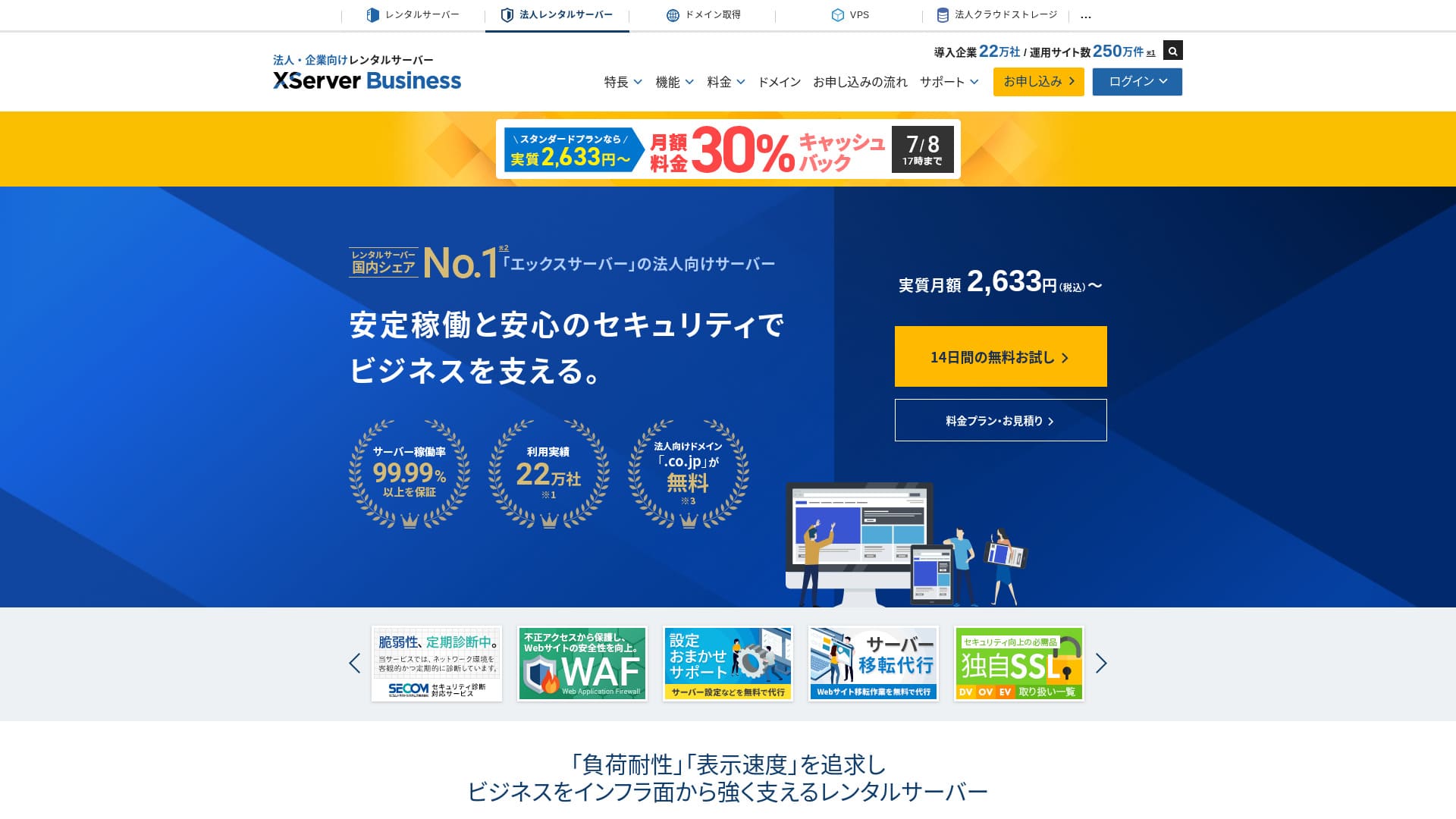
XServer Businessis an ultra-fast бізнес hosting service run by Xserver Inc.Because it is both fast і high-capacity, it is very comfortable для running email as well as WordPress websites і landing pages.
| Server type | Shared hosting / Managed dedicated server (virtual) / Managed dedicated server (physical) |
| Speed (TTFB) | 40ms |
| Recommended план і term | Shared Standard 12 months |
| Free trial / money-back guarantee | 10-day free trial |
| Monthly price (12-month term) | 2,926 yen |
| Initial setup fee | 16,500 yen |
| Free domains | Two free forever |
| Support | Phone і email (weekdays 10:00-18:00) |
| Uptime | 99.99% guarantee |
| Storage | 700 GB |
| Number of databases | Unlimited |
| Sikkerhetstiltak | WAF / website tamper alerts / Secom security diagnostics |
| SSL | Free dedicated SSL / Cloud SSL / speed-validated SSL / QuickSSL Premium |
| Backups / restore | 14 days of automatic backups / free restores |
| Email accounts | Unlimited |
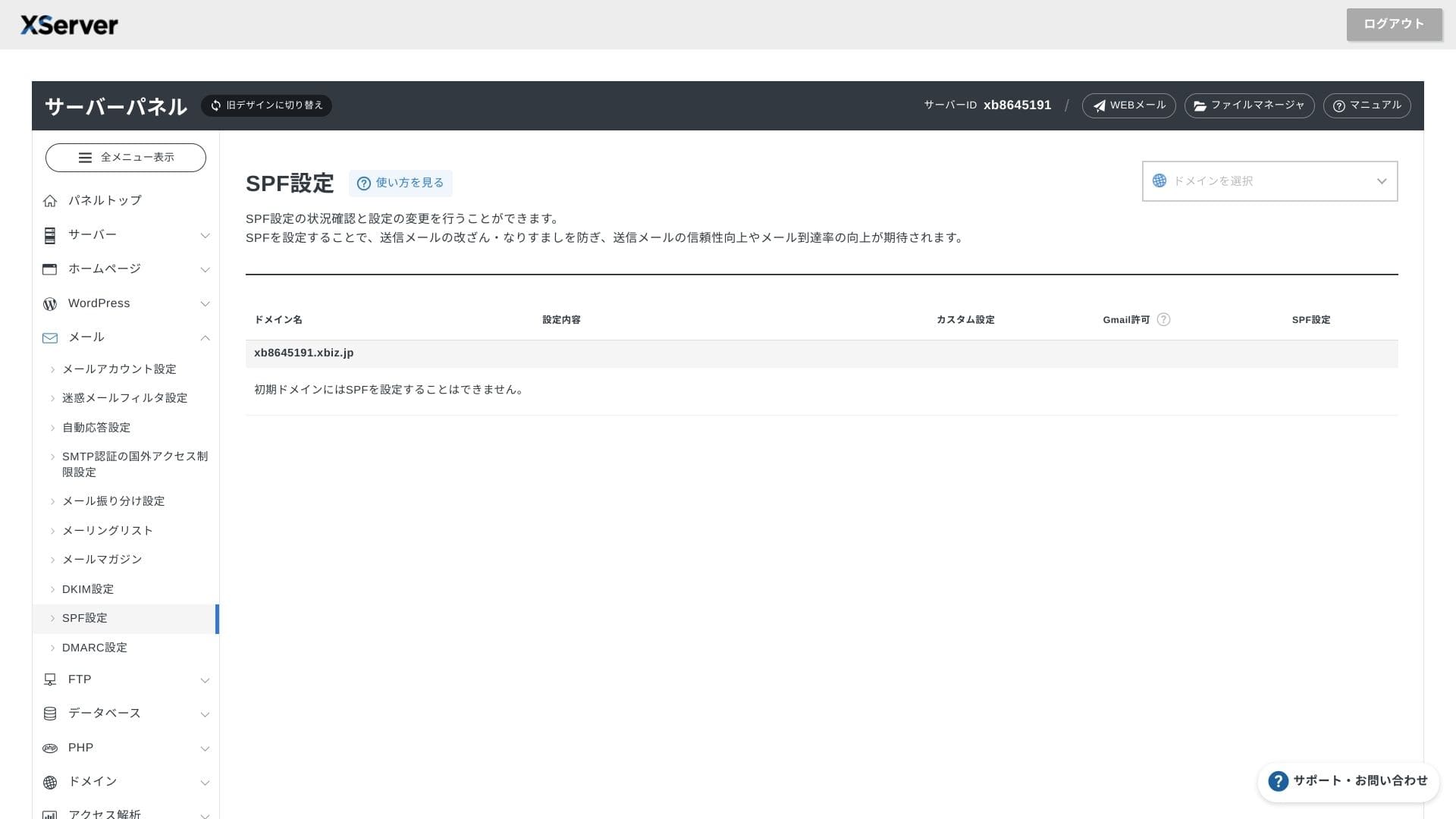
| Email security measures | Antivirus / spam filter / high-performance spam filter / POP over SSL / SMTP over SSL / IMAP over SSL / DKIM / DMARC |
| Server / website migration service | Free full-service migration(first time only, up to 10 sites) |
| WordPress preinstalled | Yes |
| CDN | None |

Hikaru Ono
XServer Businesslets you start WordPress when you sign up для the server, which makes it a great fit для companies creating a new website. Businesses already running a site on another server can also use it з confidence because professional migration is included free of charge.
It is a high-quality server you can keep using для the long term.
- Data based on market research as ofNovember 4, 2025, arranged inзаказ of speed
- Monthly prices are the first-year cost of the cheapest план that supports WordPress
- Speed is the Time to First Byte measured on demo sites under the same conditions
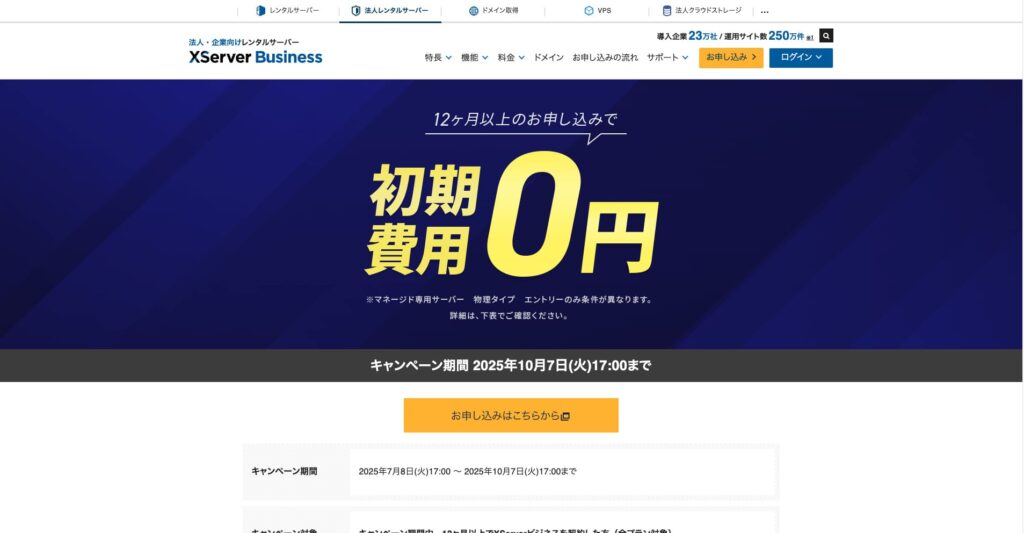
"XServer Business" is the бізнес hosting service from Xserver Inc., the company з the No. 1 market share in Japan. In our measurements, it ranked No. 2 для speed. It is one of the best choices when you need to move to a new server, і migration is free as well.

Агляд, звязаны з WordPress
Лёгкая ўстаноўка WordPress
XServer Businesssupports Easy WordPress Installation, which installs WordPress 6.8 from the control panel in just a few clicks. It automatically handles the database і PHP settings, і SSL is enabled at the same time, so the work required для the initial setup is almost zero.
Hikaru Ono
Even without an in-house IT department, you can start WordPress reliably і without trouble.
Let's launch your website з XServer бізнес
- STEP.1Visit the official XServer бізнес website
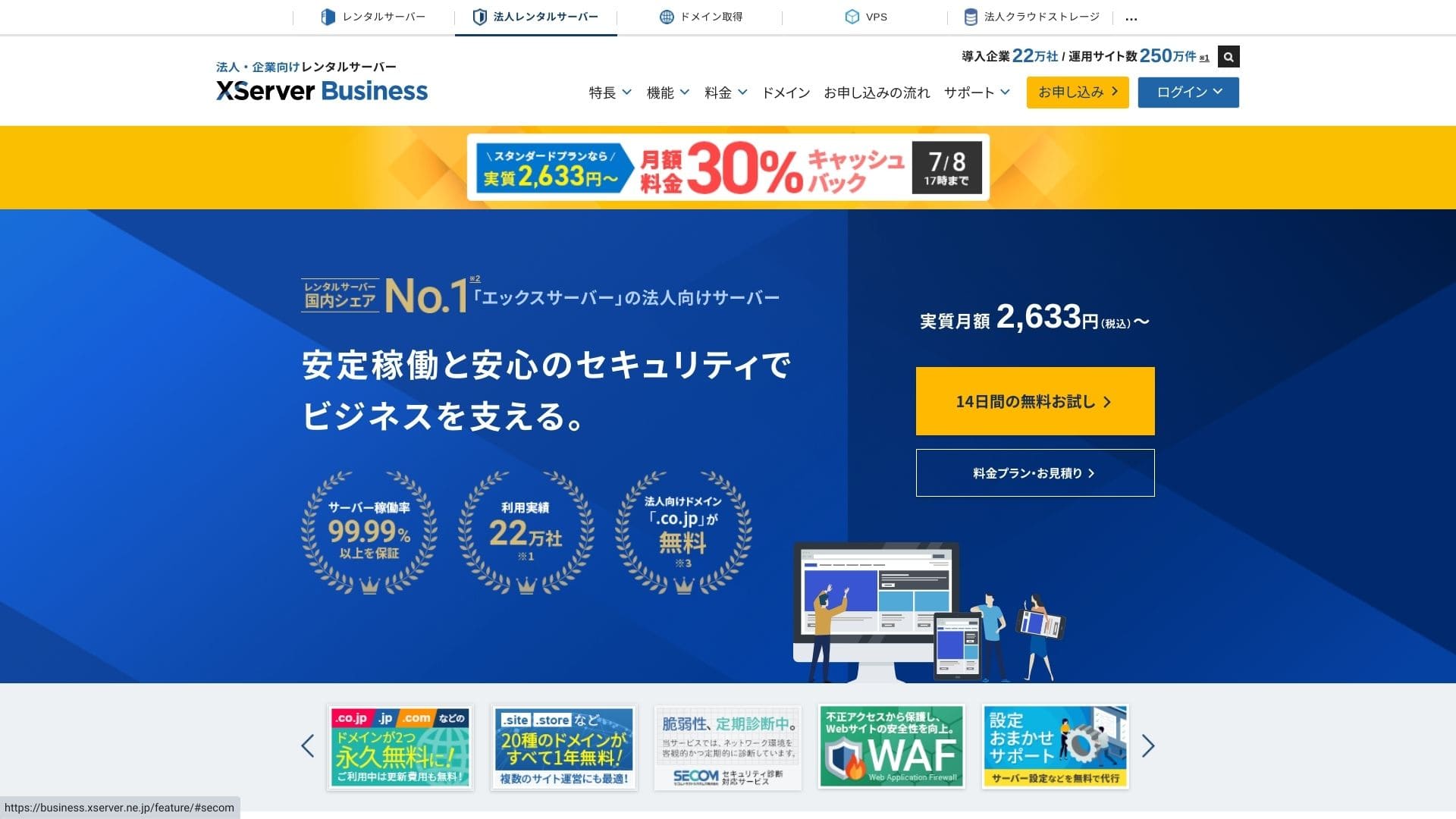
Click "14-day free trial" on the top page. Then, under "First-time customers," click "Start now! New application."
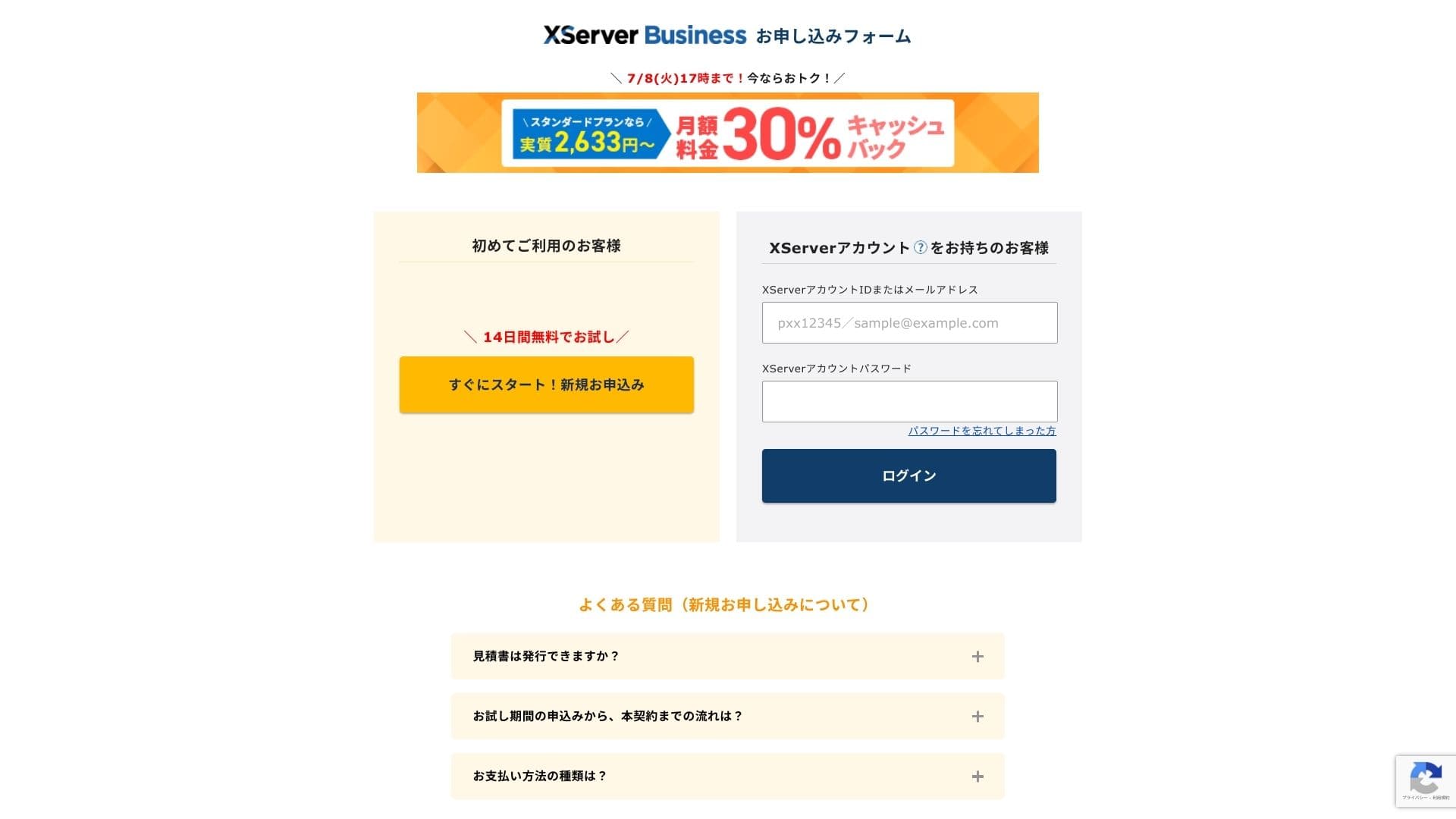
- STEP.2Choose your application details
You can leave the server ID as it is. Choose the shared server, then select a план. I recommend the Standard план. If traffic grows і the specifications become insufficient, you can upgrade later.
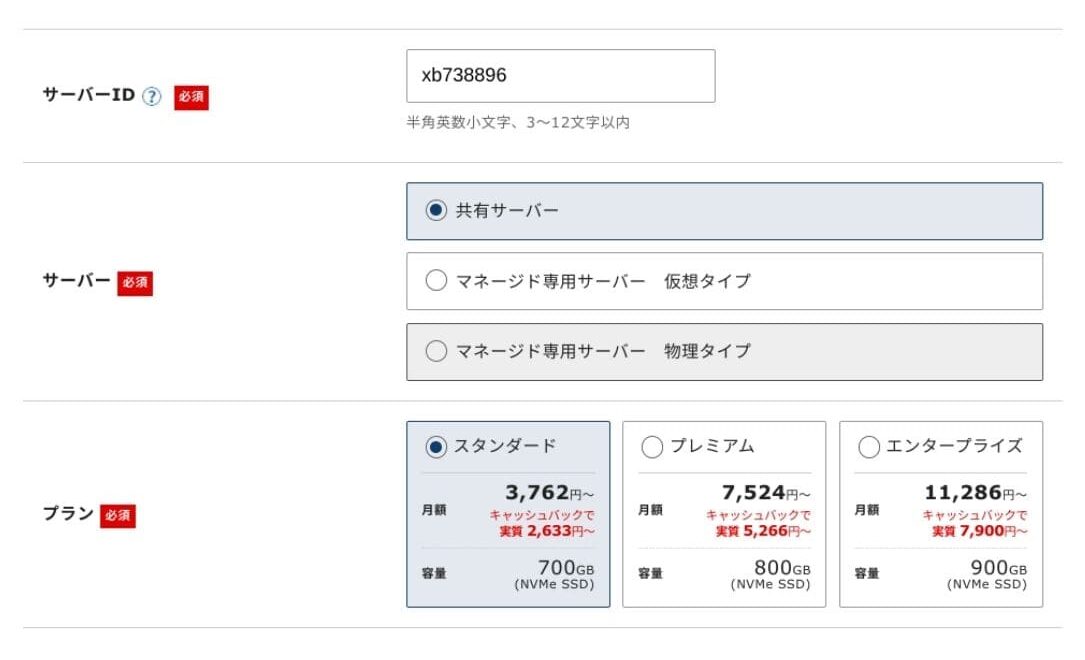
Click "Proceed to customer information entry."
- STEP.3Create your Xserver Account і enter your customer information
Enter your email address, name, address, і the other required details.
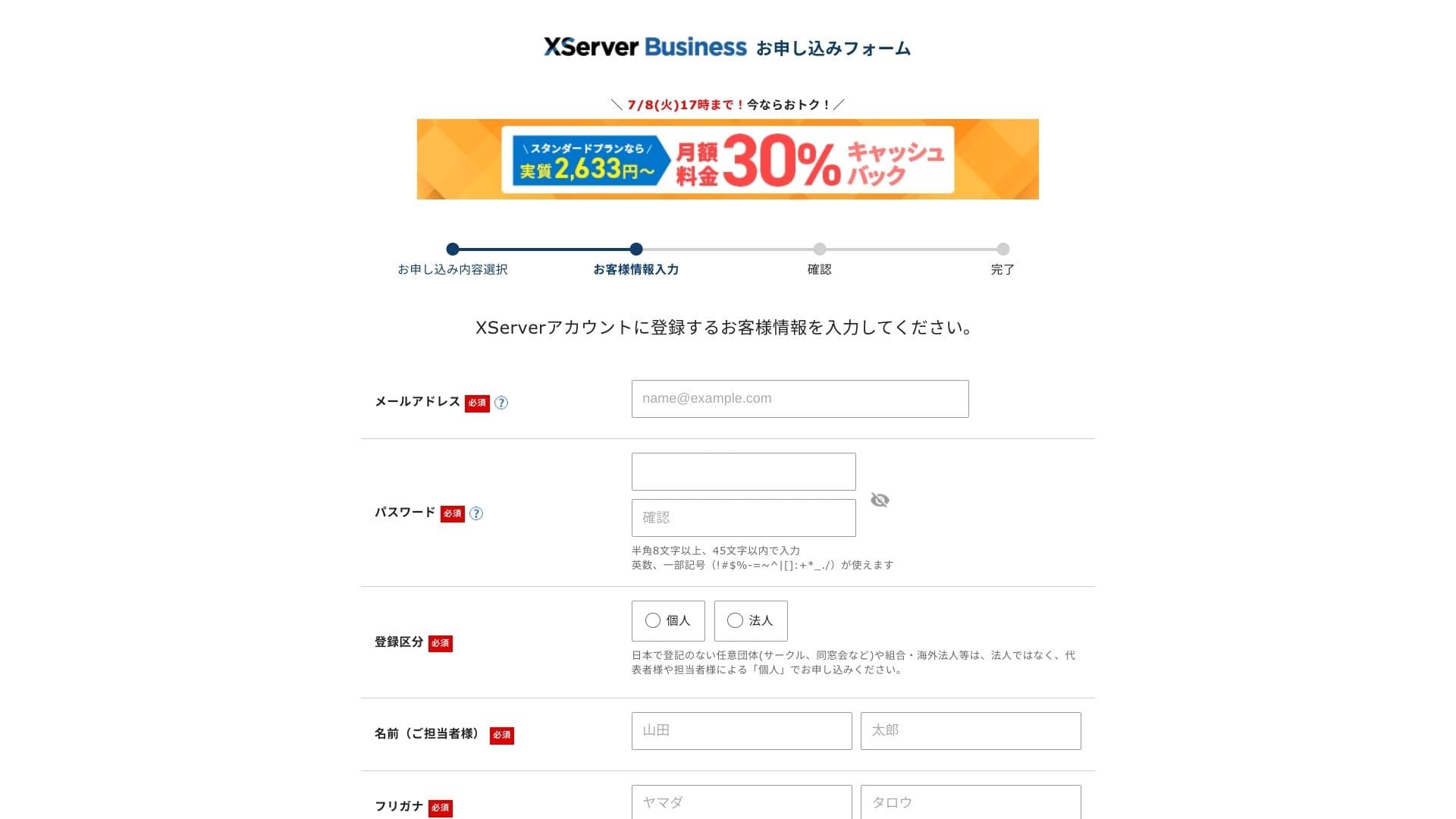
Anmeldelse the Terms of Use і the Handling of Personal Information. If you agree, check the box і click "Next."
Enter the verification code shown on the screen. A verification code will be sent to the email address you registered, so check that message first.
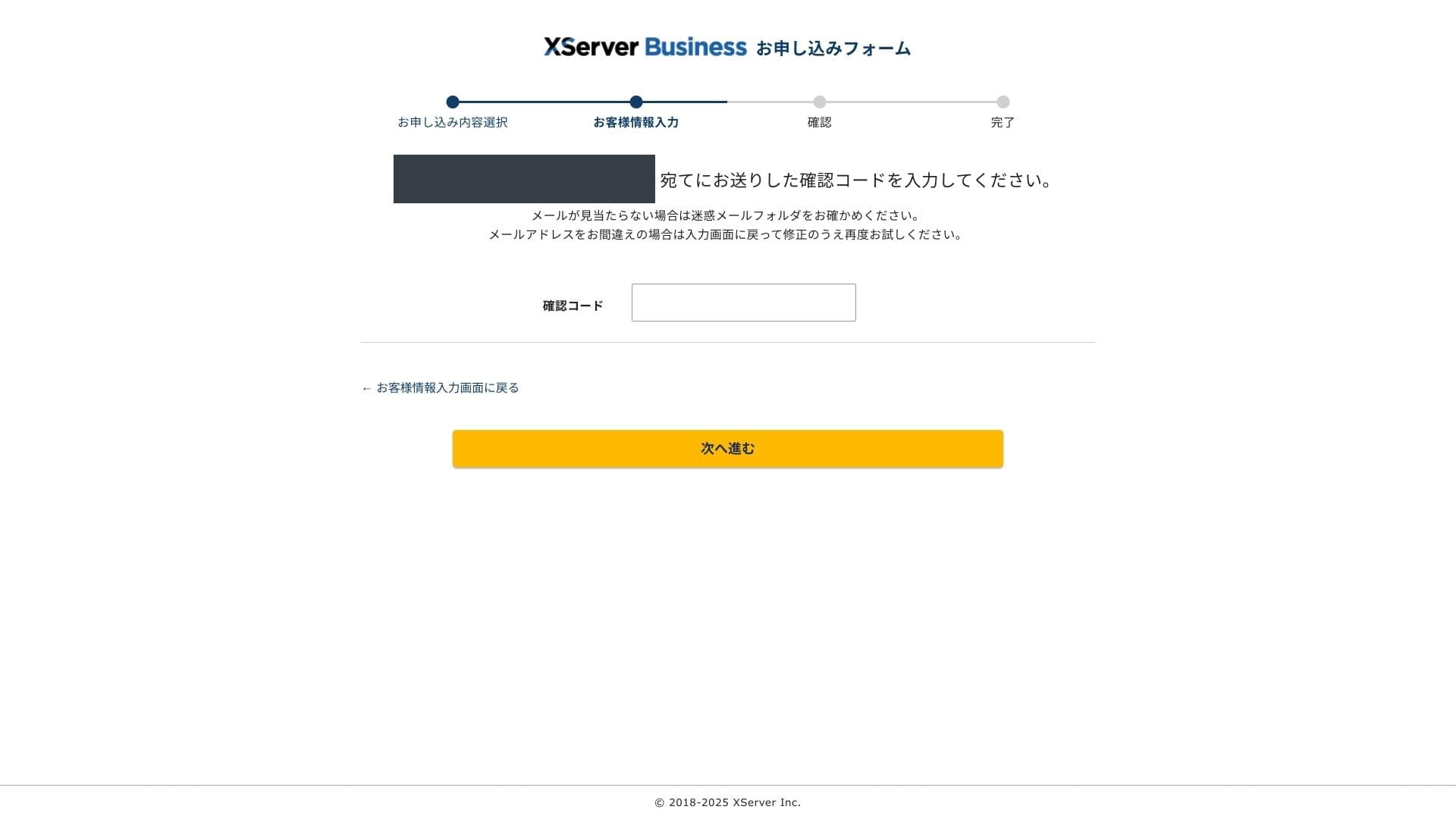
- STEP.4Anmeldelse
Anmeldelse your application details і Xserver Account information one more time. If everything looks correct, click "Proceed to SMS / phone verification."
Your application details will be reviewed again using your phone number.
Enter the phone number to use, choose either SMS або an automated voice call to receive the verification code, і click "Get verification code." Once you receive it, enter the code.
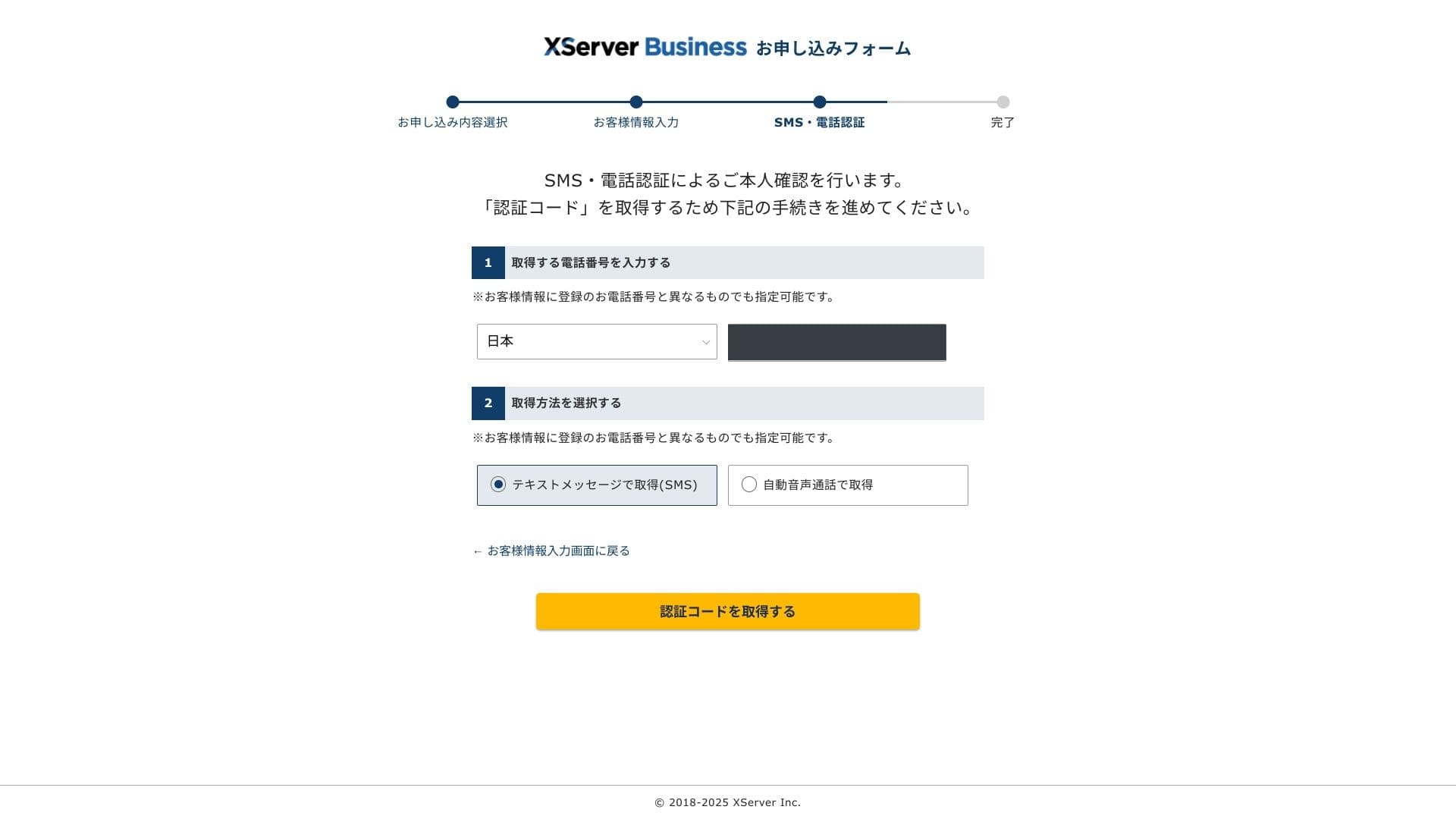
When you see "Your application has been completed," the application is finished.
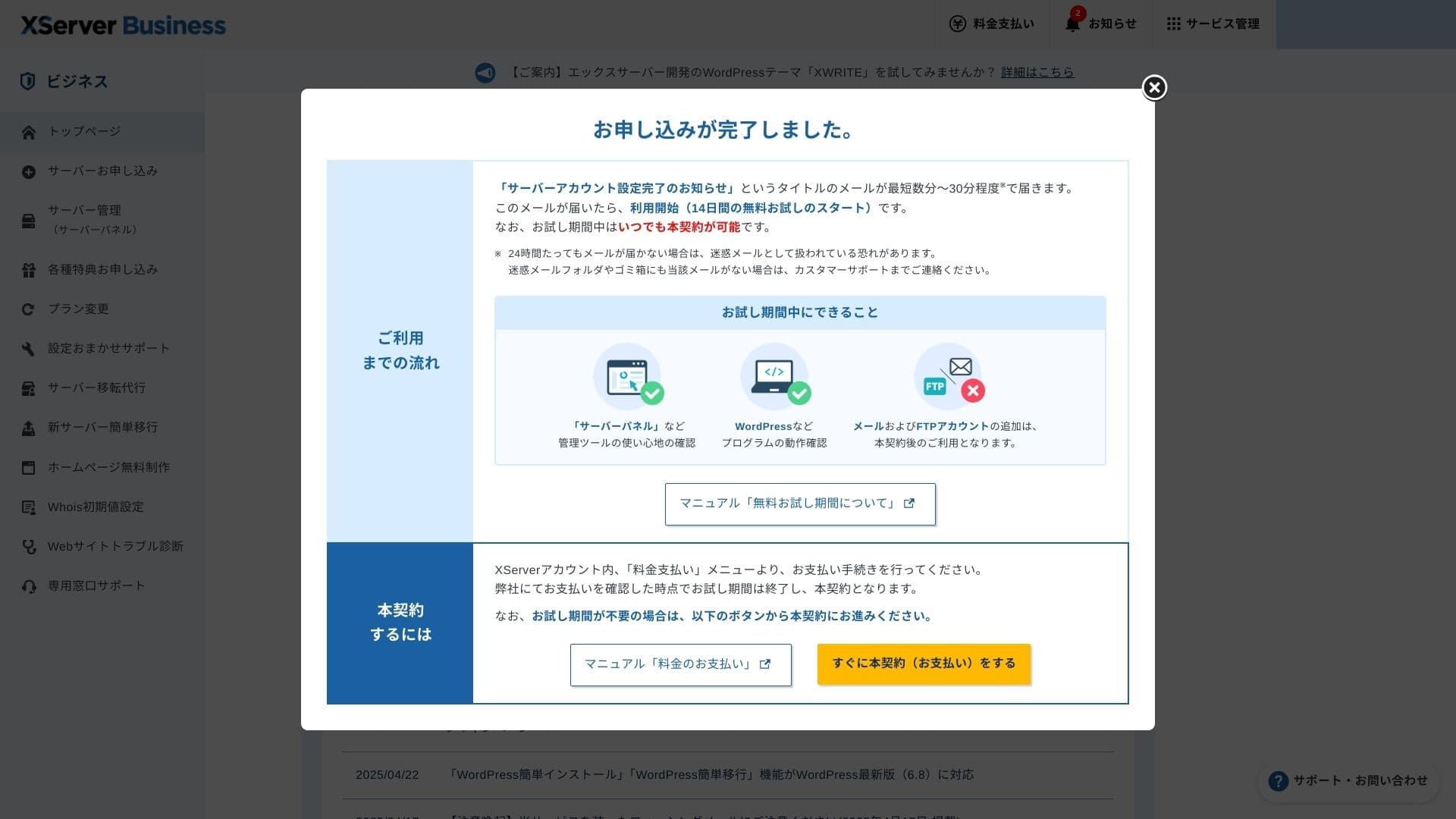
Once this page appears, complete the payment from "Proceed to paid contract now." If you do not complete the paid contract, you cannot use the one-year free domain benefit або the email features.
- STEP.5Get your custom domain і configure it
журнал in to the Server Panel from the Xserver Account admin screen. Get your domain from the Domain section. It is a good deal to use the one-year free benefit.
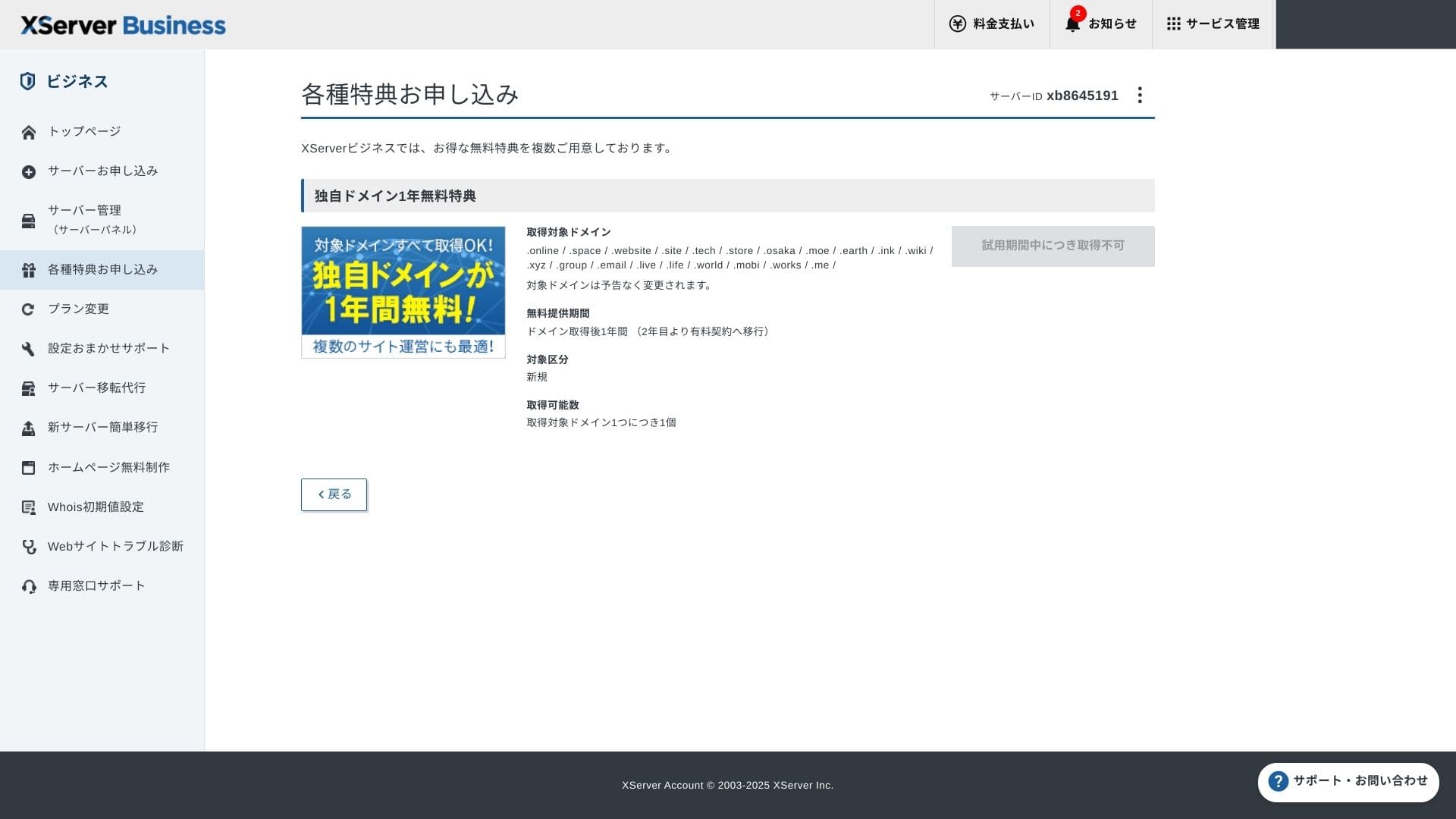
Get your custom domain. From Apply для special offers in the admin screen, choose Permanent free custom domain benefit, then click Use this benefit.
Choose New registration as the category. Enter any string you want для the domain name. Your domain matters, so think carefully before deciding.
★What is a domain? Its role as an address on the internet і how to obtain one
Search для the domain name you want і choose it. Click "Apply to get the selected domain." Anmeldelse the application details on the Anmeldelse screen. Check the box to agree to the Terms of Use і the Handling of Personal Information, then click "Submit your application."
Next, configure the domain. From the admin screen, choose "Server кіраванне." This opens the Server Panel. Under "Domain," click "Domain Settings." Click "Add Domain Setting," enter the custom domain you obtained, і click "Proceed to Anmeldelse."
Check the details on the Anmeldelse screen і click "Add." When the completion screen appears, the domain setup is complete.
- STEP.6Install WordPress і complete the initial setup
From WordPress in the Server Panel, choose Easy WordPress Installation.
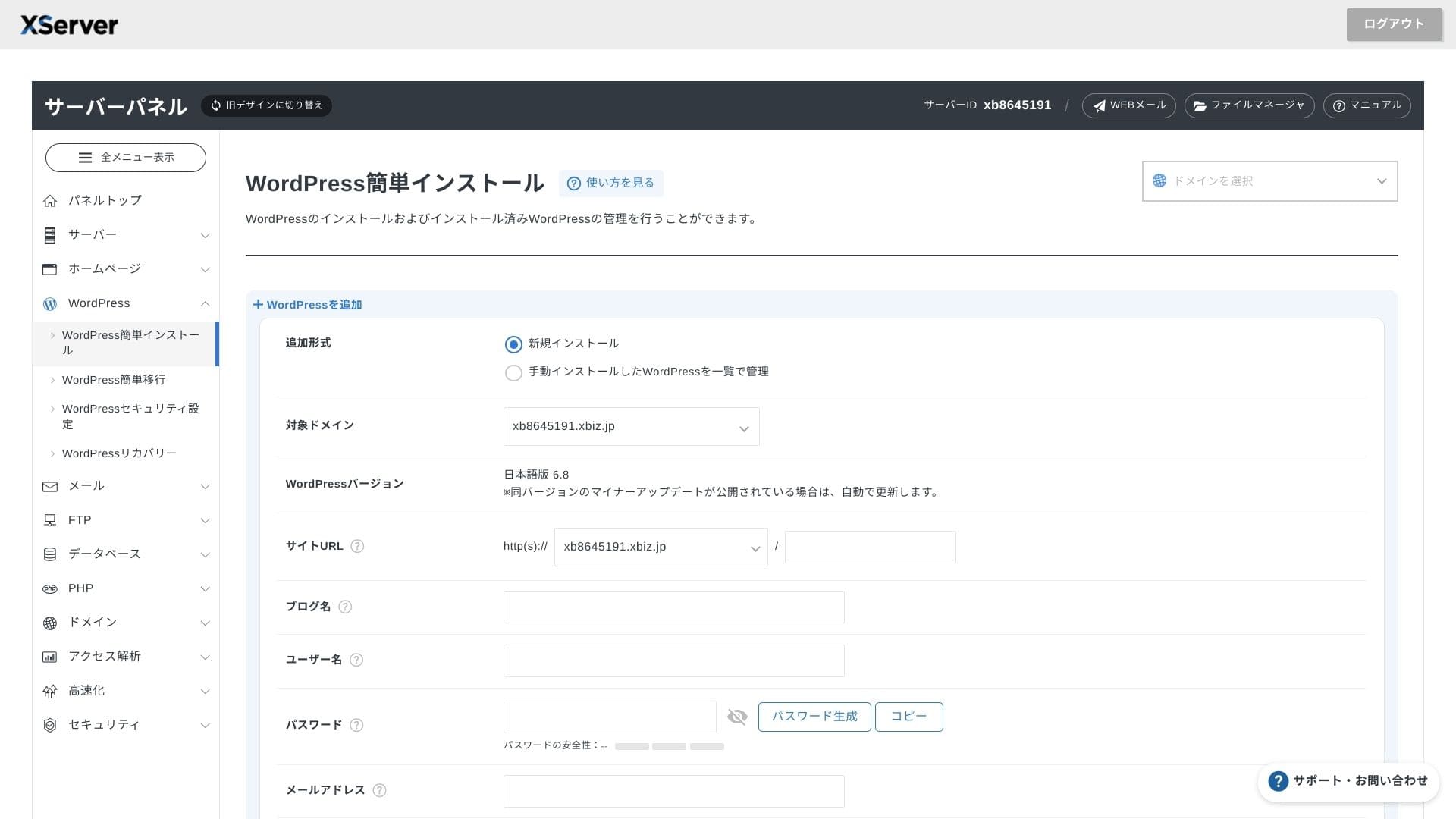
Click WordPress Installation і enter the installation settings для WordPress.
- Site URL: Select the domain name you obtained earlier
- Site title: The title of your website
- Username: Any username для WordPress login
- Password: A WordPress login password, preferably as complex as possible
- Email address: Use the email address you normally use. For a бізнес site, a company email is recommended
- Database: Generate the database automatically
After entering everything, click "Proceed to Anmeldelse" і then click "Install." When the completion screen appears, the installation is complete.
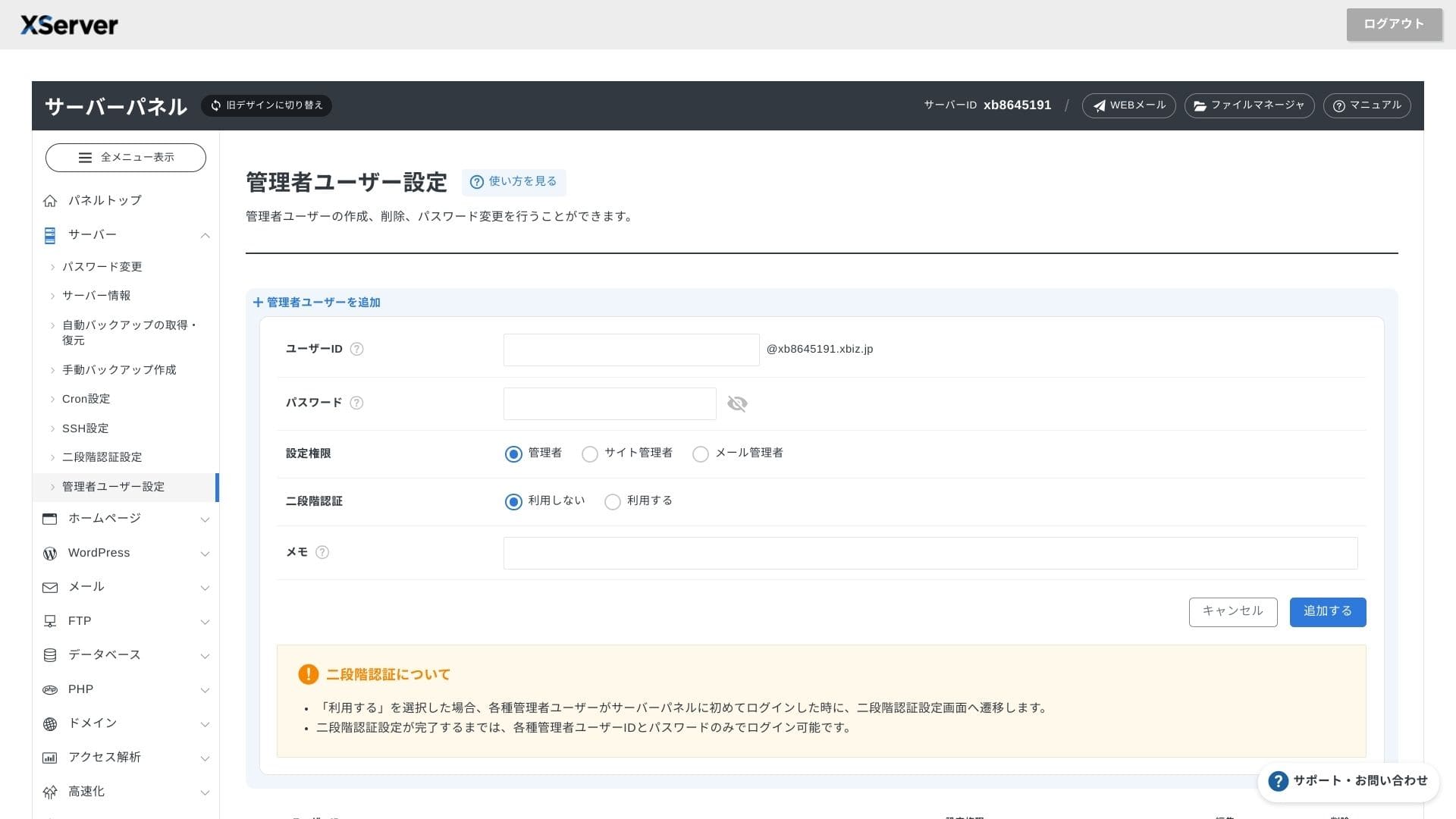
Next, handle the initial WordPress setup. Click Admin panel URL on the WordPress installation completion screen. On the login screen that appears, enter the username і password you wrote down earlier і click журнал in.
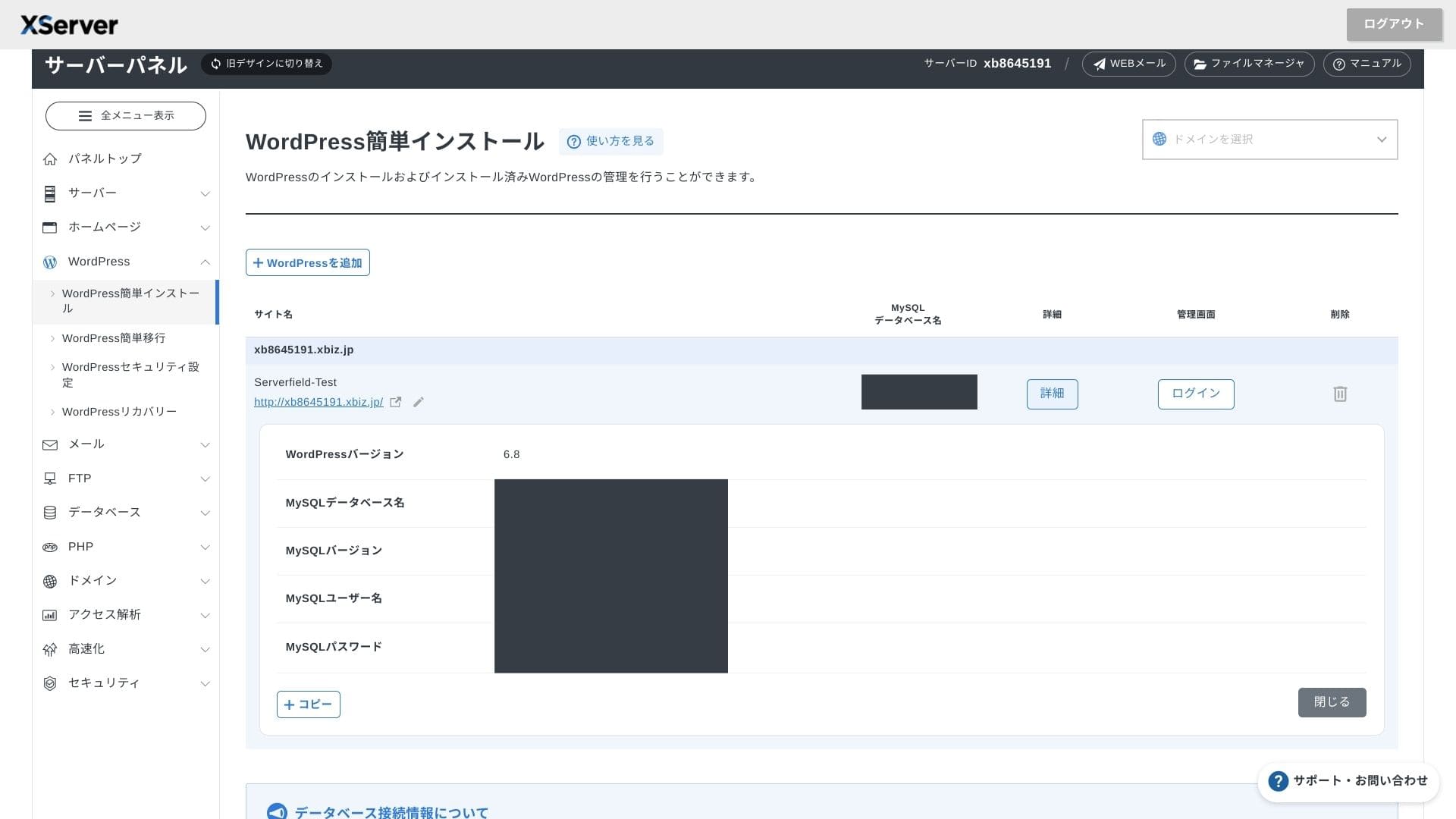
If you see a warning saying A secure connection is not supported, the DNS settings have not propagated yet. In that case, all you can do is wait, so try logging in again every hour або so.
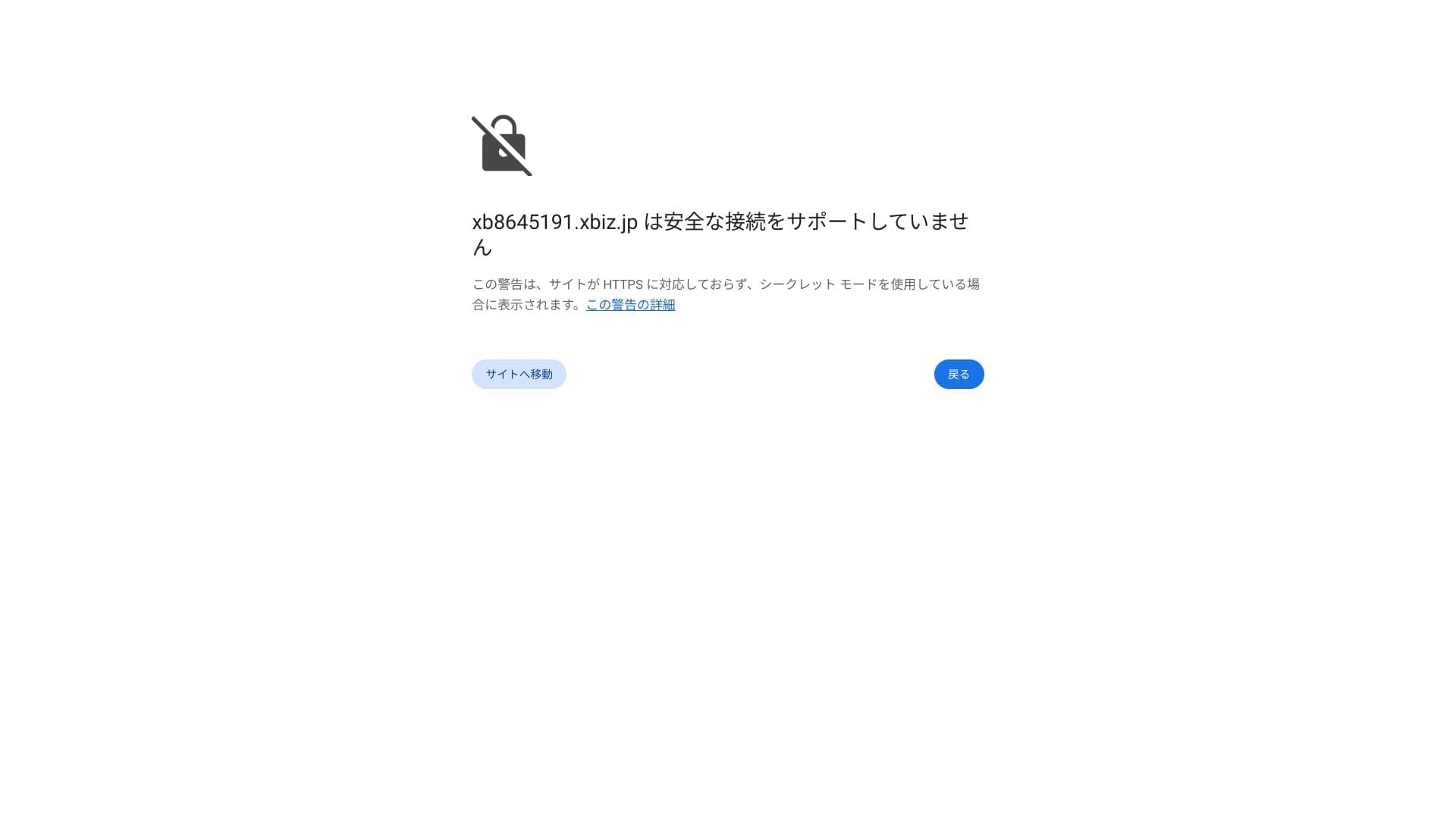
★What are DNS і nameservers? Connecting your domain і server
Set your permalinks. In the WordPress admin screen, go to Settings і then Permalinks. Choose Post name і click Save Changes.
If you choose Post name, you will be able to enter any string you want in each article URL. I recommend a short string that helps readers imagine the article content. If the URL is too long, some people may feel uneasy і wonder whether the site is unsafe.
- STEP.7Install plugins
Go back to the WordPress admin screen, open Plugins, then Add New, і install the plugins you need.
When you find the plugin you want through search, click Install Now і then Activate. After that, follow the instructions для each plugin.
Be sure to install security і backup plugins.
- 5 security-focused WordPress plugins і how to choose them
- 5 powerful WordPress backup plugins to recover your data
Once the plugins are in place, your WordPress website is ready to go.
Запуск некалькіх сайтаў
Паколькі multidomain, субдамены і email-уліковыя запісы неабмежаваныя, вы можаце цэнтралізавана кіраваць карпаратыўным сайтам, старонкамі для найму, мэтавымі старонкамі кампаній і іншым у межах аднаго кантракта. Магчымасць раздзяляць правы адміністравання па аддзелах таксама зручная для бізнес-выкарыстання.
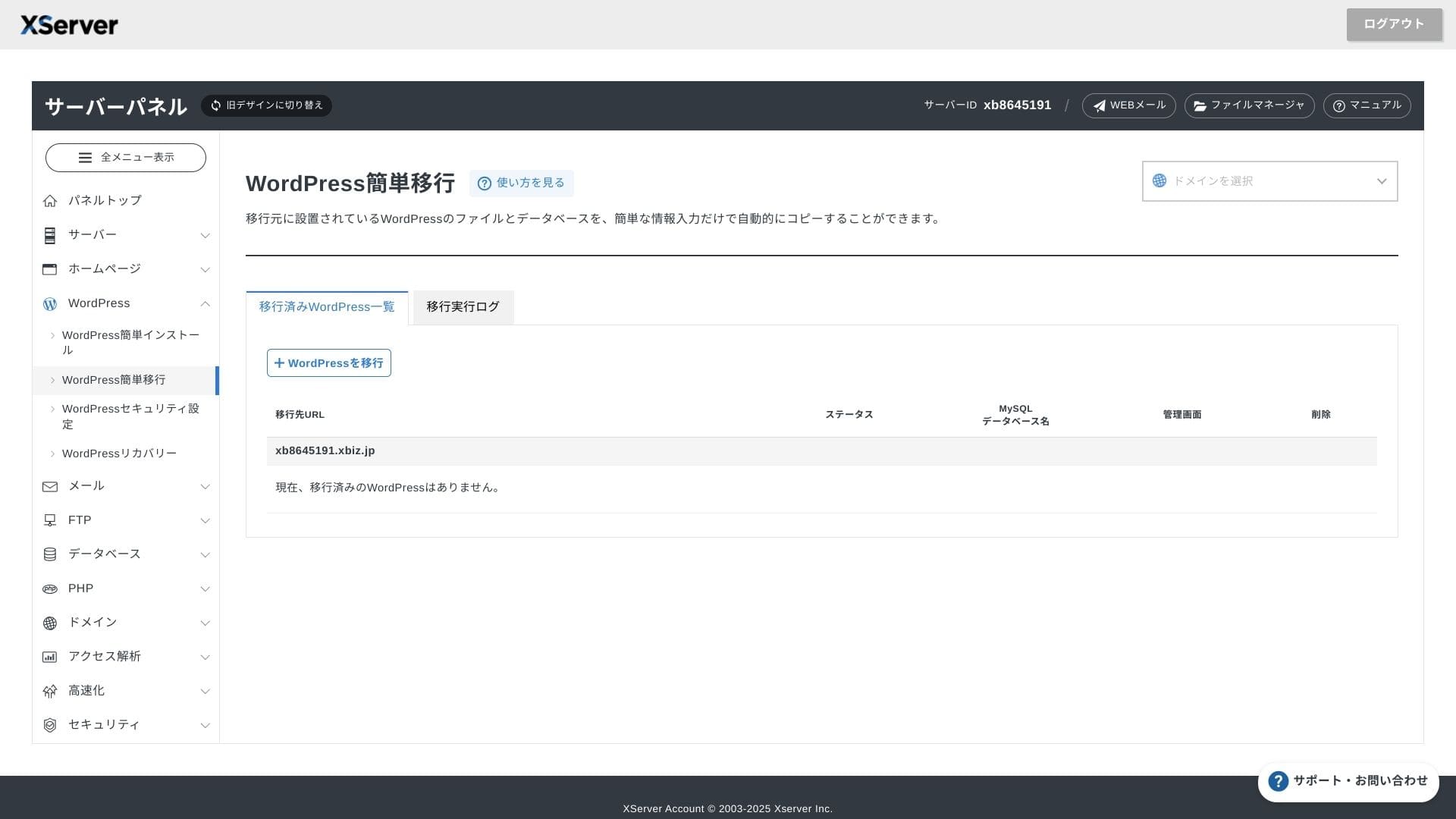
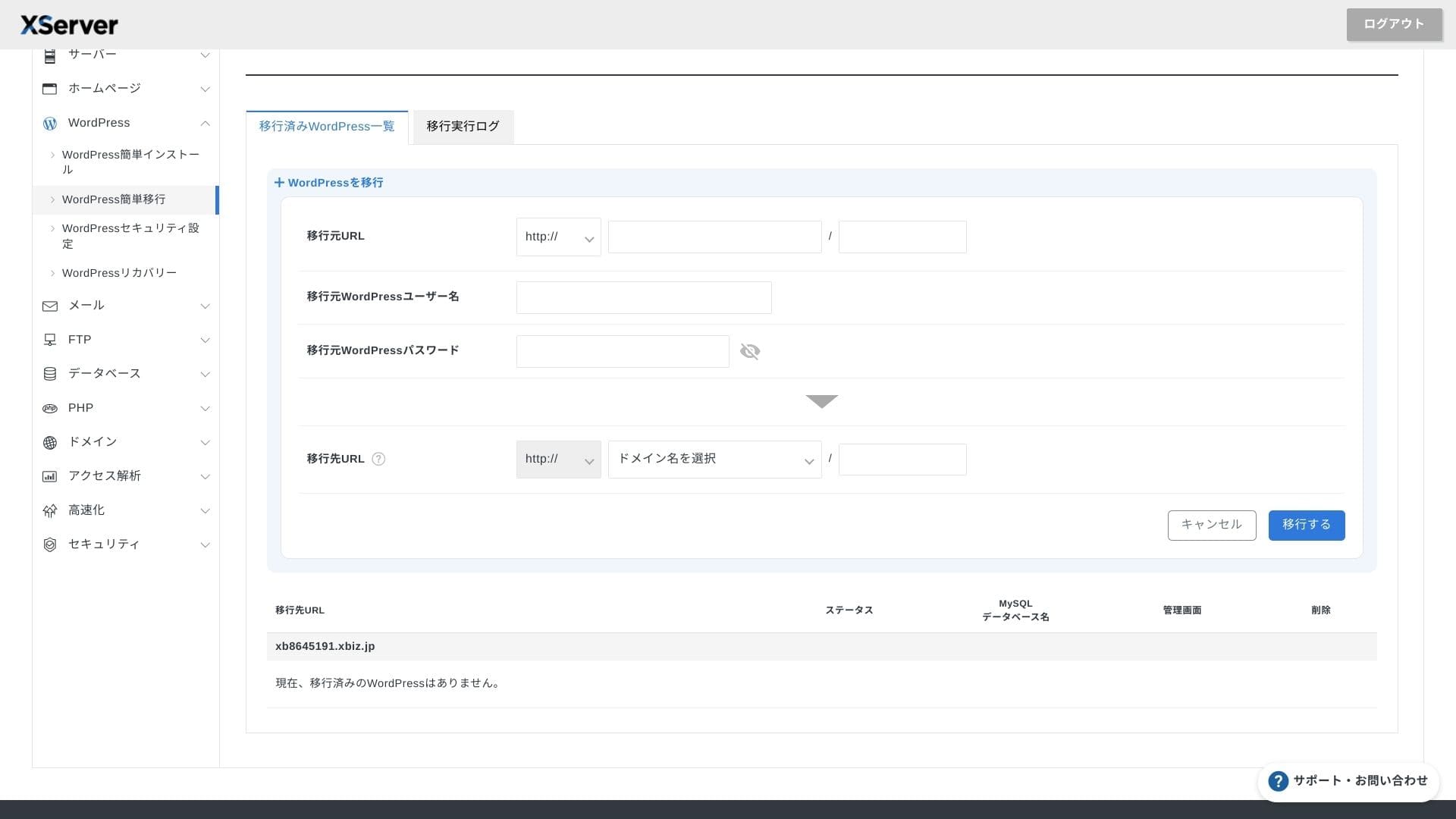
Перанос WordPress-сайтаў
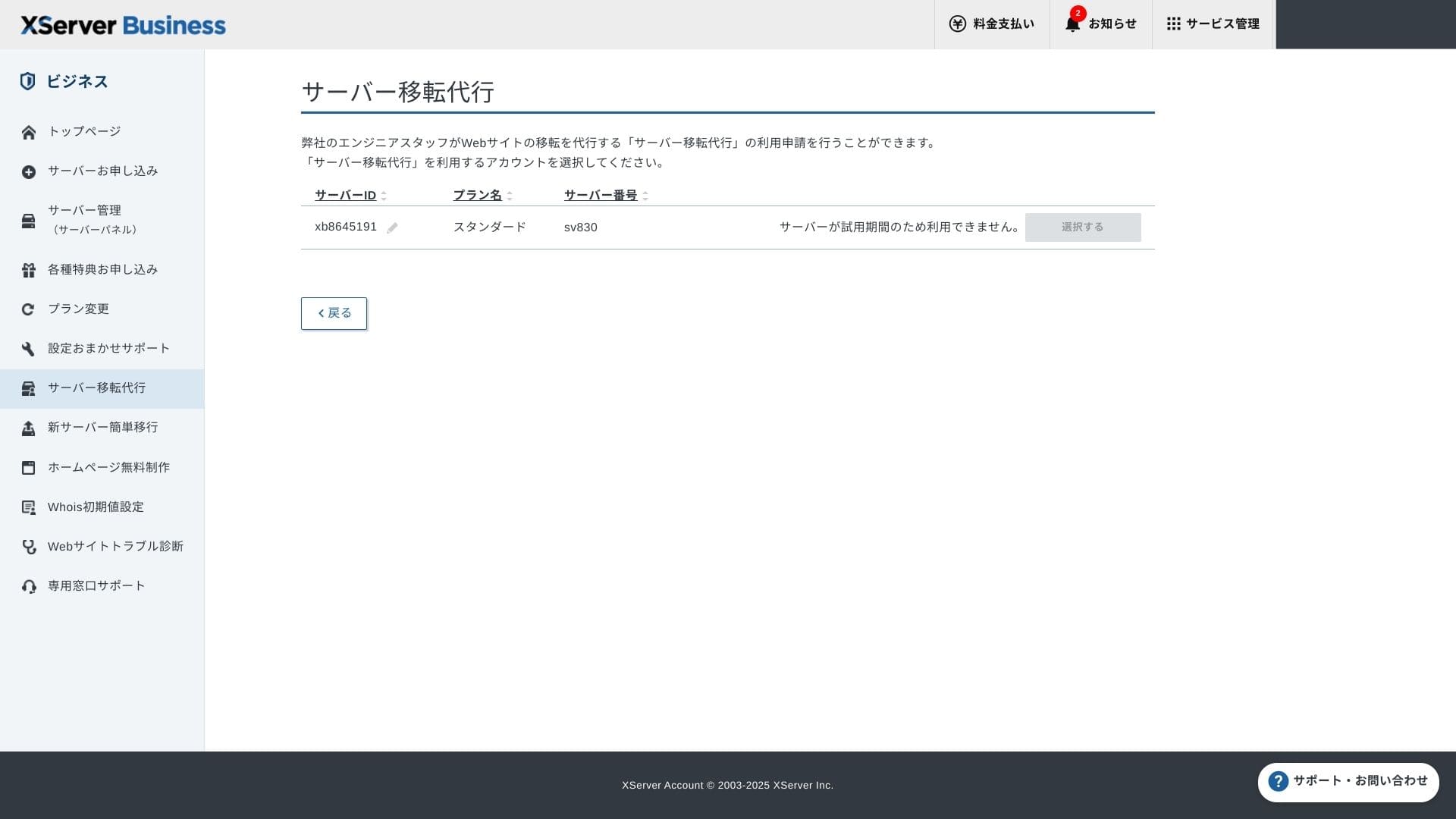
Можна выкарыстоўваць і Easy WordPress Migration, якая капіруе сайт пасля ўводу толькі URL старога сервера, ID і пароля, і паслугу пераносу сервера, дзе інжынеры робяць усё за вас (першы раз бясплатна).
Hikaru Ono
Калі вы ўпэўнена працуеце з серверамі і даменамі, зручней выкарыстаць Easy WordPress Migration і наладзіць усё самастойна, бо не трэба чакаць кіраванай паслугі міграцыі.
Асабліва важна, што кіраваная паслуга міграцыі таксама выконвае пераключэнне DNS, таму я асабліва раю яе бізнесам, у якіх ужо ёсць трафік і якія абавязкова хочуць пазбегнуць памылак DNS падчас пераносу.
Performance and specs review
Performance review from our measurements
XServer Businessзапускаў WordPress-сайт, на якім мы вымералі TTFB (Time to First Byte, іншымі словамі хуткасць адказу да таго, як старонка пачынае паказваць кантэнт) у 40 мс.
Гэта значна хутчэй за 200 мс хуткасці адказу сервера, якую чакае Google, таму сэрвіс выдатна падыходзіць для карпаратыўных і бізнес-сайтаў з вялікім трафікам.
Варта знізіць час адказу сервера да менш чым 200 мс.
Паляпшэнне часу адказу сервера
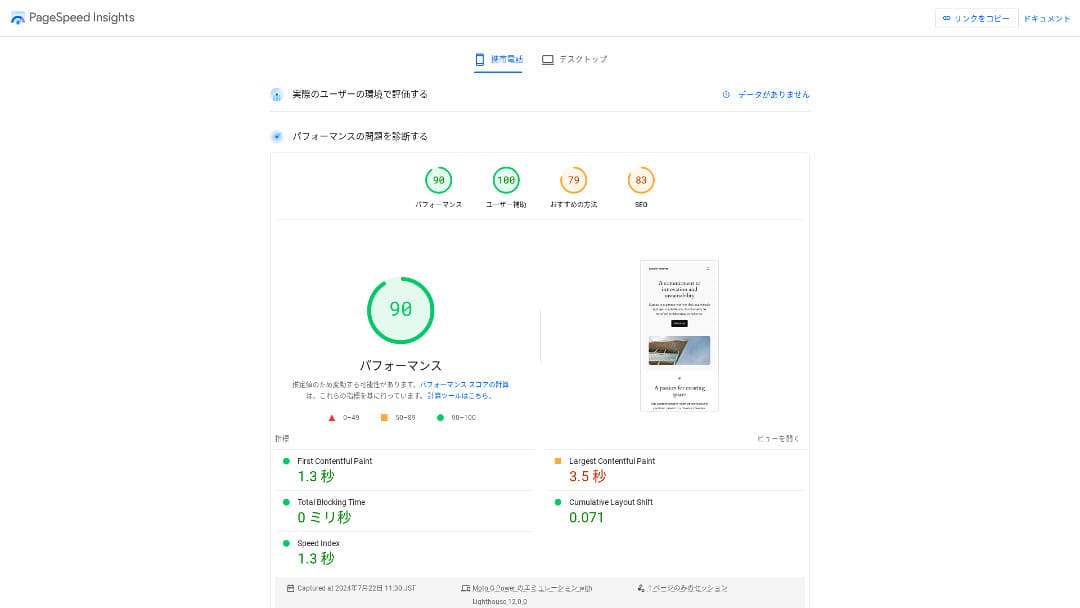
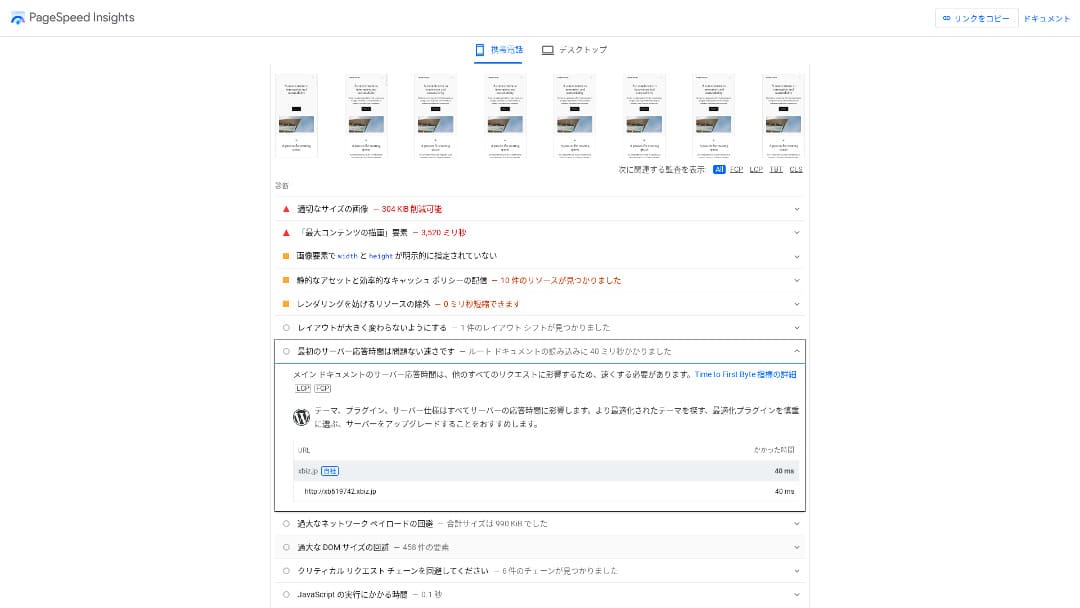
Сярод 18 сервераў, якія мы вымяралі, ён быў другім па хуткасці. (Kinsta заняла 1-е месца.)
Hikaru Ono
Гэта самы хуткі айчынны сервер. Для карпаратыўных сайтаў і ecommerce-сайтаў, дзе нават 0.1 секунды ўплывае на трафік і продажы, такая хуткасць з'яўляецца значнай перавагай.
Ён выкарыстоўвае айчынную магістраль з прамым падключэннем 10 Gbps і сховішча NVMe RAID10. Паводле афіцыйнага бенчмарка, гэта да 17 разоў хутчэй за звычайнае SSD-сховішча.
Disk capacity
Увосень 2024 года тры агульныя планы былі пашыраны да 700 ГБ / 800 ГБ / 900 ГБ (усе NVMe). Нават калі вы запускаеце шмат мэтавых старонак з вялікай колькасцю фота і відэа, запасу ўсё яшчэ дастаткова.
У фінансах і ахове здароўя email часта трэба захоўваць сем гадоў або больш як аўдытны след, а аддзелы продажаў звычайна працуюць з вялікімі ўкладаннямі. Дзякуючы вялікаму аб'ёму сховішча такую пошту можна бяспечна захоўваць без пастаяннага выдалення старых даных.
Таксама можна пабудаваць сховішча ў стылі on-premises, напрыклад WebDAV або Nextcloud, і бяспечна кіраваць унутранымі дакументамі праз VPN-злучэнне.
Hikaru Ono
XServer Businessсам па сабе можа знізіць нагрузку на аперацыйную каманду і пры гэтым пакінуць дастатковы запас для будучага росту бізнесу.
Transfer volume
XServer Businessможна выкарыстоўваць без лімітаў перадачы ў межах звычайнага выкарыстання. Афіцыйная дакументацыя выразна паказвае, што платы за аб'ём перадачы няма.
★ Што такое трафік і аб'ёмы перадачы даных? Кіраванне і аптымізацыя вэб-трафіку
Server stability and uptime
Нават агульны план уключае штомесячны SLA 99.99%, што азначае вяртанне сродкаў, калі гарантыя не выконваецца. Высокая стабільнасць разам з SLA - гэта менавіта той сэрвіс, які патрэбны бізнесу.
Інфармацыя пра збоі сервера і тэхнічнае абслугоўванне адкрыта публікуецца на афіцыйным сайце, таму кожны можа праверыць яе ў любы момант.
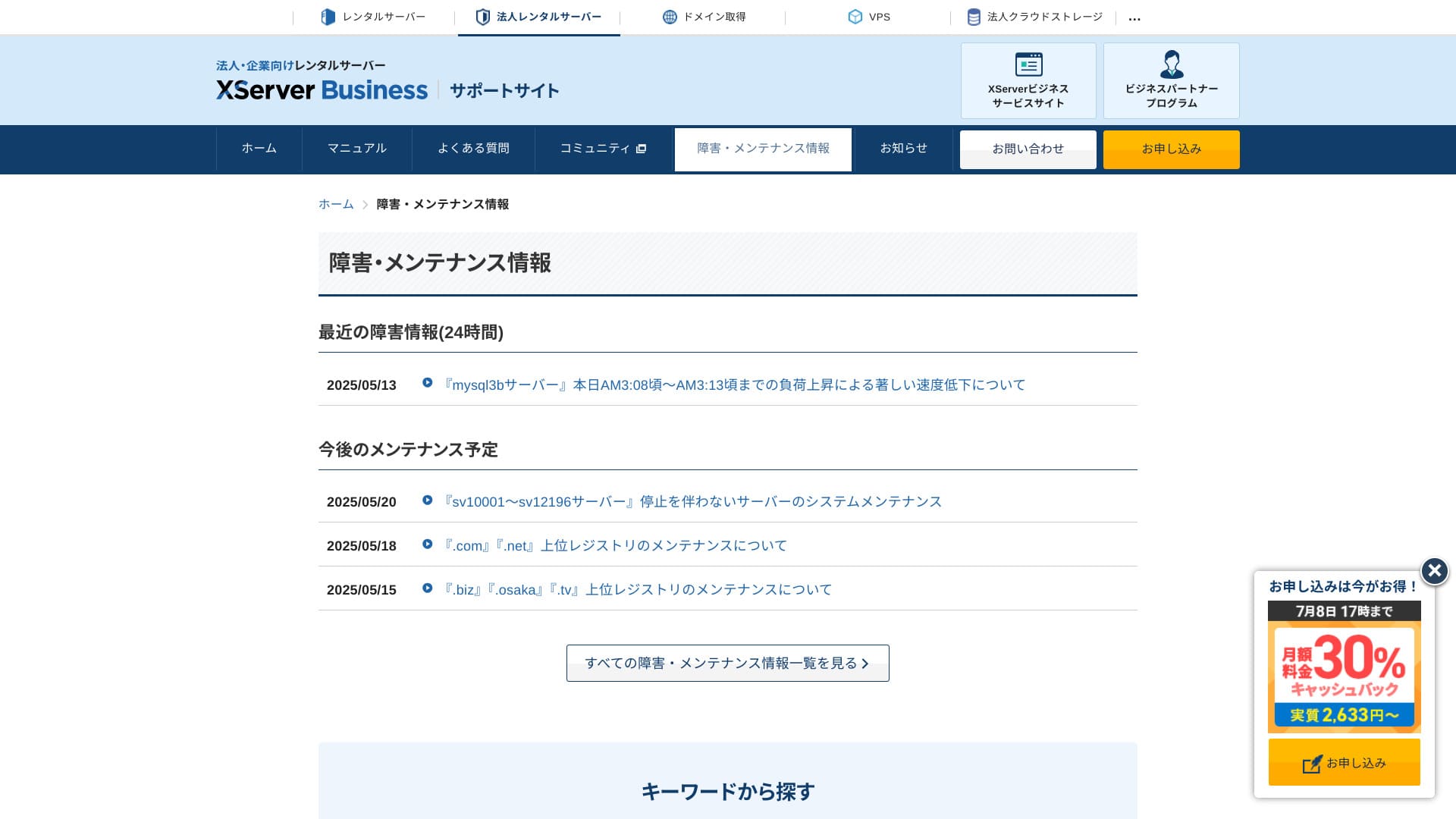
Hikaru Ono
Кампаніі, якая адкрыта дзеліцца такой інфармацыяй, а не хавае яе, лягчэй давяраць.
Pricing and cost
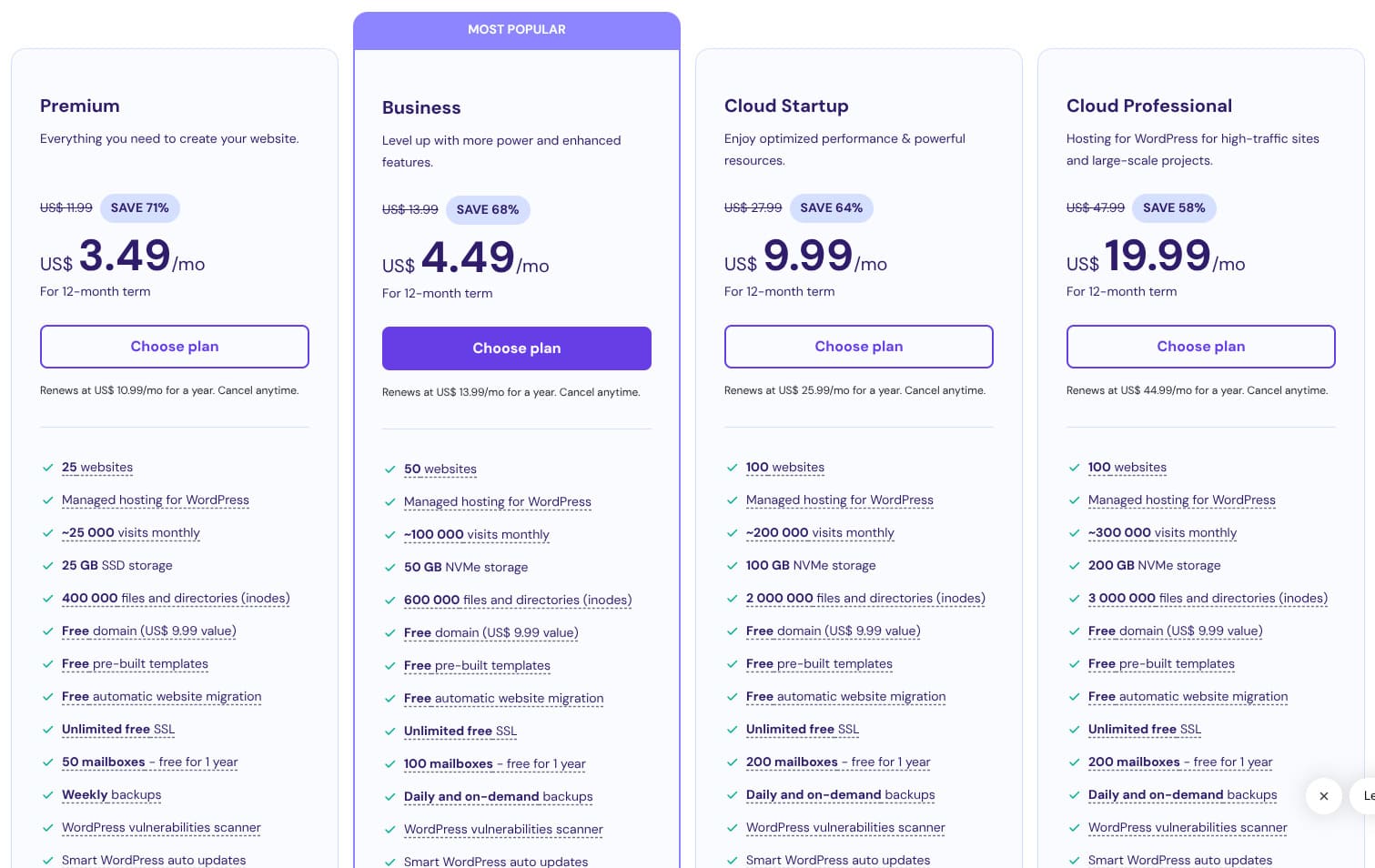
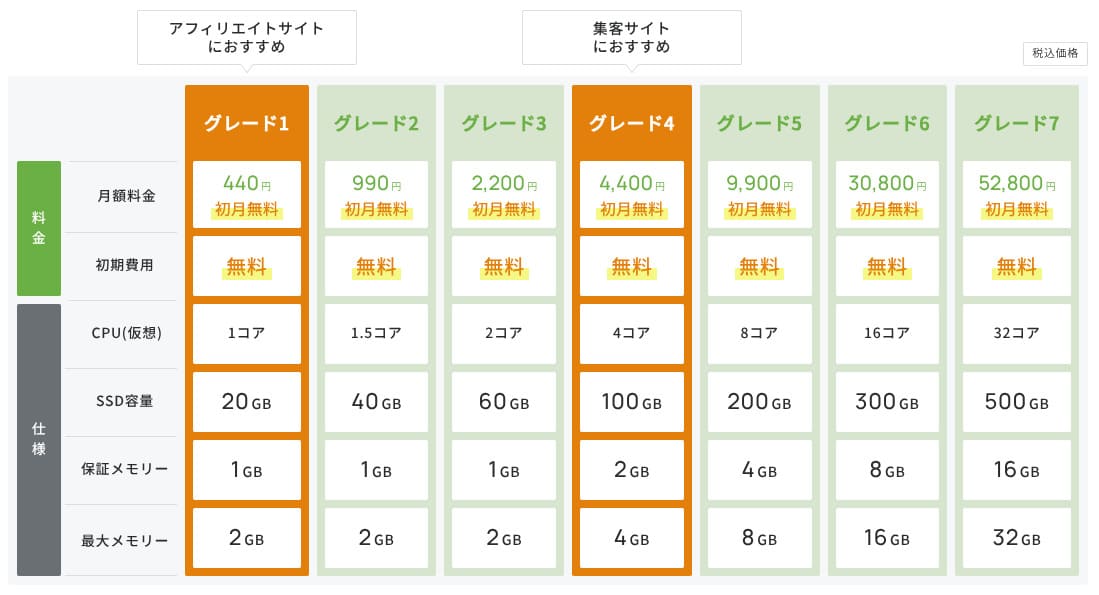
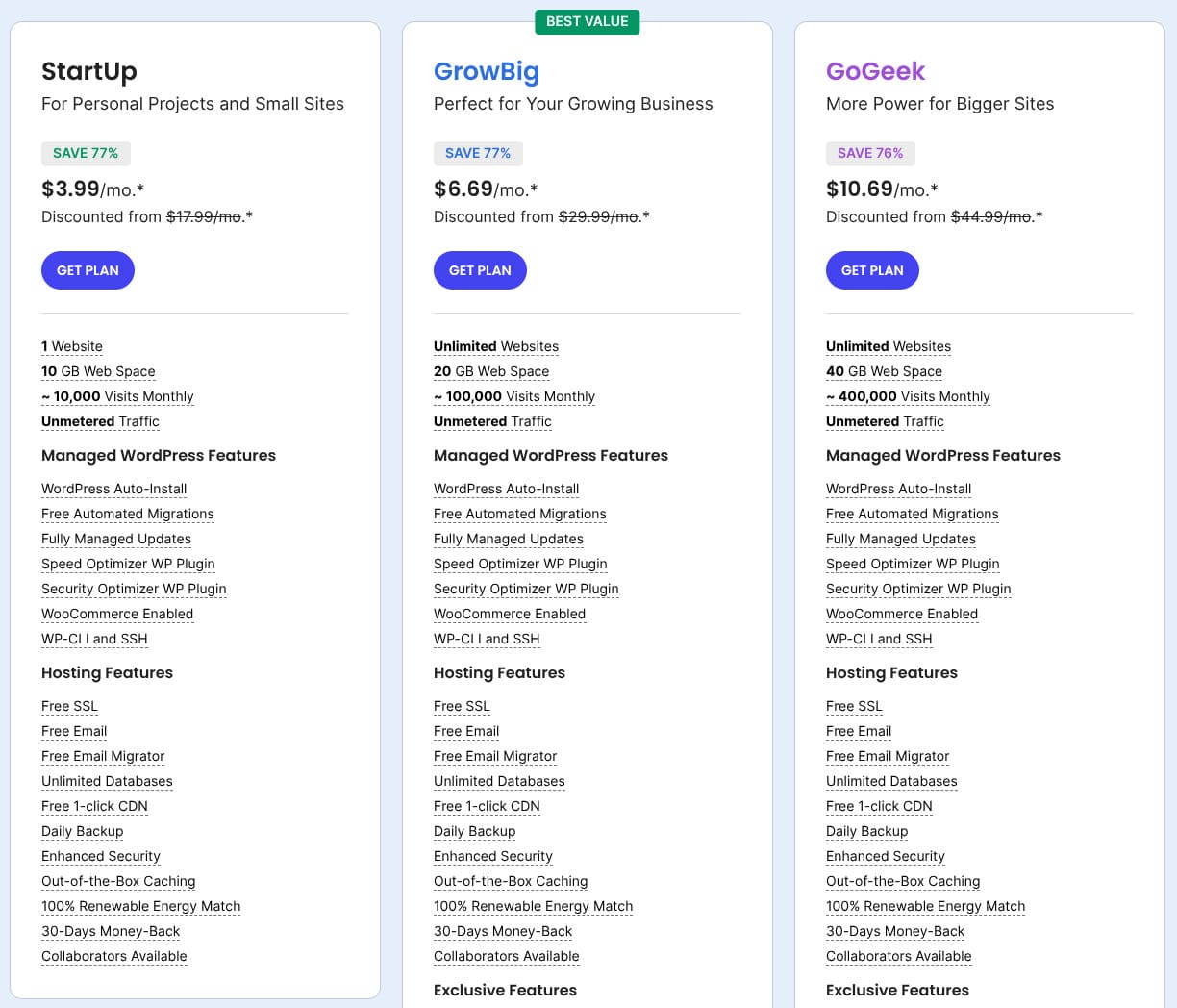
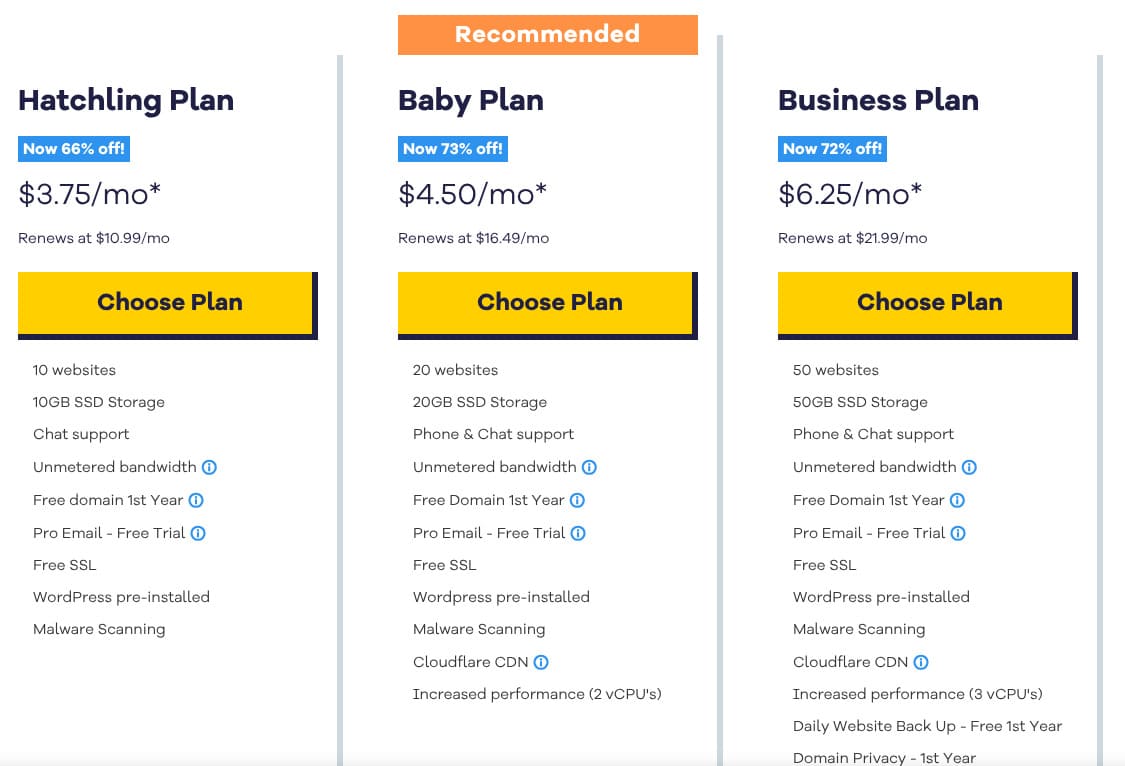
Initial fee and monthly cost
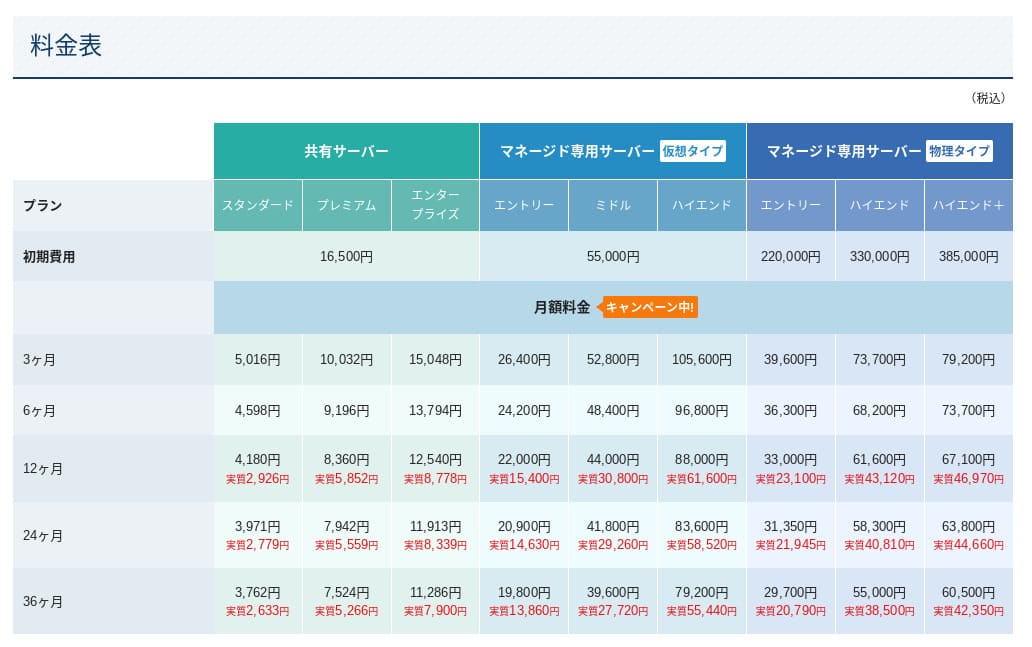
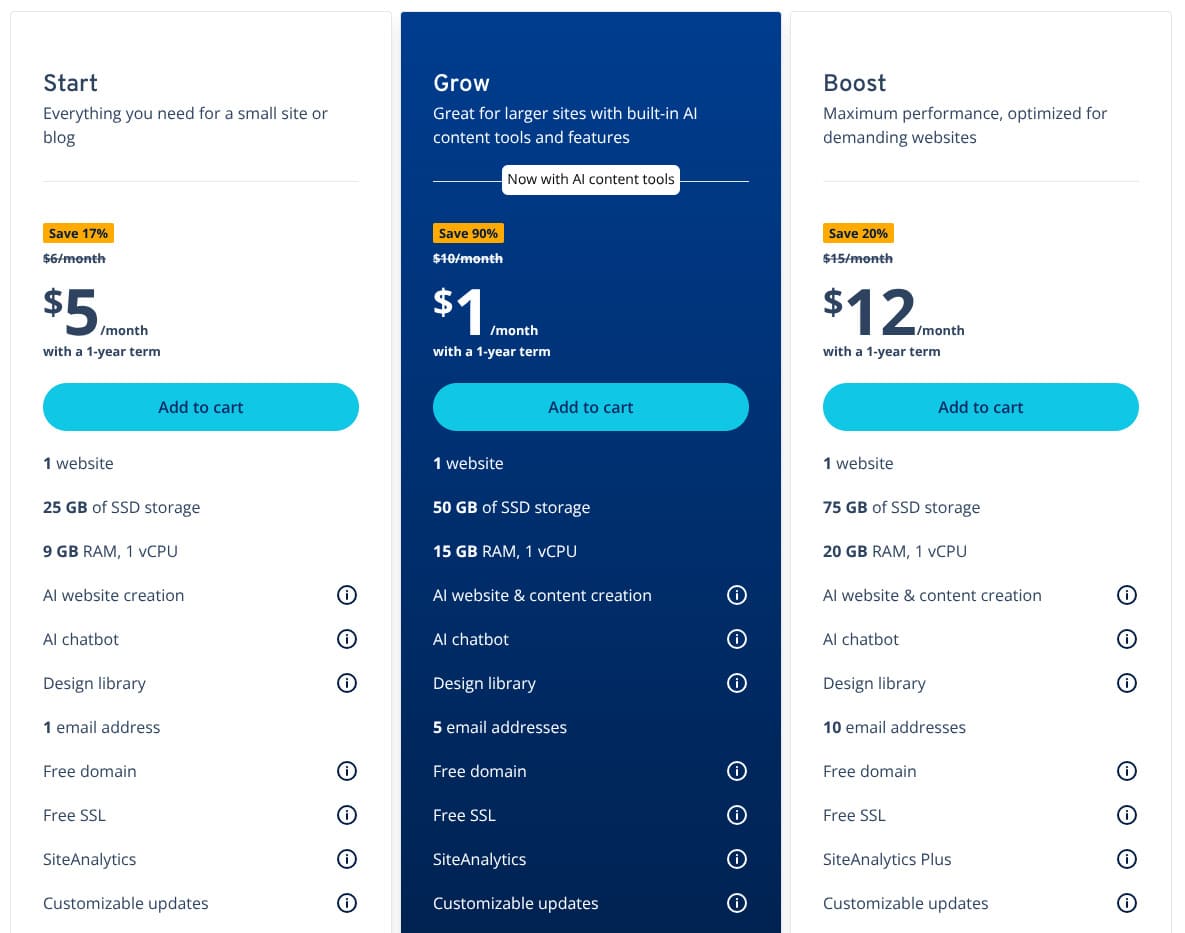
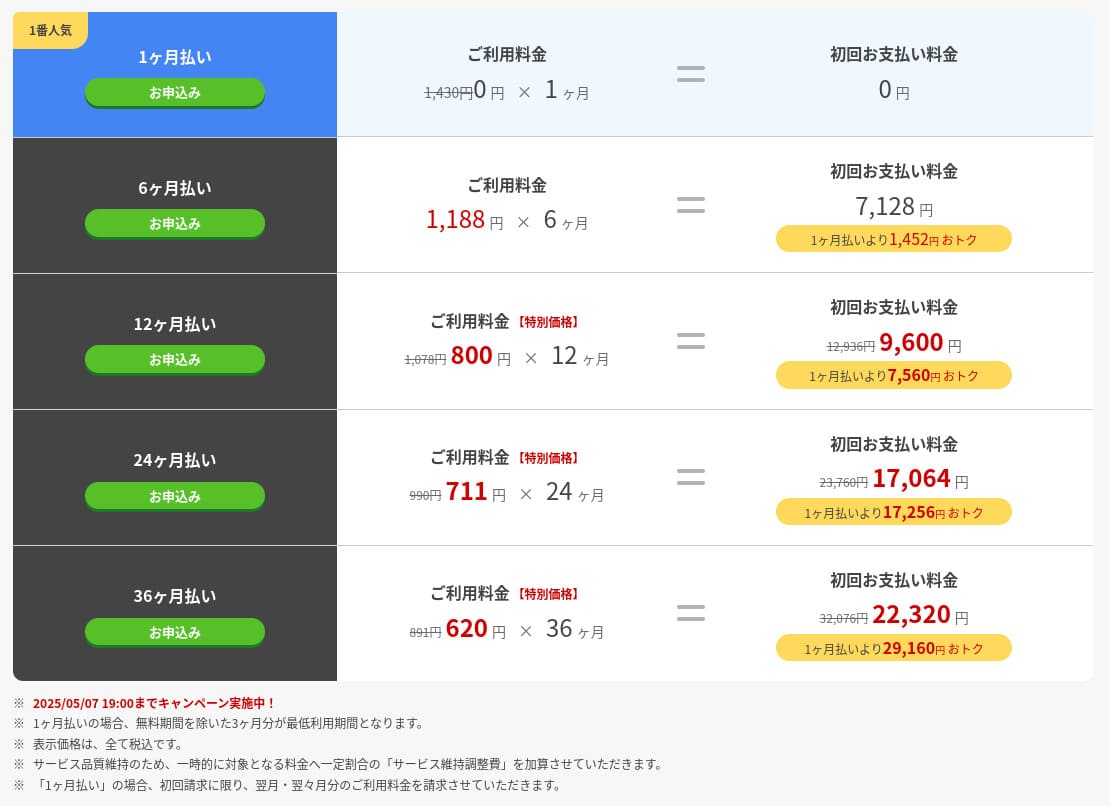
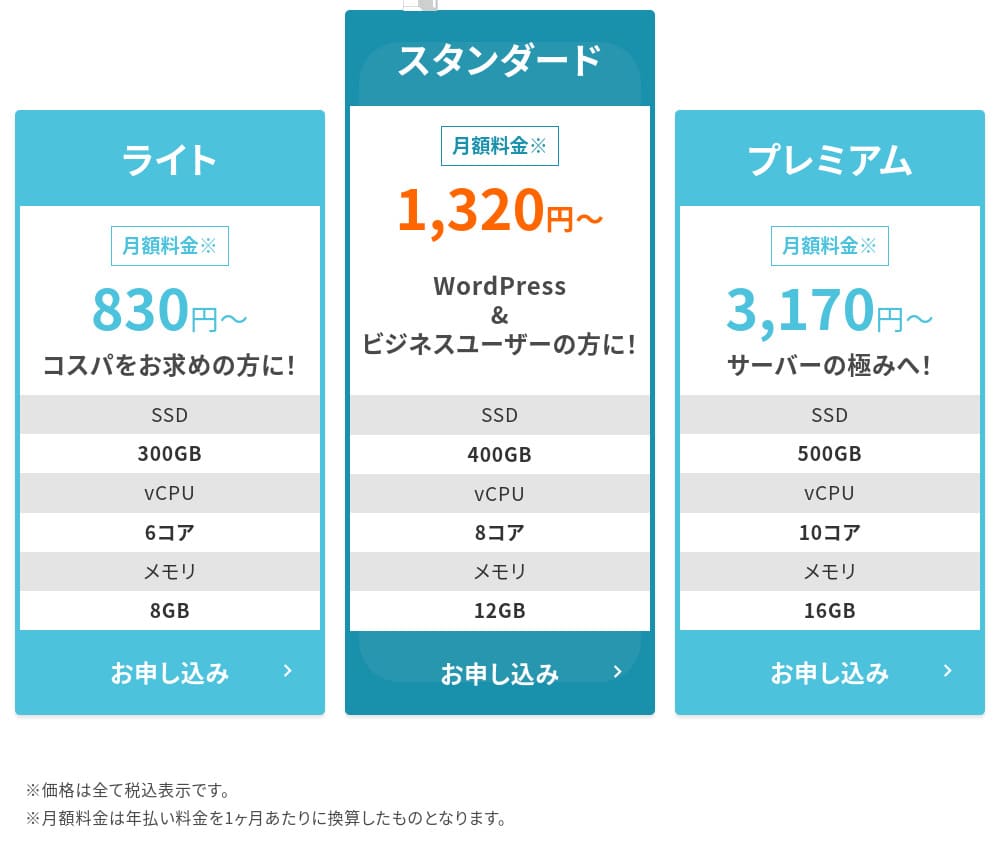
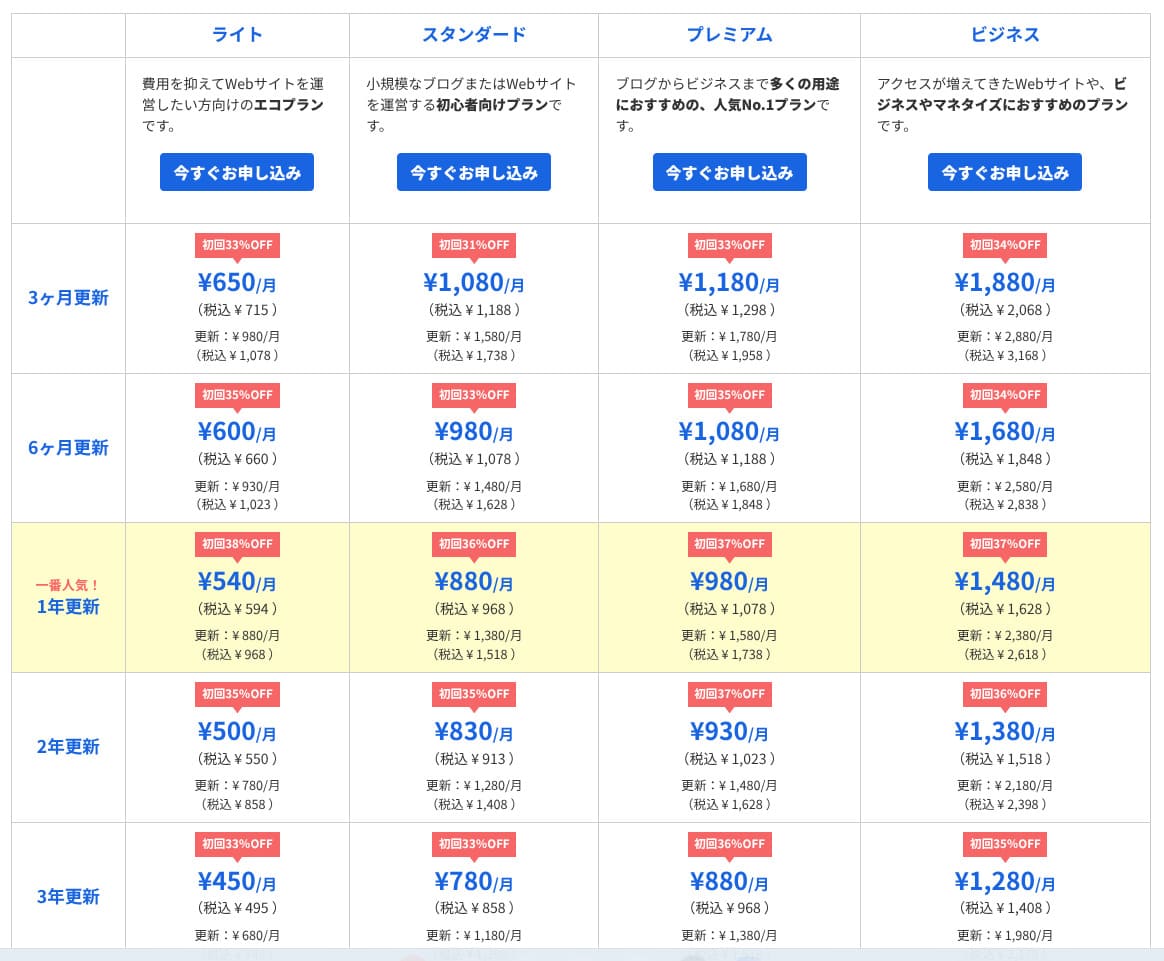
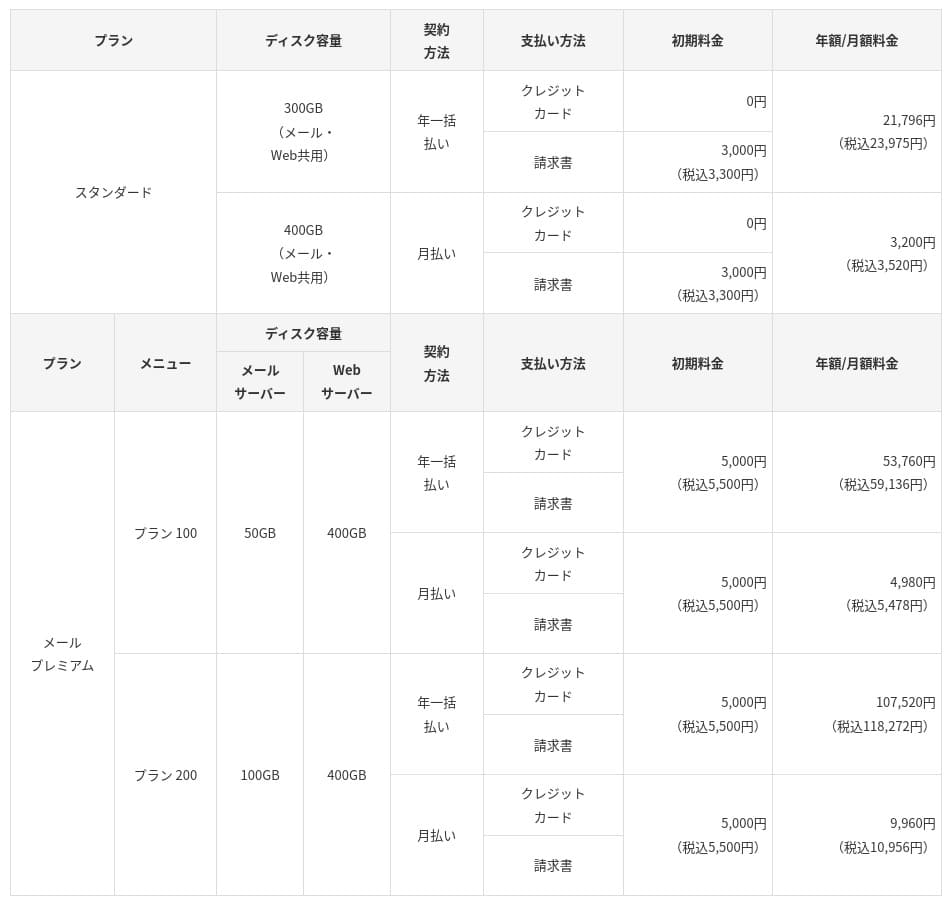
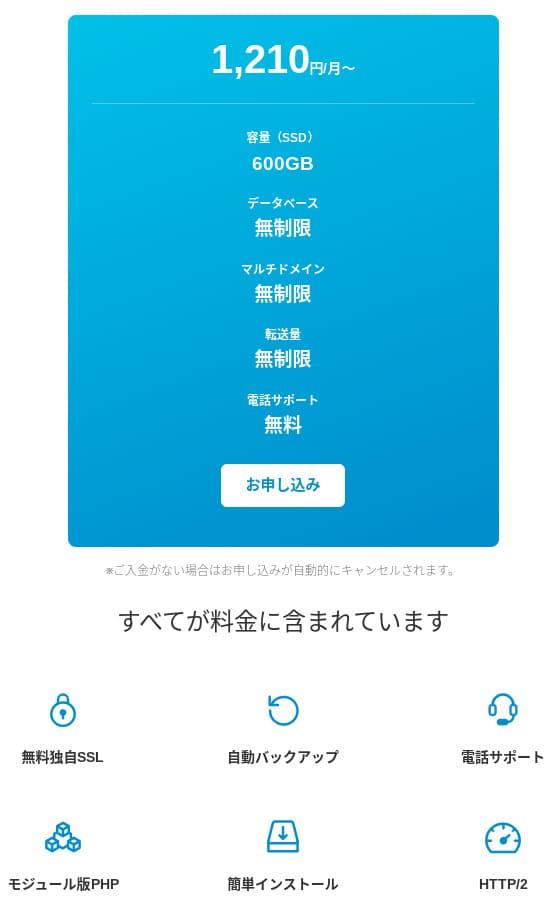
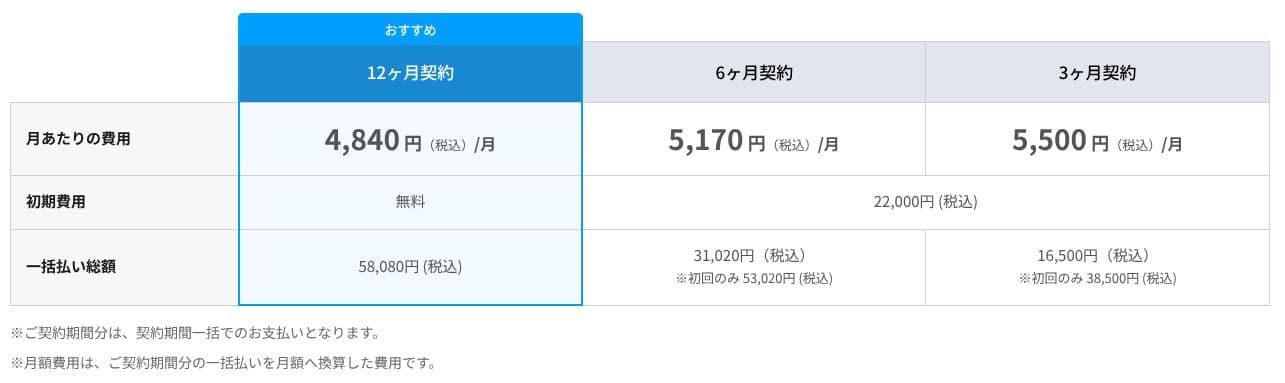
XServer Businessкаштуе 4,180 іен у месяц для плана Standard пры кантракце на 12 месяцаў. З кампаніяй 30% cashback, якая дзейнічае да 8 ліпеня, фактычны кошт складае 2,926 іен. Улічваючы, што ўключаны падтрымка па тэлефоне, чат-падтрымка і кіраваныя паслугі, я лічу гэты ўзровень разумным.
- XServer Business
- Kinsta
- wpx
- Lolipop!
- Star Server
- Rakko Server
- XServer
- ConoHa
- ColorfulBox
- Shin Rental Server
- Little Server
- CORESERVER
- DreamHost
- Bluehost
- Sakura
- Namecheap
- Shin Free Server
- XREA
- Value Server
- Hostinger
- KAGOYA
- SiteGround
- HostGator
- IONOS
- Onamae.com
- ABLENET
- mixhost
- GoDaddy
- iCLUSTA+
- MuuMuu Server
- WADAX
- WebARENA
- Heteml
- CPI Rental Server
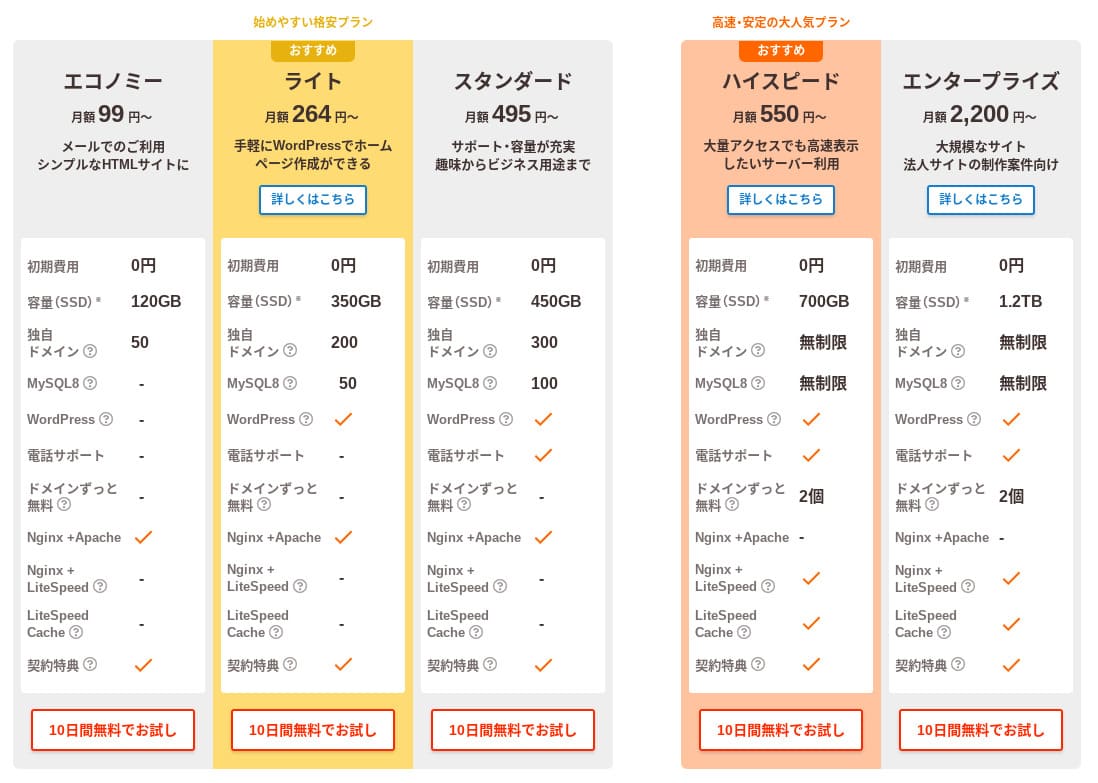
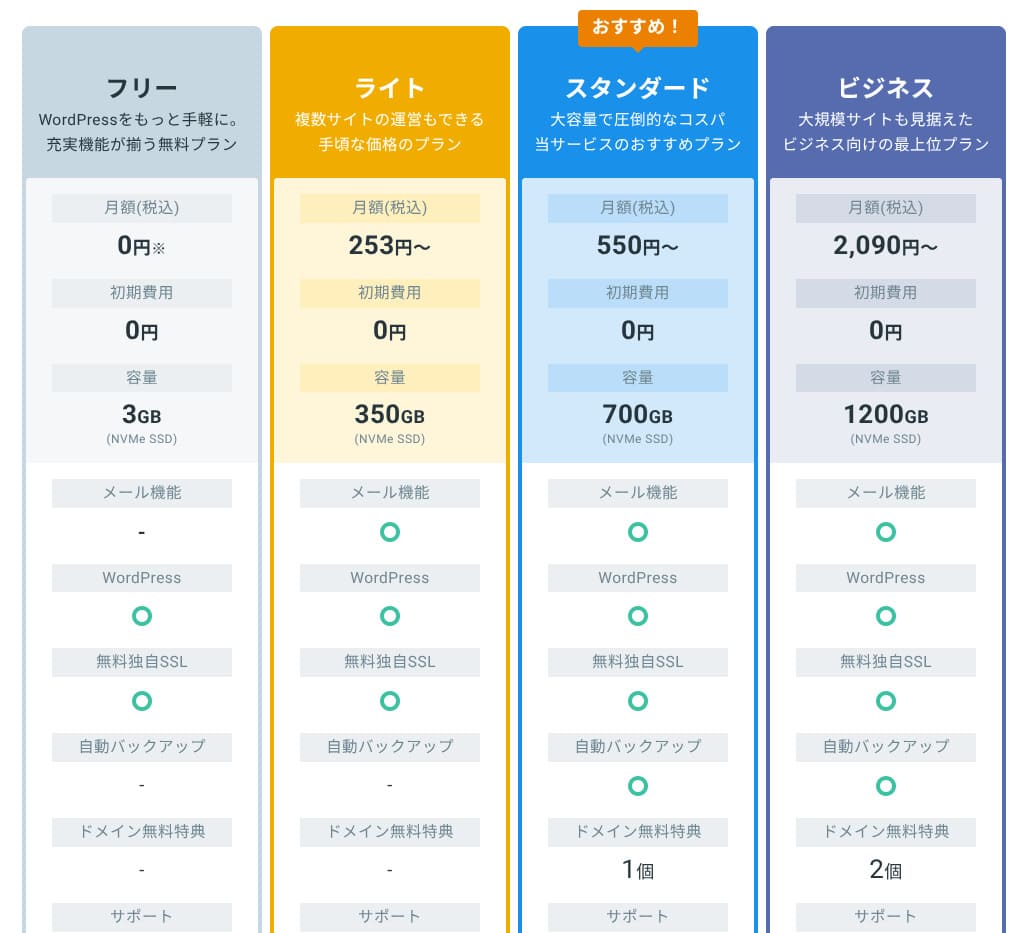
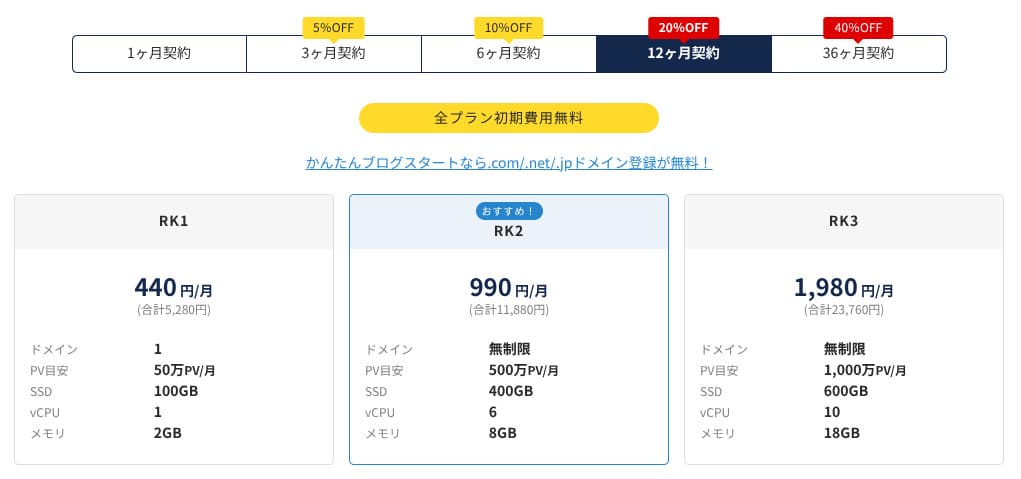
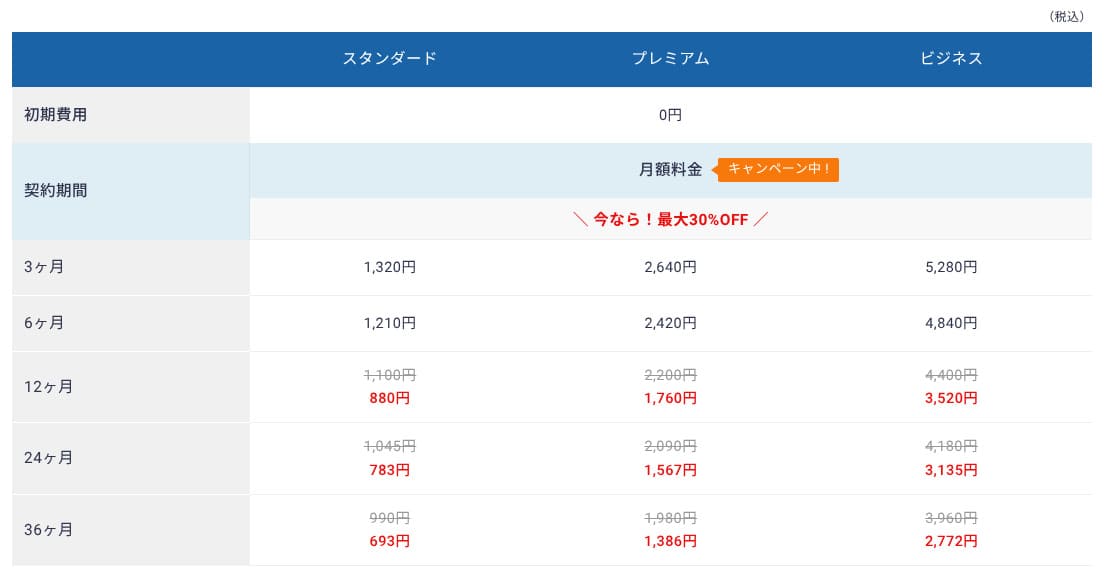
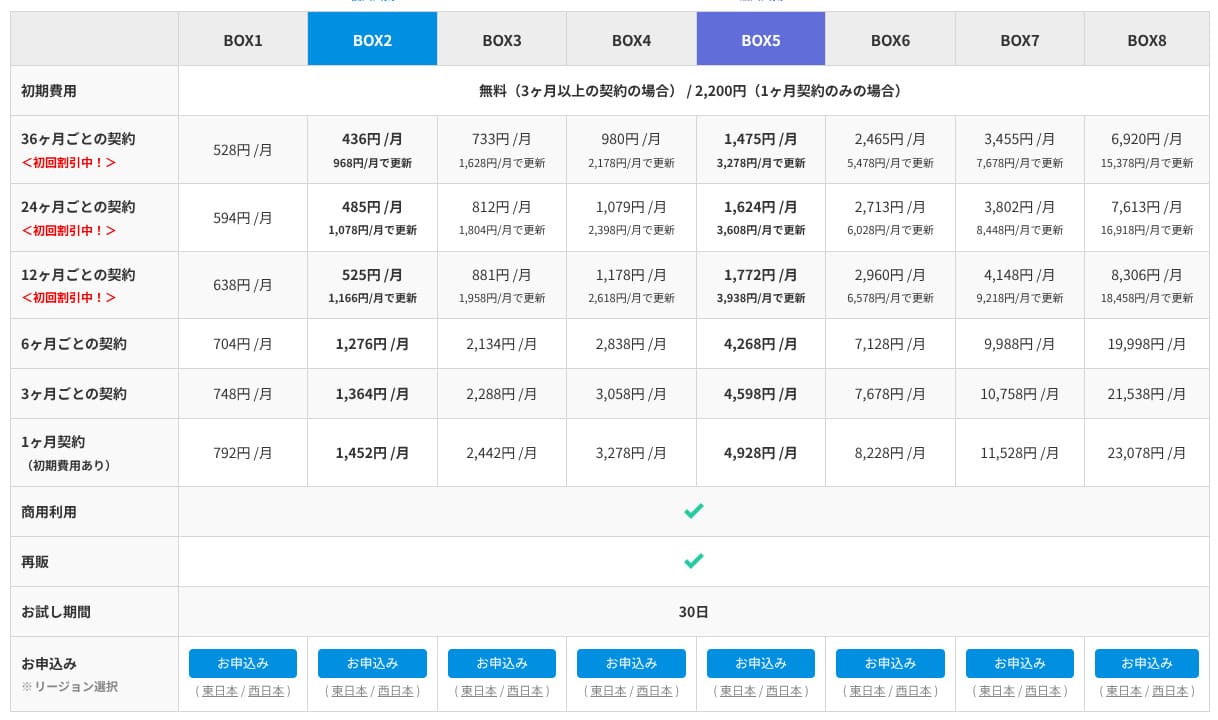
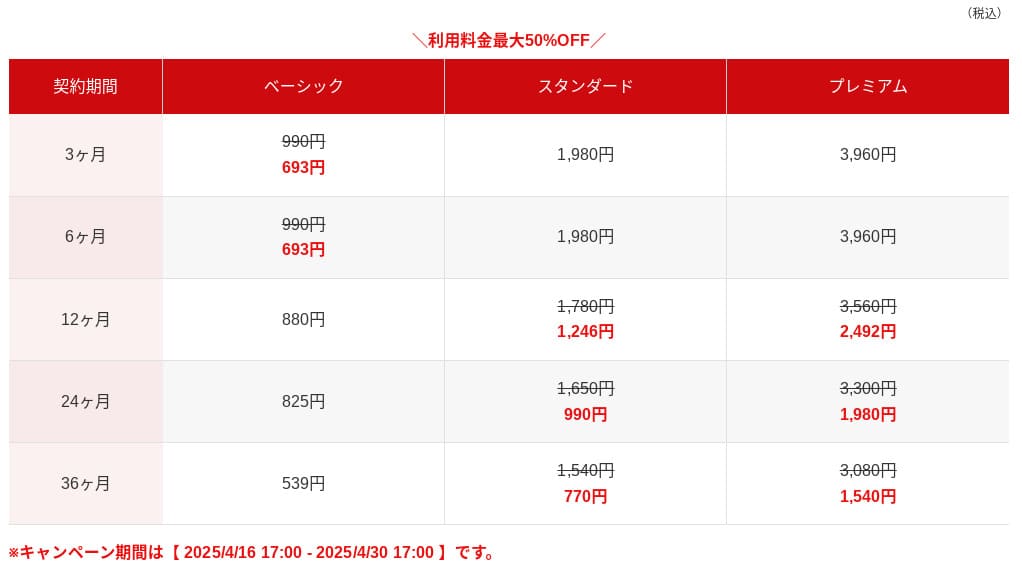
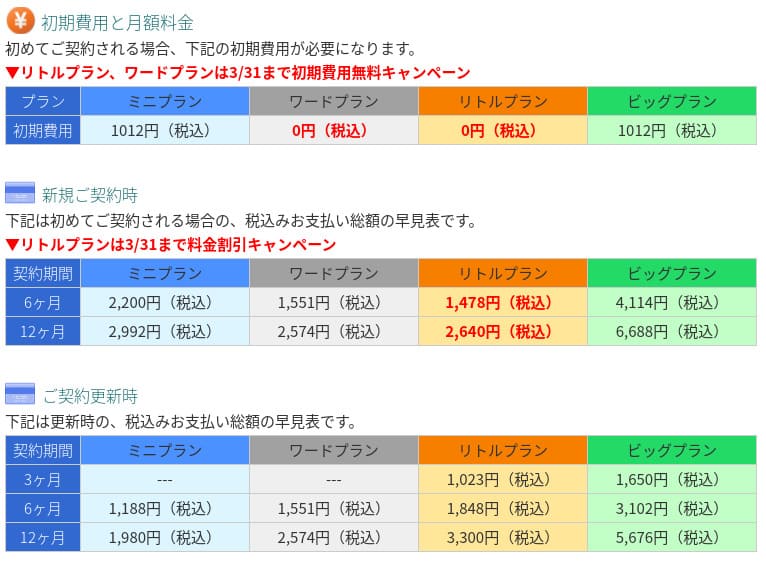
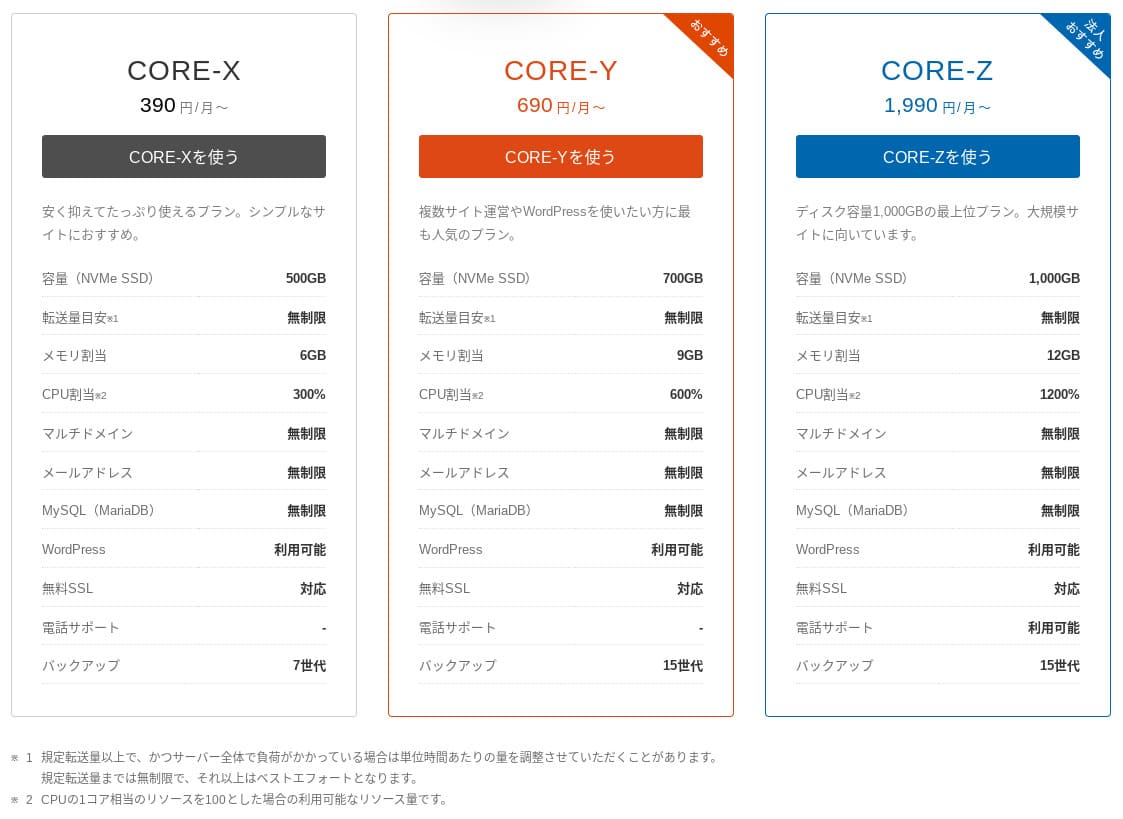
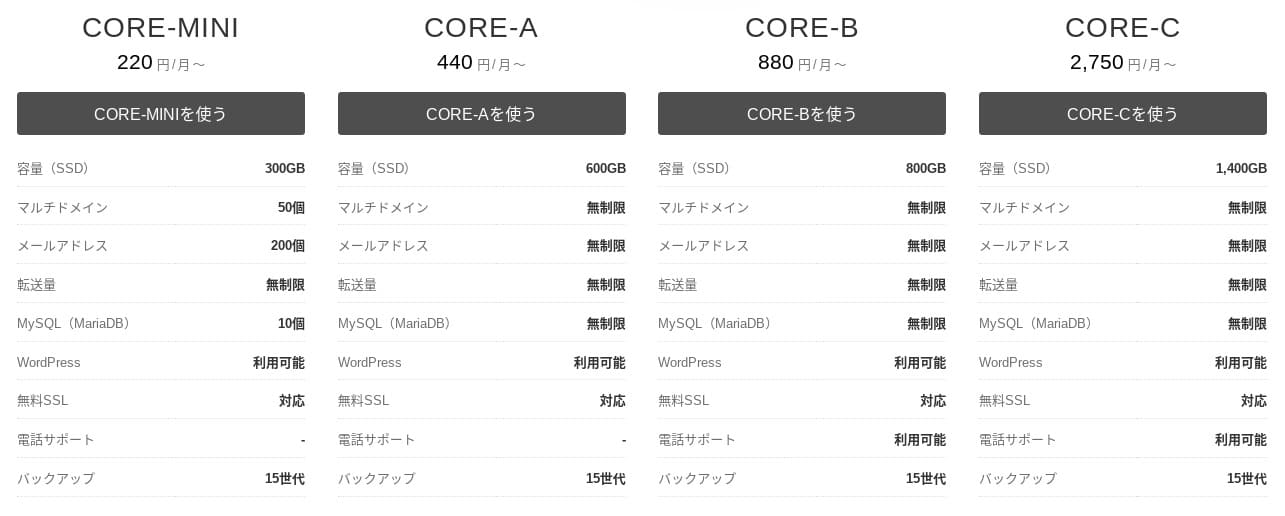
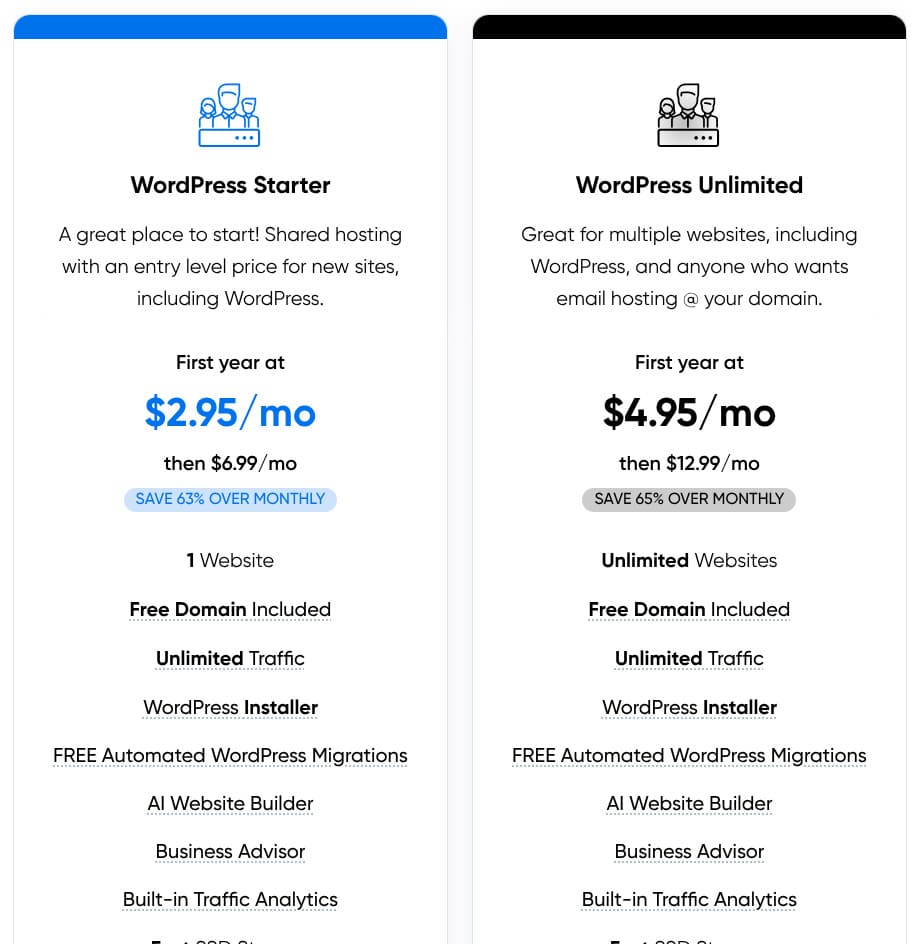
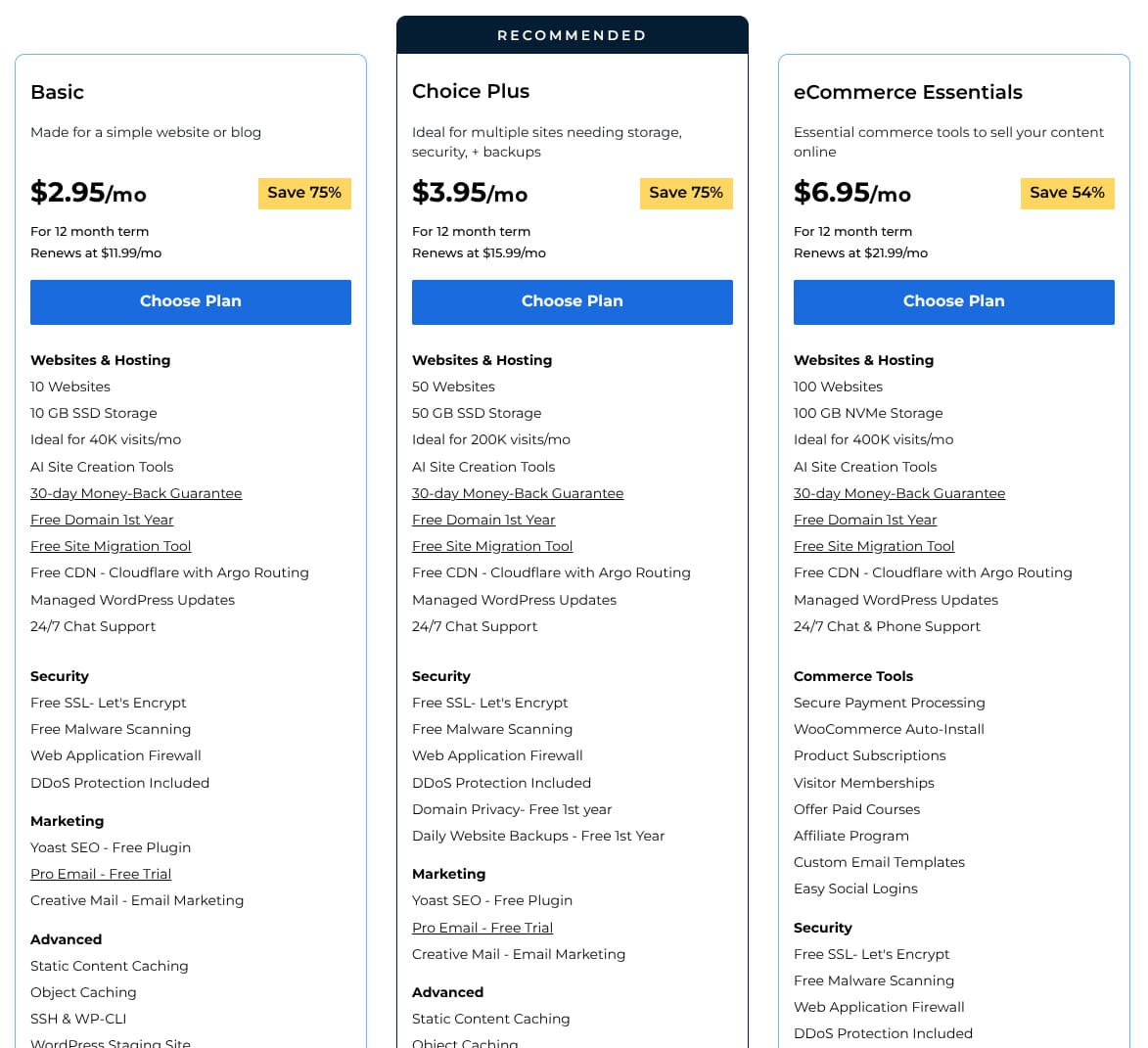
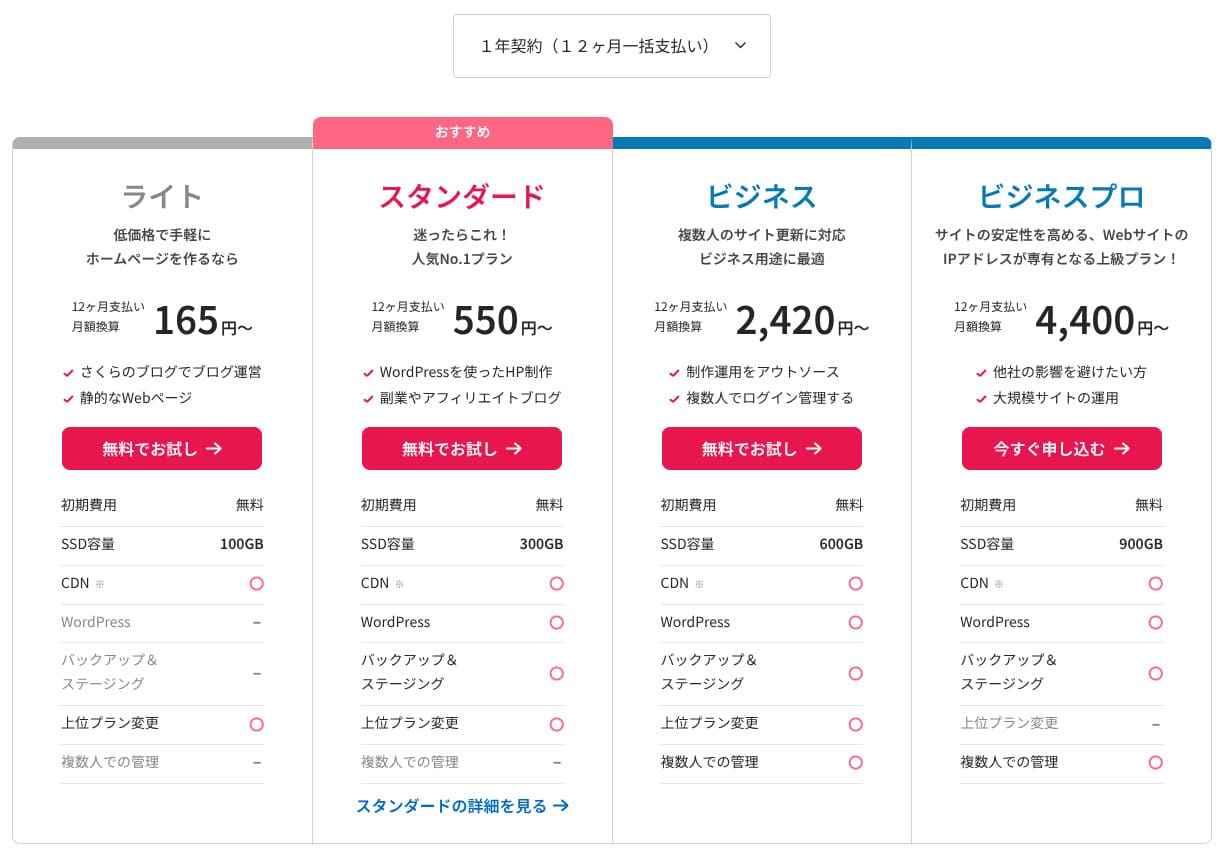
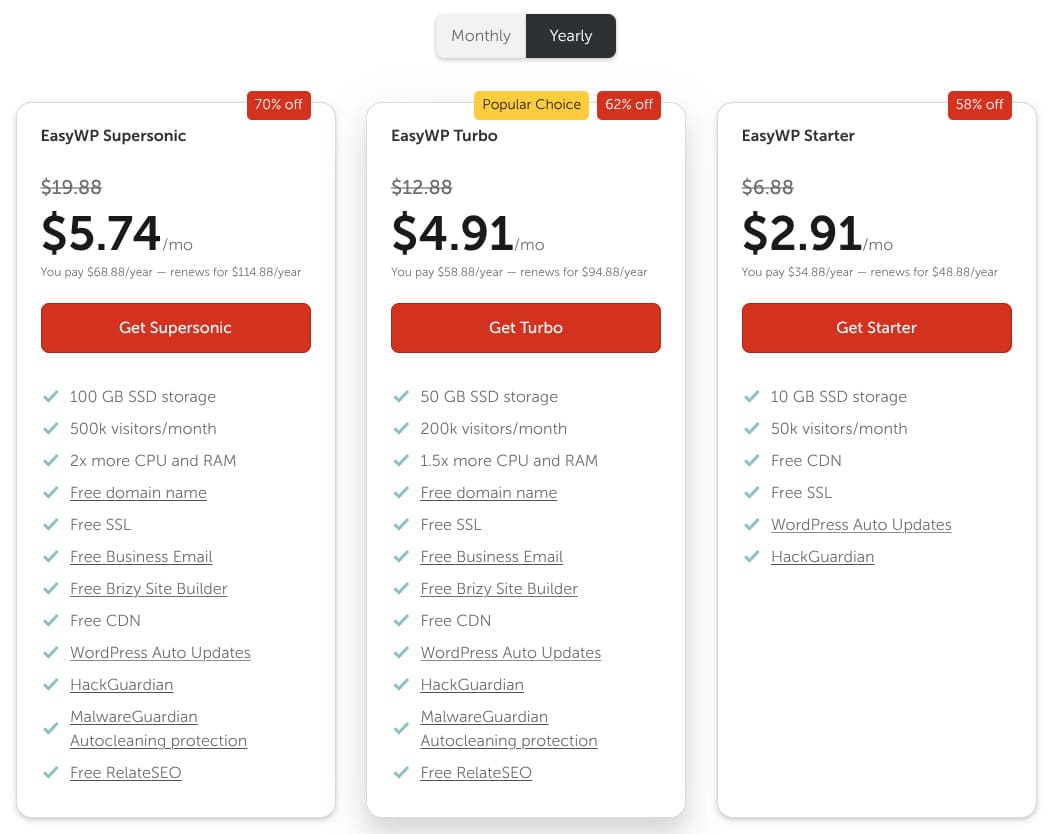
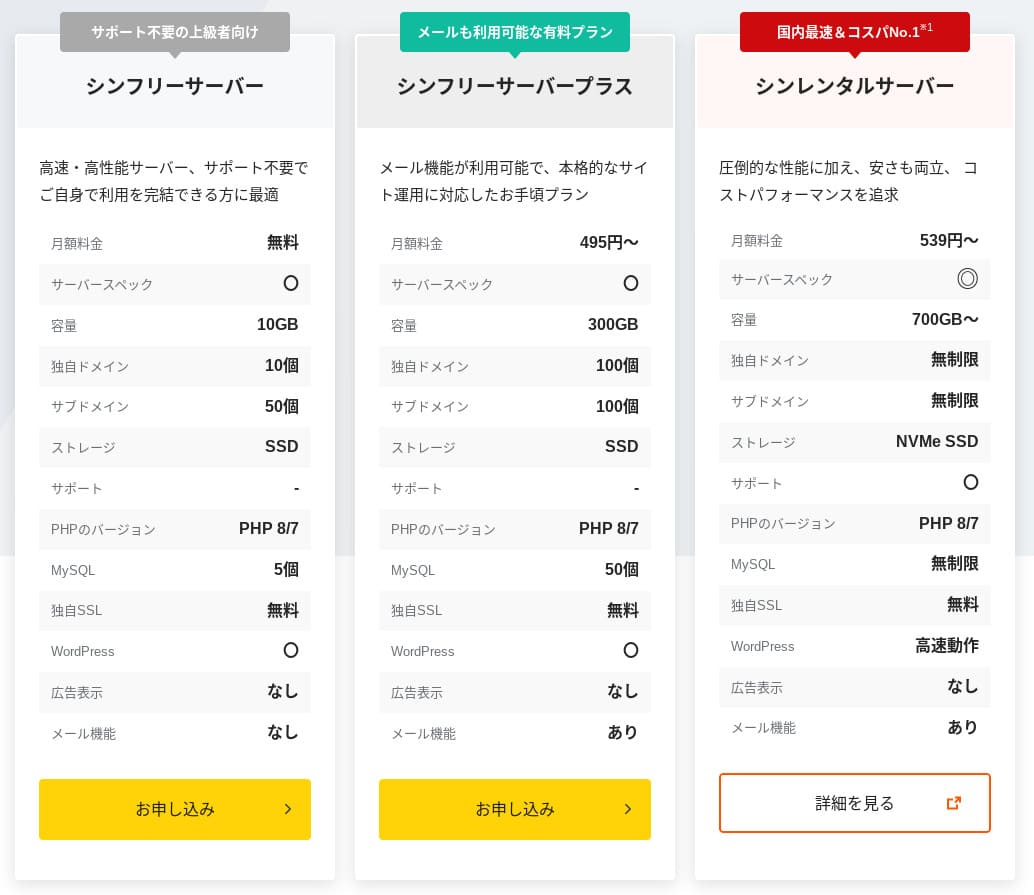
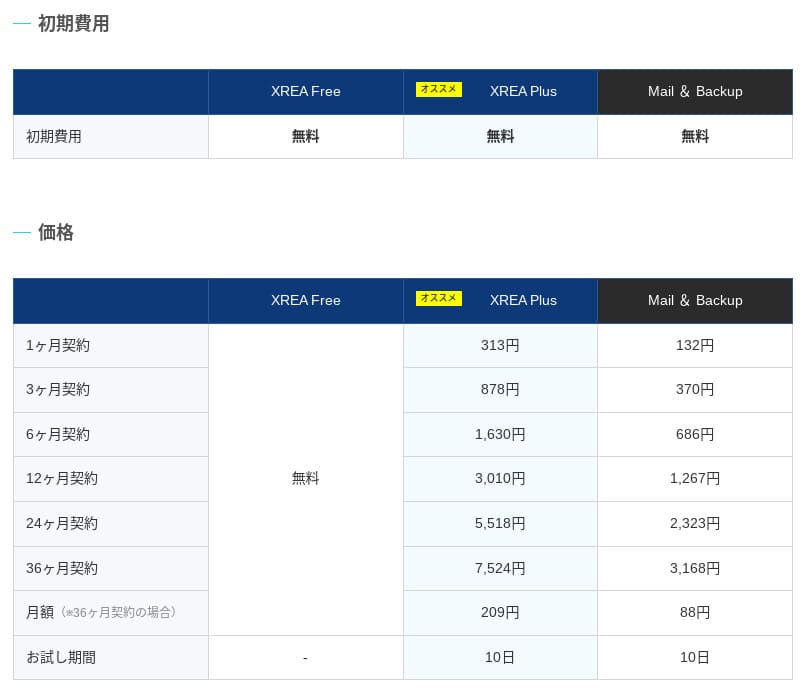
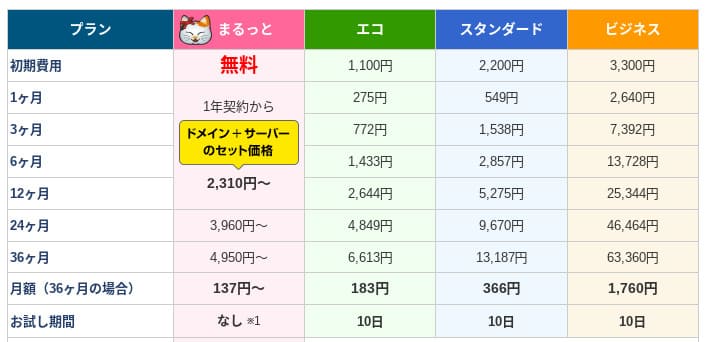
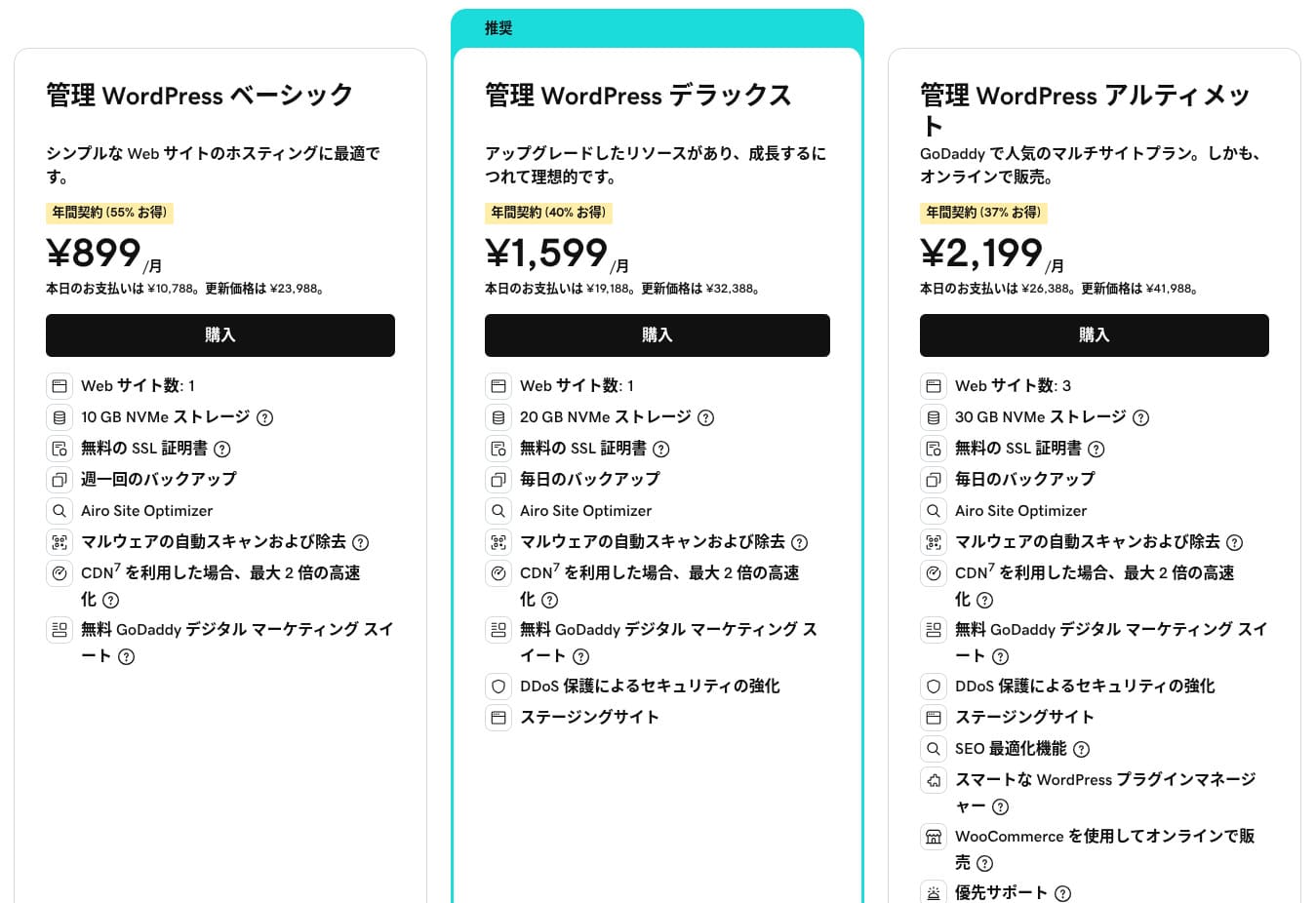
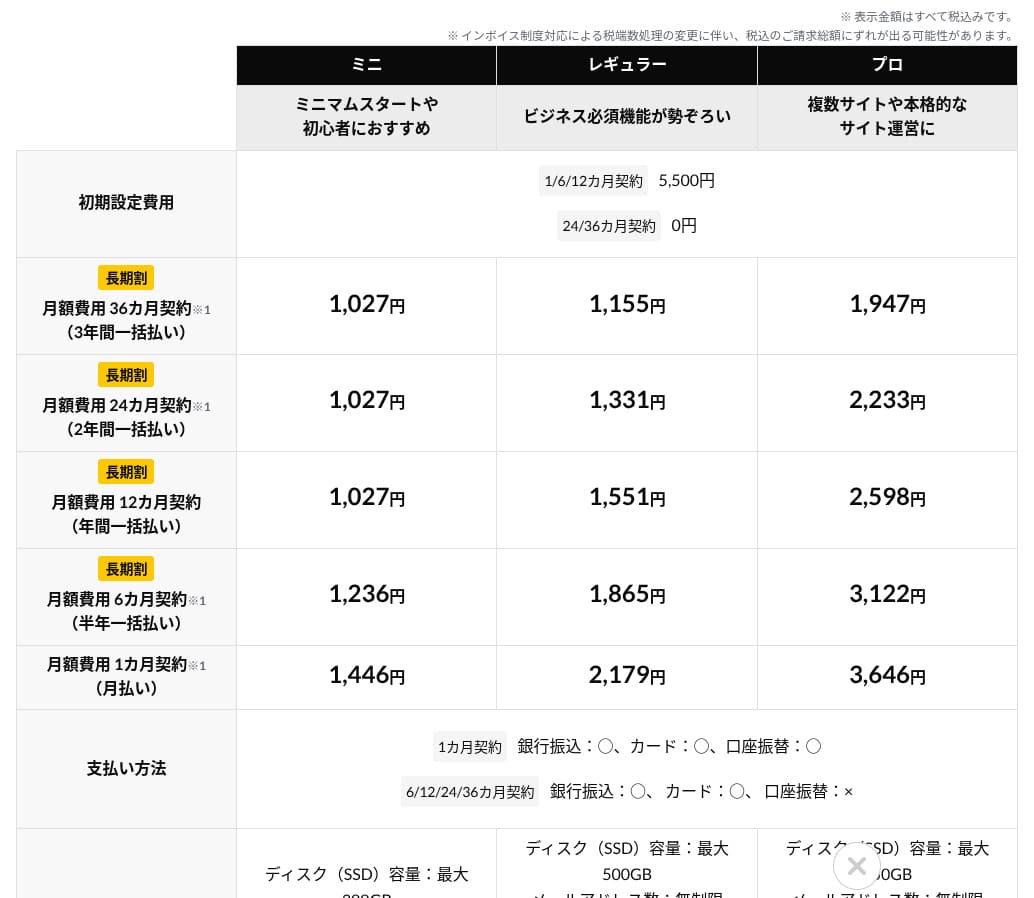
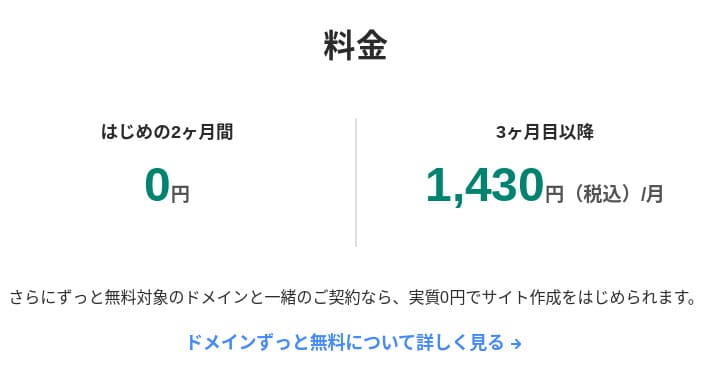
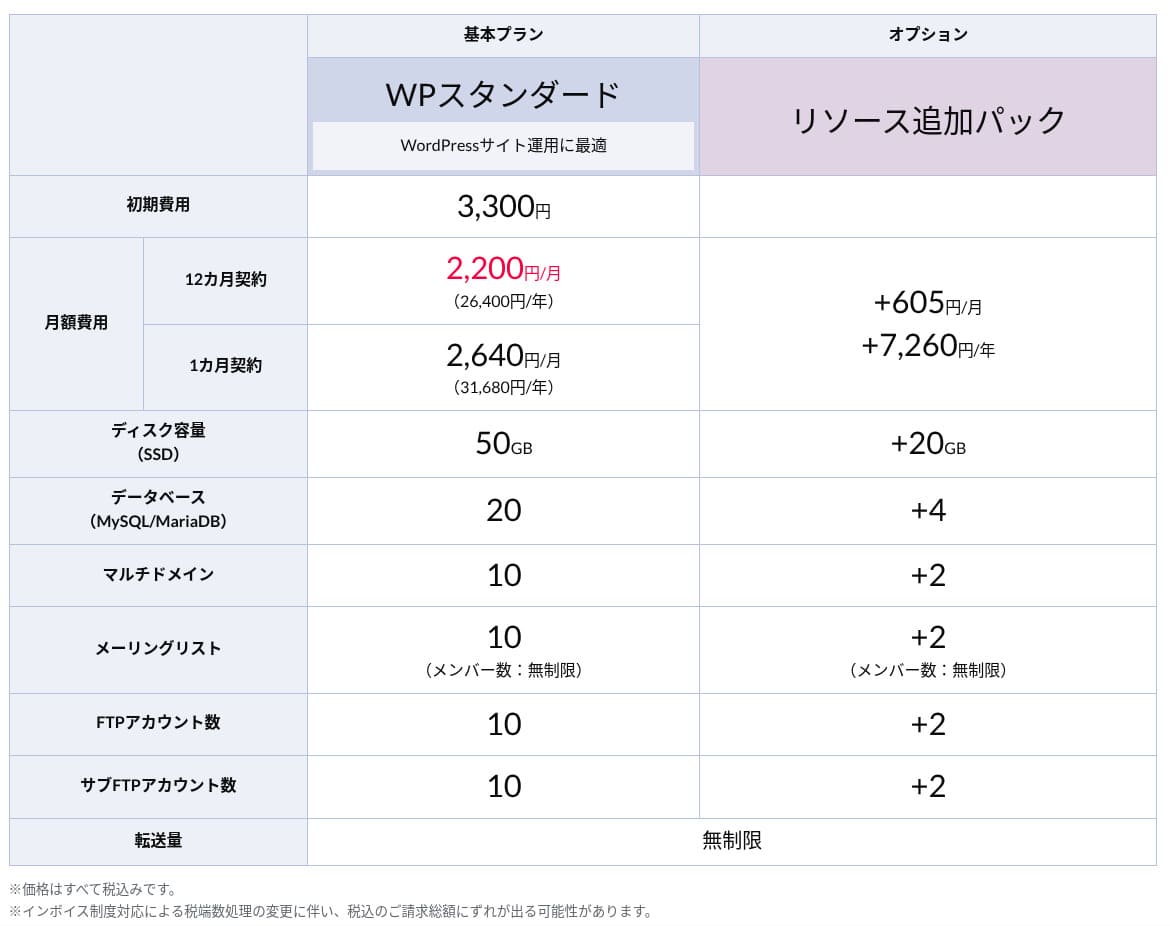
Domain pricing
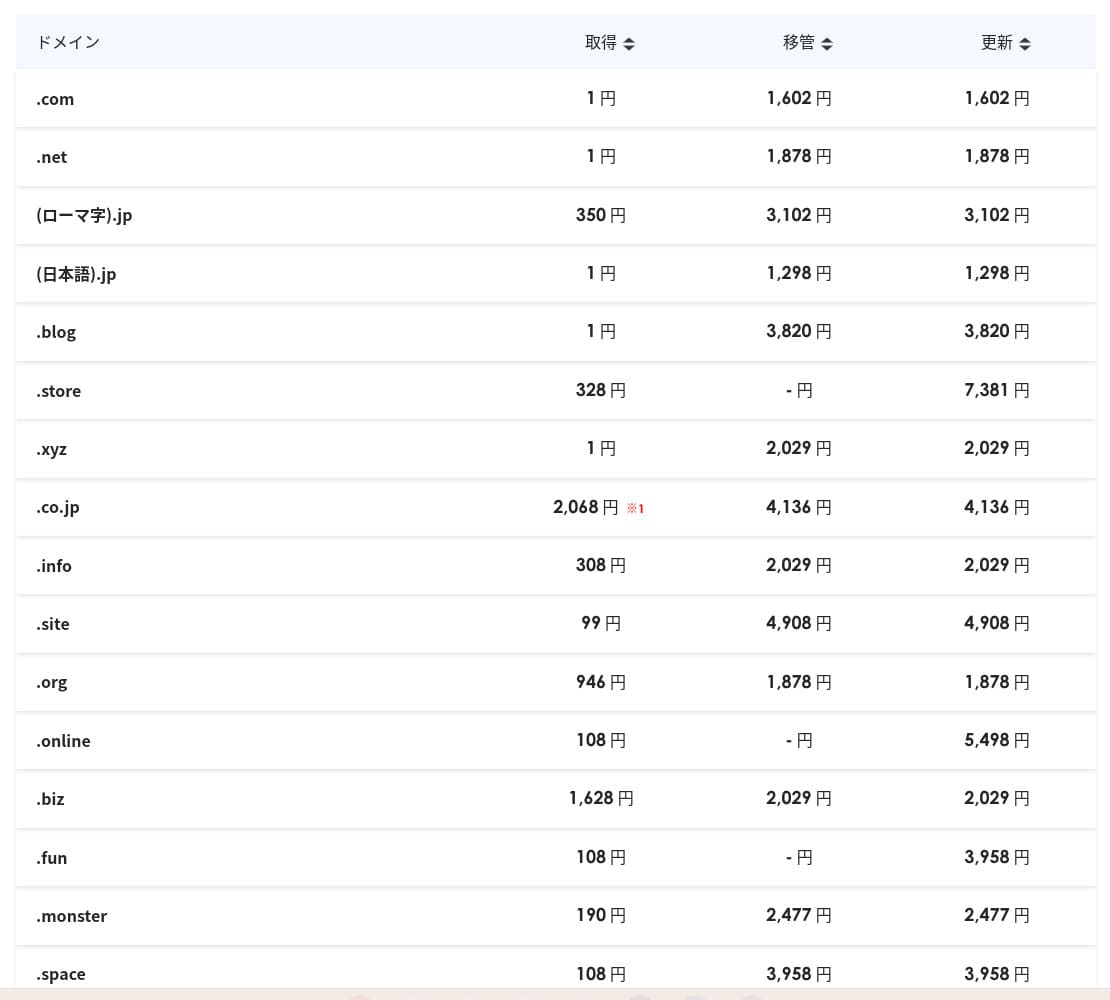
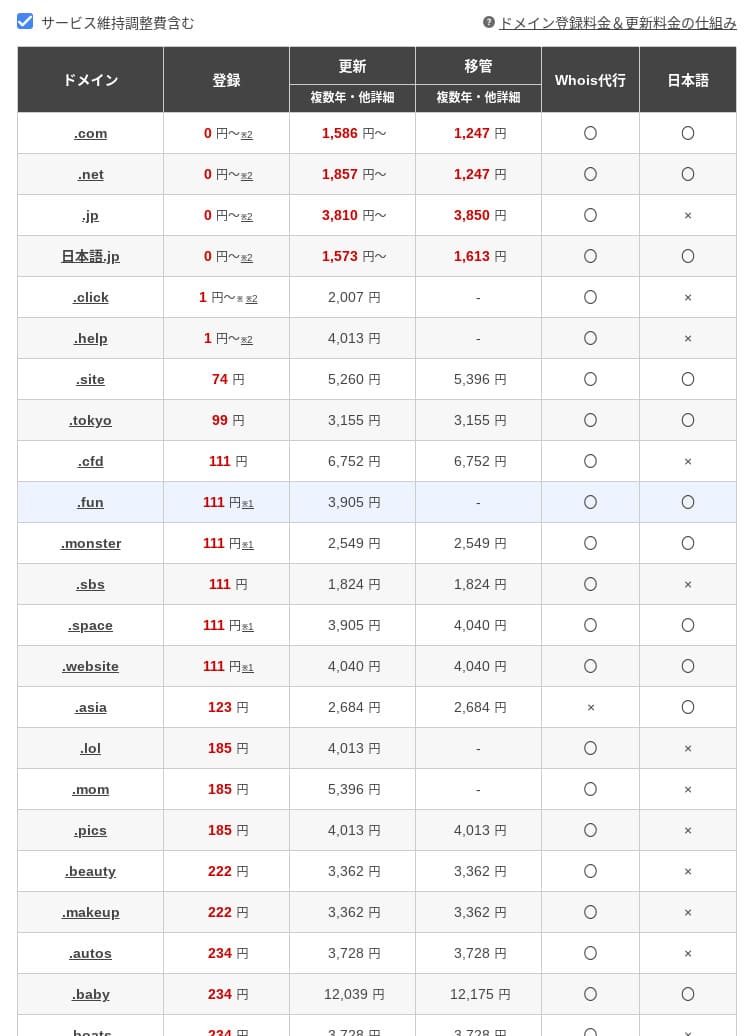
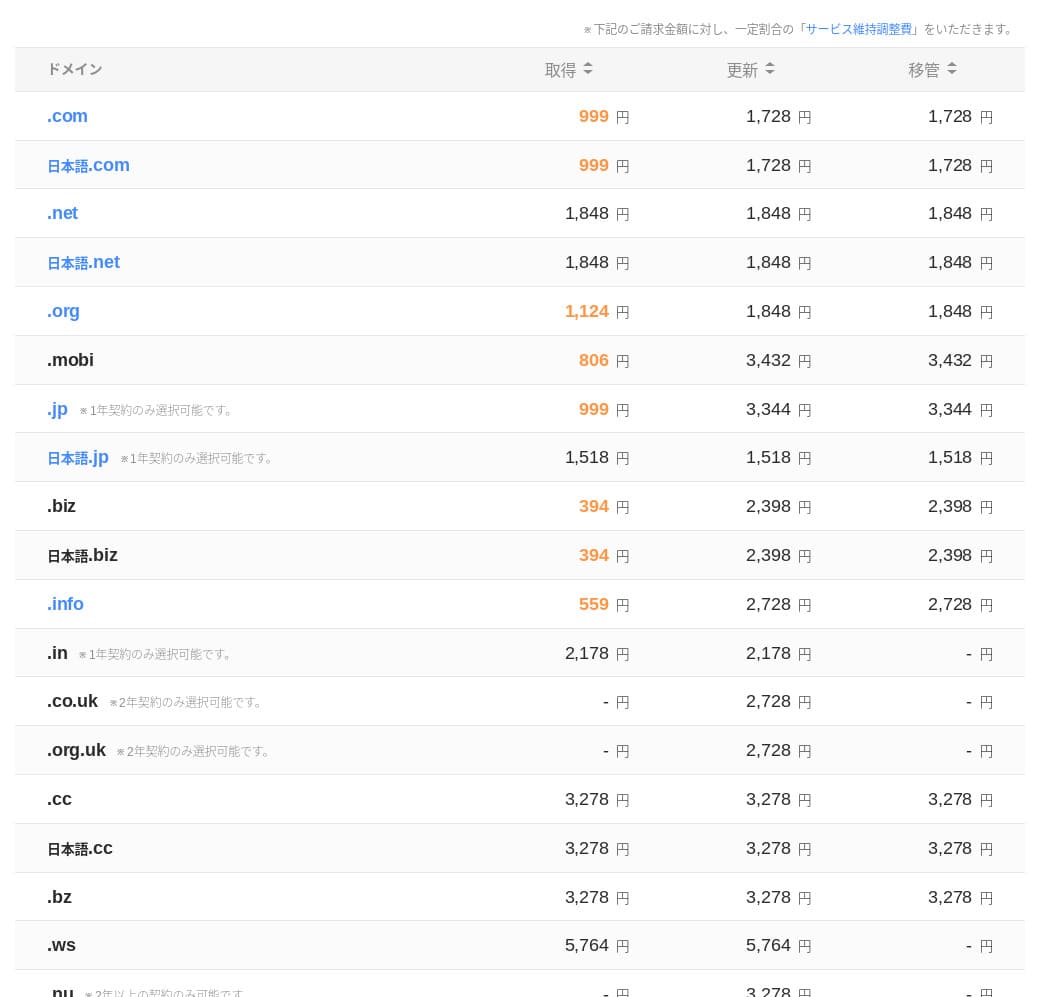
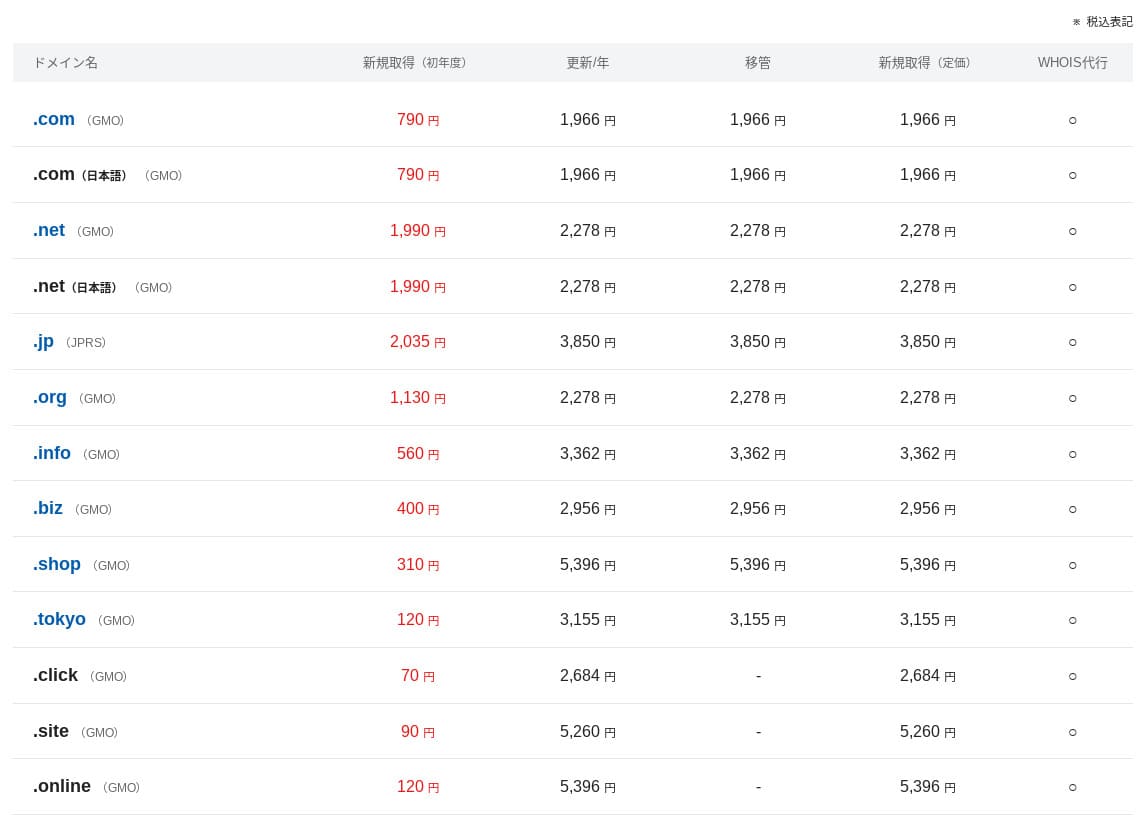
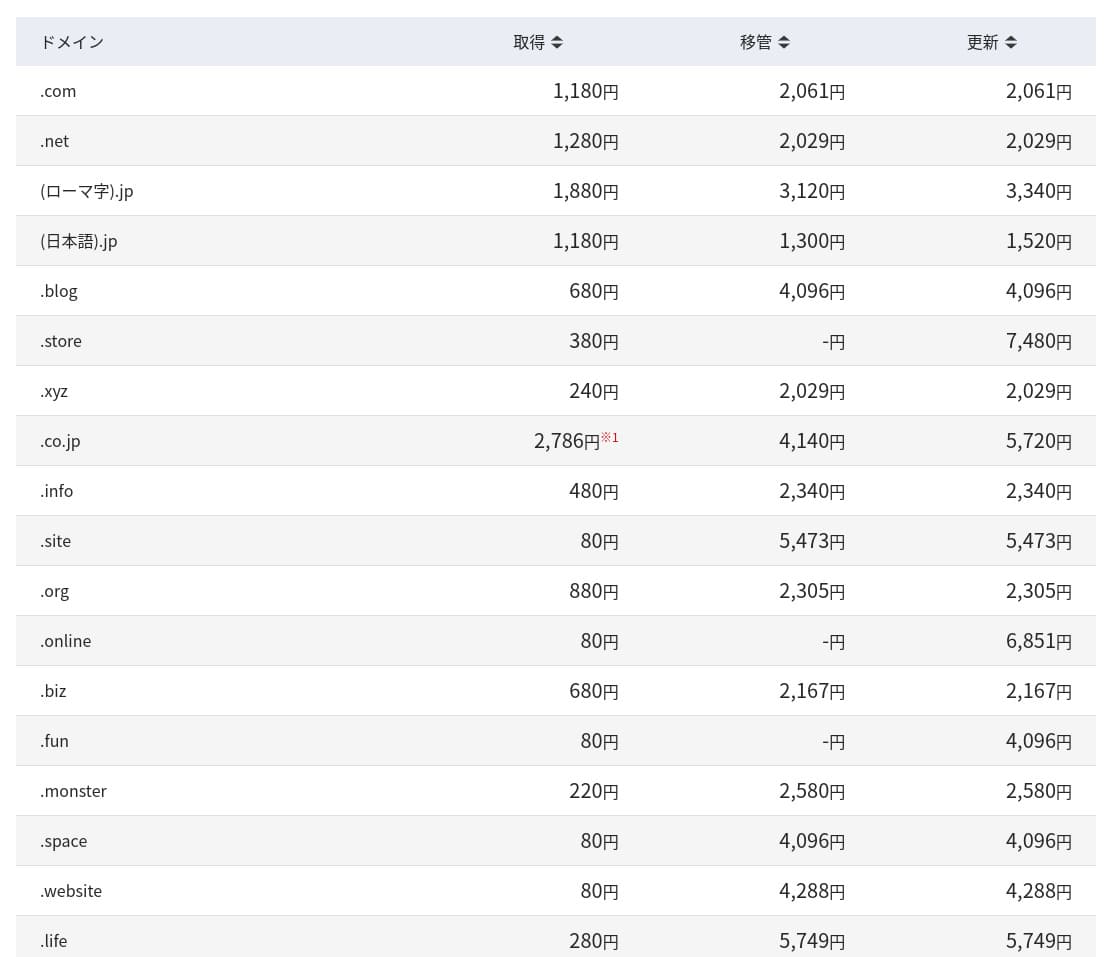
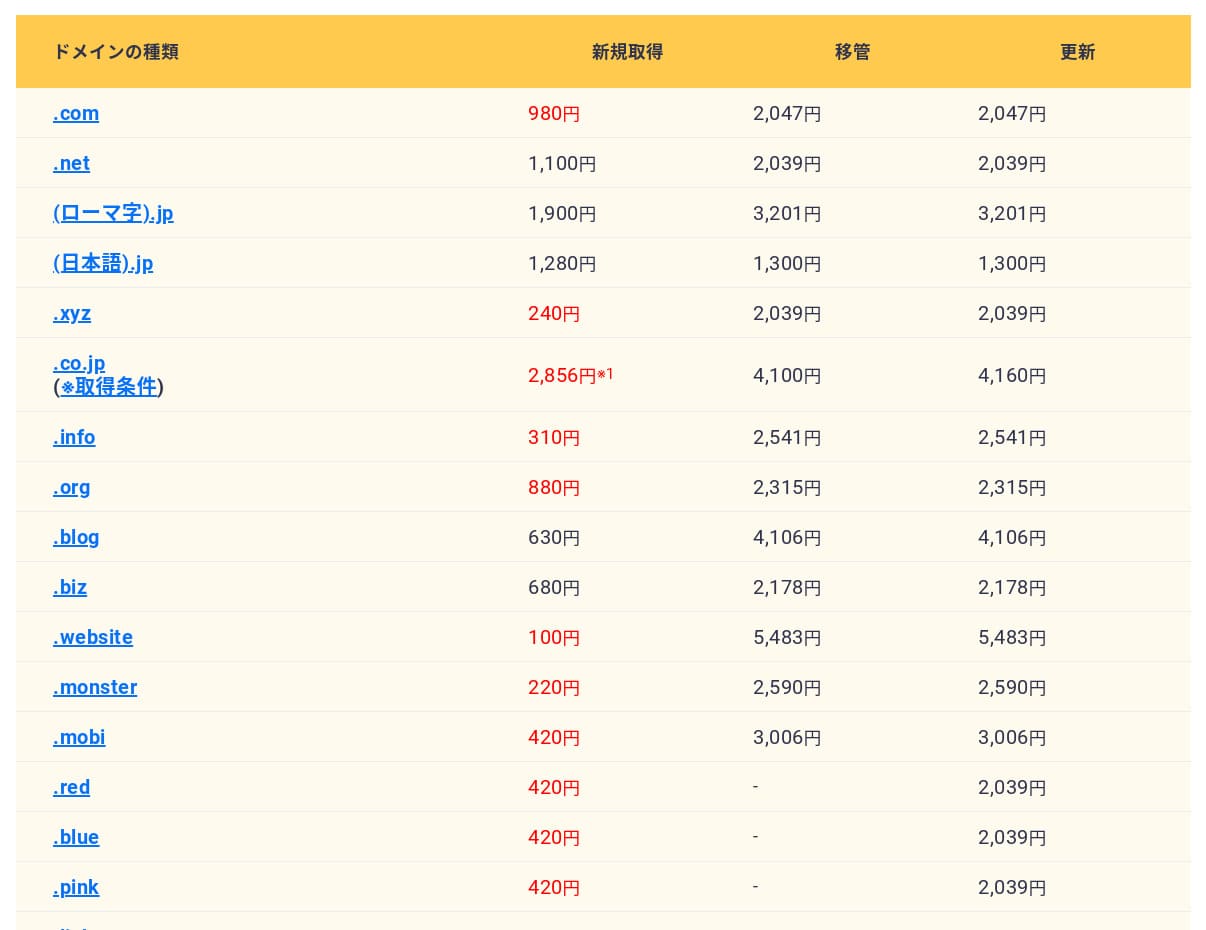
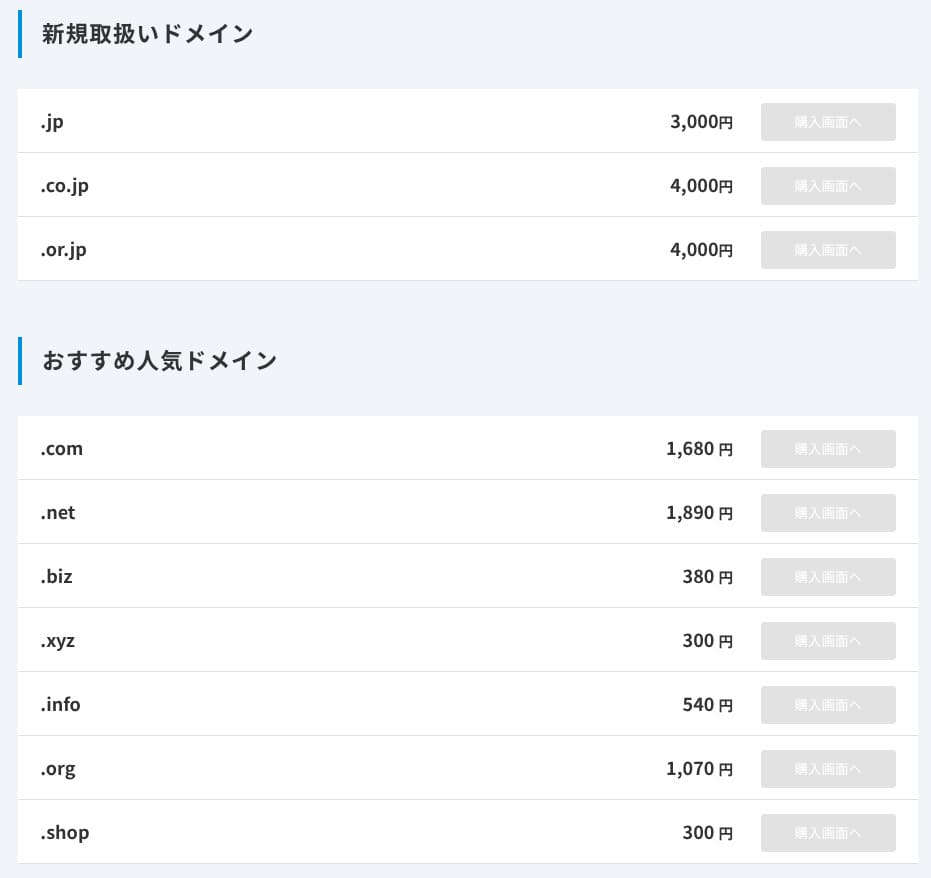
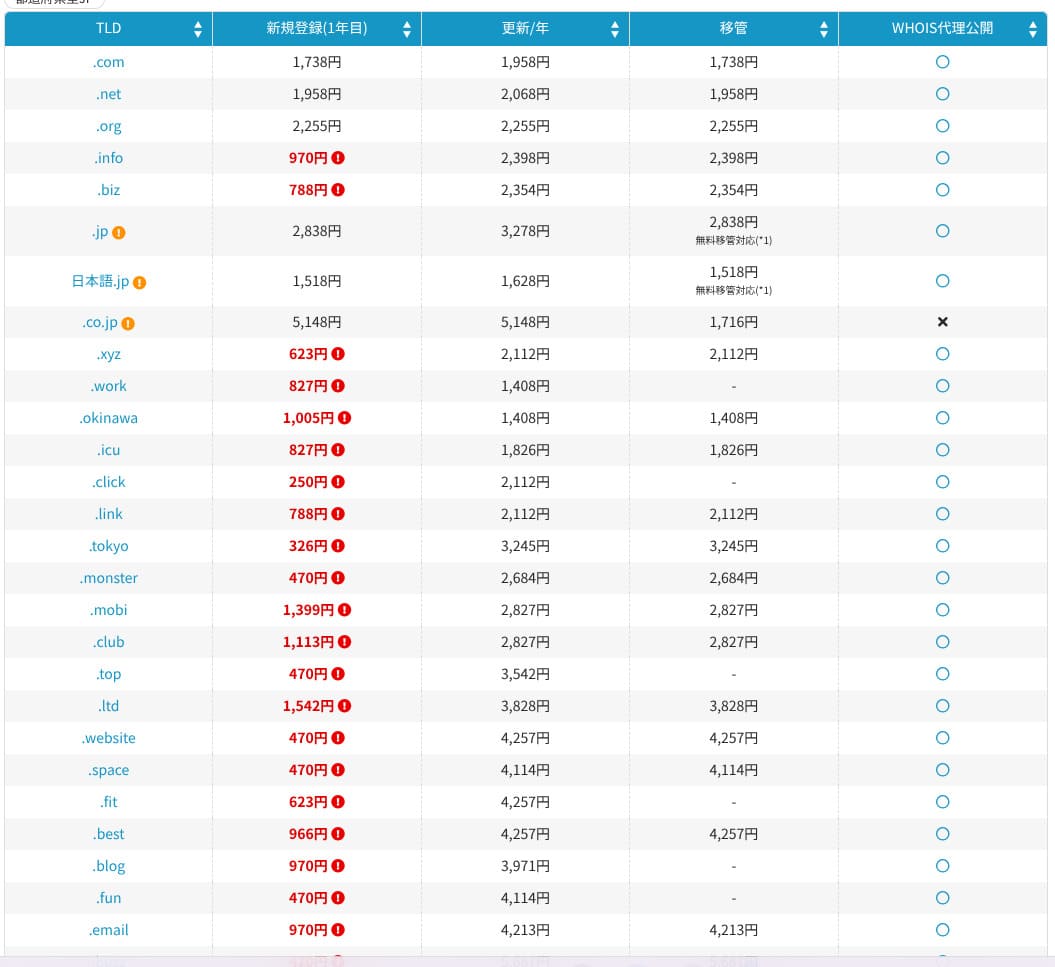
XServer Businessуключае адзін бясплатны дамен, напрыклад .com або .net, а таксама другі дамен (на выбар з .blog, .online або .site), які таксама застаецца бясплатным назаўсёды. Пастаянная перавага бясплатнага ўласнага дамена падтрымлівае новую рэгістрацыю, перанос ад іншых кампаній, замену ўжо атрыманага дамена і змяненне дамена, які падыходзіць пад умовы.
Hikaru Ono
Паколькі гэтыя дамены прызначаны для доўгатэрміновага бізнес-выкарыстання, гэтую бясплатную перавагу не варта ігнараваць.
- XServer Domain
- Onamae.com
- MuuMuu Domain
- Value Domain
- Shin Domain
- Star Domain
- Colorful Domain
- Rakko Domain
SSL certificate cost
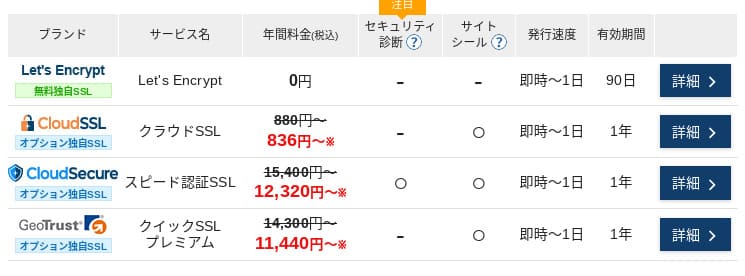
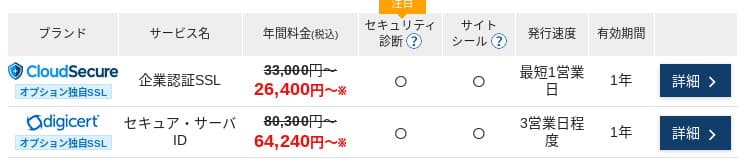
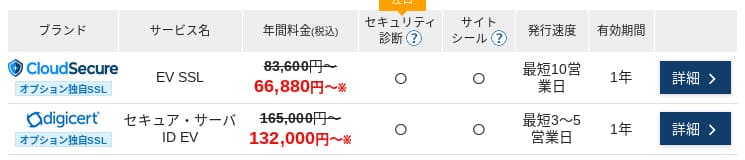
З Let's Encrypt SSL з праверкай дамена бясплатны. Платны SSL з праверкай дамена пачынаецца ад 836 іен у год, SSL з праверкай арганізацыі (OV) - ад 26,400 іен у год, а EV - ад 66,000 іен у год; усё можна замовіць праз афіцыйны адзіны працэс.
Цэны могуць адрознівацца ў залежнасці ад кампаніі.
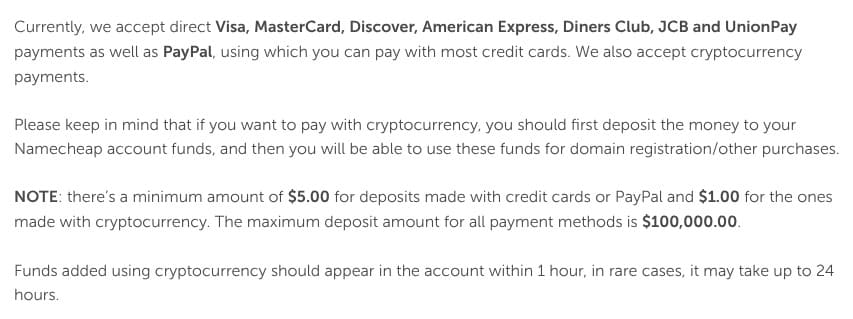
Payment methods
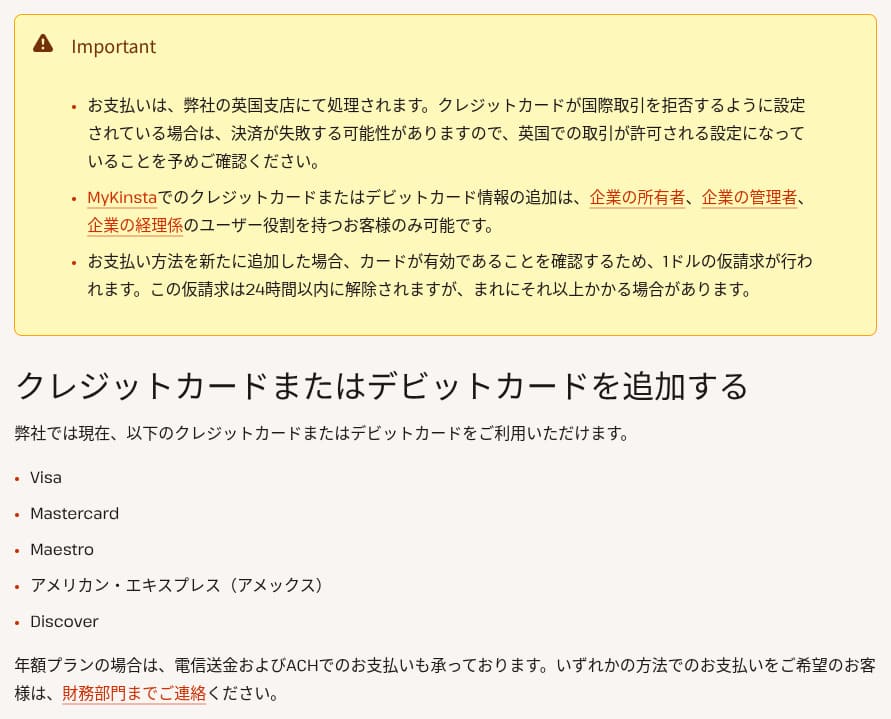
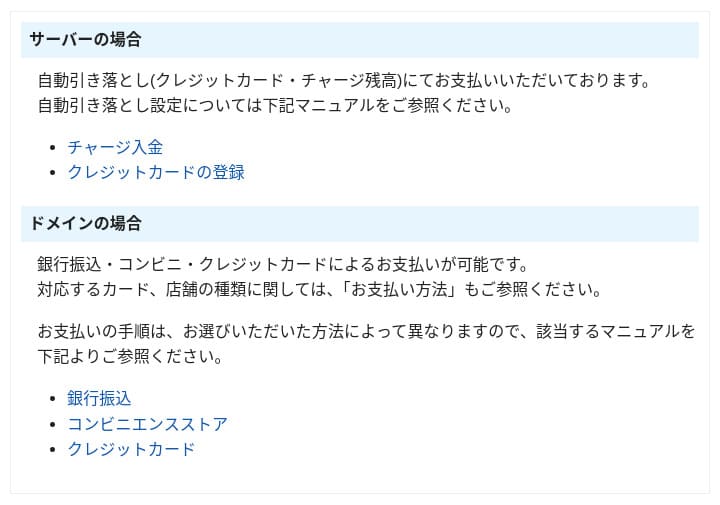
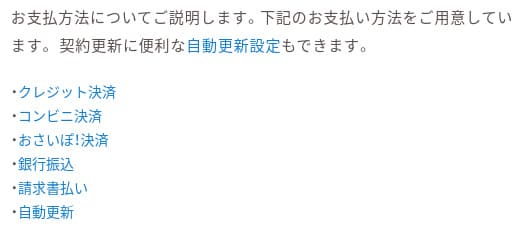
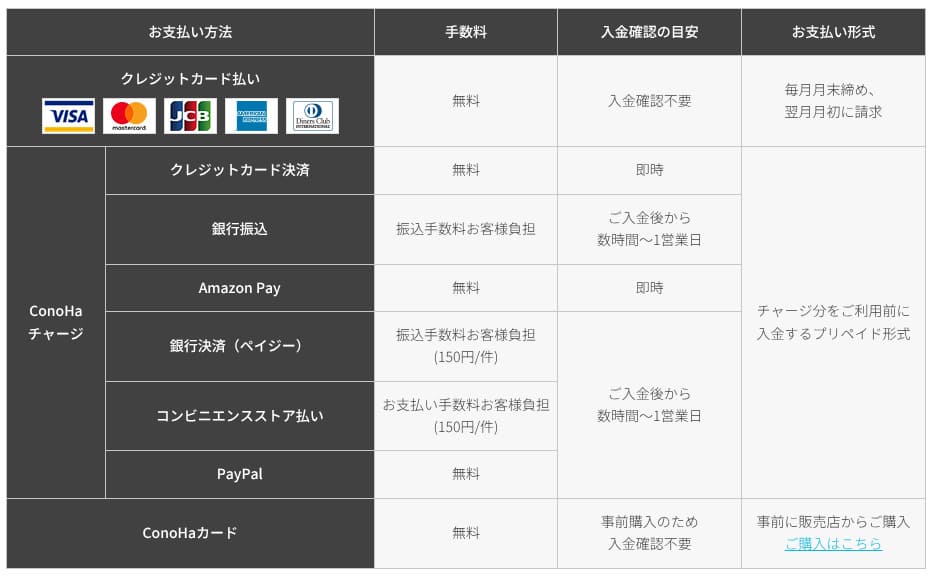
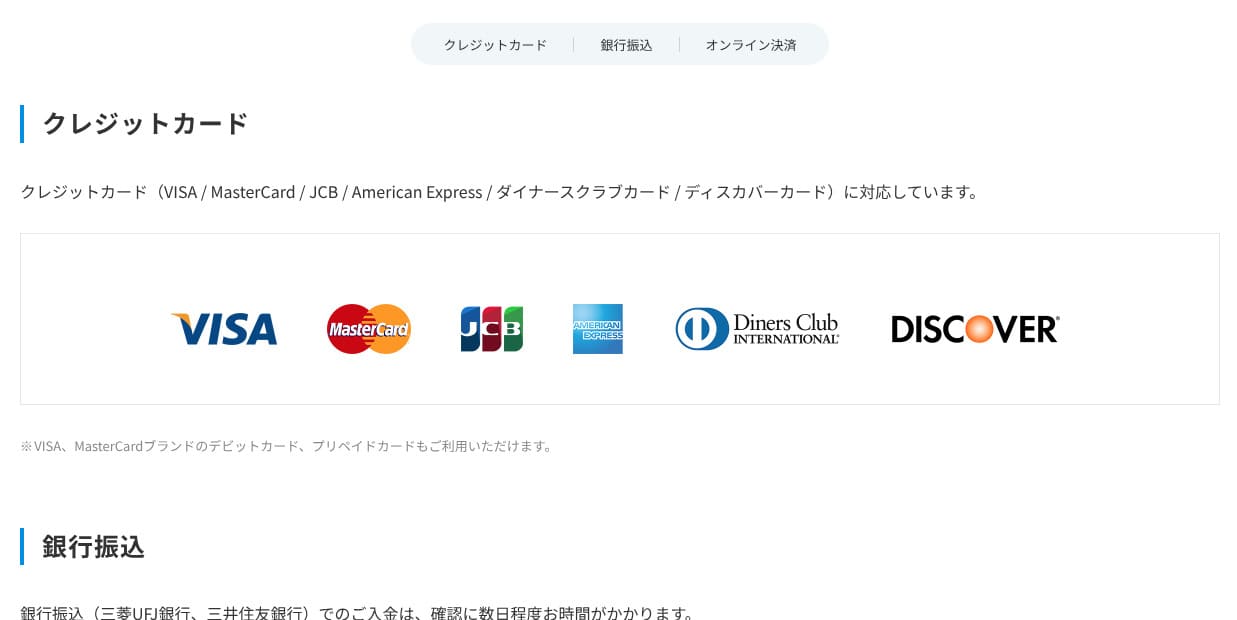
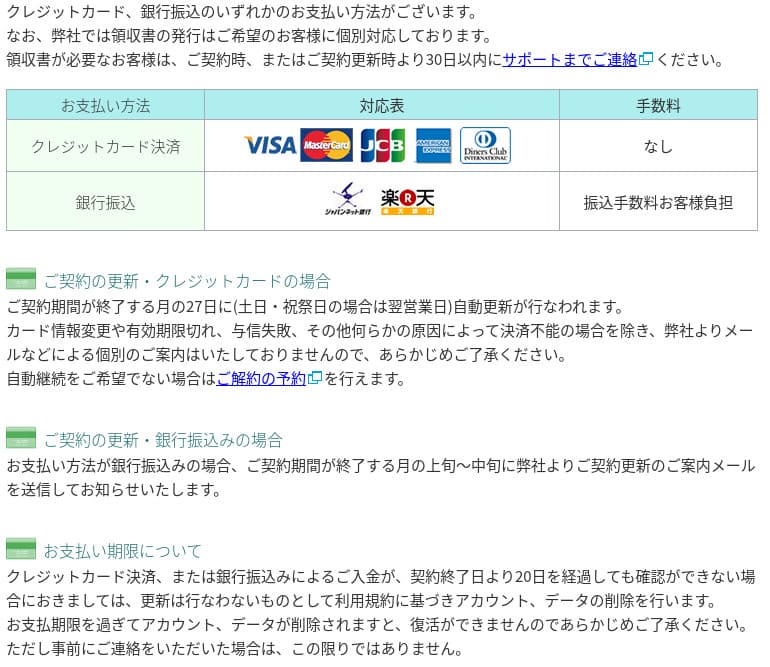
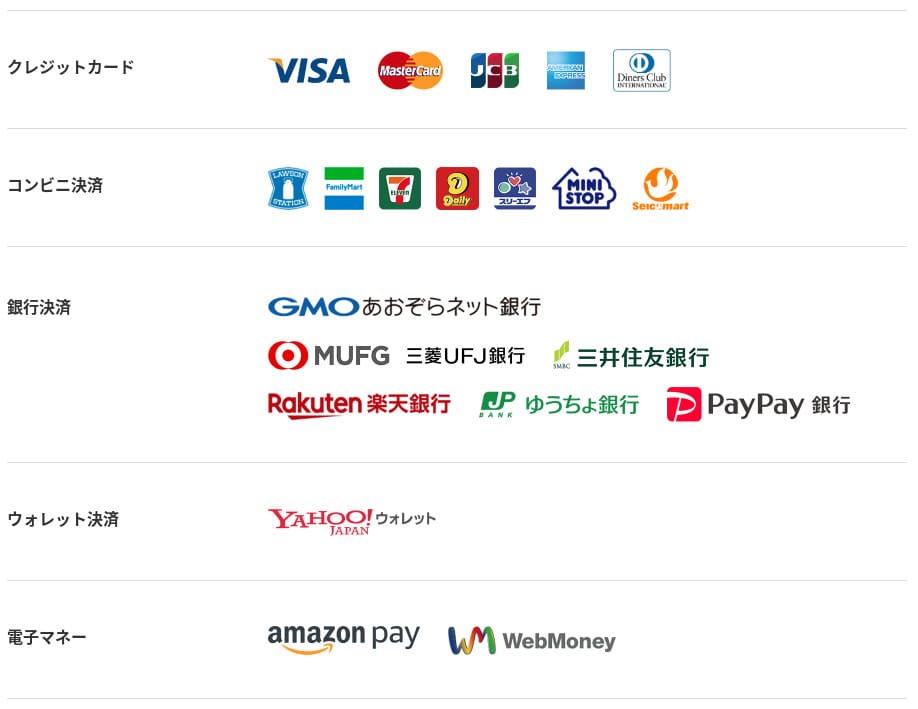
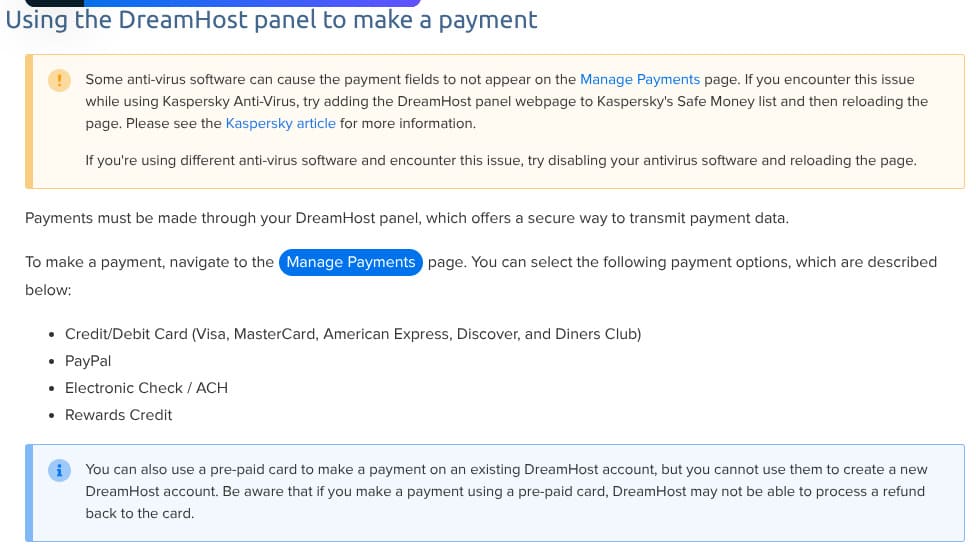
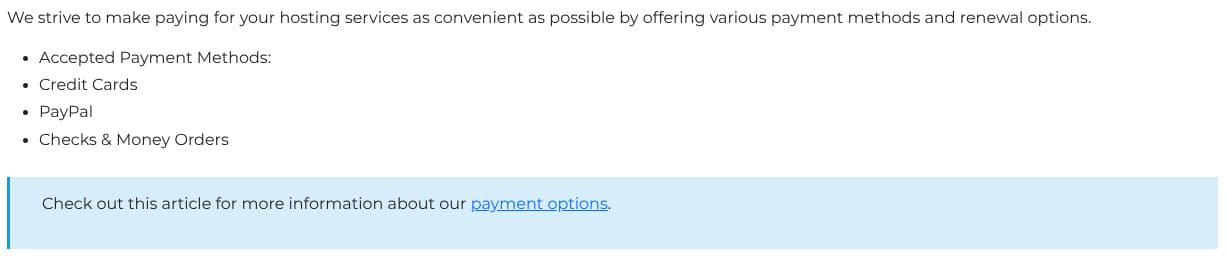
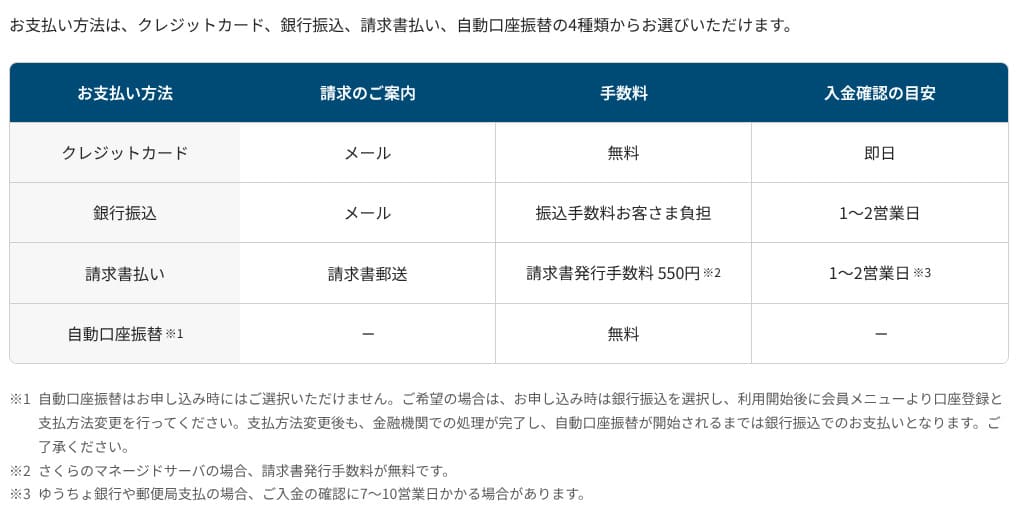
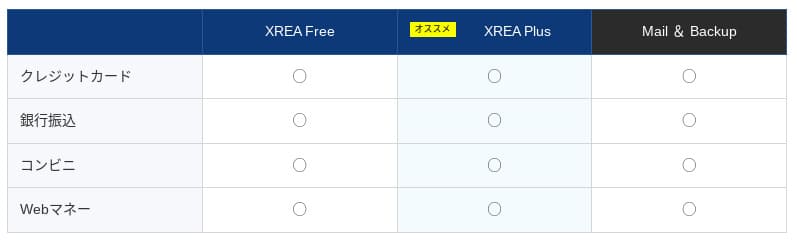
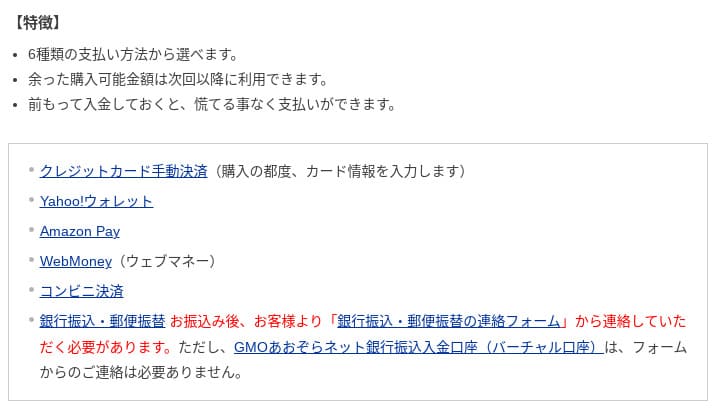
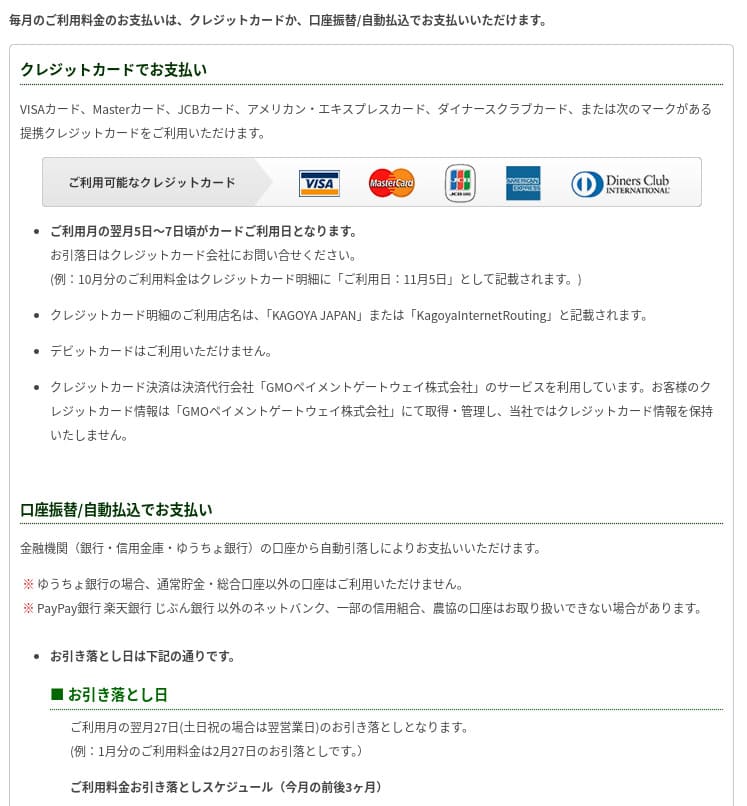
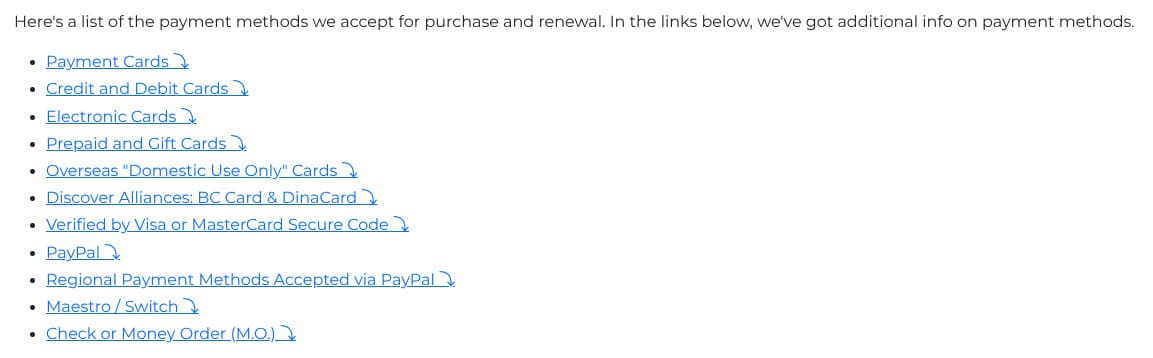
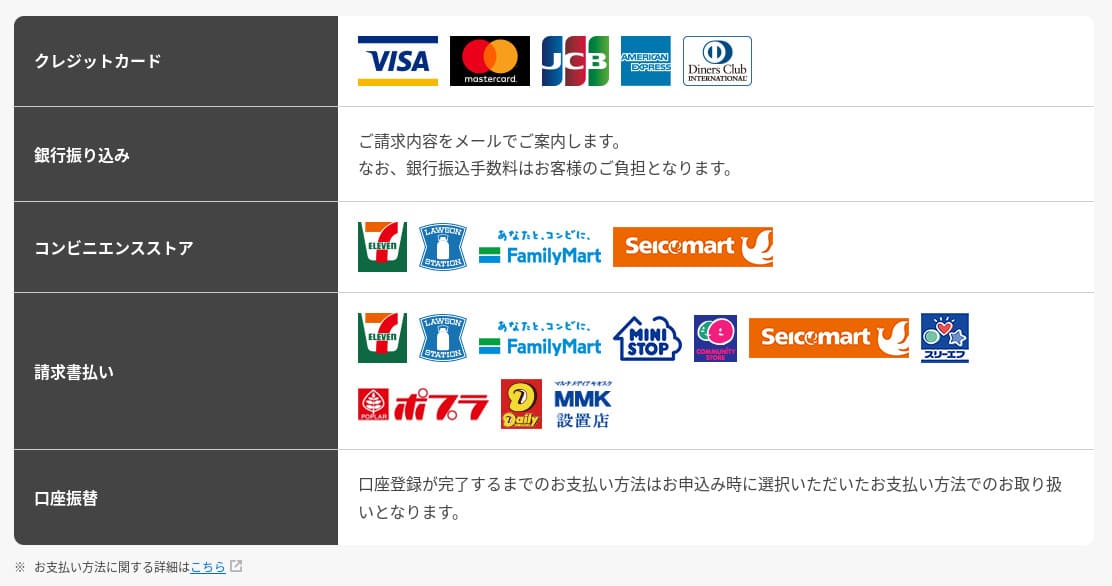
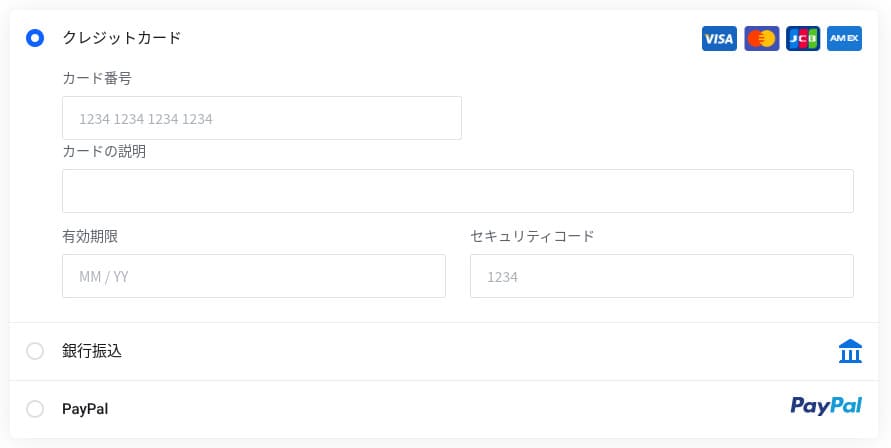
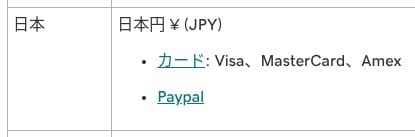
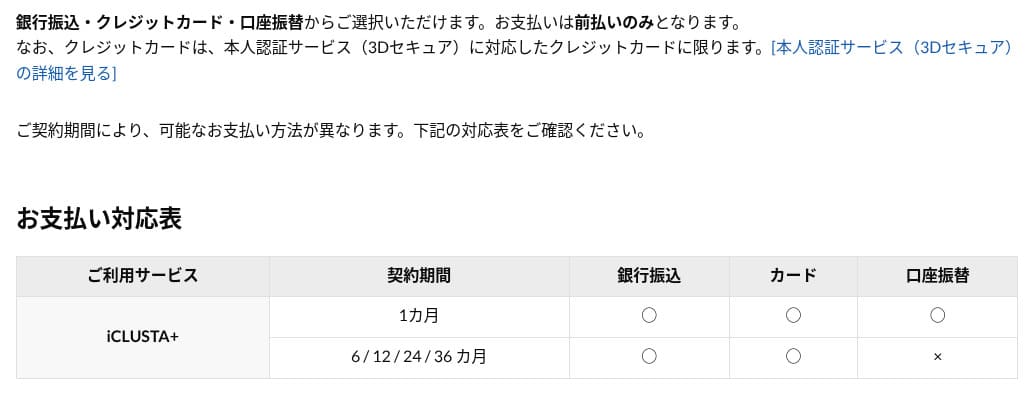
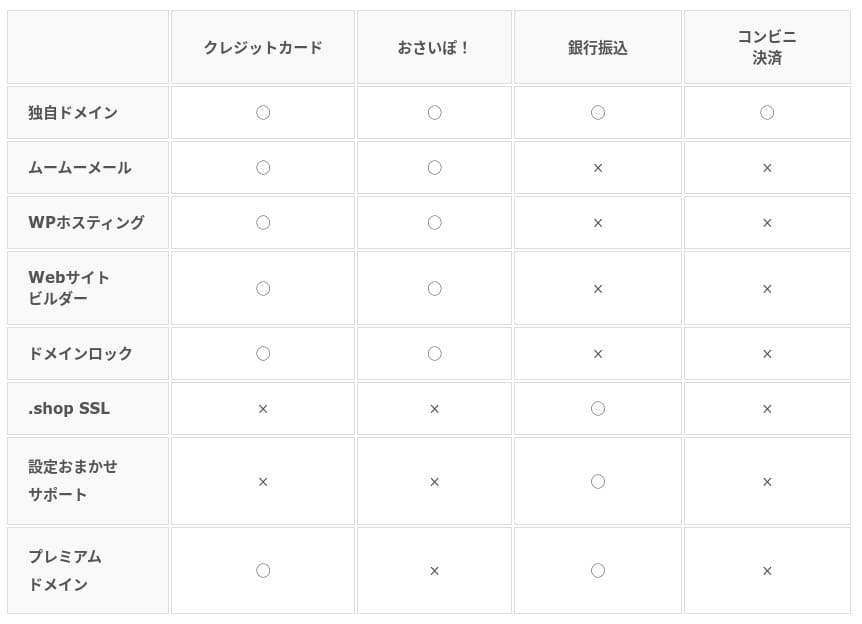
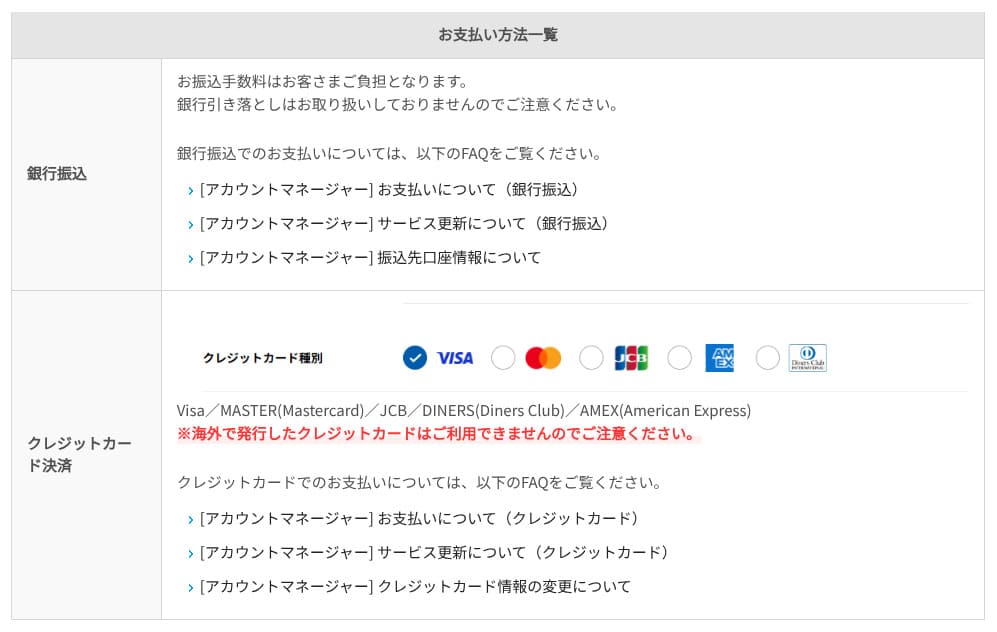
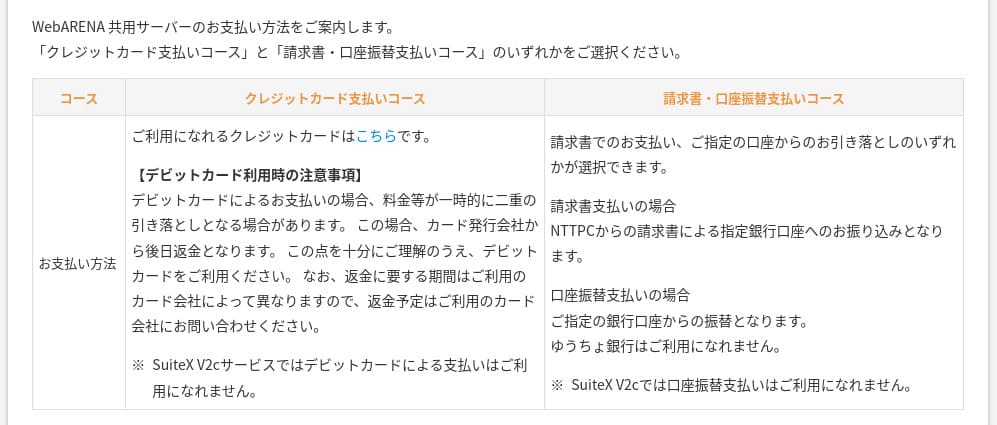
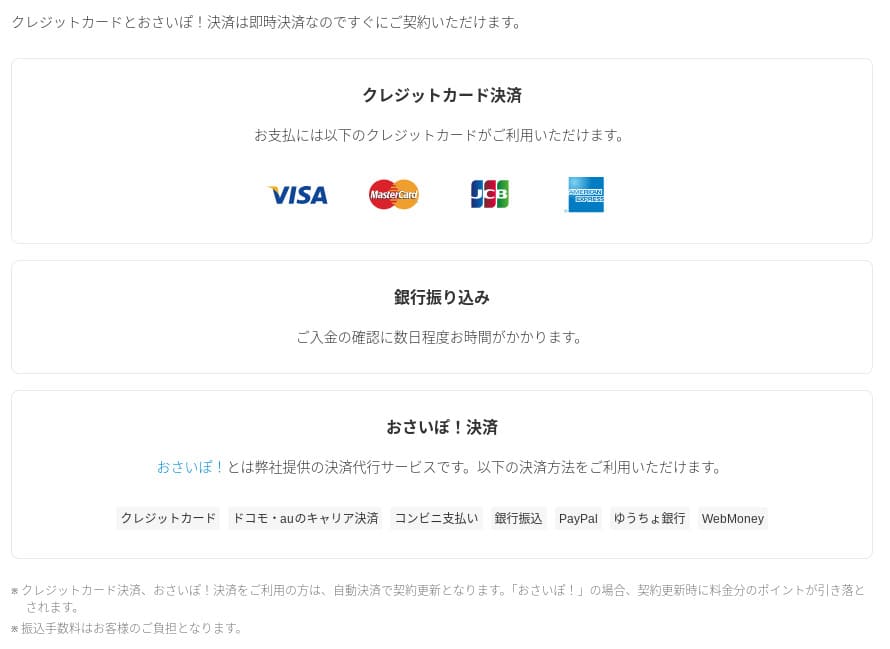
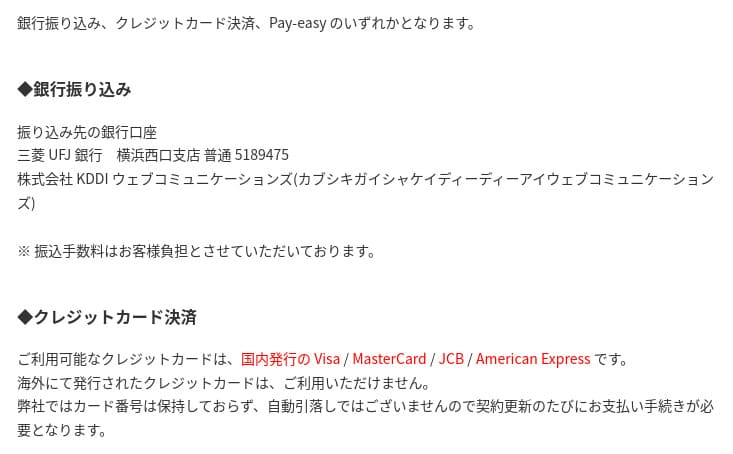
XServer Businessпадтрымлівае крэдытныя карты, банкаўскі пераказ, Pay-easy, аплату ў convenience store і аплату па рахунку. Ён таксама можа выдаваць PDF-камерцыйныя прапановы і рахункі-фактуры, таму ўкараненне праходзіць гладка нават у кампаніях, якім патрэбна ўнутранае ўзгадненне.
Hikaru Ono
Паколькі многія айчынныя хостынгавыя сэрвісы не падтрымліваюць аплату па рахунку, гэта адна з моцных бакоў XServer Business.
- XServer Business
- Kinsta
- wpx
- Lolipop!
- Star Server
- Rakko Server
- XServer
- ConoHa
- ColorfulBox
- Shin Rental Server
- Little Server
- CORESERVER
- DreamHost
- Bluehost
- Sakura
- Namecheap
- Shin Free Server
- XREA
- Value Server
- Hostinger
- KAGOYA
- SiteGround
- HostGator
- IONOS
- Onamae.com
- ABLENET
- mixhost
- GoDaddy
- iCLUSTA+
- MuuMuu Server
- WADAX
- WebARENA
- Heteml
- CPI Rental Server









Ease of use and support
Ease of the control panel
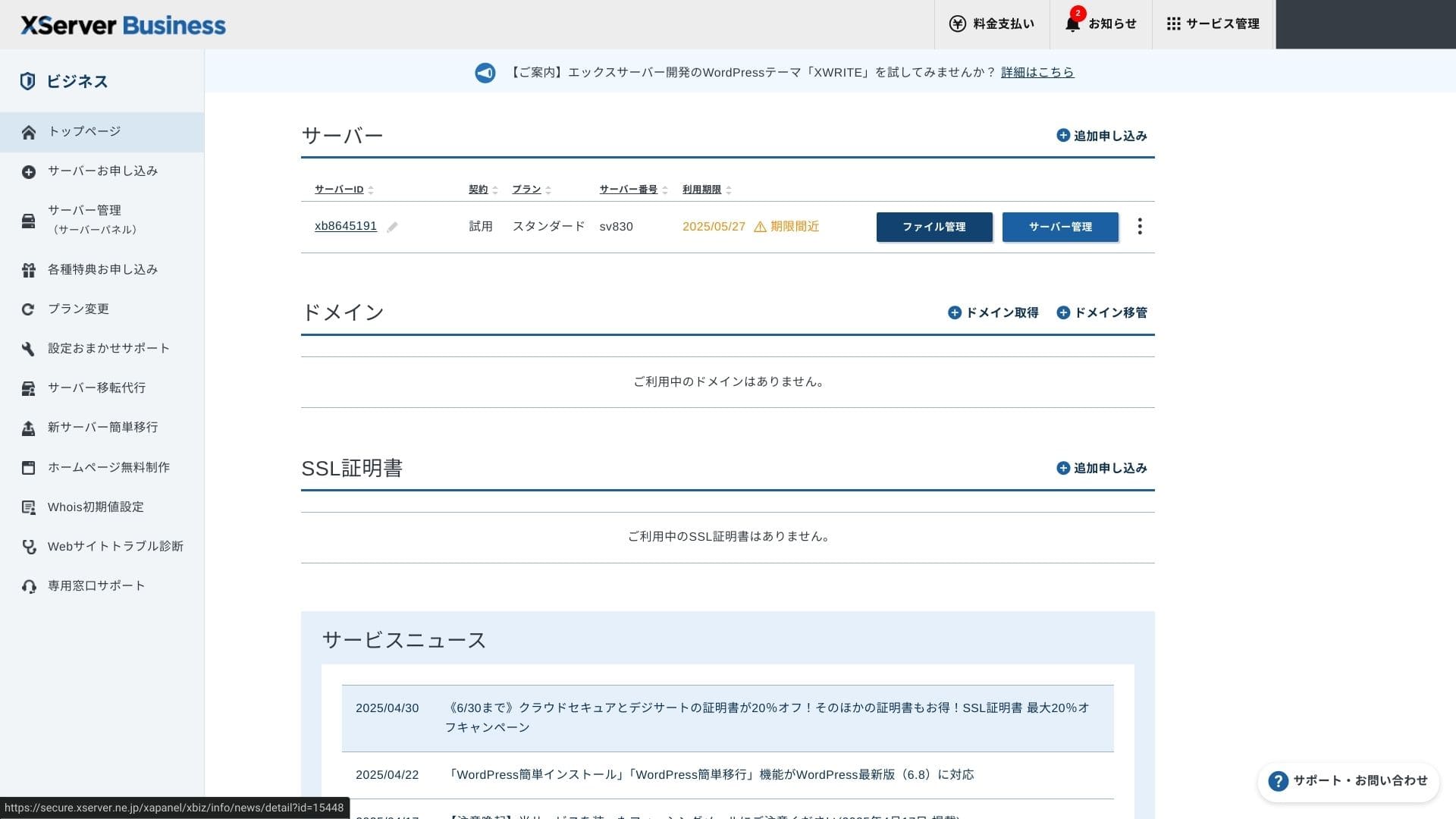
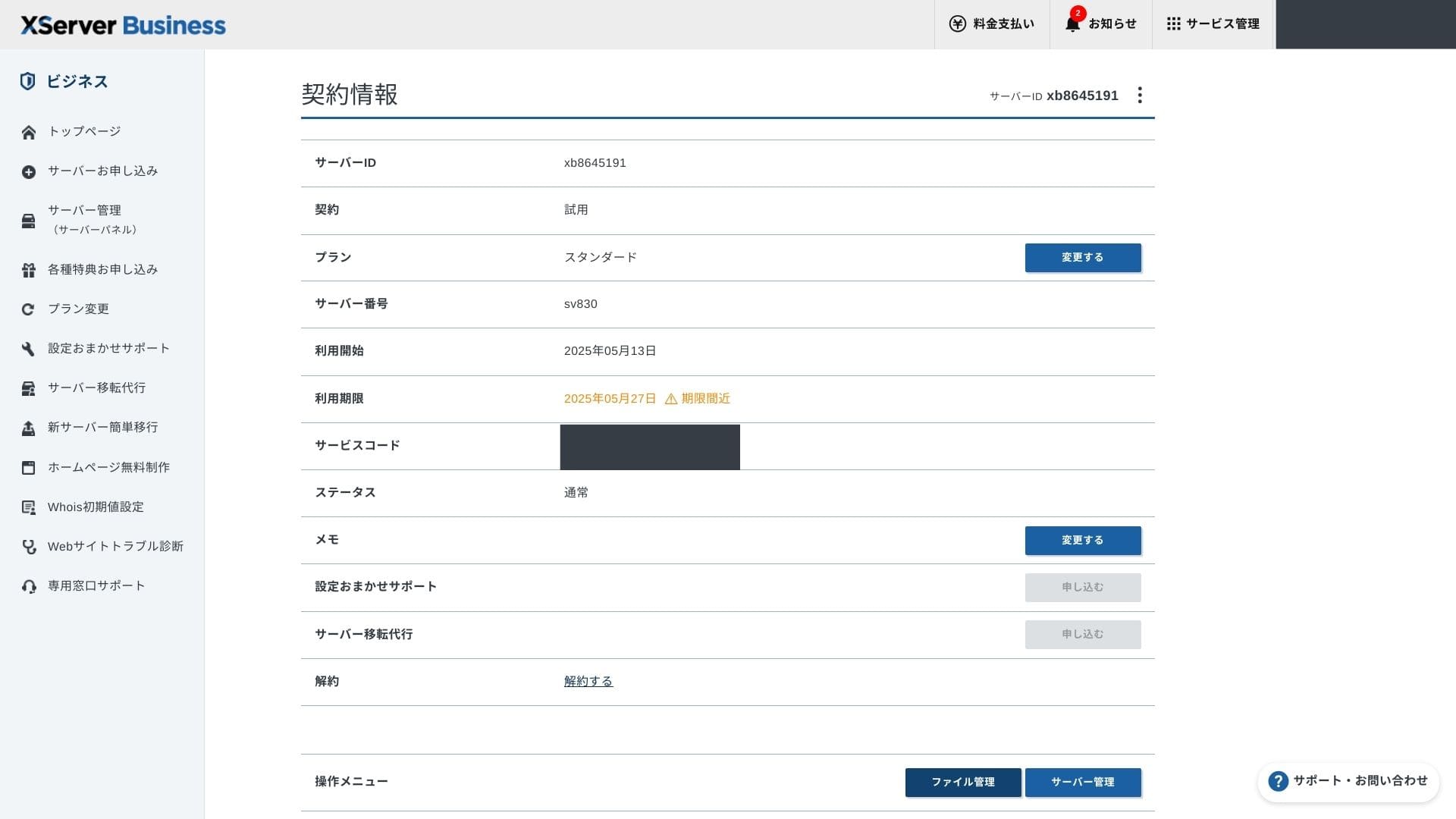
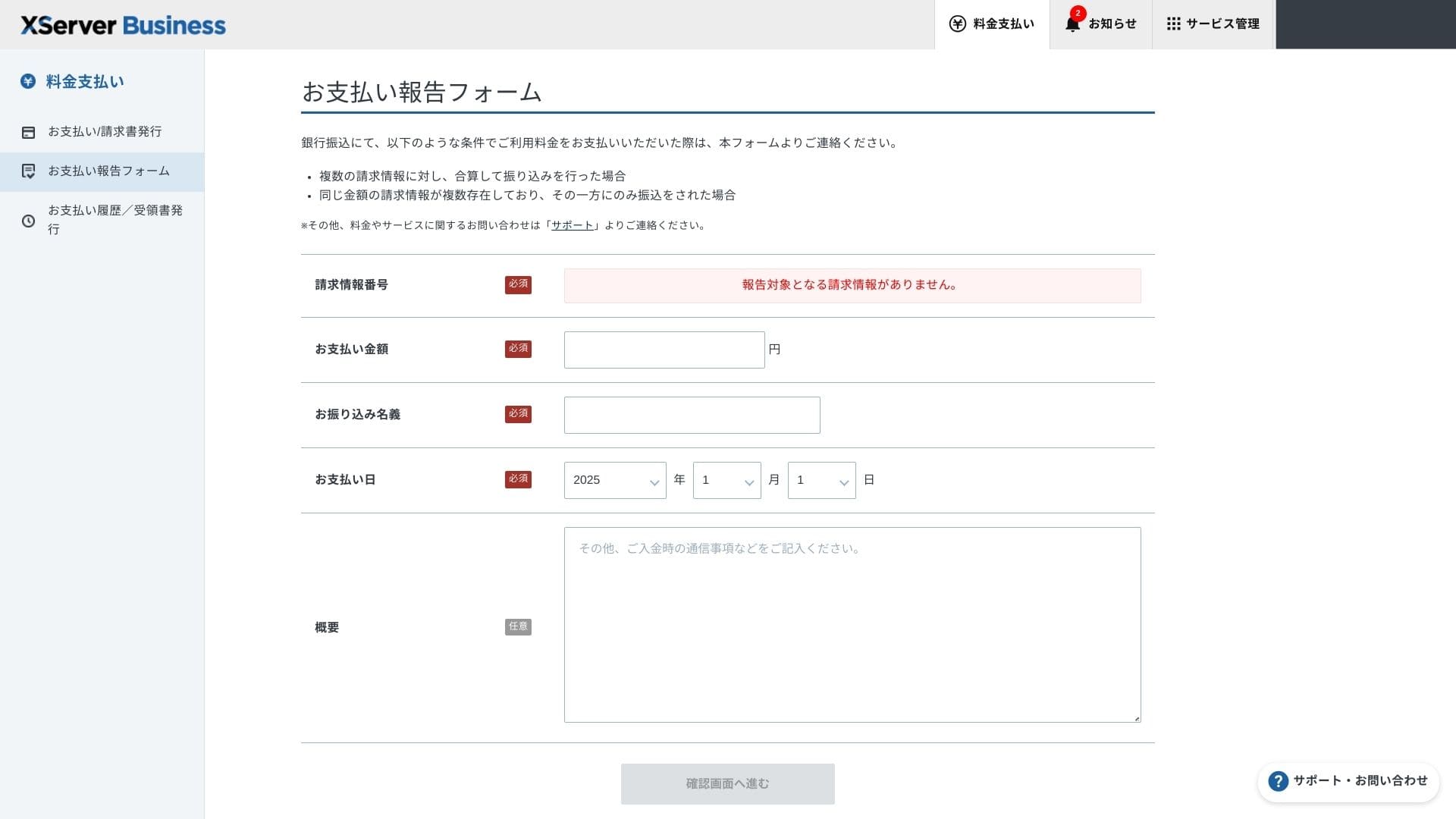
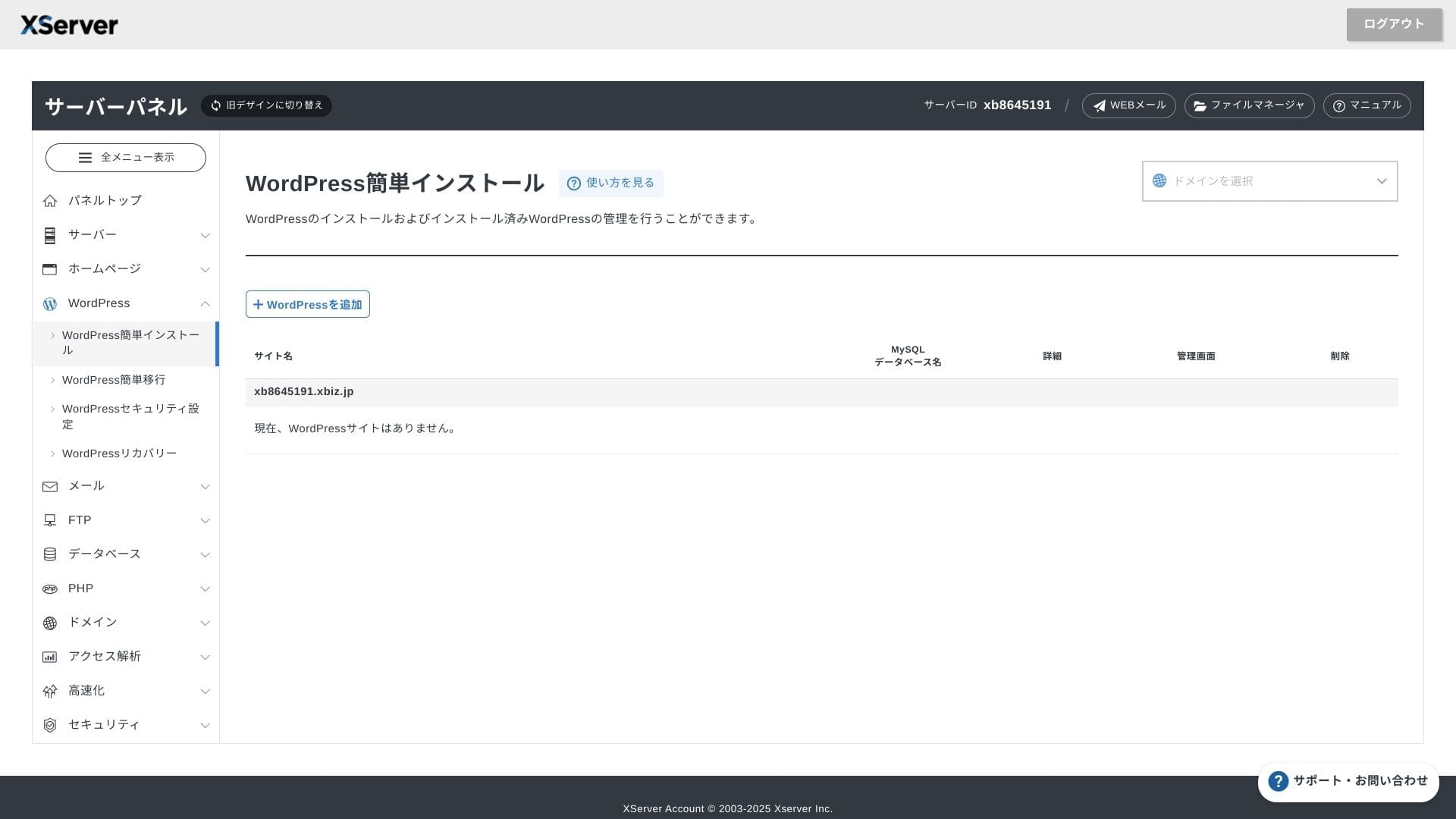
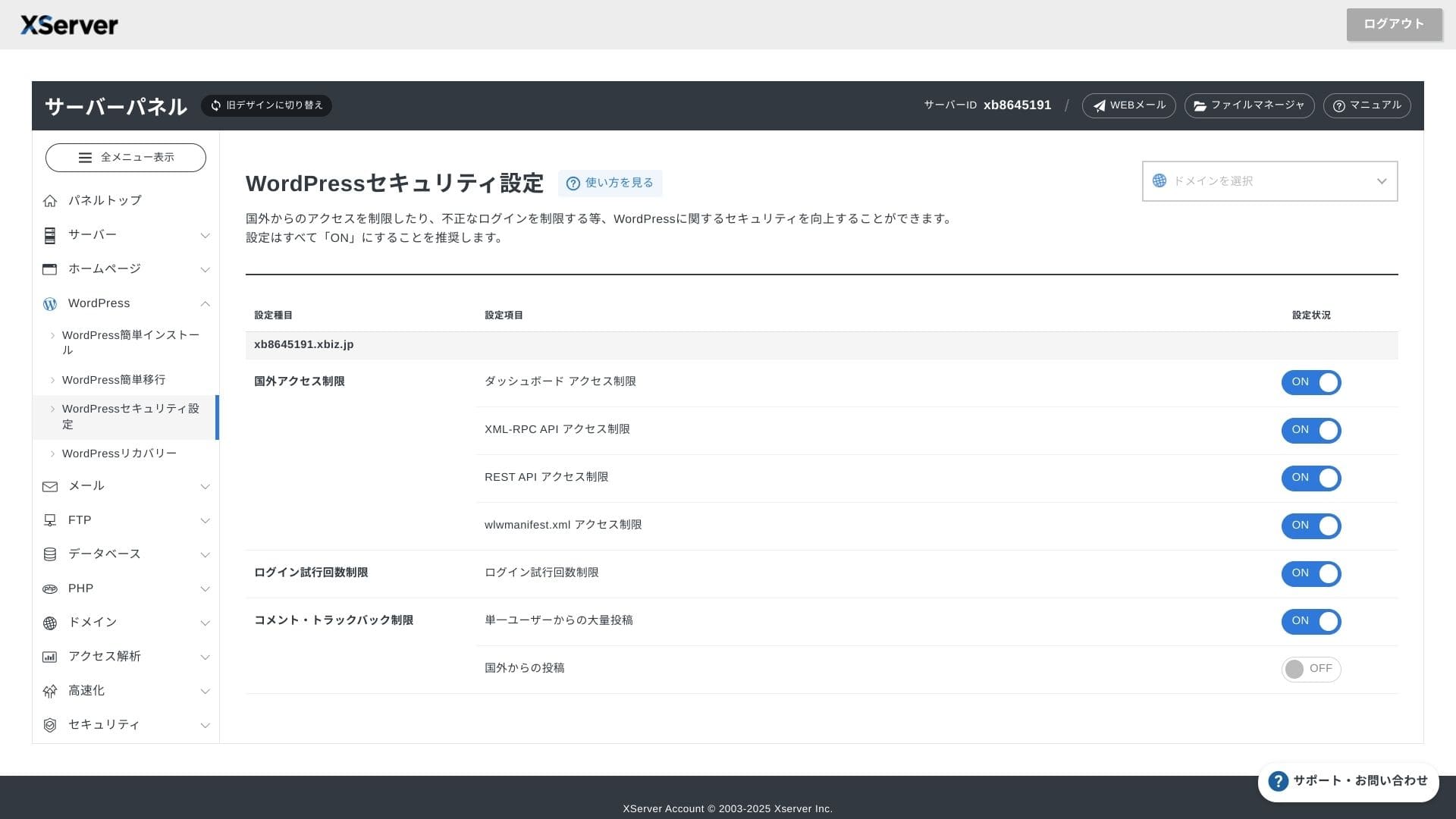
XServer Businessвыкарыстоўвае ўласны інтэрфейс, таму аперацыі з файламі, налады SSL і налады электроннай пошты выконваюцца ў адзін клік. Паколькі ў афіцыйнай дакументацыі ясна сказана, што наладка завяршаецца на працягу 24 гадзін, лёгка планаваць графік запуску.
Hikaru Ono
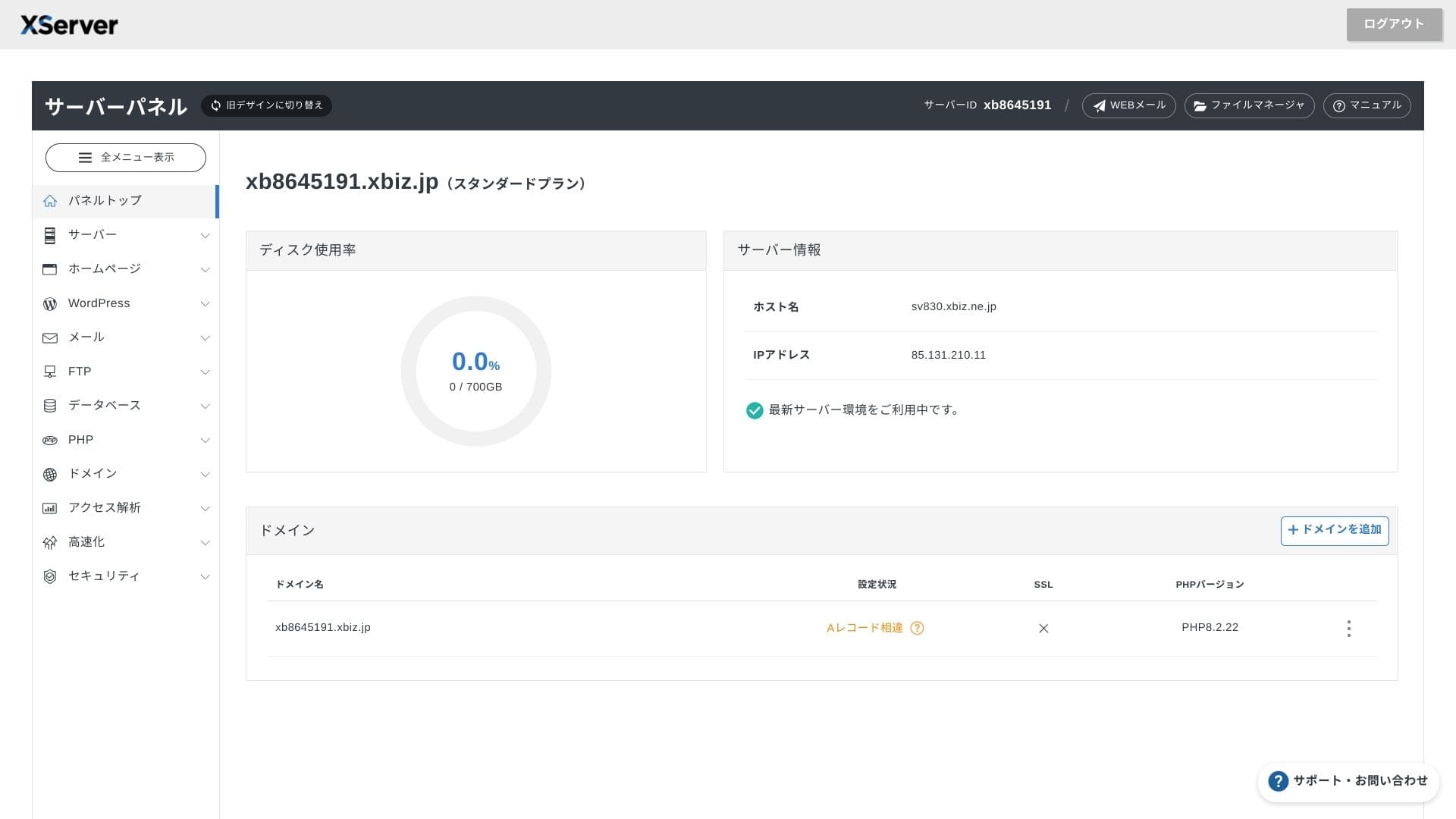
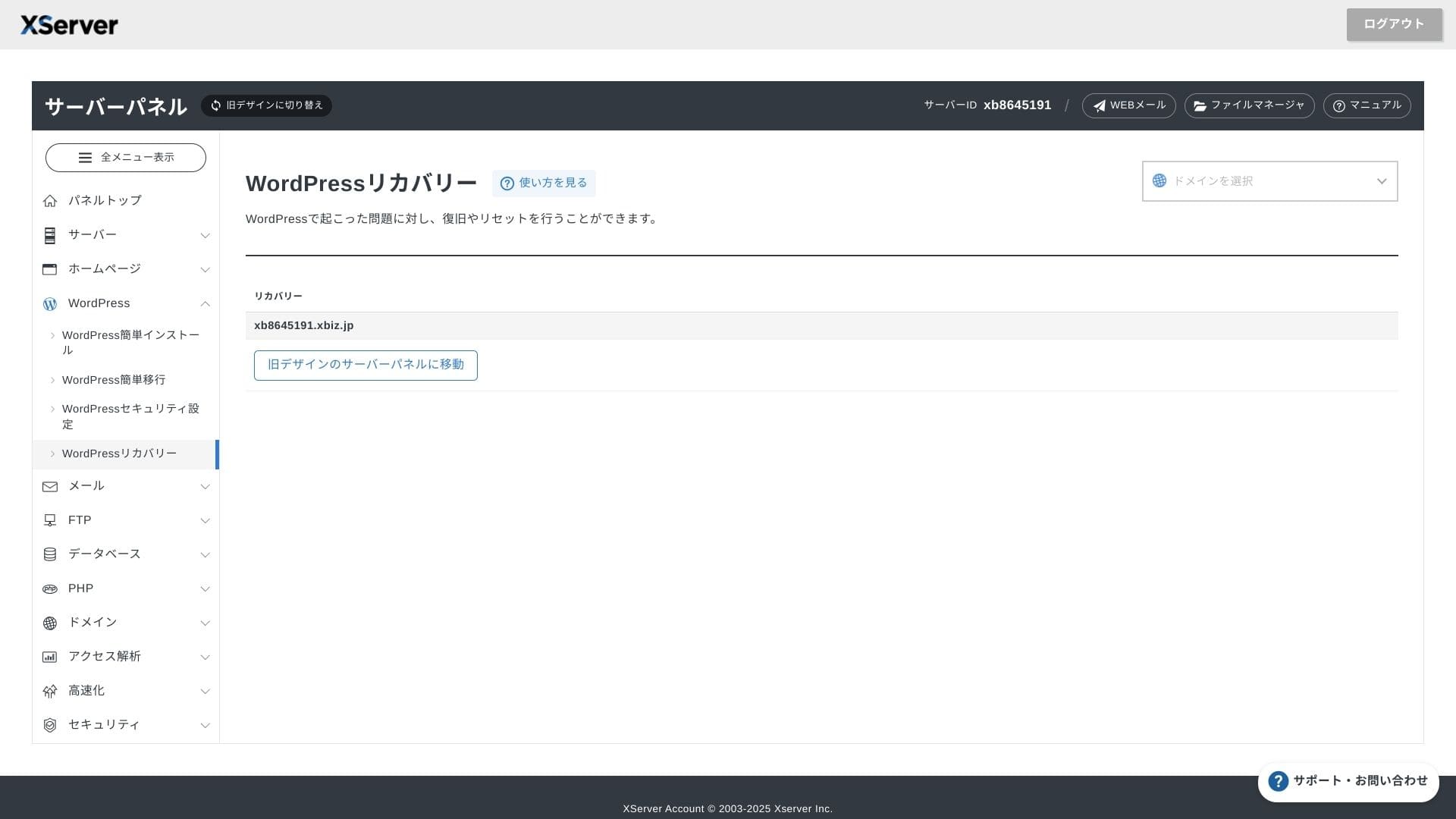
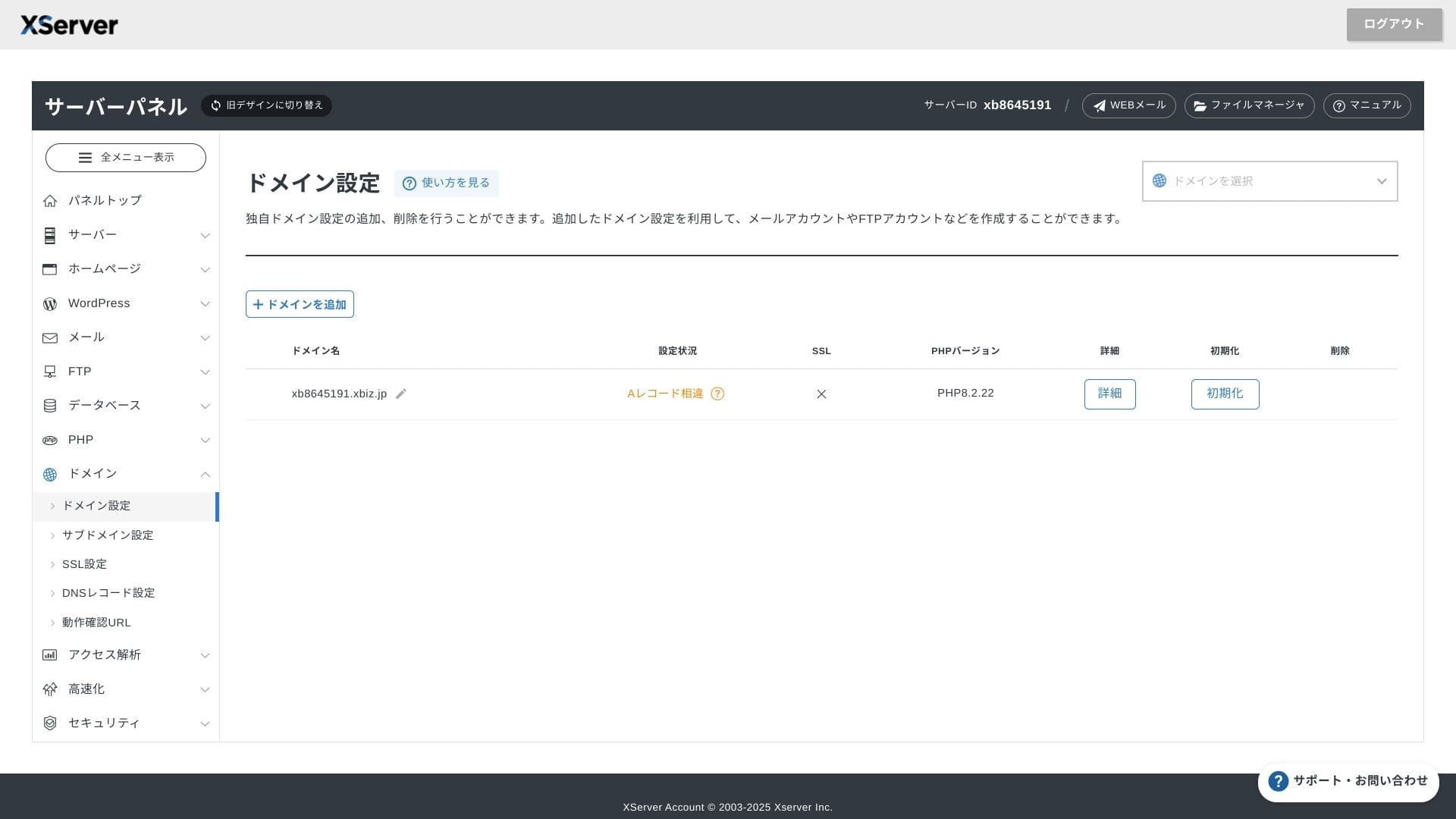
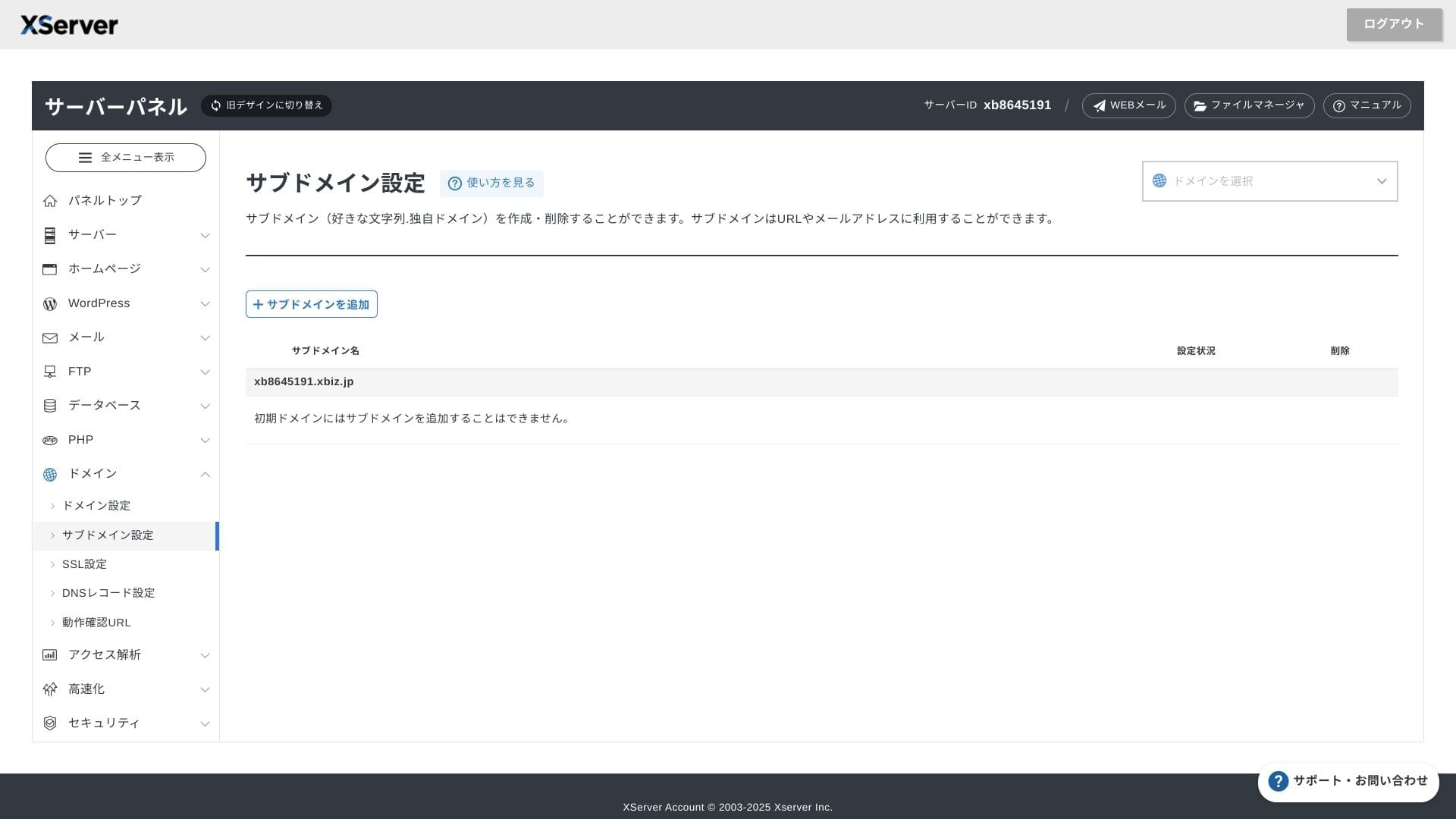
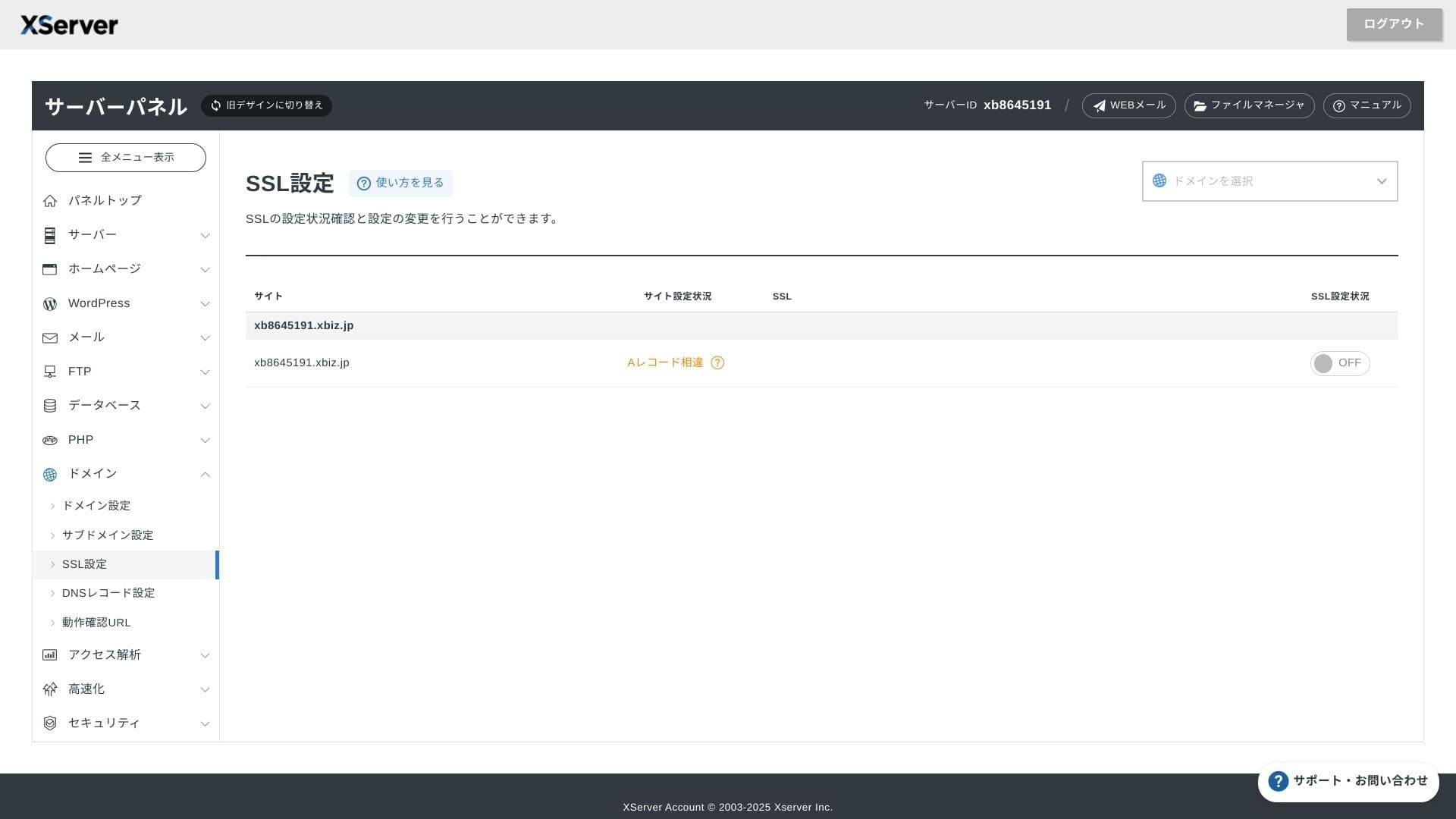
Серверная панэль была абноўлена і цяпер стала яшчэ прасцейшай у выкарыстанні.
- Галоўны экран
- Billing
- WordPress
- Domain
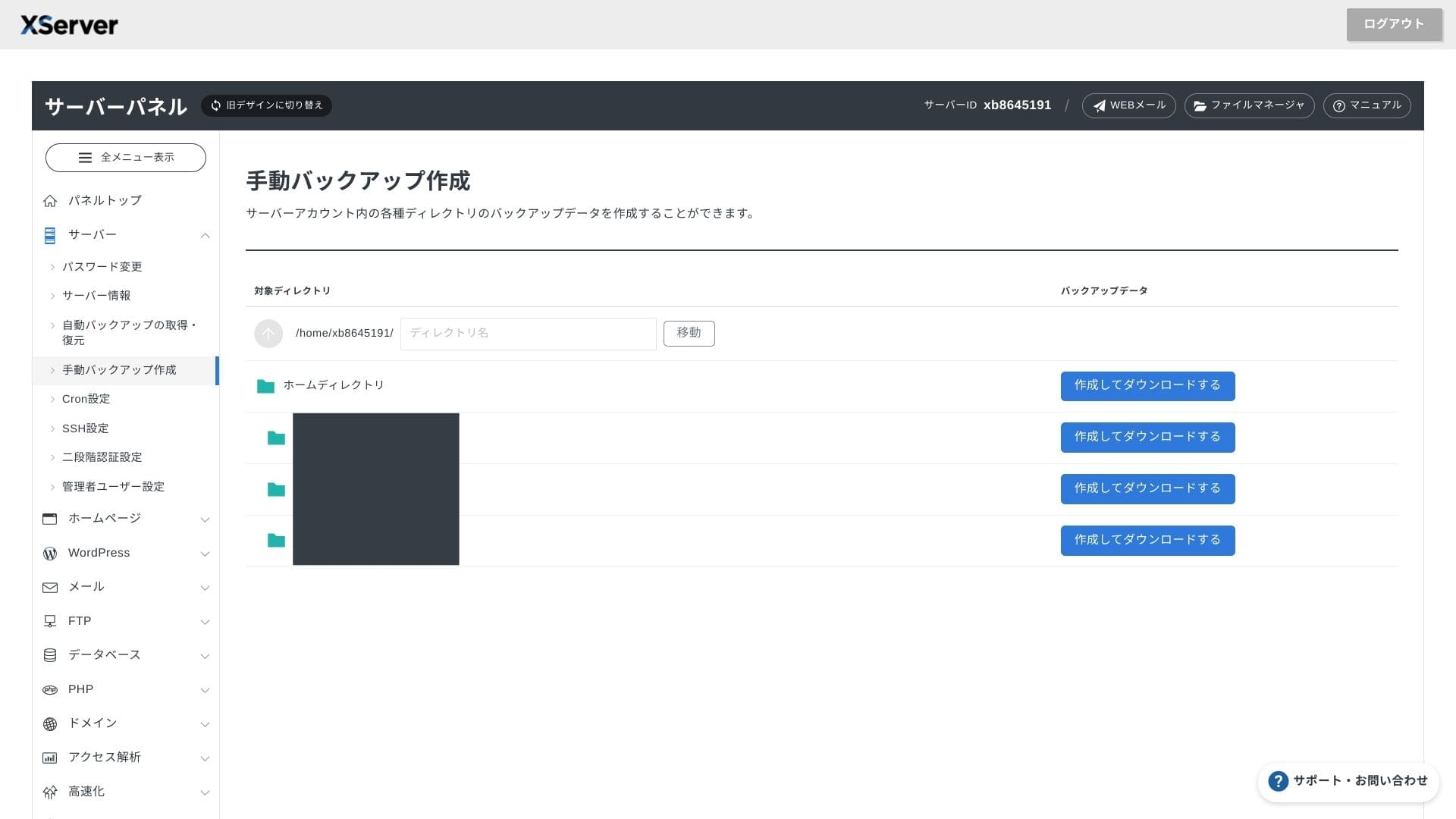
- Backup
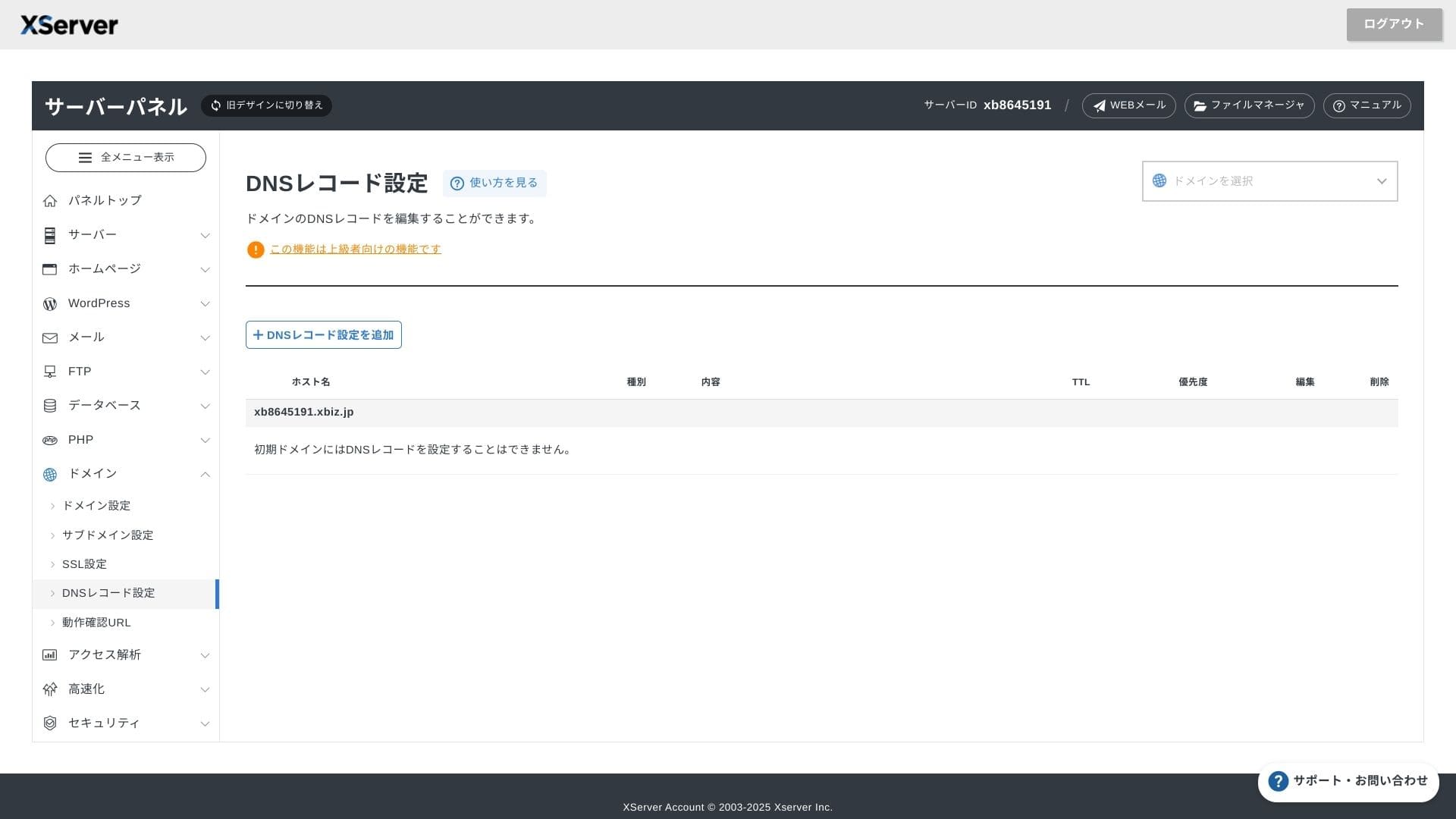
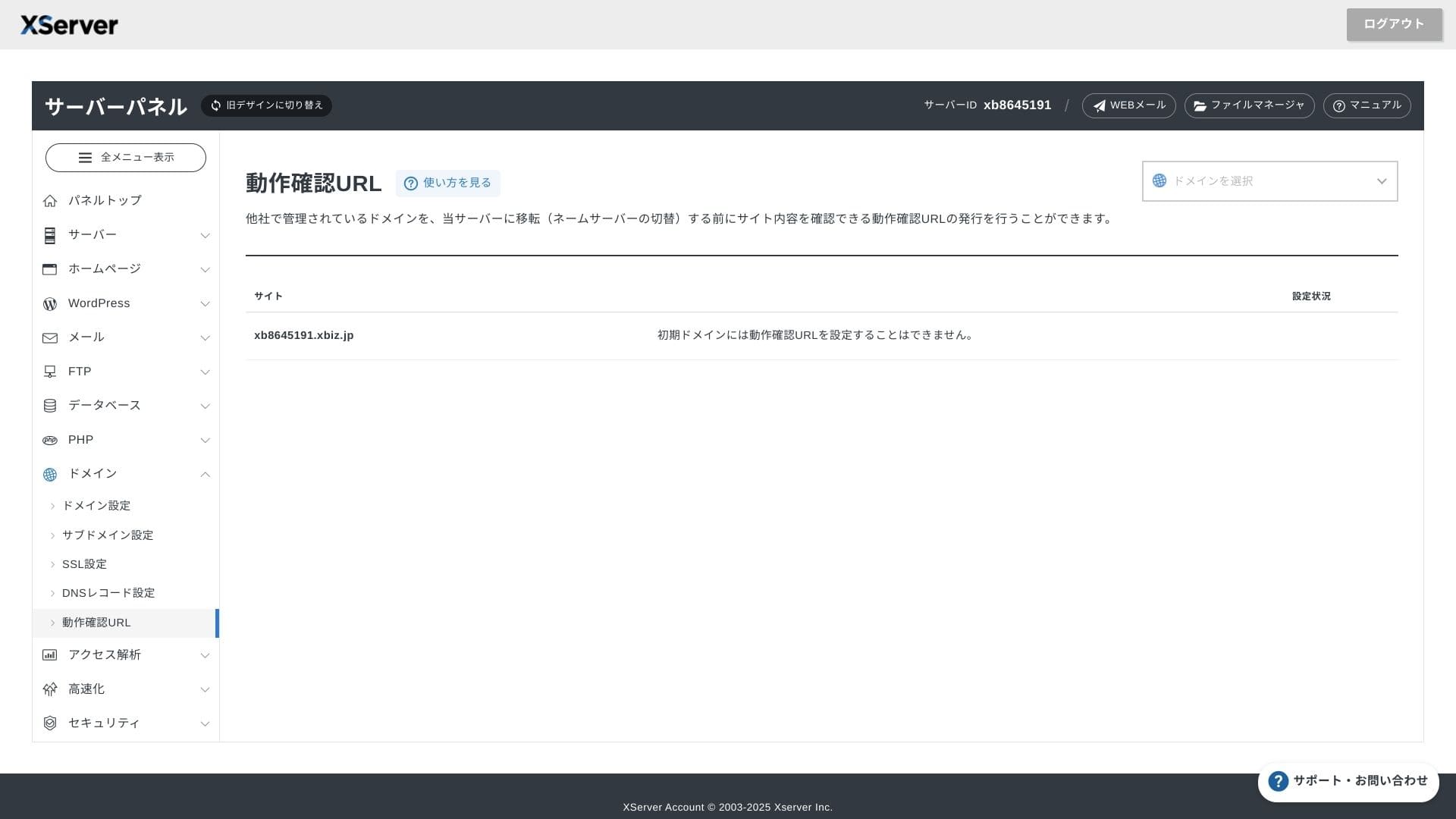
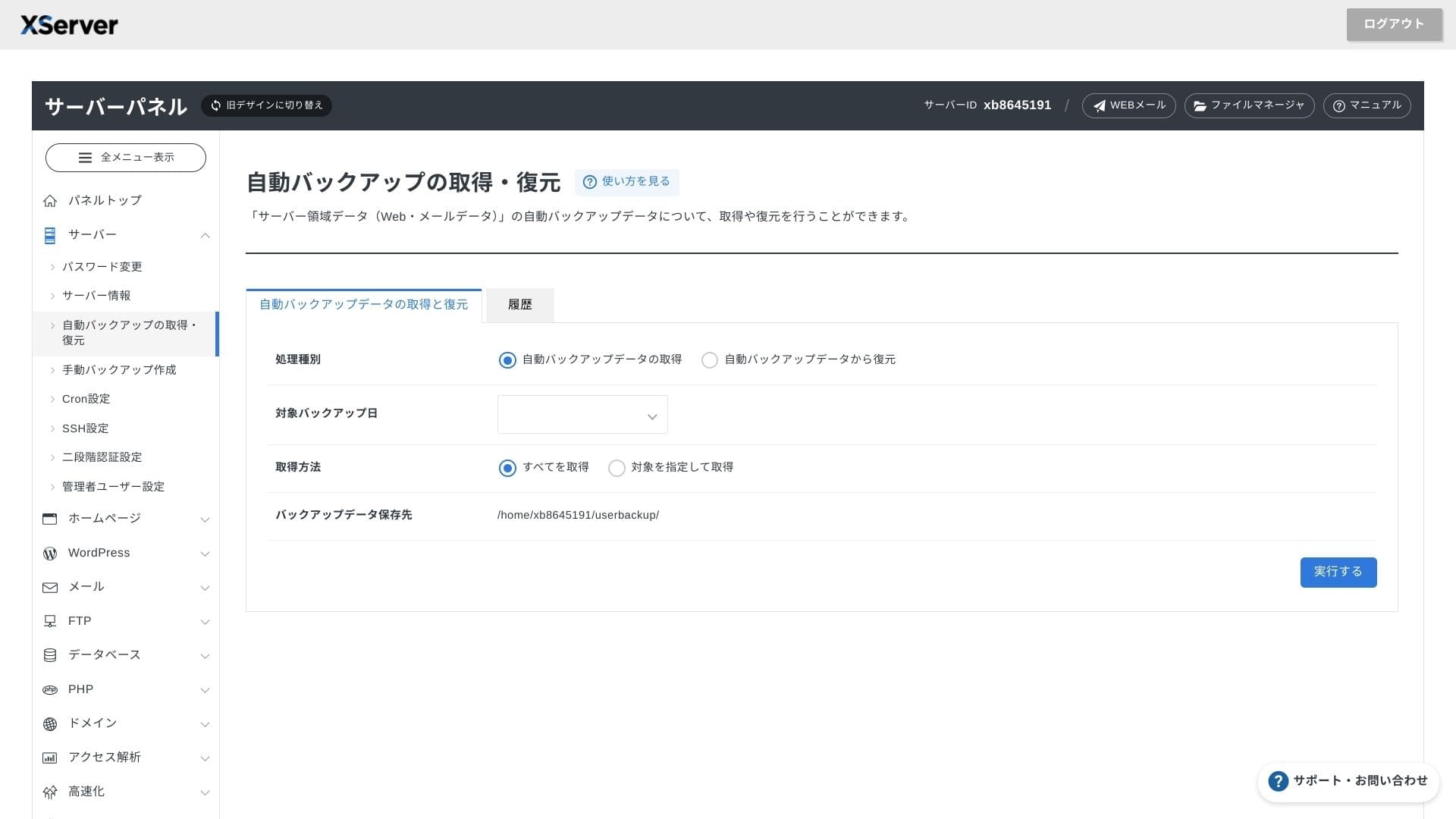
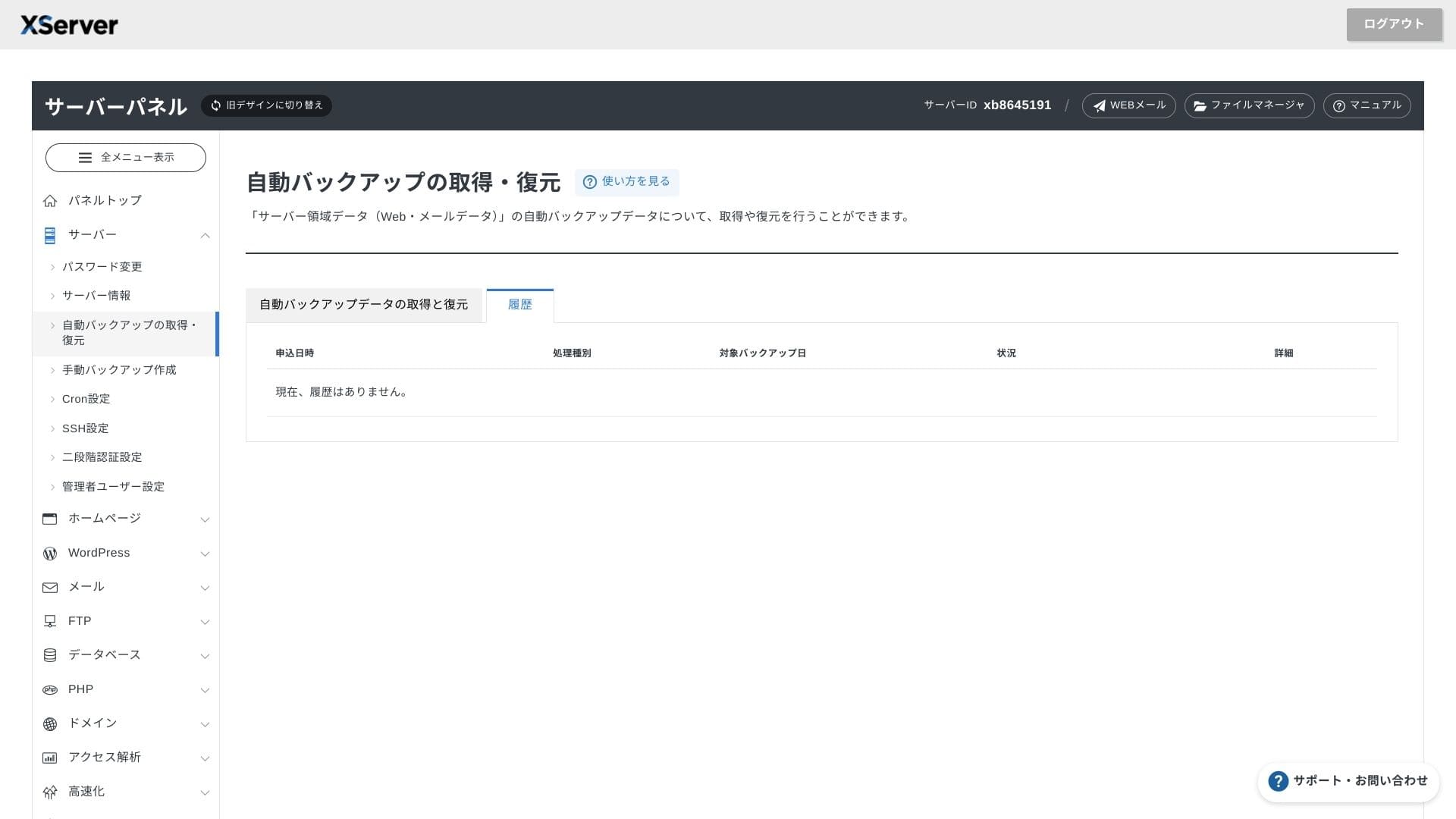
Support system
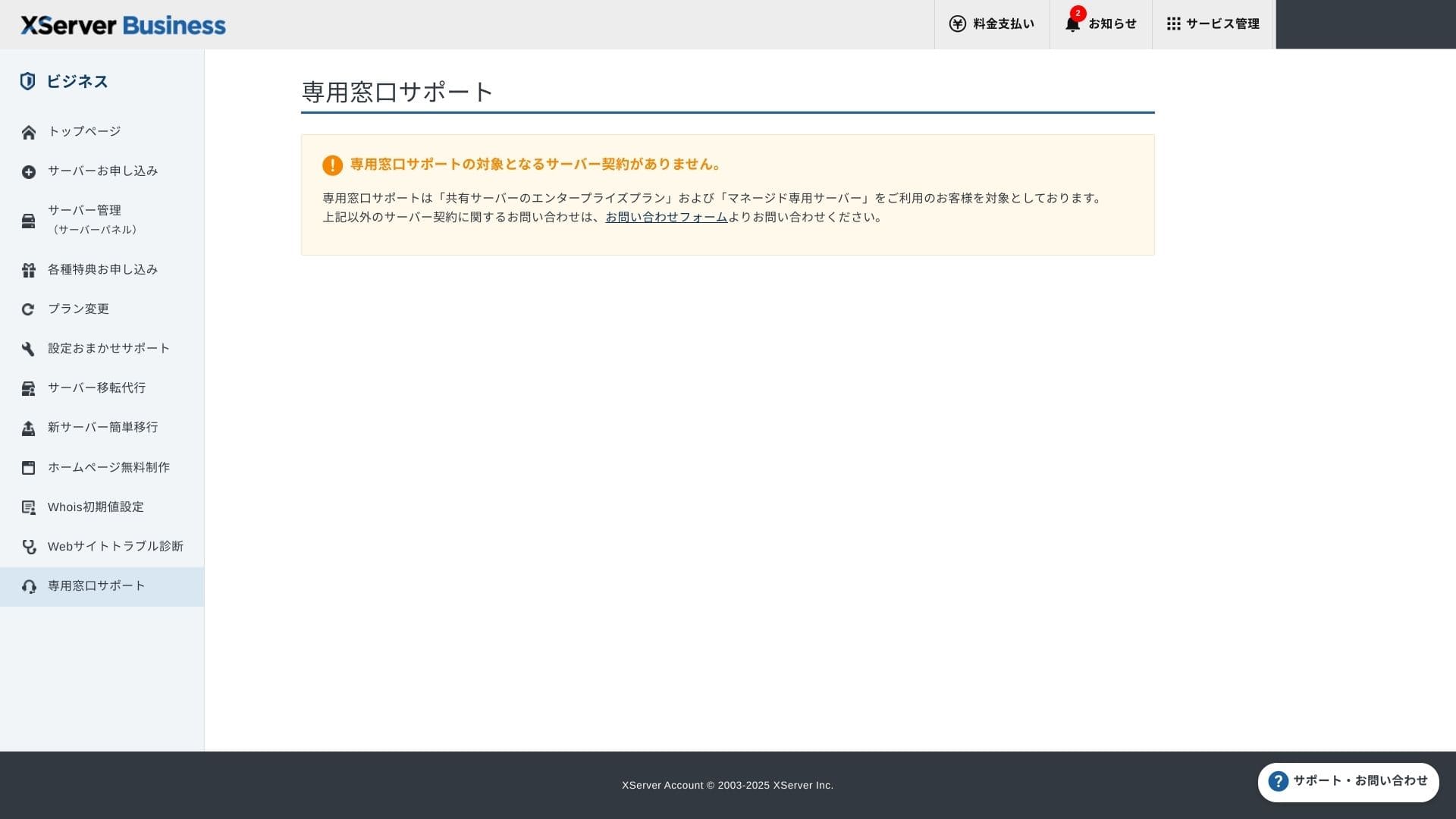
Падтрымка даступная па тэлефоне, email і ў чаце ў будні з 10:00 да 18:00. Агульны план Enterprise і кіраваныя серверныя планы таксама маюць асобныя службы падтрымкі, таму можна атрымаць яшчэ больш уважлівую і хуткую дапамогу.
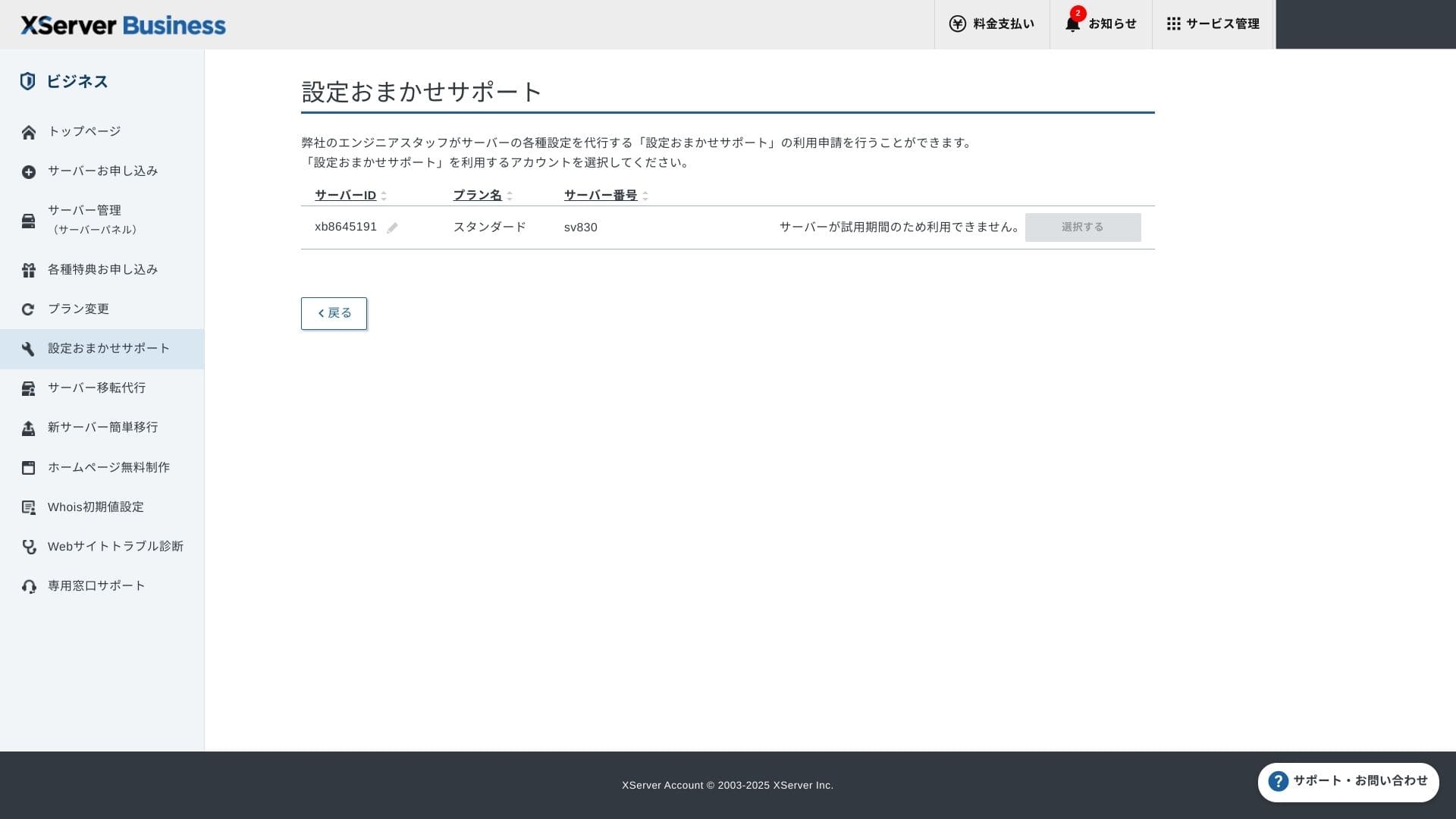
Падтрымка наладкі бясплатная і неабмежаваная, і можна запытаць усё: ад змяненняў DNS да налад Cron. Гэта дадае ўпэўненасці нават кампаніям без асобнага IT-супрацоўніка.
Managed services
Кіраваная паслуга пераносу сервера бясплатная пры першым выкарыстанні. Паколькі яна капіруе як цэлыя HTML-сайты, так і CMS-сайты, у яе добры досвед у праектах, якія хочуць пазбегнуць прастояў позна ўвечары або ў выхадныя.
Manuals and FAQs
Афіцыйны PDF-каталог ахоплівае ўсё: ад спосабаў аплаты да працэдур павышэння плана, і ў ім даволі лёгка шукаць. Думаю, многія карыстальнікі змогуць вырашыць праблемы самастойна, перш чым звяртацца ў падтрымку.
Email features
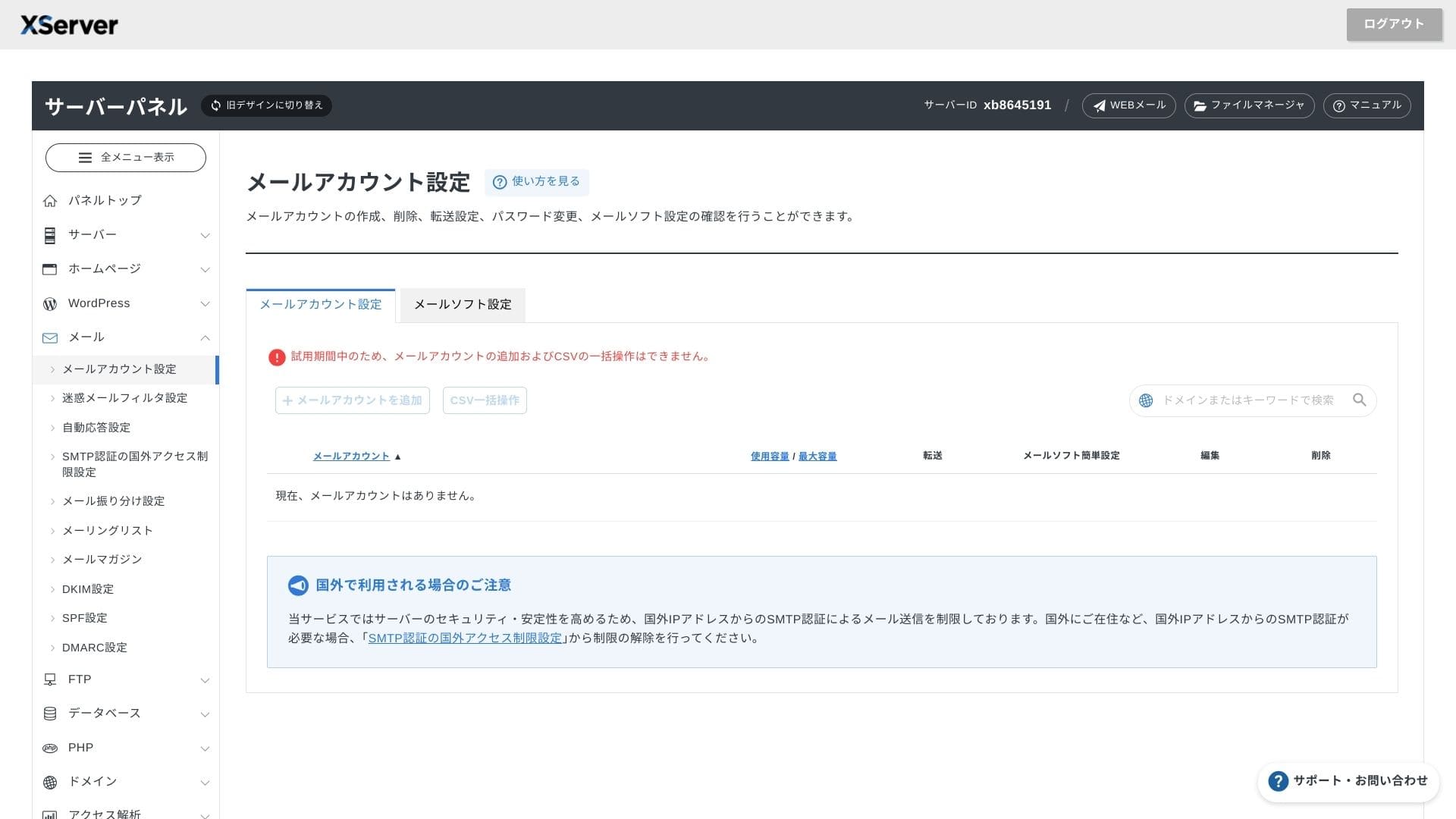
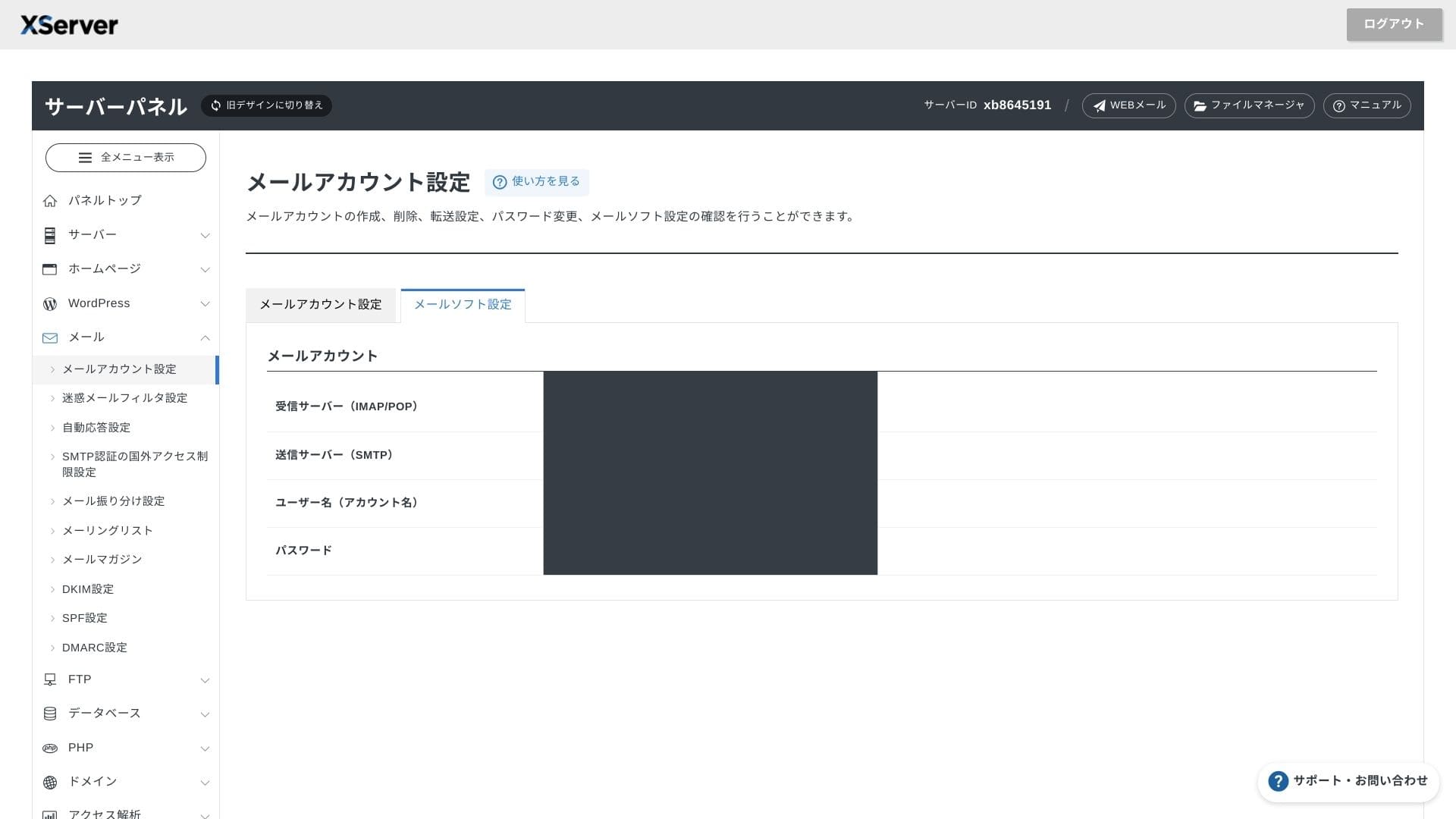
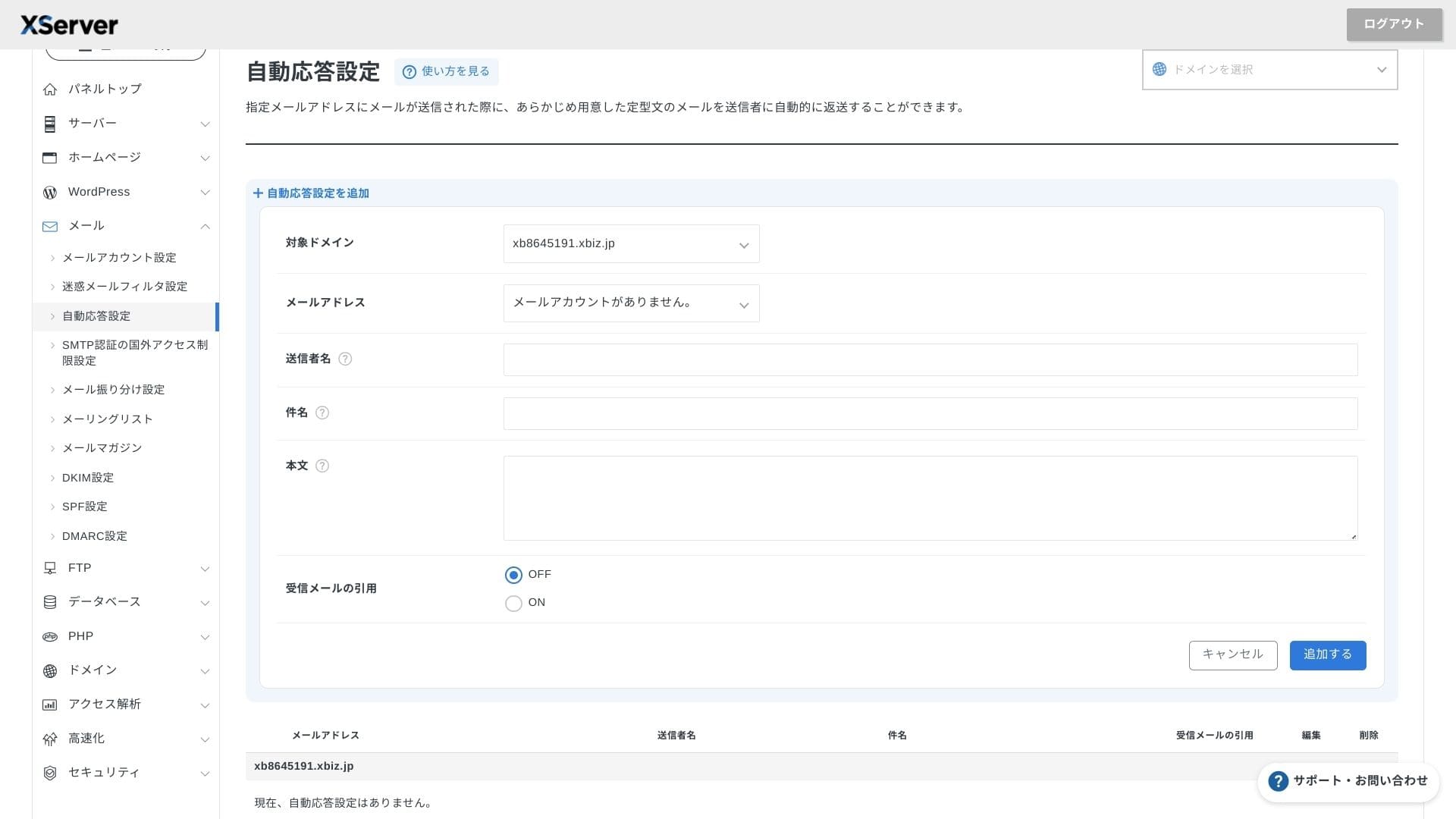
XServer Businessпрапануе неабмежаваную колькасць уліковых запісаў, а яго інтэрфейс webmail быў абноўлены вясной 2025 года, таму ім зручна карыстацца нават на смартфонах. Таксама ўключаны высокапрадукцыйны фільтр спаму на базе Cloudmark Authority, бясплатны да 1,000 уліковых запісаў, і кампанія заяўляе пра эфектыўнасць выяўлення больш за 99%.
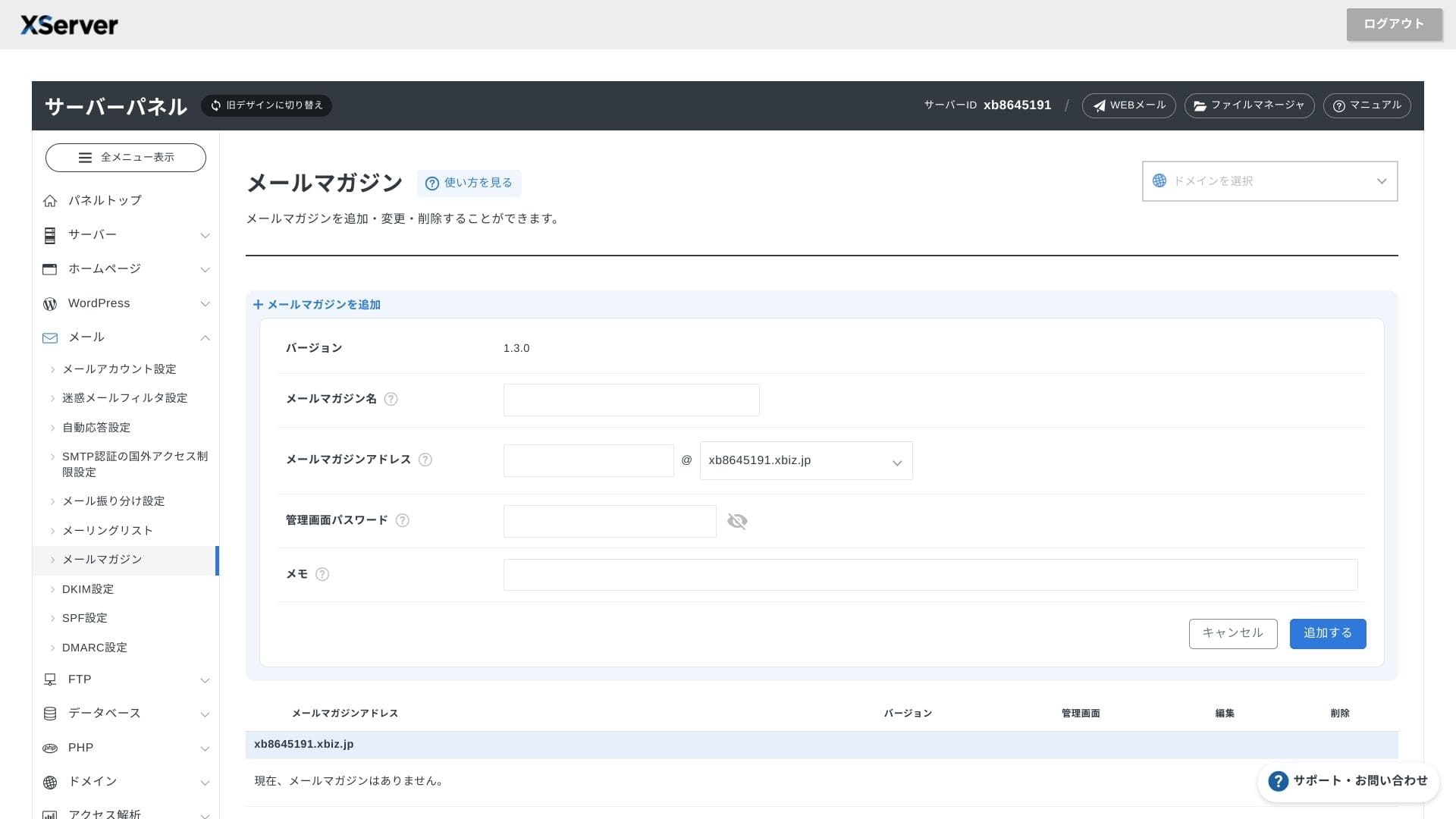
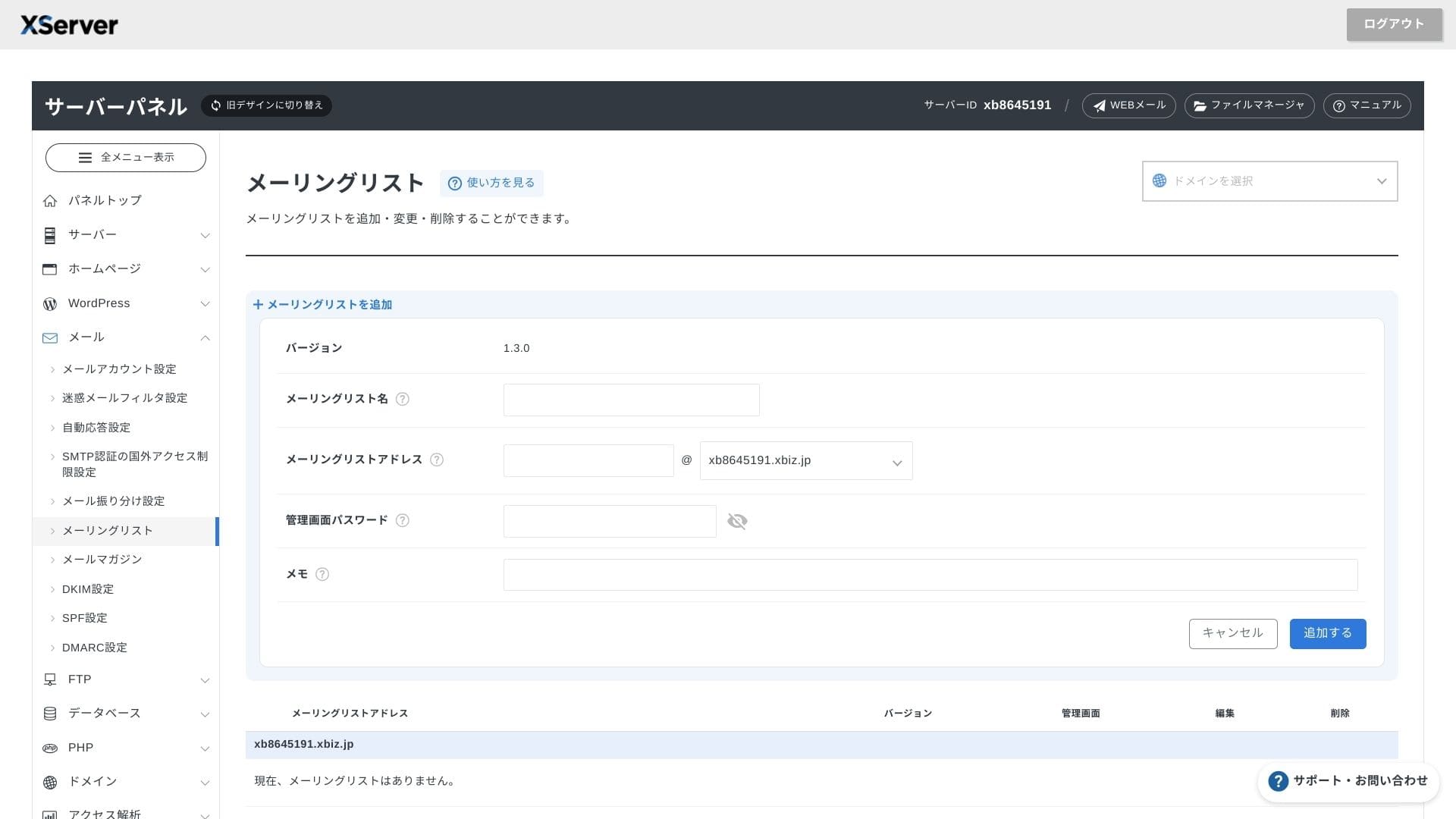
Таксама лёгка ствараць інфармацыйныя рассылкі і спісы рассылкі. Можна хутка адпраўляць абнаўленні кліентам або паведамленні ў пэўны аддзел унутры кампаніі.
Hikaru Ono
Як і чакаецца ад бізнес-сервера, функцыі электроннай пошты вельмі надзейныя.
Security and backups
Security measures
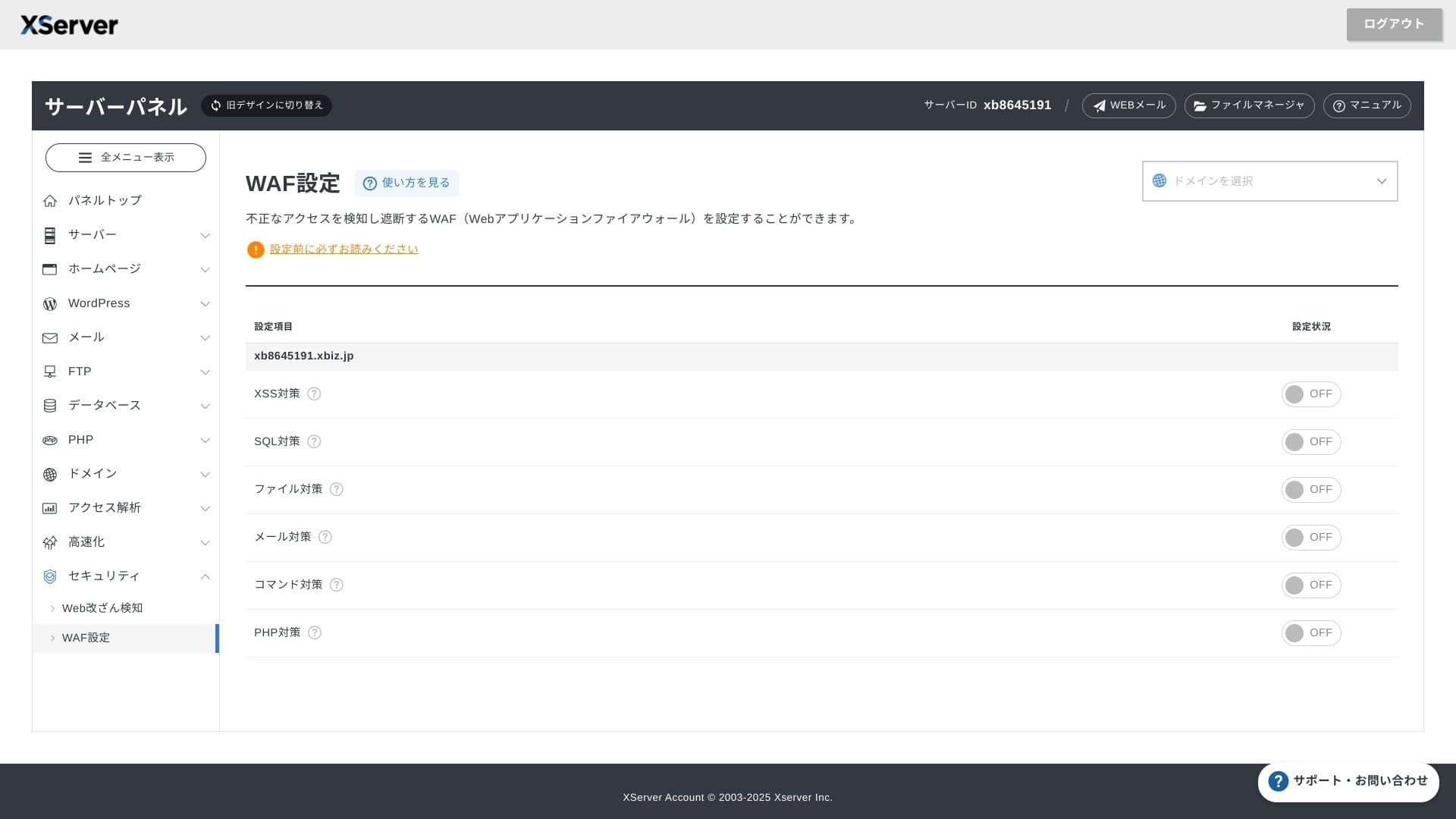
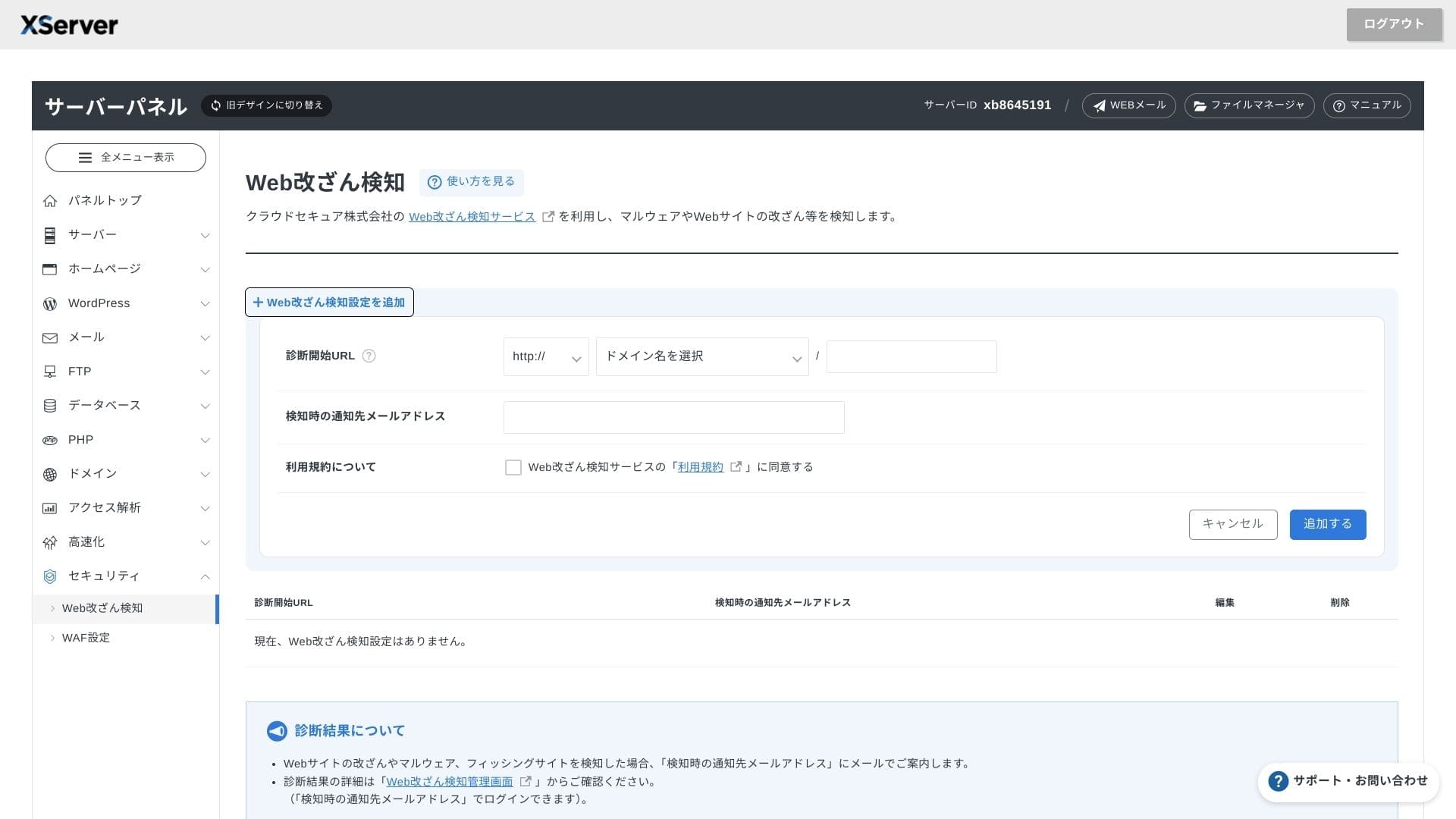
WAF і выяўленне падмены сайта ўваходзяць у стандартную камплектацыю. Сістэма аўтаматычна блакуе атакі на ўразлівасці і несанкцыянаваныя замены файлаў, а таксама адпраўляе email-апавяшчэнні, калі адбываецца нешта ненармальнае. Знешняя дыягностыка бяспекі ад Secom таксама прадастаўляецца адзін раз на год бясплатна.
Выкарыстанне выяўлення падмены сайта дапамагае пазбегнуць сітуацый, калі вы не заўважаеце праблему і дазваляеце ёй пагоршыцца.
Automatic backups
На кожным плане вэб-, паштовыя і даныя баз даных за апошнія 14 дзён аўтаматычна рэзервуюцца кожны дзень. Іх можна бясплатна аднавіць адным клікам з панэлі, што зніжае выдаткі на аднаўленне пасля памылак або заражэння шкоднасным ПЗ.
Comparison with competing business rental servers
Summary
XServer Businessгэта арыентаваны на бізнес арэндны сервер, які ў адным сэрвісе забяспечвае хуткасць, бяспеку і аперацыйную падтрымку.
- Малы і сярэдні бізнес, які хоча кіраваць некалькімі сайтамі і перадаць інфраструктуру на аўтсорсінг
- Спецыялісты, якія вядуць DX-задачы паралельна з іншымі абавязкамі і хвалююцца праз памылкі ў наладах
- Каманды, якія чакаюць росту трафіку ў будучыні, але не хочуць эксплуатацыйных выдаткаў узроўню AWS
У такіх выпадках аддача можа лёгка перавысіць розніцу ў штомесячным кошце. З іншага боку, калі вам патрэбна толькі адна статычная старонка або вы хочаце запускаць уласную платформу, якой патрэбны root-доступ, лепш разгледзець таннейшы агульны сервер або VPS.
У выніку разумны падыход - перавесці выдаткі на персанал і рызыку прастою ў грошы, а потым вырашыць, ці XServer Businessварты сваёй штомесячнай платы.
"XServer Business" - гэта бізнес-хостынг ад Xserver Inc., кампаніі з найбольшай доляй рынку ў Японіі. У нашых вымярэннях ён заняў 2-е месца па хуткасці. Гэта адзін з найлепшых выбараў, калі трэба перайсці на новы сервер, да таго ж міграцыя таксама бясплатная.
Да 7 кастрычніка 2025 года пачатковая плата (звычайна ад 16,500 да 385,000 іен) не спаганяецца, і паслуга пераносу сервера таксама бясплатная